Signing in with Passkeys
Overview
Passkeys let you sign in to Ramp without a password by using your device's built-in security — such as a fingerprint, face scan, or screen lock. Unlike passwords, passkeys cannot be phished, reused, or guessed.
Ramp supports passkeys for signing in and, when offered, verifying your identity during sensitive actions.
Passkey setup and management are only available on the web version of Ramp, not the mobile app. However, passkeys you create on the web can be used to sign in from supported mobile devices. For a visual walkthrough, watch our passkey setup video.
Set up a passkey from settings
You can register up to 6 passkeys on your Ramp account. We recommend registering 2–3 across different devices or password managers so you always have a backup if one is unavailable.
- Open Personal security.
- Select Configure a passkey.
- If you already have a passkey, select Add passkey.
- Choose an enrollment option:
- Phone — scan a QR code to register a passkey from your phone.
- This device — register Touch ID, Windows Hello, or a password manager such as 1Password or Google Password Manager.
- Security key — register a security key such as a YubiKey.
- Follow your device's prompts to complete enrollment.
- Name your passkey. When Ramp recognizes your device or provider, we pre-fill a suggested name. You can change it to something you will recognize later.
Note: In Safari, Ramp skips the enrollment option picker and starts setup for the current device.
Set up a passkey at sign-in
After you sign in with your password, Ramp may show a full-screen page titled Faster sign-in next time inviting you to create a passkey.
- On the upgrade page, select the option to create a passkey.
- If prompted, complete an MFA verification step.
- Follow your device's prompts to enroll the passkey.
- Name the passkey when prompted.
You can dismiss this page if you prefer not to set up a passkey at that time.
Sign in with a passkey
On the Ramp sign-in page, select the passkey option. Your browser prompts you to choose a passkey and verify with your device's security (fingerprint, face scan, PIN, or security key). Signing in with a passkey replaces the need for a separate password and MFA step.
Verify your identity with a passkey
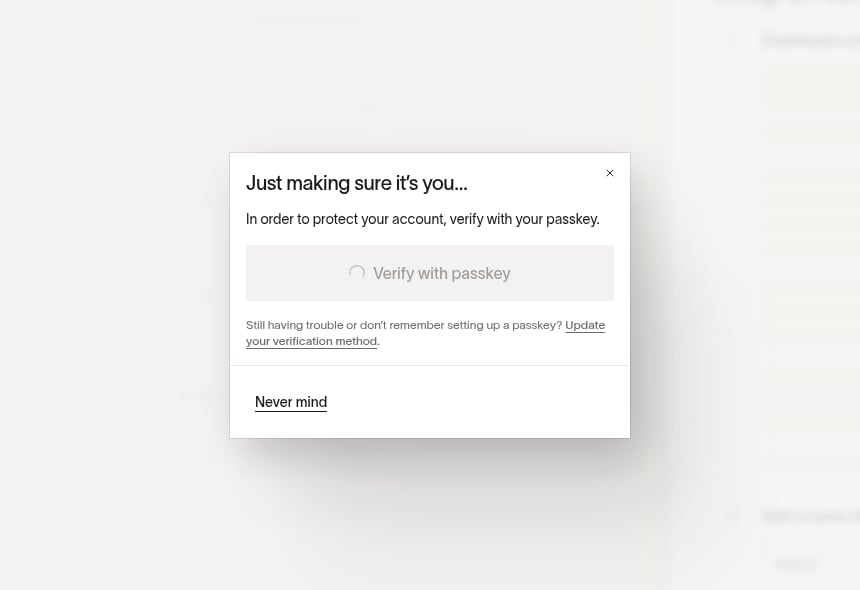
Some actions in Ramp require additional identity verification (step-up verification). When this happens, Ramp asks you to confirm your identity using one of the methods shown, which may include a passkey.
If you signed in with a passkey, Ramp normally asks for a different verification method during step-up. Some high-security actions can require a fresh passkey verification instead. A second passkey does not count as a different MFA method, so keep another MFA method active.
If you cannot use any of the methods shown, begin the account recovery process.
Manage your passkeys
Open Personal security. Under your passkeys, you can see each passkey's name and creation date. The provider and last-used date appear when available.
Rename a passkey
Use Rename passkey next to a passkey. Use descriptive names (such as "Work laptop" or "YubiKey backup") so you can identify each passkey later.
Remove a passkey
Use Remove passkey next to a passkey. You are asked to confirm: "Remove passkey? Removing your passkey called [name] cannot be undone." After removal, attempting to use that passkey produces the error: "Failed to authenticate: that passkey is not registered on Ramp."
Troubleshoot passkey issues
Passkey not working on a new device
If your passkey was stored in a platform authenticator (such as Touch ID or Windows Hello), it may not be available on a different device. Try one of the following:
- Use a passkey stored in a cross-platform password manager (1Password, Google Password Manager) that syncs across devices.
- Use the Use phone or security key option at sign-in to authenticate via QR code from a phone that has your passkey.
- Sign in with your password and another MFA method, then register a new passkey on the new device.
Passkey stored in an old password manager
If you switched password managers, your passkeys from the previous one may no longer be accessible. If password sign-in is available for your account, sign in with your password and another MFA method, then register new passkeys in your current password manager. If password sign-in is not available, start the account recovery process to regain access and re-register your passkeys.
Safari limitations
Safari does not support the Use phone or security key option. If you need to register a security key (such as a YubiKey), use Chrome or Edge instead.
"Screen lock required" error
Your device does not have a screen lock enabled. Passkeys require your device to be secured with a PIN, fingerprint, or face unlock. Enable a screen lock in your device settings and try again.
Bluetooth issues with cross-device authentication
If you are scanning a QR code to authenticate from a phone, make sure Bluetooth is enabled on both devices. The phone and computer communicate over Bluetooth to complete the verification.
Browser extension conflicts
Password manager extensions (1Password, Bitwarden, etc.) may intercept the browser's passkey prompt. If you see an unexpected dialog or the flow does not complete, check whether an extension is handling the prompt, or temporarily disable it to use the browser's built-in passkey manager.
"Your browser doesn't support passkeys"
Update your browser to the latest version. Passkeys require recent versions of Chrome, Safari, Edge, or Firefox.
Lost access to all passkeys
If password sign-in is available for your account, sign in with your password and another MFA method, then open Personal security to register new passkeys. If you cannot sign in at all, use Ramp's account recovery process to reset your MFA methods.
Frequently asked questions
How many passkeys can I set up?
Up to 6 per Ramp account.
Does Ramp store my biometric data?
No. Your biometric data stays on your device and is not sent to Ramp.
What devices support passkeys?
- Apple: iOS 18+, iPadOS 18+, macOS Ventura or later.
- Google: Android 9+ (with Google Play Services), ChromeOS.
- Microsoft: Windows 10+ with Windows Hello enabled, using Edge or Chrome.
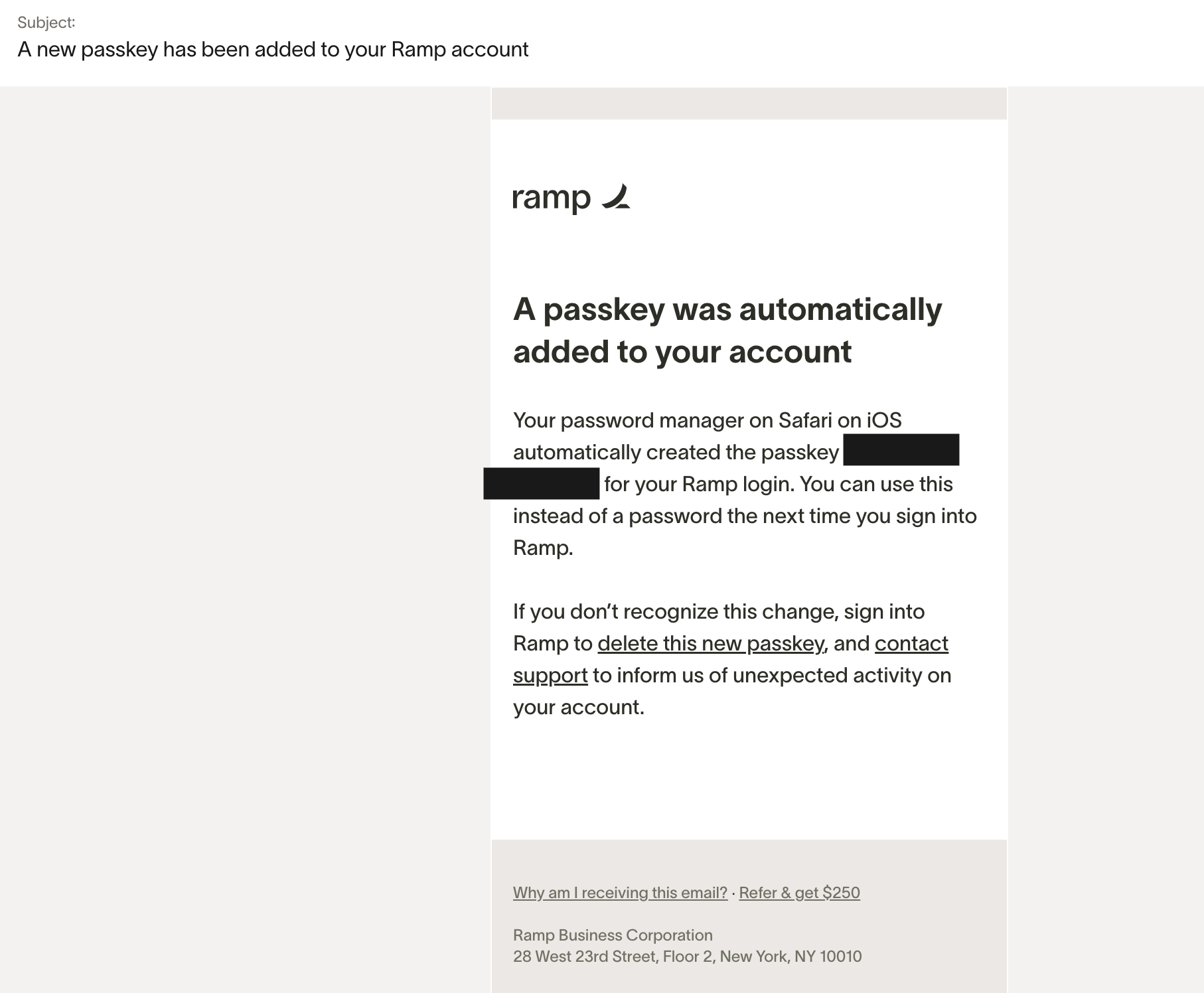
Why did Apple automatically create a passkey for my Ramp account?
Apple's password management system may automatically opt you into passkey creation. You receive a confirmation email from Ramp when this happens. To remove it, open Personal security, find the passkey labeled "Apple Passwords," and use Remove passkey.
Can my admin require passkeys?
Admins cannot independently require passkeys for specific roles. A user must have a registered passkey, and Password sign-in must be available for their account, before they can sign in with a passkey. Admins can review MFA settings for more details.
Why am I only seeing passkeys for verification?
You are likely performing a high-security action or your admin has configured passkeys as a required verification method. If another MFA method is available, try it. Otherwise, start the account recovery process.
Why should I use passkeys instead of a password?
Passkeys are a FIDO credential resistant to phishing, always strong, and faster to use than a password plus OTP. If your business does not use SSO, passkeys are the most secure way to sign in to Ramp.