Multi-factor authentication (MFA) overview
Overview
Multi-factor authentication (MFA) adds an extra layer of security to your Ramp account by requiring additional identity verification. Ramp uses MFA for supported sign-in and step-up verification flows. Whether Ramp asks for MFA depends on your sign-in method and the security context.
This article covers how MFA works at Ramp, the available verification methods, and when you can expect to be prompted. If you have lost access to your MFA method, see Recover or update your MFA method.
MFA methods
Ramp supports the following verification methods, listed from most to least secure:
- Authenticator app (TOTP) — Apps like Google Authenticator or Twilio Authy generate time-based codes. You can register up to 5 authenticator apps per account.
- Phone (SMS, voice call, or WhatsApp) — Ramp sends a code via SMS to your phone number on file. If SMS does not reach you, voice call and WhatsApp are available as fallback options.
- Email — A code is sent to your registered email address. At sign-in, this is the default when you have no phone number or authenticator app on file.
Passkeys are not used for sign-in-time MFA because you already verified your identity by using the passkey to sign in. Passkeys can still be used for step-up verification during sensitive actions.
When Ramp asks for MFA
Ramp prompts for MFA in these situations:
At sign-in with a password
When you sign in with your email and password from a new or untrusted device, Ramp always requires MFA.
MFA is not required at sign-in when you use a passkey because your identity is already verified.
After SAML SSO
Ramp does not require an additional Ramp MFA check when you sign in through SAML SSO. Any MFA completed before Ramp receives the SAML assertion is controlled by the identity provider that issues it. If your SAML sign-in flow requires MFA before users access Ramp, configure that requirement there.
After Google SSO (conditional)
If you sign in with Sign in with Google, Ramp may occasionally require MFA based on your account's security profile and sign-in activity.
Step-up verification (sensitive actions)
Even after you are signed in, Ramp may ask you to re-verify your identity before performing certain sensitive actions, such as viewing payment details or changing account settings. This requires fresh verification using one of the methods Ramp offers, such as a passkey or verification code. The Trust this device setting does not bypass step-up verification.
Verify your sign-in
When MFA is triggered, Ramp shows a verification screen with the methods that are eligible for that verification. When more than one method is available, you can switch between them from the same screen.
If you are having trouble receiving your code, the verification screen offers contextual help options, including resending the code or switching to a different delivery method.
For ongoing issues receiving SMS codes, see Troubleshooting Ramp verification codes. For other sign-in issues, see Troubleshooting Ramp sign-in and MFA issues.
Trust this device
On the MFA verification screen, you can check Trust this device? to reduce how often you are prompted at sign-in. When enabled:
- The trust lasts for a limited period, after which you are prompted again.
- Trust can be reset by certain account security actions, such as changing your password.
- Trust applies only to sign-in-time MFA. It does not satisfy step-up verification for sensitive actions.
Use this option only on your personal computer or mobile phone — not on shared or public devices.
Set up an authenticator app
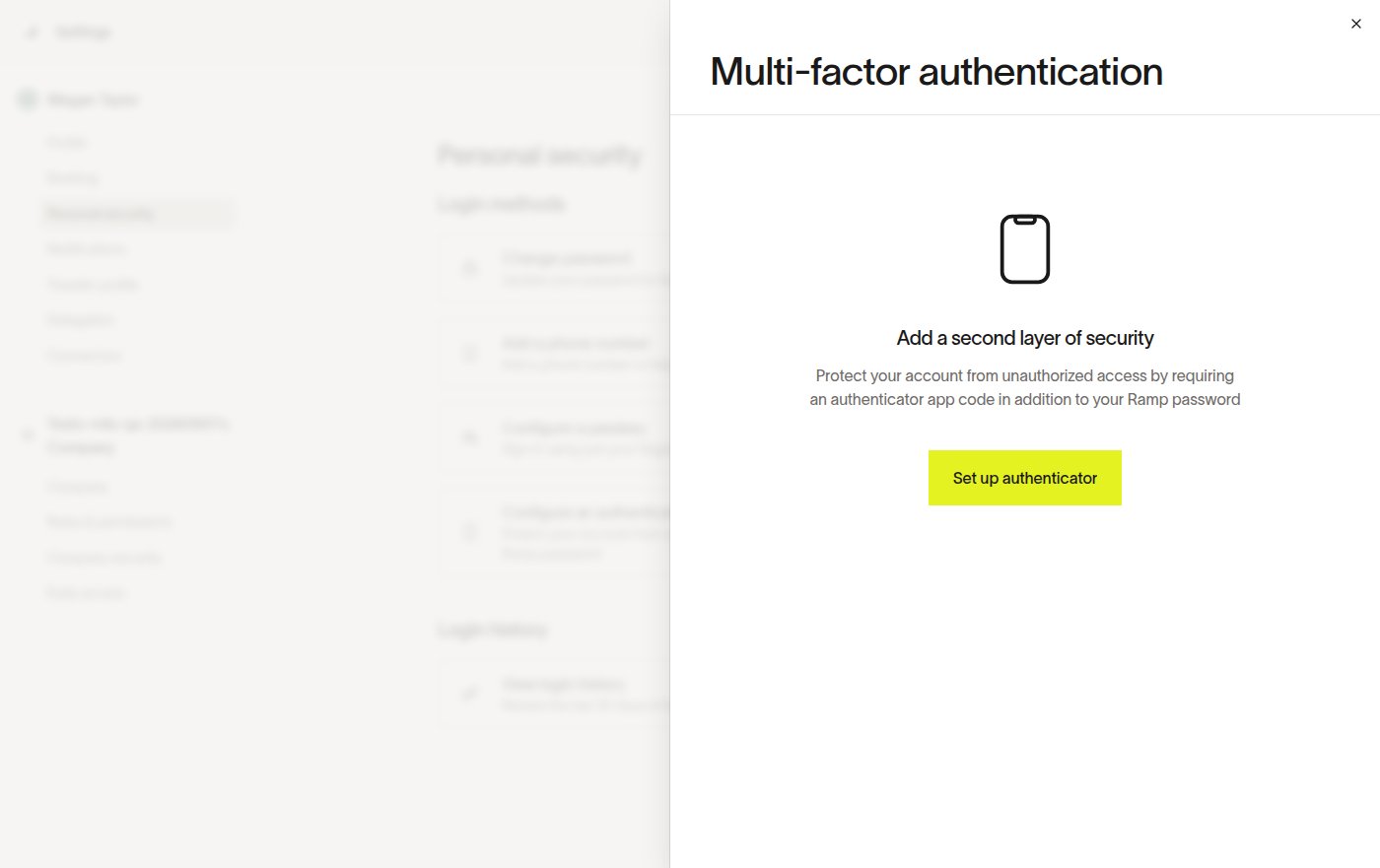
Authenticator apps are the most reliable MFA method because they work offline and are not affected by SMS delivery issues. To set one up:
- Open authenticator app settings.
- Click Set up authenticator. If you already have an authenticator, click Add authenticator.
- Scan the QR code with your authenticator app (such as Google Authenticator or Twilio Authy) and follow the on-screen instructions.
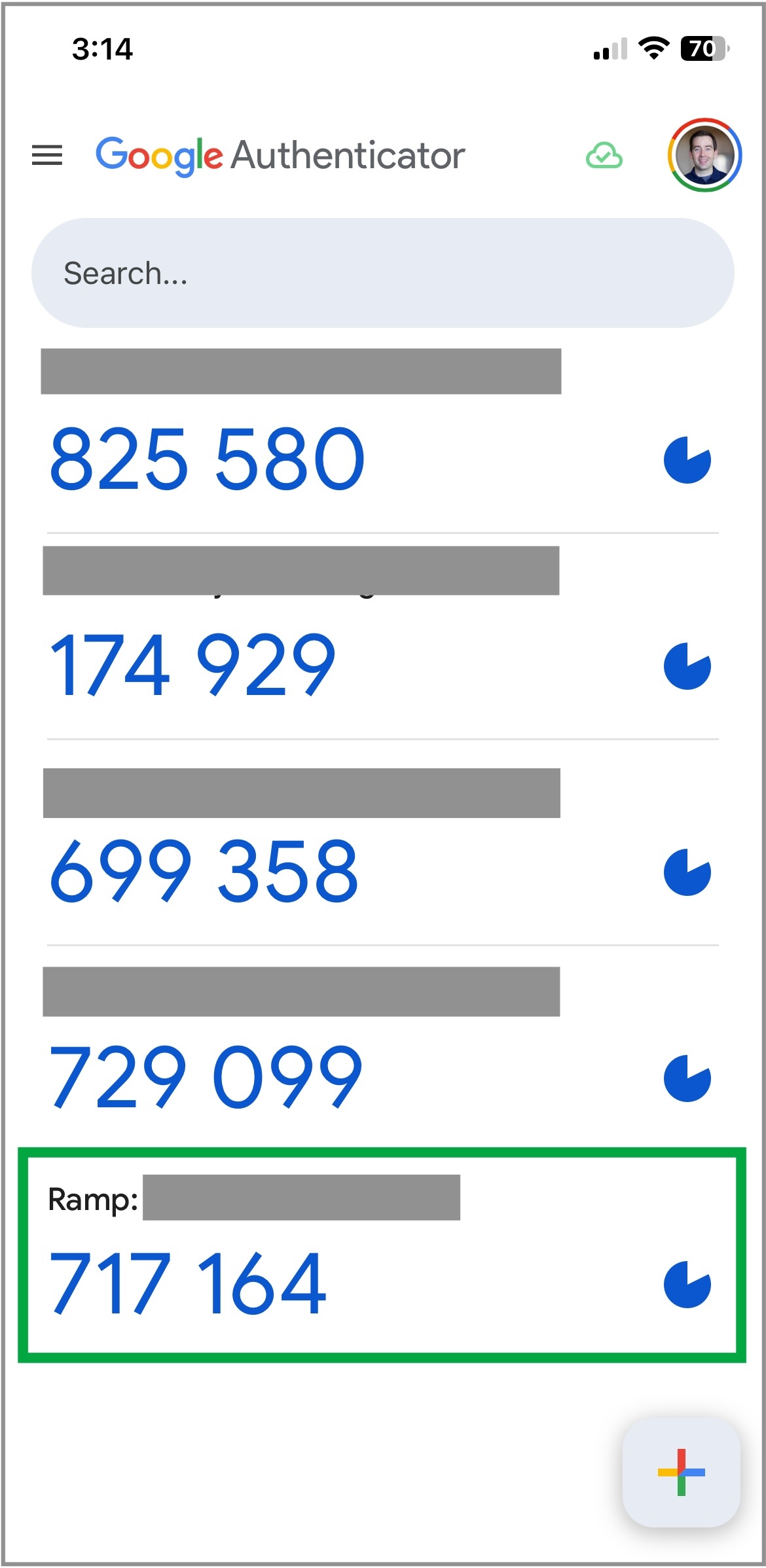
Once configured, your authenticator app generates a 6-digit code that refreshes every 30 seconds. When prompted for MFA, enter the current code shown under the Ramp entry in your app.
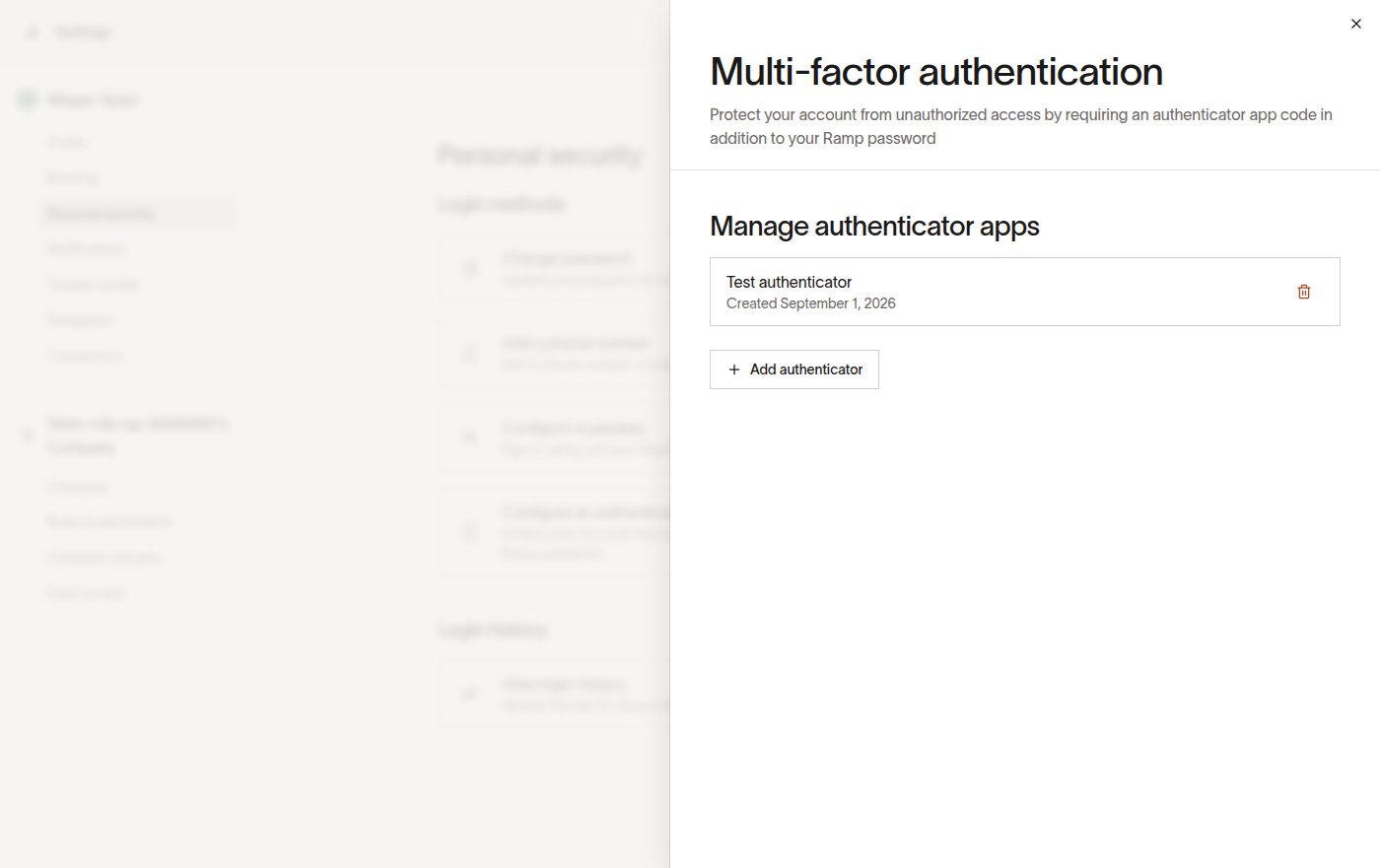
If you have previously enrolled an authenticator, your existing devices appear in the list. You can manage or remove them from the same settings page.
Keep your MFA codes secure
Never share verification codes with anyone. Ramp will never contact you to request a sign-in verification code. If someone asks for your code, do not respond — it may be a phishing attempt.
Frequently asked questions
Is an authenticator app better than SMS?
Yes. Authenticator apps work offline, are not subject to SMS delivery delays or carrier issues, and are considered more secure. We recommend setting up an authenticator app as your primary MFA method.
What if I lose access to my MFA method?
If you can no longer access the phone number or authenticator app you use for MFA, see Recover or update your MFA method for recovery steps.
Can my company disable MFA?
No. The business-level strict MFA setting controls fallback methods; it does not disable Ramp MFA. See When Ramp asks for MFA for the flows that trigger a challenge.
What is strict MFA?
Strict MFA is a business-level security setting that restricts fallback to alternative verification methods. When enabled, you may have fewer options on the verification screen. Ask your admin if this is enabled for your company.
How long is a verification code valid?
Verification codes that Ramp sends by phone or email are valid for approximately 5 minutes. If your code expires, request a new one from the verification screen.
What happens if I enter the wrong code too many times?
If you enter the wrong code too many times, you are temporarily locked out. Wait a few minutes before trying again with a new code.