Microsoft Dynamics Business Central overview
Overview
Available on Ramp Plus. See Ramp Plus overview for plan details.
Our integration with Business Central allows you to easily transfer information from Ramp to Business Central, ensuring your spending data is current and accurate. We respect your Business Central settings, avoiding any changes or account creations.
When Ramp is connected to Business Central, it gathers all necessary data for classifying your transactions. Transactions and reimbursements are synced to general journals. Bills are synced to purchase invoices.
Additional features for a stronger integration include:
- Vendor creation: For Bills, Ramp can identify and add new vendors not already in your Business Central instance. These vendors appear in Business Central's Vendor/Employee column as "New:..." and are created upon syncing.
- Vendor two-way sync: Ramp can sync supported vendor profile fields between Ramp and Business Central. This feature requires the Ramp for Business Central extension version 1.1.0.42 or later. See Two Way Vendor Information Sync for supported fields, sync directions, and configuration limitations.
- Chart of accounts and dimensions: Ramp imports all fields, including dimensions, from Business Central to ensure comprehensive transaction coding.
- Ramp reimbursement service: Ramp facilitates the ability for your company to pay back employees. We also allow you to code which employee a reimbursement is for.
Prerequisites
- You must have an active Ramp Plus account.
- You need to have an Azure Admin for Microsoft Dynamics Business Central assist with setup. The Azure Admin will have the information needed to complete the below setup process.
- You can use this link to identify your Azure Admin: https://learn.microsoft.com/en-us/entra/identity/role-based-access-control/permissions-reference .
- If you can't find the Azure admin notified to approve the request, send this link to your IT team: https://login.microsoftonline.com/common/adminconsent?client_id=4c3742b7-e7c0-4876-8c7b-2743b2e073c1
- Note: on-premises deployments are NOT supported
What Ramp looks like
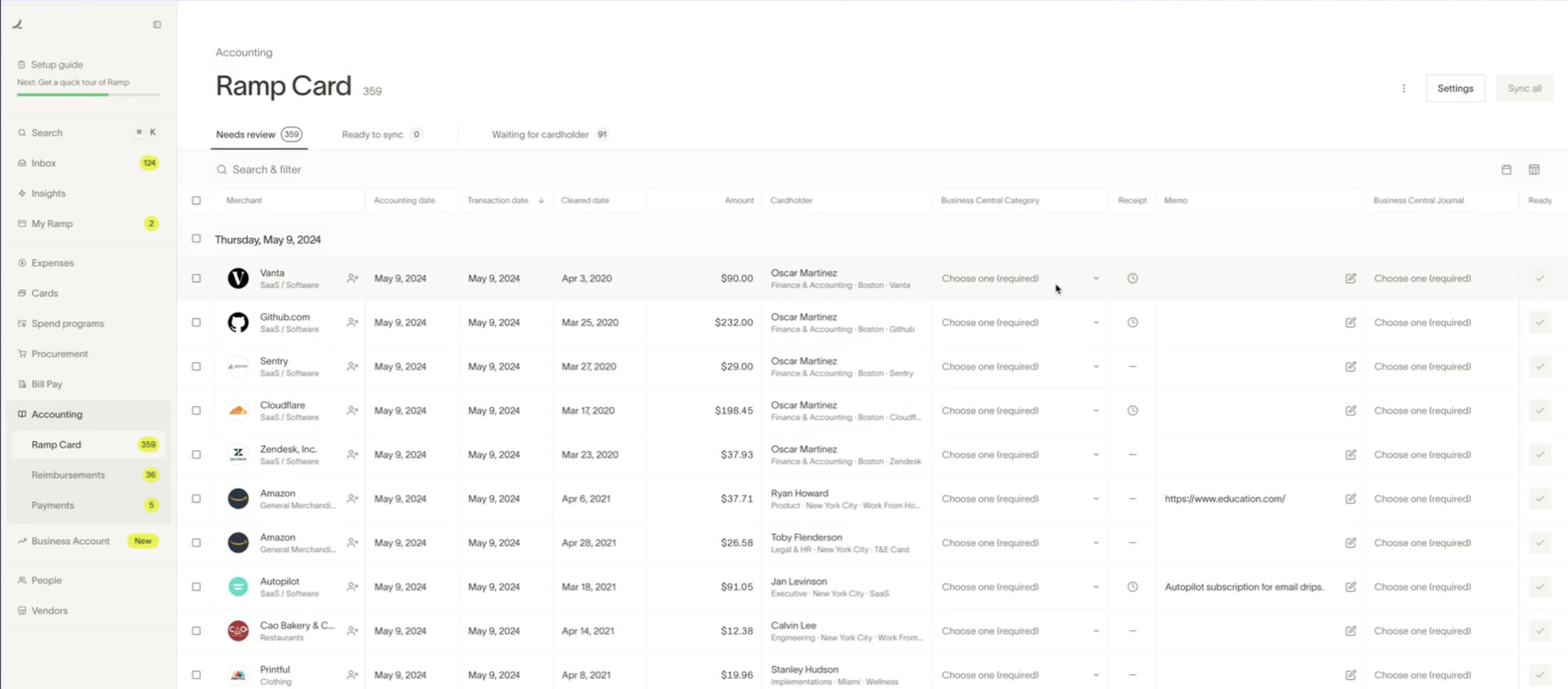
Here's how the Business Central Accounting page appears on Ramp. For detailed information about settings, rules, and additional automation provided by Ramp, please refer to the linkedarticle.
Setup
Please follow these instructions to link Business Central to Ramp.
Multi entity
Multi-entity Ramp customers using Microsoft Business Central and the supported multi-entity management extension are able to manage their entities using the guide below.
In order to utilize the Ramp native functionality around entity setup structure the BSSI MEM extension must be installed. The liability and expense side of a transaction will go to the corresponding Ramp entity in Business Central.
Alternatively, entities can be denoted as an accounting field on transactions/reimbursements/bills. The name of the accounting field will show in Ramp as "Expense [name of MEM entity dimension name in Business Central]". This accounting field is optional.
- When you code to the accounting field directly for MEM, the liability side of the transaction will still go to the MEM entity associated with the transaction's Ramp entity, but the expense side will go to the accounting field MEM dimension you selected on the transaction/reimbursement/bill.
- What this means is that it will optionally override the entity for just the expense side of the transaction. This creates a cross-entity transaction and Business Central adds the appropriate entity payable/receivable lines automatically.
For more information on how to configure please visit: Microsoft Dynamics Business Central | Multi-entity management overview
How will transactions appear in Business Central?
Ramp card transactions show up as unposted journal lines in general journals.
We will populate each credit card transaction as two journal lines:
- Credit Ramp card liability account
- Debit expense account
For Business Central to calculate sales tax on purchase expense lines synced from Ramp, select a Tax Code on each line in Ramp and set the default posting type on every applicable expense G/L account. See Set up sales tax for Ramp-synced purchase expense lines.
Additionally, if there is a receipt to attached to a transaction, then Ramp will sync this over as well. Receipt files will be synced as an "incoming document file" on the credit line of the transaction.
Finance > General journals > Select the journal you synced to. There will be two total lines and the credit line is denoted by the second line.

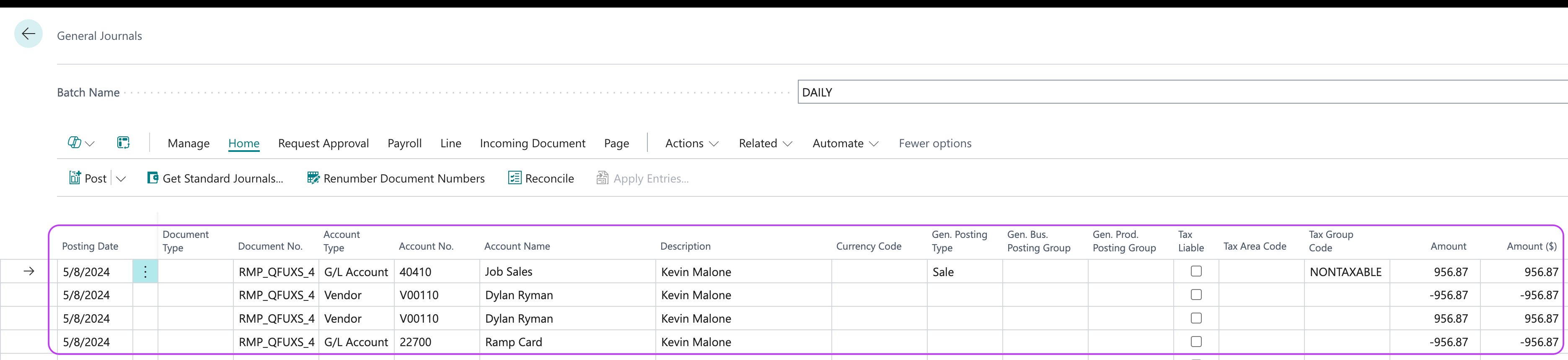
However, if a vendor or employee is selected on a credit card transaction, then we will populate four journal lines and the credit line is denoted by the fourth line:
- Debit expense account
- Credit vendor
- Debit vendor
- Credit Ramp card liability account
Finance > General journals > Select the journal you synced to
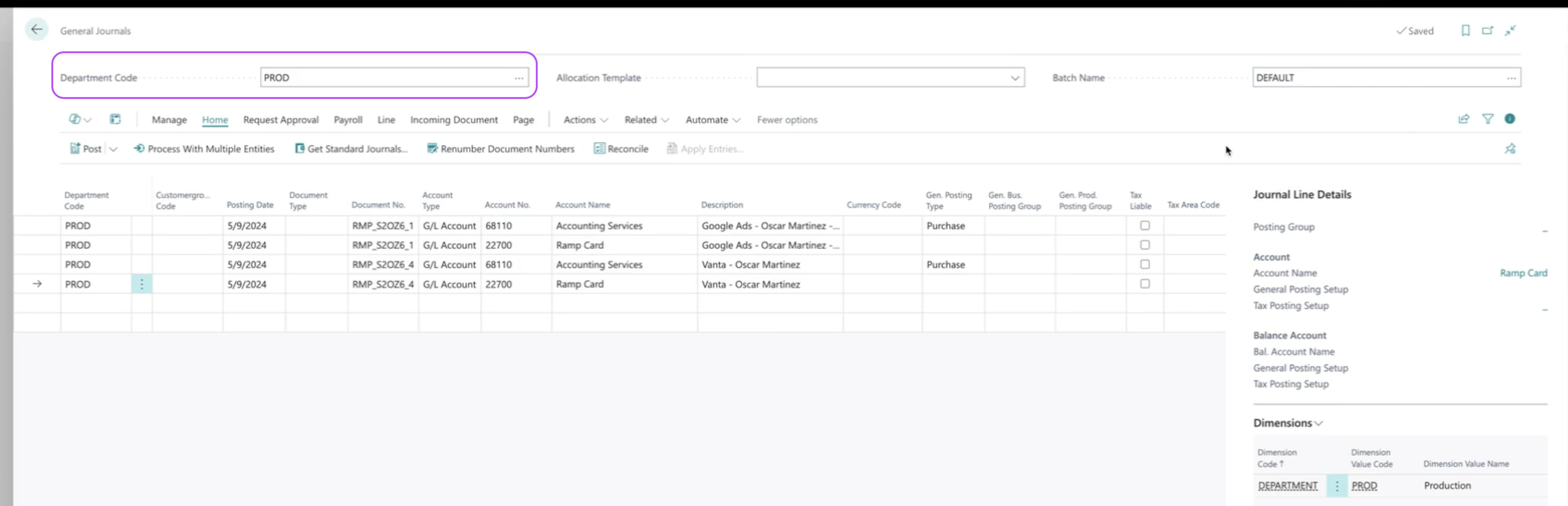
For customers using the BSSI Multi-Entity Management extension transactions will also include entity-specific general journal information. Specifically, each transaction will include an Entity header such as the example below where Departmentis included in the header to highlight these transactions are associated with the Prodentity.
How will reimbursements appear in Business Central?
Reimbursements from Ramp will show up as unposted journal lines in general journals.
We will populate each reimbursement as two journal lines:
- Credit Cash Account
- Debit Expense Account
Finance > General journals > Select the journal you synced to
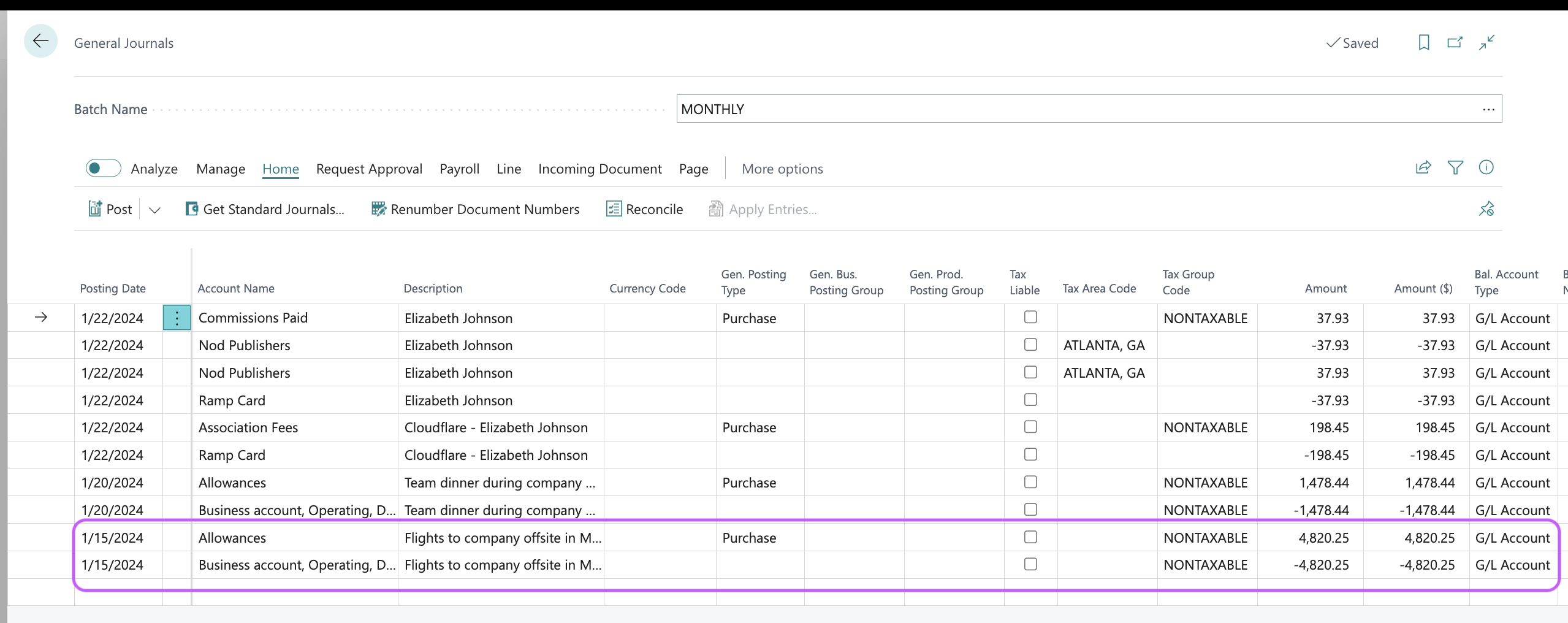
However, if an employee is selected for a reimbursement, then we will populate four journal lines:
- Credit vendor
- Debit vendor
- Credit Ramp card liability account
- Debit expense account
Finance > General journals > Select the journal you synced to
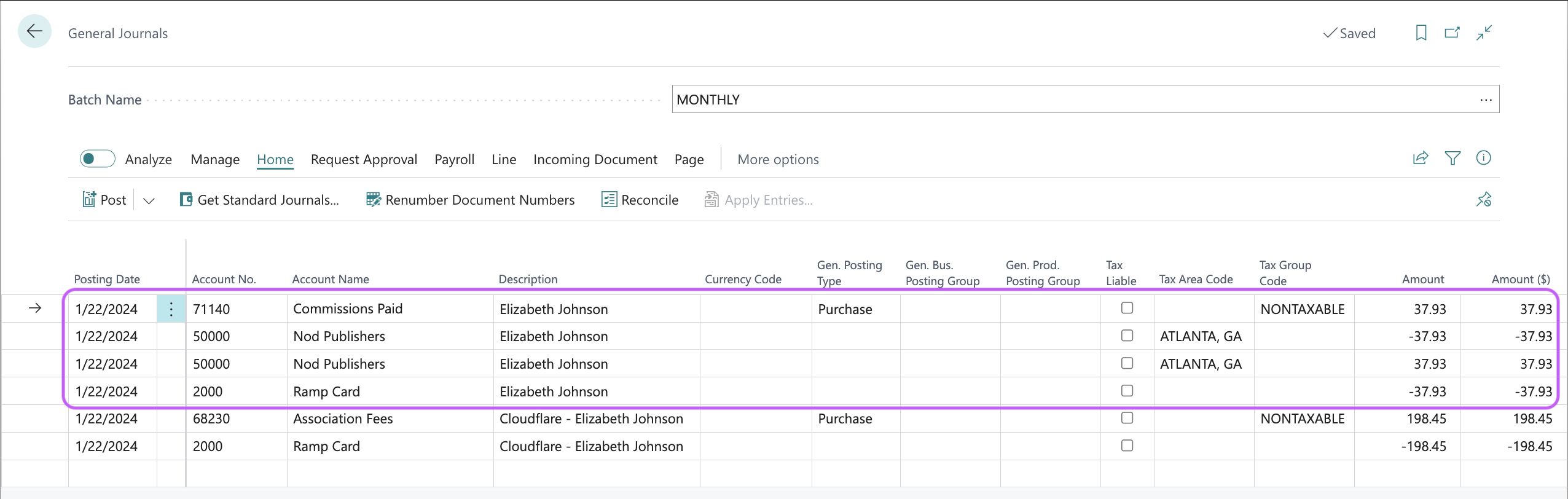
Note: Any receipts attached to reimbursements will be synced as an "incoming document file" in Business Central.
How will accruals appear in Business Central?
Ramp syncs accruals for unsynced card transactions to Business Central as journal entries. See the Accruals guide for prerequisites, configuration, and accounting-date effects.
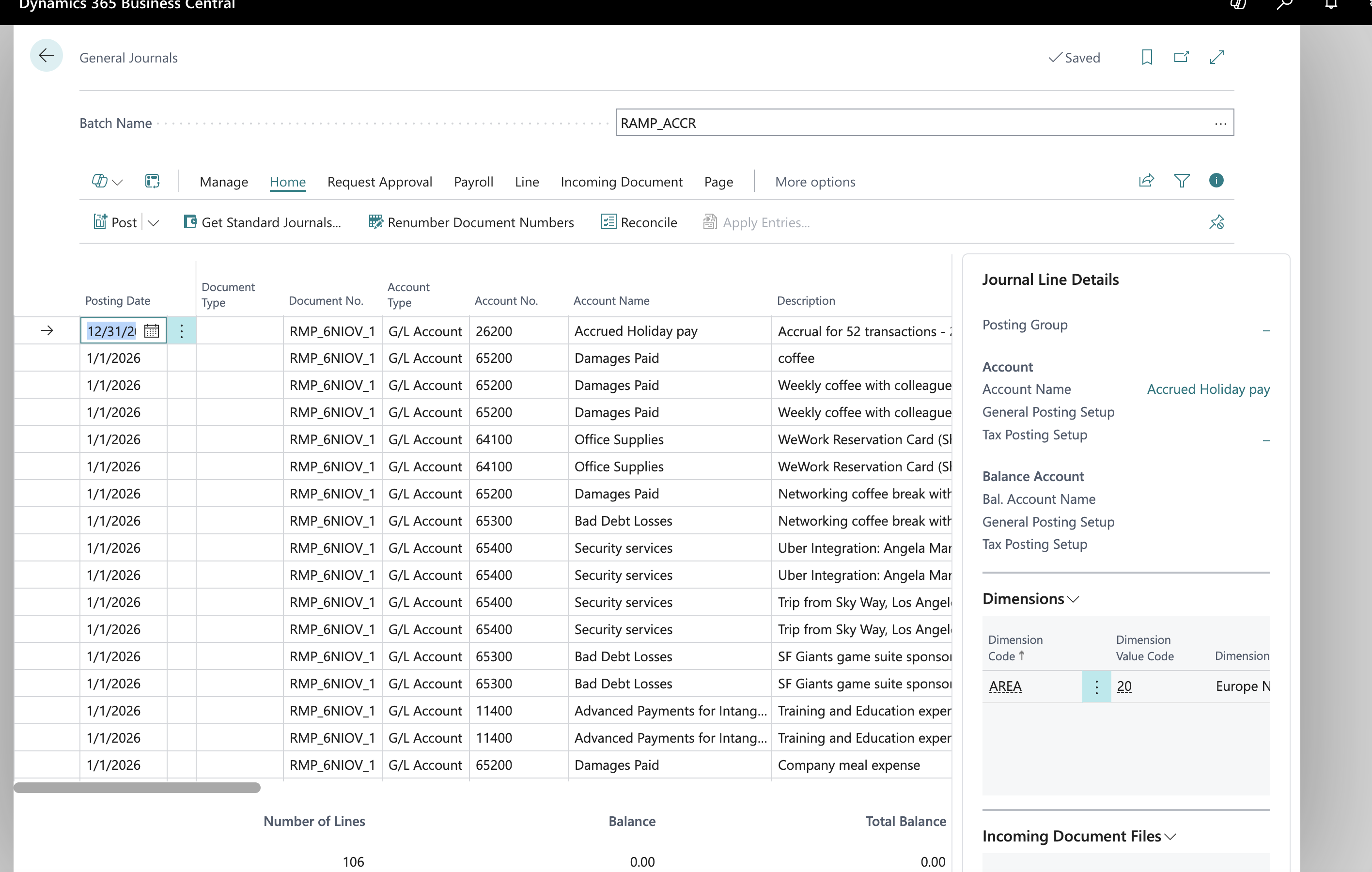
How will bills appear in Business Central?
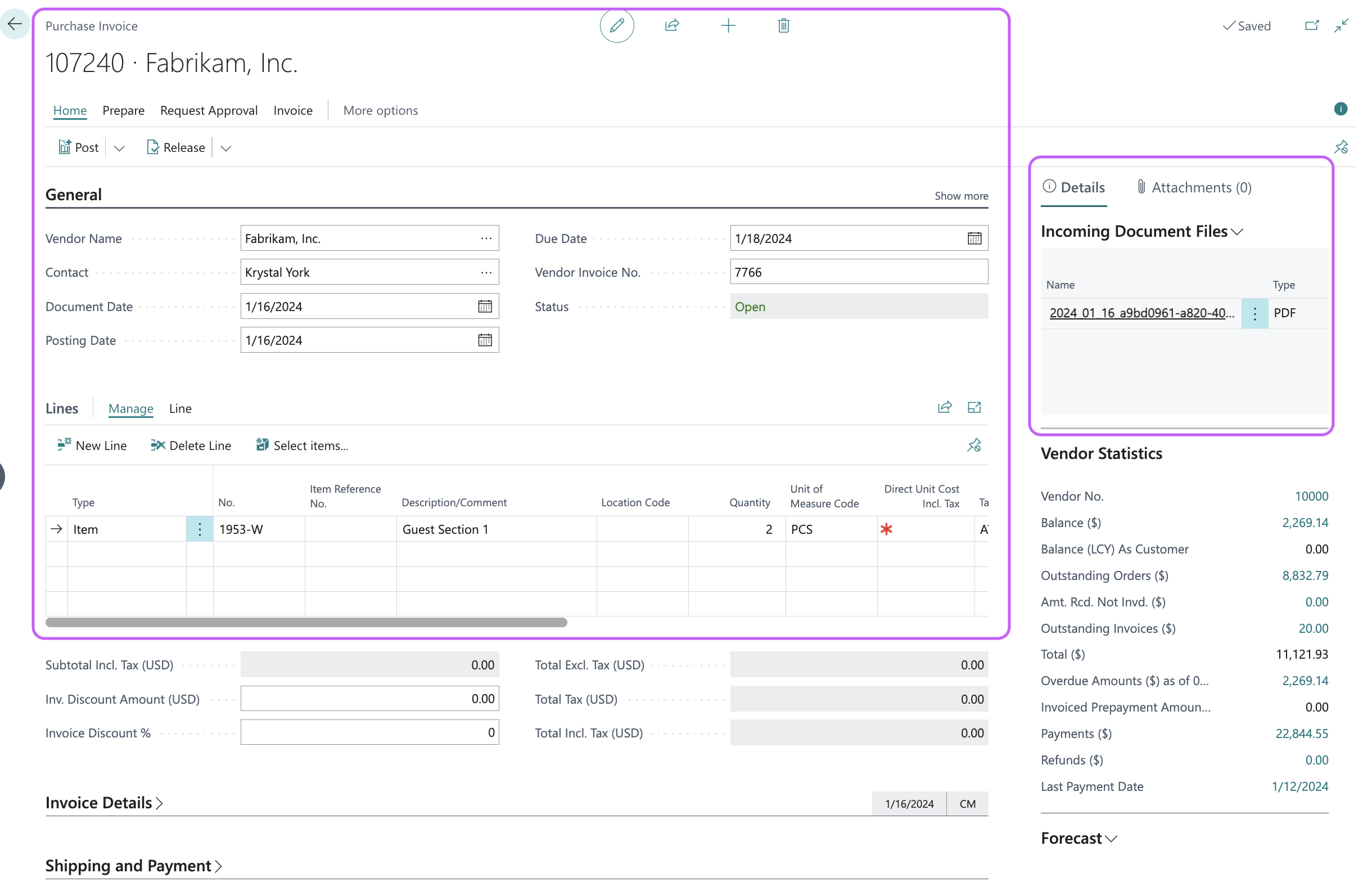
Bills from Ramp will show up as unposted purchase invoices. Additionally, we will include the invoice PDF attached to the bill as an "incoming document file" on the purchase invoice.
Purchasing > purchase invoices > select purchase invoice
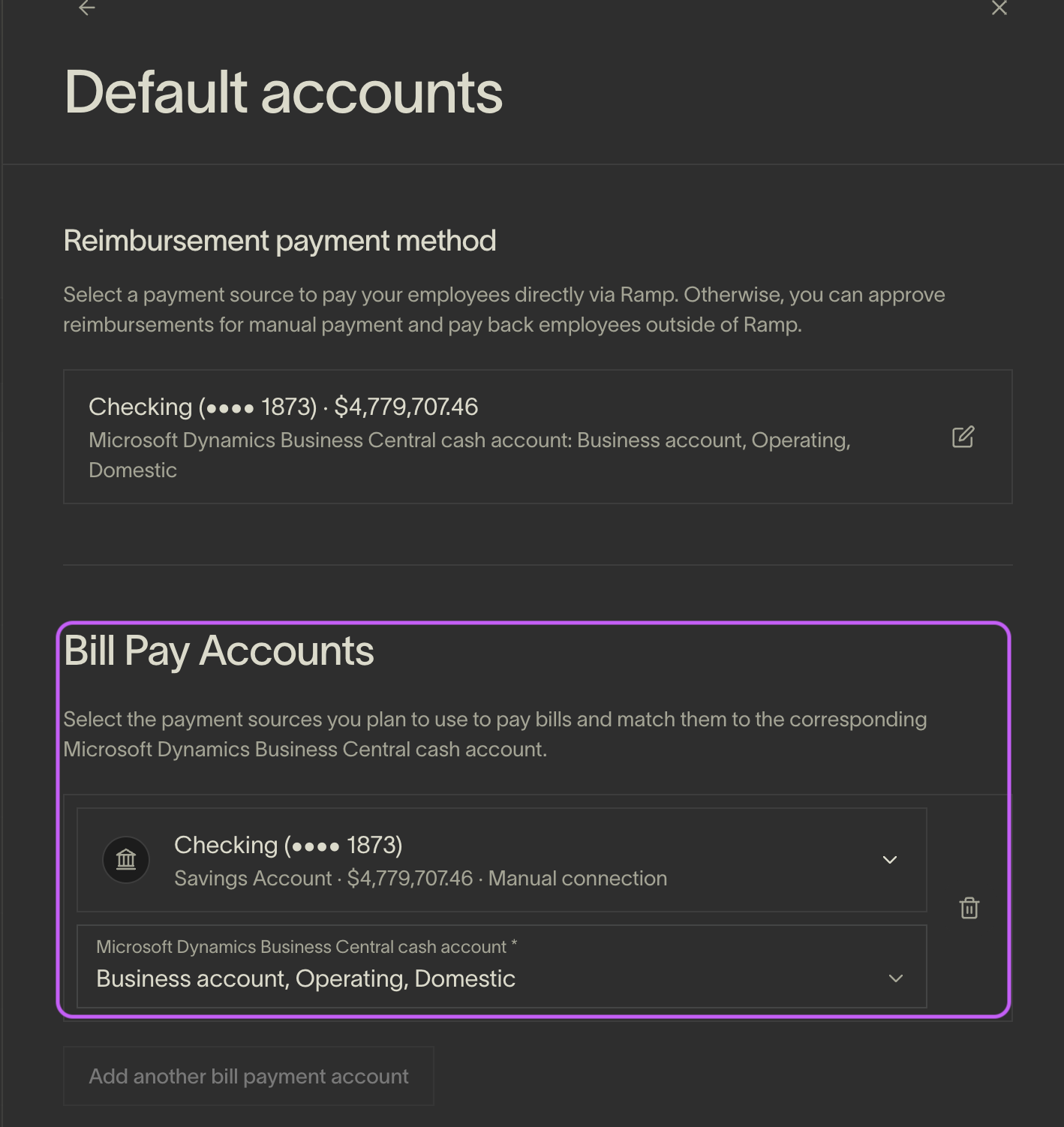
Bill payments from Ramp will show up as an unposted vendor payment. The first time you push a bill payment from Ramp to Business Central a "Ramp" payment journal will be created. Additionally, in order to sync bill payments, you will need to select, in Ramp, a cash account for the bank account you will use to pay bills.
Note: Before a bill payment can successfully be synced, the initial unposted bill will need to be manually posted in Business Central.
Cash management > payment journals > "Ramp"
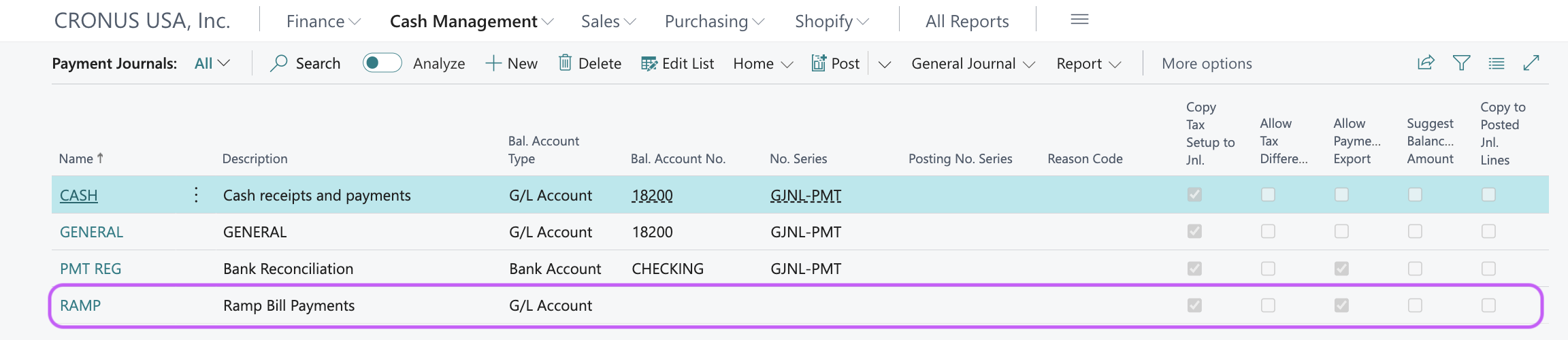
Additionally, to sync bill payments, you will need to select, in Ramp, a cash account from Business Central for the bank account you will use to pay bills.
Accounting > settings > default accounts > Bill Pay accounts
Note: If a user pays a bill "outside of Ramp", we do not sync a payment journal.
How will statement payments appear in Business Central?
Statement payments from Ramp will be synced to the Ramp statement payment journal. Furthermore, when a statement payment is synced it will populate as one journal line with the cash account being the balancing account.
This is what it will look like:

Frequently asked questions
Does Ramp support one Ramp account to multiple Business Central companies?
Ramp does not support one Ramp account to multiple Business Central companies. However, Ramp does support multiple Ramp accounts to one Business Central company.
Why doesn't Ramp auto-post the information that they sync into Business Central?
Users will still be required to click the "post" button in Business Central in order to push the journal lines to the general ledger. The reason behind this is that Business Central provides rich error messaging with posting that we are not able to replicate.
Does Ramp support Business Central dimensions?
Yes, Ramp supports dimensions when syncing transactions, reimbursements, and bill line items.
Does Ramp support Business Central Project General Ledger journals?
Yes, Ramp supports Project General Ledger Journals. Project General Ledger journals are a subtype of General journals. The only difference between Project G/L Journal and G/L Journal is that the Project G/L Journal will show the project details within the Business Central UI by default.
Ramp does not support Project Journals because these do not include accounting data.
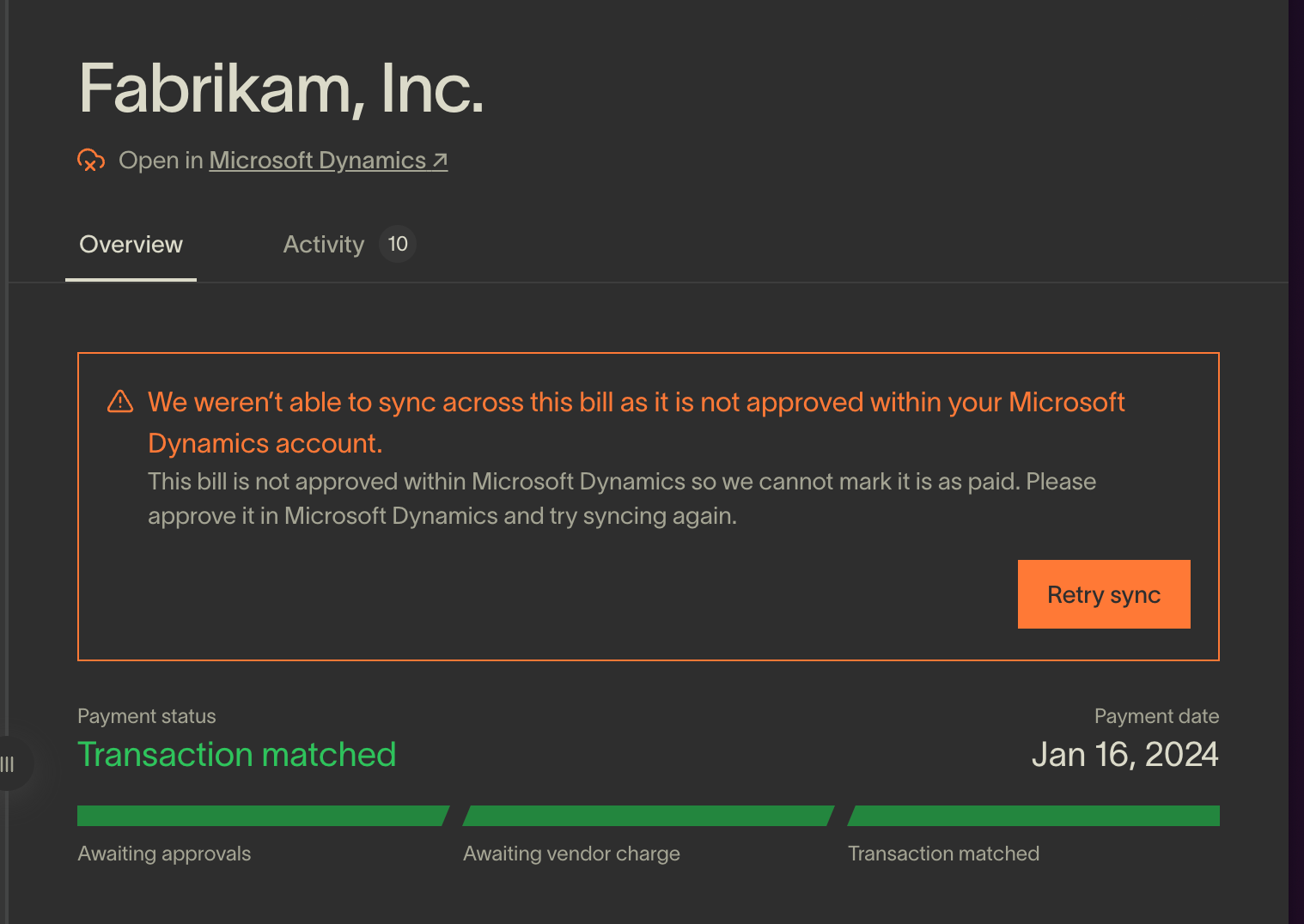
Why am I getting an error when trying to sync my bill payment?
You will receive the below error when attempting to sync a bill payment from Ramp to Business Central before posting the purchase invoice from the initial bill you synced.
Example error:
How does Ramp handle Vendors?
Business Central vendors are not required to sync a transaction. In other words, if you don't code a Business Central vendor to your transaction, then Ramp will sync it over without any associated vendor account and will default to putting the vendor name in the memo. We do not use a fallback, default vendor account.
Does Ramp's Microsoft Dynamics Business Central Integration automatically update vendor cards in Business Central?
Yes. Ramp can update supported Business Central vendor profile fields. See Two Way Vendor Information Sync for the required extension version, supported fields, sync directions, and configuration limitations.
Why aren't my receipts for journal lines or invoices syncing?
Once a transaction is synced and posted Ramp is unable to attach receipts. In other words, receipts must be attached before the transaction is synced over.
Is Purchase Order functionality supported?
Yes. Ramp supports syncing Ramp-created POs to Business Central, importing POs from Business Central for bill matching, and invoice-to-PO matching when syncing bills. These features require the Ramp for Business Central extension version 1.1.0.34 or higher. For details, see Purchase order support.
Why is Ramp not pulling in my credit card liability, cash account, or cashback account in Sync Settings?
To ensure Ramp pulls your credit card liability and cash accounts from Microsoft Business Central, configure your credit card liability accounts as Posting accounts with Direct Posting enabled and ensure their GL account type is set to Liability. While linking them to a bank account via a Bank Account Posting Group is optional, it can also work.
For cashback accounts, configure them as Posting accounts with Direct Posting enabled. Additionally, for asset GL accounts, ensure they are connected to a bank account via a Bank Account Posting Group, as this is required for Ramp to pull them.
Why Do Ramp Transactions Sometimes Credit a Bank Account Instead of the Liability GL Account?
When syncing transactions to Business Central (BC), the logic used by Ramp can be more complex than it seems. Here’s an explanation to help clarify:
Querying BC Environment: When recording a credit liability account line, Ramp queries your BC environment for bank accounts connected via a BC bank account posting group to the liability GL account selected in Ramp.
Single Bank Account: If there is exactly one bank account tied to the selected liability GL account, Ramp credits this bank account instead of the GL account.
Zero or Multiple Bank Accounts: If there are zero or multiple bank accounts tied to the selected liability GL account, Ramp credits the GL account directly.
Example of a Common Issue:
Scenario: A customer’s BC admin created a liability bank account linked to the Ramp liability GL account through a posting group.
Result: When syncing transactions, the bank account is credited instead of the GL account.
Solution: If you want the transactions to credit the GL account directly, delete the unnecessary bank account linked to the Ramp liability GL account. This way, Ramp will credit the GL account directly.