Microsoft Dynamics Business Central integration: Set up sales tax
Overview
Available on Ramp Plus. See Ramp Plus overview for plan details.
Two conditions must be met for Microsoft Dynamics Business Central to calculate sales tax on a purchase expense line synced from Ramp:
- The expense line must have a Tax Code selected in Ramp. The Tax Code populates both Tax Area and Tax Group on the Business Central journal line.
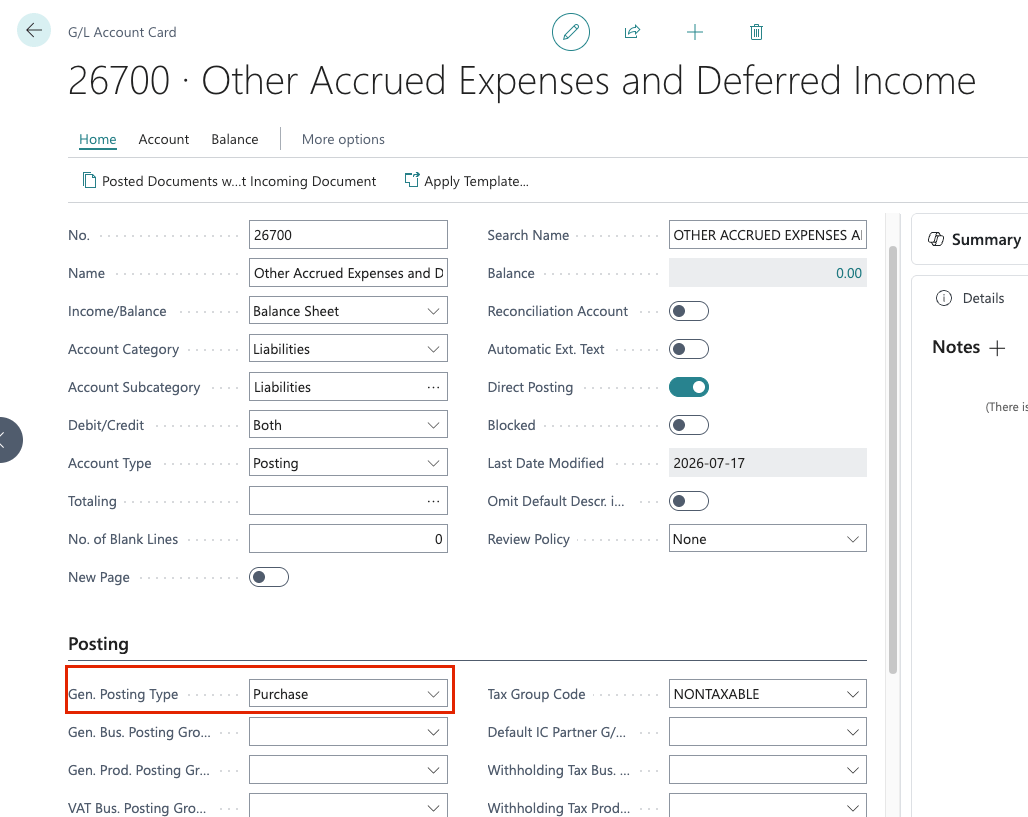
- The expense G/L account's default Gen. Posting Type in Business Central must be Purchase.
Business Central uses the journal line's Tax Area and Tax Group with the expense account's purchase posting type when applying its configured tax rules. Setting Gen. Posting Type to Purchase does not calculate sales tax when the expense line does not have a Tax Code selected in Ramp.
The posting type configuration is managed in Business Central and applies at the G/L account level. Consult your accounting or Business Central administrator before changing ERP tax configuration.
Select a Tax Code in Ramp
Before syncing, select a Tax Code on every applicable purchase expense line in Ramp. Ramp uses the selected Tax Code to populate both Tax Area and Tax Group on the Business Central journal line.
Review Accounting fields to confirm that Tax Code is available. Confirm the correct Tax Code with your accounting or Business Central administrator because it must match your Business Central tax configuration.
Set expense G/L accounts to Purchase in Business Central
Confirm the intended tax configuration with your accounting or Business Central administrator before completing these steps.
- In Business Central, open the G/L Account Card for an expense G/L account used on purchase expense lines synced from Ramp.
- Expand the Posting section.
- Set Gen. Posting Type to Purchase.
- Confirm that Purchase appears as the account's default Gen. Posting Type.
The setting is account-specific. Repeat these steps for every expense G/L account that may be used on applicable purchase expense lines synced from Ramp.