Booking travel off Ramp: Admin guide
Overview
Ramp for Travel is the newest and fastest way to manage your travel spending from Ramp. Now, finance teams can centralize control of travel spending while allowing employees to book travel using their favorite booking platforms. From bookings to expense reporting, Ramp for Travel makes travel management much easier for your employees while giving you the same controls, insights, and automation that you’d get from a standalone travel solution.
As an admin, you now can:
- See active employee trips in one dashboard with itinerary details
- See all travel expenses related to a trip grouped by category
- Get real-time alerts when employees spend out-of-policy per your per diem
Employees can request to travel and book wherever they want. Thanks to Ramp's receipt integrations and travel enrichment capabilities, they will spend less time submitting expenses. Finance teams will also maintain real-time visibility into their travel plans. Ramp can generate trip data after matching a travel receipt to a transaction, and employees can also create trips manually.
Requesting travel and issuing funds
- Employee requests funds to travel from their Ramp dashboard. Tip: Use Spend Programs to quickly issue funds and physical cards tied to travel in bulk.
- The travel request gets routed and approved following the approval workflow. This can be done via email, Slack, or within the Ramp dashboard.
- The fund can be restricted to specific travel spending categories.
- Employees can book flights, hotels, or train travel and use their funds for taxis and per diems. Tip: Save your travel funds within your favorite travel booking software.
See: Approval Policies.
Managing travel spend and submitting expenses
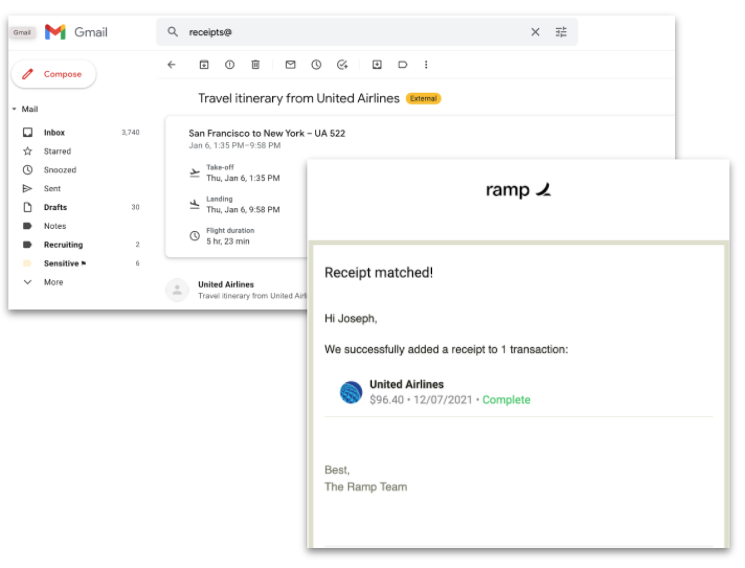
- After a cardholder forwards an airline, hotel, or merchant confirmation from their email address to [email protected], Ramp attempts to match the confirmation to an eligible transaction and generate a trip itinerary. If the receipt does not match, follow the steps in Troubleshoot receipt matching.
- Ramp automatically links matching transactions to the trip; unrelated transactions remain unlinked.
- Ramp will automatically surface insights on the trip to the manager and admin - including itinerary information and total costs. See the Travel Dashboard section for more details.
- User simply has to submit receipts, memos, and other accounting information to Ramp.
-
Transactions on these funds can be automatically coded with card or funds-level rules to the right projects or class codes.
-
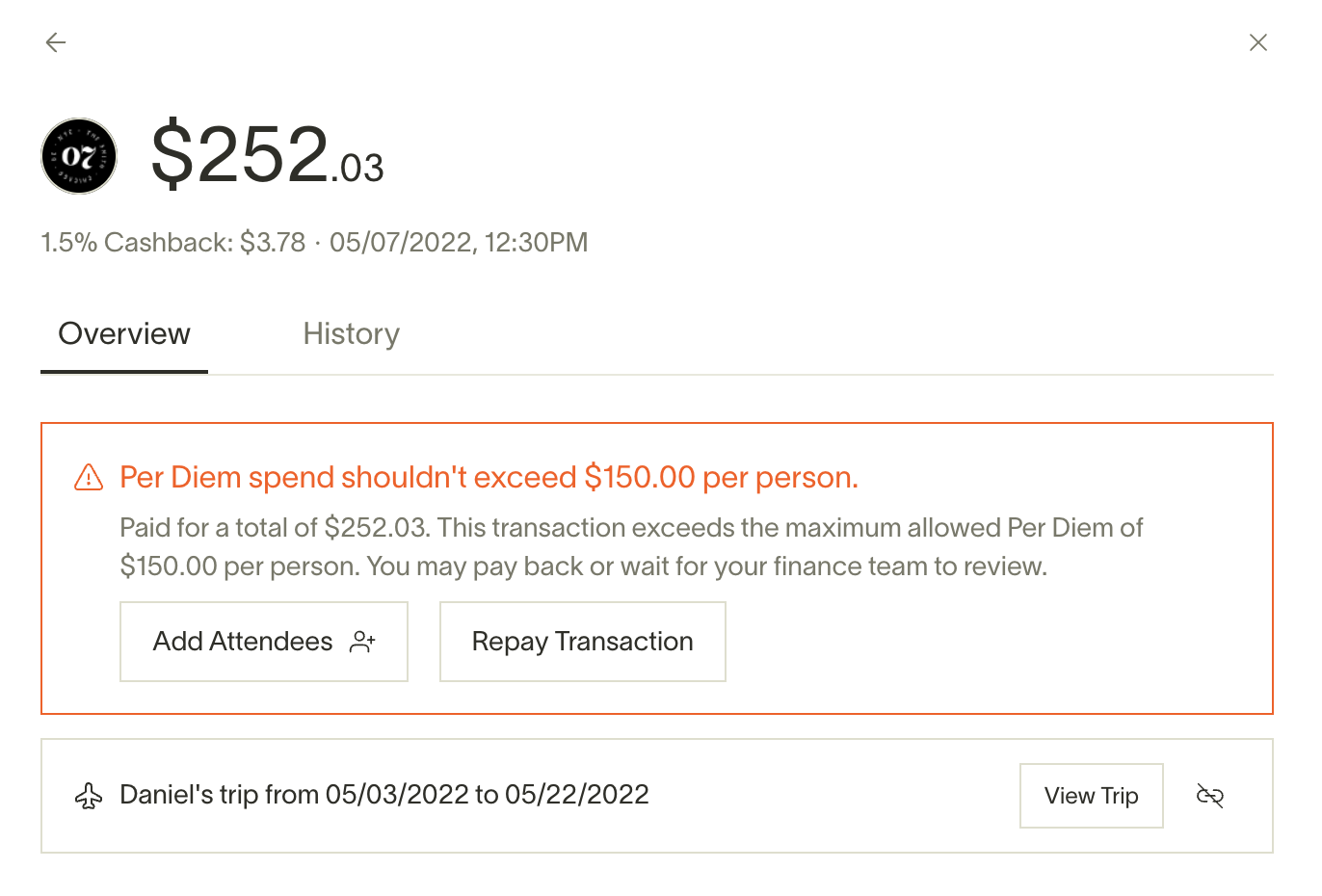
Transactions (for restaurants and bars only) and reimbursements may also be split. For transactions, open the transaction and select Add attendees. You can enter attendees directly or download the CSV template to upload attendees in bulk. For reimbursements, Add attendees appears before you submit the reimbursement.
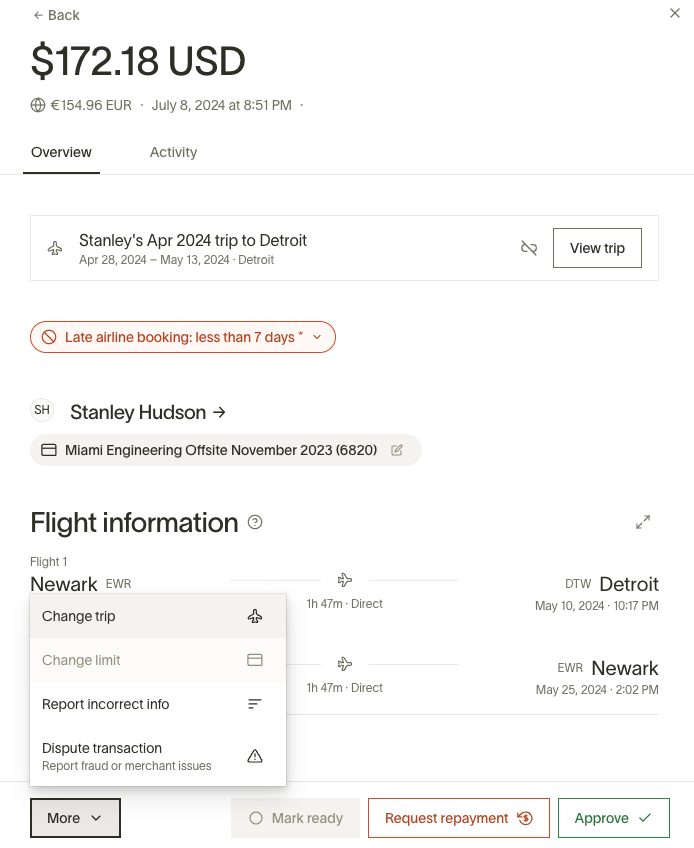
Note: If a cardholder exceeds their per diem spend while traveling, their transaction will be flagged, and the user will be prompted to either repay the transaction or split the bill.
See: Submitting Receipts & Memos via SMS or Email
Set up travel policy
Where you manage travel rules depends on your business's travel policy experience. Use the booking admin guide's settings chooser to find the guide that matches your account. Companies configured to manage policy through an external travel management provider should manage these rules with that provider instead.
Travel policy rules only apply after a trip has been created and a transaction has been added to it. Ramp then evaluates the transaction and flags it if it violates the travel policy. Otherwise, approval chains behave normally.
This includes:
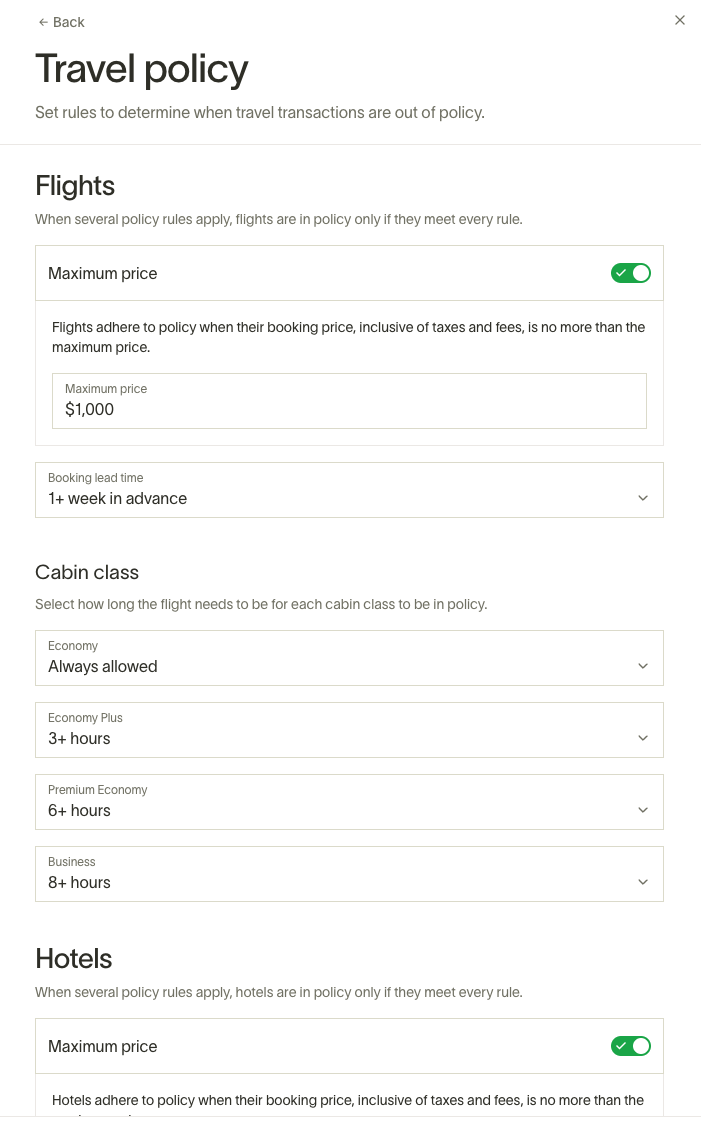
- Maximum airfare cost per one-way flight and hotel nightly rate
- Flight booking class allowed based on flight time
- How long in advance you need to book
- Maximum per diem (daily spend on restaurants, alcohol and bars, supermarket and groceries, or entertainment) and GSA rates (location-based per diem)
Find out more about per diem here
With Travel Policy settings, fill out the rules as needed. These rules affect all of your Ramp funds. Once implemented, Ramp automatically flags out-of-policy transactions by using itinerary information from receipts forwarded to Ramp.
Here is how this works:
For maximum airfare, Ramp compares the transaction amount with the maximum price per one-way flight. When a transaction contains exactly two flight itineraries, Ramp applies the maximum twice. For booking class, Ramp compares each ticket class with the total flight time for the itinerary.
| Rule | How it works |
|---|---|
| Maximum airfare cost | Compares the transaction amount with the maximum price per one-way flight. When a transaction contains exactly two flight itineraries, Ramp applies the maximum twice |
| Booking class | Compares each ticket class (e.g., Economy, Economy Plus, Premium Economy, Business) with the total flight time for the itinerary |
| Advanced booking | Compares the transaction time with the time of the trip To disable, select "No restrictions" |
| Maximum nightly cost for hotel | Compares the hotel cost per night for that booking |
| Per Diem | Automatically adds up card transactions on meals, drinks and entertainment during the period of the trip by day and compares that with the per diem limit |
Multiple travel policies
Available on Ramp Plus. See Ramp Plus overview for plan details.
If your travel policy settings live in your Policy Agent document, write audience-specific travel rules in that document. You can use conditions such as department, location, entity, or custom fields.
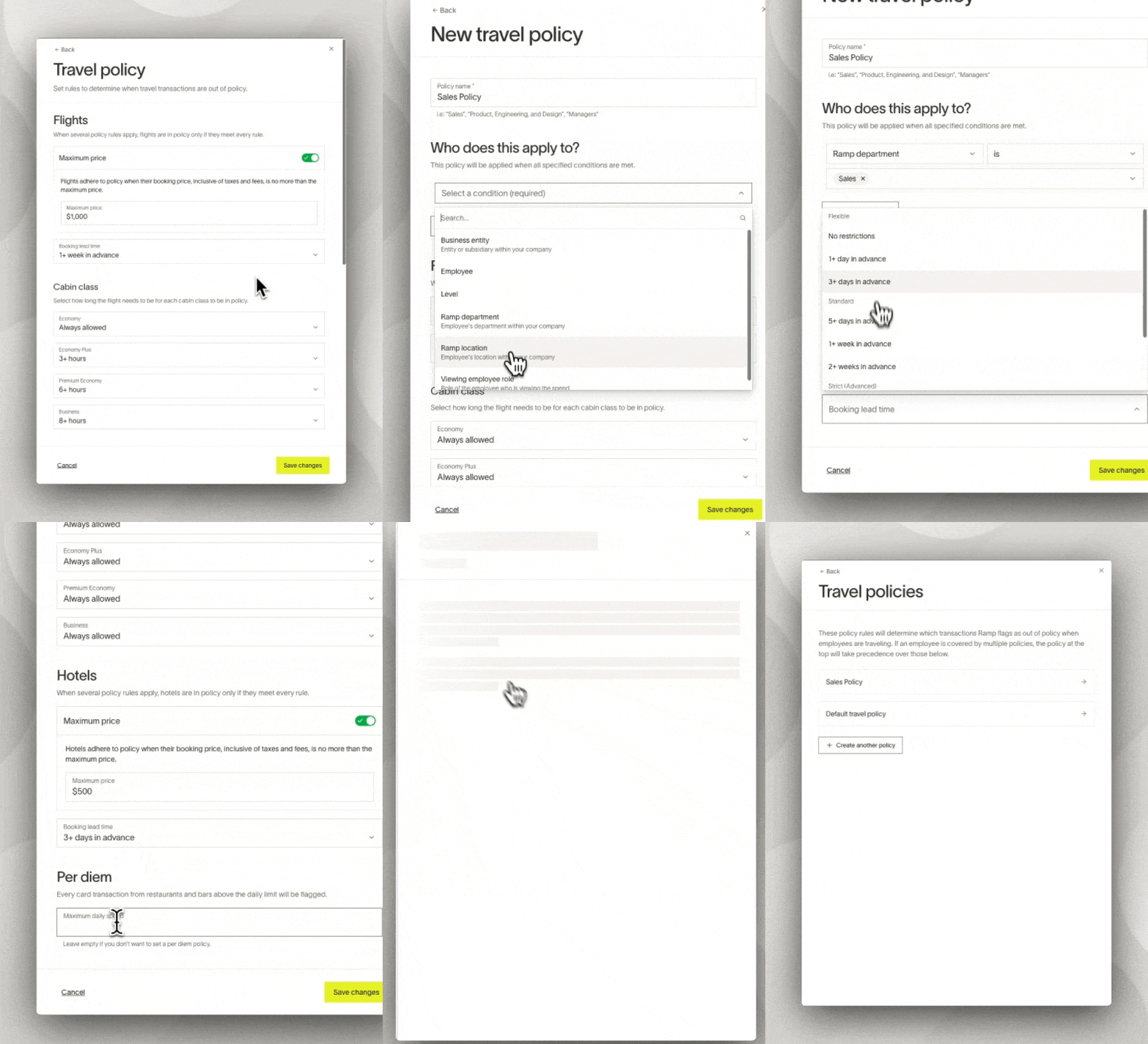
If your company manages travel policy in Ramp, first create the default policy in Travel policy. Then select New travel policy, name the policy, set audience conditions, and define the travel policy rules.
The sample video below walks through setting up a more generous travel policy for sales team who travel frequently:
Travel dashboard
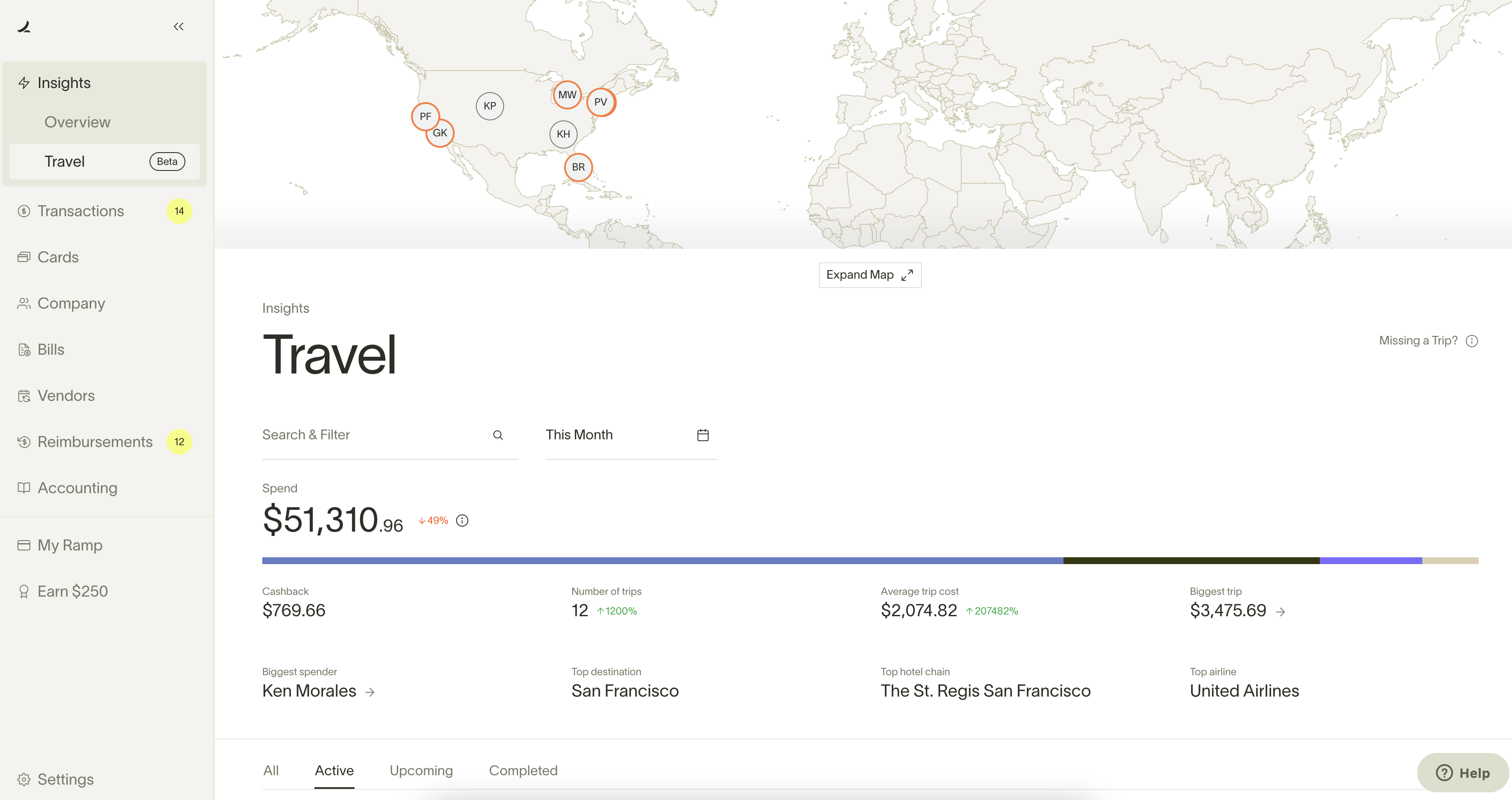
The Travel overview shows company travel spend associated with trips, trip and booking totals, a travel map, travel categories, top merchants, routes, and destinations. The Travel area also includes:
- Overview - review travel reporting over time.
- Trip management - use Live map or All trips to review upcoming, ongoing, completed, and canceled trips.
Ramp trips
A "Trip" on Ramp represents a grouping of transactions and reimbursements that are associated with a single Trip. Trips can be created in several ways:
- Ramp attempts to generate trips when users spend with Ramp funds and forward eligible travel confirmations or receipts from the cardholder's email address to [email protected].
- Cardholders can also create a trip manually from a transaction by selecting Add to trip, then New trip.
- Managers, admins, and owners may create trips for others.
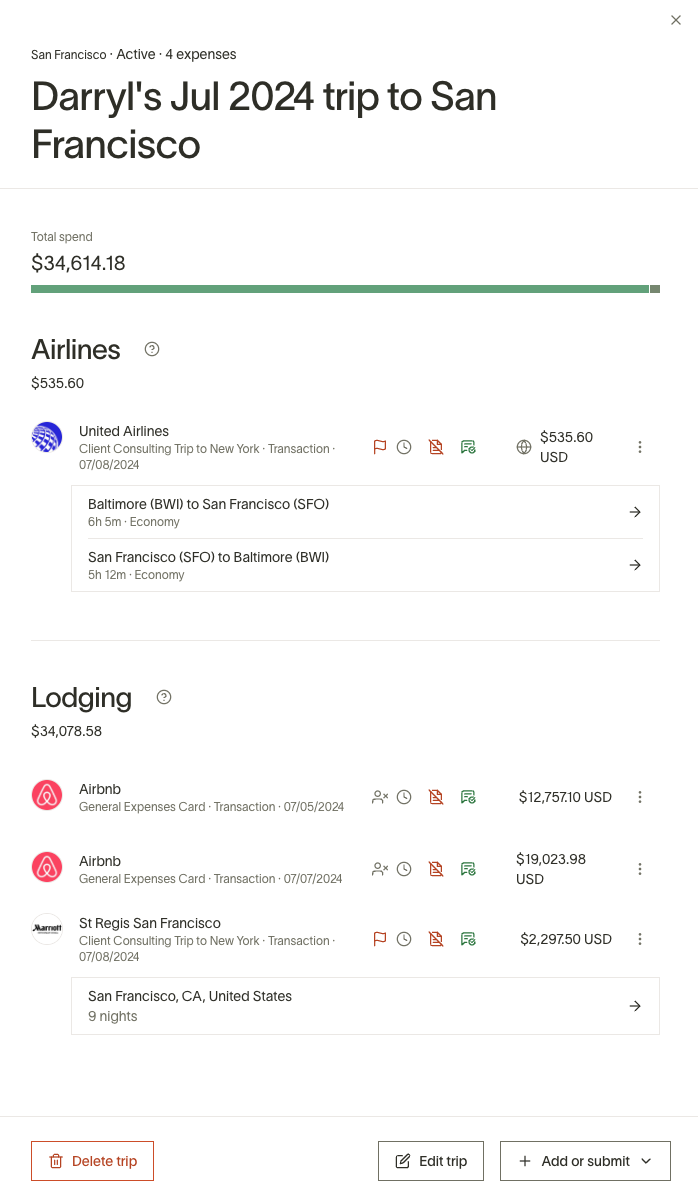
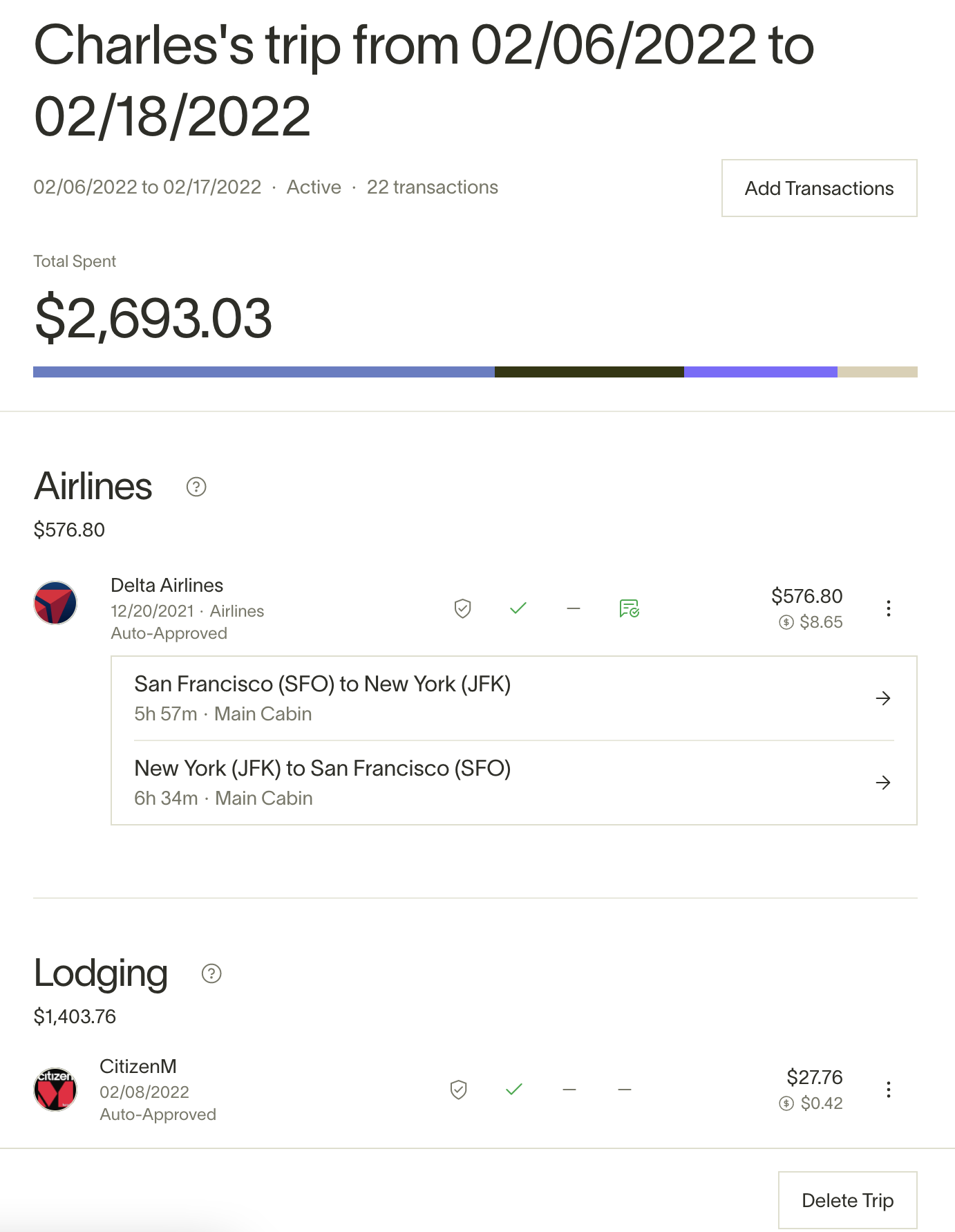
To view a trip, cardholders can open a transaction tied to a trip, use the Trip field, and select View. To add or change a transaction's trip, select Add to trip or Change trip. Within a single trip, cardholders can see a full set of expenses automatically categorized for convenience:
- Total cost of the trip
- Dates of the beginning and end of the trip
- Source and destination of the trip
- Airline transactions (and links to flight itinerary)
- Lodging transactions (and links to lodging details)
- Ground transportation (e.g. Uber / Lyft)
- Per Diem (any spend on restaurants/grocery/alcohol/entertainment during the trip)
- Miscellaneous (any misc. spend that falls outside of the above categories, etc.)
Managers, admins, and owners can make changes to a trip with the following instructions:
- Go to the Travel tab
- Click on the relevant user to whom the trip is assigned
- Use Delete trip under Edit trip or Add existing expenses. If Create reimbursement appears, you can use it to start a reimbursement for the trip owner.
Manually created trips cannot have overlapping dates for a single user. Trips may be created for retroactive dates as well as future dates. Any reimbursement or transaction can be tied to a trip, regardless of whether the trip dates were before or after the reimbursement or transaction date.
To add an existing reimbursement to an existing trip, please follow these instructions:
- Navigate to Expenses
- Click on Reimbursements
- Click on the History sub-tab
- Search for the reimbursement that you would like to add to a trip and click on it
- Use the Trip field to select an existing trip or Create a trip
To add a new reimbursement to a trip:
- Go to Request reimbursement
- Fill in the reimbursement details (the required fields depend on the reimbursement type — for example, out-of-pocket reimbursements use merchant, amount, and date)
- In the Trip field, select an existing trip or click Create new trip. If you don't see the Trip field, click Show optional fields first (it appears automatically if your company requires a trip on reimbursements)
- Click Submit when all required fields have been completed
Travel integrations
With Ramp, you can use your Ramp funds with your preferred online booking platform. After Ramp matches a submitted travel receipt to an expense and extracts supported itinerary details, the transaction and itinerary can appear in Ramp.
For companies that would like to use a managed travel solution (not recommended unless you are spending a significant amount on travel company-wide), Ramp has direct integrations with a few partners that will automatically send a receipt and itinerary information to the Ramp platform upon booking - making your life even easier. Check out the list of partners below and feel free to mention Ramp sent you.
- Corporate Traveler
- Travel Perk: https://www.travelperk.com/