Setting up spend request approvals
Note: This article primarily applies to Ramp Administrators. Cardholders may find other articles in the Expense policy and receipts section to be more applicable.
Overview
Whenever a manager issues spend, or an employee requests spend from their dashboard, Ramp provides businesses control and visibility over the requested spend and automatically routes the request for approvals.
Where to set up spend request approvals
Those with admin permissions can access spend request approval setup under Policy > Travel & expenses > Additional controls > Spend request approvals.
Within the spend request approver drawer, you will see a preview of your existing approval flow.
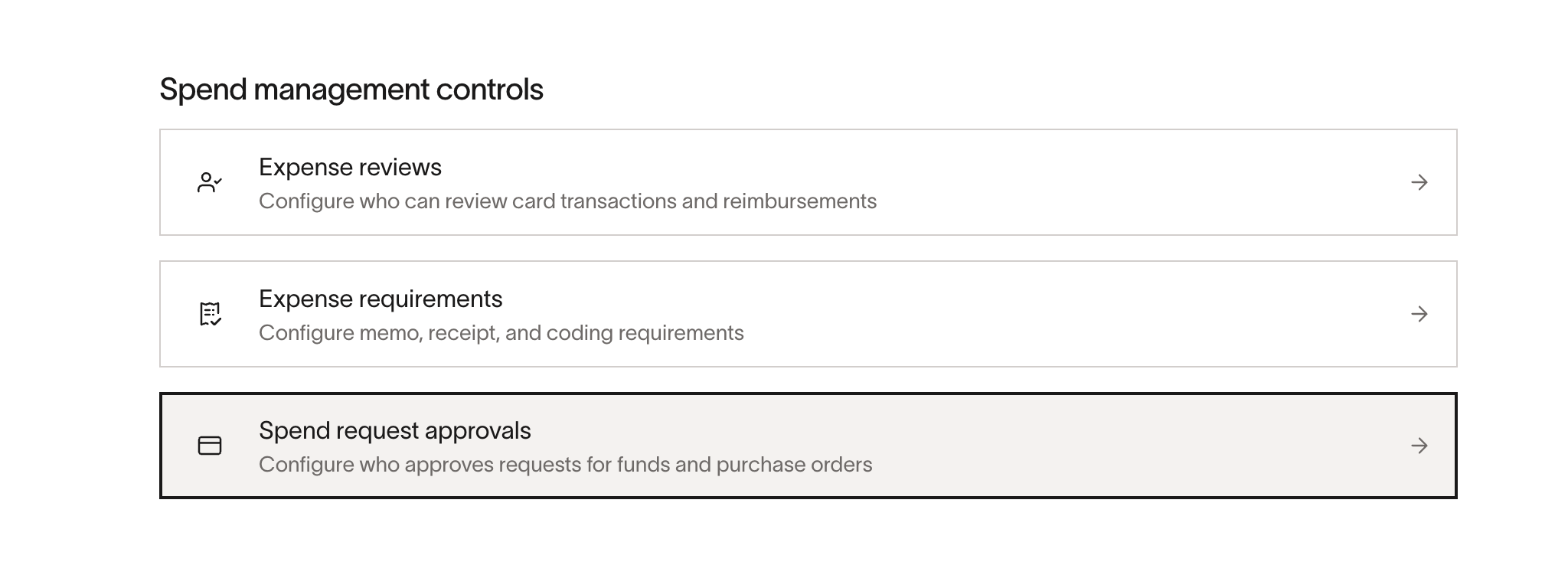
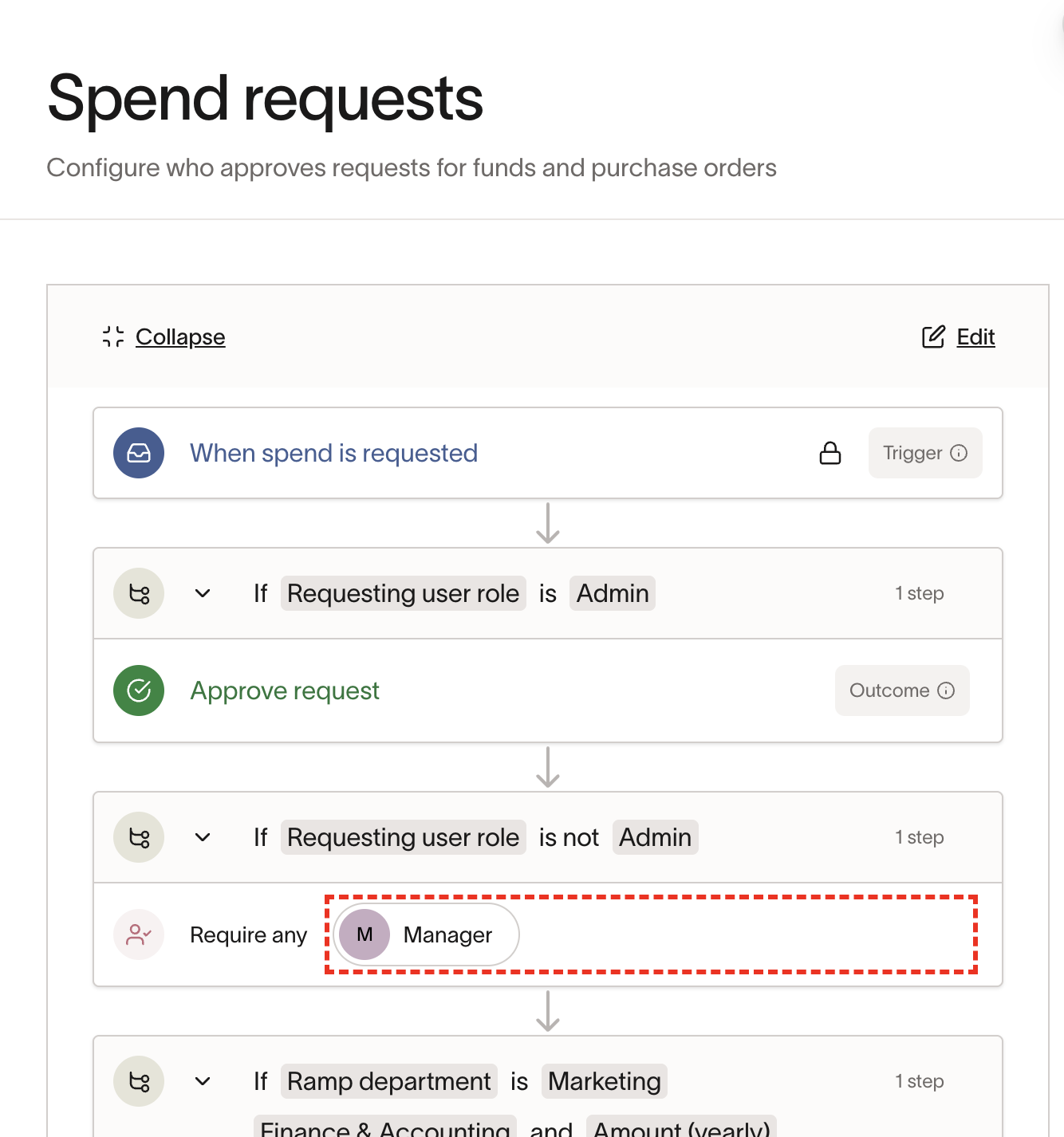
How to set up spend request approvals
To edit and configure your spend request approvals, click the paper and pencil icon within the approval preview. You will be redirected to the approvals workflow builder, where you can configure complex and flexible approvals chains via a series of conditions and outcomes.
Clicking any “Add” button will pull up a drop-down of the following options to begin configuring your approval chain:
- Require approval: Specify a specific role type or individual to be added to the approval chain
- Notify: Specify a specific role type or individual to be notified about the bill
- Approve spend: Terminal action that will end the workflow early if added to the chain
- Set conditions: Add conditions to check various spend request fields (e.g., amount, user role, user department, etc.) that assist in determining the correct approver
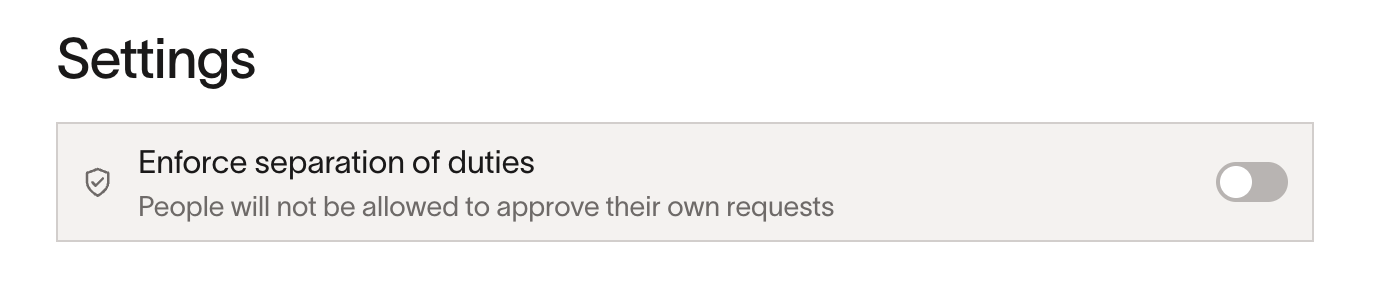
Within the approval workflow builder, you have the ability to layer and nest these options to create your ideal approval routing. You can also configure separation of duties from the Spend request approvals drawer under Policy > Travel & expenses > Additional controls.
Setting conditions
There are multiple spend request fields by which you can route your approvals. While amount and user role-based routing is available to all customers, the additional conditions in the list below are only available to customers on Ramp Plus.
- Amount
- User role
- Business entity (Plus)
- Ramp department (Plus)
- Ramp location (Plus)
Once a condition has been selected, you can select which options to check for (e.g. if the condition is user role, you would select the role type to check for).
After selecting your desired conditions and options, you will be prompted to add your desired approvers. Learn more about adding approvers in the next section.
Please note, for the amount condition, the dollar amount that is entered is based on annual spend. An example is if the threshold you set is $1,200 and the Spend Program you are issuing has a monthly limit of $100 then it will fail within that approval layer.
Adding approvers
When adding approvers you have the option to select either predetermined roles/groups or specific individuals at your company.
- Any admin : The group of individuals that have admin permissions within Ramp
- Manager : The requestor’s manager.
- Manger’s manager : The manager of the requestor’s manager.
- Department owner : Ramp will determine the department of the requestor and identify the configured department owner. Learn more about configuring department owners here
- Location owner - Ramp will determine the location of the requestor and identify the configured location owner. Learn more about configuring location owners here
- Any custom approval groups : Custom approval groups can be configured from People > Groups > Create group .
- Any specific employee : Add any employee within Ramp to the approval flow
Note: If spend requests are auto-approved, review every branch of your approval workflow and add an approver wherever review should be required. Approval flows are set at the time a spend request is submitted. Changes to approval workflows only apply to new requests, not those already in progress.
Require all vs. require any
If there are multiple approvers within a step, you must specify how Ramp should handle their approvals before moving to the next step.
- Require all - require each individual’s approval before proceeding to the next approval step. This translates to “Person X AND Person Y”. (Note that if Any admin is added to the step, all admins will have to approve).
- Require any - only 1 person from the group is required to approve before proceeding to the next approval step. This translates to “Person X OR Person Y”
How approval routing works
Approval routing is set when a transaction or bill is created. Later changes to approvers do not update existing approvals that are already pending.
In 'any' workflows, all listed approvers receive the request at the same time. The order in which approvers are listed does not affect routing. The first person to approve completes the step—no fallback or round-robin is used.
To change approval routing for future requests, update approvers before creating new transactions or bills. Changes to the approval workflow will only apply to spend requests created after the update.
Admin-created spend requests
Admins are considered power users in Ramp. At this time, when an Admin creates spend for other employees—those requests are always auto-approved without requiring approval. However, you can prevent Admins from self-approving their own spend by enabling a feature called Separation of Duties.
Separation of duties
If your business requires that the individual that creates the spend object (e.g. the requestor) cannot approve their own spend, you can enable the Separation of Duties toggle by following the steps below:
- Go to Policy > Travel & expenses in the left navigation menu.
- Under Additional controls, select Spend request approvals.
- Scroll to the bottom of the spend request workflow
- Toggle on Separation of duties
If the toggle is on and the requester is in the approval chain, Ramp removes them and routes the approval to the selected Fallback approver group. All admins is selected by default. If the selected group has no eligible approvers, Ramp falls back to admins.
Please note, that only business owners can toggle this setting on and off.
Approval notifications
Spend Requests have a series of notifications and communications to keep your bills from being stuck in 'needs approval'.
Email:
- A spend request needs your approval
- A reminder 2 days after you were assigned an approval step
- A request you created, or that was created on your behalf, has been rejected
- A request you created, or that was created on your behalf, has been fully approved
Slack (DM or business alerts channel):
- A spend request is created and approval process began: Business alerts channel
- A spend request needs your approval: DM
- A reminder 2 days after you were assigned an approval step: DM
- A reminder 3 days after you were assigned an approval step: DM
- A spend request has been fully approved: Business alerts channel
- A spend request has been rejected : DMs and Business alerts channel
Ramp app:
In-app alerts appear for Admin and Accounts Payable roles until the bill is canceled or the requested approver approves the bill. Additionally, Admin, Business Owner, and Accounts Payable roles can see all bills that need approval on the Approvals page.
Spend request agent
Ramp Plus customers with an uploaded policy document can see AI-powered recommendations when reviewing spend requests. The Spend Request Agent analyzes each request against your policy and displays a recommendation — Approval recommended, Review recommended, or Rejection recommended — along with reasoning to help you make faster approval decisions.
Recommendations are currently visible to Admins and Owners. They are suggestions only — reviewers always have final authority.
Link target: content/guides-by-topic/expense-policy-and-receipts/spend-request-review-predictions — update href after article is published in Zendesk
For details on how predictions work, where to see them, and how to provide feedback, see Spend Request Review Predictions.