Booking travel on Ramp: Admin guide
Overview
This article introduces Ramp Travel, outlining the steps for setting up and enforcing travel policies, managing bookings, and overseeing travel expenditures. It explains how admins can configure policies for flights, hotels, and cars, including dynamic rules based on market rates and approval processes for out-of-policy bookings. Additionally, the article provides guidance on tracking trips and expenses and addresses common FAQs related to travel booking and policy enforcement.
Video walkthrough: Set up travel policy, tour the travel dashboard, and book flights, hotels, and cars on Ramp as an Admin. Best when rolling out Ramp Travel so policies and approval flows are ready before your team's first booking. Watch the video.
Choose where to set up your travel policy
Ramp Travel enables you to set up robust controls to inform your employees which flights, hotels and cars are out of policy when booking and also to alert your team when out-of-policy bookings occur.
Open Travel & expenses and choose the guide that matches the controls you see:
- You edit rules in a policy document: Under Policy knowledge, open your document to manage travel rules. Follow Set up Policy Agent travel settings.
- You edit rules in Travel Policy: Under Additional controls, open Travel to manage flight, hotel, car, and per-diem rules. Follow Set up Travel Policy settings. If you see a migration banner, that guide also explains how to move your rules into your policy document.
Find out more about per diem from the Per Diem Policy on Ramp page.
Enforcing your policy
When your employees search for flights or hotels using Ramp Travel, Ramp will denote which flights or hotels are out of your company's policy as they search on their end.
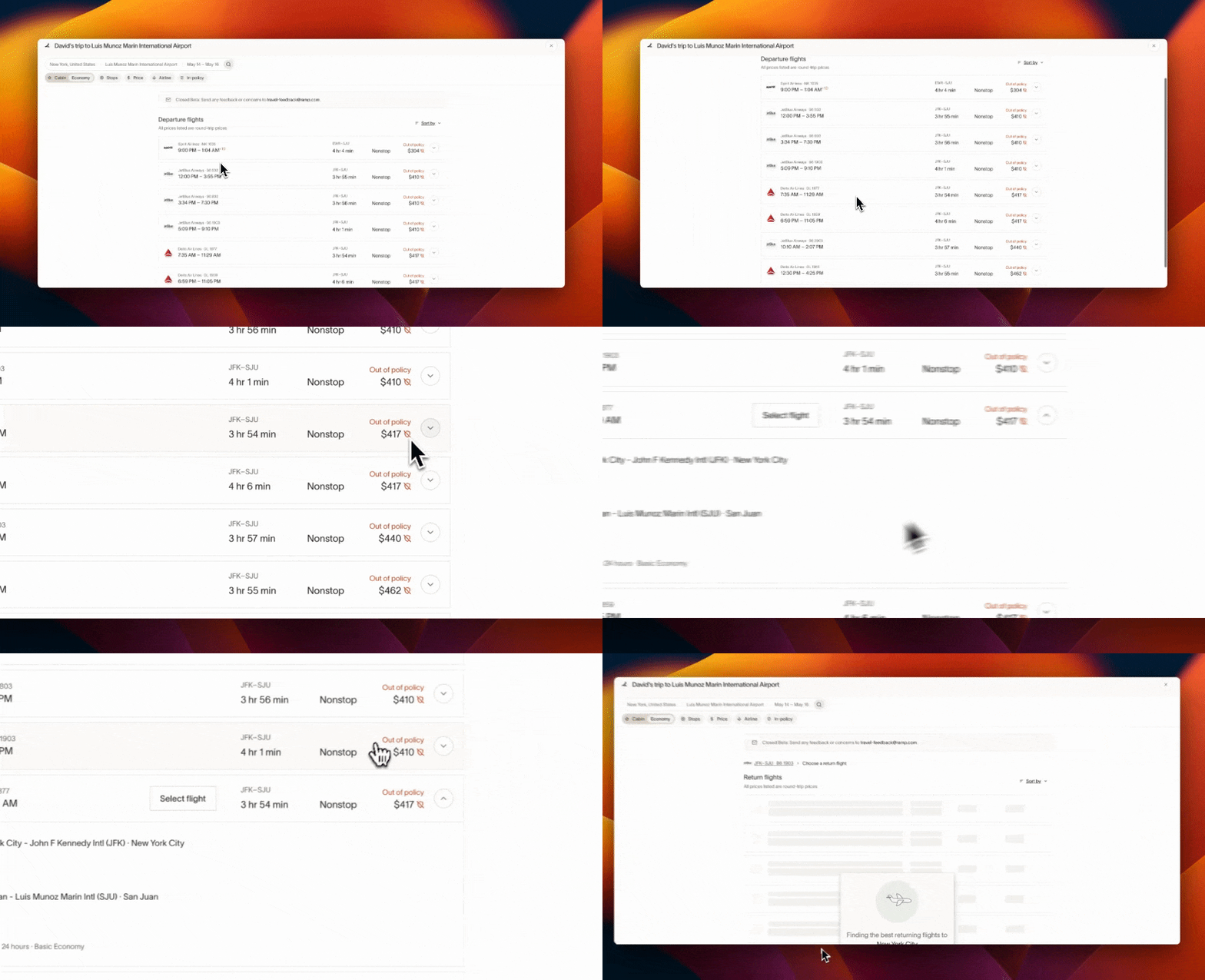
When an employee spends out of policy, notifications will be sent out to transaction approvers to review the out-of-policy spend. Please note that Ramp Travel Policies will not decline transactions but notify managers and administrators of out-of-policy spend.
Booking approvals are configured separately from booking rules. See the settings guide that matches your account to configure which bookings require approval.
For example, an admin has set up a travel policy of $500 USD per night for hotels and an approval policy to require approval for all out-of-policy bookings. When an employee tries to book a hotel for $600 USD per night, they won't be able to book directly without the manager's approval. They would submit a request instead of booking, which would trigger a notification to their manager. Once their manager approves, the booking will go through and employees will receive a booking confirmation email. It is possible that the price of booking would change from the time of request, and managers would see the price changes and can decide to approve or reject.
For flights and hotels, users can now request new funds at the end of the booking flow if they have insufficient spend or do not have an available card. By default, all spend requests require manager approval. Admins can modify this by setting up custom logic under Booking Requests settings.
Manage Ramp Travel settings and booking approvals
Travel product settings do not move into the policy document. Continue to manage booking on or off, guest bookings, rewards, preferred hotels, negotiated rates, car-rental corporate codes, and office locations through their existing Ramp Travel workflows.
Booking approvals are a separate, admin-configured control. An admin can require approval before out-of-policy bookings or all bookings complete. The settings guide that matches your account explains where to manage them.
Overseeing trips and travel spend
Administrators on Ramp have the ability to oversee all travel spend at their companies, and managers have the ability to oversee travel spend for their reports on Ramp. You can view your team's upcoming, active, and completed trips by navigating to Travel.
As an admin or a manager, you also can edit an employee's trip, add expenses to a trip, or submit reimbursements on behalf of an employee. If you see a transaction that doesn't belong as part of a trip, simply click the kebab icon next to the transaction and click "Remove Expense". For more details about a transaction, click "View Expense Details".
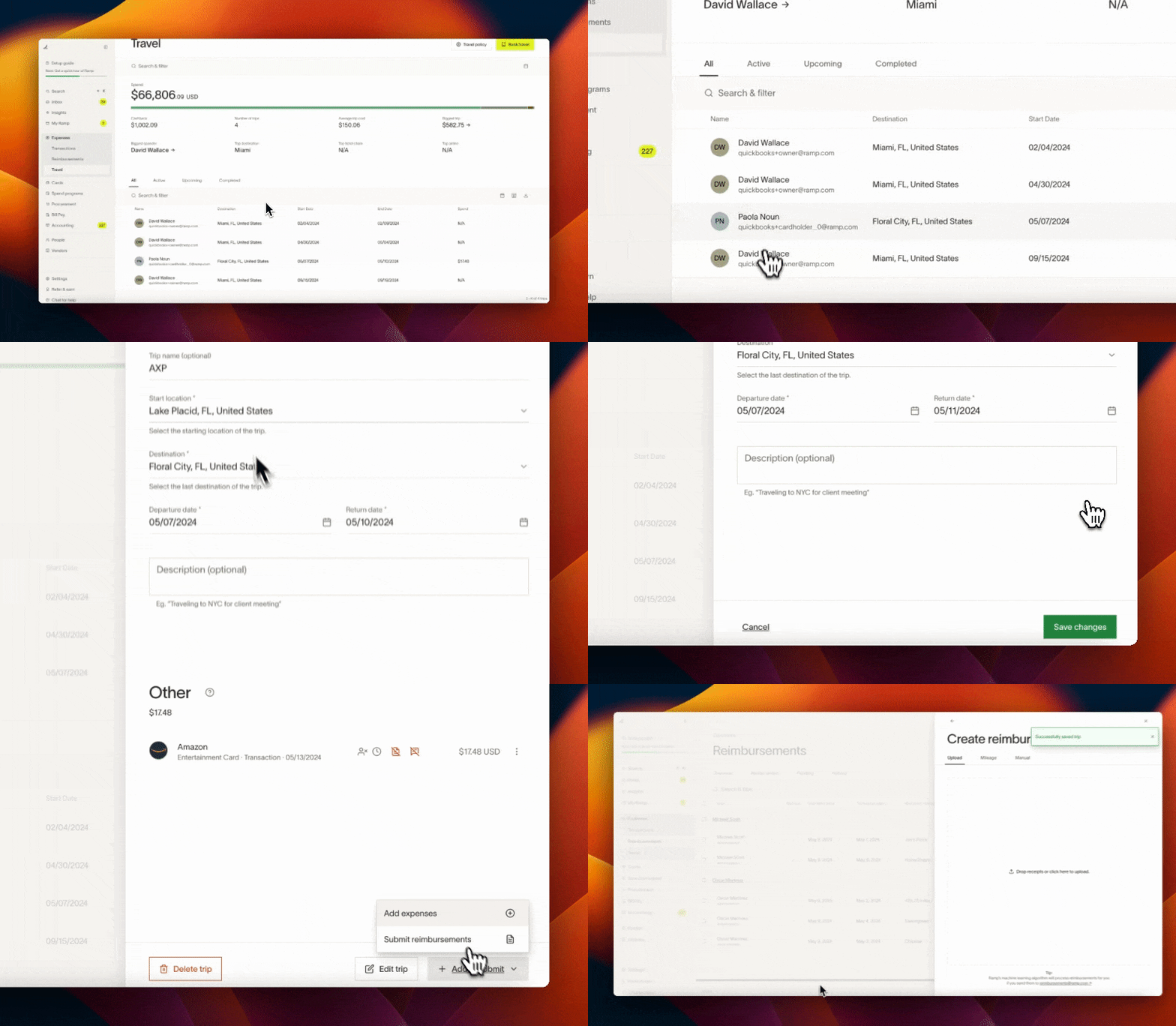
Ramp will provide insights to you such as cashback accrued, average trip cost, expensive trips, and more.
Clicking the download icon on the table will provide you with a CSV containing even more details, such as reporting on total per diem spend, flight spend, hotel spend, and more.
Frequently asked questions
- We have negotiated rates with a hotel. Are you able to support our negotiated rates?
Yes. Please follow these instructions for setup: Loading company's negotiated hotel rates - How do I add car rental corporate discount codes?
In Travel > Manage > Ramp Travel settings , scroll to the Car rental corporate rates section. Select the car rental company from the dropdown, enter your corporate discount code, and save. You can add codes for multiple car rental companies. These codes are automatically applied when employees search for and book car rentals on Ramp. - Can I set a default, or favorited hotel for my team to book at?
Yes, you can set up preferred hotels in Travel settings - What is the refund process for canceled flights?
- Fully Refundable Fares: If a fully refundable fare is canceled, the refund will be credited back to your Ramp card, regardless of when or where the cancellation occurs
- Standard Fares: These fares are typically non-refundable but can be changed. Canceling a standard fare will usually result in receiving a credit from the specific airline (e.g., a Delta credit)
- How long does my team have to cancel a flight or a hotel?
Most flights have a 24-hour cancellation policy. However, depending on the cabin class, you can have refundable or adjustable flights. Most refundable hotels allow you to cancel up to 48 hours before your stay. However, the final timeline depends on the specific hotel - How can I turn Ramp Travel booking on for our employees?
Booking travel on Ramp is enabled by default for your company’s employees. As an admin, you can manage this by navigating to your Travel homepage (Travel > Manage > Ramp Travel settings). If you want to disable Ramp Travel for everyone, including admins, switch off the toggle for bookings on Ramp. You can always revisit this page to turn Ramp Travel back on. Note: If you do not see "Ramp Travel" section where you can enable Ramp Travel for admins and/or employees, please reach out to your Account Manager or contact Ramp Support . - How can a company admin manage bookings or edit a traveler's profile for employees?
Use Travel Manager Permissions . If a company admin needs to modify or cancel a booking for a terminated employee, please reach out to the Ramp Support team - Can admins add multiple office locations?
Yes, you can add multiple office locations via Travel page > Manage > Ramp Travel settings. These office locations appear on the map while travelers are searching for hotels.