Per Diem Policy on Ramp
Overview
Per diem sets a daily spending limit on meals and incidentals for employees while they travel. Enabling per diem on Ramp replaces manual tracking with automated visibility — flagging overages in real time, giving reviewers instant context, and helping travelers self-correct their spend on the go. If your organization has a per diem policy, turning it on in Ramp ensures travel spend is tracked consistently across every trip.
Set up per diem
To configure the allowance, use the guide for the travel policy experience in your account:
- If your rules live in a policy document, follow Set up Policy Agent travel settings.
- If Travel Policy still shows editable rules, follow Set up Travel Policy settings.
These travel per diem rules apply to eligible card spending attached to a trip. To configure per diem reimbursements, use the separate Reimbursement settings.
Per diem for reviewers (Admins and managers)
Why enable per diem?
Enabling per diem automates daily limit tracking for meals and incidentals, flags overages as they happen, and gives reviewers full context at approval time. Without it, finance teams have to manually audit expenses — a slow, error-prone process that creates friction with employees.
What can reviewers do?
- Review all transactions for a trip: including per diem transactions broken down by day
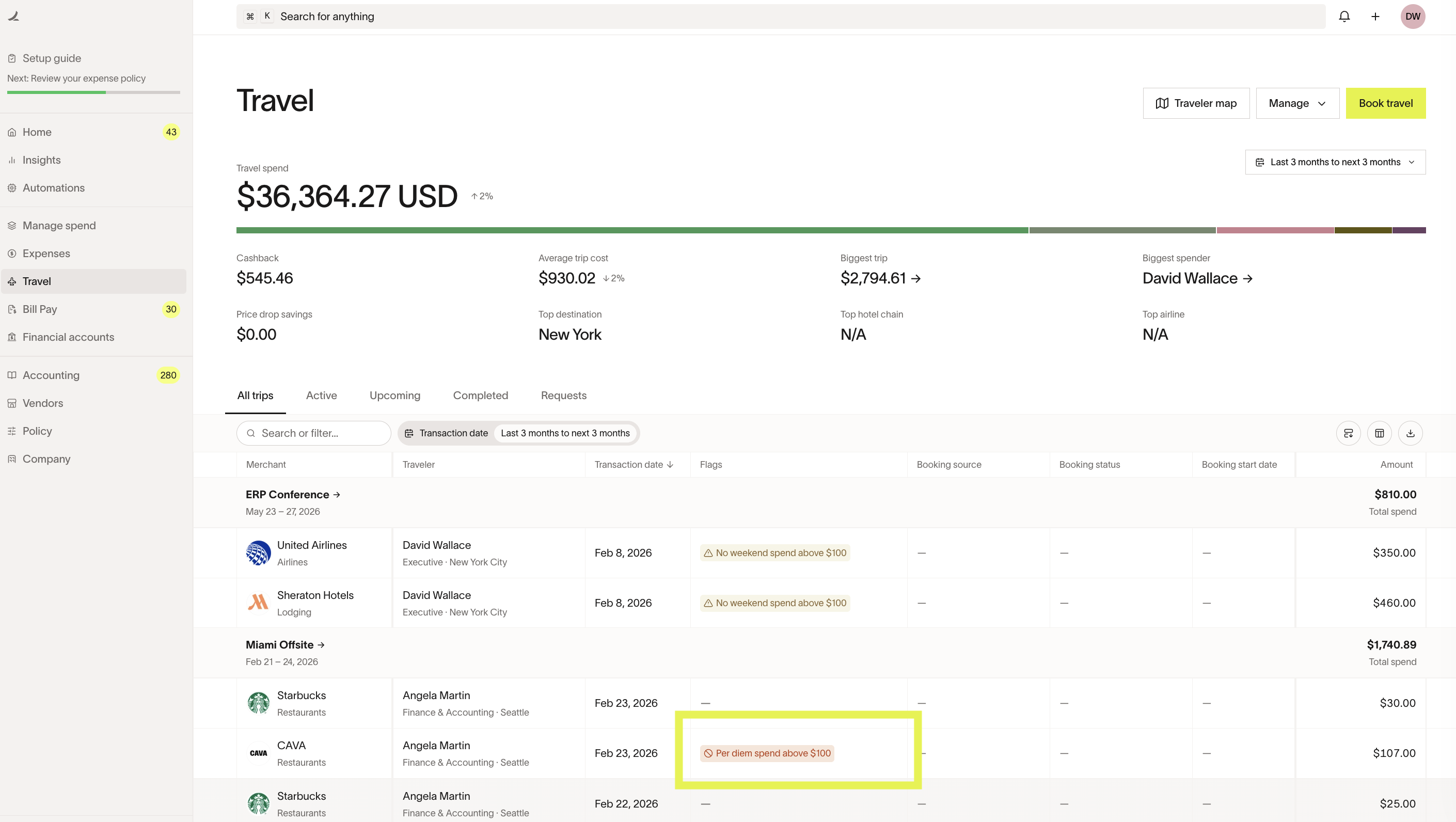
- See overspend instantly: a compliance flag appears on the expenses that push an employee over their daily limit, showing the overage
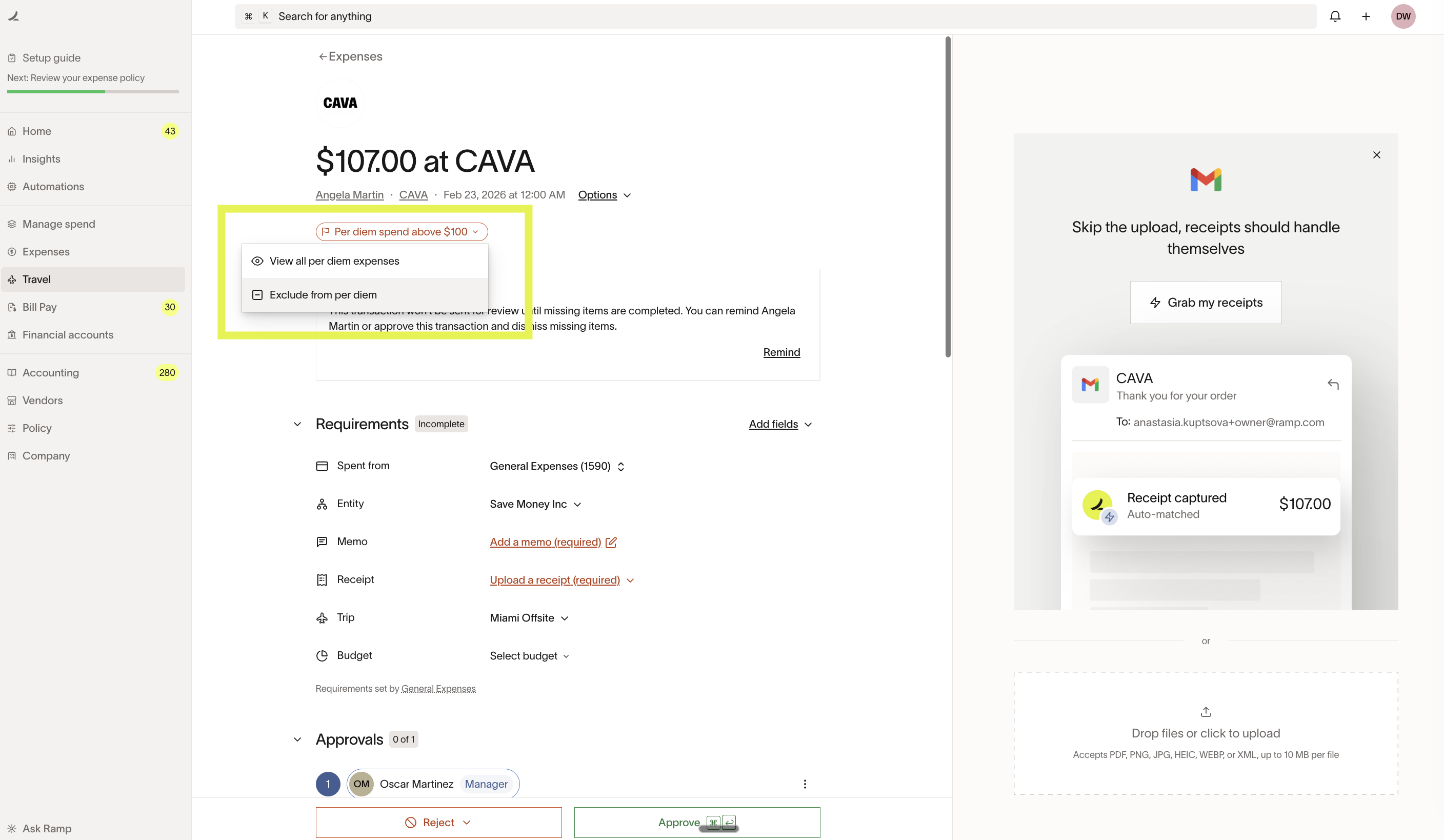
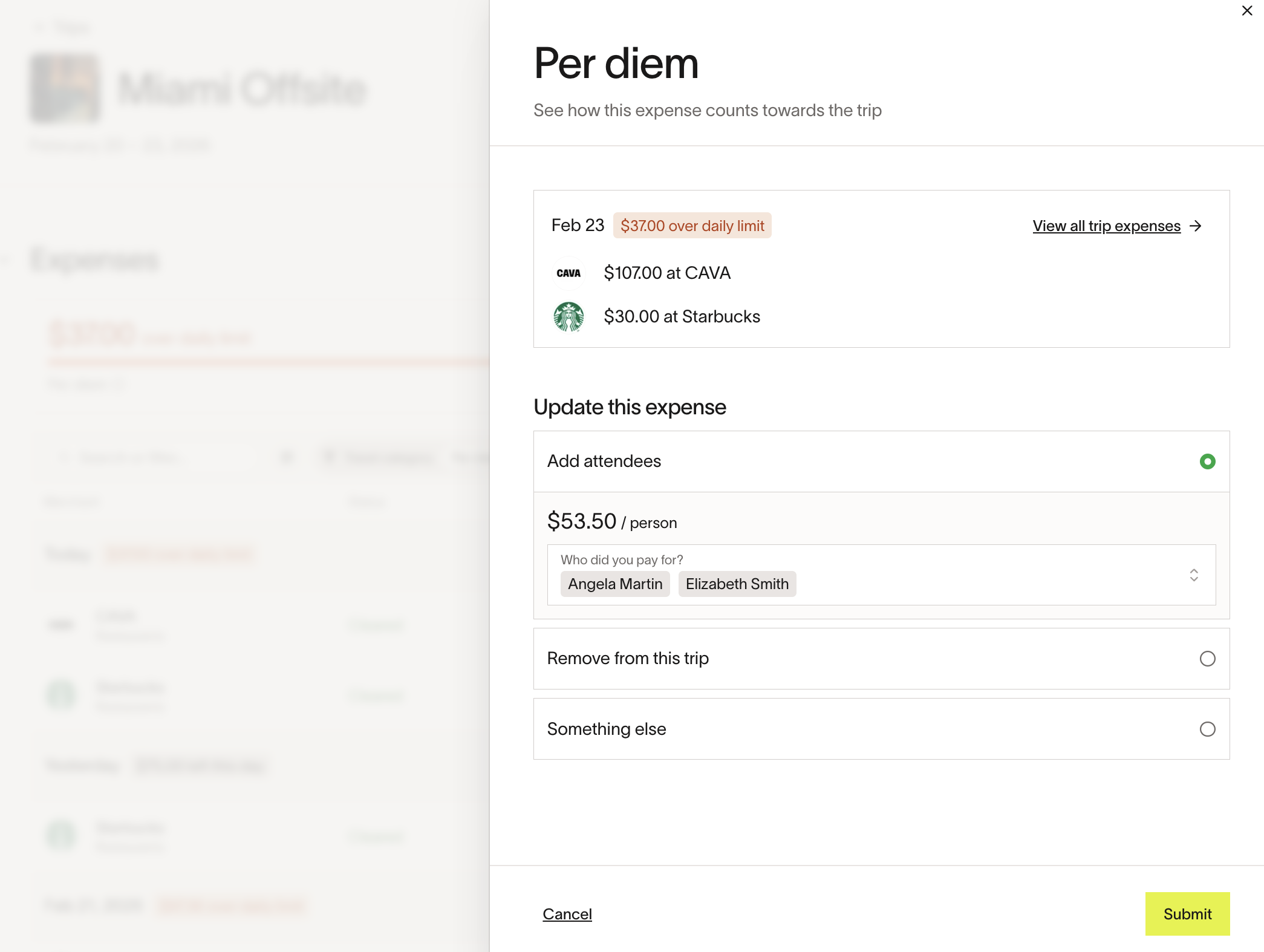
- Take corrective actions: mark the expense as Exclude from per diem if it was miscategorized, or Add attendees to an expense
Per diem for travelers
Why should travelers pay attention to per diem?
Per diem on Ramp gives travelers instant visibility into their daily spending budget and helps them stay within limits without manual tracking. Travelers see their balance update in real time after each purchase in the app and via SMS notifications. If a traveler goes over, they can quickly adjust by providing the reason for the overspend, excluding miscategorized expenses, or adding attendees to split the costs — giving them control to self-correct before approval time.
What can travelers do?
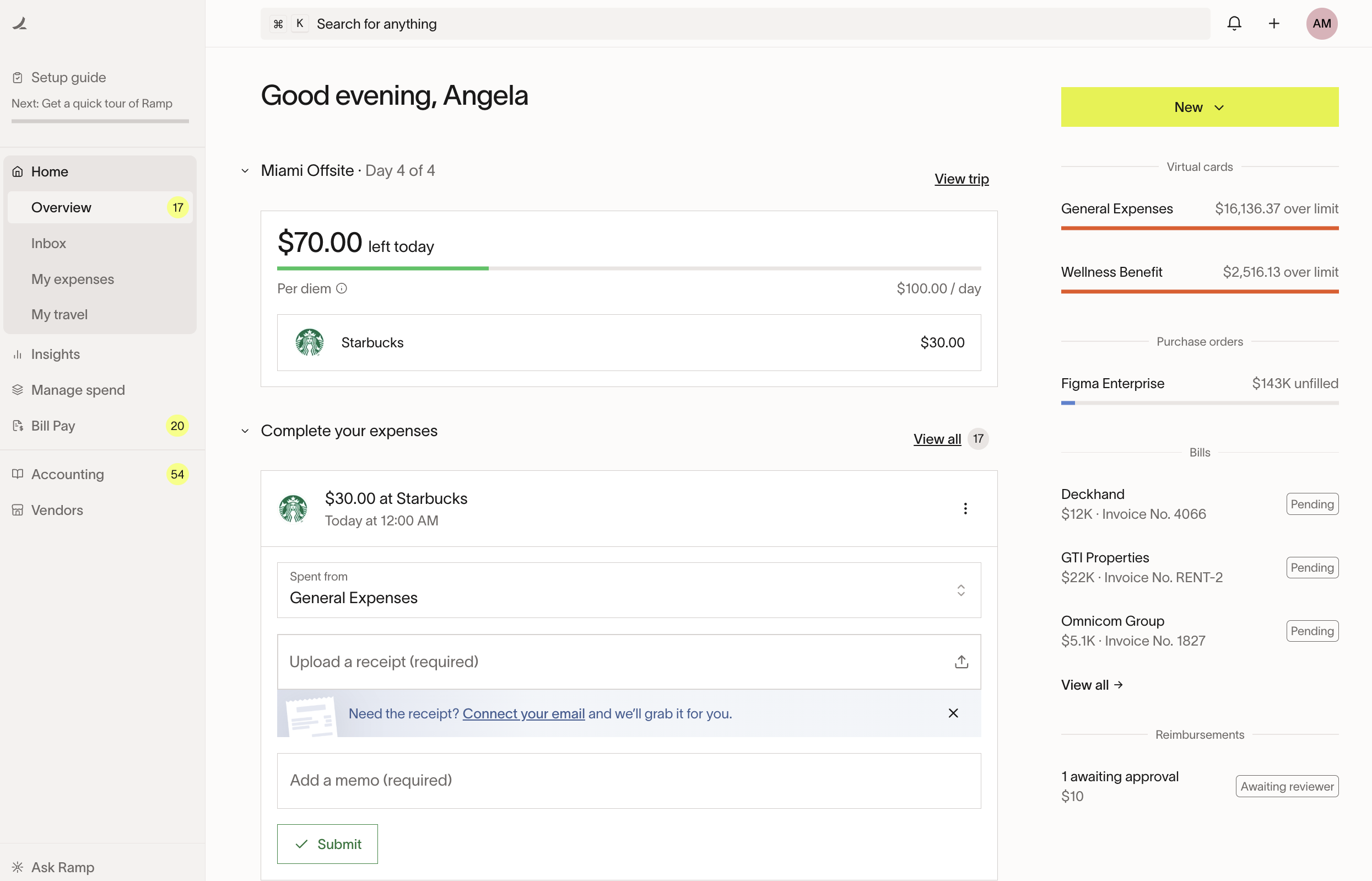
- See progress in real time: track daily per diem balance on the home or trip page
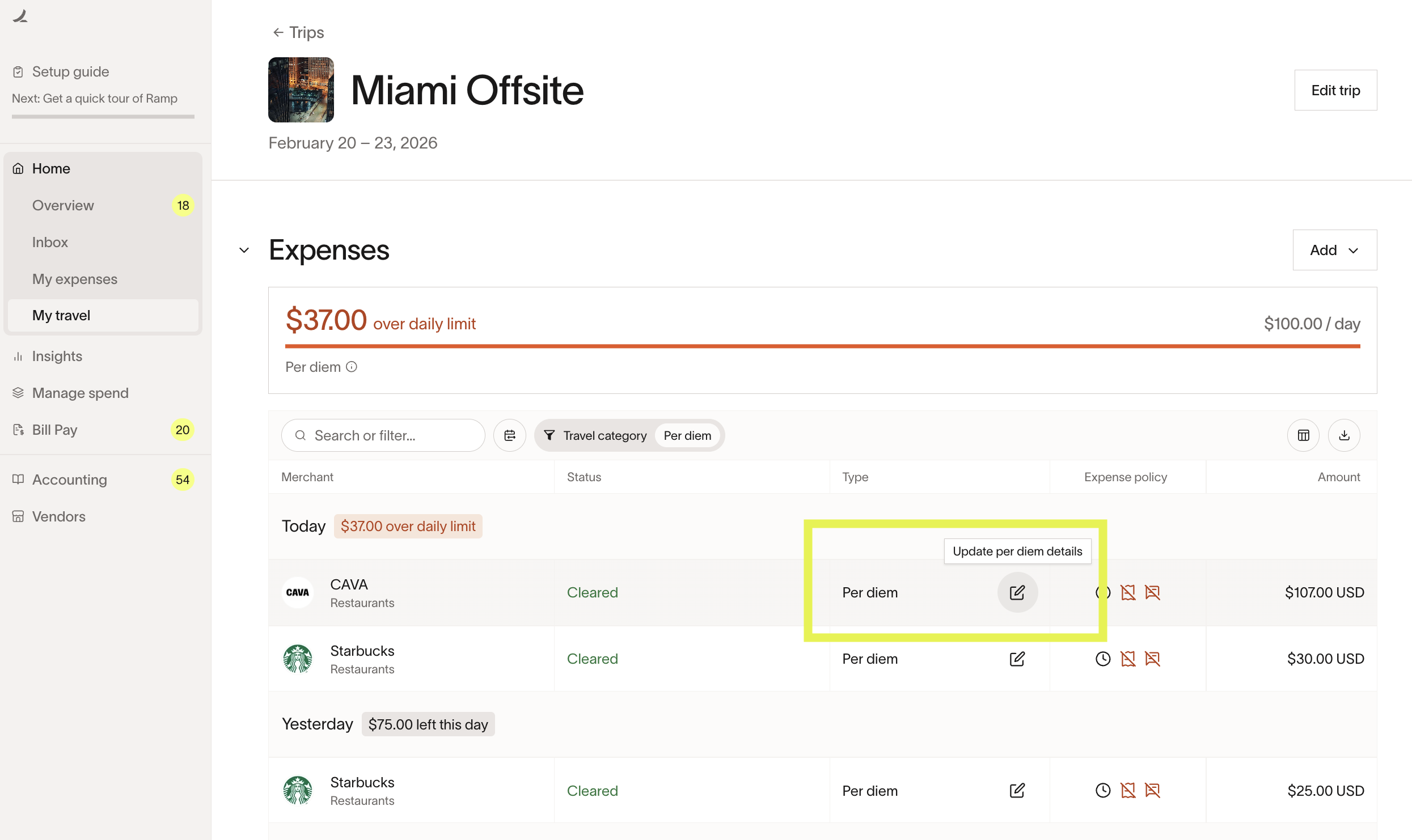
- Take corrective actions: mark the expense as Exclude from per diem if it was miscategorized, or Add attendees to an expense
- Interact via SMS: receive real-time SMS notifications after each purchase showing the updated daily balance, and correct via SMS in real time as spend happens — not after the trip
Frequently asked questions
What expenses count as per diem?
Per diems cover meals and incidentals during trips, which typically include spend in merchant categories like restaurants, alcohol and bars, supermarkets and groceries, and entertainment. Ground transportation (for example, Uber or public transit) does not count toward the per diem limit.
How does Ramp detect per diem expenses?
Per diem limits apply to eligible expenses whenever Ramp detects an employee is on a trip. Ramp can create a trip when a traveler books through Ramp or when Ramp matches an eligible airline, hotel, or car receipt to a transaction and extracts the itinerary details. Employees can also create a trip manually. Once a trip is detected, per diem applies automatically.
If attendees are added, how is the per diem amount affected?
The cost is divided by the number of attendees. However, it isn’t reflected on attendees’ accounts and doesn’t count toward their daily limits — only the cardholder’s per diem tracking is affected. If you’d like the cost to be tracked against attendees’ accounts as well, please contact Ramp Support , and we’ll enable this for your company.