Set up Travel Policy settings
Overview
If your company manages travel policy in Ramp, use this guide to configure flight, hotel, car-rental, and per-diem rules in Travel Policy. If a migration banner appears, you can review and move these rules into a Policy Agent document.
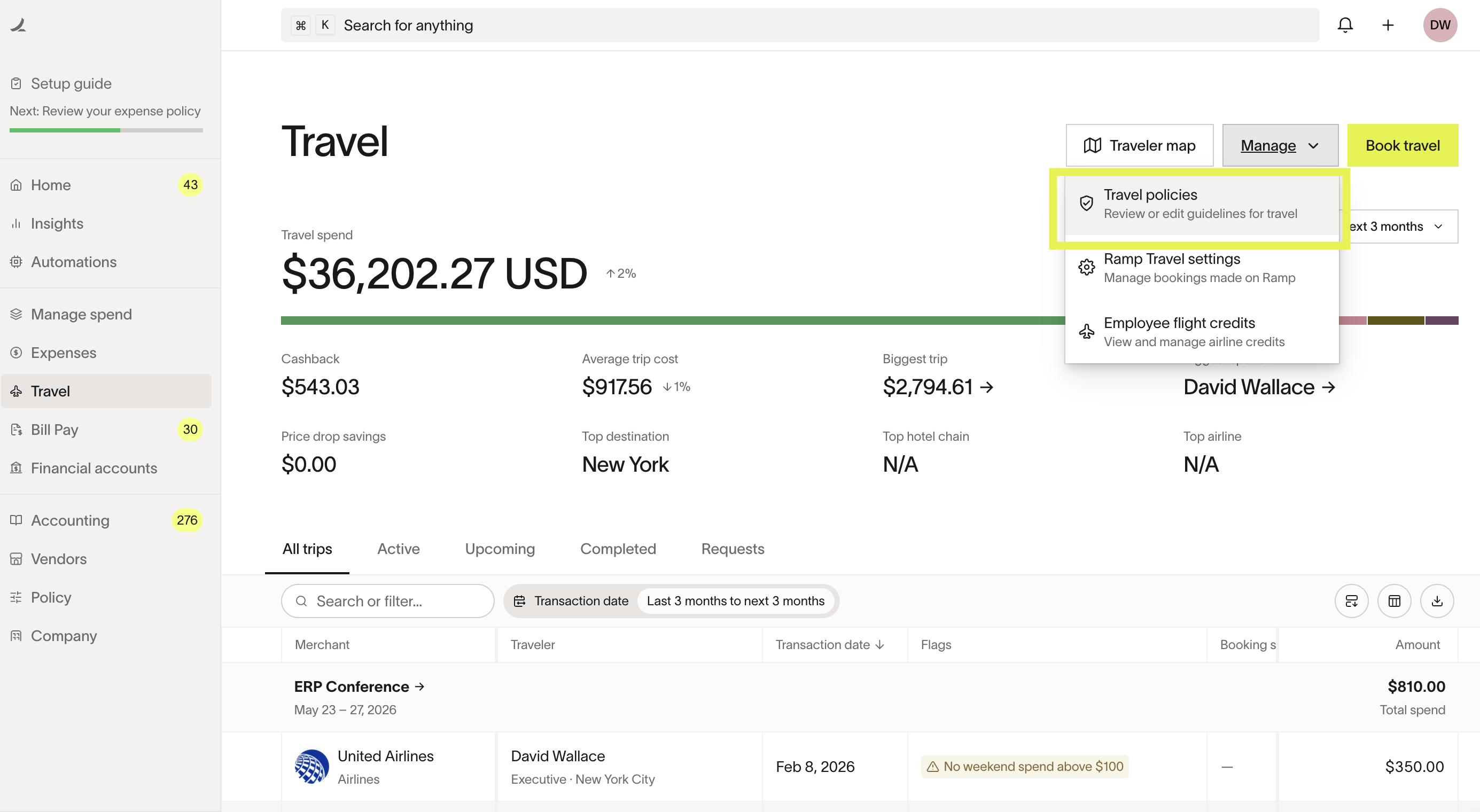
Edit travel rules in Travel Policy
Admins with Travel settings administration permission can manage rules in Travel Policy. Companies configured to manage policy through an external travel management provider should manage these rules with that provider instead.
With the Travel Policy setup, you can set:
- The maximum amount an employee is allowed to spend on a flight, hotel, or car rental
- Additionally, the maximum amount may be based on the market rate. Note that this rule only applies to bookings made on Ramp. The market rate is considered a fair price for your search and is calculated by: scanning all flights for the route/hotels for the destination and dates of your search. Excluding booking options not suited for the travel business. Computing the market rate on the filtered inventory
- For hotels, the maximum amount may also be based on the location-specific GSA rate
- How far in advance they need to book their travel
- What cabin classes are allowed
- Require refundable hotel room bookings
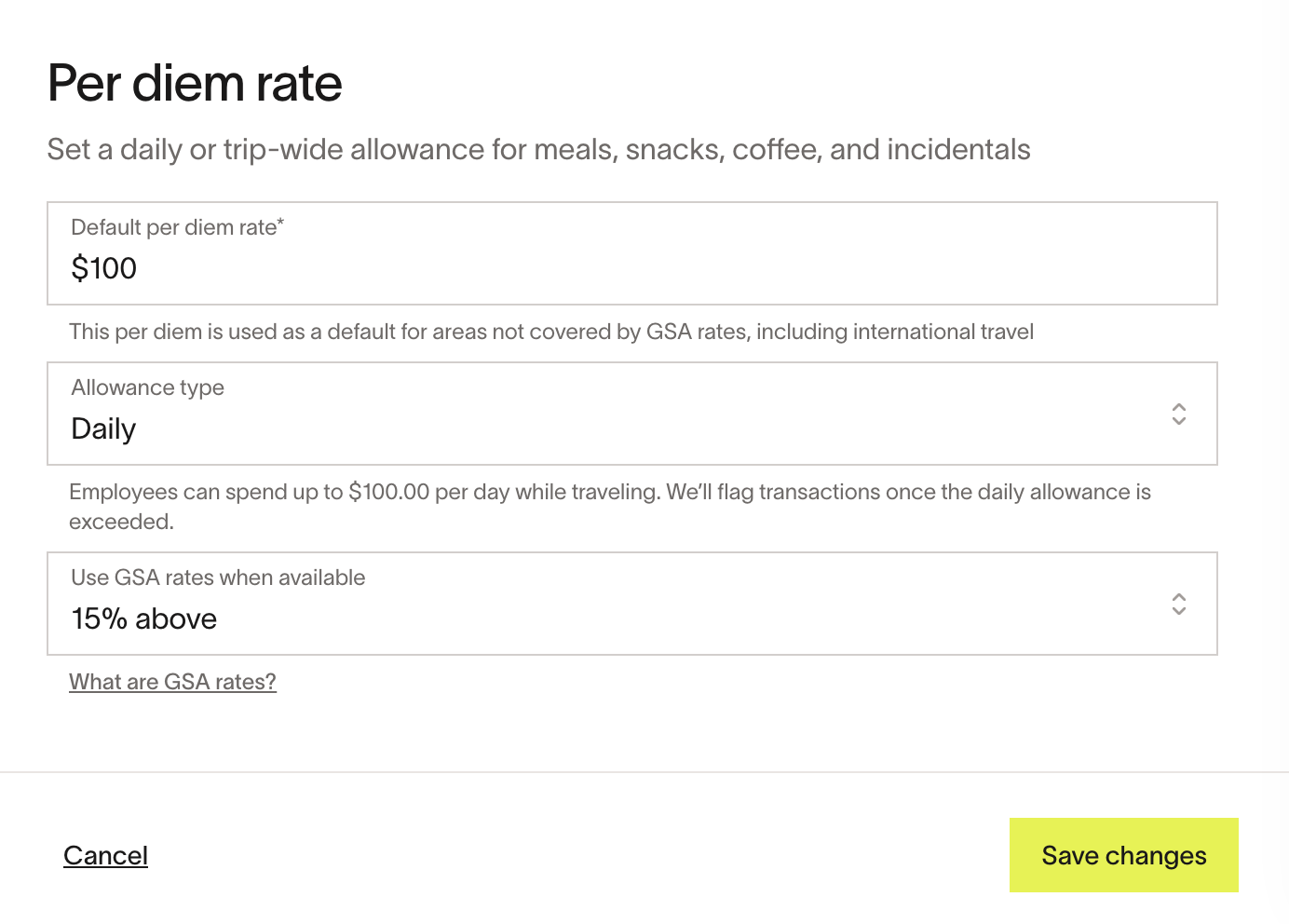
- Maximum per diem spend (includes restaurants, alcohol and bars, supermarket and groceries, entertainment)
- Option to enable GSA rates (location-based per diem)
- Find out more about per diem from the Per Diem Policy on Ramp page
If your company manages travel policy in Ramp, create multiple travel policies based on conditions such as Ramp role, department, and location in Travel Policy.
Configure booking approvals in Travel Policy
When Ramp Travel booking is on and your travel rules are managed in Travel Policy, use the Policy tab in Travel Policy to set which bookings require approval. If booking is off, turn it on in Ramp Travel settings. If your rules are in a policy document, use Policy Agent travel settings instead. These settings are separate from the rules that mark a booking out of policy.
Migrate existing travel rules to Policy Agent
If the migration banner appears on your Travel Policy page, use it to move your existing travel booking rules into your Policy Agent document. This flow lets you review the rules converted into natural language, make updates, and confirm that they reflect your policy before publishing.
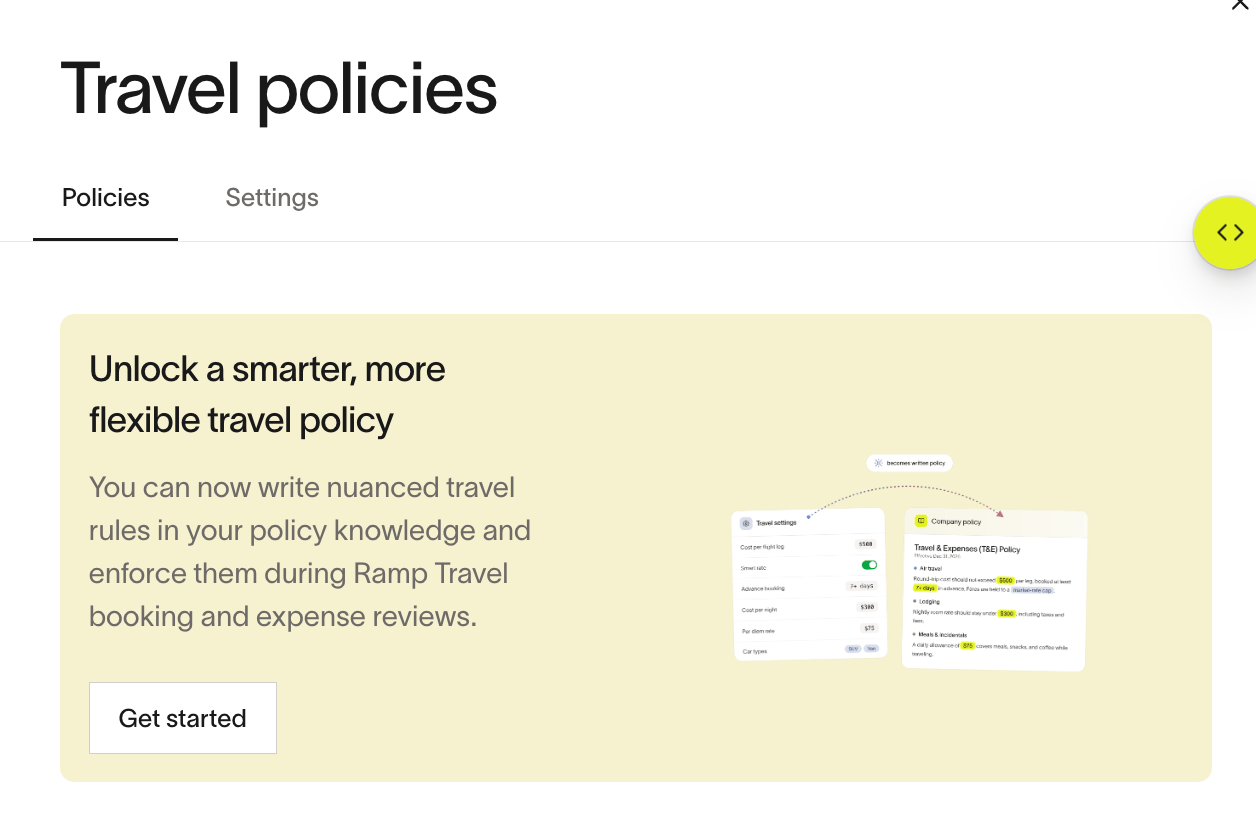
- From Travel Policy, select Get started in the migration banner.
- Review each converted rule in the policy document and make any needed changes in natural language.
- Publish the policy document.
After you publish, manage all travel booking rules in the Policy Agent document. The old travel policy settings are no longer available.
Set per diem rules in Travel Policy
If the Travel Policy page still shows editable settings, open Travel Policy and set the Per diem rate there.
In Travel Policy settings, choose a rate type:
- Flat rate: a fixed daily amount (for example, $100 USD per day) for all trips
- Location-based (GSA): automatically applies U.S. GSA rates based on the traveler's destination. For areas not covered by GSA rates, including international travel, the default per diem rate is used.