Setting up SCIM and managing user provisioning
Note: This article primarily applies to Ramp Administrators. Cardholders may find other articles in the Ramp overview section to be more applicable.
Overview
Ramp supports user management via the system for cross-domain identity management (SCIM) protocol. Ramp admins can manage all user provisioning from their identity provider (IdP) as a single source of truth. Benefits include:
- Automatic user provisioning
- Centralized control of user information
- Secure and immediate user de-provisioning upon user removal
- Reversible user de-provisioning with support for deactivation rather than deletion (draft users are deleted)
Today, we support SCIM integrations with Okta, Microsoft Entra, and Rippling. You can refer to the linked articles for step-by-step guidance for setting up the integrations from the Integrations tab.
Note: SCIM integrations for user management are separate from SSO integrations for user sign-in. For more information on using SSO at Ramp, please see this article.
Important: What SCIM controls (and what it overwrites) When SCIM is enabled, your identity provider becomes the source of truth for the following fields: first name, last name, email, department, location, manager, and role. Manual changes to these fields in Ramp will be overwritten on the next sync cycle (typically within 5-10 minutes). By default, role is determined by manager assignment: users assigned as another employee's manager in your identity provider are automatically given the Manager role in Ramp. For more granular role control, you can configure explicit role assignments — see the setup guides for Okta, Microsoft Entra, or Rippling. To make permanent changes to SCIM-managed fields, update them in your identity provider instead. Note: By default, email changes through SCIM require the employee to confirm via a verification email. If Email change preference appears in SCIM settings, an Admin can choose Skip verification and save the change. Fields NOT managed by SCIM (safe to edit in Ramp): spend allocations, card settings, custom fields (unless separately mapped), approval chains, and accounting fields.
Easy integration setup
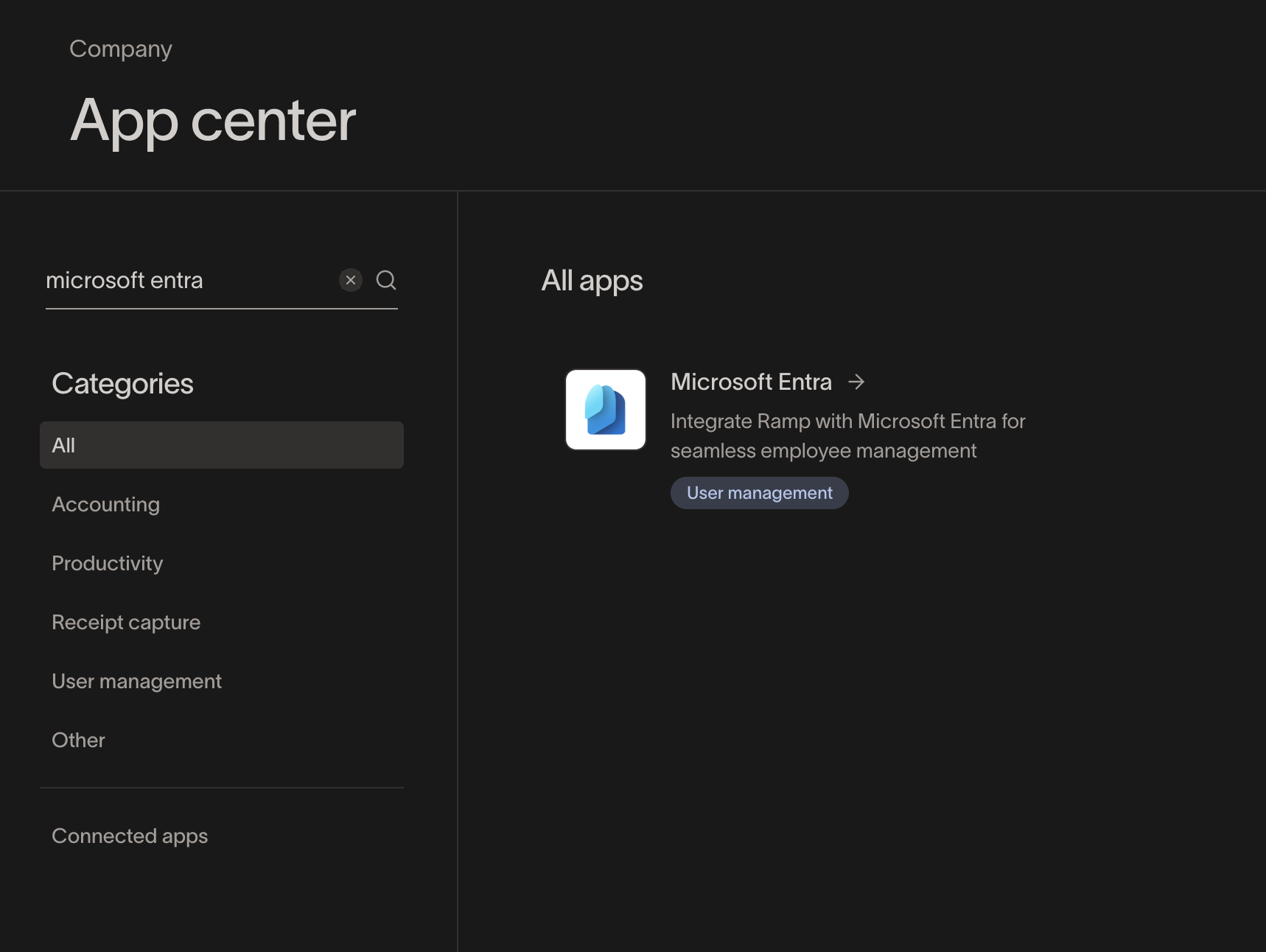
Navigate to the Integrations and search either "Okta" or "Microsoft Entra" to find the relevant integration.
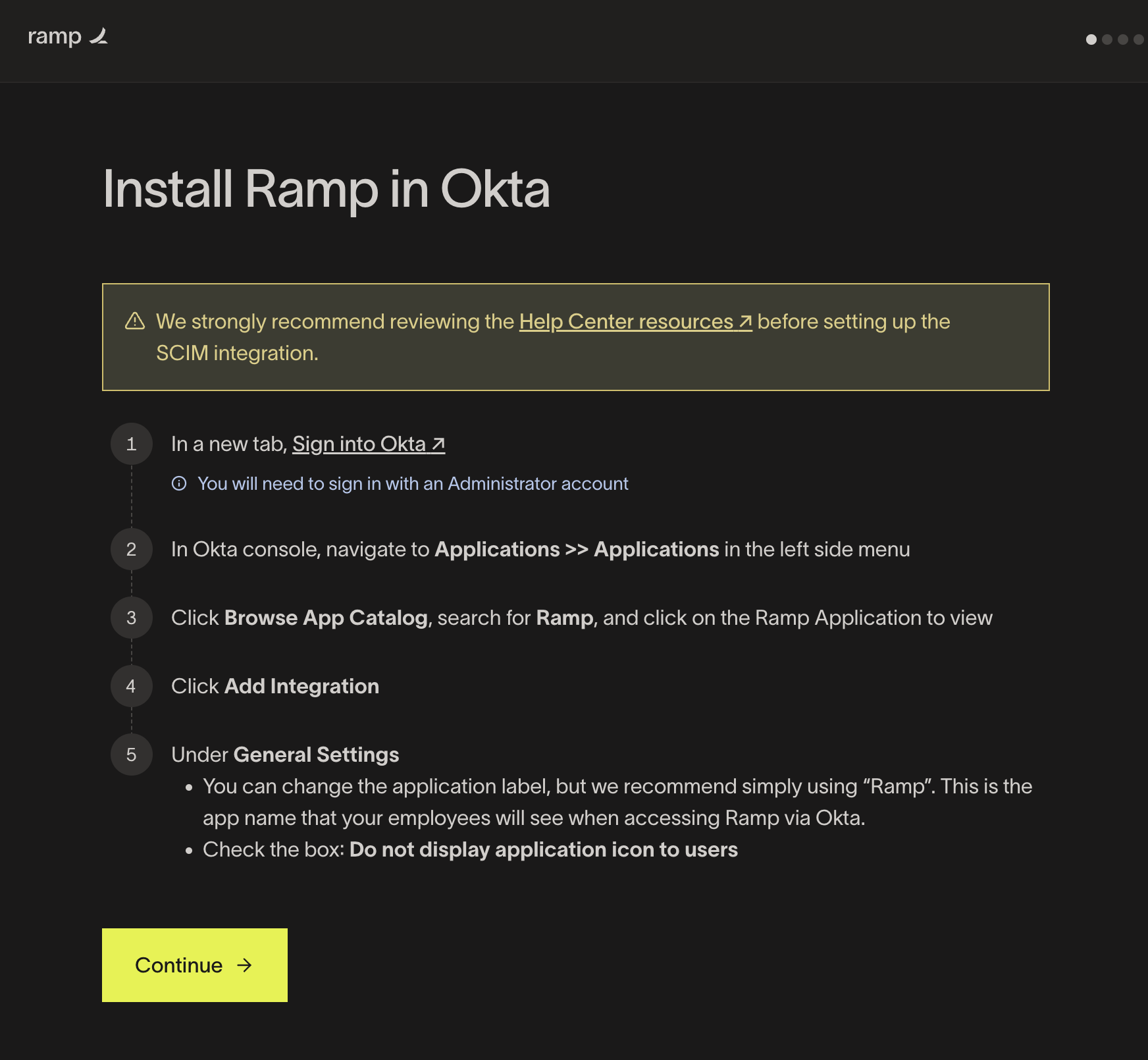
Review the overview page then follow the step-by-step wizard for a clear and convenient setup process. Note: You will need to have access to both Ramp and your IdP to complete the setup. Our integration guides can be found below:
Clear integration management
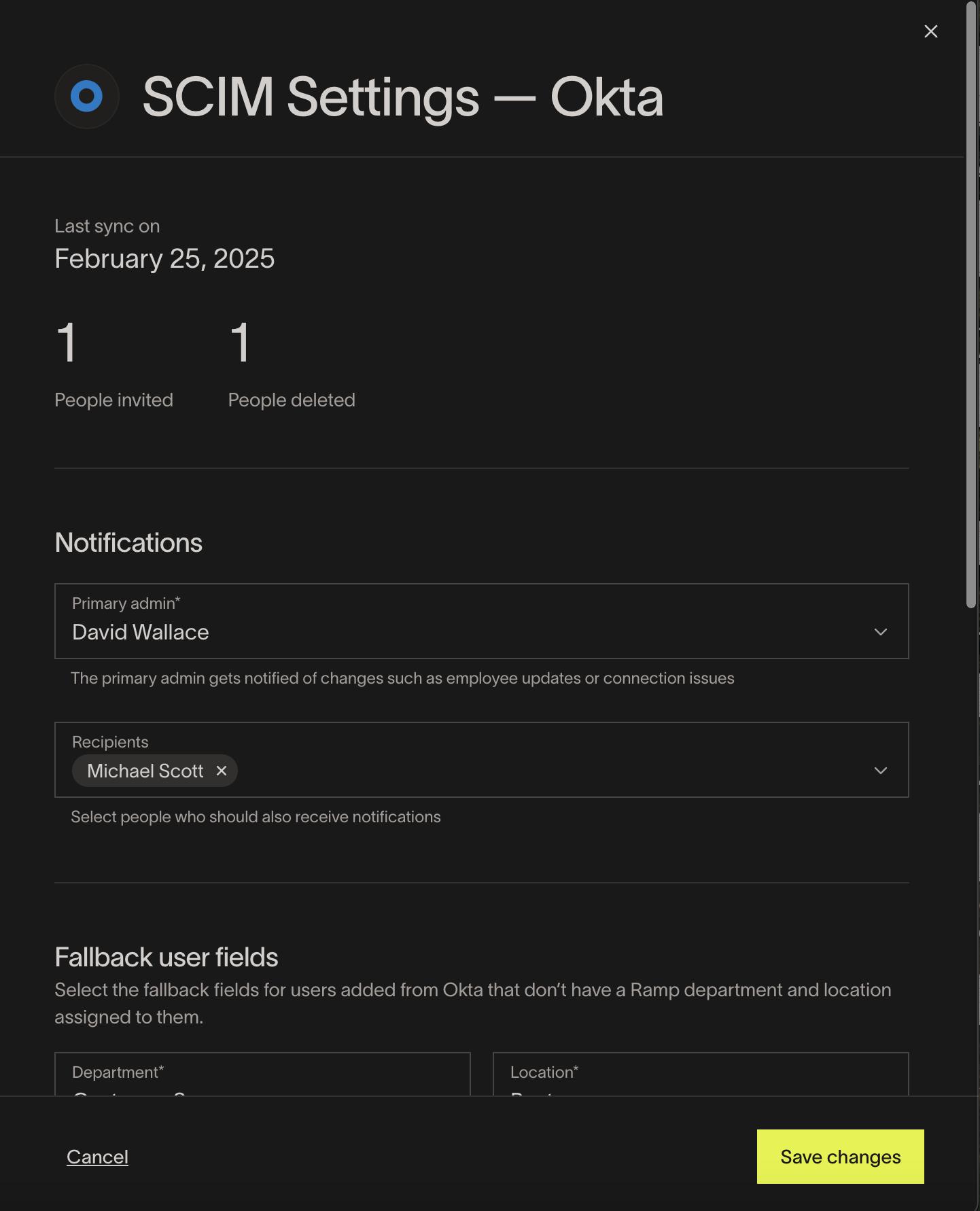
To open SCIM settings, go to People, open the top-right actions menu, and open the settings for your connected SCIM provider. Here you can:
- View the last sync time.
- This is the latest authenticated SCIM request Ramp received from your IdP. It does not confirm that a user update finished processing.
- See the number of users invited and terminated via SCIM
- View integration information in case you need to reconnect at some point
- “Disconnect” the integration.
- Disconnecting will prevent any future data syncing. To fully disconnect, go to your IdP and follow the steps to delete the SCIM integration.
Centralized view of all user updates
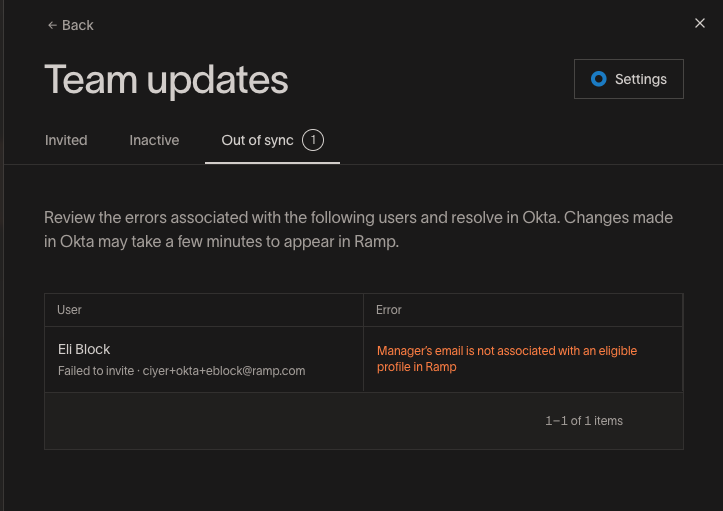
Open the SCIM management view to review user updates in separate views:
- Invited users
- Inactive users
- Sync errors for users who could not be invited
Sync errors
Below are SCIM sync errors that may appear in Ramp:
| Reason | Error message |
|---|---|
| Circular manager | Employees can't be assigned as their manager's manager |
| Invalid manager | Manager's email is not associated with an eligible profile in Ramp |
| Self manager | Employees can't be assigned as their own manager |
| Duplicate email | Email is already associated with another employee |
| Invalid name | Ensure first and last name are entered correctly |
| Invalid location change | Work location cannot be assigned to an entity using a different card currency |
| Invalid role assignment | User is not eligible to receive assigned role |
Convenient user provisioning
When you connect to your IdP via SCIM, you will be able to automatically invite users to Ramp from your IdP. Note that you can provision users individually and via groups.
Ramp requires the following information to send the invite:
- First Name
- Last Name
- Email address
- Department
- Location
To send a user invite via SCIM, Ramp must receive every required field. Department and location can each come from the IdP or the corresponding integration default. If Ramp cannot resolve a required field after applying these defaults, the request will fail. You can track errors/unsent invites in the IdP and review SCIM sync errors from the Ramp People page.
When the Invite immediately preference is selected (see Invite preference below), Ramp invites are sent to users via email automatically after the users are provisioned. The Ramp account owner is shown as the sender.
Note: Invites created through SCIM provisioning have a 90-day expiration window unless your business uses a custom invite expiration window. The default for manually sent invites is 14 days.
If you also have SSO/SAML set up, your users can access Ramp using SSO and don't need to accept the invite via email.
Invite preference: invite immediately or create profile only
To find the Invite preference setting, go to People, open the top-right actions menu, and open the settings for your connected SCIM provider. This setting controls what happens when a user is provisioned via SCIM:
- Invite immediately — Users provisioned via SCIM are invited to Ramp immediately. This includes users who already exist in Ramp as drafts: when a provisioning request comes in for an existing draft, Ramp publishes that draft and sends the invite, the same way it would for any new user provisioned via SCIM.
- Create profile only — Users provisioned via SCIM are created as drafts. Draft users can't sign in, spend, or receive any Ramp communications until an admin invites (publishes) them. This lets you build out your org chart, approval workflows, and Spend Programs before anyone is invited. See Setting up draft users.
Selecting Invite immediately does not retroactively invite users who are already drafts. An existing draft is published and invited the next time your identity provider sends a provisioning request for that user.
Leveraging user groups from the IdP
You can create a group in the IdP and provision users via that group.
To create or sync groups in Ramp from your IdP, follow the provider-specific group setup instructions for Okta, Microsoft Entra, or Rippling.
Automatic user information updates
SCIM automatically updates the supported user information listed below when those values change in your IdP. For these fields, your IdP is the source of truth. Email changes require employee verification by default; when Email change preference is available in SCIM settings, an Admin can choose Skip verification.
| User attribute | Supported by Okta? | Supported by Entra? |
|---|---|---|
| Name | Yes | Yes |
| Yes | Yes | |
| Department | Yes | Yes |
| Location | Yes | Yes |
| Manager | Yes | Yes |
| Role | Yes (by default via manager assignment; explicit role assignments also available) | Yes (by default via manager assignment; explicit role assignments also available) |
Troubleshooting SCIM sync issues
Users not appearing after provisioning
- SCIM sync is not instant. Changes from your identity provider may take up to 5-10 minutes to appear in Ramp (Okta) or up to 40 minutes (Entra, which syncs approximately every 40 minutes).
- Verify the user is assigned to the Ramp application in your identity provider.
- Check that Ramp can resolve department and location independently. Each value can come from the IdP or its corresponding integration default. If either value is unavailable from both sources, the user will not be provisioned. To configure a missing default, open People, open the three-dot page actions menu, and configure your SCIM settings. Under Fallback user fields, select a Department and Work location, then click Save changes.
- Confirm the SCIM connection is active by going to People, opening the top-right actions menu, opening the settings for your connected SCIM provider, and checking the last sync timestamp.
Attributes not mapping correctly
- Verify attribute mappings in your identity provider match the expected format in Ramp.
- SCIM attribute names sent in camelCase are automatically converted to snake_case in Ramp.
- For custom field mappings, ensure the SCIM attribute external name matches exactly (case-sensitive, snake_case).
For provider-specific troubleshooting, refer to the setup guides for Okta, Microsoft Entra, or Rippling.
Secure yet flexible user termination via deactivation
When a user is de-provisioned from your IdP, Ramp automatically deactivates their account unless they are still in draft, in which case Ramp deletes them. Deactivation is reversible — the user can be reactivated later if needed.
As part of deactivation, users will be put in an inactive state where they:
- Cannot sign in
- Cannot spend on cards or funds
- Will not receive Ramp notifications
The user's Ramp account will not be deleted, their cards and funds will not be terminated, and they will remain listed in workflows.
This inactive state is reversible. Upon reactivation:
- Users can sign in to Ramp again.
- Users can spend on their previously issued cards and funds.
- Users will resume receiving Ramp notifications.
Impact on workflows and approvals
While a user is inactive:
- They will be indicated as “(Inactive)” on the People table.
- They will remain in their assigned Ramp workflows.
- They will remain as managers if they are assigned as such.
- However, they will be unable to perform actions related to these duties due to their inability to sign in to Ramp.
Deleting users and terminating cards and funds
Ramp will no longer automatically delete non-draft users or terminate their cards and funds based on a SCIM instruction. However, you can enable auto-termination to automatically terminate eligible SCIM-deactivated users after a configurable waiting period (default: 45 days). For details, see Auto-termination with SCIM.
If you prefer to handle termination manually, you can sign in to Ramp and perform these actions yourself.
When performing these actions on Ramp, customers will have options to:
- Terminate or reassign any active cards or funds.
- Replace the user in any active workflows.