Rippling integration: Set up SCIM provisioning
Note: This article primarily applies to Ramp Administrators. Cardholders may find other articles in the Ramp overview section to be more applicable.
Overview
System for Cross-domain Identity Management (SCIM) can be set up to connect your Identify Provider (IdP) with your Ramp account. SCIM allows you to invite and deactivate Ramp users directly from your IDP. For general information on using SCIM with Ramp, please review this article.
This article explains how to set up the Rippling SCIM integration from your Ramp account.
We've called out many suggestions and "things you should know" for using the integration so we strongly recommend you read this before setting up your SCIM integration.
Note: Changes made via SCIM may take up to 5 minutes to be reflected in Ramp, and in rare cases, slightly longer. For urgent actions, such as terminating a compromised Ramp user, card, or funds, we recommend completing the action directly in Ramp.
Set up the integration on Ramp
Before you begin
- Determine which profile field you want to use for the user's department in Ramp. By default this is set to "department" but you can map to any profile field in Rippling. Other common options are "cost center", "organization", or "division".
- Determine which profile field you want to use for the user's location in Ramp. By default this is set to "city" but you can map to any profile field in Rippling. Other common options are "cost center", "locale", "state", and "country code".
- Audit your users in Rippling to ensure there is a department AND location set for each user. Any user who does not have one of these values will be provisioned with the defaults you set for your integration.
- "Groups" in Rippling can make it easier to manage user assignments. If you choose to use Rippling groups, please fully review the "inviting user groups" section below.
- If you already have users on your Ramp account:
- Confirm that the employee profile information in Ramp matches the data in Rippling. When you provision a user via SCIM and they already exist in Ramp, Rippling becomes the source of truth and will override the user's Ramp profile if it doesn't match.
- If a user's email address doesn't match, SCIM will use the Rippling email address to create a second account for the user
- If you are disconnecting from HRIS to set up SCIM
- Please ensure that the HRIS fields that you use for Department and Location are synced to your IDP (Rippling). If you disconnect HRIS, and the data does not match Rippling, the SCIM integration will override the employee profile information on Ramp. (Reminder that you can map to any IdP field you'd like).
- We recommend contacting your Ramp partner for support
- (Later) Once you have the integration set up, before you terminate anyone via SCIM, you’ll want to determine your preferred options for handling user deactivation in regards to how Ramp will handle their cards and status in approval chains. (See Terminations section below)
- Know the supported features
- Create users (Invite to Ramp)
- Update user attributes (Name, Department, Location, Manager)
- Deactivate users
Integration setup
- Go to Company > Integrations
- Search and select Rippling
- Note: You cannot integrate with both SCIM and HRIS at the same time. If you are connected to HRIS, you will need to disconnect the HRIS integration in order to set up SCIM.
- When you select your provider, you will be prompted with instructions on how to set up the integration with your IdP. These instructions are specific to Rippling SCIM and will guide you through setup.
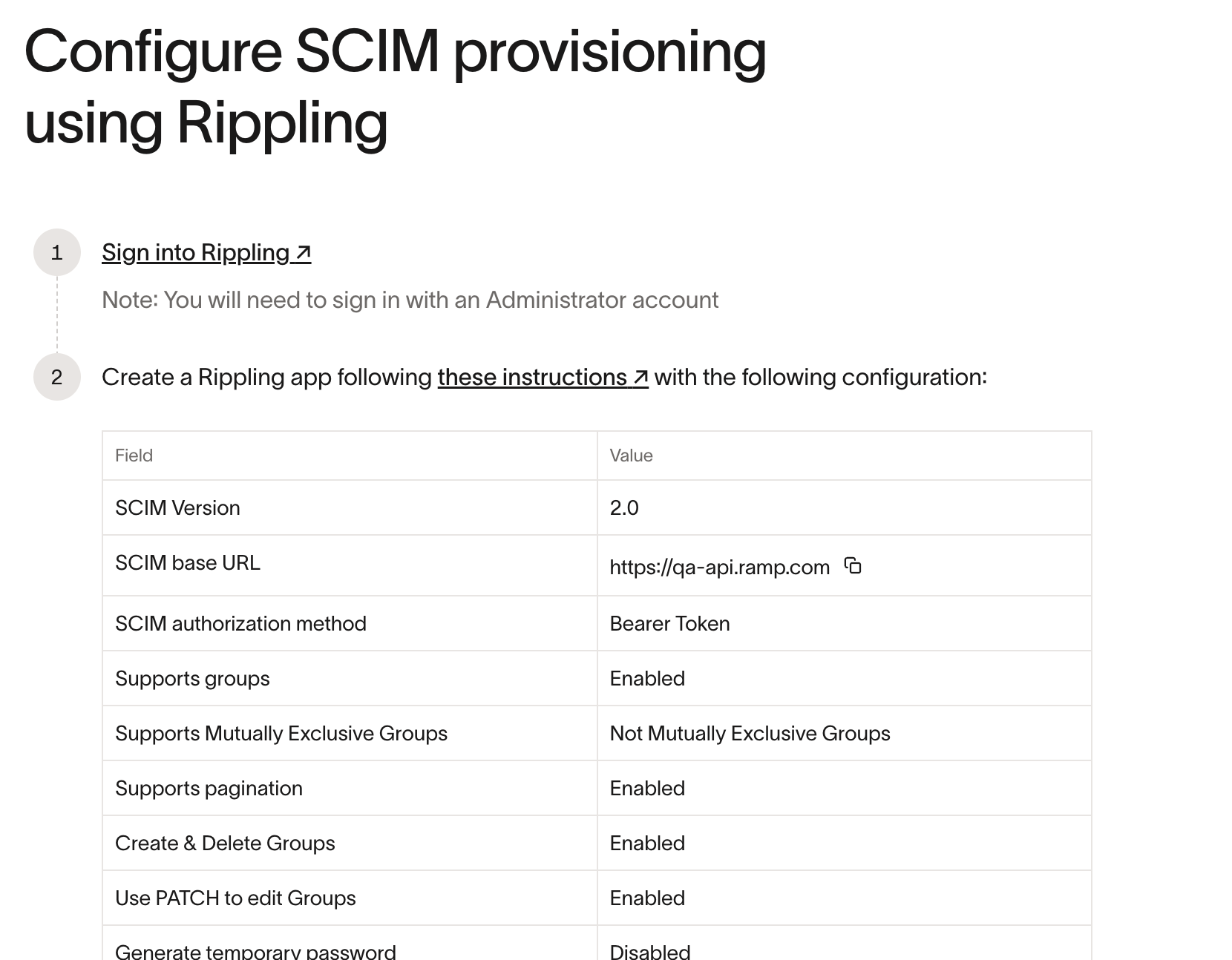
- Install the Ramp integration in your Rippling tenant following the provided instructions
Setting the attribute mappings
The following are the recommended attribute mappings. Please note: that you can assign any desired Rippling value to the Ramp attributes. Ensure the attribute names match the capitalization below (e.g., in "userName" make sure the "N" is capitalized).
| Ramp Attribute | Rippling attribute | Cadence | Notes |
|---|---|---|---|
| department | User's Department name | On user creation and updates | Used to set the user’s department in Ramp. If the department does not exist in Ramp yet, it will be automatically created. If Ramp receives a request to create or update a user with no department and no default department, it will be rejected. |
| externalId | User's ID | On user creation and updates | Not visible in Ramp. |
| name.familyName | User's Preferred last name | On user creation and updates | Used to set the user's last name in Ramp. |
| name.givenName | User's Preferred first name | On user creation and updates | Used to set the user's first name in Ramp. |
| manager.email | User's Manager email address | On user creation and updates | This should be the user's manager's email address. If Ramp receives no value, users will be provisioned with no manager. If Ramp receives an email address which isn't associated with a Ramp user, the user won't be created/updated until that manager is provisioned. Bulk provisioning of users alongside their managers is supported, as long as all specified emails point to a manager that is/will be provisioned. |
| phoneNumbers.mobile | User's Phone number | On user creation and updates | Optional, but must use E.164 format if specified. |
| emails.primary | User's email address | On user creation and updates | Used to set the user's Ramp account email address. |
| addresses.work.locality | User's work location city | On user creation and updates | Used to set the user’s location in Ramp. If the location does not exist in Ramp yet, it will be automatically created. If Ramp receives a request to create or update a user with no locality and no default location, it will be rejected. |
Note: Ramp uses the synced number to send texts about the user's invitation if invite texts are configured in invite settings.
Once you complete setup, you’ll land on the SCIM integration page where you can view and configure your SCIM settings. Read more about the SCIM settings page here.
Troubleshooting
If you run into any issues configuring SCIM, go to your Ramp dashboard and click the (?) icon in the top-right corner of your Ramp dashboard, near your profile. Ask Ramp to help troubleshoot the setup issue you are seeing in your SCIM configuration, and continue in the same help flow if you need a next step.
Provisioning users
Invites
When you connect to Rippling via SCIM, you will be able to automatically invite users to Ramp from Rippling.
Ramp requires the following information to send the invite:
- First Name
- Last Name
- Email address
- Department
- Location
If a user has a manager assigned to them in your IdP, you can push that information to Ramp as well, and we recommend doing so. (This is configurable from Rippling)
Note that if you invite a user with a manager who has not been invited to Ramp yet, we will not be able to provision the user in Ramp until the manager has been invited to Ramp as well.
To send a user invite via SCIM, Ramp must receive every required field. Department and location can each come from Rippling or the corresponding integration default. If Ramp cannot resolve a required field after applying these defaults, the request will fail. You can track errors/unsent invites in Rippling.
Note that you can map any Rippling field to the Ramp attributes. The recommended fields are pre-populated in Rippling, but you can change them.
SCIM user creation follows the invite preference in your SCIM settings. See how SCIM invite preferences control user creation.
If you also have SSO/SAML set up, your users can access Ramp using SSO and don't need to accept the invite via email.
Inviting user groups in Rippling
You have the option to invite users as individuals or as part of user groups from your Rippling account.
It is common to have workflows in Rippling that automatically add or remove a user to/from a group based on certain criteria. If a user is (automatically or manually) moved from a group where they are assigned to Ramp, they will be immediately deactivated in Ramp unless they are still in draft, in which case Ramp deletes them.
Due to this, we recommend you assign users to Ramp using a group that is manually managed rather than managed through automation and workflows. If you do need to move users between groups, we recommend adding the user to the new group BEFORE removing them from any other groups OR temporarily disabling "de-provisioning" from the SCIM settings while you make group changes. This will ensure they stay provisioned to Ramp.
Pushing groups from Rippling to Ramp
Use Rippling third-party groups to create groups that sync to Ramp. After you create the group, assign members to it in Rippling.
To create a group for Ramp in Rippling:
- In Ramp, open SCIM Settings and make sure Group sync is enabled.
- In Rippling, open the Ramp app and select Third-party groups.
- Select Create a Group.
- Enter a group name.
- Assign members to the group in Rippling.
User setup in Ramp
If a user is assigned as someone’s manager in your IdP when they're invited, we will automatically assign them the Manager role on Ramp. Otherwise, all users invited via SCIM will be assigned the Employee role. You can update a user’s role from your Ramp account after they accept their invite.
When a user is invited via SCIM, we will issue any default Spend Programs that you’ve configured for your business.
Deactivations
When a user is no longer assigned to the Ramp app in their IdP, Ramp deactivates rather than deletes them; draft users are deleted instead. Read more here for considerations of what this entails.
Automatic updates
SCIM automatically updates the supported user information listed below when those values change in your IdP. For these fields, your IdP is the source of truth.
- Name
- Department
- Location
- Manager
- Phone*
- Role*
Email changes are supported via SCIM. By default, when an email is updated in your identity provider, the employee receives a verification email and must confirm the change before it takes effect in Ramp. You can read more about handling user updates here.
Note: For Phone, Rippling does not overwrite a user's confirmed Ramp phone number. Users can still change and confirm their phone number in Ramp.
Note: For Roles, a user will only be assigned as a Manager on Ramp if they are assigned as someone's manager in Rippling.