Marking transactions as synced
Overview
Marking transactions as synced removes selected items from Ramp's Accounting queue without sending them through Ramp's direct ERP sync. Use this when you will handle the entry outside Ramp or the transaction was already recorded elsewhere.
The exact export button and file type depends on your accounting setup and on whether the transaction is in the Accounting sync workflow. This article covers the export flow from Accounting, not the separate reporting export in Expenses > Card Transactions.
Which flow applies
- Direct ERP integrations: If your Accounting queue normally syncs straight to an ERP such as QuickBooks Online, NetSuite, Sage Intacct, or Xero, you typically start from the Ready to Sync toolbar and open the sync-review flow. In this flow, CSV appears as a download, preview, or manual-upload option rather than a universal standalone Export as CSV action. Preview-only downloads such as Just download or Preview only do not mark anything as synced. To clear selected transactions from the queue without syncing them to the ERP, choose the Accounting action that says Mark as synced .
- Universal CSV and other non-direct-sync setups: Exporting is the normal Accounting flow. From Export all , choose the committed export format your accounting system expects, then import it to your provider. Those committed Accounting exports remove the transactions from the Accounting tab after export.
- QuickBooks Desktop file export: The same Accounting review screen supports Export IIF file and Export CSV. Many QuickBooks Desktop workflows use the IIF option first, and those committed exports remove the transactions from the Accounting queue. Statement payments are not supported in IIF.
- Expenses reporting export: The download action in Expenses > Card Transactions is a separate reporting export. It downloads table data only and does not mark transactions as synced or remove them from the Accounting queue.
Mark transactions as synced from accounting
- Go to Accounting > Card Transactions and review the items you want to remove from the Accounting queue.
- Select only the transactions you do not want Ramp to sync directly to your ERP.
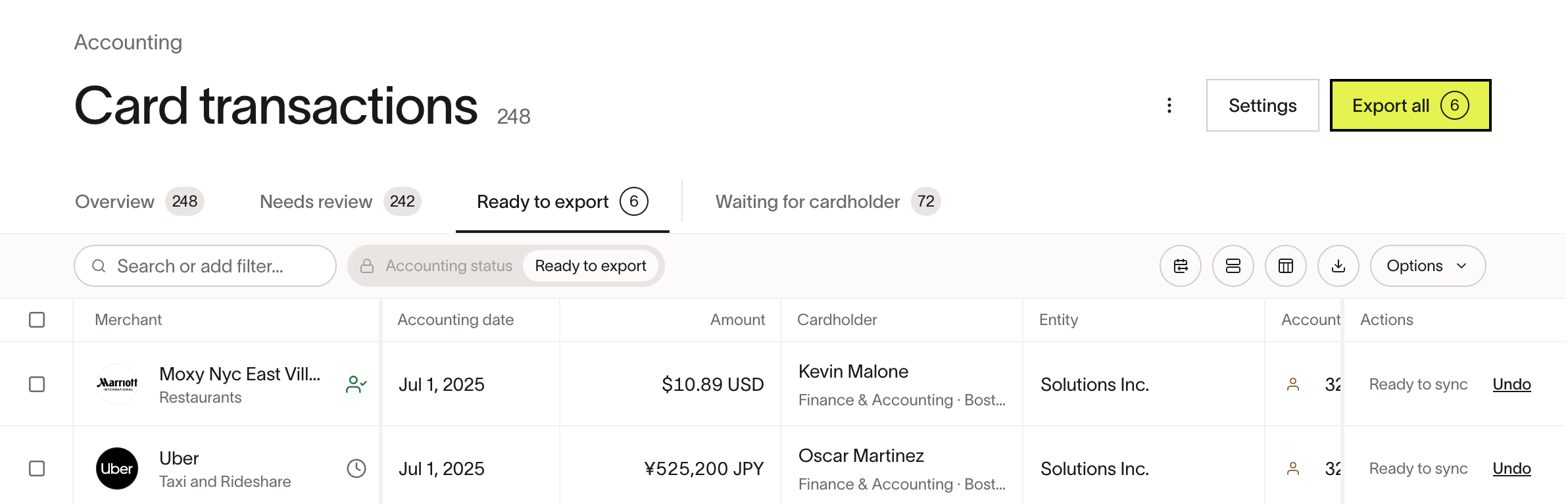
- Open the Accounting review screen for those items. On Universal CSV and QuickBooks Desktop setups, this is typically Export all . On direct ERP setups, open the same sync-review flow you would otherwise use from the Ready to Sync toolbar.
- Choose the action that matches your setup:
- Direct ERP exception flow: use the sync-review flow's Mark as synced path. Preview-only downloads such as Just download or Preview only do not clear the queue.
- Universal CSV: choose Export CSV to download your configured export format.
- QuickBooks Desktop: choose Export IIF file or Export CSV.
- If your workflow requires a manual import, upload the downloaded file into your accounting system.
What happens after export
After you use a committed Accounting sync or export action, Ramp removes the selected items from the Accounting queue so they no longer appear as pending syncs in Ramp.
Preview-only downloads from the direct ERP flow, such as Just download or Preview only, do not change the sync state.
This is separate from the generic export in Expenses > Card Transactions. That download is for reporting only and leaves the Accounting sync state unchanged.
Frequently asked questions
When should I use Download CSV instead of Sync?
Use the committed Mark as synced option in the direct ERP sync-review flow when a transaction should not be sent through Ramp's direct ERP sync, such as when you will record it manually or it already exists in your accounting system. If you only choose a preview-only download option, the transaction stays in the queue. If the transaction should be created in your ERP by Ramp, use the normal Sync action instead.
Does the Expenses > Card Transactions export mark transactions as synced?
No. The export from Expenses > Card Transactions downloads reporting data only. To remove items from the Accounting queue, use the export flow from Accounting.
What should QuickBooks Desktop customers export?
QuickBooks Desktop file export supports Export IIF file and Export CSV from the Accounting review screen. Many QuickBooks Desktop workflows use the IIF option first, but both committed exports remove items from the queue.
Can I unsync or resync a card transaction that was already synced to my ERP?
No. Once a card transaction is successfully synced through a direct ERP integration (such as QuickBooks Online, NetSuite, Sage Intacct, or Xero), the sync is one-way and permanent. There is no option to unsync, reset, or re-sync it from Ramp, and any changes to how the transaction is recorded — accounting fields, coding, or amounts — must be made directly in your accounting software. (Receipts you upload in Ramp after the sync still transfer automatically, so those do not need to be added in the ERP.)
This one-way behavior is specific to card transactions on direct ERP connections. It does not apply to:
- Universal CSV and other manual-export setups, where you can return a card transaction to the Accounting queue with Reset transactions to unexported from Export history (see Universal CSV overview).
- Bills and vendor payments that failed to sync, which you can retry from the sync error details.
- NetSuite item receipts, which automatically re-sync when you edit them (see Syncing item receipts to NetSuite).
What should I do if a synced transaction was deleted in my accounting system?
Ramp does not automatically detect when a synced record is deleted in your ERP. The transaction continues to show as synced in Ramp even though the corresponding entry no longer exists in your accounting software. To resolve this, re-create the entry directly in your ERP so it matches the synced transaction in Ramp. If you use QuickBooks Online, the Reconciliation Report can help identify transactions that exist in Ramp but not in QuickBooks, or vice versa.
(Plus only) missing accounting sync permissions?
If you are in the Accounting role and your business is on Ramp Plus, you might not see the ability to mark transactions as ready or sync them with the ERP. That is because your business Owner or Admin may have removed this permission from the Accounting role capabilities. You can contact them for more information, and refer to this article for more information on role permissions.
Troubleshooting: can't mark a split transaction as ready for export
If you're trying to mark a split transaction as ready for export and it's not working, here’s what to check:
- What’s happening: The transaction has been split into multiple lines, but the total of those split amounts doesn't match the original transaction amount.
- Why it matters: When the split amounts don’t add up to the full original amount, Ramp prevents the transaction from being marked as ready to help keep your accounting accurate.
- What to do:
Step 1: Open the transaction and review each split line.
Step 2: Make sure the total of all split amounts equals the original transaction amount.
Step 3: Once corrected, try marking the transaction as ready again.
Additional resources
- Overview of Ramp Accounting
- Universal CSV Overview
- QuickBooks Desktop file export overview
- Exporting your data to CSV