NetSuite overview
Overview
Available on Ramp Plus. See Ramp Plus overview for plan details.
Our integration with NetSuite allows you to easily transfer information from Ramp to NetSuite, ensuring your spend data is current and accurate. We respect your NetSuite settings, avoiding any changes or account creations.
When Ramp is connected to NetSuite, it gathers all necessary data for classifying your transactions. If using multiple subsidiaries, you can assign transactions to the correct one with ease. Transactions are synced as credit card transactions, while reimbursements are processed as bills and settled with bill payments.
Additional features for a stronger integration include:
- Vendor 2-way sync: Ramp supports bidirectional vendor syncing with NetSuite. Ramp can identify and add new vendors not already in your NetSuite instance (these appear in the Merchant column as "New:..." and are created upon syncing), and can also import vendors from NetSuite into Ramp. Bulk vendor operations and vendor ACH/banking detail import are supported.
- Custom fields and segments: Ramp imports all fields, including custom ones, from NetSuite to ensure comprehensive transaction coding.
- Default AP account: You can set a default Accounts Payable (AP) account for bills and reimbursements synced from Ramp. Without a default, NetSuite uses the vendor's associated account or the last used AP account per subsidiary.
- Default vendor for reimbursements: Typically, the reimbursed employee is set as the vendor for reimbursements. However, you can choose a default vendor, like "Ramp Reimbursement Vendor," if you prefer not to list all employees as vendors in NetSuite.
What Ramp looks like
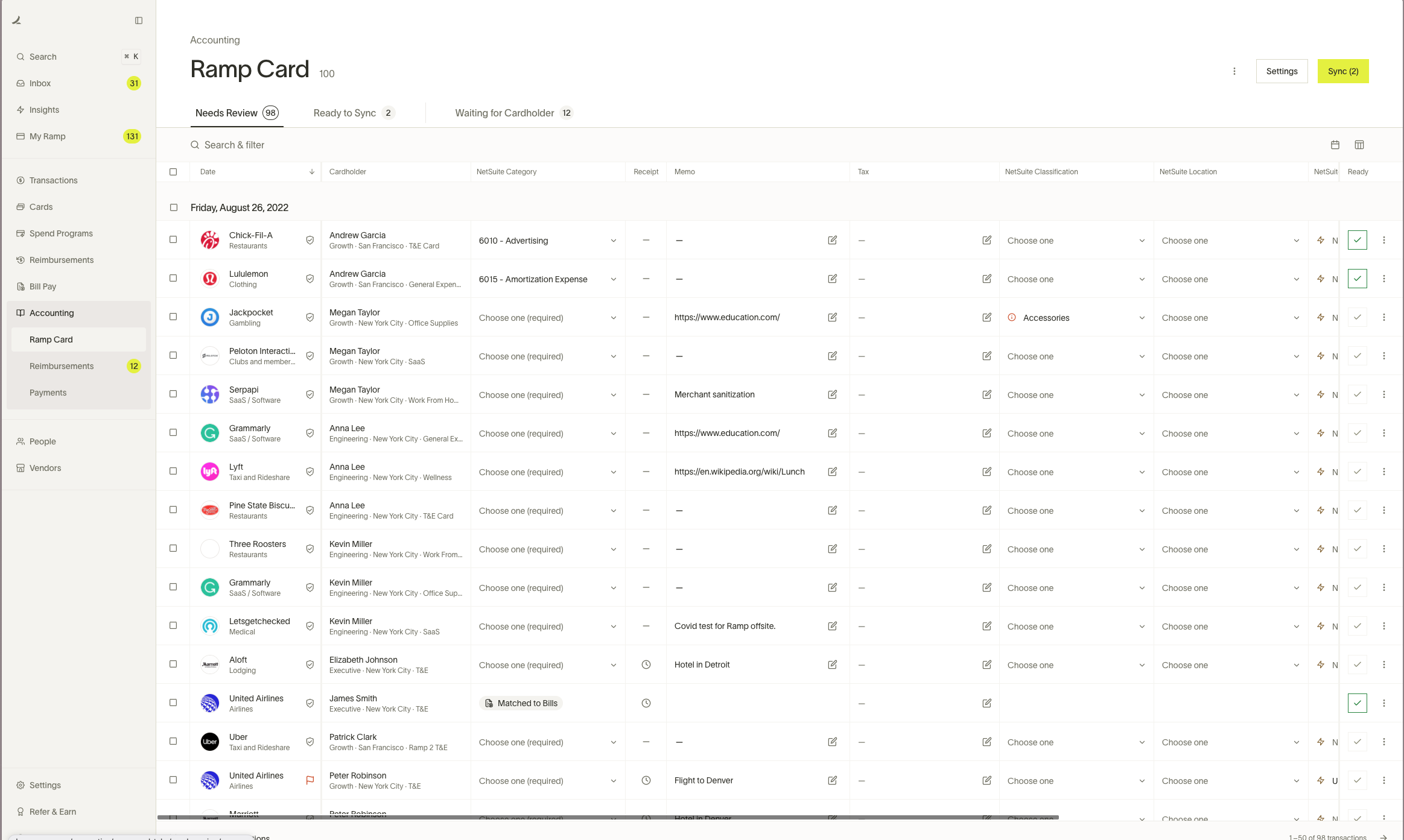
Here's how the NetSuite Accounting page appears on Ramp. For detailed information about settings, rules, and additional automations provided by Ramp, please refer to the linked article.
Set up
- If you have subsidiaries enabled in your NetSuite instance, then please follow these instructions
- If you don’t have subsidiaries in your NetSuite instance, then follow these instructions
How will transactions appear in NetSuite
Ramp card transactions show up as a card transaction on NetSuite. To see them, go to:
- Transactions -> Bank -> Use Credit Card -> List (image below)
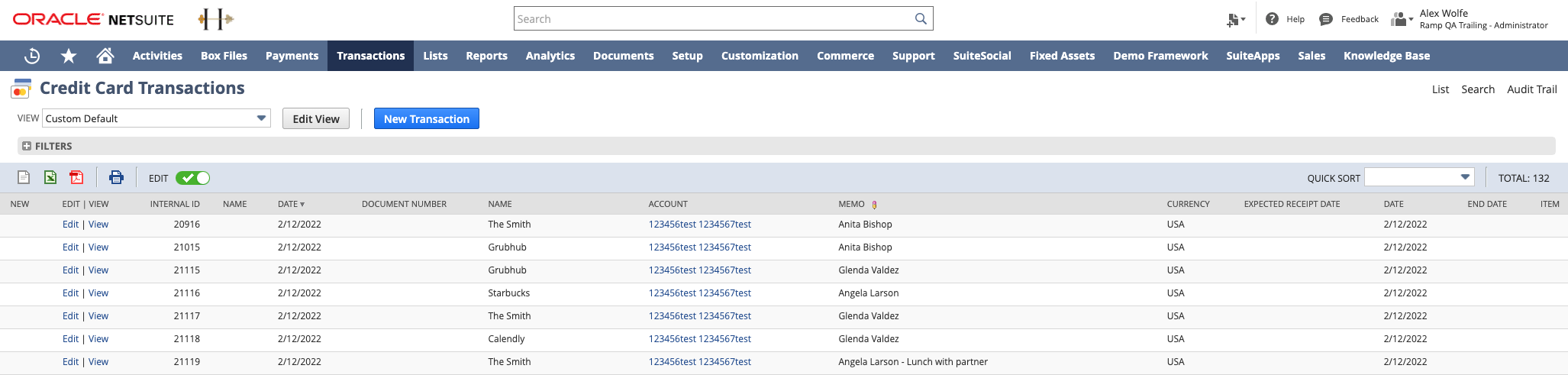
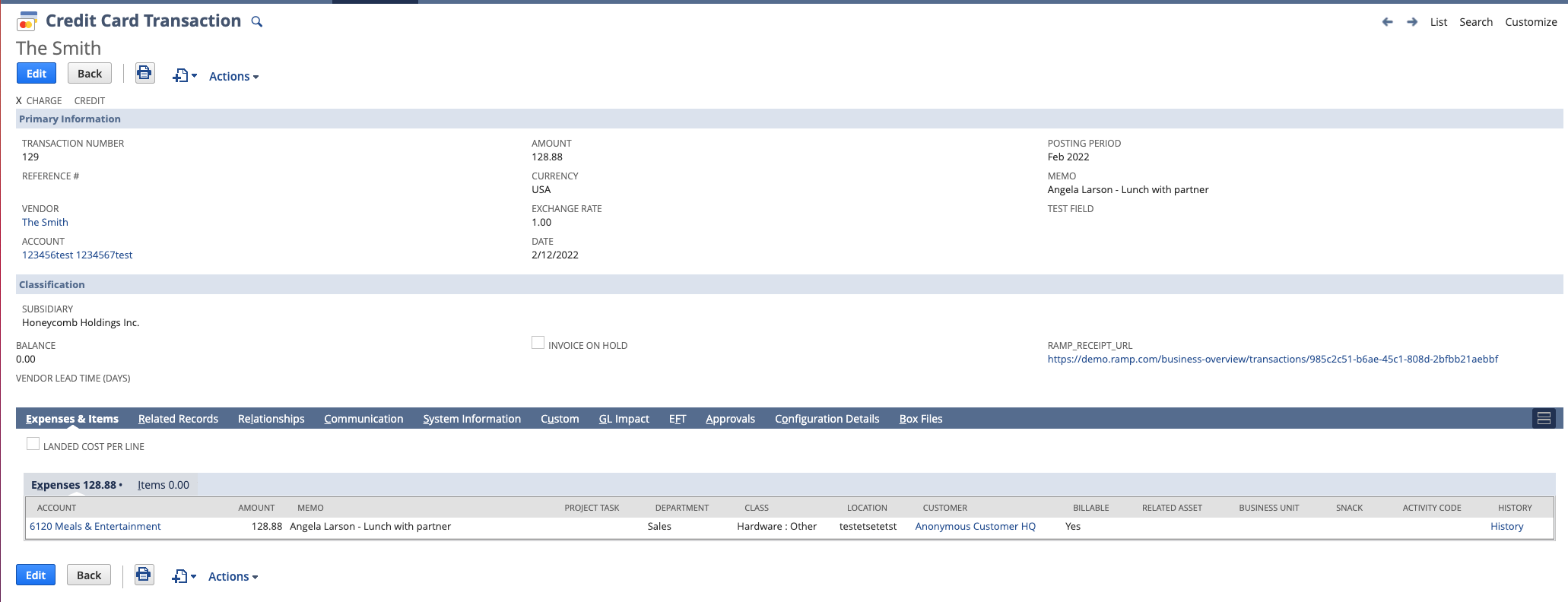
When you click into a transaction, you can see all the fields that were coded within Ramp.
- Receipt: a receipt is synced over as a URL in the Classification section. The URL will link back to the transaction within Ramp and will only appear for transactions with a receipt
- Transaction level fields: Subsidiary, Vendor and body level custom fields
- Expense level fields: Account, department, class, location, customer, and Billable (Y/N) as well as any line level expense custom fields
- Memo: Memo will be “Cardholder - memo”
How will reimbursements appear in NetSuite
Ramp syncs employee reimbursements to NetSuite as Vendor Bills, using the employee as the vendor. The vendor name format is:
“[First Name] [Last Name] Ramp”.
You can change this by setting a default vendor for reimbursements in Accounting Settings in Ramp.
Bill syncing logic
Reimbursements are synced based on the selected payment method in Ramp:
- Manual Pay: Ramp syncs an open Vendor Bill to NetSuite.
- ACH (or any synced payment method): Ramp syncs a Vendor Bill and a Bill Payment. The Bill is marked as Paid in NetSuite.
Ramp uses the approval date of the reimbursement as the bill posting date in NetSuite by default, but allows you to manually set an accounting date if you prefer.
Batch sync behavior
Ramp supports syncing multiple reimbursements together as a batch. In this case:
- A single Bill Payment is created in NetSuite that applies to all associated Vendor Bills.
- Each Bill is still listed separately and includes details in the Memo field (e.g., user name, merchant, and custom memo from Ramp).
- The bill payment will not be synced to NetSuite until all of the reimbursements from the batch are synced.
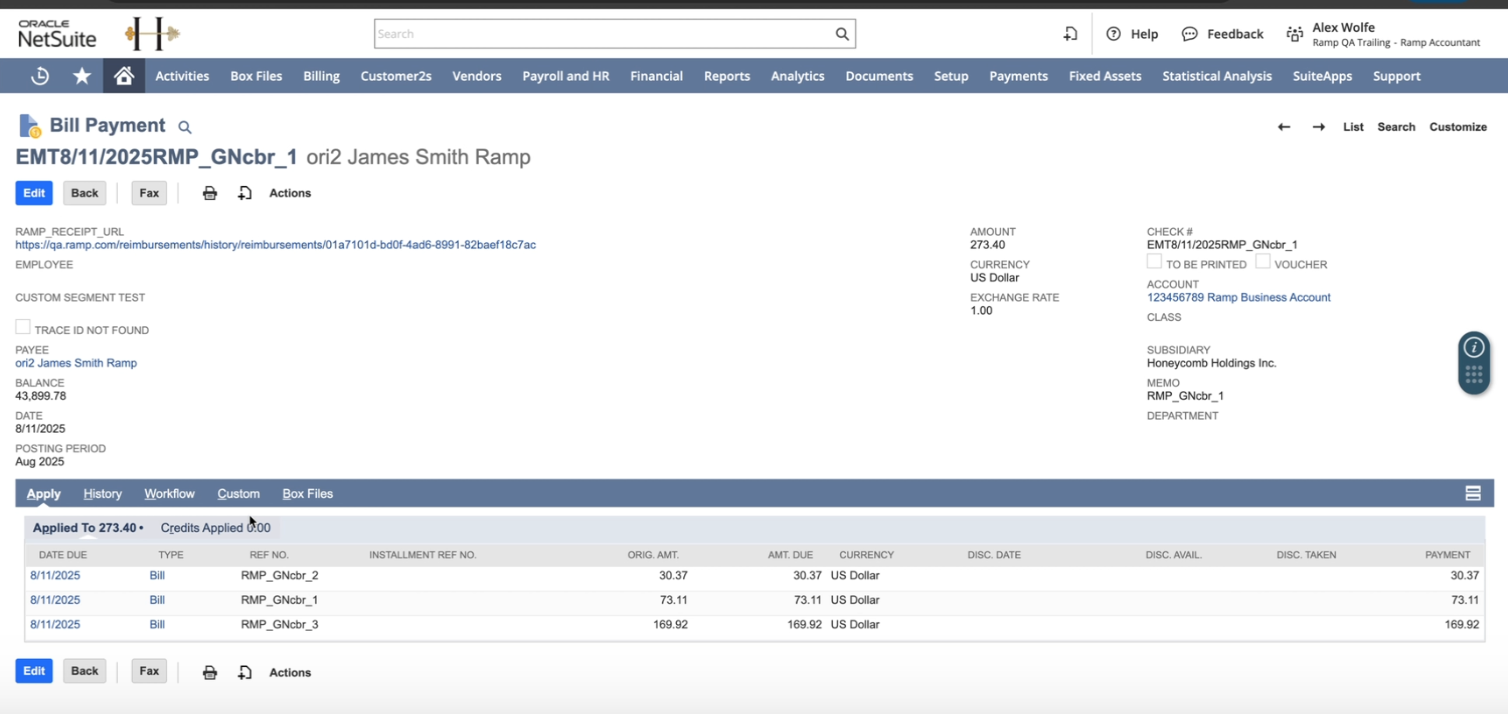
Example (USD to USD)
- You sync three USD reimbursements.
- Ramp creates three open Vendor Bills.
- Once the batch is marked paid (e.g., via ACH), Ramp syncs a single Bill Payment that applies to all three Bills.
- All three Bills now show as Paid in Full in NetSuite.
Example (CAD to USD)
- If your Ramp entity is in CAD but your NetSuite subsidiary is in USD (and has a CAD bank account), Ramp syncs:
- A Vendor Bill in CAD.
- A Bill Payment also in CAD with the appropriate exchange rate to USD.
- NetSuite displays:
- Bill and Bill Payment amounts in CAD.
- Exchange rate applied to show equivalent in USD.
- Bills marked as Paid in Full.
AP account behavior
NetSuite selects the Accounts Payable (AP) account as follows:
- The default AP Account comes from the Vendor Record in NetSuite.
- If no AP account is set on the Vendor, NetSuite uses the AP from the last Vendor Bill saved for that subsidiary.
- You can set a preferred default AP account for Ramp reimbursements in the Accounting Settings on Ramp.
Where to find the synced records
- Vendor Bills:
Go to Transactions → Payables → Enter Bills → List - Bill Payments:
Go to Transactions → Payables → Pay Single Vendor → List
How will accruals appear in NetSuite
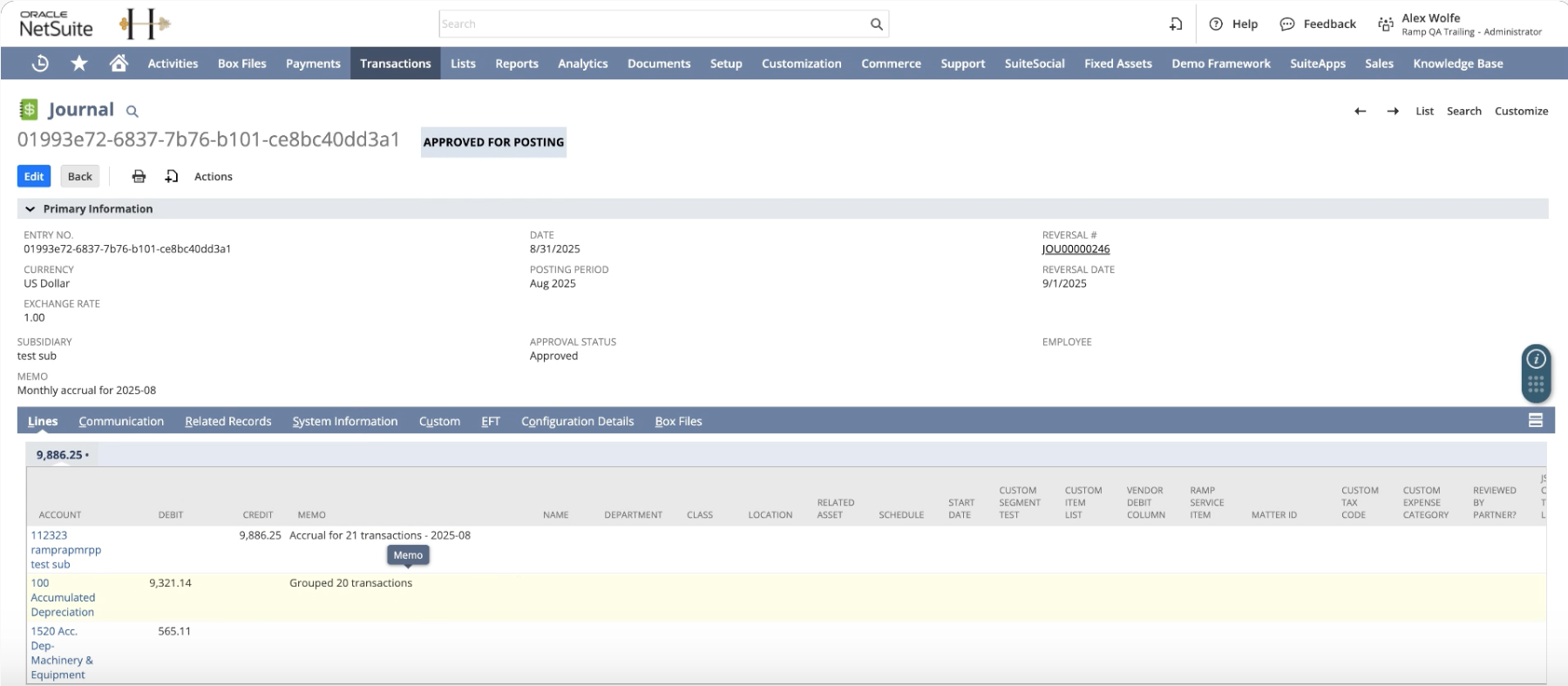
Ramp supports syncing card transactions as accruals. Any accruals will be posted to NetSuite as a journal entry. For more information on this feature please review How to Use Ramp's Accruals Feature.
Accounting Logic:
- Create an accrual journal entry for all unsynced expenses dated in the chosen period.
- Post a reversing journal entry on the date you select (often the 1st of the next month).
- Let you choose detail level : one line per transaction or one line per GL group.
- Allow entity-level liability account settings.
- Prevent double counting : after you post an accrual, Ramp moves the accounting date of those transactions to the reversal date when you later sync them.
Bill Pay
Bill Pay is now available for NetSuite customers. For instructions on how to set up Bill Pay, please refer to thisarticle.
Payment methods
Ramp supports the following payment methods for Bill Pay with NetSuite:
- ACH — standard electronic bank transfers
- Check — with auto-generated check numbers
- Wire — domestic wire transfers
- International debiting — for cross-border payments
Auto-sync on approval
Bills can be configured to automatically sync to NetSuite when approved in Ramp, removing the need to manually trigger syncs after each approval.
Remote bill import
Ramp can import existing vendor bills from NetSuite for payment and matching within Ramp. This allows you to centralize bill payment through Ramp even for bills originally created in NetSuite.
Custom fields and custom segments
Ramp can import most of your custom fields into Ramp for coding. These custom fields function similarly to standard fields in Ramp. Required fields are automatically enabled, while optional ones can be activated in the accounting settings.
To display custom fields in Ramp, they must be set up to select a single value from a custom list or record. We will import these options for coding and include them in automations, like pre-coding cards and rules.
Custom fields must be active and visible on Credit Card Transaction and Bill forms in NetSuite for Ramp to detect and sync them. Line level custom fields should be on the expense tab to be available.
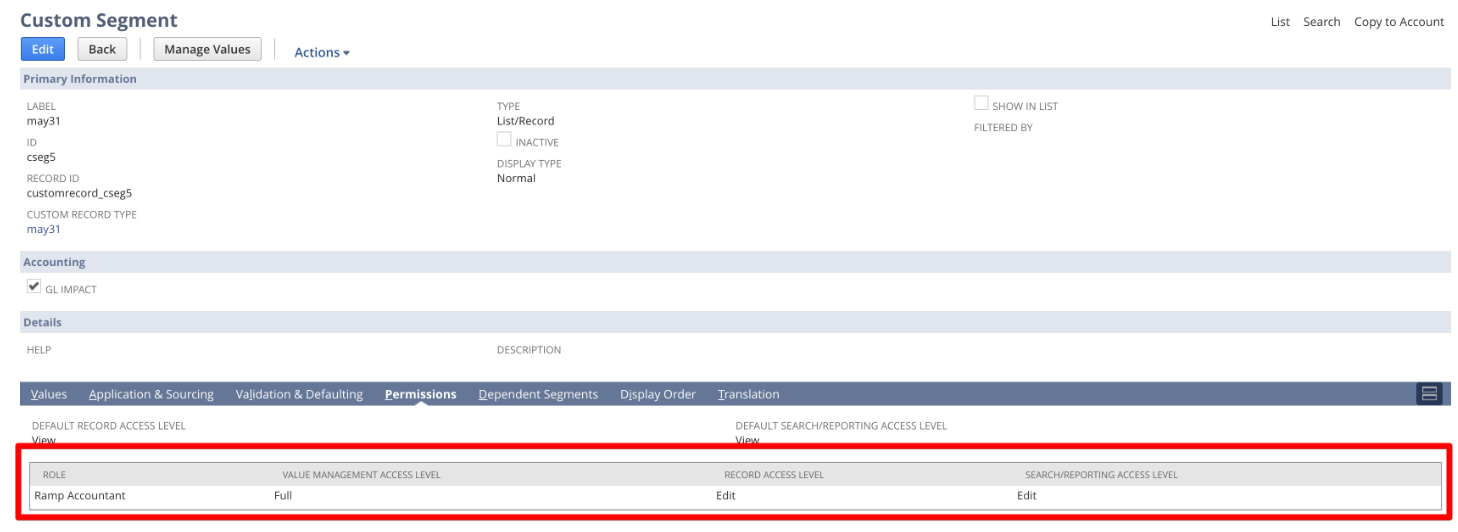
For segments to be coded in Ramp, they must be visible on Credit Card, Bill, and/or Bill Payment Forms in NetSuite. The Ramp Accountant Role should have full Value Management Access, Edit permissions for Record Access, and Edit permissions for Search/Reporting Access.
- Value Management Access: Full
- Record Access: Edit
- Search/Reporting Access: Edit.
Statement payments
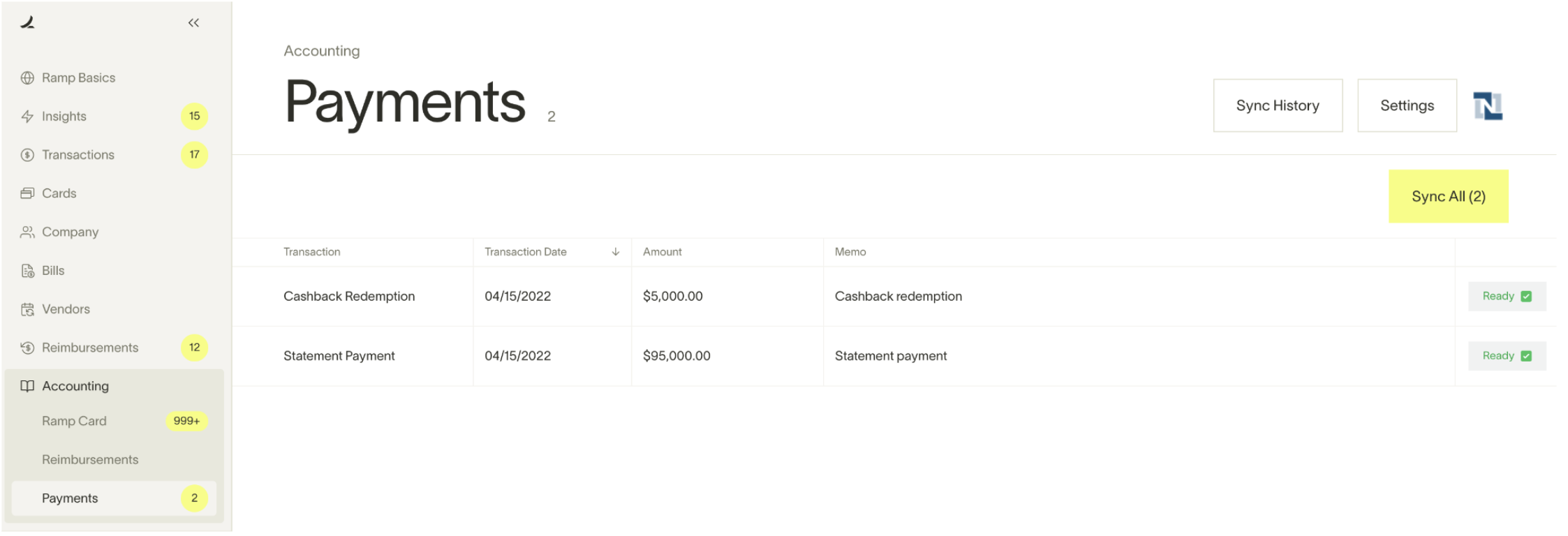
With NetSuite, you can sync over statement payments. This will appear in the Payments tab of the Accounting tab and only appear after it has cleared.
You will get a record of this transaction from two places—your Checking Account's bank feed, which will have the credit side of the transaction, and Ramp, which will have the debit side of the transaction.
Instead of independently classifying these transactions, e.g., allocating the checking account credit to a Ramp Card debit and the Ramp Card debit to a checking account credit, we want tomatchthe two sides and create a single transaction. This will prevent us from making two duplicate transactions.In the below example, you can see where to find the statement payments to sync over within Ramp.
Reconciliation
Accounting impact
How Ramp syncsCard transactions:
Ramp syncs card transactions as credit card transactions in your accounting provider.
- Purchase is made
- Debit (increase) Expense or Bank Account
- Credit (increase) Credit Card Liability Account
How Ramp syncs Reimbursements:
Ramp syncs reimbursements as bills and bill payments in your accounting provider.
- Bill
- Debit (increase) Expense Account in original currency
- Credit (increase) Liability Account in original currency
- Bill Payment
- Debit (decrease) the Liability Account
- Credit (decrease) The Cash/Bank Account
How Ramp Syncs Statement Payments:
Ramp syncs statement payments as checks in your accounting provider.
- Statement is paid
- Debit (decrease) Credit Card Liability Account: Reducing the amount you owe since you're paying off the credit card.
- Credit (decrease) Bank Account: This account represents your company's cash, which decreases when you pay off the credit card bill.
To reconcile, you will have to go to your accounting provider to match the amount paid to Ramp from your bank account to the total dollar transaction amount synced over from Ramp. If you go to the Transactions tab within Ramp, you can filter by the statement period to easily check which transactions were included in which statement.
Cashback redemption
Similar to statement payments, cashback redemption syncing is available.
The accounting for a cashback is a debit to the Ramp Card account, reducing the liability on the card, and a credit to a nominated expense or income account. This cashback entry does not appear on a bank feed so this entry is important to sync across to the Ramp Card account to bring the value of the liability back into balance with the statement.
Vendor credits
Ramp syncs vendor credits directly to NetSuite and helps you apply them to your bills. Check out our Vendor credits / credit memos article for more details!
Purchase orders and 3 way match
Create purchase orders in Ramp and sync them directly to NetSuite, streamlining procurement processes.
With Ramp Procurement's 3 Way Match functionality, you can match bills in Ramp Bill Pay with purchase orders and item receipts. Check out Three-way match article for a detailed breakdown, and ensure payment for received goods only!
-
Enable 3-way match in Bill Pay settings. We'll start to pull in item receipts from NetSuite.
-
When you pay bills with Ramp Bill Pay, match bills to purchase orders in NetSuite. Once a PO is selected, Ramp will automatically match the bill line items with PO line items and then pull in item receipts.
-
View which billed line items haven't been received and open existing item receipts in NetSuite.
Note: With 3-way match, once a Bill is matched to an imported PO from NetSuite, Ramp will automatically fetch related item receipts from NetSuite for the PO line items.
Multi-PO matching
Ramp supports matching a single bill to multiple purchase orders (1:N matching). This is useful when a vendor invoice covers items from several separate purchase orders.
Item receipts
Ramp supports automatic item receipt creation from bill lines and provides deep links back to the corresponding item receipt records in NetSuite. This enables full receiving verification as part of the 3-way match workflow.
Multi-currency and FX support
Ramp supports full multi-currency billing with NetSuite, including:
- Currency selection on bills — select the transaction currency when creating or syncing bills
- Multi-currency vendors — vendors can be associated with multiple currencies in NetSuite
- FX gain/loss account mapping — map realized and unrealized foreign exchange gain/loss accounts for accurate reporting
- Functional currency handling — Ramp respects your NetSuite subsidiary's base (functional) currency and applies exchange rates accordingly
For more details on international accounting workflows, see NetSuite | International accounting support.
Amortization schedules
Ramp supports line-item amortization for both card transactions and Bill Pay, allowing you to spread expenses across multiple accounting periods using amortization templates and multi-period schedules configured in NetSuite.
- For Bill Pay amortization, see Bill Pay amortization for NetSuite .
- For card transaction amortization, see Transaction amortization for NetSuite .
Repayments
Ramp can sync employee repayments to NetSuite, including both bank account and debit card repayments. Both methods sync as journal entries, with bank account repayments offsetting against the cash account and debit card repayments offsetting against the credit card liability GL account. For full details on setup, sync behavior, and troubleshooting, see Sync repayments to your accounting software.
SuiteTax support
Ramp integrates with NetSuite's SuiteTax module for tax compliance. When SuiteTax is enabled, Ramp syncs tax line detail on bills to NetSuite, ensuring tax amounts are accurately recorded and available for reporting.
Accounting period handling
Ramp supports editable accounting periods on bills and respects NetSuite posting period rules. If a bill's date falls within a closed accounting period, Ramp allows you to adjust the accounting date before syncing. For more on handling closed periods, see NetSuite | Addressing transactions with closed period dates.
Ramp Checking Account transfers
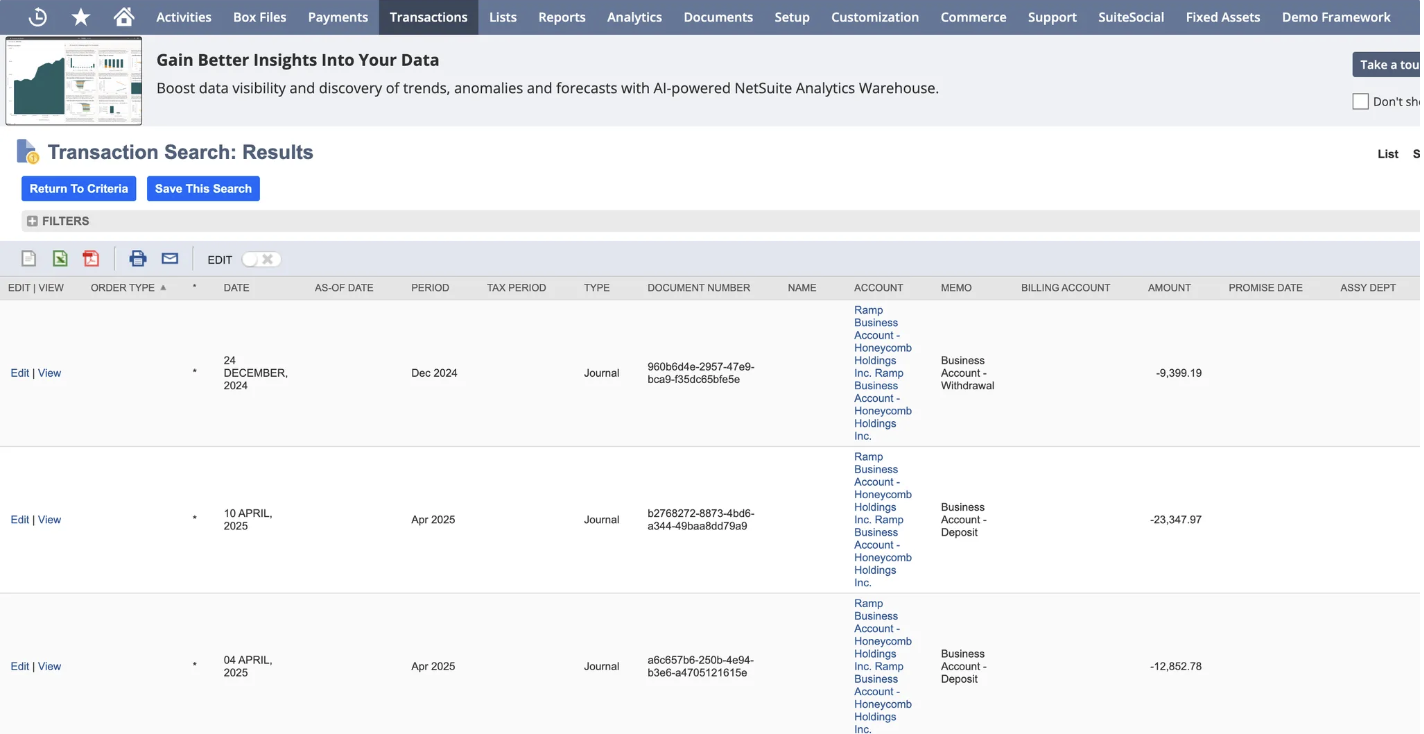
We sync Ramp Checking Account payment transfers as journal entries in NetSuite.
Accounting logic
- Deposits:
- Debit Ramp Checking Account
- Credit opposing account
- Withdraws:
- Debit opposing account
- Credit Ramp Checking Account
Related articles
- How to set up NetSuite with Ramp
- How to set up NetSuite with Ramp (standard - no subsidiaries)
- Bill Pay amortization for NetSuite
- Transaction amortization for NetSuite
- NetSuite | International accounting support
- NetSuite | Addressing transactions with closed period dates
- NetSuite | bill payment automate classifications script
- NetSuite multi-entity changes and frequently asked questions
- How to do a full reset when Linking Ramp to NetSuite