Updating user information in Ramp
Overview
Use Ramp to keep user profile information up to date. Depending on your role and your business's settings, you can update your own profile, edit other users' profiles, automate updates through HRIS or SCIM, and bulk edit user profiles from the People table.
Using SCIM or HRIS? If your company uses SCIM or HRIS integration, certain profile fields may be managed by your identity provider or HR system. Which fields are synced depends on your integration and configuration — common examples include department, location, and manager. Manual changes to synced fields in Ramp will be overwritten on the next sync cycle. To make permanent changes, update the field in your identity provider instead. Email changes through SCIM require the employee to confirm via a verification email.
What you can update in your own profile
Any user can update the following account information in their profile.
- First and last name
- Email address
- Phone number
Depending on your business's settings, you may also be able to update:
- Preferred locale
- Place of residence
Update your own profile
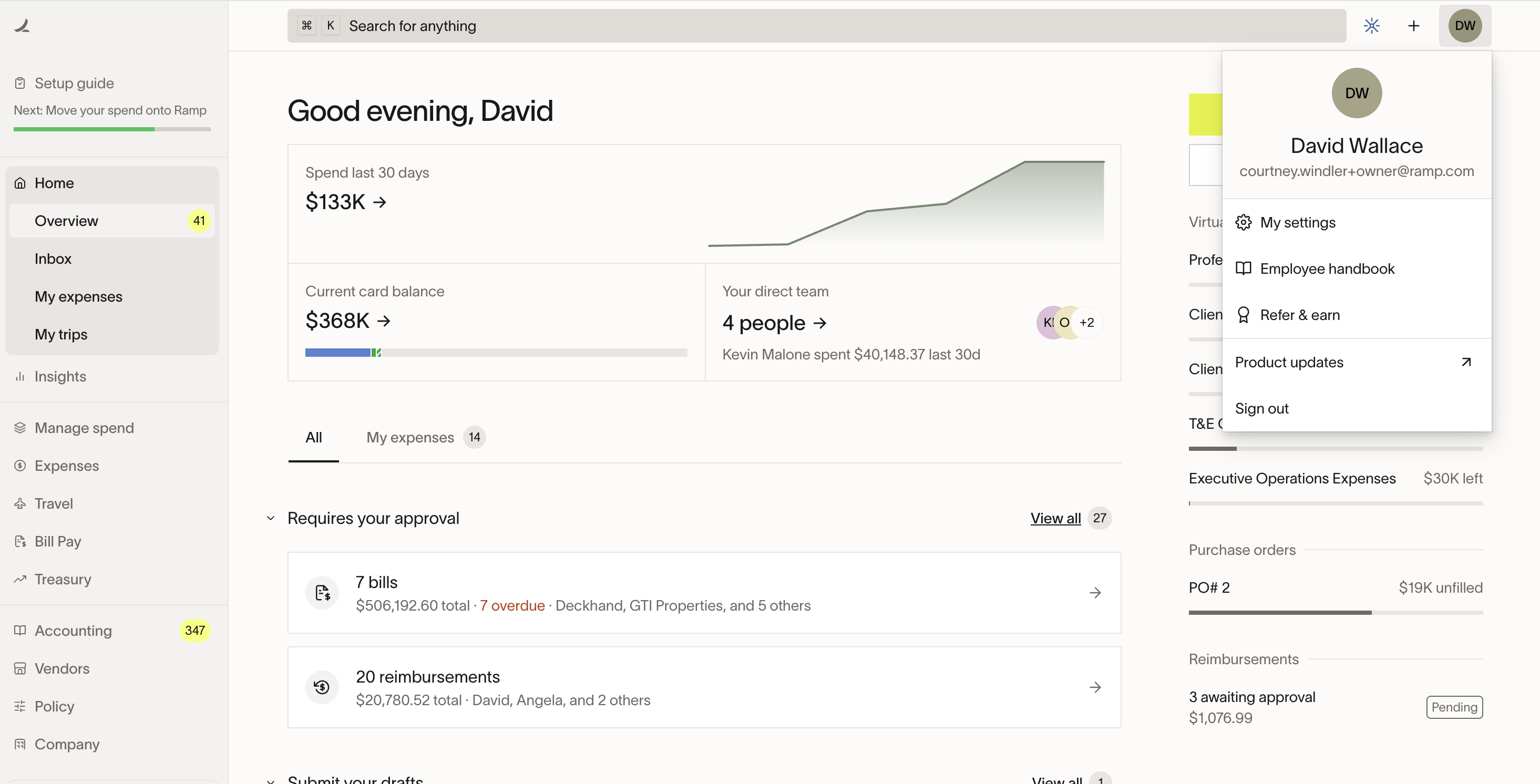
- Go to Profile on the top right (where you will see your initials) and select My settings .
- On the My settings page, click on the Edit profile button on the bottom of the Profile tab.
- Update your information and click Save .
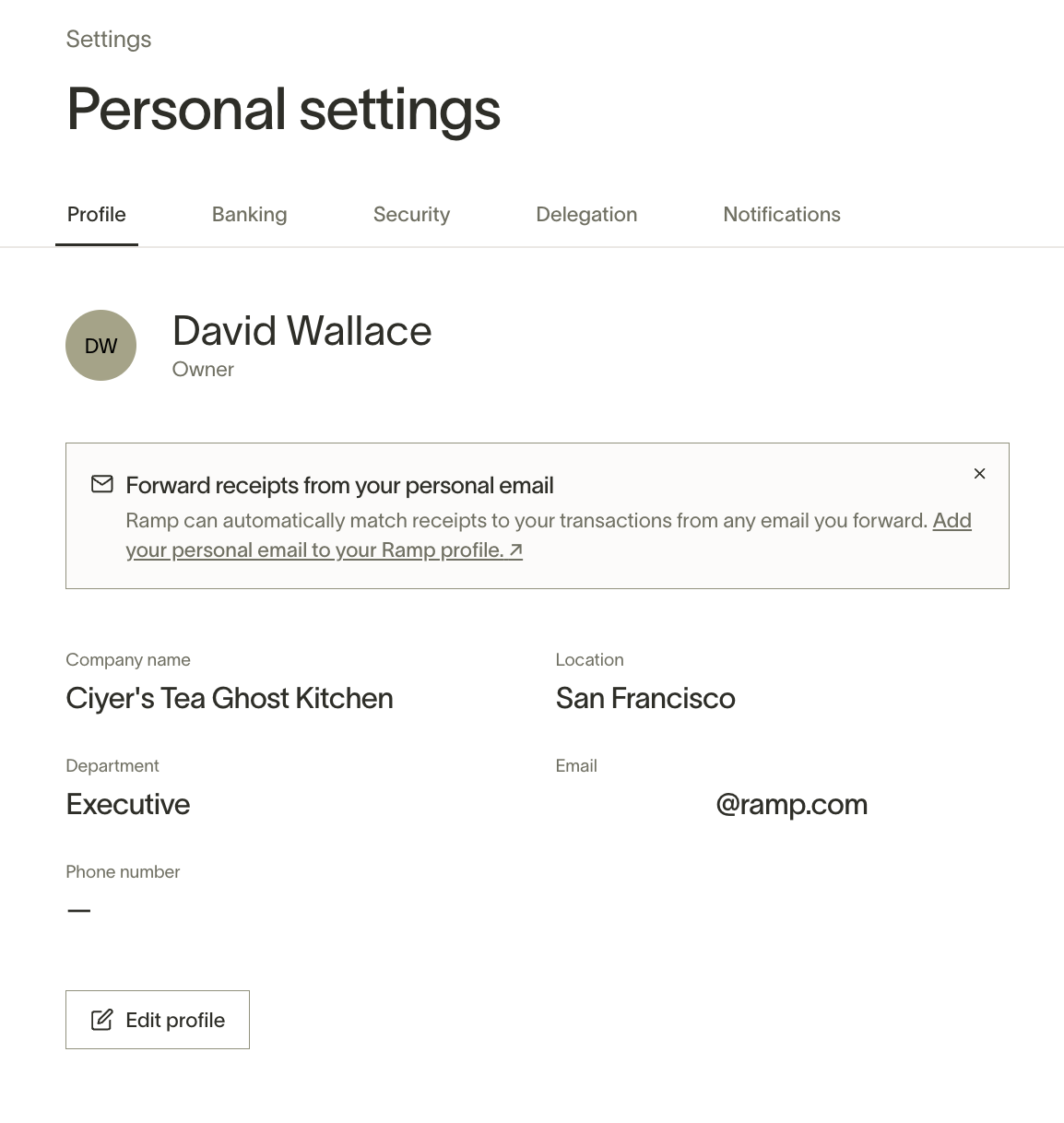
Note that if you change your email address or phone number, you will need to verify the new contact information.
Change your theme
Ramp supports Light, Dark, and Match device settings themes. Your theme preference syncs across all your devices automatically.
To change your theme:
- Go to Profile (top right) > My settings .
- Find the Theme setting and select your preferred option:
- Light — the default light appearance.
- Dark — a dark appearance that may reduce eye strain in low-light environments.
- Match device settings — automatically follows your device's system theme, so Ramp switches between light and dark when your device does.
Your selection takes effect immediately and applies everywhere you use Ramp on the web.
What you can update in another user's profile
Users with the appropriate People permissions can update another user's Ramp profile. Depending on their role and permissions, they may be able to update:
- First and last name
- User role
- Department
- Location
- Manager
- Phone number
- Email address
For example, Managers may only be able to update users on their teams, while Admins can update a broader set of profile fields. To learn more about changing user roles, see Editing a user's role.
Edit another user's profile
Users with the appropriate People permissions can update another user's Ramp profile. The fields they can edit depend on their role and permissions.
- Go to the Company > People tab.
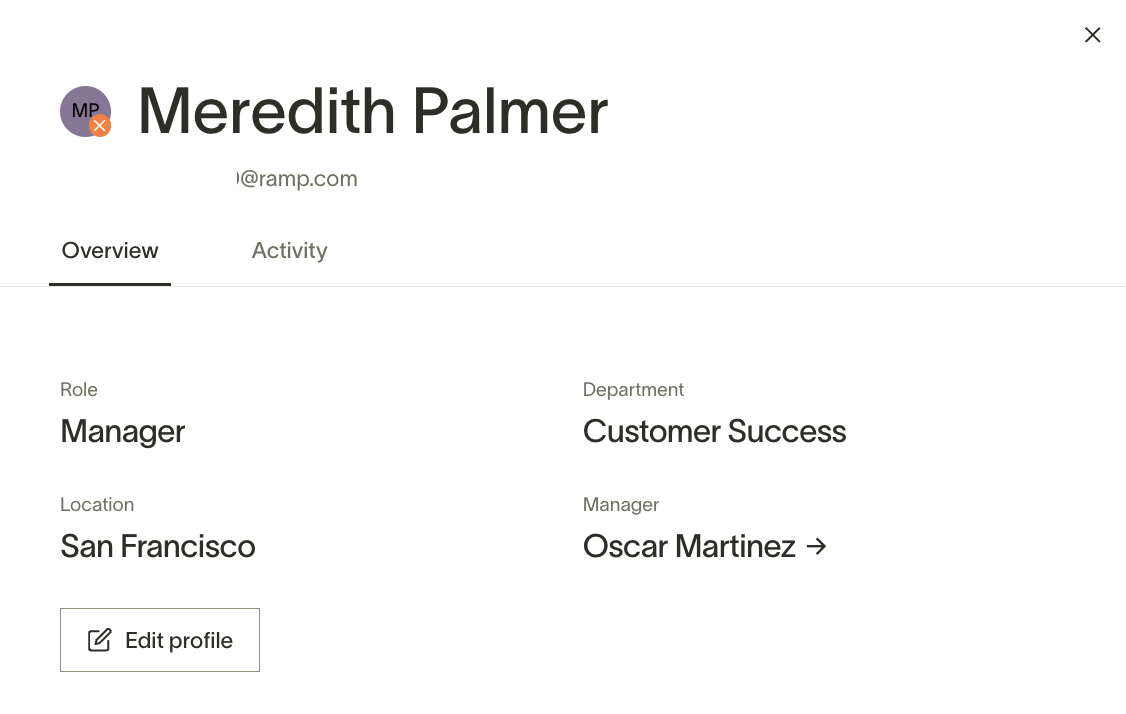
- Click on the user you want to edit.
- Click the Edit profile button.
- Update the user information and click Save Changes .
Note: If you change another user's email address or phone number, Ramp will require extra verification from you. The impacted user will also need to verify their new contact information before the change takes effect.
Changing your phone number
Phone number changes require verification via SMS. The process differs depending on whether you are updating your own number or an admin is updating it on your behalf.
For Employees (self-service)
- Go to your Profile > Personal settings .
- Click Change next to your phone number.
- Enter your new phone number. For international numbers, include the country code (e.g., +44 for UK, +91 for India).
- Click Verify — you will receive a 6-digit OTP via SMS.
- Enter the OTP to confirm the change.
If you do not receive the code, a WhatsApp option appears after a few seconds. You can also resend the code after 60 seconds.
If you see "Too many verification attempts," you have been rate-limited. Wait 5 minutes and try again.
For Admins changing an employee's phone number
- Go to Company > People > select the employee > Edit Profile .
- Update the phone number and click Update .
The employee will receive a verification SMS and must confirm the change themselves. Admins cannot complete phone changes on behalf of employees.
Troubleshooting phone number changes
- "Phone number is invalid" — Verify you have included the correct country code. Ramp requires E.164 format (e.g., +1 for US, +44 for UK).
- International numbers — Ramp supports international phone numbers in E.164 format. Some country codes may be restricted. Contact Support if you are unable to add a valid international number.
- "Phone number already in use" — If your phone number is already associated with another Ramp account, you may see a migration prompt. Follow the on-screen instructions to proceed.
Add a department or location
To add a new department or location:
- Go to Company > People .
- Select the Departments or Locations tab.
- Click Create .
- Add the new department or location.
Each user belongs to one department at a time. Assigning a new department replaces the user's current department. To change a user's department, edit their profile or use bulk edit to update multiple users at once.
You can also manage groups from the Groups tab. For more information, see Groups.
Automate profile updates with HRIS and SCIM
You can automate user profile updates by connecting Ramp to your HR system through HRIS or to your identity provider through SCIM.
HRIS and SCIM can automatically sync the following fields:
- First and last name
- Department
- Location
- Manager
To learn more, see our SCIM Integration article and our HRIS Overview article.
Bulk editing user profiles
If bulk user profile updates are enabled for your business, you can update multiple user profiles at once from the People table.
Available bulk actions
- Deactivate selected users now, or schedule a future deactivation date
- Change location
- Change department
- Grant access to entities
- Remove access from entities
How to bulk edit user profiles
- Go to Company > People tab.
- Use filters to narrow your list, if needed.
- Select the users you want to update using the checkboxes next to their names.
- Click Deactivate or Edit, then choose the action you want to apply.
- Review the details and confirm your changes.
Things to know
- Bulk actions only appear if your role has the required permissions.
- Changes apply to the users you select.
- Entity access actions are only available for multi-entity businesses and eligible roles.
- Entity access updates are limited to 2,000 users per operation.
- If a user already has a scheduled deactivation, updating it will replace the existing date.
Troubleshoot email updates
How email updates work
Both self-service and admin-initiated email changes require the employee to confirm via a 6-digit verification code sent to the new email address. Admins cannot bypass this confirmation step. The user's email will not update in Ramp until they complete verification.
What the user needs to do: Ask the user to open the verification email sent to their new address and enter the 6-digit code. Once verified, Ramp will automatically update their email in the system.
Can I add a secondary or alternate email address?
No. Each Ramp user profile supports one account email address at a time. If you need to use a different email for Ramp, update the existing email on your profile and complete the verification step above.
Ramp does not support keeping multiple sign-in email addresses on one user account. If you need access to multiple Ramp businesses, ask each business to invite you using the same email address. For more information, see Unified login.
SSO and identity provider considerations
If your company has SSO enabled, remember to update your email in your SSO provider as well. Otherwise, the user may not be able to sign in after the change.
Using SCIM for email updates
If your organization uses SCIM provisioning, make sure your identity provider updates both the user_name and email attributes. If either field remains unchanged, the previous value may sync back to Ramp.
Note: Attribute names vary by identity provider, so confirm the correct mapping in your provider's documentation.
Additional verification requirements
When an Admin updates another user's email address or phone number, Ramp requires extra verification from the Admin. The impacted user will also need to verify their new contact information before it becomes active.
Bulk email domain migration
Company-wide email domain migrations (e.g., @oldcompany.com to @newcompany.com) must be done per-user — there is no bulk domain migration tool. Each user must individually verify their new email address. Contact Support for assistance with large-scale migrations.
Email edit option not visible
If you do not see the option to change your email address, your admin may have disabled email changes for your organization. Contact your Ramp admin for more information.
If you see "member of another Ramp business"
You may see an error saying an email is a "member of another Ramp business" when assigning or updating a user's email. This can happen when the email address is already associated with a Vendor Portal account created through Ramp for Bill Pay.
Vendor Portal accounts cannot share an email address with a Ramp business user account.
To resolve this:
- Ask the individual to sign in to their Vendor Portal account.
- Go to Settings > Profile .
- Update the email on the Vendor Portal profile to a different address.
- Return to Ramp and retry the email update in Company > People .
To help avoid this issue, use a personal email for Vendor Portal access when possible. If vendor interaction does not require portal access, consider using Reimbursements instead of Bill Pay.
Why can't I edit this field?
There are several reasons a profile field may not be editable. Identify the cause below and take the appropriate action.
| Reason | What you will see | What to do |
|---|---|---|
| SCIM/HRIS managed | Field is greyed out with a tooltip that says "managed by [integration]" | Update the field in your identity provider (Okta, Entra ID, etc.). See Automate profile updates with HRIS and SCIM. |
| External firm managed | Field shows a lock icon with the firm name | Contact your firm administrator to make the change |
| Multiple Ramp businesses | Message says "belongs to multiple businesses" | The user must update their own profile directly |
| Pending invite | Message says "user has not accepted their invite" | Wait for the user to accept their invite, then edit their profile |
| Insufficient permissions | Field is read-only with no edit option | Ask an Owner or Admin to make the change. Ramp Plus customers, see Missing edit permissions below. |
Missing edit permissions for managers or IT Admins
Available on Ramp Plus. See Ramp Plus overview for plan details.
If you are in the Manager or IT admin role and your business is on Ramp Plus, you might not see the ability to edit other users' Ramp profile information. That is because your business Owner or Admin may have removed this permission from the Manager or IT admin role capabilities. You can contact them for more information, and refer to this article for more information on role permissions.