HR integration overview
Overview
Ramp integrates with your HRIS system so you can automatically invite and manage employees on Ramp. Here is how it works:
- Ramp will connect to your HRIS system and pull the list of employees.
- Select employees you want to invite on Ramp.
- Map employee information to Ramp, including their department, location, role, and manager relationships.
- Click invite - and done!
- Daily, Ramp will check your HRIS system with any changes and prompt you to make the necessary changes on the Ramp side, including:
- New employees to invite.
- Terminated employees to remove.
- If you enable automatic updates, we will automatically change employee information (location and department) or reporting structure (manager relationship) on Ramp to match that on your HRIS provider.
- We will do this daily when we check for updates on your HRIS system
Video walkthrough: Sync Employee data between your HR system and Ramp. Best when choosing or configuring an HR integration so adds, updates, and terminations flow into Ramp automatically. Watch the video.
Setup
To set up your HR software on Ramp:
- Head to Company -> Integrations -> User management
- Search for or select your HR provider.
- You’ll then be prompted to enter your sign-in credentials for your HR provider. Enter your admin credentials and submit. Once the connection is established, you will receive a confirmation email.
** To ensure a successful connection, we suggest that the HR integration be performed by someone who has full admin access to the HR platform itself.
How to invite
Once the connection to your HRIS provider is successful, you will receive an email confirming the connection and identifying how many current employees still need to be Ramp users. This email will only be sent to the individual who completed your HR Integration with Ramp. If you'd like more Admins to be notified, you can manage HRIS notifications here.
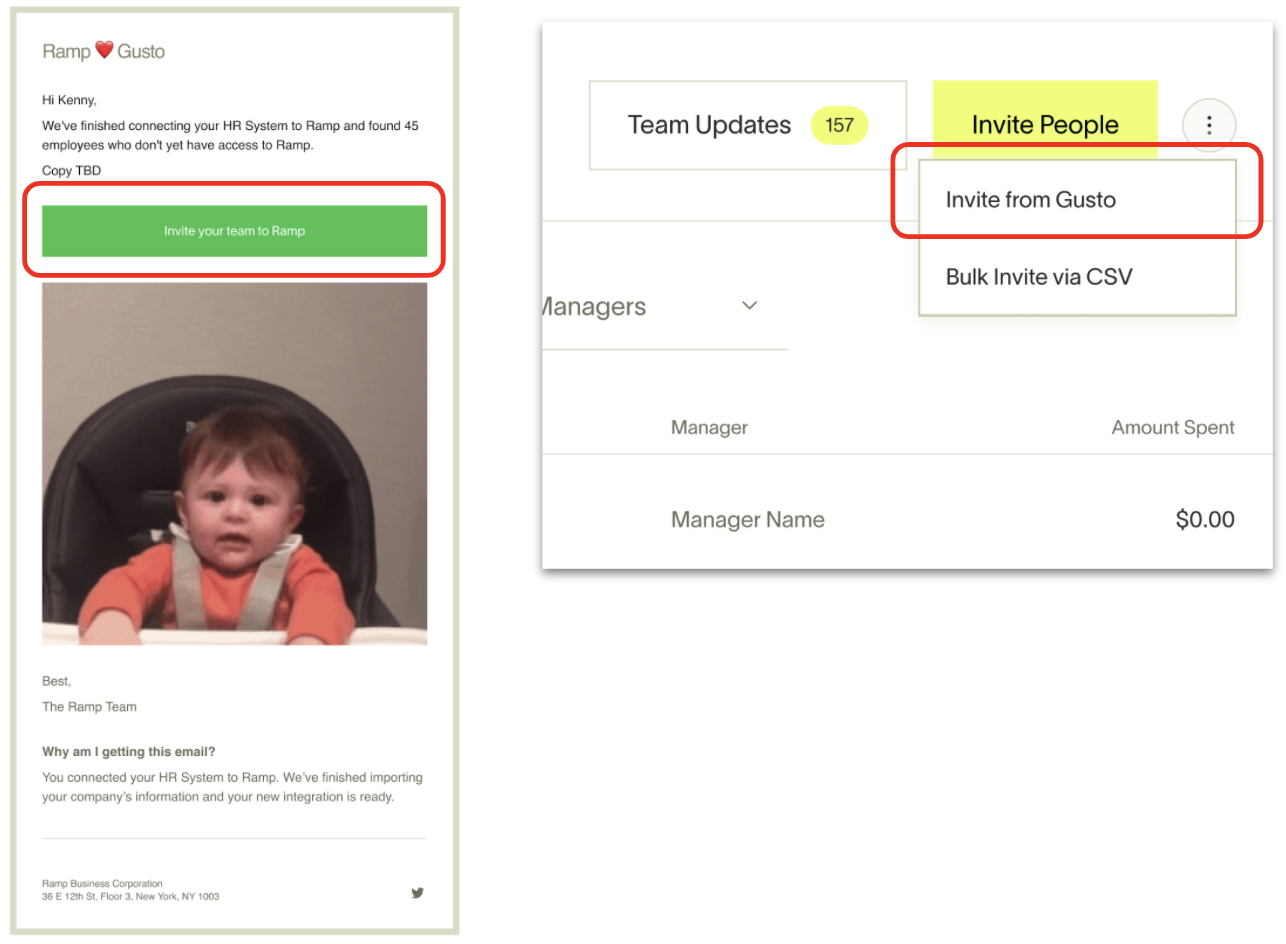
To invite new employees in bulk, click on Team Updates -> To Invite
From here, you can search and filter for specific employees and make bulk selections using the checkboxes next to each user.
If you know a specific employee will not be invited to Ramp, click on the three dots next to their name → Remove Suggestion. If you change your mind, this employee can still be invited at a later date.
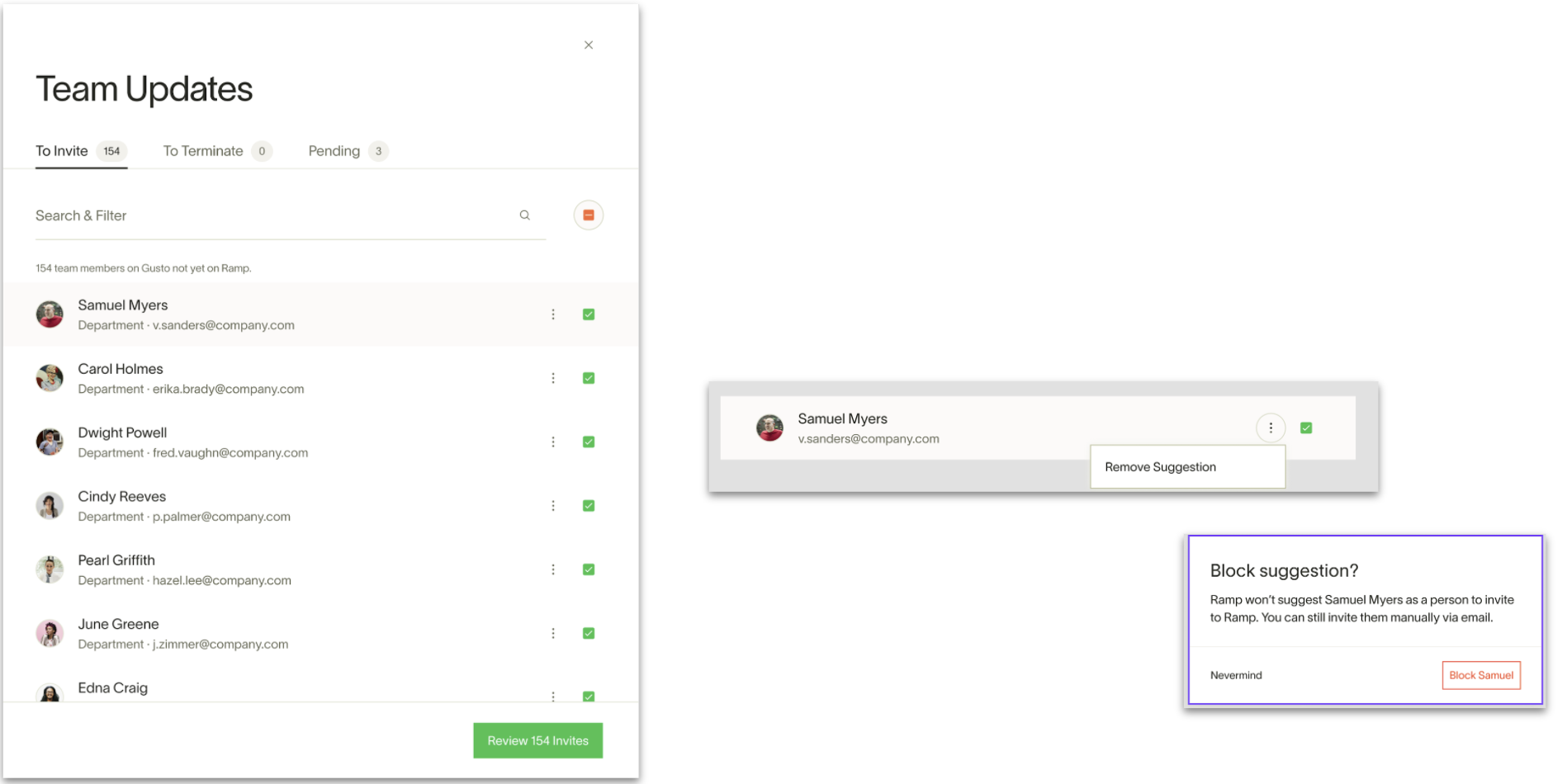
Once you’ve selected the users you want to invite to Ramp, click on “Review X Invites”
(Pro-tip: if you want the manager to auto-populate, the manager will either have to already be on Ramp or have to be invited through the same bulk invite)
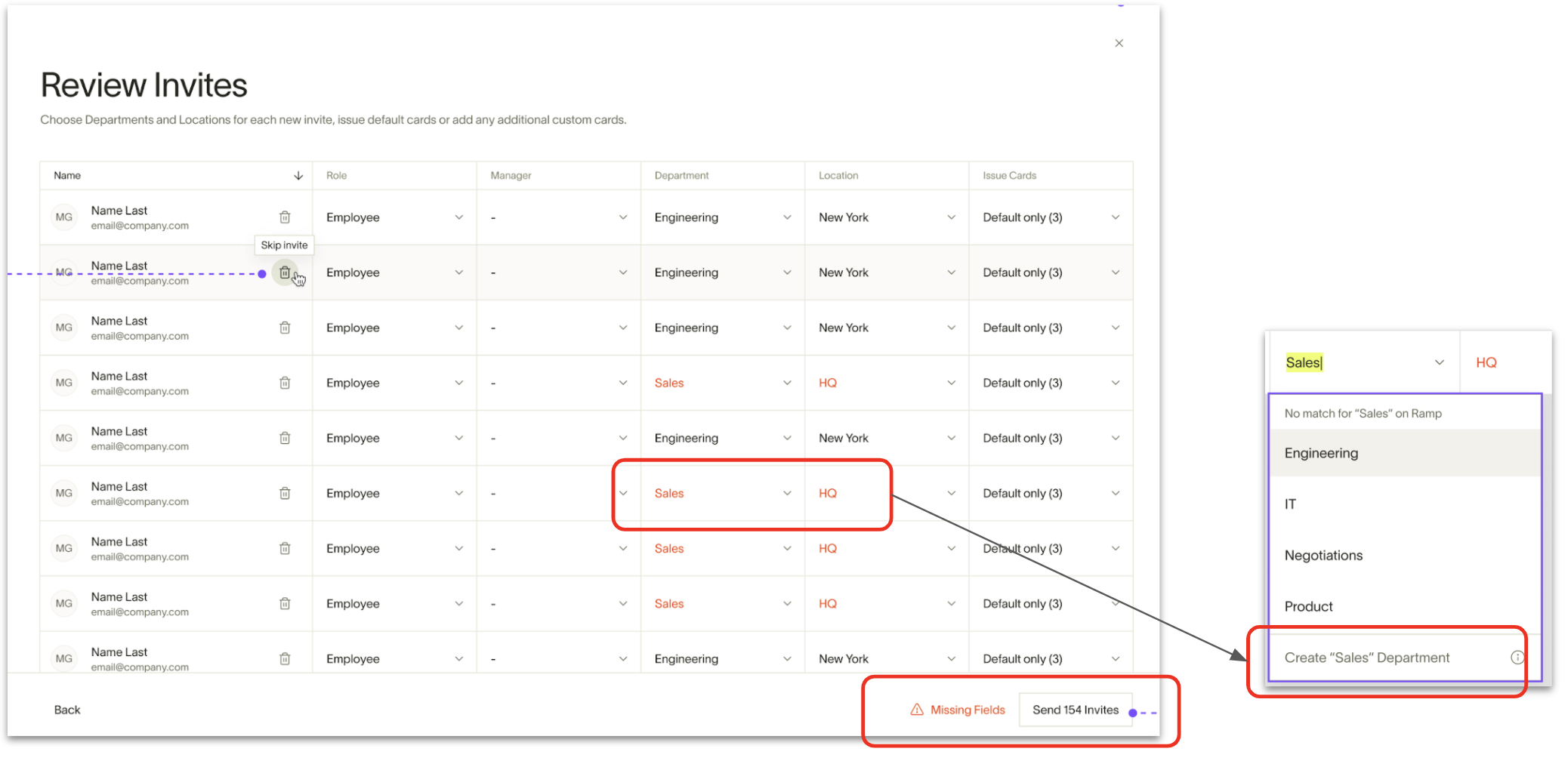
Ramp will pull the following information from your HR System for each employee:
- Name, Email
- Role (if manager)
- Direct Manager (if the manager on HRIS is either already on Ramp or invited through the same bulk invite)
- Department
- Location
- Employment status
- Start date - Termination date (to flag when an employee has been terminated)
- Employee ID
- Company Name
Note: We do not pull compensation information. Feel free not to give Ramp any compensation-related permissions. Additionally, if you've enabled custom fields, we may pull additional fields based on the configuration.
If a specific Department or Location does not exist in Ramp (and the naming matches), we will highlight these fields in red. Ramp Admins can quickly create these Departments / Locations from the drop-downs for each field, or assign the Employee to an already existing Ramp Department / Location. If you create a new Department or Location, Ramp will map it to the associated Department / Location in your HR Integration for future invites and updates.
Adding cards to invite: Default Spend Programs will be automatically issued to users invited via HRIS based on settings configured in the Spend Program. (Read here for more information on Default Spend Program Settings.)
If you want to issue one-off cards with your invites, you can download the HRIS user list and go through the CSV invite steps.
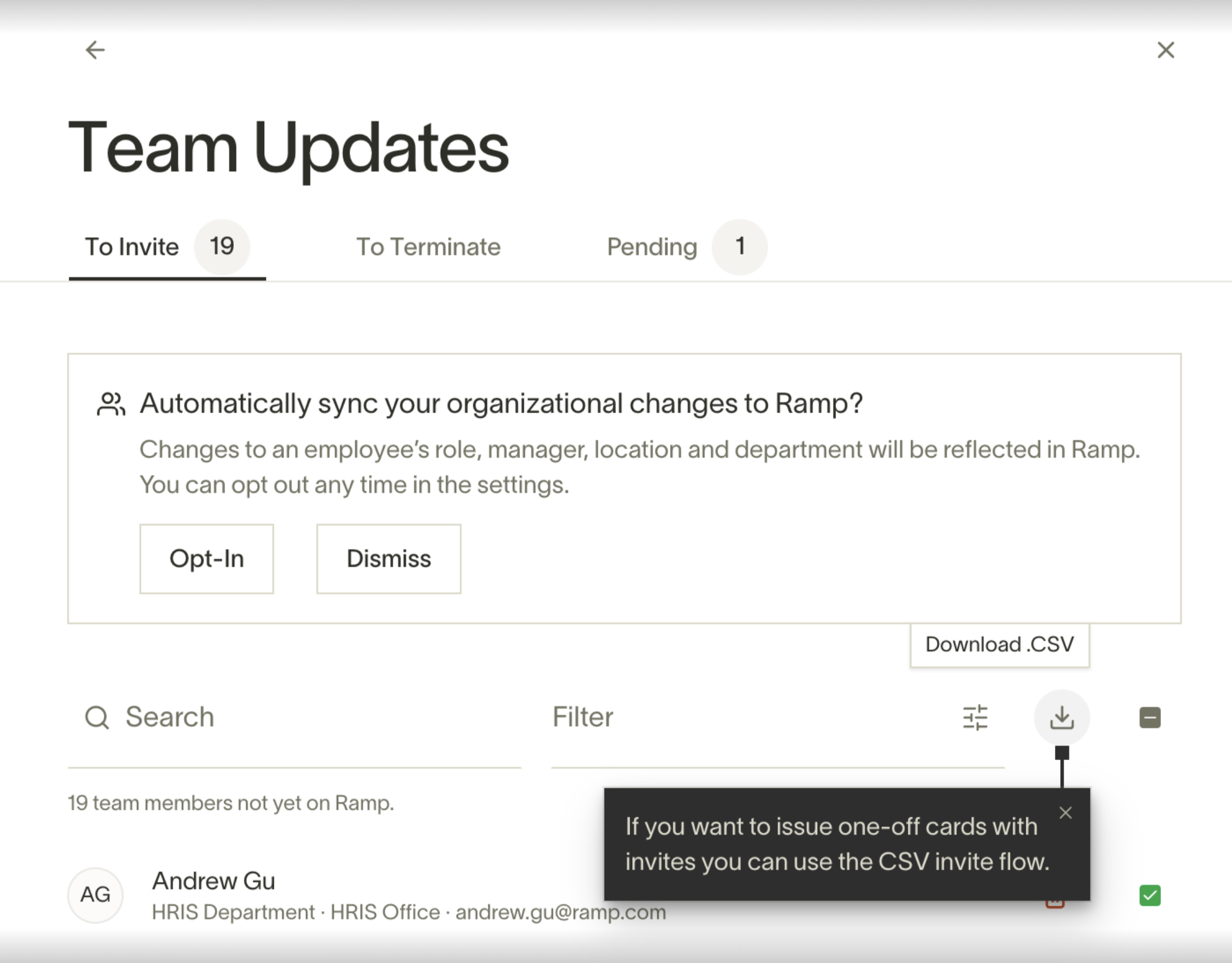
Note: All fields need to be filled out to send the invites. If you still need to fill in the fields, you can select Skip Invite (the Trash Can icon next to their name) so that user will not be included in this bulk invite.
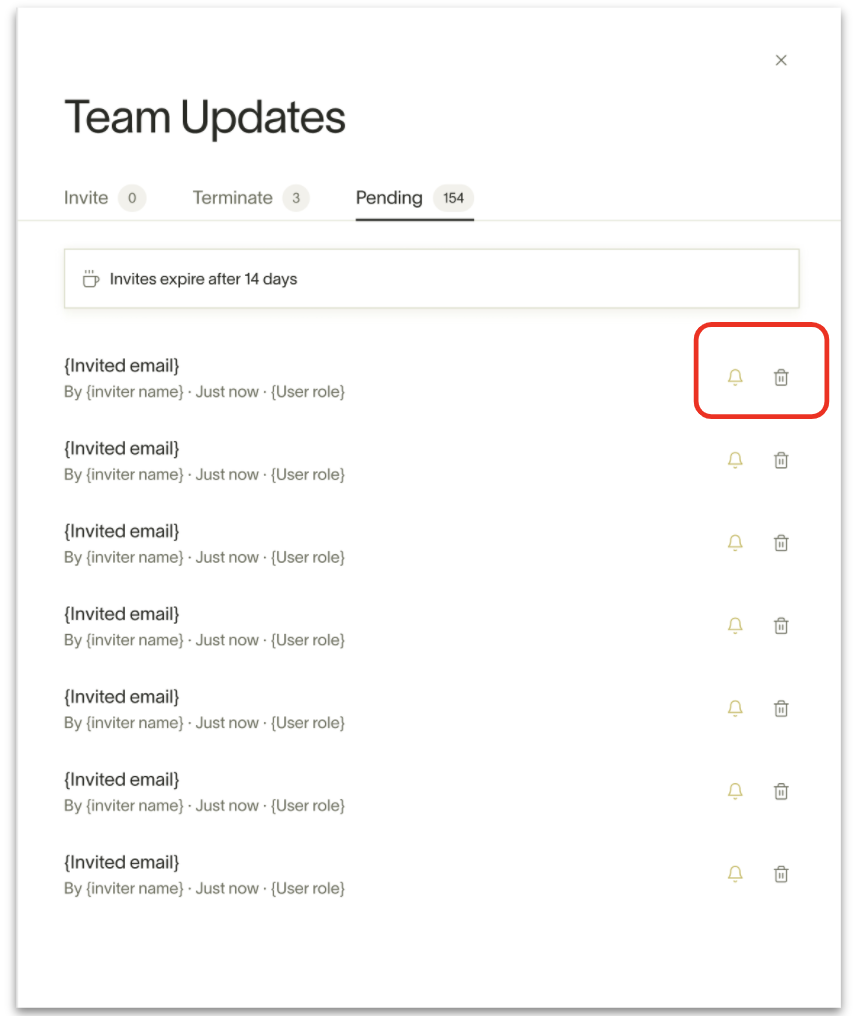
Admins can take action on pending invites from the “Pending” tab. The “bell” icon sends a reminder email to the associated employee. The “trash can” icon will revoke the invitation.
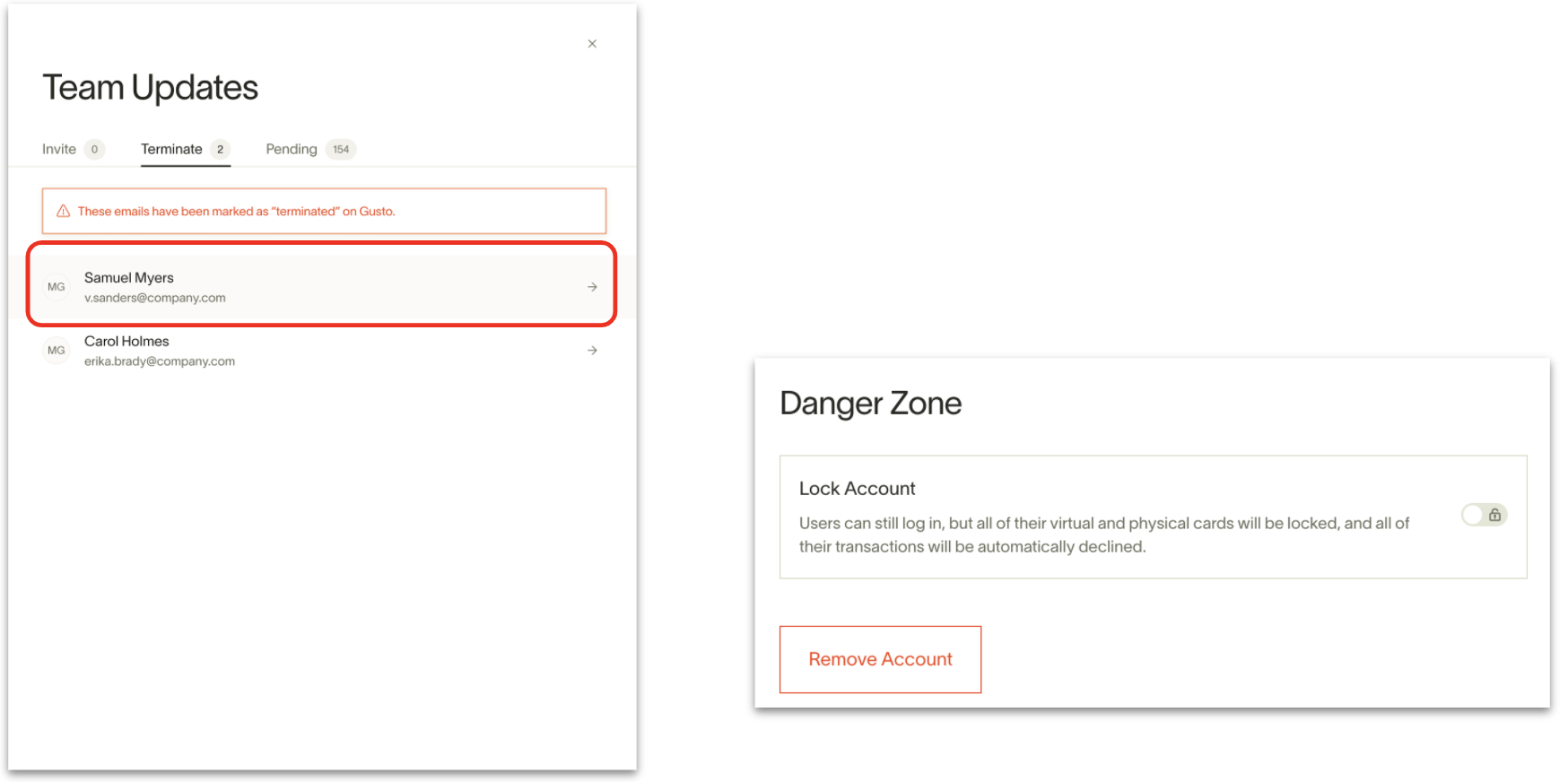
Ramp will surface terminated employees in your HR System in the “Terminate” tab. From here, you can either lock the employee’s Ramp account or remove it altogether. Removing an employee’s Ramp account will terminate their cards.
Automatic updates
Available on Ramp Plus. See Ramp Plus overview for plan details.
If you have enabled automatic updates, we will update information on Ramp daily depending on what's on your HRIS provider! To enable, all you have to do is:
- Go to Company ->Integrations -> Connected Apps > Update Settings
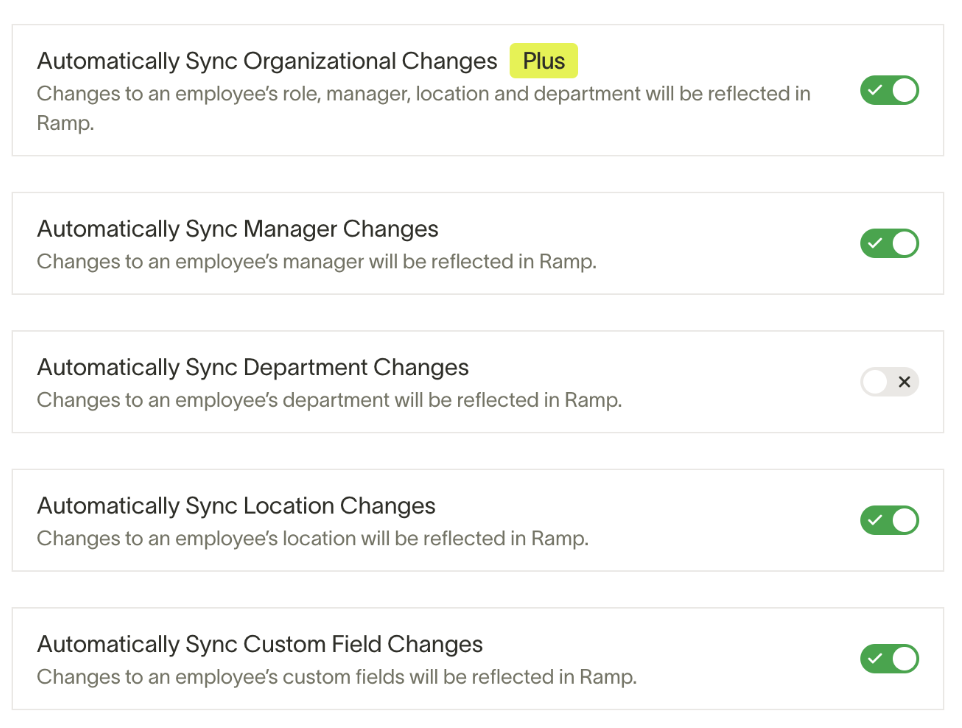
- Enable the Automatically Sync Organization Changes toggle
When enabled, Ramp will update your employee records daily based on any changes made in your HR System. This includes changes to your Employee’s Manager, Location, and/or Department.
Note: When enabled, this will override any manual adjustments you have made in Ramp regarding your Employee’s Card Manager, Department, and Location. This feature is available on a per-field basis, so if you want to maintain updates for Department and Location but set different Managers within Ramp vs. your HRIS provider, turn on Auto-sync and, in the next step, toggle off Manager updates.
Supported providers
Providers include ADP, BambooHR, Freshteam, Gusto, Hibob, HR Cloud, HR Partner, Hummans.io, Justworks, Lano, Namely, Nmbrs, Paychex Flex, Paylocity, Personio, Proliant, Sage HR, SAP SuccessFactors, Sapling, Square Payroll, TriNet, UKG Pro, UKG Ready, Workday (Plus), Ceridian Dayforce, Zenefits, and more.
Common issues
List of employees is not complete:
This is usually the case when the person who is connected to the HRIS provider does not have full admin access to the HRIS provider
Credentials are wrong when they are not:
This may happen when someone has more than one company associated with that email. The solution is to create a dummy admin account that is connected to only one company and initiate the connection
My email is connected to multiple companies:
Same solution as above