UCSV | Adding and updating accounting fields
Overview
If you're using Ramp's Universal CSV (UCSV) accounting integration, you can easily add additional accounting fields and field options. This article covers how to do that.
Note: This article applies to UCSV. If your business uses a direct accounting integration instead, you may still see an Accounting fields surface, but the create and upload flow in this article does not apply. See Overview of Ramp Accounting.
If you do not see accounting fields
Direct accounting integration: This article is for UCSV. If your business uses a direct accounting integration, Ramp pulls fields from your accounting provider, so you do not use this UCSV field-creation or CSV upload flow. Use Overview of Ramp Accounting for that flow.
Current UI path: In the current UI, Accounting fields opens from the Accounting page's Settings drawer rather than from a standalone settings page. Start from Accounting > Settings >Accounting fields.
Role or permission access: If you still do not see Accounting fields, or if you can open it but cannot add or edit fields, your role may not include the required accounting settings access. Ask a Ramp Admin to update your access or complete this setup for you. If your business uses Custom Roles, see Customize role permissions and Editing a user's role.
Add a new accounting field
To add a new field altogether, go to Accounting > Settings >Accounting fields, then follow the steps below:
-
Click Add new field.
-
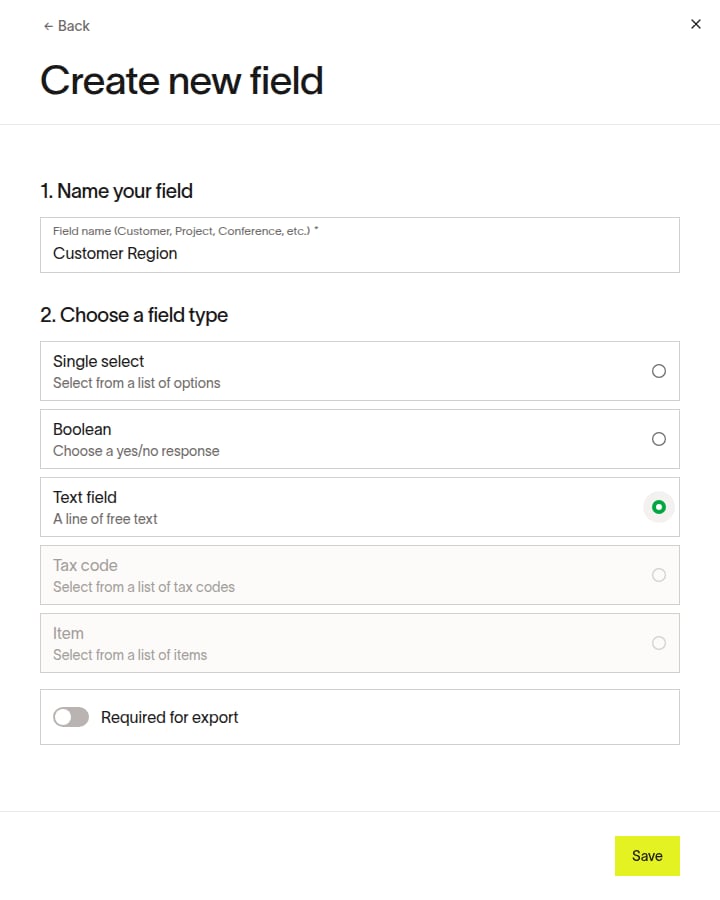
Enter a name for the field.
-
Choose a field type. Available field types depend on your setup.
-
If you choose Text field or Boolean, click Save. If Date appears in the field-type list, you can also select it and click Save. If it does not appear, Date is not available for your business.
-
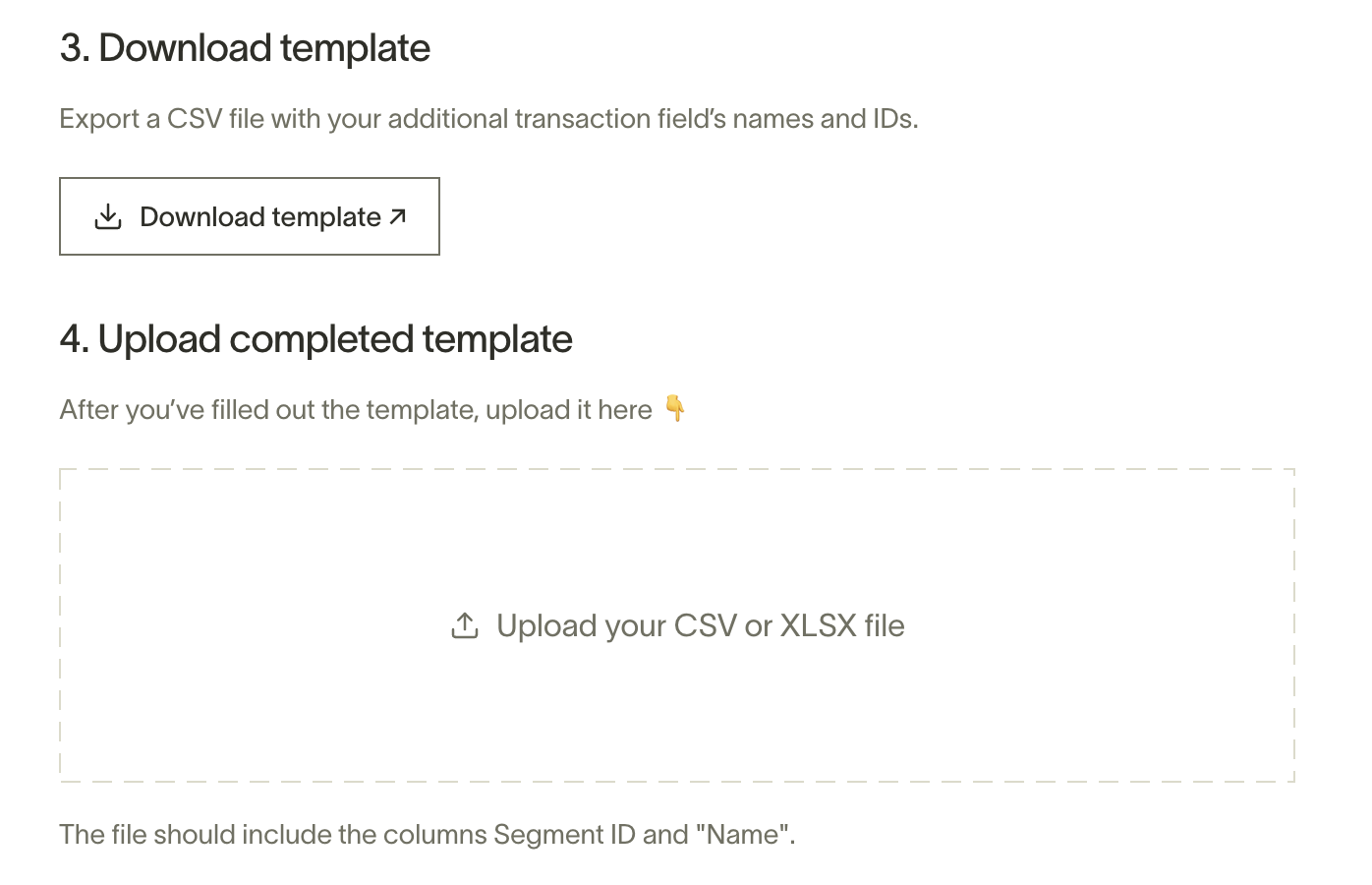
If you choose Single select or Item, click Download template.
-
Fill in the template, upload it, and click Save.
-
If you choose Tax code, follow Universal CSV integration: Tax support to upload separate tax-rate and tax-code CSV files.
Adding a new field value
If you need to add a new field value for an existing field, go to Accounting > Settings >Accounting fields. From there, you can either add one value at a time or upload a full replacement list.
Add new field options one at a time
- Click Edit next to the field you want to update.
- Click Update options .
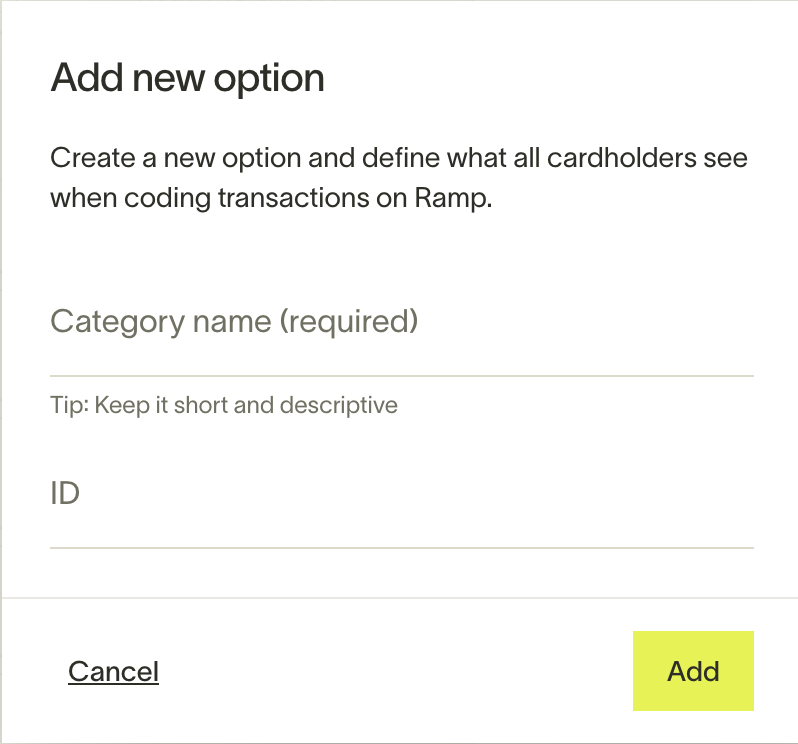
- Click Add new option .
- Provide a name and ID for your new option.
Upload a new list of fields (bulk update)
- Click Edit next to the field you want to update.
- Click Update options .
- Click Update via CSV .
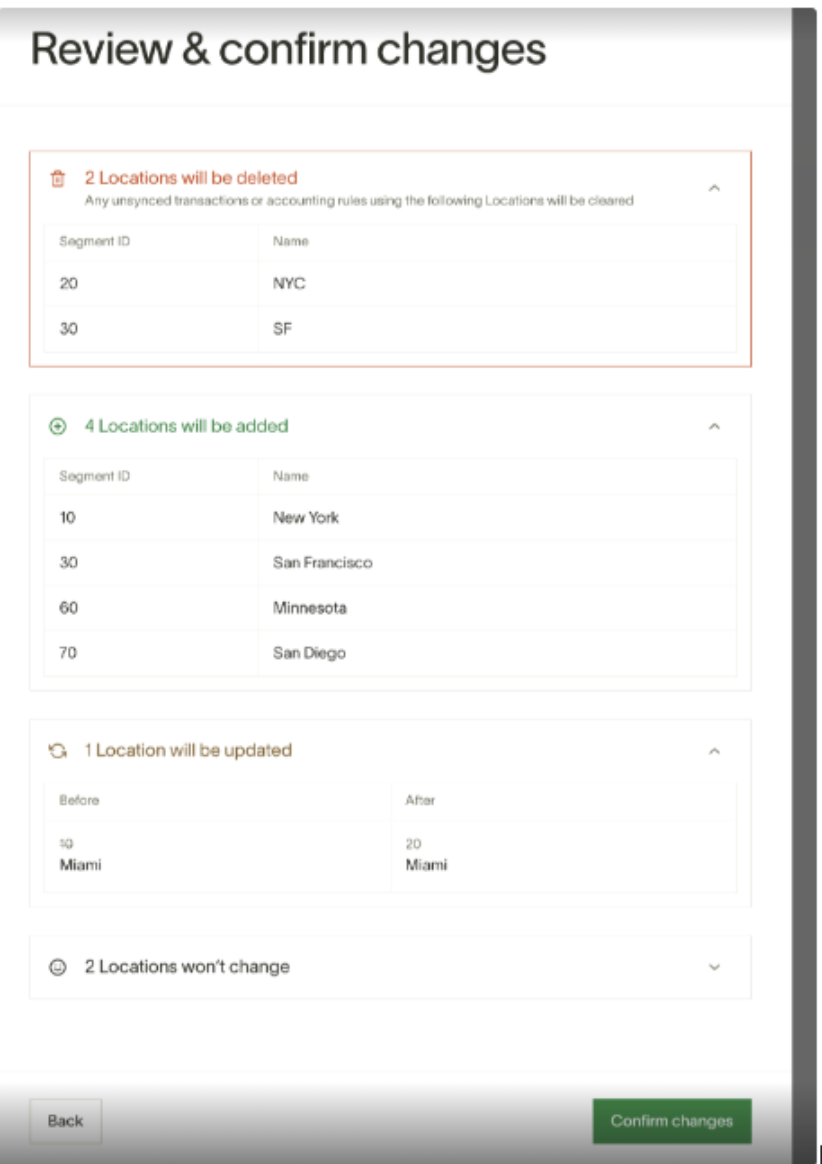
- Download and make the desired changes to the CSV.
Note: Using this method will replace the entire list, so historical field options will need to be included if you want to keep these field options.
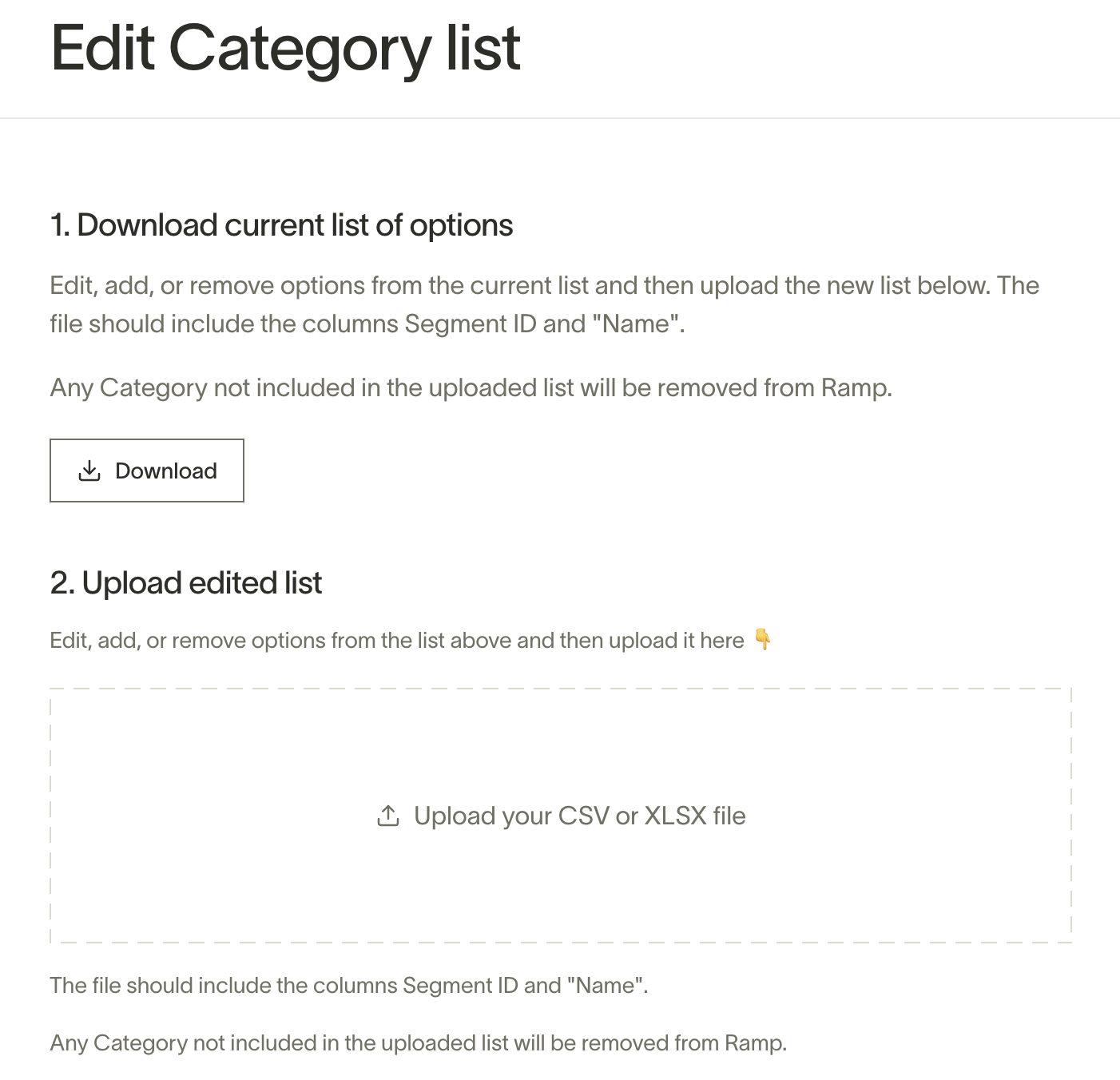
- Upload the new CSV.
- Confirm the changes in Ramp.