Send follow-up forms in procurement workflows
As an Admin, you can send custom forms as a step in the procurement workflow. You can create global forms (e.g. security review) and assign employees at your company to fill them out. You can add the same form to multiple workflows.
Note: Procurement requires the Procurement add-on.
Create forms for Programs
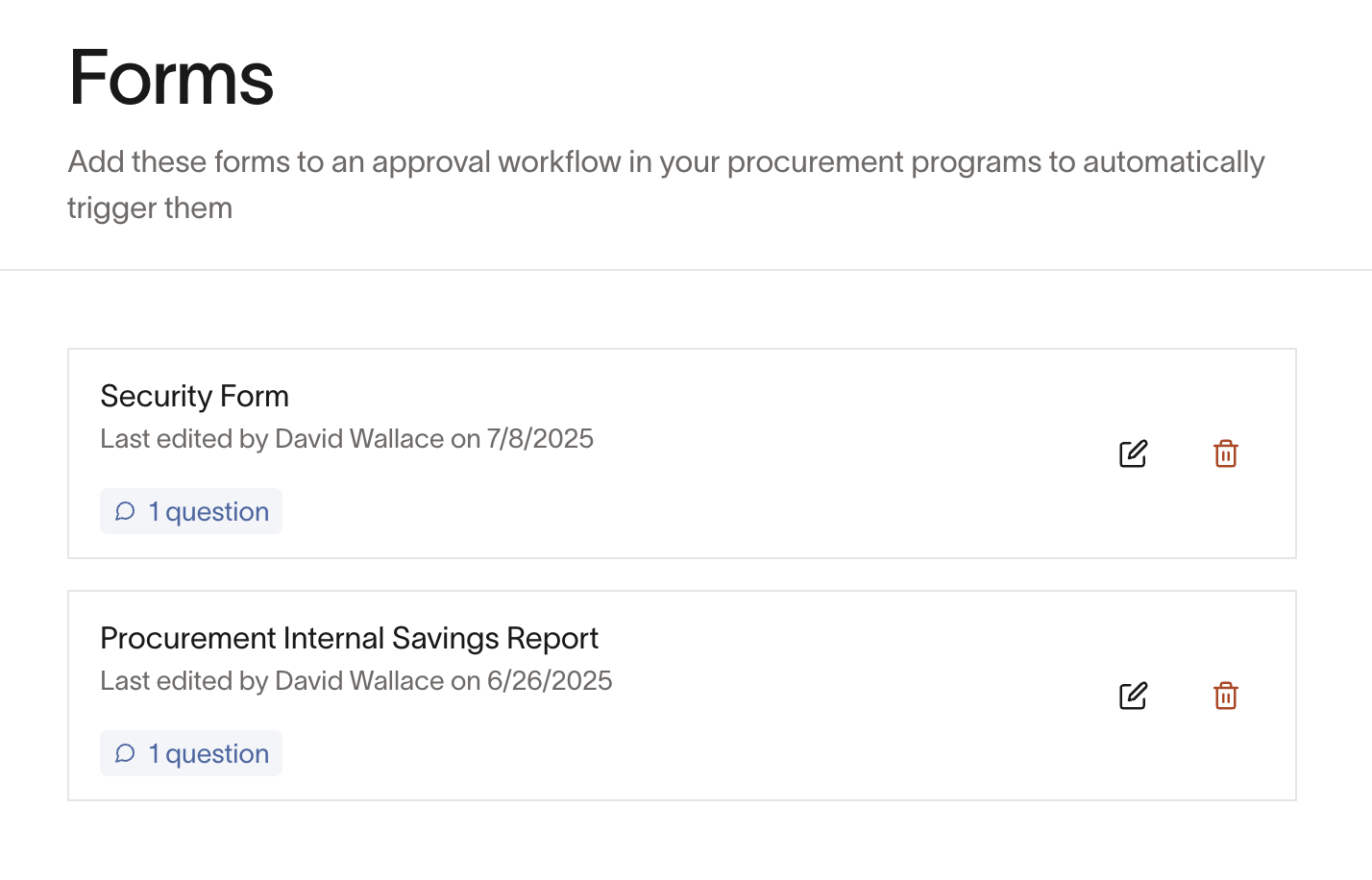
- As an Admin, go to Manage spend > Programs, then select Manage forms.
- You can create new forms or edit existing forms.
Add forms to procurement workflow
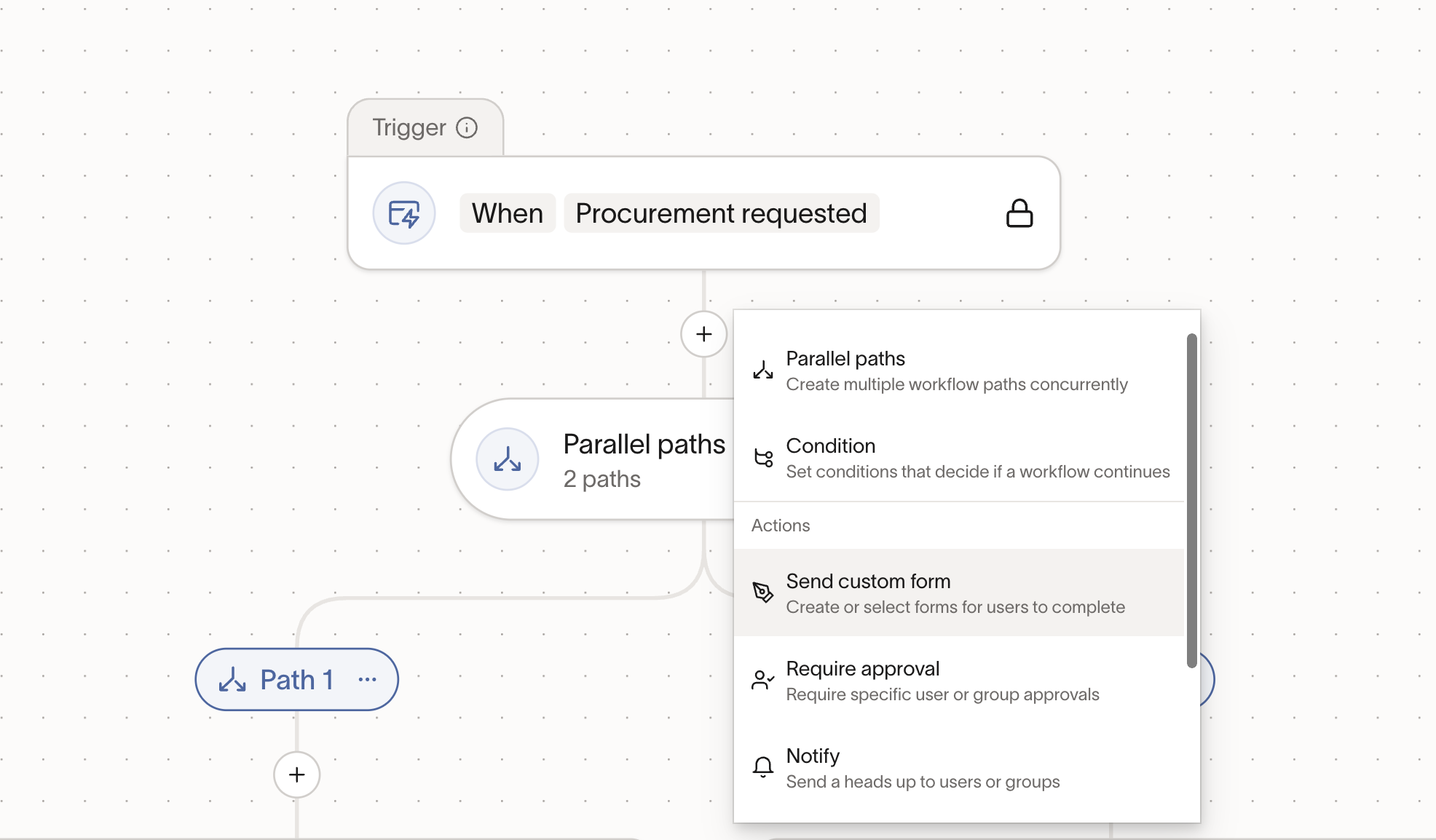
- Click on "plus" icon in the canvas builder and click on "Send custom form"
- Select users or group to submit the form (e.g. IT & Security Approvers)
- Select a form (e.g. Security Form)
- Optionally set due dates (SLA)
Filling out follow-up forms on procurement requests
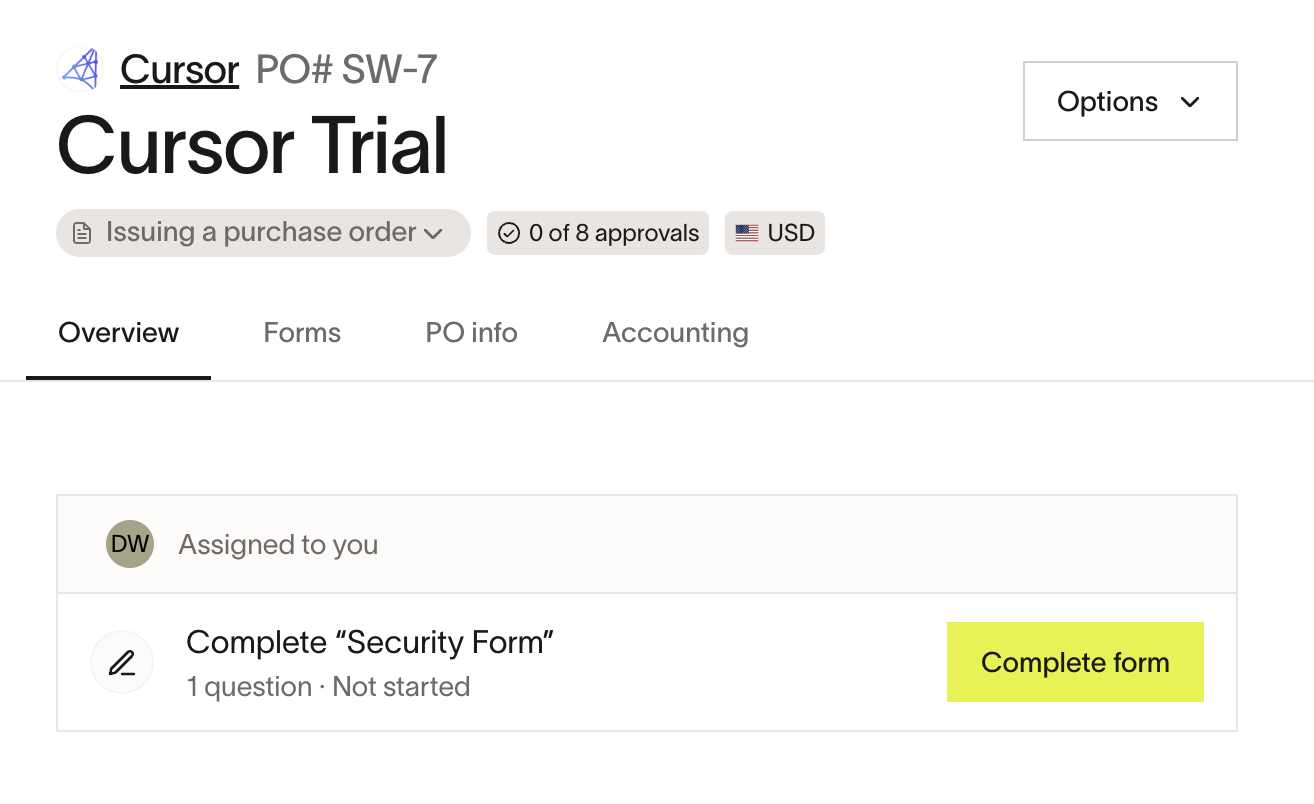
- If you're assigned to fill out the form, you'll see this task at the top of the request to complete the form.
- Assignees will receive notifications via email to fill out this form.
- Assignee can click "Complete form" and submit the form.
- Once they submit, it'll show up in the Activity tab with the date stamp.
- Form answers will show up in the "Forms" tab within the request.
For form steps in workflows built with the Workflow Builder, if you need input from someone else before completing your assigned form step, you can request changes to assign that follow-up and pause the step until it is returned. For traditional workflows, use comments on the request to discuss changes instead.