Request changes to procurement requests
Overview
Use Request changes in Ramp on the web to ask someone for information or corrections before completing a procurement review. This workflow, also called a sendback, pauses the affected step without rejecting the request.
Who can request procurement changes
Your business must have access to this feature. Requesting changes is supported only on approval or form steps in the new procurement workflows built with the Workflow Builder. Traditional procurement workflows do not support it, even when the feature is enabled.
You can request changes on a pending procurement request when you are the current approver or assigned to complete its current form step. Users with permission to manage all procurement requests can also request changes on pending approval or form steps without being assigned to them.
If you are not assigned to the current step and do not have that permission, ask the current reviewer to request the changes. For procurement access and setup, see Get started with Procurement.
If your business does not have access or the request uses a traditional workflow, use comments on the request to ask for the missing information. You can @mention colleagues if your permissions allow.
You can request changes at a pending approval or form step even if earlier steps have been approved, until the request is fully approved. To change an already-approved purchase order, see Change orders.
Send a procurement request back for changes
- Open the pending request from Requests.
- Open the request's actions menu and select Request changes. If more than one step is available, select Request changes from the relevant step.
- In Assignee, select the person or group responsible for responding. You can choose someone other than the original requester.
- Enter Instructions explaining what information or correction you need, then select Request changes.
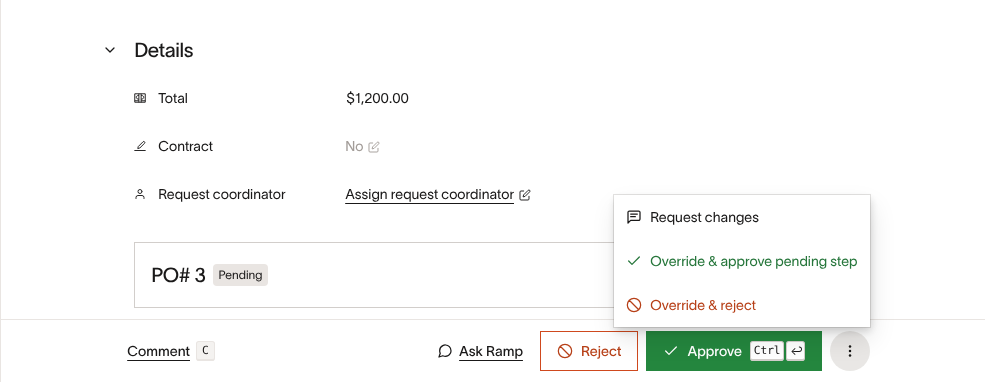
Select Request changes from the request's actions menu.
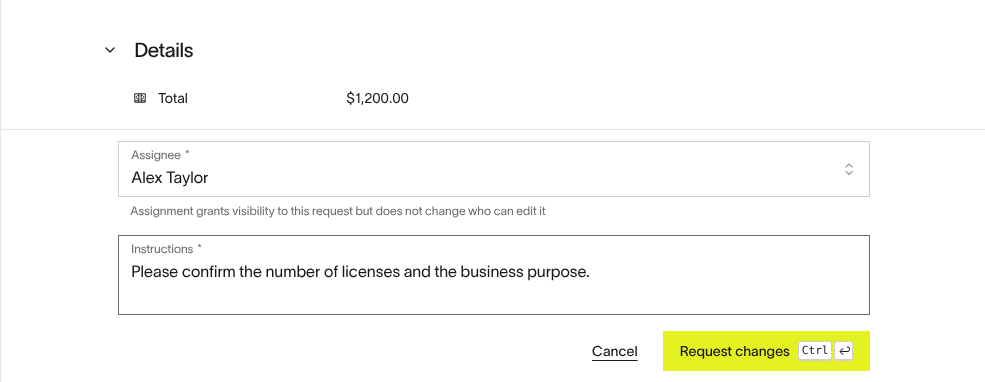
Choose who should respond and explain what you need.
The assigned person receives a task. The request displays your instructions and who is assigned to respond, and the affected step waits for the requested changes. Assignment gives the recipient visibility into the request, but does not give them additional permission to edit it.
Respond to requested procurement changes
Open your assigned request from your task on Home, then read the Changes requested by notice and its instructions. You must be the assigned person or a current member of the assigned group to return it for review.
- Provide the requested information or make and save the required corrections. To edit request details, select Options, then Edit request. Your existing editing permissions still apply; if you cannot edit a required field, ask the request owner or reviewer to make that correction.
- If the changes-requested notice remains after you finish, add any explanation in Add a note (optional), then select Return to reviewer. A response note is optional, and you can return the request after answering a question without changing its fields.
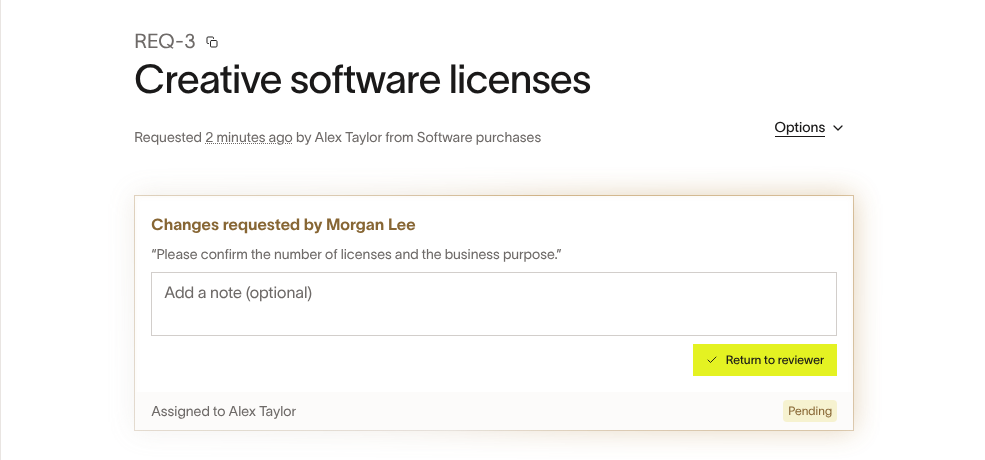
Review the instructions and return the request when your follow-up is complete.
If an edit removes the notice, check the request's updated approval flow instead of trying to return it again. See What happens after procurement changes.
Mark requested procurement changes as resolved
These steps apply only to approval or form steps in workflows built with the Workflow Builder. For traditional workflows, use comments on the request to discuss changes instead.
Use this option when the follow-up was handled offline, you have the evidence you need, or the requested changes are no longer needed.
The person who selected Request changes, a reviewer currently assigned to the affected approval or form step, or someone with permission to manage all procurement requests can mark the changes as resolved. Being the original procurement requester, request owner, or recipient alone does not grant this action. If you cannot resolve the changes, ask the person who requested them.
- Open the request and select Mark as resolved from the changes-requested card's actions menu.
- Optionally add context in Message or evidence link, then confirm Mark as resolved.
The activity feed records who resolved the changes and any message they added.
Resolving the changes makes the affected step actionable again without requiring the recipient to select Return to reviewer. It does not approve the procurement request.
What happens after procurement changes
Return to reviewer completes your assigned changes task and makes the paused step actionable again. It does not approve the request. For a group assignment, one current member can return it on behalf of the group.
Edits that restart the approval workflow also clear outstanding requests for changes. By default, changing the vendor or increasing the amount restarts the workflow; your company's configured approval rules can change when this happens. In that case, follow the new approval flow rather than expecting the original step to resume.
Returning requested changes is different from resubmitting a rejected request. For rejected requests, see Procurement request states.