Real-time reporting
Ramp's real-time reporting shows company spend across all payment types in one place.
Note: Users with Reporting access see spend based on their permissions. A report shared using With my access shows data available through the sender's access instead. A shared report does not grant access to other reports; if you need broader Reporting access, ask your Ramp Admin.
Overview
Use Reporting to build saved reports, organize them into dashboards, and track spend across Cards, Reimbursements, and Bills. You can reuse saved reports, share individual reports with teammates, and export report data when your role has access.
Create and save reports
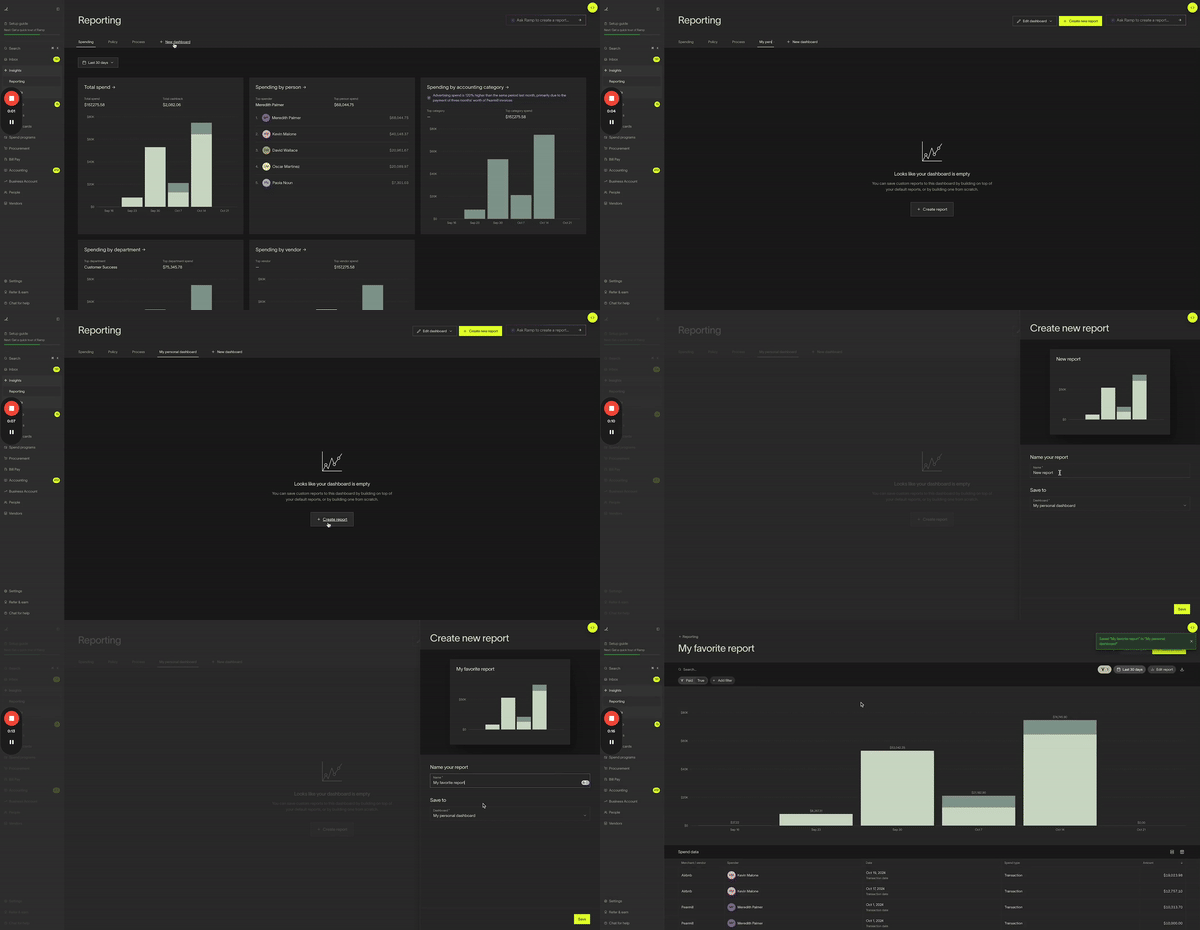
Custom reports let you save the views you use most often and organize them into custom dashboards.
- In the left panel, go to Insights > Reports.
- Build or open a report, then save it to an existing dashboard or a new custom dashboard.
- To create a copy of an existing report, open the report and click Save as new .
Saved reports and custom dashboards stay in Ramp until they are deleted. Unsaved changes do not persist.
Share reports and send exports
Available on Ramp Plus. Report sharing and emailed or scheduled exports require Ramp Plus. See Ramp Plus overview for plan details.
Report sharing also requires company-wide Reporting access. Managers can download report data, but cannot share reports or send exports by email. If Share is unavailable, ask your Ramp Admin to confirm your plan and update your Reporting access.
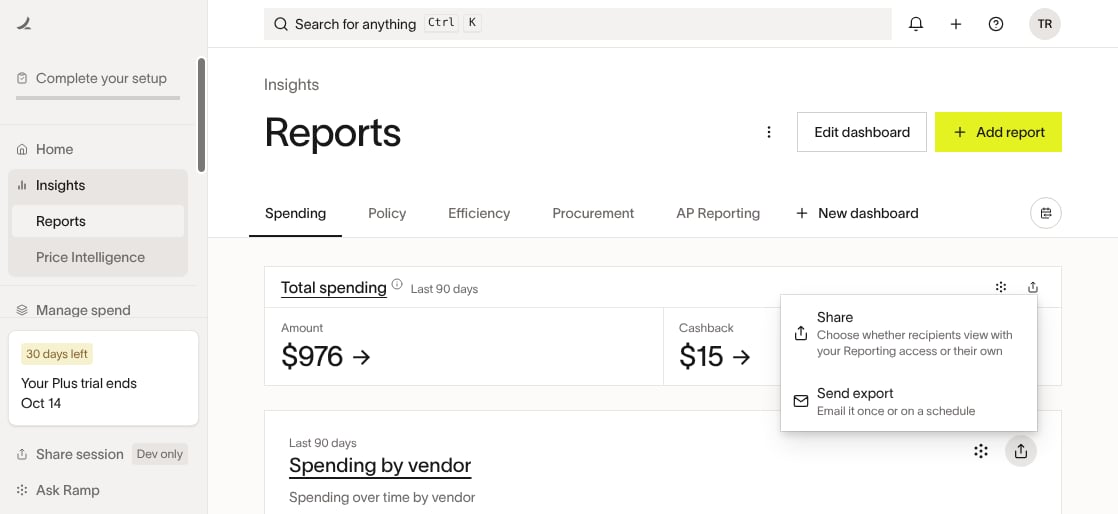
To share or export a report, open the report and click Share in the top right. You will see these options:
- Share report - Shares the report with selected teammates. For reports that offer access modes, select With my access to share data available through your access, including with teammates who do not have Reporting access. Select With their access only for teammates who already have Reporting access. Teammates you already share the report with cannot be selected again. When you choose With their access, teammates without Reporting access also cannot be selected; ask your Ramp Admin to review their Reporting access.
- Send export - Emails report data to recipients. You can schedule the export and include a message. Exports include either Aggregated data (totals and groupings) or Raw data (row-level records).
Aggregated data exports only produce grouped output when the report uses a chart visualization such as bar, line, pie, area, or sankey. If the report uses the Data table visualization, the export contains row-level data regardless of which export option you choose.
On Ramp Plus, eligible users can share a custom dashboard when Share dashboard is available. Dashboard exports are not supported.
Manage dashboards
You can rename or delete custom dashboards from the dashboard menu. Shared with me dashboards are read-only, but recipients can delete their own copy without deleting the original dashboard.
- In the left panel, go to Insights > Reports and open the dashboard.
- Open the dashboard menu in the top right.
- Select Delete dashboard and confirm.
Deleting a custom dashboard also deletes the reports saved in that dashboard.
Import directly to excel
For the Excel add-in and direct import workflow, see Ramp for Excel.
Frequently asked questions
Can dashboards be shared?
Yes, eligible Ramp Plus users can share custom dashboards when Share dashboard is available. See Share reports and send exports.
How do I share a report with my team?
Open the report and click Share. See Share reports and send exports for access modes and recipient data visibility.
How do I duplicate a report?
Open the report and click Save as new. This creates a separate copy you can edit without changing the original report.
Can I duplicate a dashboard?
Yes. Open the dashboard menu and select Copy dashboard. Ramp creates a separate dashboard, but semantic reports are not copied. Open each semantic report from the original dashboard and use Save as new to add a copy to the new dashboard.
Can I create a report that shows approved bills scheduled for payment each month?
No. Reporting's Payment date is the date a bill was paid, not its scheduled payment date. To review approved bills by scheduled month, use Advanced filtering on reporting tables and filter by Payment send date or Payment arrival date.
Does Ramp save past created reports?
Saved reports and custom dashboards stay in Ramp until they are deleted. A report may seem to disappear if it was never saved, if it was moved to another dashboard, if you were viewing a shared report that was later unshared, or if you made changes to a read-only shared report without using Save as new.