Ramp for Excel overview
Overview
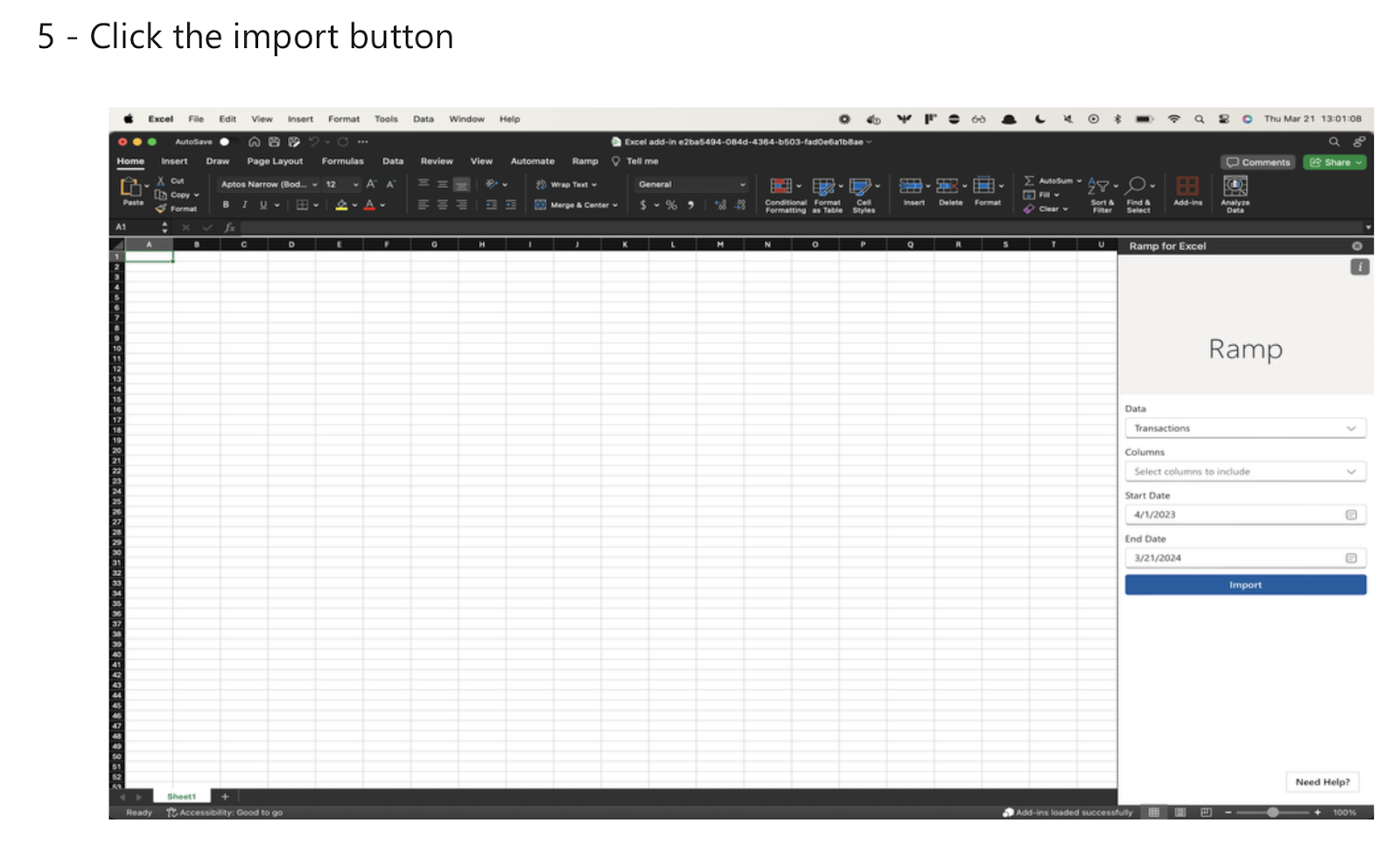
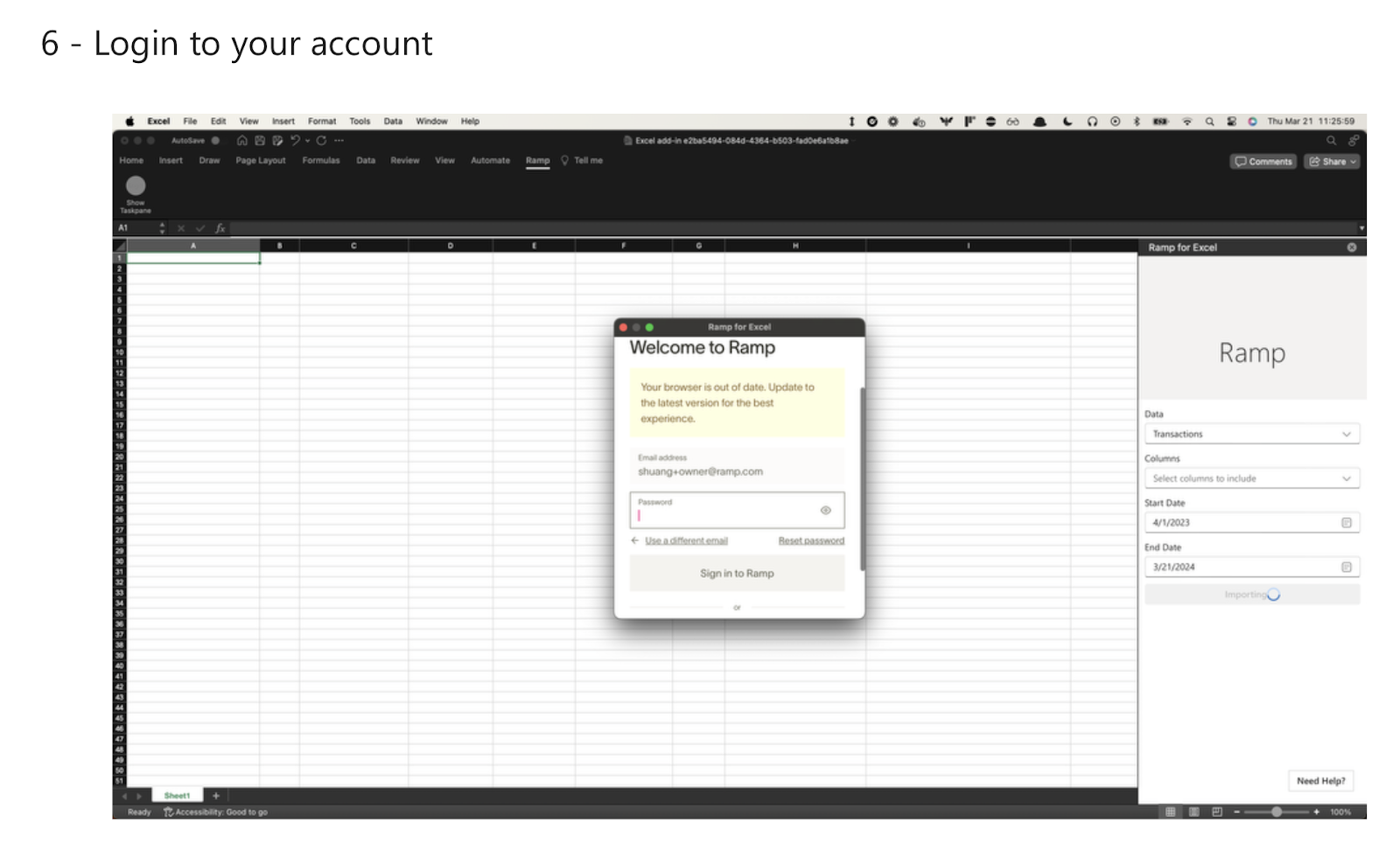
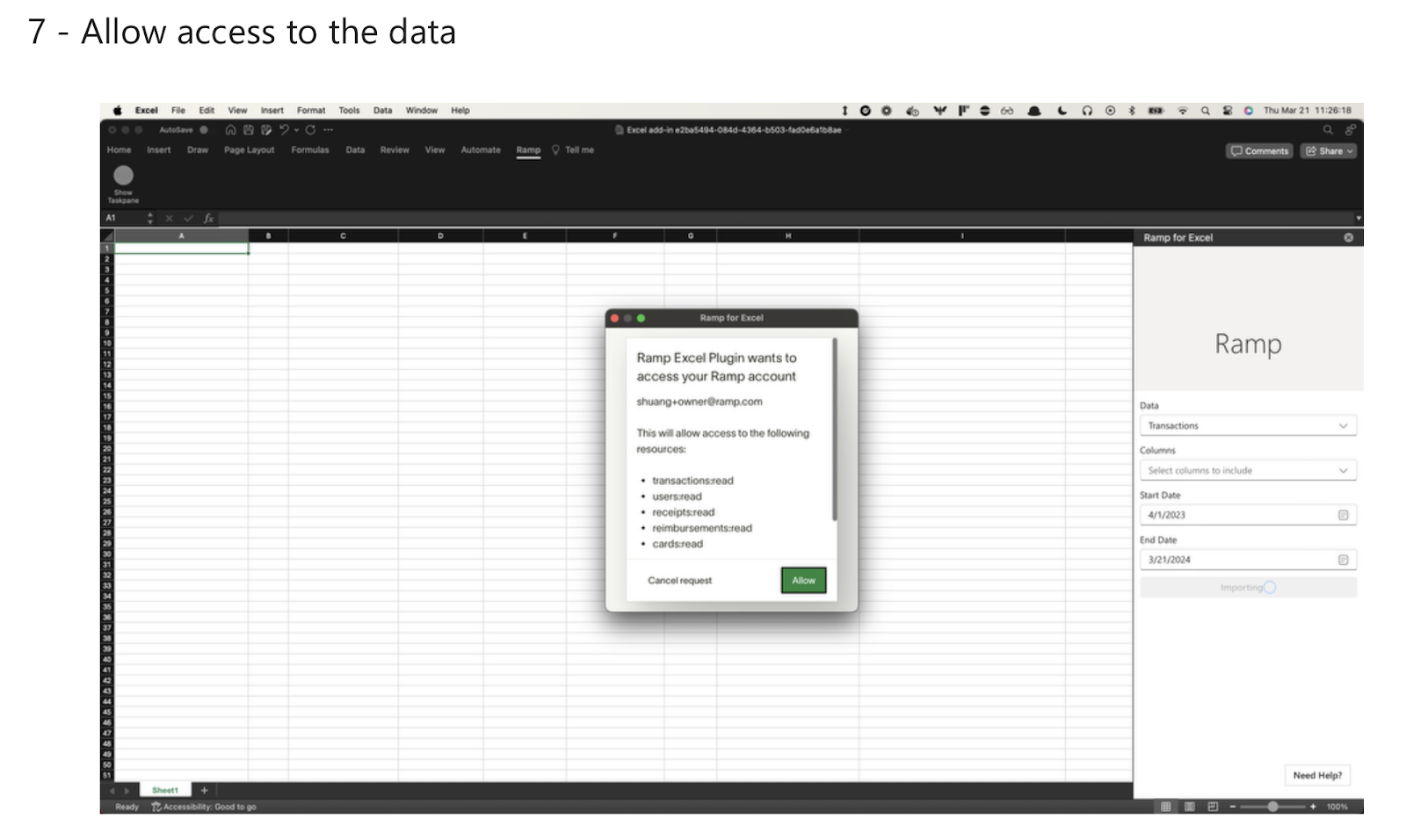
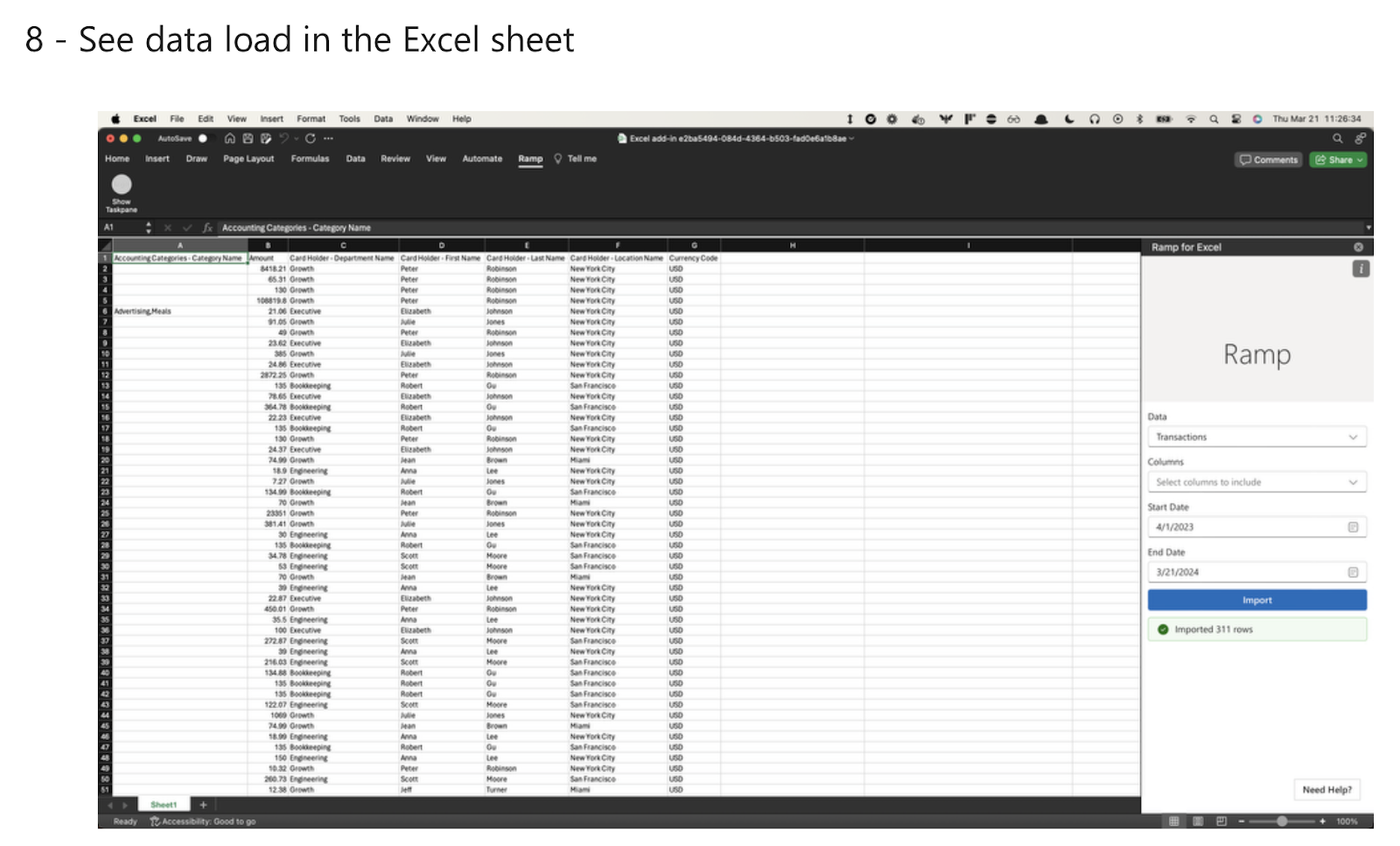
Ramp for Excel is an Excel add-in that lets Admins and Owners import spend, card, and user data directly into Excel. Select Spend to consolidate common fields from card transactions, reimbursements, and bills in one import.
Where do I download it?
You can download Ramp for Excel from Microsoft AppSource.
How it works
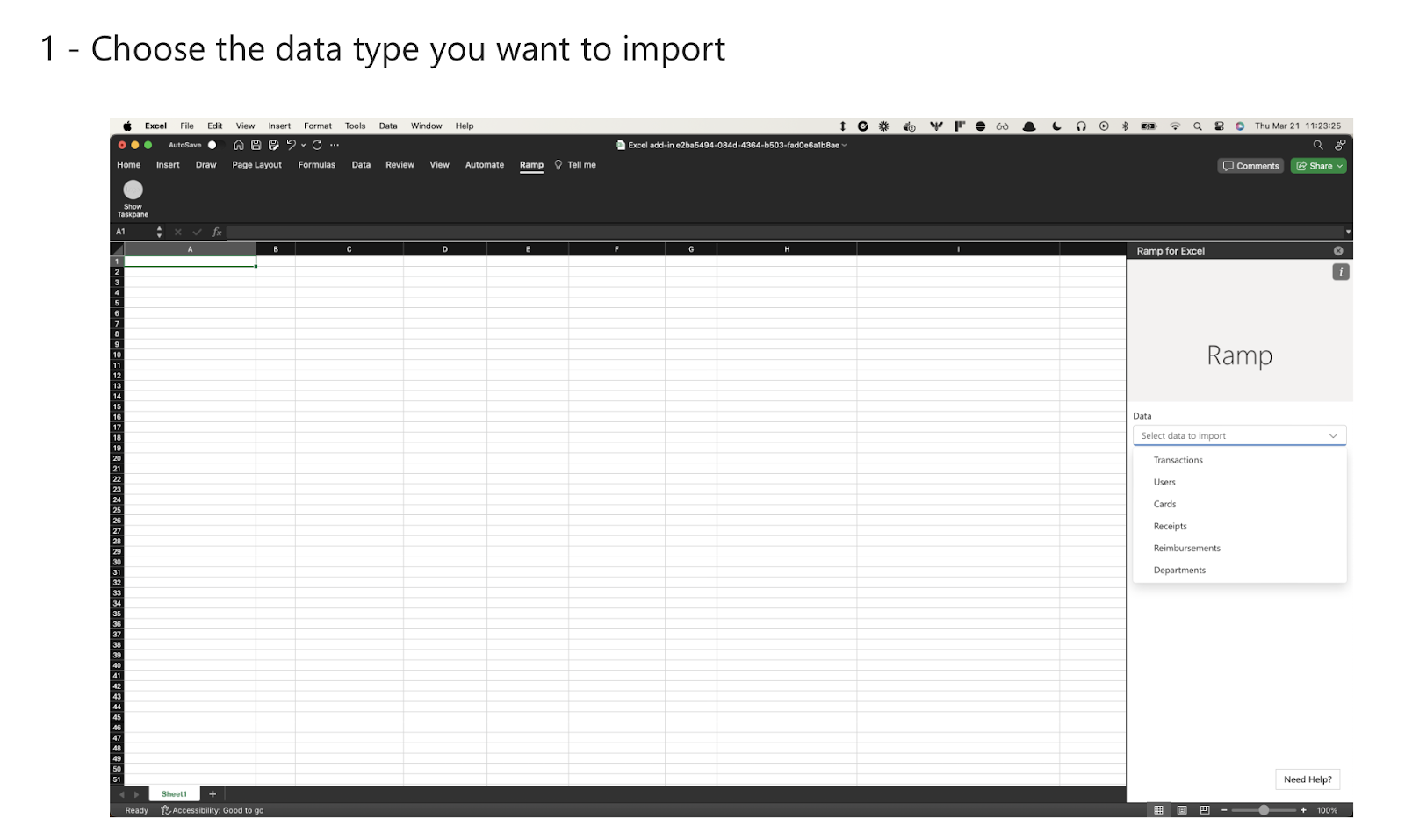
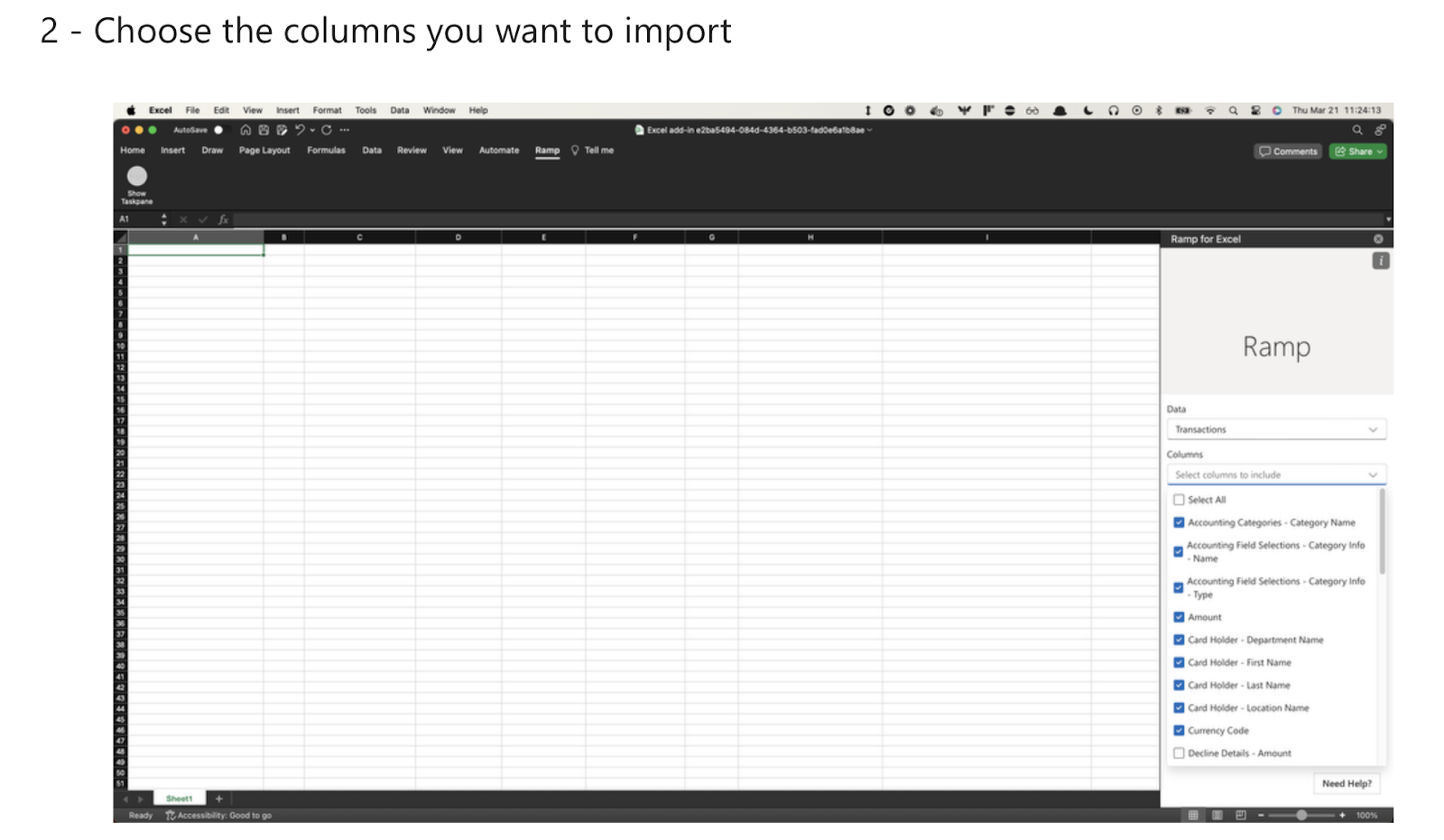
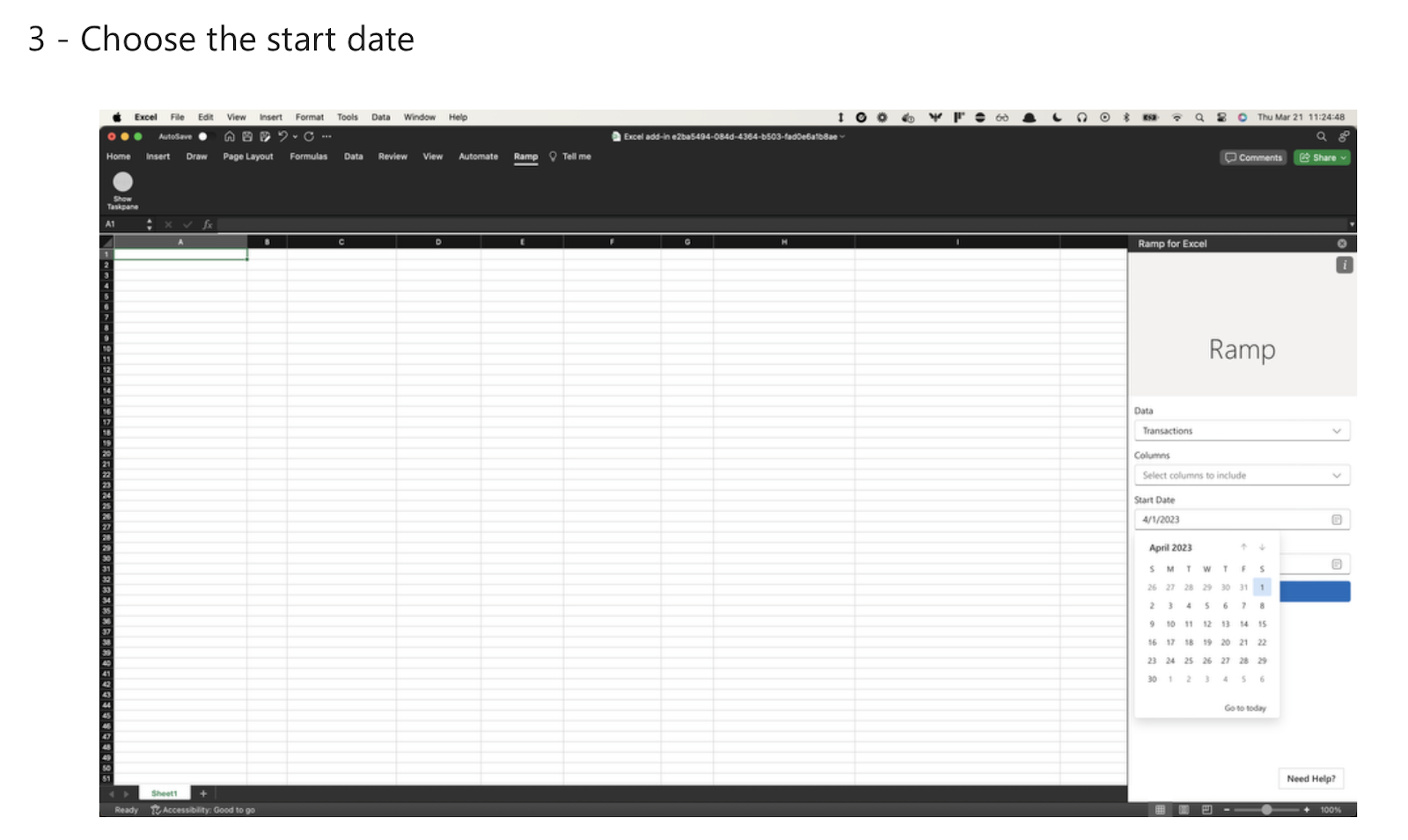
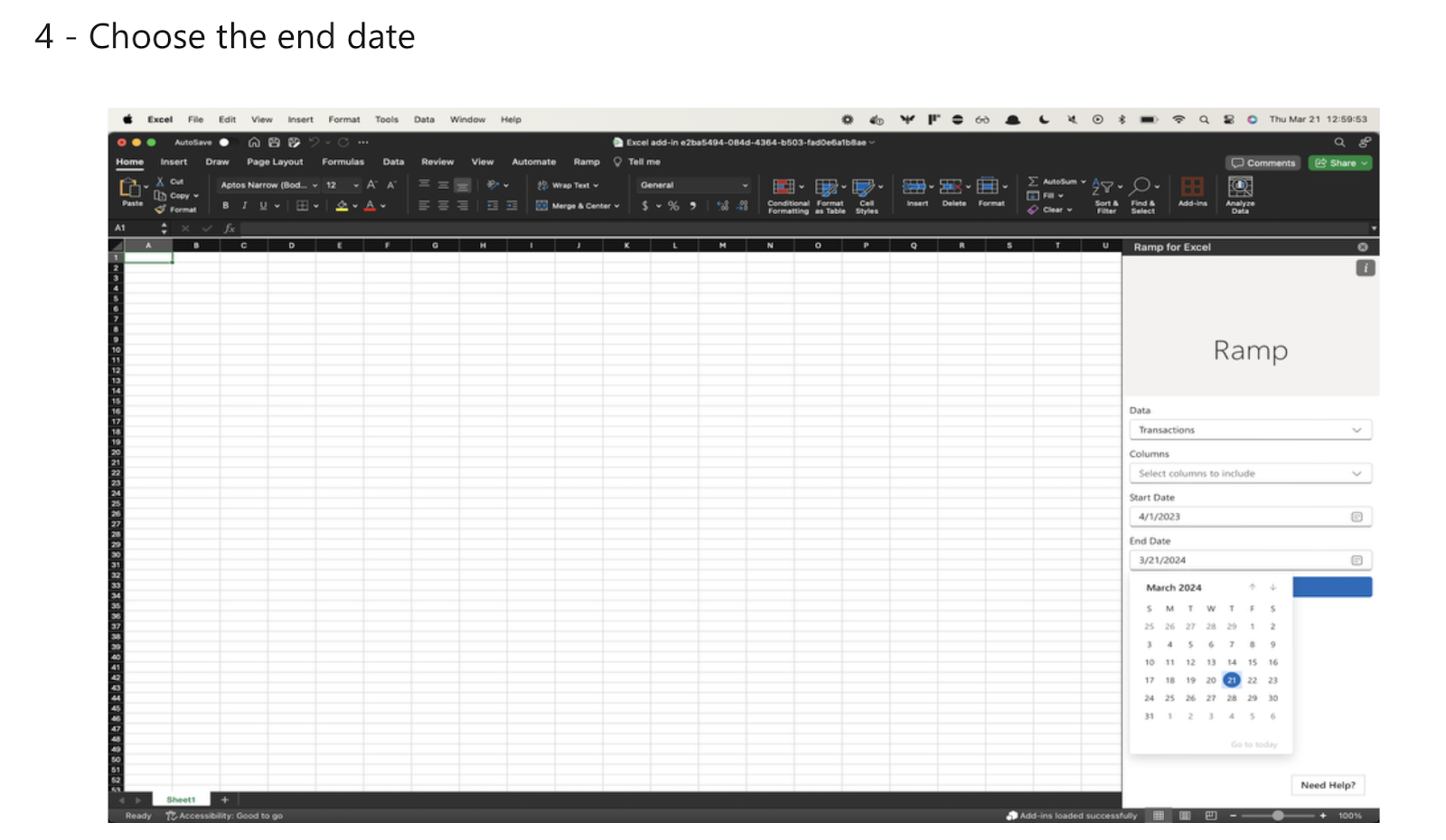
Use cases and examples
- Ramp for Excel provides data at a line-item level, showing the most granular level of information for your finance team.
- All accounting sync and coding information is also available, making this a great tool for end-of-month reconciliation.
- Use Ramp for Excel Custom Formulas to build shareable, live, models with Ramp data.
Frequently asked questions
Who has access to the Add-In?
The Add-in is available to only Admins and Owners.
What data is available via the Add-In?
The Data dropdown has these options:
- Spend.
- Transactions.
- Reimbursements.
- Bills.
- Users.
- Cards.
If I edit my data in Excel, will it modify the data in Ramp?
No, right now the Add-In is read-only, so the data only comes into Excel.
How do custom formulas work?
This sheet walks through all the formulas and how they work. In addition to this, we recommend downloading this Excel template which walks through a real example of how customers have used this.
What is a saved import?
A saved import stores a data type and selected columns so you can reuse the configuration. It does not schedule exports or run imports automatically. Apply the saved import, then start the import when you need the data.
How do I create and use a saved import?
- In Import data, select a data type and the individual columns you want to reuse. Save import is unavailable while Select All is selected.
- Select Save import.
- Enter a name and select Save.
- Open Saved imports. Open the menu for your saved import and select Use to restore its data type and columns.
- Review the import settings, then start the import.
How can I cross-reference information I find through the add-in within Ramp?
There are ‘URL’ columns that can link you to the exact line item that you are viewing in the add-in within Ramp.
What happens if I send a file that pulls data from the Excel Add-In to someone else?
All the data you have imported will remain in the spreadsheet, but the recipient will not be able to import additional data unless they also have access to the Excel Add-In.