QuickBooks Desktop integration: API connection overview
Overview
Available on Ramp Plus. See Ramp Plus overview for plan details.
Not available in Canada or Mexico. QuickBooks Desktop (API) does not appear as a provider option for Ramp businesses in these countries.
This article provides a detailed overview of how Ramp integrates with QuickBooks Desktop, covering the syncing of transactions, bills, reimbursements, and statement credits. It explains how Ramp handles various types of transactions in QuickBooks Desktop, including cashback redemptions, creating bills, and managing negative transactions. Additionally, it provides setup instructions and answers to common questions, ensuring effective financial management through seamless integration.
What Ramp looks like
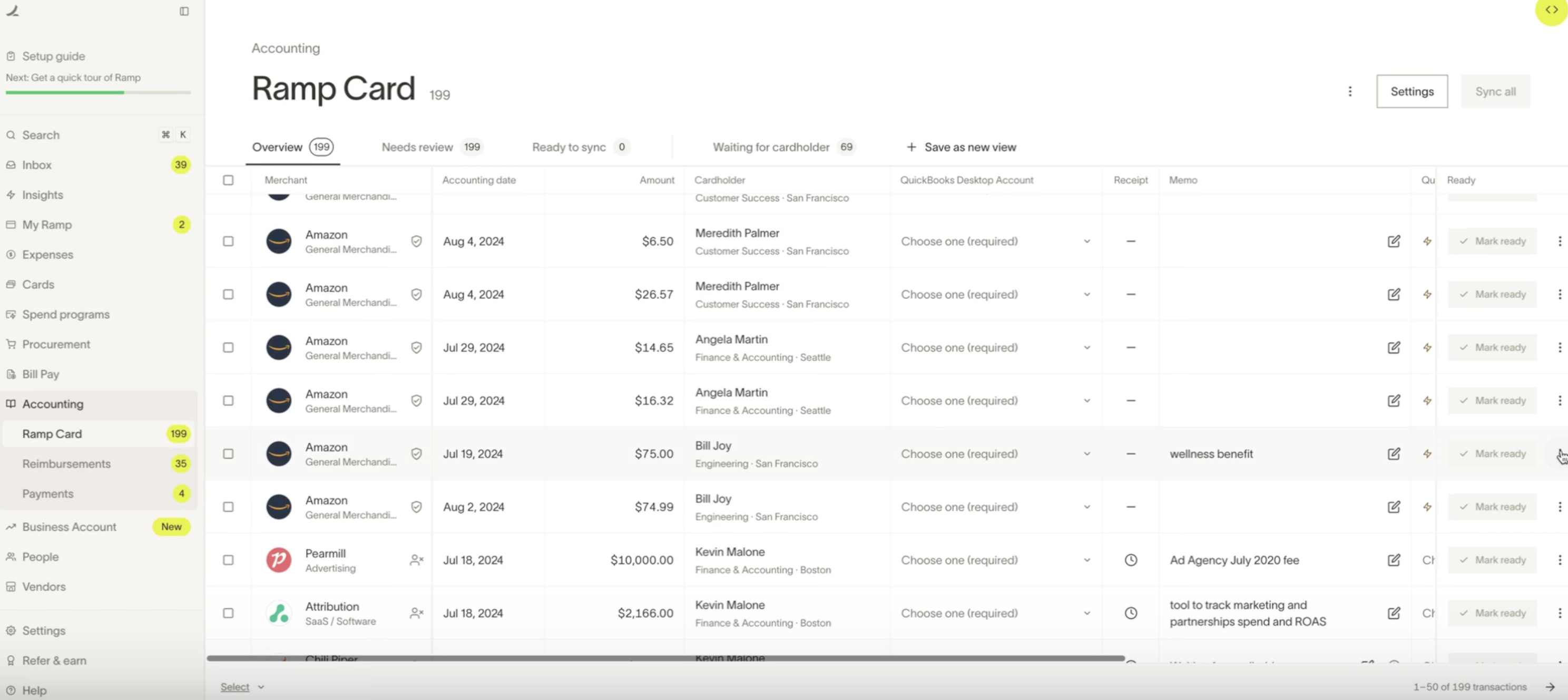
Here’s how the QuickBooks Desktop Accounting page appears on Ramp. For detailed information about settings, rules, and additional automations provided by Ramp, refer to the linked article.
Transaction syncing
- Transactions: Transactions synced from Ramp appear in QuickBooks Desktop as credit card charges.
- Reimbursements: Reimbursements are synced as bills, with each reimbursement coded to a specific user. Ramp automatically creates a vendor for each user, syncs the bill to that vendor, and creates a bill payment to pay the bill automatically. This improves upon the IIF method, which required manual matching of payments to bills.
- Bills: created in Ramp are synced as bills in QuickBooks Desktop, with support for multi-line item bills. Ramp also supports coding inventory items on bills, improving upon the IIF method.
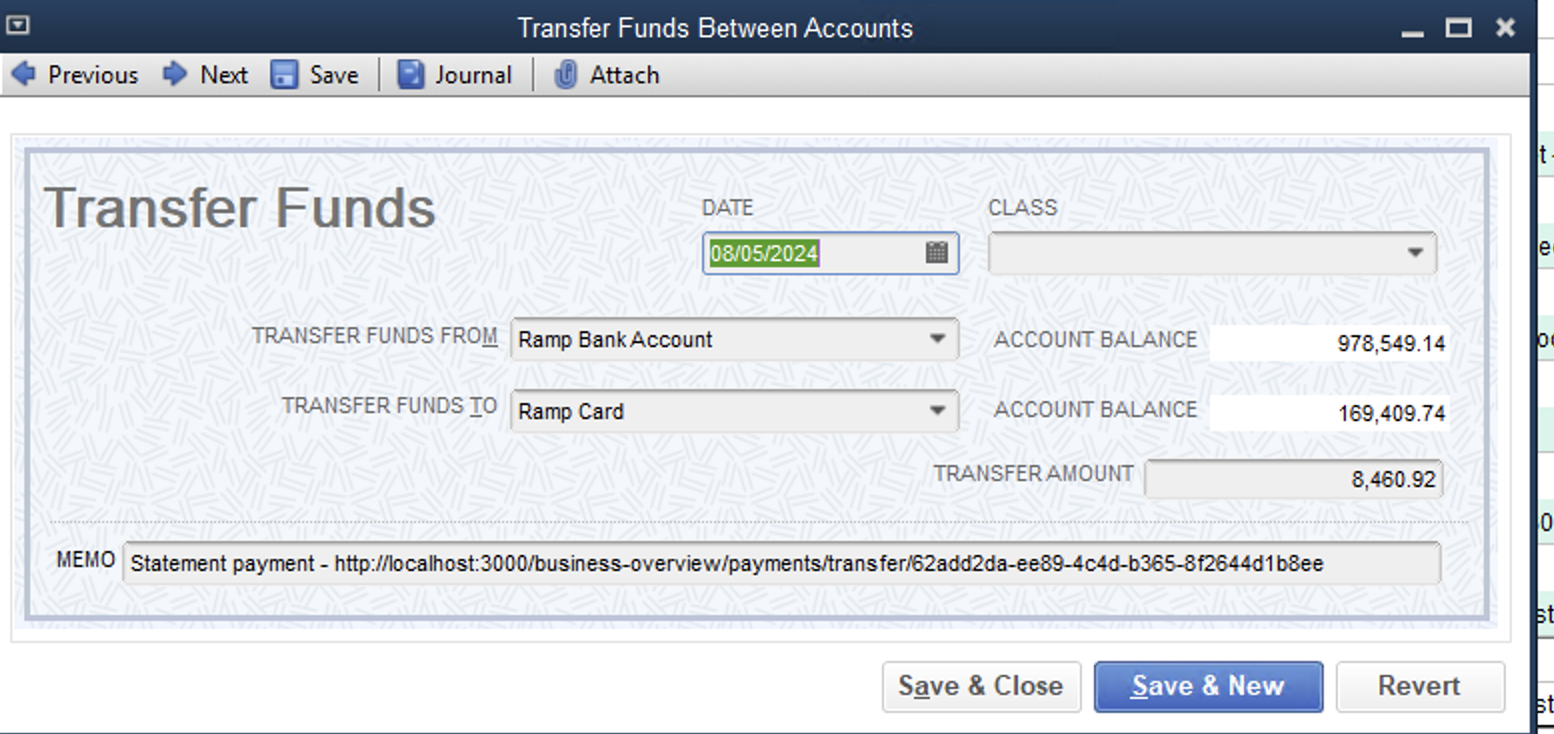
- Statement Payments: These are synced as a transfer of funds in QuickBooks Desktop.
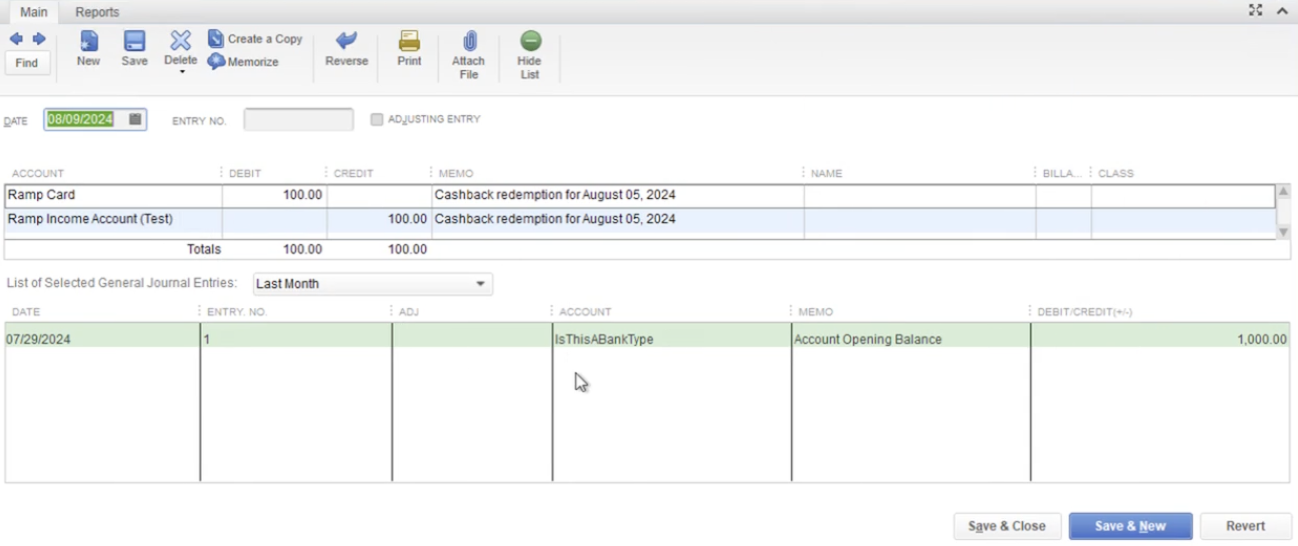
- Cashback Redemptions: Synced as a direct journal entry which includes a debit and credit in QuickBooks Desktop. Cashback redemptions are categorized under an income account in QuickBooks Desktop.
Vendor management
- Vendors: When creating a bill for a new vendor in Ramp, if the vendor doesn't already exist in QuickBooks Desktop, Ramp will automatically create the vendor in QuickBooks Desktop. For credit card transactions without a matching vendor, Ramp creates a vendor using the merchant's name.
Setup
Please follow these steps to linkQuickBooks Desktop to Ramp.
Key terms to know:
- QuickBooks Company File (.qbw): Stores all your customers, accounts, vendors, and transactions. It can reside on a single computer or a shared network folder.
- QuickBooks Web Connector: A tool that facilitates communication between QuickBooks Desktop and web services like Ramp. If you don't have it, you can download it here .
- QuickBooks Desktop Instance: The actual QuickBooks Desktop application running on your computer or a remote desktop.
- Remote Desktop Hosting (e.g., Rightworks/Ace Cloud Hosting): A service that allows you to access QuickBooks Desktop via a remote server. Specific setup steps may be required if you're using one.
- Integration Partner (Conductor): Ramp's trusted partner that assists with the integration process. You'll receive a link from them during setup.
To ensure a smooth setup, please prepare the following:
1. Check QuickBooks Versions Installed
- Verify Installed Versions:
- Go to Control Panel > Programs and Features (or Uninstall a Program ).
- Look for QuickBooks Desktop in the list.
- Important: Only one version of QuickBooks Desktop should be installed. If you have multiple, please uninstall the older versions .
2. Determine the Number of Company Files
- How Many Company Files Do You Have?
- Each company file represents a separate business entity.
- Note: A Ramp account supports one active QuickBooks Desktop company connection at a time. See QuickBooks Desktop integration: Connect to Ramp for company-file options.
3. Identify How You Access QuickBooks
- Do You Use a Remote Desktop or Local Computers? If You Use a Remote Desktop: If You Use Local Computers:
- Who Set It Up? Often managed by an external IT service.
- Is It Hosted by Rightworks? If yes, you'll need to follow these steps during setup.
- Access to Web Browser: Ensure you can use a web browser on the remote desktop.
- Availability: The remote desktop requires the Web Connector to be running at all times. Be sure the computer is on and accessible by the network.
- How Is the Company File Shared? Common methods include shared network drives or services like Dropbox.
- Multiple Users Syncing Data: If more than one person will sync data, the file path (e.g.
Q:Users/Documents/QuickBooks/MyCompanyFile.qbw) to the company file must be identical on all computers.
How transactions appear in QuickBooks Desktop
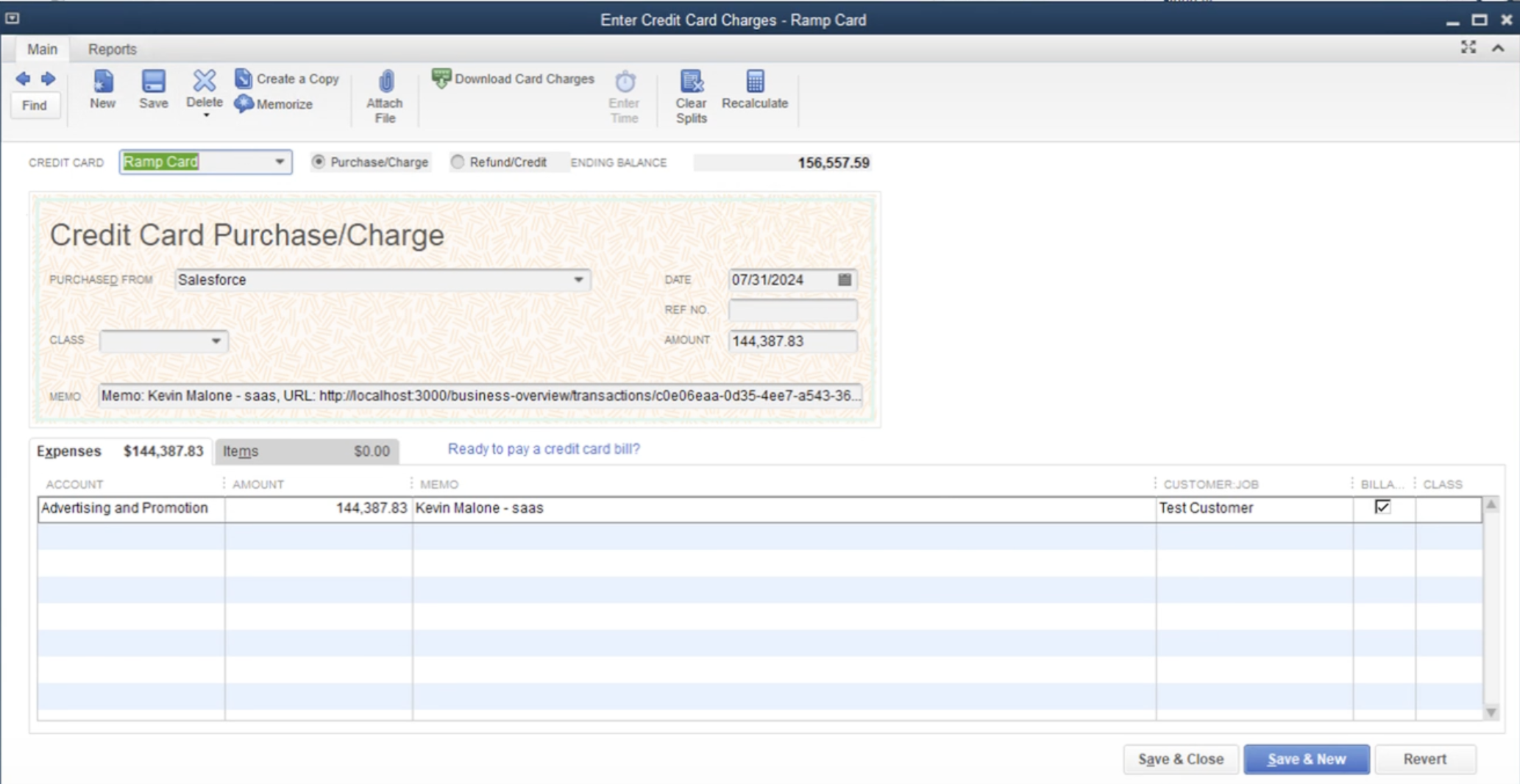
Ramp card transactions are synced as credit card charge in QuickBooks Desktop. Ramp automatically fills all fields on the credit card charge form, linked to the credit card transaction coded within Ramp. To locate a synced transaction -> Navigate to Banking -> Click Use Register -> Select Ramp Card -> Identify the transaction that was synced.
How reimbursements appear in QuickBooks Desktop
Ramp syncs employee reimbursements to QuickBooks Desktop in two stages:
- Reimbursements are recorded as vendor bills, and
- Once all bills in a batch are synced, Ramp syncs a bill payment that clears those bills.
Sync reimbursements
When you initiate a sync in Ramp:
- Each reimbursement is created as a bill in QuickBooks Desktop
- The bill remains open until a corresponding payment is synced
- If you only sync a partial batch (e.g., 2 out of 3 reimbursements), the payment will not sync yet
Note: 🔍 Example:You sync two reimbursements from a batch of three. QuickBooks Desktop will show two open bills. The payment will not appear until all three reimbursements in the batch are synced.
Sync the remaining reimbursements and payment
Once the final reimbursement in a batch is synced:
-
Ramp automatically syncs a bill payment to QuickBooks Desktop
-
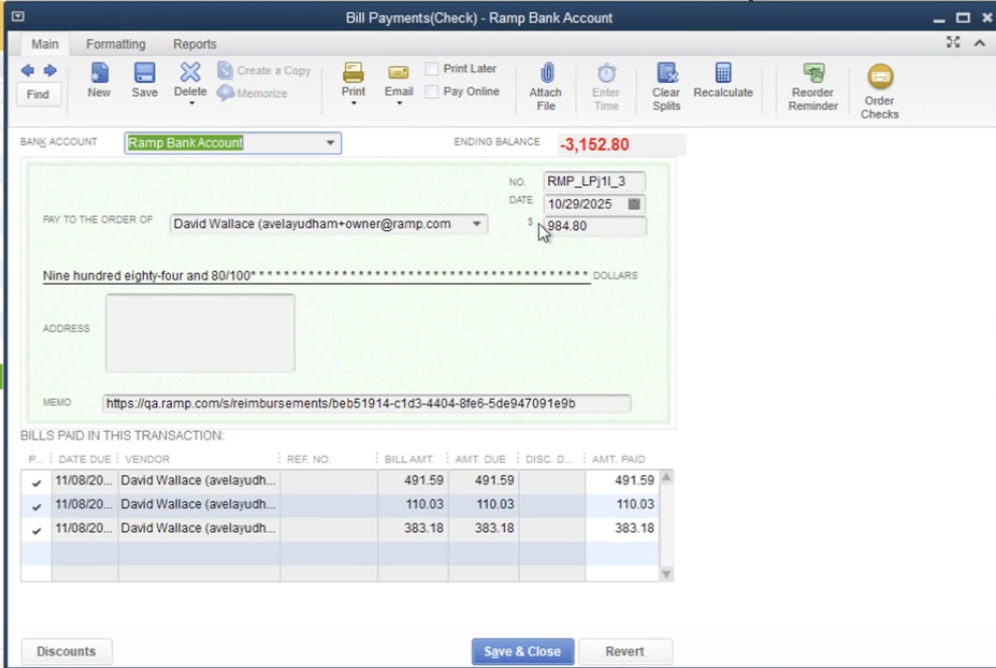
This payment matches the total of the synced reimbursement bills.
-
The bill payment closes out all related bills
Example
Suppose you reimburse three employees in a batch totaling $984.80:
- Ramp syncs three bills to QuickBooks Desktop, each representing one reimbursement
- After all three bills are synced, Ramp syncs a single bill payment for $984.80
- This payment is applied to the three bills, marking them as paid
How bills appear in QuickBooks Desktop
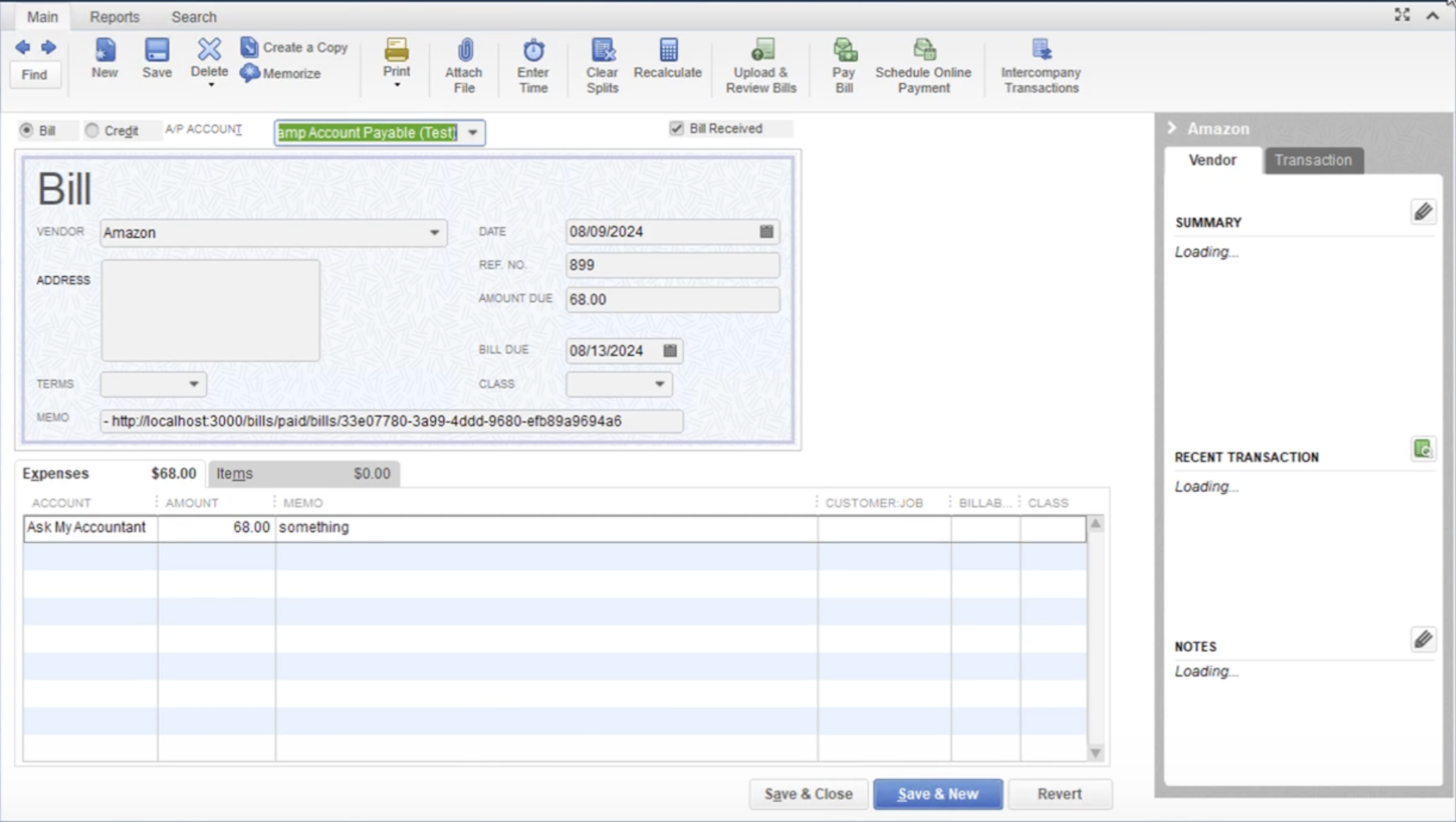
Bills created in Ramp are synced as bills in QuickBooks Desktop, including support for multi-line item bills. All fields on the bill form linked to the transaction coded in Ramp are automatically populated. To locate a synced transaction in QuickBooks Desktop, navigate to Banking → click Use Register → select the A/P account used in Ramp → identify the synced transaction.
Accounting period handling
Ramp supports editable accounting periods on bills. If a bill's date falls within a closed accounting period in QuickBooks Desktop, update the accounting date before syncing.
How statement payments appear in QuickBooks Desktop
Statement payments are synced as a transfer of funds in QuickBooks Desktop. To locate a synced transaction -> Navigate to Banking -> Click Use Register -> Select Ramp Card -> Identify the transaction that was synced.
How cashback redemptions appear in QuickBooks Desktop
Cashback redemptions are synced as a direct journal entry which includes a debit and credit in QuickBooks Desktop. These are typically categorized under an income account. To locate a synced transaction -> Navigate to Banking -> Click Use Register -> Select Ramp Card -> Identify the transaction that was synced.
Ramp Checking Account transfers
We sync Ramp Checking Account wallet transfers as journal entries in QuickBooks Desktop.
Accounting logic
- Deposits:
- Debit Ramp Checking Account
- Credit opposing account
- Withdraws:
- Debit opposing account
- Credit Ramp Checking Account
Supported ERP fields
Below fields are only currently supported when syncing open loop transfers.
CategoryVendor- Required when category is
Accounts Payable
- Required when category is
Customer- Required when category is
Accounts Receivable
- Required when category is
Handling negative transactions
Ramp allows for the syncing of transactions with negative amounts in QuickBooks Desktop. These transactions can be split across different accounts.
Frequently asked questions
What fields does Ramp support for QuickBooks Desktop integration?
Ramp supports Accounting category, Class, Customer / Job, and Item (supported on Bills only).
What status will a transaction from Ramp have when it is synced to QuickBooks Desktop?
Transactions synced from Ramp appear as credit card charge in QuickBooks Desktop. They will be in a state ready for review or further processing.
What versions of QuickBooks Desktop does the integration support?
Ramp supports every version, variant, and edition of QuickBooks Desktop since 2018, including:
- QuickBooks Enterprise Solutions - any version or year Any edition: Accountant, Contractor, Manufacturing and Wholesale, Nonprofit, Professional Services, Retail.
- QuickBooks Premier (Plus) - 2018 or later
Any edition: Accountant, Contractor, Manufacturing and Wholesale, Nonprofit, Professional Services, Retail. - QuickBooks Desktop Pro (Plus) - 2018 or later
- QuickBooks Accountant Desktop (Plus) - 2018 or later
Why does Ramp sync transactions as credit card charges?
Ramp syncs transactions as credit card charges to align with QuickBooks Desktop's best practices for recording expenses.
How does Ramp sync receipts?
For transactions, reimbursements, & bills receipts we will sync over a url link to the receipt in Ramp in the memo field. We are not able to sync over a PDF directly due to a limitation in the QuickBooks Desktop API.
Does the Ramp & QuickBooks Desktop integration support Procurement?
Currently, there is no plan to support procurement. Please reach out to your Account Manager to provide feedback.
How does Ramp handle vendor names in QuickBooks Desktop?
QuickBooks Desktop has a character limit for vendor names (41 characters). If a vendor name exceeds this limit, Ramp will sync a shortened version of the name.
How does Ramp handle Multi-Entity QuickBooks Desktop companies?
Each Ramp account supports one active QuickBooks Desktop company connection at a time. You can disconnect the current company file and reconnect a different one in the same Ramp account. To keep multiple company files connected and syncing at the same time, use a separate Ramp account for each file. You can move between accounts with unified sign-in.
Does Ramp support QuickBooks Desktop data hosted by Rightworks?
Yes, we do support Rightworks.
Does QuickBooks Desktop API support the match transactions to open bills feature?
Yes, it does, for more information on this feature please review Match transactions to open bills.
Does QuickBooks Desktop API support syncing an invoice PDF from Ramp to QuickBooks Desktop?
No, we do not currently support this functionality.
Does QuickBooks Desktop API support class tracking?
Yes, we do support classes.
Does Ramp automatically sync open and paid Bills to QuickBooks Desktop?
Ramp does not automatically sync bills in case the connection goes offline, bills can be synced by manually clicking in the accounting tab.