QuickBooks Desktop integration: Connect to Ramp
Overview
Available on Ramp Plus. See Ramp Plus overview for plan details.
Not available in Canada or Mexico. QuickBooks Desktop (API) does not appear as a provider option for Ramp businesses in these countries.
This guide will walk you through the process of connecting QuickBooks Desktop to Ramp, enabling seamless integration for managing your financial data. Please follow these steps carefully to ensure a successful connection.
Video walkthrough: Connect QuickBooks Desktop to Ramp through the API. Best if QuickBooks Desktop is your accounting system and you want transactions to sync cleanly between Ramp and QBD. Watch the video.
Key terms to know
- QuickBooks Company File (.qbw): Stores all your customers, accounts, vendors, and transactions. It can reside on a single computer or a shared network folder.
- QuickBooks Web Connector: A tool that facilitates communication between QuickBooks Desktop and web services like Ramp. If you don't have it, you can download it here.
- QuickBooks Desktop Instance: The actual QuickBooks Desktop application running on your computer or a remote desktop.
- Remote Desktop Hosting (e.g., Rightworks/Ace Cloud Hosting): A service that allows you to access QuickBooks Desktop via a remote server. Specific setup steps may be required if you're using one.
- Integration Partner (Conductor): Ramp's trusted partner that assists with the integration process. You'll receive a link from them during setup.
Before you begin
To ensure a smooth setup, please prepare the following:
1. Check QuickBooks Versions Installed
- Verify Installed Versions:
- Go to Control Panel > Programs and Features (or Uninstall a Program ).
- Look for QuickBooks Desktop in the list.
- Important: Only one version of QuickBooks Desktop should be installed. If you have multiple, please uninstall the older versions .
2. Determine the Number of Company Files
- How Many Company Files Do You Have?
- Each company file represents a separate business entity.
- Important note: A Ramp account supports one active QuickBooks Desktop company connection at a time. You can disconnect a company file and reconnect a different one in the same Ramp account. To sync multiple company files at the same time, set up a separate Ramp account for each. For file-based exports, see QuickBooks Desktop file export overview .
3. Identify How You Access QuickBooks
If You Use a Remote Desktop:
- Who Set It Up? Often managed by an external IT service.
- Is It Hosted by Rightworks? If yes, you'll need to follow these steps during setup.
- Access to Web Browser: Ensure you can use a web browser on the remote desktop.
- Availability: The remote desktop should be online as much as possible, ideally 24/7.
If You Use Local Computers:
- How Is the Company File Shared? Common methods include shared network drives or services like Dropbox.
- Multiple Users Syncing Data: If more than one person will sync data, the file path (e.g.
Q:Users/Documents/QuickBooks/MyCompanyFile.qbw) to the company file must be identical on all computers.
Step-by-step instructions
Prerequisites
- Ramp access: Ensure your role allows you to connect and disconnect accounting integrations. If you don't have this access, ask your Ramp Admin to update your role.
- QuickBooks Desktop access: Ensure you have administrative rights in QuickBooks Desktop.
- Access Method Identified: Know whether you use QuickBooks on a local machine or via a remote desktop.
- Single-user mode: During initial setup, open QuickBooks Desktop in single-user mode (File > Switch to Single-user Mode). The initial connection must be authorized in single-user mode.
Step 1: Install the QuickBooks Web Connector
If you can't find the Web Connector on your machine (search in the Start menu for "Web Connector"), you'll need to install it.
It is also recommended to follow this guide to automatically open the Web Connector on startup.
For Rightworks users
- Install via Rightworks:
- Sign in to apps.rightworks.com .
- Follow the prompts to install the Web Connector.
- Note: Here's a guide for Rightworks installation .
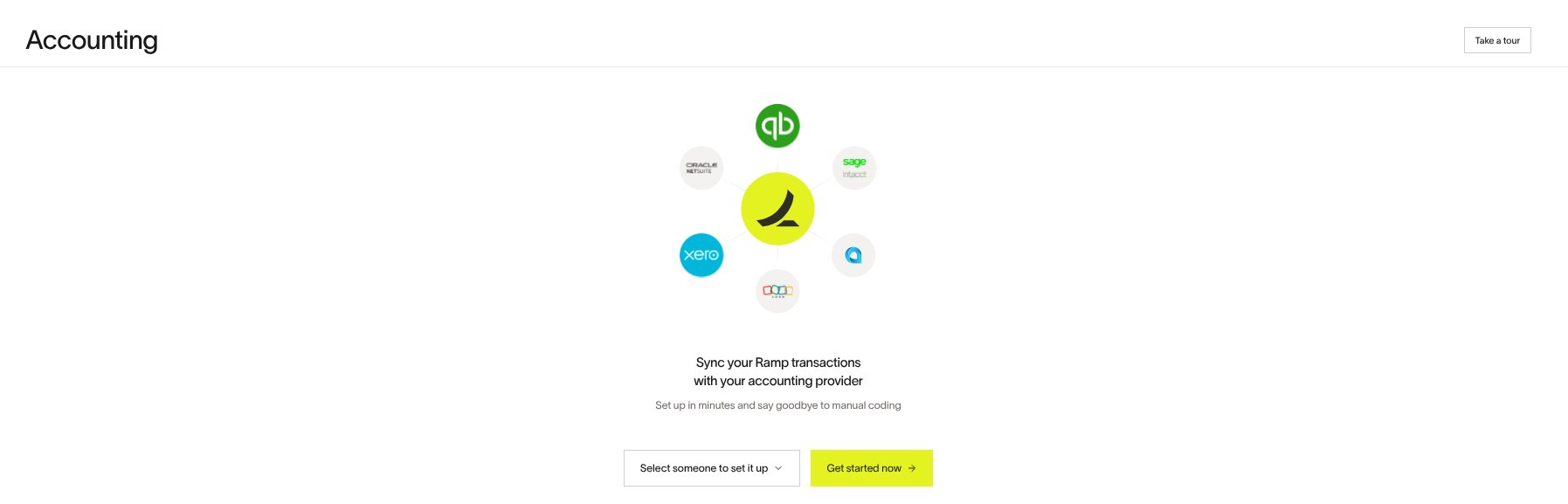
Step 2: Initiate connection from Ramp
- Sign in to your Ramp account.
- Open Accounting connection setup.
- Click Get started now .
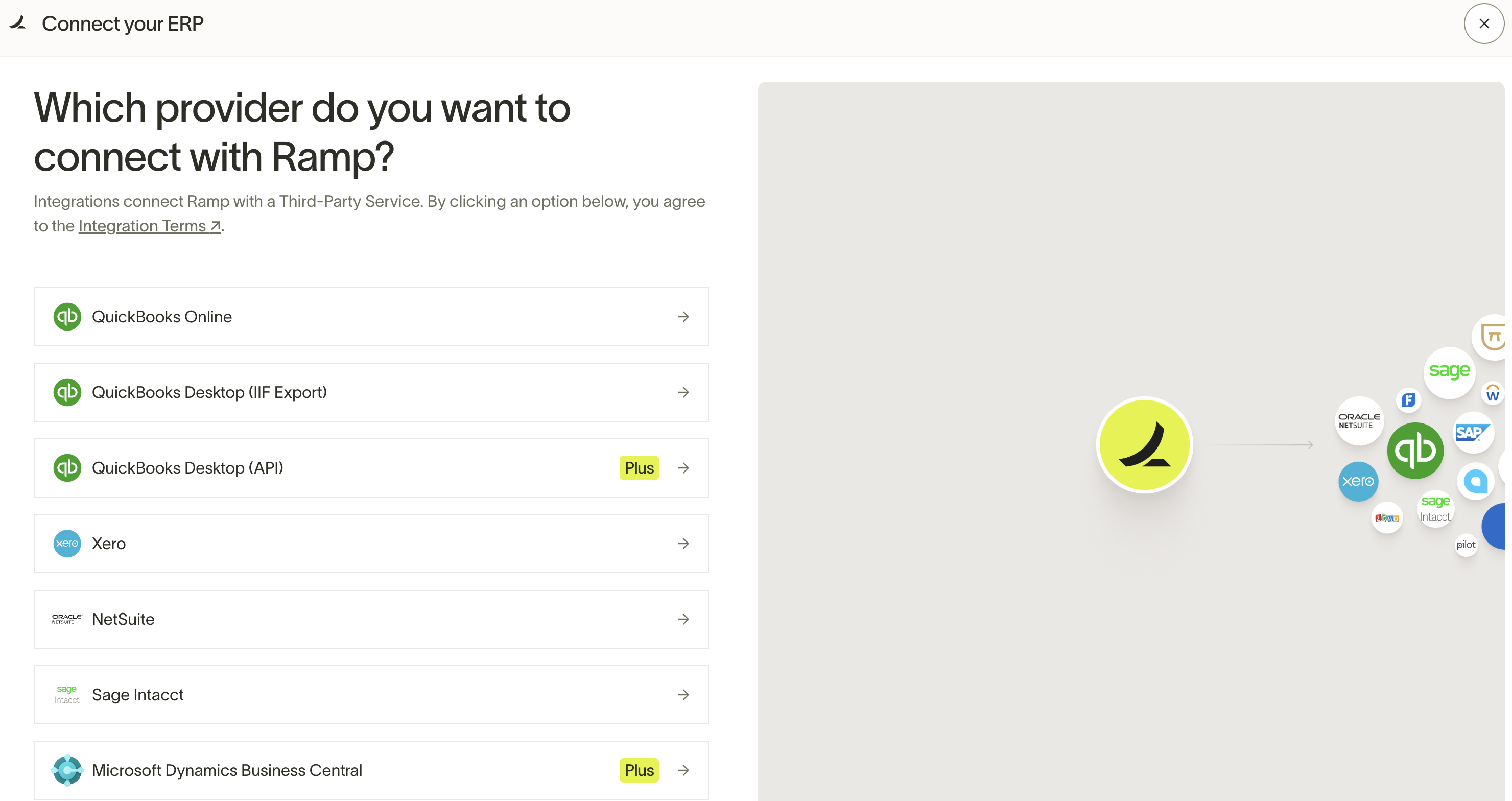
Step 3: Choose QuickBooks Desktop (API)
- SelectQuickBooks Desktop (API) from the list of options.
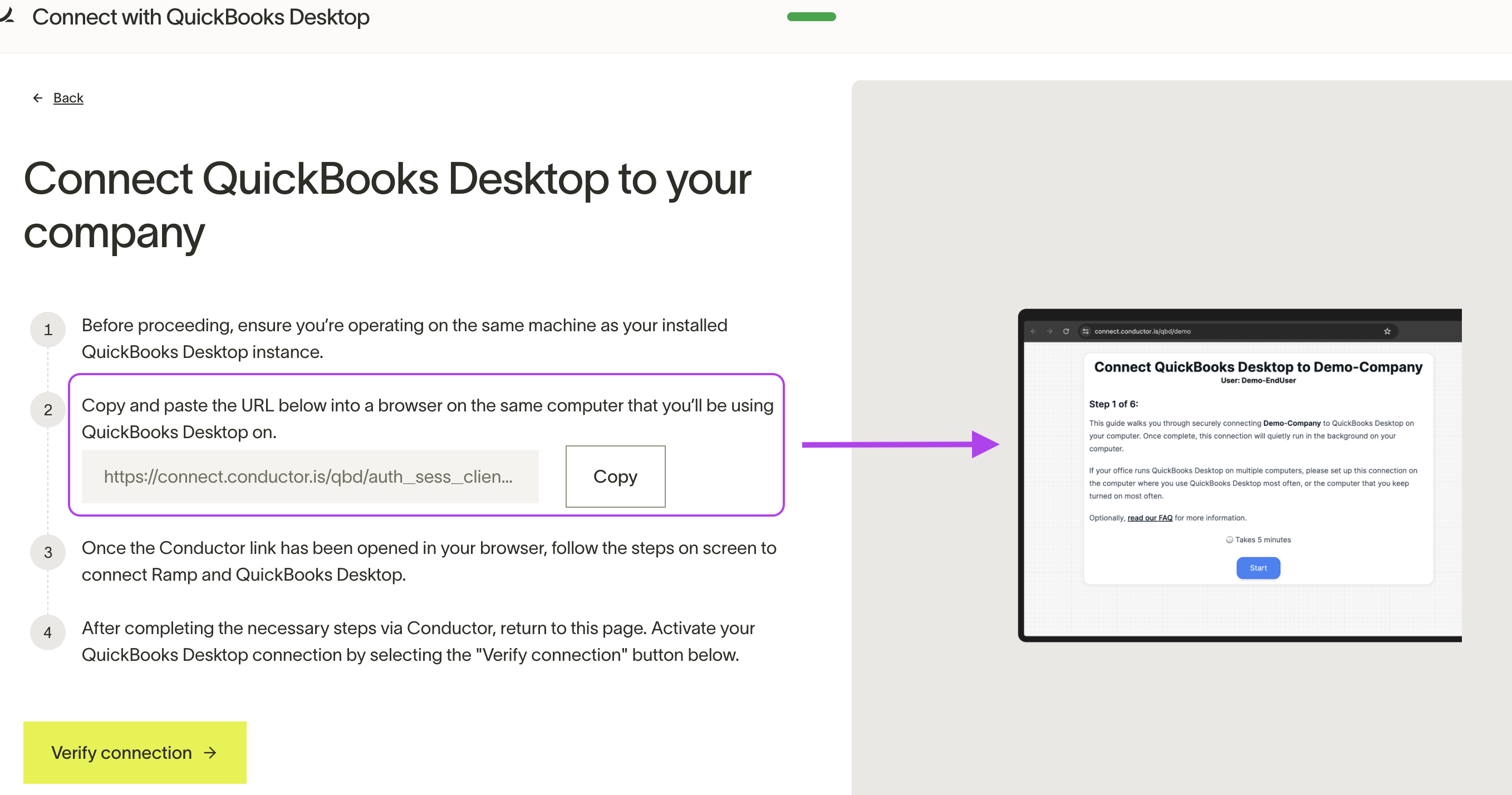
Step 4: Open the Conductor link in your browser
- Before proceeding, ensure you’re operating on the same machine as your installed QuickBooks Desktop instance.
- Follow the onscreen instructions, as shown below:
Step 5: Follow the directions from Conductor
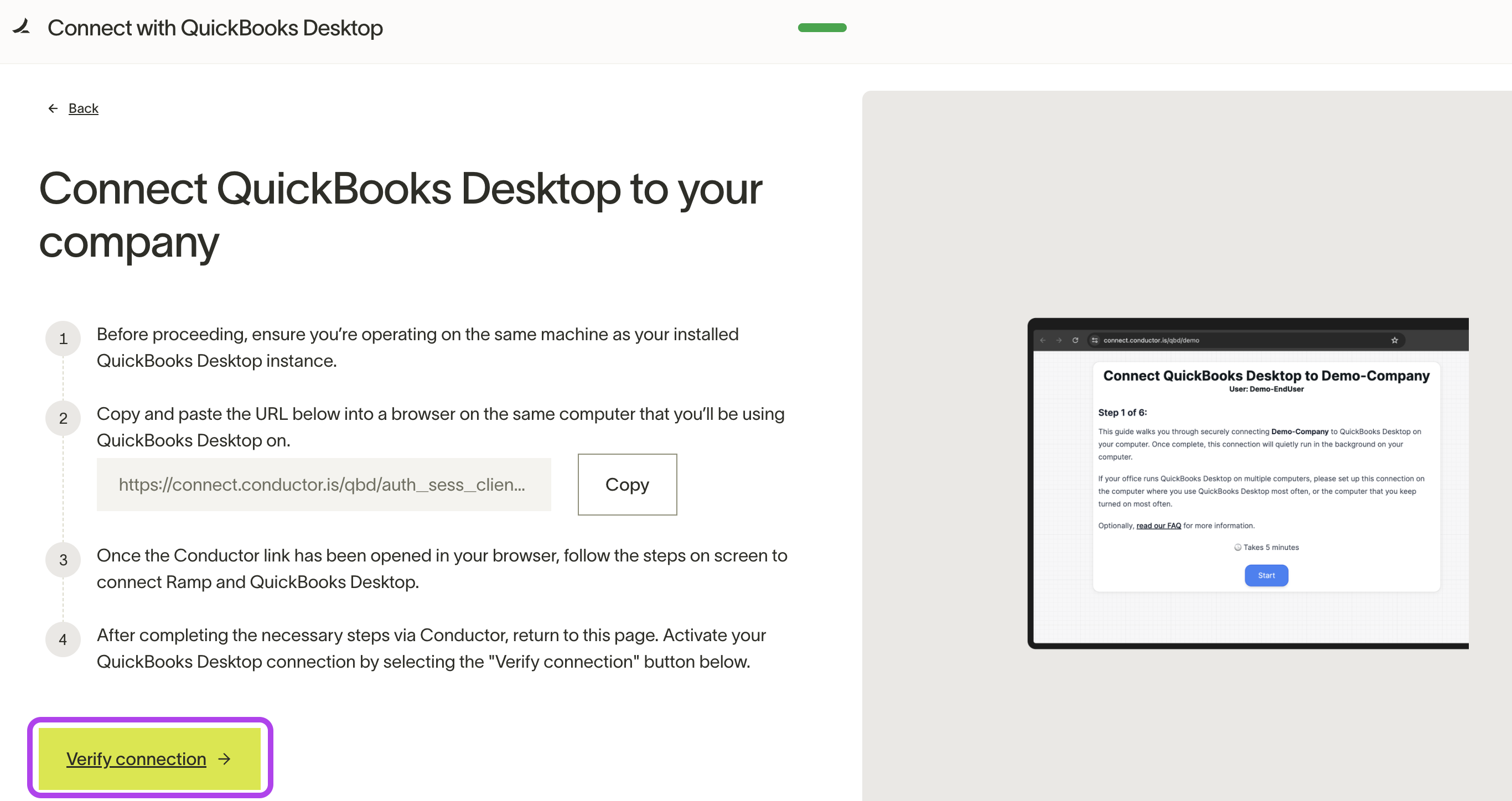
- Once the Conductor link has been opened in your browser, follow the steps on screen to connect Ramp and QuickBooks Desktop.
- After completing the necessary steps via Conductor, return to Ramp and click "Verify connection" button to activate your QuickBooks Desktop connect.
Your Ramp and QuickBooks Desktop accounts are now connected.
Troubleshooting connection errors
If Conductor is unable to sync your QuickBooks Desktop data, you may see the following error:
"Your QuickBooks Desktop connection is not active. It was last active..."
- Please review the troubleshooting steps here: How to fix: "Your QuickBooks Desktop connection is not active"