NetSuite integration: Multi-entity changes
Overview
Available on Ramp Plus. See Ramp Plus overview for plan details.
Ramp supports multi-entity businesses for NetSuite customers. Customers can add all business entities with a single Ramp account and set different payment settings for each entity.
This enables customers to:
- Generate individual statement payments for each entity/subsidiary
- Eliminates the need to perform inter-company transactions every time you close your books
- Track card transactions, payout reimbursements, and bill payments for each entity from different bank accounts
- Sync to multiple entities within one batch sync for both transactions and reimbursements
Create business entities
**Note:**We recommend connecting Ramp to your accounting system before creating additional Business Entities on Ramp. If you still need to connect Ramp to your Accounting system, please see the Help Center articleHow do I set up NetSuite with Ramp?
To create business entities on Ramp:
- Go to the Settings > Companies tab.
- Click the + Create legal entity button on the top right.
- Note: during setup, the default entity will apply to all existing transactions and reimbursements.
- Name the entity in the Entity name (required) field.
- Select the Country of registration .
- Enter the entity's EIN number .
- Select the Functional currency for the entity. This is the currency your cards or funds are issued in. Statements are in the entity's functional currency, and payments must be made in the same currency. Please note that you cannot change the functional currency once the entity is created.
- Select either Automatic payment or Manual payment . If you select Automatic payment , also select the verified bank account from which Ramp can draw payments.
- You can also select the verified bank account you want to pay reimbursements from. You can also enable reimbursements after the entity is created.
- Click the Create entity button.
How business entities work on Ramp
With users
When creating a Ramp invitation, the department and location of the invitee are required. When setting up entities on Ramp, you must also map Locations to Entities.
Be careful to enter the correct location for the invitee, as the location assigned in Ramp determines which entity their cards, funds, and transactions are assigned to.
To see which users map to each entity:
- Go to the Settings -> Companiestab.
- Click the Entity in question.
- Go to the Users tab.
With card transactions
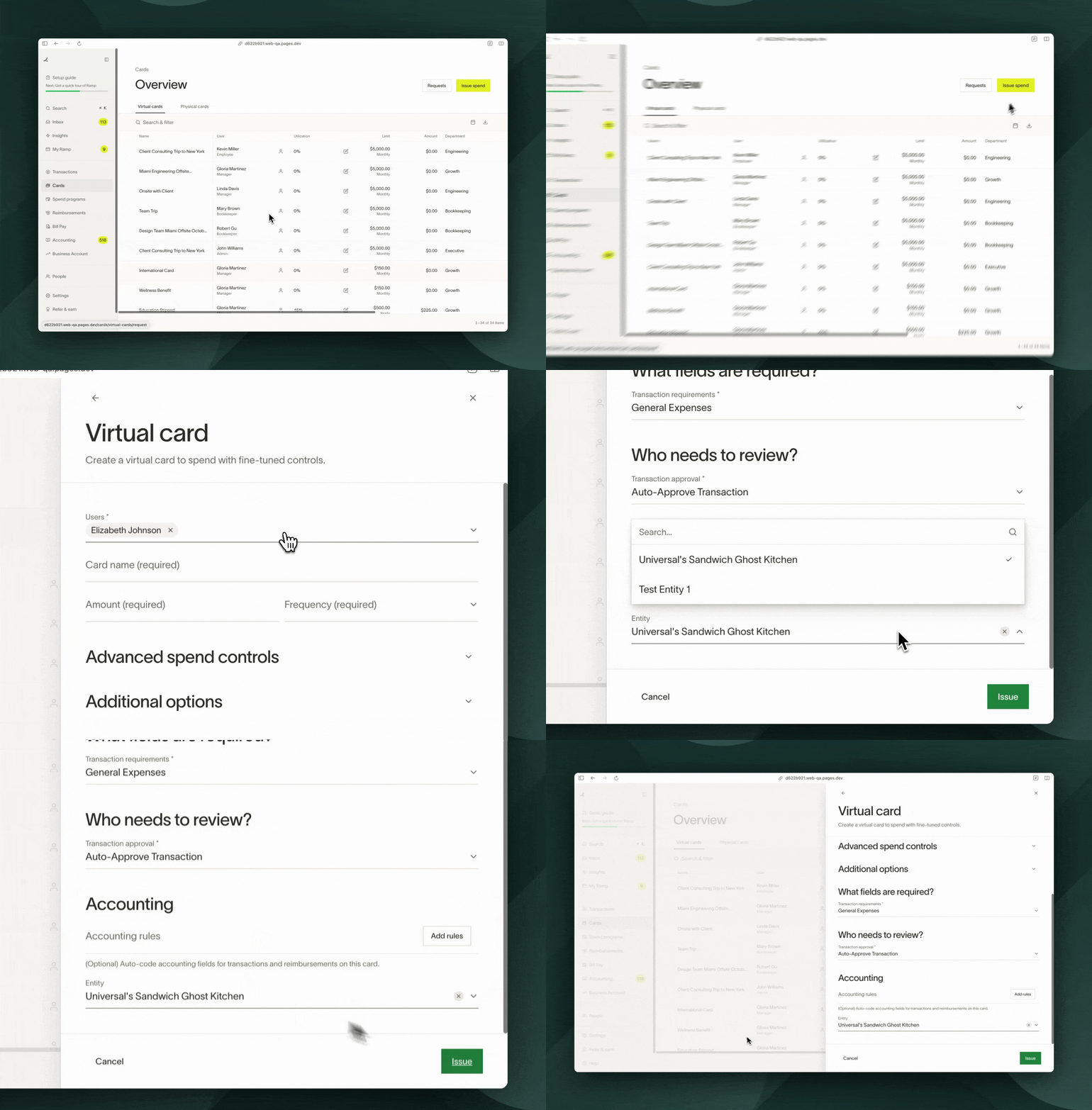
Issued cards or funds are linked to a specific entity, and all transactions made with the card or funds are attributed to that entity. The card or funds are associated with the cardholder's entity (via the cardholder's location) at issuance. However, the entity can be modified during the spend creation or editing process.
- Go to the Funds & Cards tab.
- Click the Issue spend button.
- Select the type of spend you are issuing: Funds for general expenses, Virtual for online purchases, or Physical card.
- Scroll to the bottom to the Entity field and s elect the entity you'd to map the spend to.
- An entity change ONLY affects future transactions. In other words, the entity of a transaction is locked once a transaction is made.
With reimbursements
A reimbursement's entity is determined by the entity of the submitter. There is currently no way to change the entity of a reimbursement.
With statement payments
Statement payments are now calculated at the entity level and drawn from the bank account specified in the entity settings. If a statement payment is returned for insufficient funds, we withdraw the payment from the bank account of the parent company or the default entity's bank account.
How to edit an entity
- Go to the Settings -> Companiestab.
- Click the Entity you would like to edit
- Use the General tab to set the:
- Name
- Country of registration
- Tax number or EIN
- The primary currency of the entity
- Use the Users tab to
- View the users assigned to the entity
- Add or remove locations. The users currently associated with the location are added or removed from the entity.
- Use the Payments tab to
- Set the default payment account for statement payments
- Set the default payment account for reimbursements
- Click the More entity settings> Payment sources button to set a different payment sources for other entities.
- Click the More entity settings> Export settings> Manage settings button to the credit card liability account, the statement payment account, cashback account, and change the default accounting date for the selected entity.
- Use the General tab to set the:
- Click the Save changes button when you are finished.
Frequently asked questions
Can I have limits per entity and/or get underwritten per entity?
Currently, we cannot delegate limits by entity within one Ramp instance. Underwriting is also as a whole, not by entity.
How can I change the entity of a transaction?
Click into the transaction and scroll to the entity field. Click the current entity, select the new entity drop-down menu, and change the entity of the transaction. Please note that this functionality is only available before the statement is generated. Once a statement is generated, the entity of the transaction is locked.
Why can't employees change the entity of transactions?
Please contact your account manager or support team to request this feature be enabled on your account.
What should I do if an employee or user spends across multiple entities?
Cards and funds are each tied to an entity, and a user may have spend tied to different entities. Thus, if a user spends across multiple entities, the suggested setup is to have multiple funds or virtual cards, one for each entity. This will make the statement payment and reconciliation process more seamless since if you had the option to move around the subsidiary, there is the possibility it doesn't match up with how it was paid out.
What happens if I change the mapping of a location (i.e. Location A now maps to Entity A instead of Entity B)?
Future cards and funds will now default to the updated entities, however existing ones will remain untouched. To edit the entity of a card or funds, click on it -> select "Actions" -> "Edit" -> Scroll to the bottom, and change the entity.Note: this will only affect future transactions
Can I get multiple physical cards, one for each entity?
You can only have one physical card per employee, and the business name and logo must be the same across entities
Can I split transactions across entities?
NetSuitedoes not allow this so you cannot do so within Ramp.
How do you delete an entity?
Please visit How to delete an entity on Ramp?
How do you remove a user from an entity?
Change the location of the user.
Why isn't this bank account showing?
The bank account must be verified in Ramp to appear in the entity's list of drop-down options.