How to update my company's address
Overview
Note: You need access to manage company settings to change your company's address. If you do not have access, ask a Ramp Admin or Owner to update the address for you. See User roles overview for role details.
Updating your company's address on Ramp keeps your company profile up-to-date. For other company details — such as your legal name, DBA name, or phone number — see Edit company details.
Accurate business addresses are crucial for proper communication and compliance. Keeping this information up-to-date ensures smooth operations and accurate records.
Note: Your company's legal address on file is the default billing address for cards. Cards tied to a specific entity may use that entity's address instead. International cards use the issuing business entity's office address on file with Ramp. When you update your company address, the billing address updates for cards that use the company address.
How to update company address
- Sign in to Ramp and open Company settings.
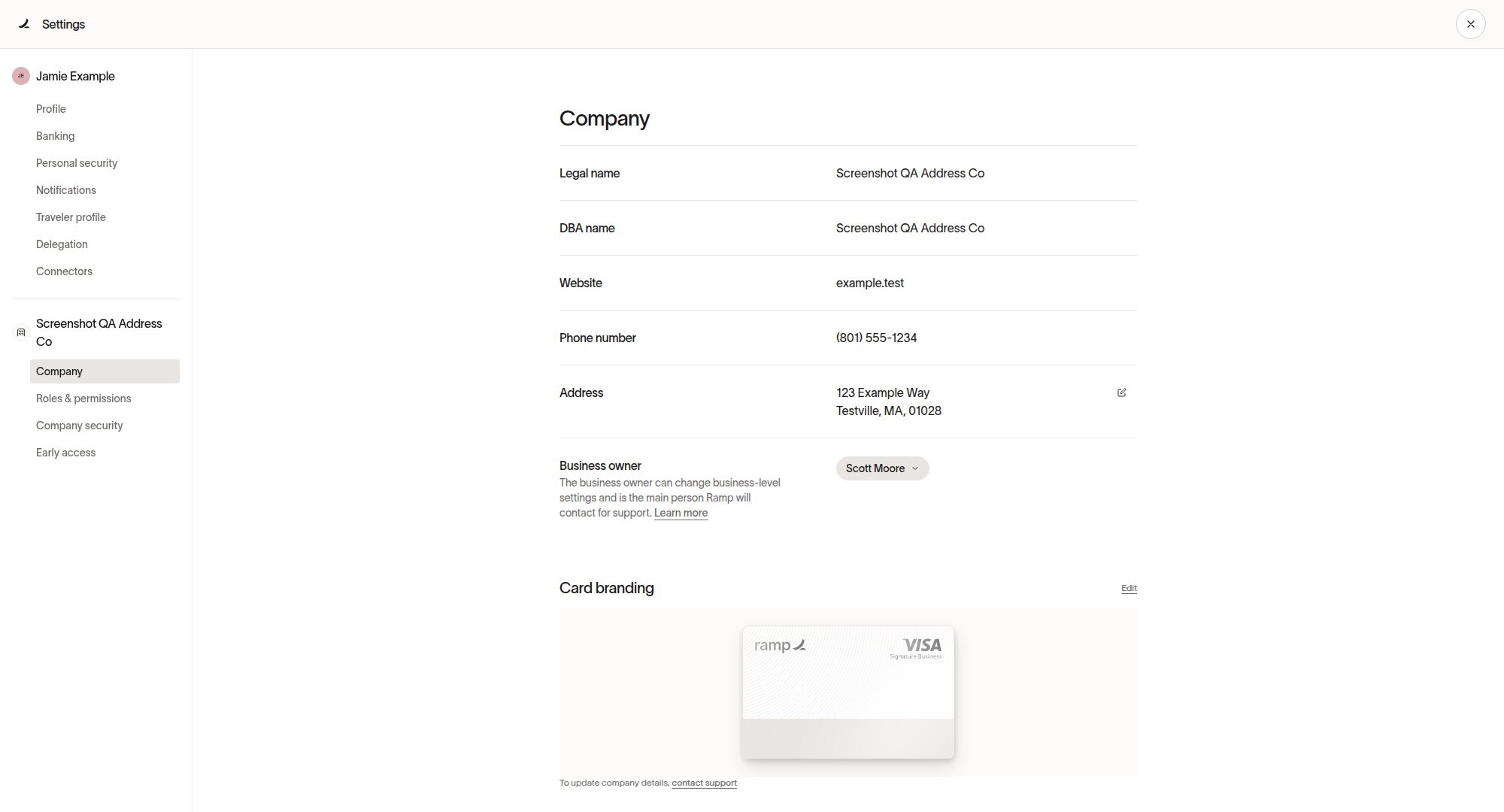
- In Address, select Edit.

- In Edit address, update the address fields, then select Save.
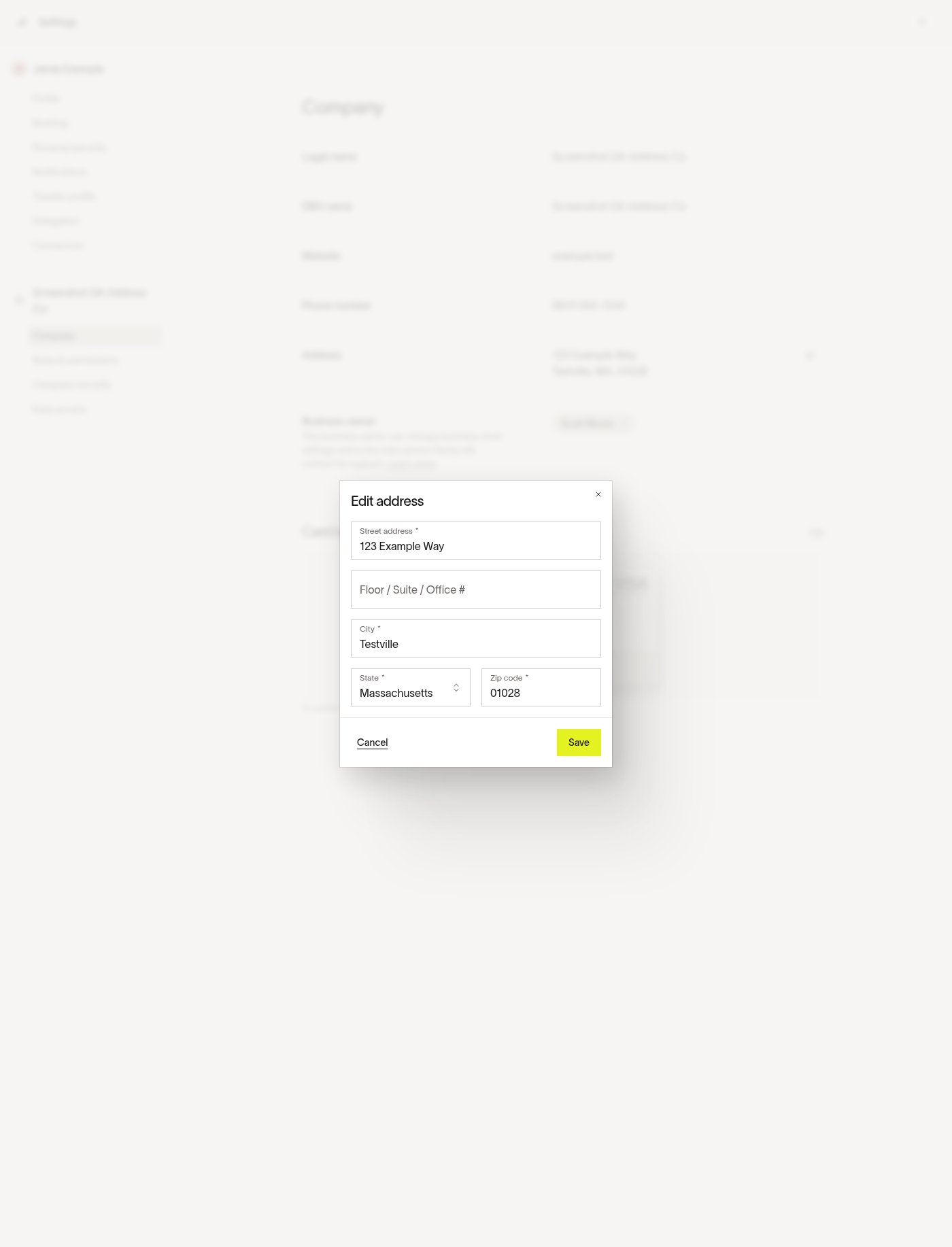
The updated address appears in Company settings.
Note: Remember to also update your ZIP code with any vendors where you have recurring payments set up. You can read more about Vendor management here.