1099 filing on Ramp
Overview
You can use Ramp to manage your 1099-eligible vendor list, generate and electronically file 1099-NEC and 1099-MISC forms with the IRS (and optionally with participating states), and deliver 1099s to vendors electronically or by mail.
Ramp streamlines the annual 1099 process by offering recommended box-mapping rules, automatically identifying 1099-eligible expenses, and reducing time spent on manual corrections.
Supported tax years: Ramp supports vendor 1099 filing for tax year 2025 and later. For tax year 2024 or earlier, file and submit any corrections outside Ramp.
Note: 1099 filing for tax year 2026 through Ramp will be available when the IRS e-filing service opens in 2027.
Video walkthrough: Prepare and file 1099s on Ramp, including which vendors qualify and how to review filings before you submit. Best at year-end when 1099 season starts. Watch the video.
Getting started
Admins, Accounts Payable roles, and Accounting roles with Accounts Payable privileges can begin preparing for 1099 season by reviewing vendors, validating tax details, and applying appropriate mapping rules.
- Go to Vendors → click the menu (⋯) → Review 1099 vendors
- If you have multiple entities, use the entity switcher to review eligibility, spend, and mappings per entity
- If vendor payments seem to be missing, ensure you're reviewing vendors for the correct entity
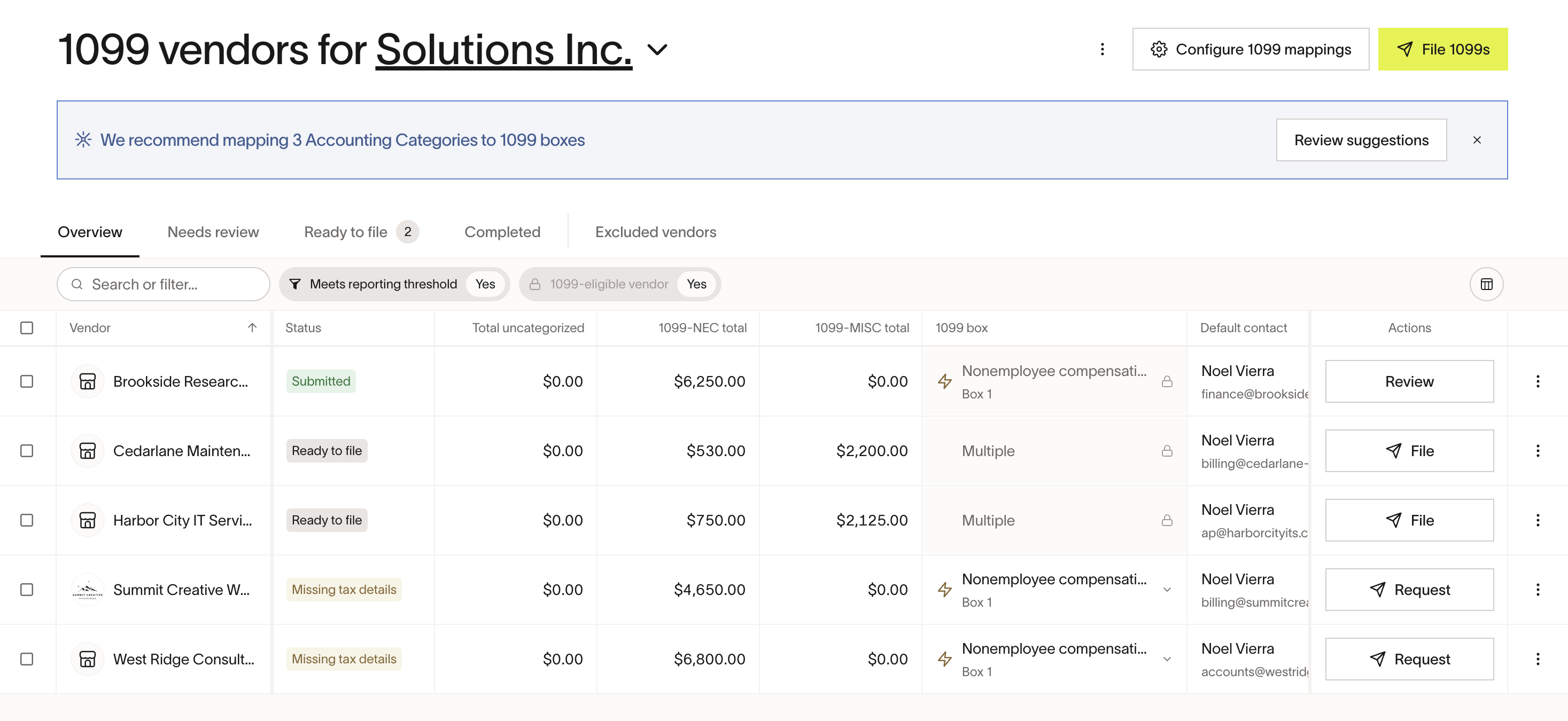
Table overview
- Overview: All vendors whose 1099 status = Yes for the selected year (read more about 1099 tax status and eligibility in Manage vendor tax details.) As spend is categorized, totals appear in '1099-NEC total' and '1099-MISC total'. Any uncategorized spend appears under Total uncategorized.
- Needs review: Vendors that require fixes before filing
- Ready to file: Vendors that have the required information and are ready to start filing
- Completed: Vendors whose 1099 filing request Ramp has received, including filings still in progress
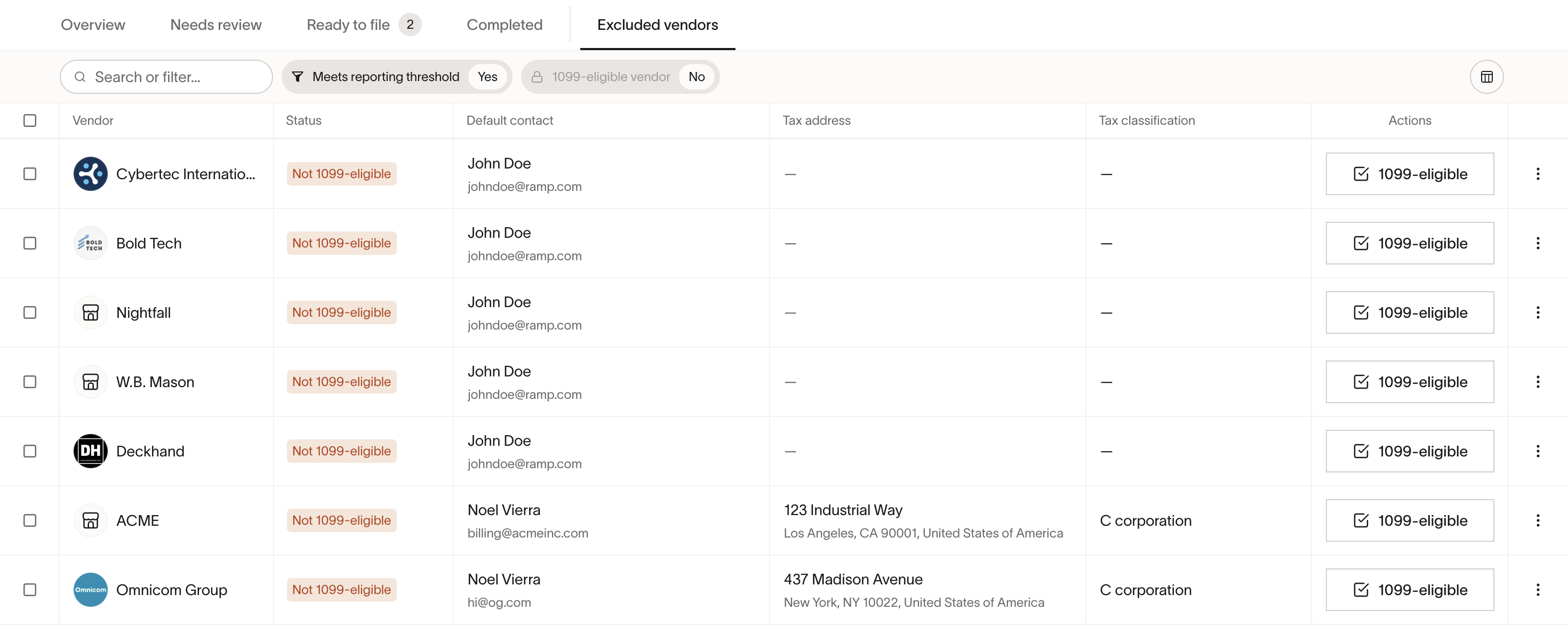
- Excluded vendors: Vendors not marked 1099-eligible. You can change their eligibility status at any time
Here are all the possible statuses you might see in your 1099 table:
- Not 1099-eligible
- Missing tax details
- Requested tax details
- Missing TIN type
- IRS TIN Check Failed
- Needs categorizing
- Ready to file
- Filed
- Submitted
- Filing error
Pre-Filing setup
Confirm vendor eligibility
- In 'Overview', ensure you're seeing all vendors that should receive a 1099
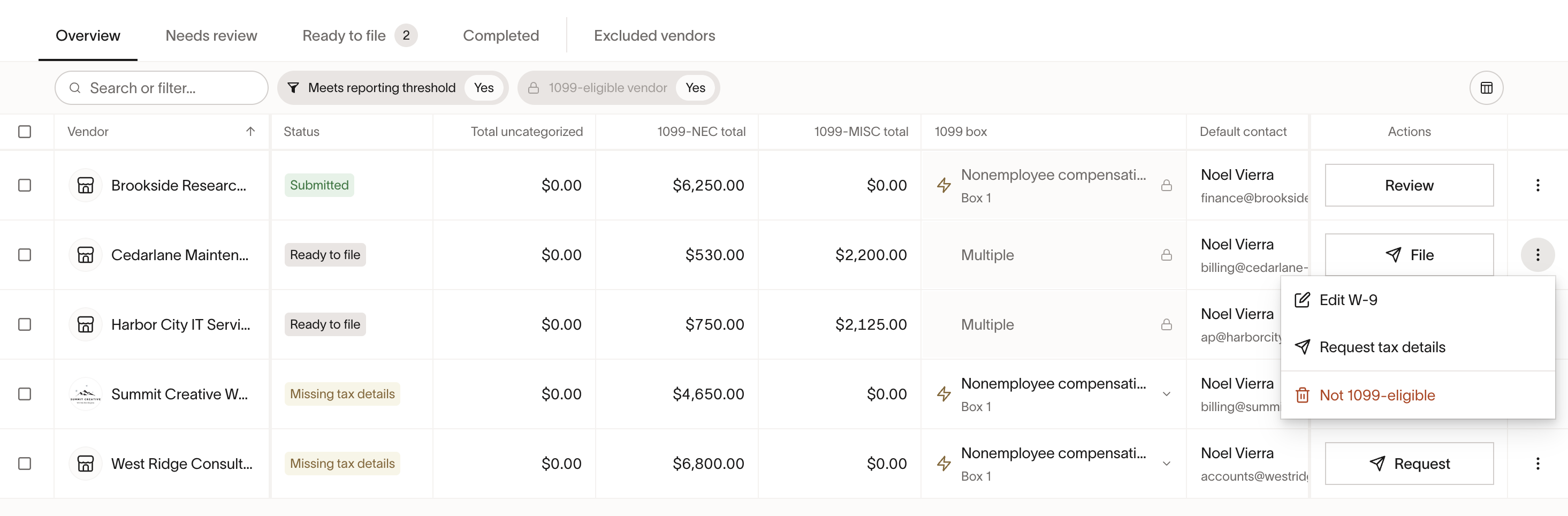
- To exclude a vendor, set them as Not 1099-eligible by clicking on the menu button (3 dots), or from Vendor Profile → Payment & tax → Tax details → Tax status
- To include a vendor, review your list of excluded vendors and click 1099-eligible on a vendor or bulk select to update multiple
Collect and manage tax details (W-9 and TIN)
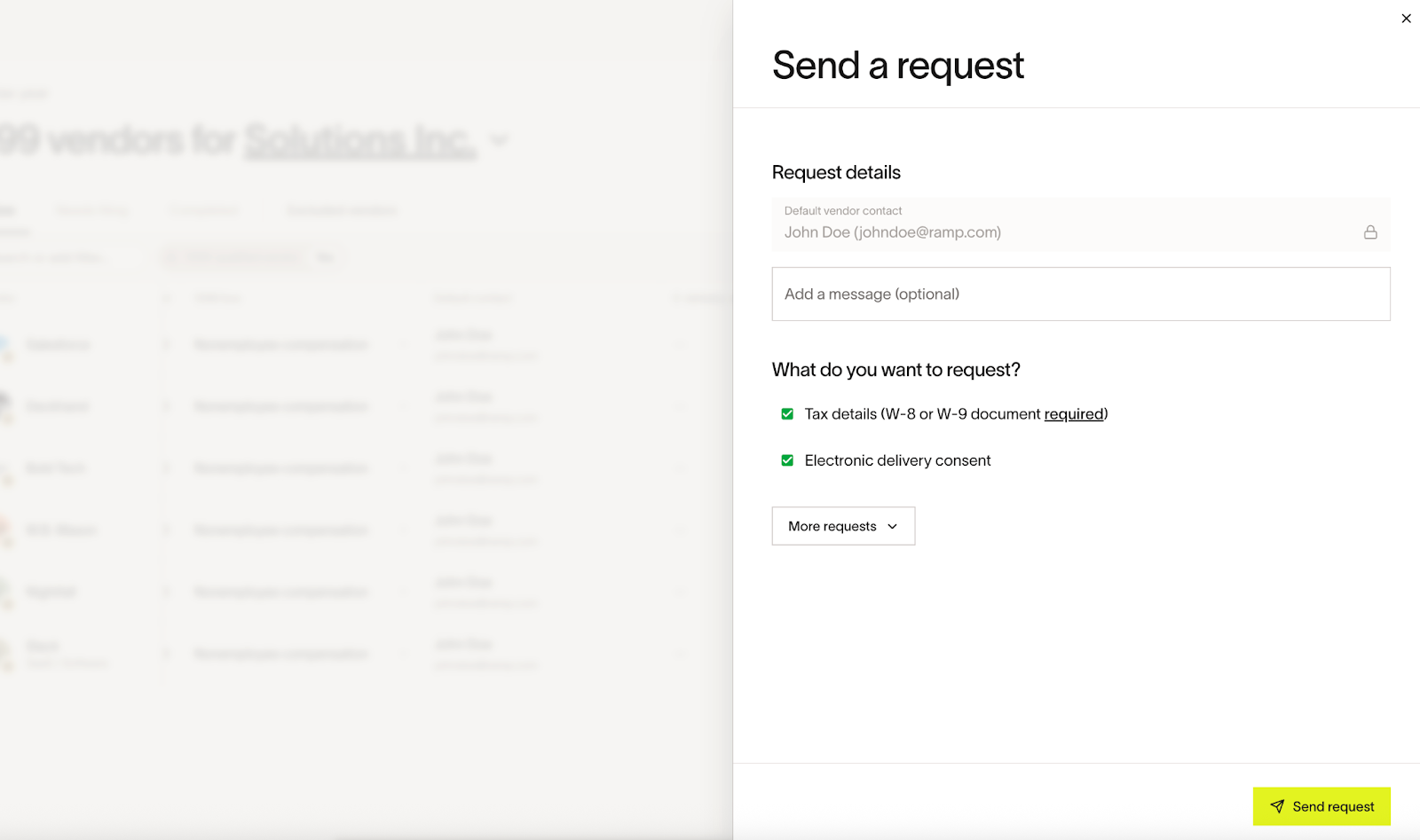
Throughout the year, you can use the 1099 table to manage your vendors’ tax information, request tax details, and collect W-9 forms.
- Select Request tax details when offered for a vendor. For recipient routing, see Who gets the request email?. If the individual request has a To field, follow Choose or change a vendor information request recipient. You have the option to add a message in your request
- Use bulk requests by selecting multiple vendors before sending
- To upload existing W-9 forms, click the menu (⋯) on the Vendors table → Upload documents
- You can also edit tax details directly from a vendor's profile under Tax details
TIN CHECK
Ramp verifies a vendor's legal name and TIN against IRS records. A failed TIN check means the TIN and legal name do not match IRS records. If the vendor's TIN type is provided, you can continue filing after acknowledging the warning. Ramp is not responsible for any penalties or other tax non-compliance caused by a mismatch. Read more in Vendor TIN verification.
To provide a missing TIN type:
- Open the vendor from the 1099 dashboard
- Click Edit W-9 > re-enter the Tax Identification Number (TIN) > select whether this number is an SSN or EIN > Save
For a failed TIN check, acknowledge the possible implications during filing before completion.
Request/confirm e-consent for digital delivery
To avoid sending paper 1099s, you can request and manage e-consent from your vendors for digital delivery. E-consent is legally required to deliver 1099s to your vendors digitally. Without it, we'll require you to send 1099s by mail. To request e-consent:
- Click the menu (⋯) → Request tax details → Check 'Request consent to deliver 1099s electronically'
- Vendors grant consent through the email request
- Depending on the vendor's response, you will see 'Yes', 'No', or 'Sent' in the 'Digital delivery' column
- For vendors that have declined, you must mail their 1099 copy during filing
Note: 1099s delivered by mail will also be delivered to vendors electronically. If you need to update a vendor's e-consent status, you'll need to send another request or ask them to update it in the Vendor Portal.
In the event you've received consent from your vendor off Ramp for digital delivery, you can update this preference in a vendor's settings.
- Click on a vendor → Consent for e-delivery → Manually confirm consent → Confirm
- Confirm that you've received proper consent from your vendors for digital delivery before manually adjusting, in accordance with IRS guidance
- Note: You cannot manually confirm consent if a vendor has already responded 'No' to an e-consent request. You must re-request e-consent from the vendor to update it, or they can update it from the Vendor Portal.
Vendor Experience: You can see the vendor's side of granting e-consent in Ramp Vendor Portal.
Automatically map categories
You can categorize vendor spend by creating rules that automatically map specific general ledger (GL) accounts to 1099 boxes for your eligible vendors, reducing the need for manual categorization.
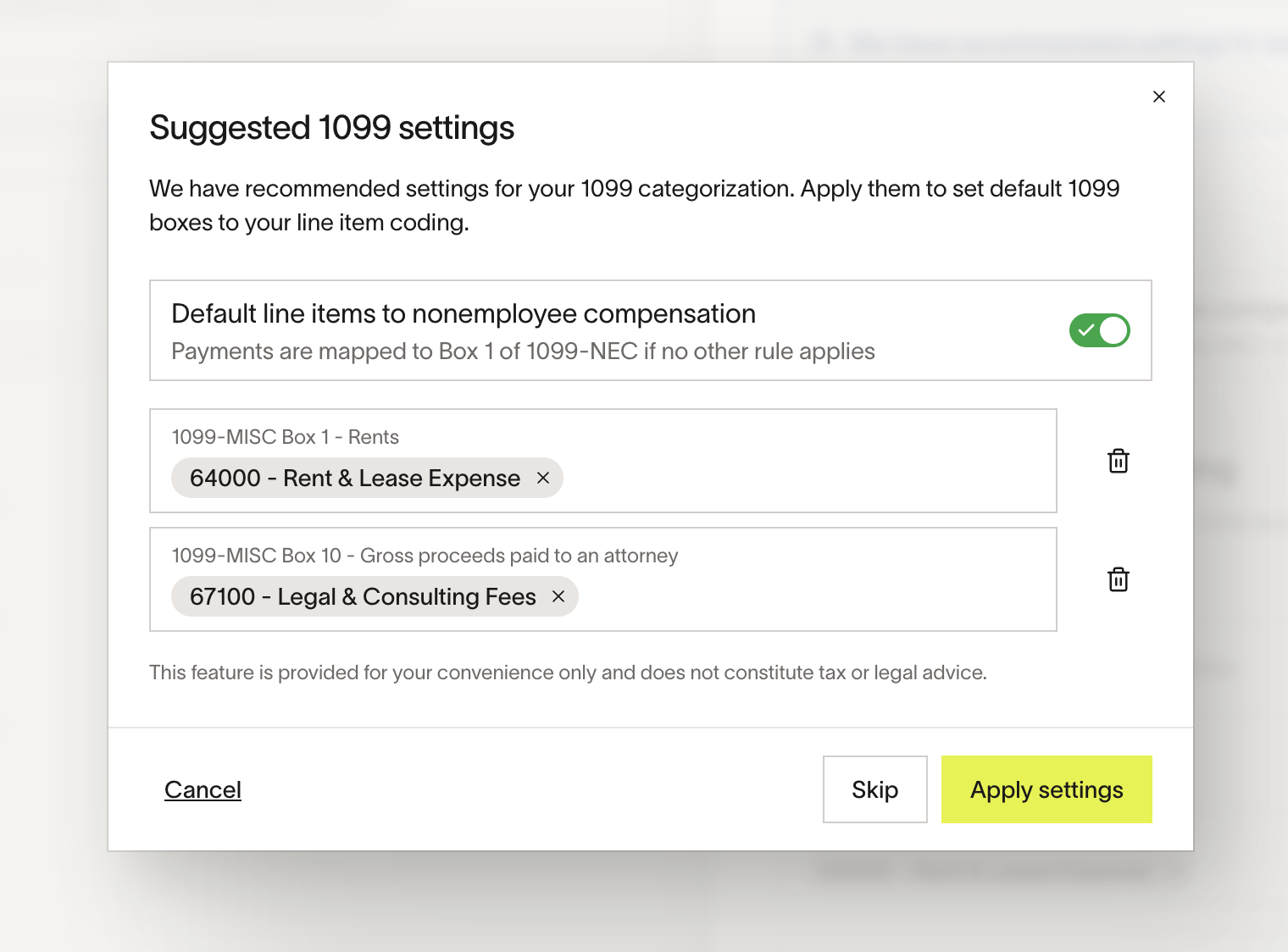
- Suggested rules : Ramp may propose 1099-MISC mappings based on your expense patterns to help you get started. You can accept, edit, reject, or add your own, then 'Confirm'. 'Skip' allows you to re-visit the suggestions later
- Click Settings to view and manage rules
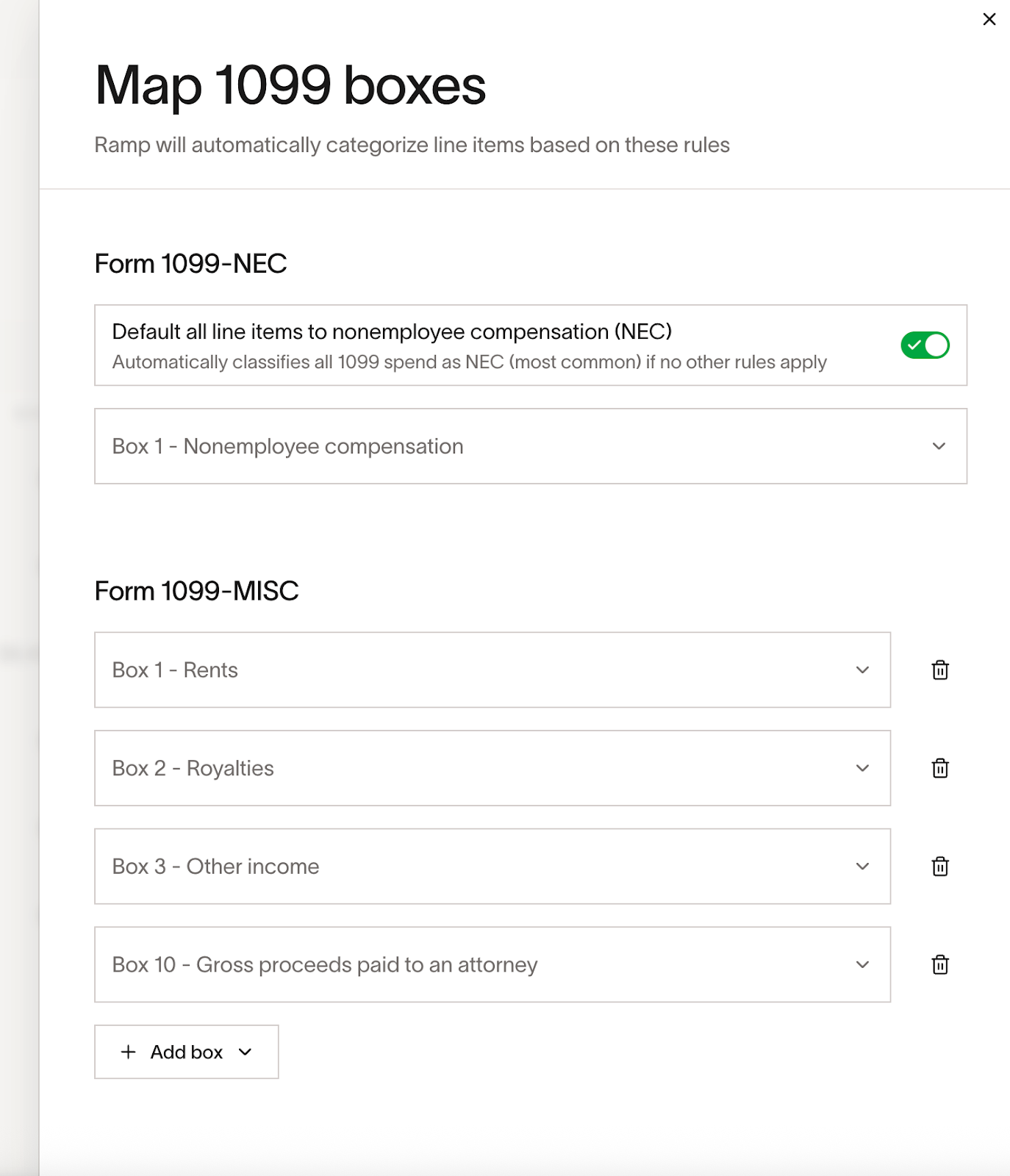
- Create rules : Click Add Box → choose GL accounts → map them to a 1099 box (single or multiple accounts per box) → Save, to apply the rule
- Default to NEC: Turn this on to classify uncategorized spend as NEC unless another rule overrides it. This will be turned off by default
Categorize vendor spend
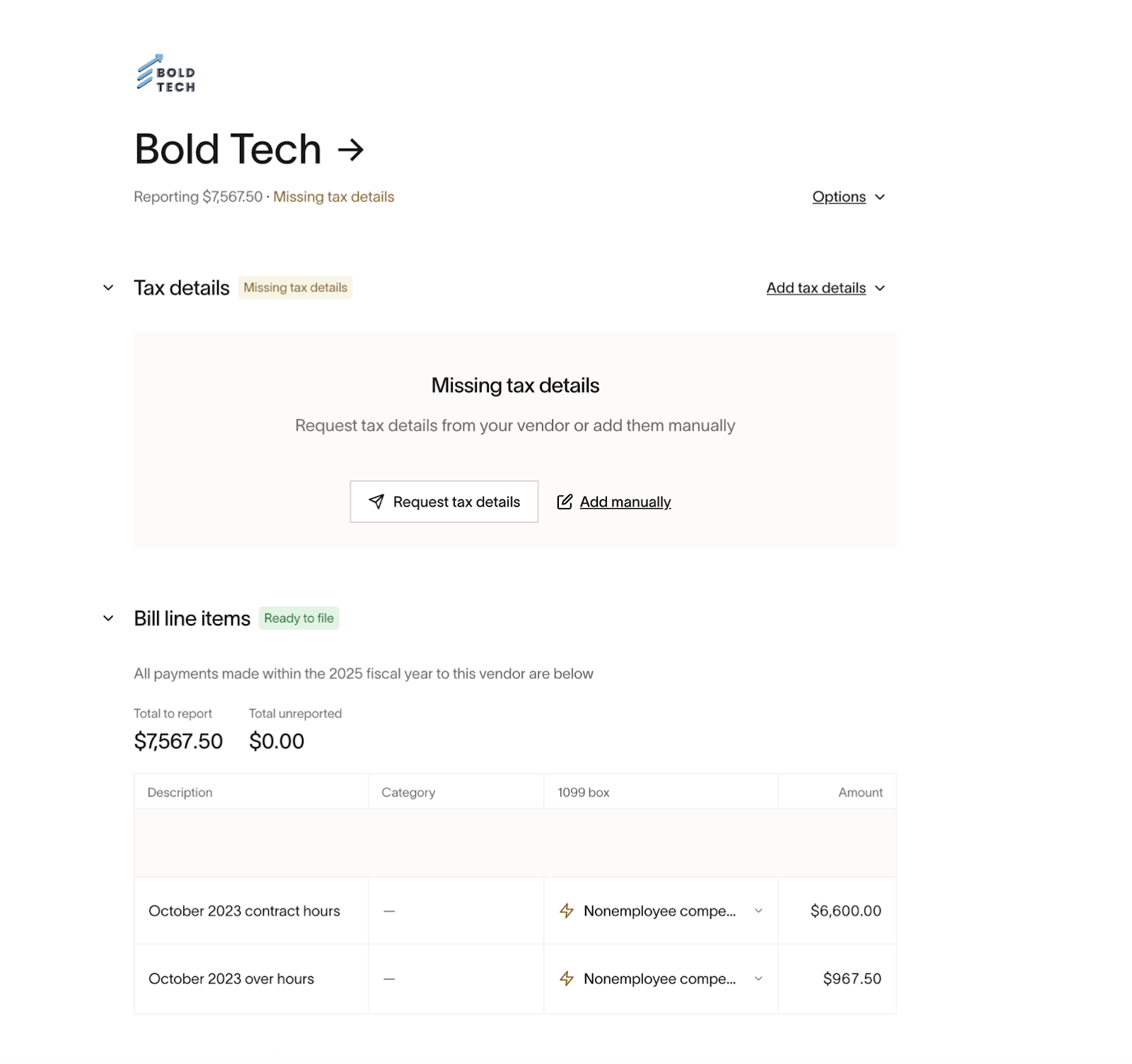
Each vendor has a detailed view where you can manage both Tax details and Bill line items for spend paid to your vendor. 'Bill line items' shows all the associated expense line items and invoices paid to a vendor during the calendar year.
- Click a vendor to open the detailed view
- In Bill line items, assign each line to the correct form (NEC/MISC) and box (e.g., Other income, Rents) in the '1099 box' column
- Mark non-reportable spend with 'Not reportable'
- A lightning bolt icon shows where accounting rules auto-applied a category
Additional spend
If you have spend outside of Ramp that you would like to include in filing, you can make adjustments to your total filing amount for a vendor by clicking on the Vendor → scroll to 'Additional Spend' at the bottom → Add additional spend. To update or remove the amount, click into the amount box → update the amount or set it to zero → press Enter to save.
For tax year 2026, prepare tips and overtime details after entering your additional-spend amounts. For the CSV workflow and availability, see Bulk import additional spend for 1099s.
Prepare 2026 tips and overtime details
For tax year 2026, open an eligible, unfiled vendor's worksheet. Choose where to enter the details:
- Bill line items: On reportable 1099-NEC Box 1 bill line items, select Add in Tips and overtime.
- Additional spend: Enter the reportable amount for 1099-NEC Box 1 or 1099-MISC Box 3 in Additional spend. If the MISC Box 3 row is not shown, select Add additional spend and choose Other income. Select Add in Tips and overtime for that row.
Edit saved details: For bill line items or additional spend, select the edit control labeled Edit tips and overtime in the row's Tips and overtime cell. Update the fields below and select Save changes.
Complete the Tips and overtime fields:
- Enter Cash tips, including customer-charged tips, and choose Tipped occupations. Cash tips greater than zero require an occupation; you can select up to two distinct occupation codes.
- If applicable, select I paid qualified overtime to this worker and enter Qualified overtime. Include only the extra pay required by the Fair Labor Standards Act (FLSA), not the full pay for overtime hours.
Select Save changes. These amounts are breakdowns of income already included in your reportable totals, not additional income.
Remove a tipped occupation: Reopen the saved details using Edit tips and overtime, remove the occupation from Tipped occupations, and select Save changes. You can remove all occupations only when Cash tips is zero or blank; otherwise, keep or choose at least one occupation.
Filing 1099s
Select vendors to file
- Go to Ready to file (or Overview) to begin
- File one vendor : click File on the row
- File many vendors: bulk select → File
- File selected vendors: select vendors that are ready to file, then click 'File 1099s' at the top right
Review your business information and filing batch
-
Confirm Business name, TIN, Address, and Phone
- All fields are required and appear on each 1099 form submitted to the IRS
-
Review the list of vendors you're about to file - verify NEC/MISC totals and delivery method per vendor.
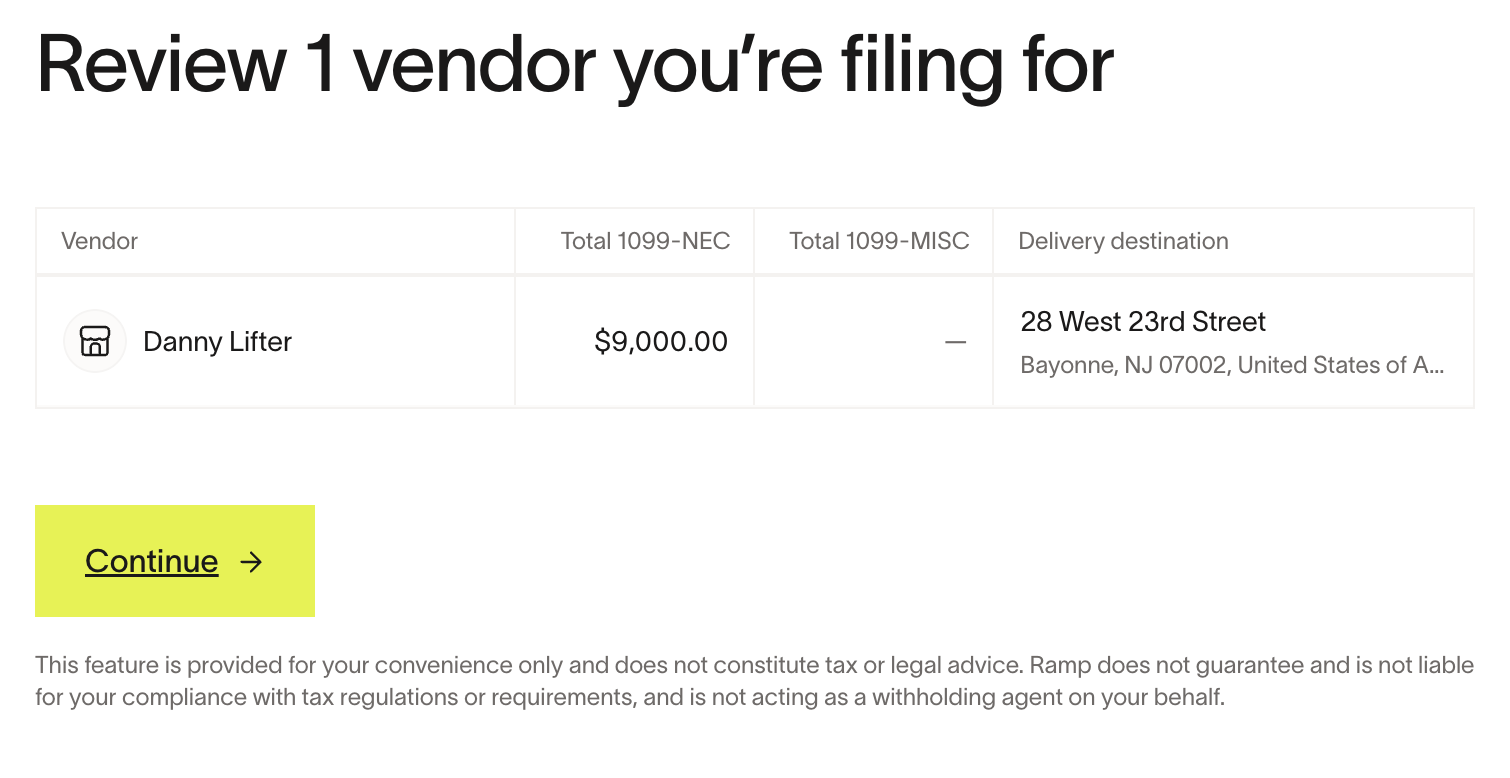
Choose filing options
- Federal filing is always included
- For states in Combined Federal/State Filing (CF/SF) program, you may choose to include state filing with your federal submission. Visit 1099 State Filing to check state filing requirements
- Note: Some states have extra requirements and may require you to file directly with their agency. Check each state's rules to ensure full compliance
Select delivery method and review costs
- Electronic delivery for vendors with e-consent
- Vendors receive an email when their 1099 is ready. They can sign up or sign in to the Ramp Vendor Portal to view and download the form. Read more in Ramp Vendor Portal.
- Mail delivery for vendors without e-consent
- Vendors receive a paper 1099 by physical mail - allow 5-7 business days after filing for delivery
- Review cost summary (federal filing + mail delivery, if applicable)
Pricing and billing
Filing charges will appear on your next billing statement.
| Item | Cost |
|---|---|
| Federal filing per form | USD 0.65 |
| State filing per form (for states participating in the CF/SF program) | Free |
| Mail delivery per form | USD 1.94; confirm in the purchase summary before filing |
| Rush mail surcharge per form (January 26–February 1, 2027, Eastern Time) | USD 1.00 in addition to standard mail delivery |
Confirm filing and delivery fees in the purchase summary before filing.
Tax year 2026 filing deadlines
Forms for payments made in 2026 are filed in 2027. The IRS filing deadlines are:
- 1099-NEC: File with the IRS and provide the vendor's copy by February 1, 2027.
- 1099-MISC: File electronically with the IRS by March 31, 2027. Provide the vendor's copy by February 1, 2027, or February 16, 2027, if reporting amounts in boxes 8 or 10. See the IRS recipient-statement rules.
Late filings may result in IRS penalties.
Purchase and file
- Click 'Purchase and file' to generate and submit your 1099s to the IRS (and any selected states)
View and download forms
View and download filed 1099s
- In Completed →click 'Review on a vendor → Download filed 1099s
- Forms will be ready for download when the status is "Submitted to the IRS". If you're having issues downloading the 1099 PDF, try opening it in a different PDF viewer as the issue is likely with the PDF software and not the file itself.
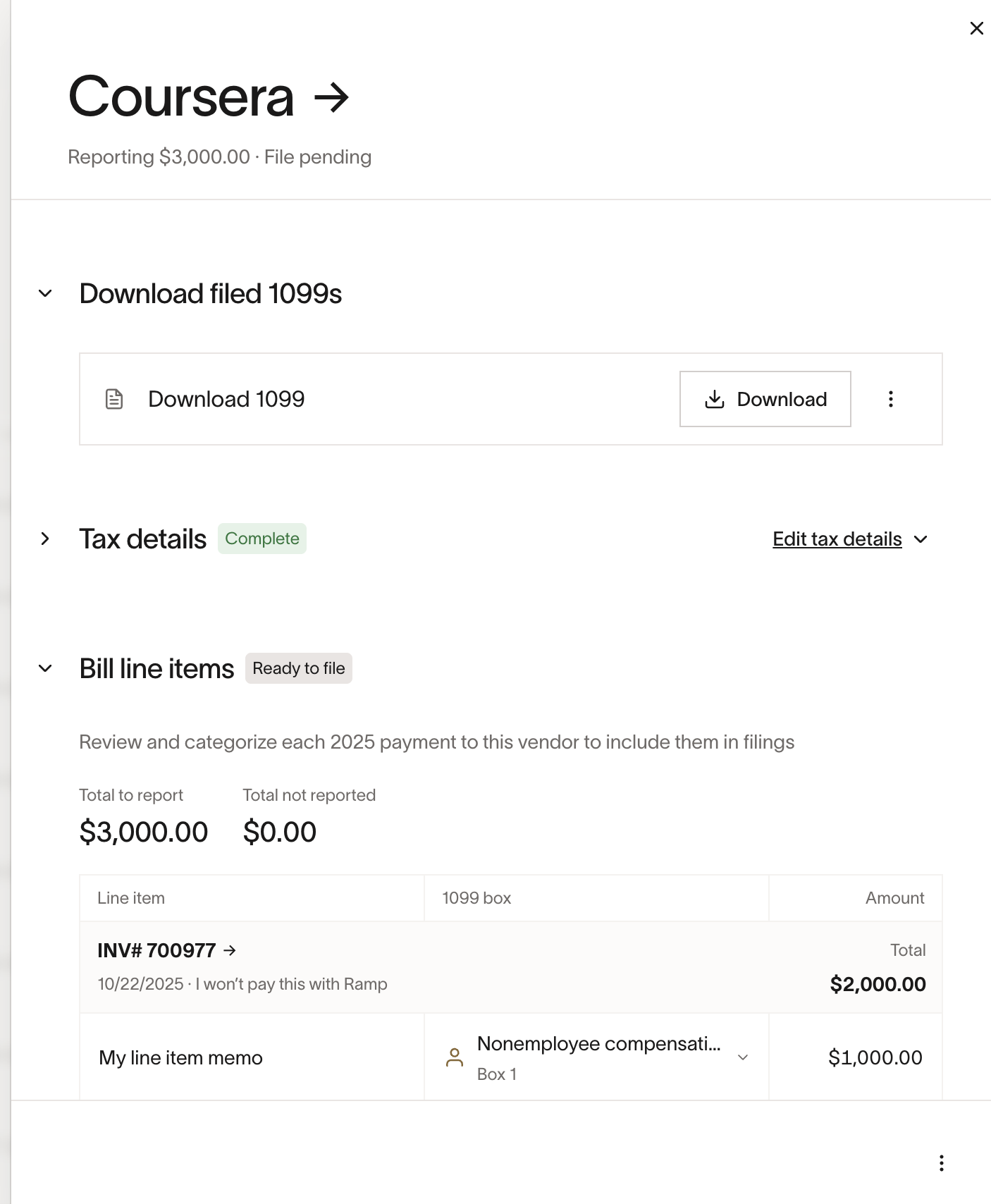
- To download all your filed 1099s, follow instructions to bulk download documents
Read about making corrections to filed 1099s in 1099 Corrections.
Best practices and tips
- Eligibility hygiene: Keep Excluded vendors accurate so year-end reviews are lighter
- Early data capture: Request W-9s and e-delivery consent well before January
- Rules first: Turn on Default to NEC and add GL overrides to reduce manual work
- Watch uncategorized: Clear the Total uncategorized column regularly
- Entity & year checks: Always confirm the tax year and entity before filing
- State rules: Use CFSF where possible, but confirm any state-specific requirements
Frequently asked questions
Why are there two forms for one vendor?
If spend maps to both NEC and MISC, Ramp generates separate forms.
Can I change mappings after I start filing?
Yes, but review totals before submitting.
Does Ramp provide 1099-K or 1096 forms?
No, Ramp only generates and files 1099-NEC and 1099-MISC documents. A 1096 is an IRS transmittal form that accompanies paper 1099 filings. Because Ramp files 1099s electronically, no separate 1096 form is needed or generated. 1099-K forms do not apply to the issuer of a payment card (such as Ramp) and only apply to the payment network or processor (like Visa).
Can I use this feature if I signed up for Ramp mid-year or file 1099s for spend made outside of Ramp?
Yes. Record outside payments as additional spend; see bulk import instructions and availability for the CSV workflow. Note: Bill payments made on Ramp with payment method "Paid outside Ramp" are included in 1099 payments.
To file 1099s for a vendor with no payments made on Ramp, create the vendor → go to 'Excluded vendors' in the 1099 filing dashboard → Remove the payments filter for the selected tax year (Has 2026 payments for tax year 2026) → Mark vendor as eligible → Add additional spend and complete filing.
You can also export 1099 vendors from Ramp and file using an external service if needed. Read more on exporting 1099 vendors in Manage vendor tax details.
Does Ramp validate tax identification numbers?
Yes, read more in Vendor TIN verification.
Will bills paid manually in Ramp be included in filing?
Yes. As long as a bill is managed through Ramp, those with the payment method paid outside Ramp will be included.
Does Ramp support communicating with vendors and reconciliation if a vendor says something is wrong?
You cannot communicate with vendors directly about 1099s on Ramp, but you can file corrections.
Can Ramp help vendors/contractors file their taxes?
At this time, Ramp only supports customers using our Bill Pay product.
Does Ramp support backup withholding?
No, not at this time.
How does Ramp select 1099 eligible vendors?
Ramp applies a Bill Pay spend threshold by tax year when automatically determining 1099 eligibility: at least $600 USD for tax years through 2025 or at least $2,000 USD for tax year 2026. You can review vendor 1099 statuses for the applicable tax year.
For check payments, the payment initiated date is used to determine what date the vendor was paid.
Does Ramp factor in vendor credits for 1099 filing?
Currently, vendor credits are not reduced from amounts when filing 1099s. You can mark a line item as "Not reportable", and enter the correct amount minus vendor credits you want to file for in "Additional spend".
Does Ramp provide W-2 or W-4 forms?
No. Ramp handles vendor tax forms (1099-NEC, 1099-MISC, and W-9 collection), not employee payroll forms. For paystubs, W-2s, or W-4 forms, contact your payroll provider.
Where can I find 1099 tax documents I received from Ramp?
If your business earned interest from a Ramp Business Account or has a Ramp Investment Account, Ramp may issue you a 1099-MISC. These tax documents are available in-app at Banking > Documents. Business Account tax forms are typically available starting in January; Investment Account 1099 forms are typically available by the end of February. This is separate from the 1099s you issue to your vendors, which are covered in this article.
This feature is provided for your convenience only and does not constitute tax or legal advice. Ramp does not guarantee and is not liable for your compliance with tax regulations or requirements, and is not acting as a withholding agent on your behalf.