Ramp Vendor Portal
Overview
Ramp's Vendor Portal allows vendors who receive bill payments to easily manage and track those payments. The Vendor Portal:
- Simplifies payment tracking for vendors.
- Provides a central location for viewing incoming vendor payments.
- Allows for quick and secure updates to company and payment information.
- Lets vendors comment directly with payers on bills.
If you're using this guide, it means one of your customers is using Ramp to process accounts payable and send vendor payments.
Note: The Vendor Portal is for vendors who receive payments from Ramp customers. If you are a Ramp customer looking to pay your vendors, see Bill Pay overview. If you use Receivables to bill your own customers, see Get started with Receivables.
Video walkthroughs: Get started with the Ramp Vendor Portal and Manage your payment and tax details and get paid.
Vendor Portal process
Vendor account creation
- Vendors cannot create an account on their own from a public signup page. A vendor must be invited by a Ramp customer (payer), if the customer:
- Adds the vendor to Bill Pay and sends a request for payment and tax details
- Invites the vendor to Ramp's Vendor Network
- If a customer sends a request for payment and tax details, use the secure link in the email to sign in and respond. If you are prompted to create a Vendor Portal account, complete setup before submitting details. See Vendor Portal access. You can use the account to manage and track payments and access the additional features described below.
How to access the portal after account creation
Sign in at app.ramp.com/sign-in using the email address you signed up with. After signing in, you can access the Vendor Portal directly at app.ramp.com/vendor-portal.
If you have both a Ramp customer account and Vendor Portal account, sign in and switch between them using the account selector in the top-left of the navigation.
Note: There is no separate vendor sign-in page. Vendors use the same Ramp sign-in page as all other users. URLs such as
vendor.ramp.comare not valid Ramp addresses — always use app.ramp.com/sign-in to sign in.
Bill payment initiated
When a Ramp customer initiates a payment to you, Ramp can email you a link to view its details. See Ramp emails for vendors and non-customers for the types of messages you may receive, or Track invoices and payments in Vendor Portal for the payment lifecycle.
Track invoices in review and payments
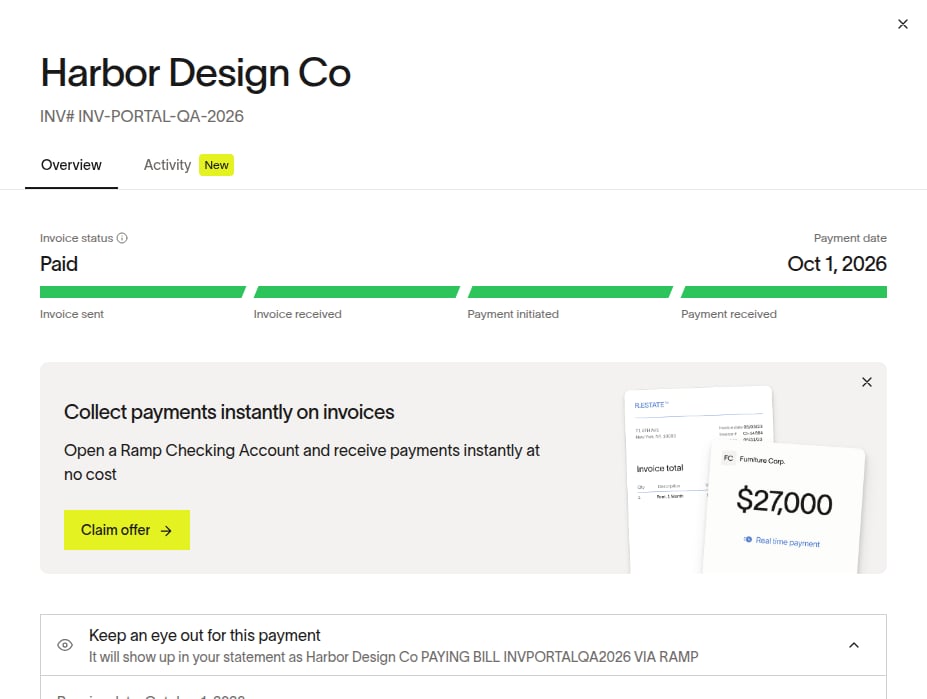
Open Invoices to check a payment's status. Submitted means your invoice has reached the customer; In review means they have received it but have not scheduled payment; Scheduled means payment has been scheduled or initiated; Paid means payment processing has finished. If an invoice remains In review, use Comment on the bill to ask your payer for an update when available; otherwise contact them directly. See Track invoices and payments in Vendor Portal for statuses and next steps.
What to do if a payment is delayed
Check the bill's status and estimated arrival date in Vendor Portal, then confirm your payment details. If the payment still has not arrived, ask your payer for an update using Comment when available or contact them directly; your bank can confirm whether funds were received or returned. See Resolve a delayed or missing Vendor Portal payment for the full checklist.
Vendor credits on receivables
Vendor Portal shows credits that your customer applies to a bill, but it cannot issue credits or refunds on your behalf. Send a credit memo to your customer to coordinate the correction; see Understand Vendor Portal credits and refunds for details.
1099 e-delivery consent
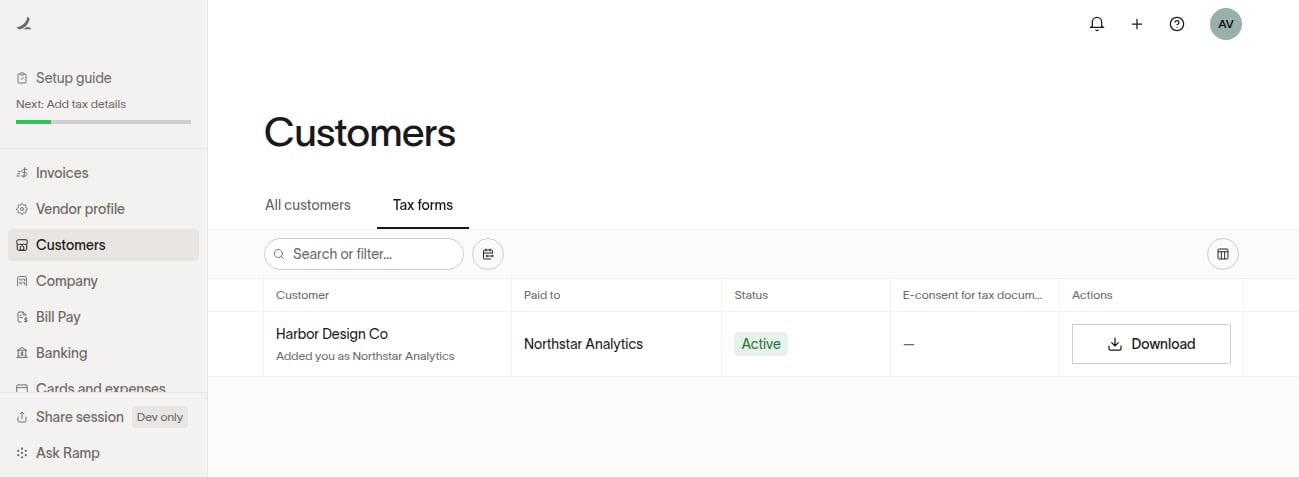
If a Ramp customer asks you to consent to electronic delivery of a 1099, use the secure link in their email to choose how to receive it. Once the form is filed, you can download it from Tax forms if you are connected to the customer on the Vendor Network. See Manage Vendor Portal tax details and 1099 forms for consent and access details.
Managing your Vendor Portal account
Setup guide
After signing up, use the setup guide to complete your account. See Manage your Vendor Portal account for the next steps.
Company profile
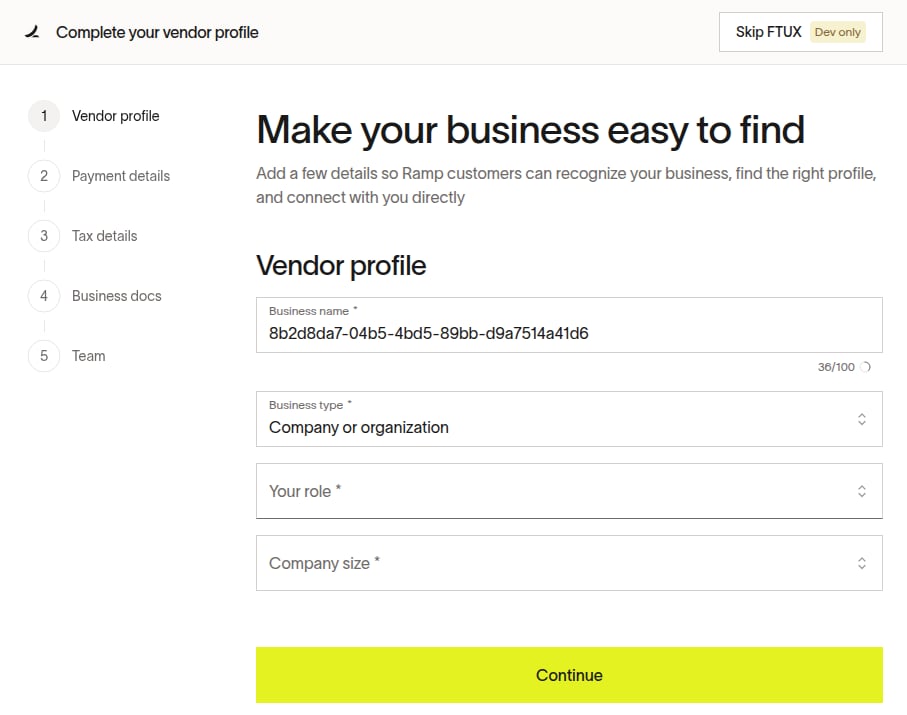
You can update how your company appears to customers from Vendor profile. See Update your Vendor Portal profile and discoverability.
Profile discoverability
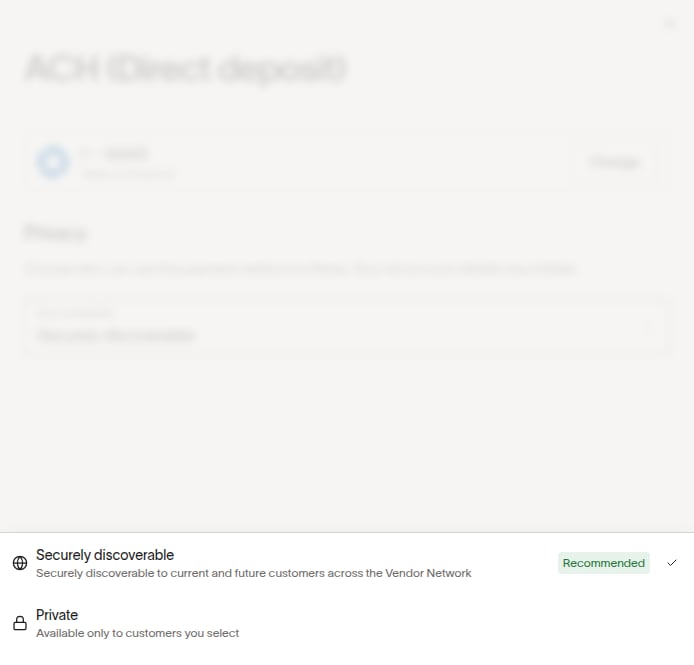
Discoverability controls whether Ramp customers can find your business on the Vendor Network. If you turn it off, customers already connected to you can still pay you. Complete account setup before expecting your profile to appear in search; see Update your Vendor Portal profile and discoverability for the options.
Manage payment details
Open Payment details to review or add the accounts you use to receive payments. See Bank account linking for vendors to connect a bank, or Add and share Vendor Portal payment details for other options.
Share payment details
If you update payment details shared with a customer, their approval settings can affect when the change takes effect. If your update is pending, payments may continue using the previously approved account or fail if none is approved. See Add and share Vendor Portal payment details to share an account, check its status, or stop sharing it with one customer.
Manage tax details
You can update saved tax details in Vendor Portal. Depending on each customer's approval settings, they may need to accept the change before it takes effect. See Manage Vendor Portal tax details and 1099 forms.
Documents
Upload documents you regularly share with customers through Vendor Portal; see Manage Vendor Portal documents and team access. To share documents with a particular customer, see Vendor Profile Public Sharing.
Invite people to your Vendor Portal account
You can invite colleagues whose email addresses match your business domain. See Manage Vendor Portal documents and team access for invitation and access steps.
Frequently asked questions
How will I be notified of an incoming payment?
Ramp may email you as a customer processes and pays a bill; see Ramp emails for vendors and non-customers for the types of notifications.
I signed up, but how do I access this later as a vendor?
Sign in at app.ramp.com/sign-in using your Vendor Portal email, then open Vendor Portal. There is no separate vendor sign-in page.
Can I update my bank account details?
Yes. Open Payment details; see Bank account linking for vendors for connecting an account and Add and share Vendor Portal payment details for sharing it with customers.
Can I track payments from multiple companies using Ramp?
Yes. See Track invoices and payments in Vendor Portal for details across customers who pay you through Ramp.
What should I do if an ACH payment is missing?
Confirm with your payer that they used the correct ACH routing number; then ask them to check the payment status and ask your bank whether the funds were received or returned. See Resolve a delayed or missing Vendor Portal payment.
Can I contact Ramp Support about a missing or delayed payment?
Your payer can check payment-processing details that are not visible to you in Vendor Portal. Contact them using Comment on the bill when available or outside Ramp; see Resolve a delayed or missing Vendor Portal payment.
Is there a vendor-specific support email or sign-in page?
No. Sign in at app.ramp.com/sign-in, not a vendor-only URL. For payment questions, contact your payer directly or use Comment on the bill when available.
How do I issue a refund or credit to my customer?
Vendor Portal cannot issue refunds or credits directly. Send your credit memo to your customer outside Ramp or use Comment on the bill when available; see Understand Vendor Portal credits and refunds.
What does discoverability do and should I turn it on?
The discoverability setting controls whether payers can find your business on the Vendor Network. Turn it on if you want customers to find and connect with your completed profile; see Update your Vendor Portal profile and discoverability for the conditions.
How do I add a new customer to my Vendor Portal?
For a Vendor Network connection or to send an invoice, your customer must connect to your vendor profile from Ramp; you cannot add them from Vendor Portal. See Update your Vendor Portal profile and discoverability for ways they can find you, or Vendor Profile Public Sharing to share your profile directly.