Ramp Vendor Network
Overview
Ramp Vendor Network is a way for payers and vendors to more easily and securely collaborate all on the Ramp platform. Payers can get updates from vendors that have an existing Vendor Network profile, and optionally use their stored payment & tax information, eliminating the need for manual entry and sharing via less secure channels.
Payers can also invite vendors not yet on Vendor Network to create a Vendor Portal account and connect with them. If a payer invites a vendor and they join, they become connected and receive updates on the items listed below.
The benefits
With your vendors on Vendor Network, you can:
- Comment on bills directly with vendors
- Securely receive payment account updates
- Request and store tax details and W9/W8's
- Let vendors invoice you directly on Ramp
Inviting a vendor to Vendor Network
Invite from vendor profile
To invite a vendor to create a Vendor Portal account from a vendor's profile:
- Go to Vendors and select the vendor you would like to invite.
- In the Vendor Network card, select Invite to Vendor Network.
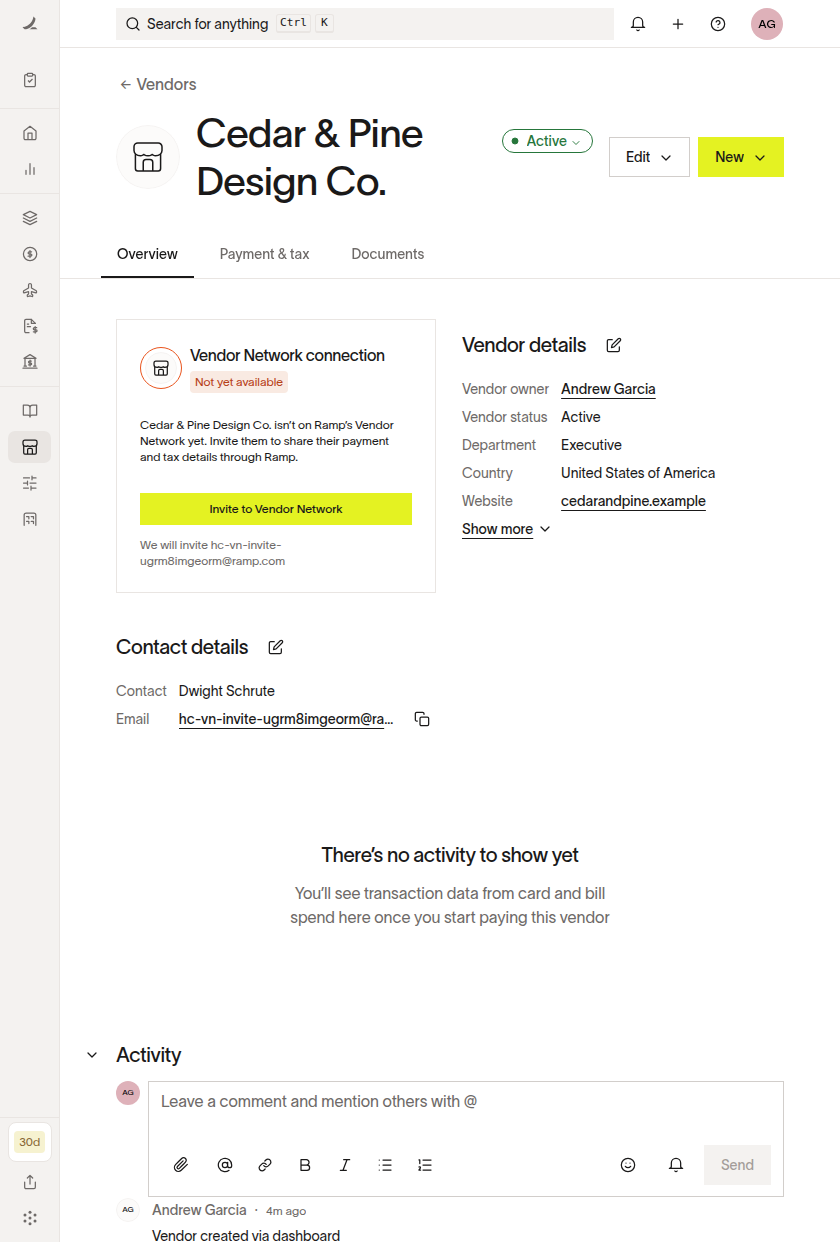
- Note - This will send an email invitation to the email address listed in the ‘Contact details’ section
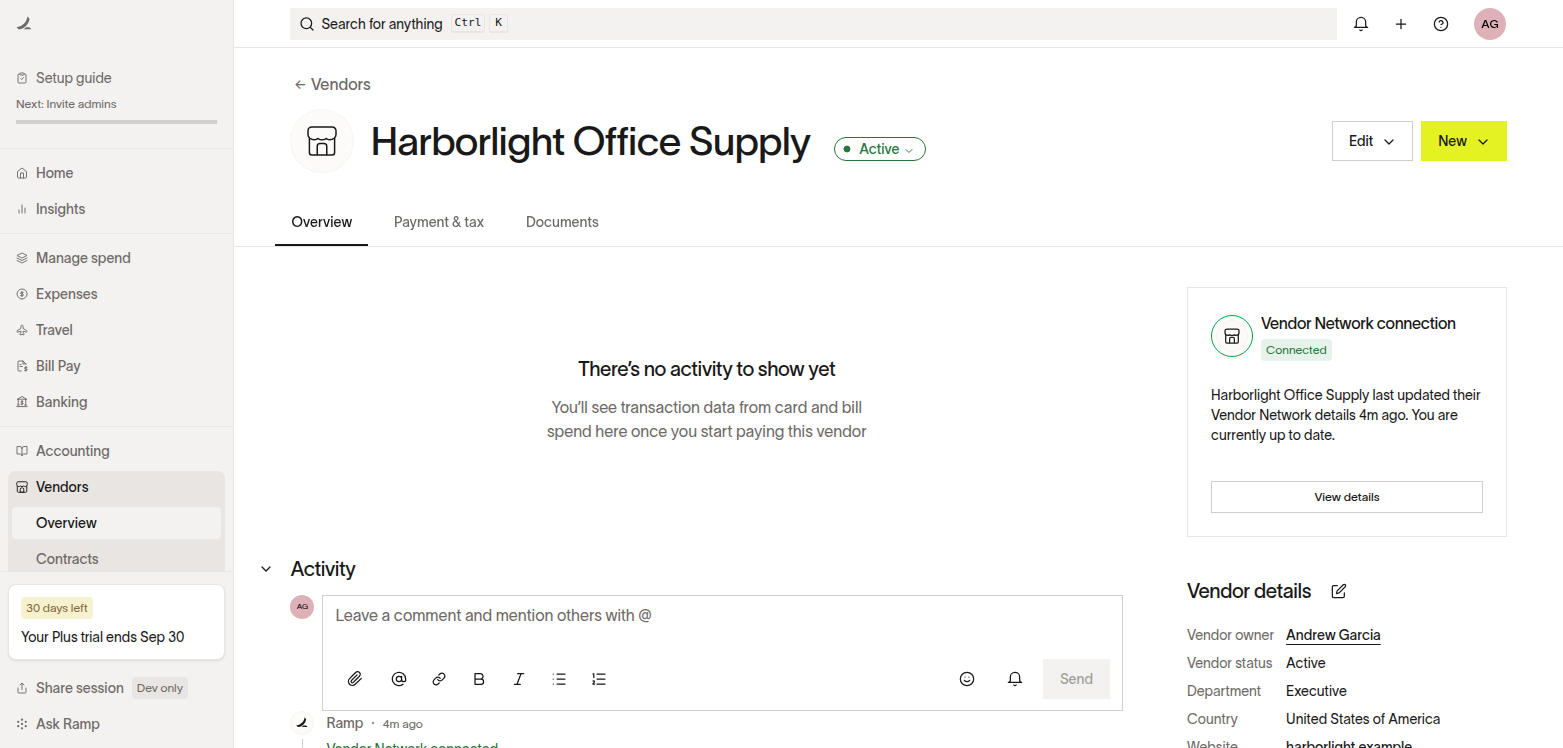
- Once your vendor has signed up for Vendor Portal, the Vendor Network connection card displays Connected.
Invite from vendor creation
To invite a new vendor to create a Vendor Portal account from vendor creation:
Before creating the vendor, go to Vendors settings and turn on Invite vendors to Vendor Network by default. When this setting is on, the option to invite a vendor to the Vendor Network appears during vendor creation, and new vendors you create are invited by default unless you opt out. When the setting is off, the invite option isn't shown during vendor creation. Vendors imported from a CSV file or ERP aren't invited at import; instead, an invitation can be sent when you approve an eligible bill for that vendor — but only while this setting is on. If the setting is off when the bill is approved, Ramp doesn't send that invitation.
-
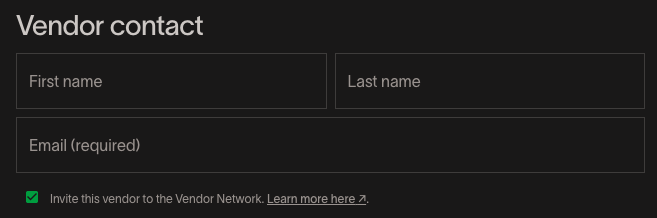
With the setting on, when you create a new vendor from 'Vendors' or through a bill, you will see the option to invite this vendor to the Vendor Network.
-
If the vendor does not have an existing Vendor Portal account, once they accept the invite and sign up you receive updates from this vendor
-
If a vendor does have an existing account that matches the email you've entered, you will see the ability to automatically enable updates from that vendor and optionally pre-fill their payment/tax details

Enable updates from existing vendors
If you want to collect details from a vendor that is already on the Vendor Network:
- Open the vendor profile of the vendor you want to connect with.
- In the Vendor Network connection card, select Review connection.
- In Review network match, choose the payment and tax details you want to sync, then select Connect and sync. If there are no details to sync, select Connect.
The Vendor Network connection card appears when Ramp finds a potential match and you have permission to view the vendor. To review and sync payment and tax details, you also need permission to view Vendor Network updates and edit vendor payment and tax details.
- If no potential match appears, request payment or tax details from the vendor. When an eligible Vendor Network vendor completes the request, Ramp connects the profiles.
- If you don't have the required permissions, ask an Owner or Admin to review the connection or grant you an Accounts Payable or Finance Admin role with access to view vendors and Vendor Network updates and edit vendor payment and tax details.
Another way you will automatically enable updates from vendors on the Vendor Network is through Information Request fulfillment. This means if you request payment/tax details from a vendor you're not connected to, if they submit the details and are on the Vendor Network, you will start receiving updates.
Vendors who are prompted to create a Vendor Portal account must complete setup before submitting details. See Vendor Portal access.
Updating vendor details
Depending on your approval settings, tax details and card acceptance policies can sync automatically. Other payment and tax detail updates normally require your acceptance. Accepted bank, tax, and check mailing-address changes can then require your configured vendor edit approvals before taking effect.
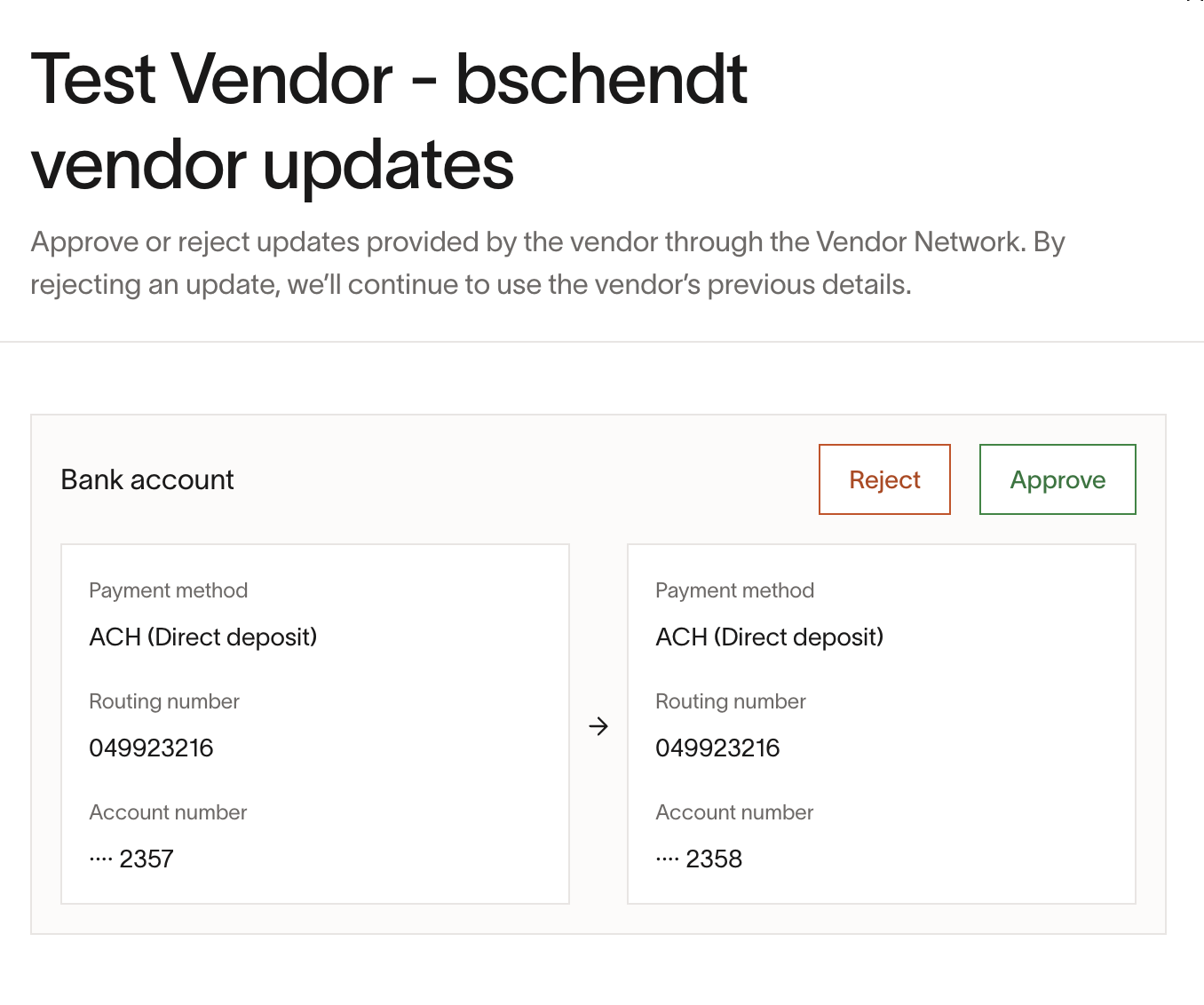
If a vendor you are connected to submits a payment or tax detail change that requires review, you can accept or reject the change. The vendor can see that the update is pending, accepted, or rejected.
Automatic Ramp Checking Account replacements: When a connected vendor replaces an ACH account you previously accepted with a Ramp Checking Account shared with you, Ramp can apply the replacement without your acceptance or vendor edit approval. This path requires the ACH auto-approval setting to be enabled and the replacement to preserve the account's public or private sharing scope and remain shared with you; it does not apply to every verified ACH account. An automatic replacement can change the default payment account and update bills that have not begun processing.
If you need to review these replacements, open Settings from Vendors, find Vendor Network updates, and turn off Auto-approve ACH details from bank accounts verified by Ramp. If you cannot change this setting, ask a Ramp Admin to check your vendor-approval permissions.
Note: Any other information a vendor updates (like contact info) does not sync over the Vendor Network.
Important: While a vendor is connected to Vendor Network, the default contact's details (name, email, phone) cannot be edited. To edit the default contact, disconnect the vendor from the Vendor Network first — existing vendor data is preserved. Non-default contacts can be edited at any time regardless of Vendor Network connection status.

Security precautious with updates:
- Vendors set up MFA during onboarding and any changes to payment details are gated by MFA checks
- Payment detail changes that are not auto-approved must be accepted or rejected by the payer
Disconnect a vendor from the Vendor Network
You need permission to edit the vendor to disconnect it. If you don't see the edit (pencil) icon or the disconnect option, ask a Ramp Admin or Owner to disconnect the vendor or to grant you vendor edit access.
To stop receiving updates from a vendor you're connected to:
- Open the vendor's profile from Vendors.
- Select the edit (pencil) icon, then open Vendor details.
- Scroll to the Danger zone section, select Disconnect from the Vendor Network, and confirm.
Disconnecting does not delete the vendor or any of their saved payment/tax details — you keep the information you've already synced. You'll stop receiving future updates from the vendor and will need to manage their details manually.
Commenting on bills
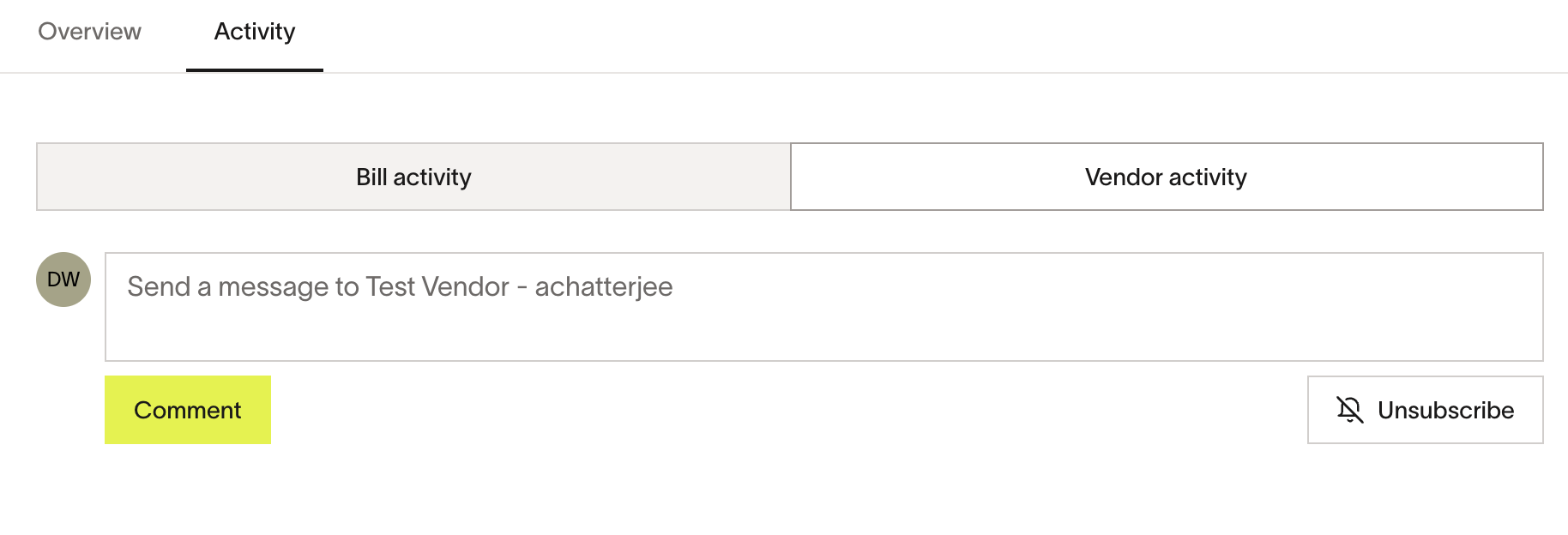
Payers and vendors can comment on bills between themselves and centralize discussion/updates directly on the bill. To do this, open a bill > click on 'Activity' > 'Vendor Activity'. Note that vendors can only see external activity on bills, so the comment thread between themselves and payers. They cannot see anything on Bill Activity, like the audit log or internal comments.
Frequently asked questions
Why can't I edit a vendor's default contact details?
The default contact is locked while the vendor is connected to Vendor Network. See Updating vendor details for details and the workaround.
When can vendors see bills I create and what can they see?
- A vendor you're connected to on the Vendor Network will be able to view a bill shared with them after the bill has been created (moved out of drafts), but it doesn't need to be approved
- Vendors can see the memo, total, invoice document, Vendor activity, and payment delivery status on the bill.