Bank account linking for vendors
Overview
A vendor can connect to their business’s bank account to add new payment details, or to confirm account details at the request of their payer. Read more below about why we do it and how it works.
Bank connections
Why a bank connection
Ramp uses data from your bank connection to automatically add new payment account information, or to confirm your payment account details for your customer who is paying you on Ramp.
How secure is it?
Our banking connection partners use bank-grade encryption to protect your data and we will never have access to your credentials.
Learn more about Ramp's security measures here.
Connecting directly
How do I connect my bank account directly?
If you're adding payment details in response to an Information Request from your customer:
Use the secure link in the request email to sign in. If you are prompted to create a Vendor Portal account, complete setup before submitting details. See Vendor Portal access.
- In the Information Request, add a bank account. ACH (Direct deposit) supports US-based bank accounts only.
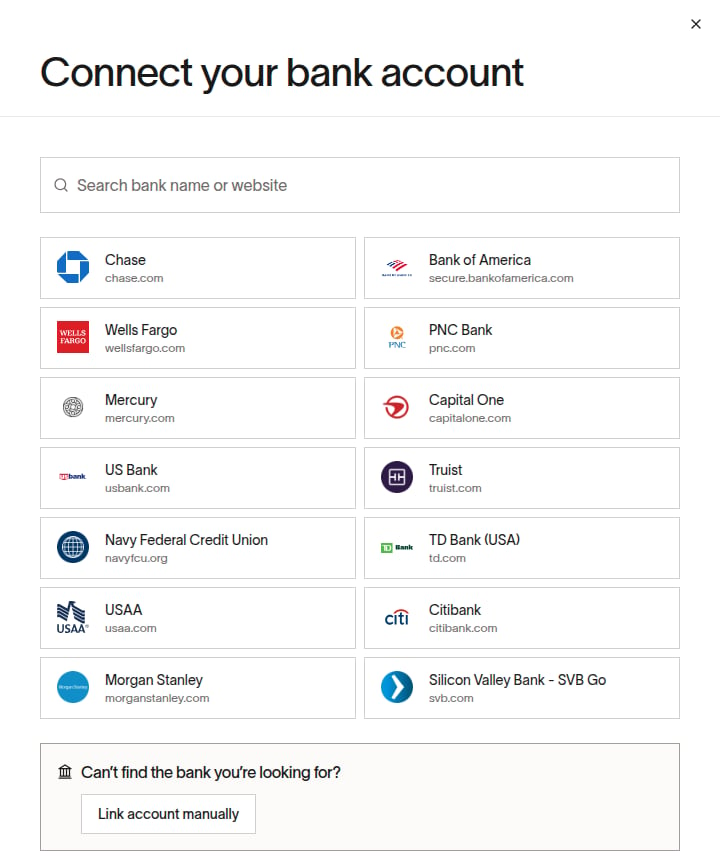
- On the Connect your bank account page, search for or select your banking institution and follow the prompts to connect your account.
- If direct linking is unavailable, click Link account manually and enter your bank details. If your customer requested ownership verification, follow the bank account confirmation prompts, including any required supporting documentation.
If you're adding a new payment account on your Vendor Portal account:
- Open Payment details.
- In ACH (Direct deposit), click + or Add account. ACH (Direct deposit) supports US-based bank accounts only.
- On the Connect your bank account page, search for or select your banking institution and follow the prompts to connect your account.
- If direct linking is unavailable, click Link account manually and enter your bank details.
How do I share my payment details?
Your first bank account is Securely discoverable by default. Additional bank accounts are Private by default and are available only to customers you select. To change who can use an account, open Payment details, select the account, and update its Privacy or Share with customers setting. If a customer says they can't see payment details, check that the account is shared with them. Read more on sharing here.
What if my bank account uses an OTP or an MFA?
OTP and MFA do not always prevent a direct bank connection. Support depends on your bank and the available connection provider. Try the direct connection shown in Ramp. If it is unavailable or fails, click Link account manually and enter your bank details. An ownership-verification request requires supporting documentation for a manually entered account; see Bank account confirmation.
What if I have trouble connecting an account from a listed banking institution?
Sometimes direct bank linking will fail even if the banking institution is listed as ‘covered’. If you’ve tried and failed to connect an account from a listed banking institution, try these tips:
- Log on to your bank's website to confirm your credentials are working
- Check to see that there aren't messages from your bank on your bank's website
- If your sign-in credentials use multi-factor authentication (MFA) to log on to your bank, try connecting with an account that does not require MFA
- Try a different browser
- Disable the ad-blockers on your browser
- If you are based within the US, please ensure all VPNs on your device are disabled
- If your IP address is based outside the US, use a VPN with a US-based IP address before attempting to reconnect
- Check to make sure that you are selecting the correct account type for your banking institution in the Ramp search box
- Some institutions (such as Chase or Wells Fargo) have multiple account types listed on Ramp’s application
If you are still running into issues, you can always add your bank account details manually.