Manage vendor tax details
Bill Pay customers can manage their vendors' tax details within Ramp, making year-end 1099 filing even easier. Ramp supports bulk uploading tax details for multiple vendors, and bulk exporting tax details for 1099 filing or reporting. Customers can also file 1099s directly through Ramp.
Add vendor tax details
Accounts Payable and Admin roles can go to a Vendor > Payment & tax > Edit tax details to add or edit a vendor's tax details. They can also request details directly from vendors within Ramp.
Vendors who are prompted to create a Vendor Portal account must complete setup before submitting details. See Vendor Portal access.
You can upload a vendor's W-9 or W-8, and Ramp will parse it to automatically populate the tax details. For international vendors, you can also enter a legal name, country, address, and optional foreign TIN or VAT number.
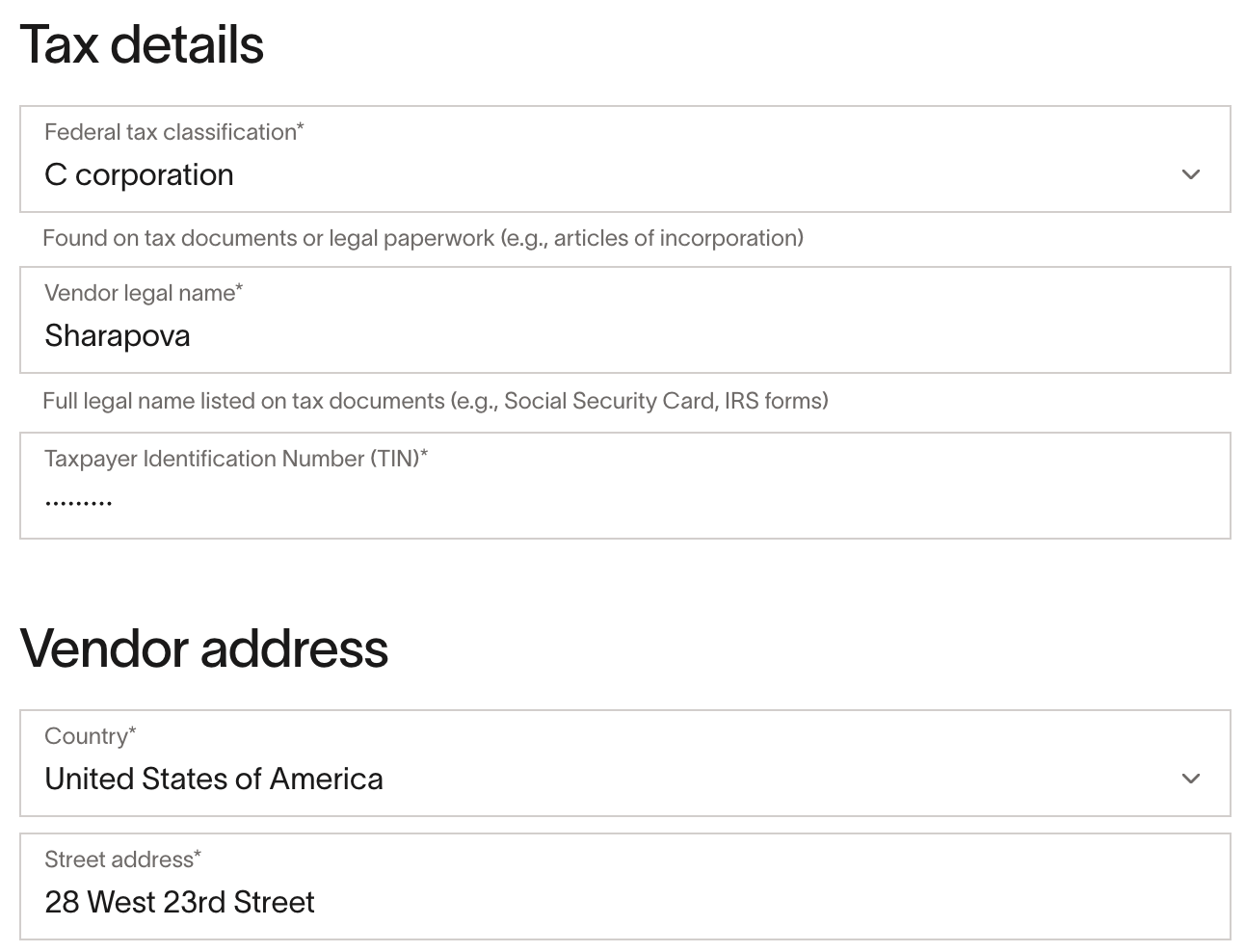
When uploading or entering a vendor's tax details, Federal Tax Classification, Legal Name, and address are required. TIN is required for domestic vendors and optional for international vendors.
Vendor Network tax detail updates
By default, when vendors submit or update their tax details through the Vendor Network, those changes require your review and acceptance before they take effect in your Ramp account.
When review is required, use the vendor profile to accept or reject the update. If Auto-approve tax details is enabled, future Vendor Network tax updates are applied automatically. Accepted and auto-approved updates replace the corresponding tax details in your Ramp account.
Federal tax classification
Vendors can be classified as the following:
- Individual/sole proprietor
- C corporation
- S corporation
- Partnership
- Trust/estate
- LLC C corporation
- LLC S corporation
- LLC partnership
- Other
- International
Ramp does not automatically mark vendors classified as International as 1099 eligible.
For domestic vendors, select the identifier type that applies:
- Social Security Number (SSN)
- Employer Identification Number (EIN)
International vendors can use a foreign TIN or VAT number.
Marking vendors as 1099 eligible
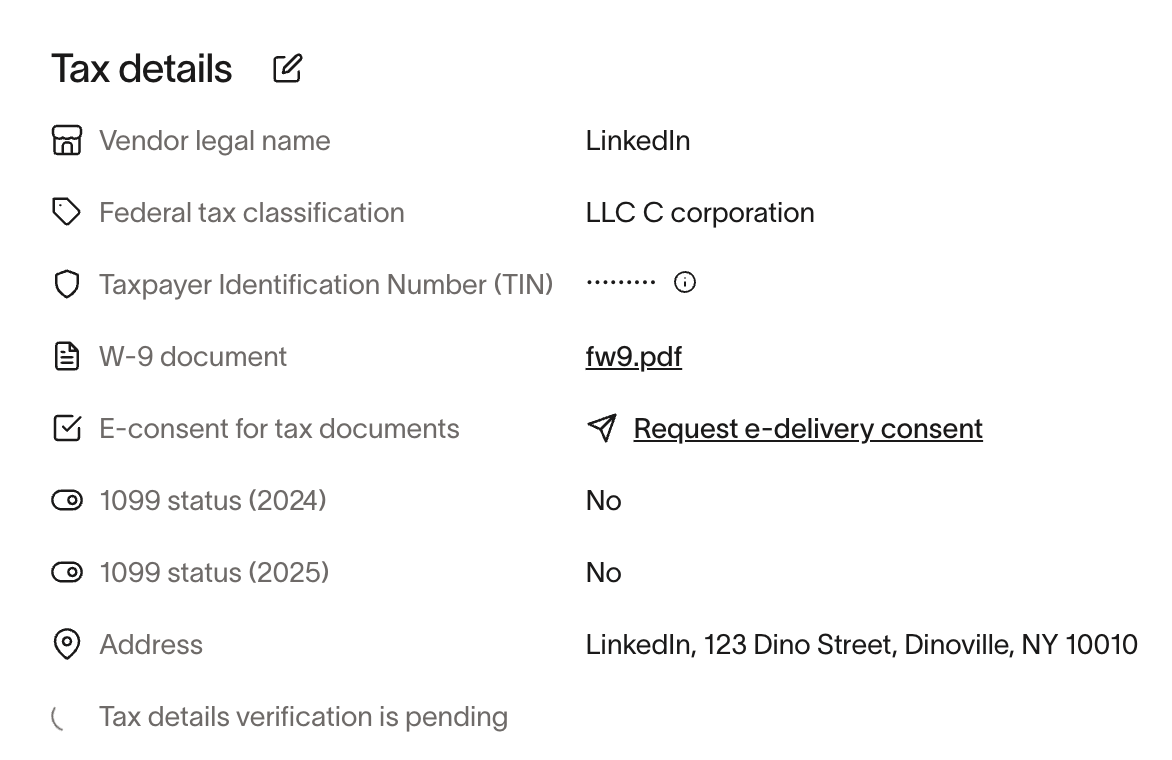
The 1099 status toggle indicates a vendor's 1099 eligibility status for that year. Ramp will automatically set this if a vendor meet's the requirements below, but you can manually override this yourself from a vendor's profile. If you manually adjust the toggle, Ramp will no longer automatically update it unless you undo this.
1099 eligibility criteria:
A vendor will automatically be marked as 1099 eligible for a specific year if
- Bill payments total at least $600 USD for tax years through 2025 or at least $2,000 USD for tax year 2026. You can review vendor 1099 statuses for the applicable tax year.
- Bills paid by card are not included, bills paid manually outside of Ramp are included
- Federal tax classification is not C corporation, S corporation, LLC C corporation, LLC S corporation, International, or Other (if tax details aren't collected, we will use only Bill Pay spend)
View vendor tax details
After saving vendors' tax details, you can see which vendors have or are missing tax details from the Vendors table. You can add the Tax details column and filter by Tax details complete and TIN verification status.
Exporting vendor tax details
Users with permission to view vendor payment and tax details can select View TIN on a vendor profile. Admin and Accounts Payable roles can also export TIN values. From the Vendors table, select the export icon, then select Export CSV of filtered vendors, including tax details. This file includes vendors matching the current table filters and contains columns for total spend, last 30-day spend, the vendor's tax details, and yearly 1099 eligibility status. The spend columns combine card, reimbursement, and Bill Pay spend.
Since tax details includes sensitive information like the vendor’s TIN, Ramp will requireMulti-Factor Authentication (MFA)for exports.If you have not recently authenticated via MFA, a pop-up will appear and will ask you to authenticate via your configured authentication method (e.g. via phone or via email).
Export 1099 vendors
To export 1099 eligible vendors go to Vendors > click the 3 dots > Download 1099 vendors > select the year. Same rules as above on MFA apply here. This file will include only vendors that have the 1099 toggle set to ON for that year. It will include a column with the annual 1099-able spend made out to that vendor, excluding credit card payments, and the vendor's tax details (if provided).
This can be helpful for those filing 1099s off Ramp, or for reporting/audit purposes.
Exporting vendor tax documents
You can either individually export or bulk download vendor tax documents (W-9/W-8).
To individually export, go to the vendor profile > Payment & tax > click the document linked under W-9 or W-8 document. To bulk export, go to the Vendors table > click the export icon > Export documents > select W-9. You will receive a secure link (expires after 24 hours) via email to download the files.
Bulk upload vendor tax details
You can bulk upload/update tax details in a few different ways:
- Bulk upload tax documents to add or update tax details - instructions here
- Bulk import tax details to add new tax details - instructions here and details below
- Bulk update tax details to override existing tax details - instructions here
For bulk import, the following fields are required for successful upload:
- Vendor Name
- Federal Tax Classification (choose from “Individual, “C-Corporation”, “S-Corporation”, “Partnership”, “Trust”, or "International"*)
*If "International" is chosen, all other fields in the file will be ignored as 1099s are not required for them. - Taxpayer Identification Number (TIN)
- Tax Address Line 1 (Ex. “71 5th Ave”)
- City (Ex. “New York”)
- State/Province/Region (Ex. “NY”)
- Zip / Postal Code (Ex. 10003)
After uploading the completed template file, you will see a preview of the list of vendors you are importing. Verify this list is correct and click "Import" to bulk update your vendors with the tax details. If any changes are required, you can correct the info in the template and re-upload.
To request tax information from selected vendors, follow the bulk request steps.
Note: If any changes are required, you can correct the info in the template and re-upload.
Frequently asked questions
Can I hold or block bill payments until a vendor provides tax details (W-9/W-8)?
No. Ramp does not currently support holding or blocking bill payments based on missing tax details. Bills can be scheduled and paid regardless of whether a vendor's W-9 or W-8 is on file. To collect tax details before year-end, you can request them directly from vendors or add them manually from the vendor profile.
Does requiring an uploaded tax document block bill payments?
No. Enabling Require an uploaded tax document in vendor settings means vendors must upload a W-9 or W-8 when submitting their details through a request, but it does not prevent bills from being scheduled or paid for that vendor.
Legal: Ramp does not provide accounting or tax advice. Please work with your accountant to determine the tax requirements applicable to your business.