Automatically lock cards and funds
Overview
Available on Ramp Plus. See Ramp Plus overview for plan details.
Note: If you received an email from Ramp about your company’s migration to the updated missing-items auto-lock experience, see Missing-items auto-locks for cards and funds for migration details and instructions for the new experience.
The missing-item instructions in this article cover the legacy experience, configured within individual submission policies. For the Alpha experience, see Missing-items auto-locks for cards and funds.
Ramp allows admins to automatically lock an employee's cards or funds when they have overdue requirements past a configured deadline. Auto-lock applies to these requirement types:
- Missing items — the employee has not submitted a required receipt or expense item within the deadline set on their submission policy. Missing items auto-lock applies to the card and/or associated funds.
- Expense reviews — an employee has not completed an assigned expense review within the configured deadline. Expense review auto-lock applies to the employee's primary physical card only.
- Repayment requests — a manager requested repayment on a transaction, and the employee has not completed the repayment within the configured deadline. Repayment auto-lock applies to the employee's primary physical card only.
- Change requests — a manager requested a change on a transaction, and the employee has not addressed it within the configured deadline. Change request auto-lock applies to the employee's primary physical card only.
With auto-lock enabled, employees are more timely with their submissions, reviews, repayments, and changes, and finance teams spend less time following up. Turning on auto-lock for missing items applies retroactively to existing transactions, and cardholders with missing items based on the enforcement policy will receive a notice the following day. If your card was locked due to fraud, see Ramp's fraud protection procedures.
Unlock cards and funds by lock type
How a card or funds unlock depends on the overdue requirement:
- Missing items: Submit every required receipt, memo, or accounting item. Funds unlock automatically within up to an hour after all missing items are submitted. If a receipt is lost, request an exception, which also unlocks the funds.
- Expense reviews: Complete every overdue assigned review. The primary physical card unlocks in near-real-time after all overdue expense reviews are resolved.
- Repayment requests: Complete every overdue repayment. Failed repayments caused by insufficient funds must be retried with sufficient funds.
- Change requests: Address and submit every overdue requested change.
- Multiple lock reasons: Missing items lock funds, while expense reviews, repayment requests, and change requests lock the primary physical card. These locks are independent, so each remains until all underlying overdue requirements are resolved.
- Admin options: An Admin can snooze card locking, which automatically lifts task-based physical card locks and pauses enforcement. Adjusting missing-item policy settings or required items can unlock funds.
If a cardholder requests a missing-item exception before the auto-lock date but it is not approved in time, the funds still lock.
How to enable auto-lock for missing items
Note: these instructions cover legacy, per-submission-policy missing-item auto-locks, a Plus-only feature. For the Alpha experience, see Missing-items auto-locks for cards and funds.
- From your Ramp Dashboard, go to Policy > Travel & expenses > Additional controls > Expense requirements.
- To update an existing policy, click on the 'Expense Requirements ' button and the ' Edit' box next to the policy you would like to apply auto-locking to. Please note: auto-locking must be applied individually to each policy. You will see the auto-locking toggle on the right-hand corner of your screen.
- To create a new policy, click on the "New Submission Policy" button.
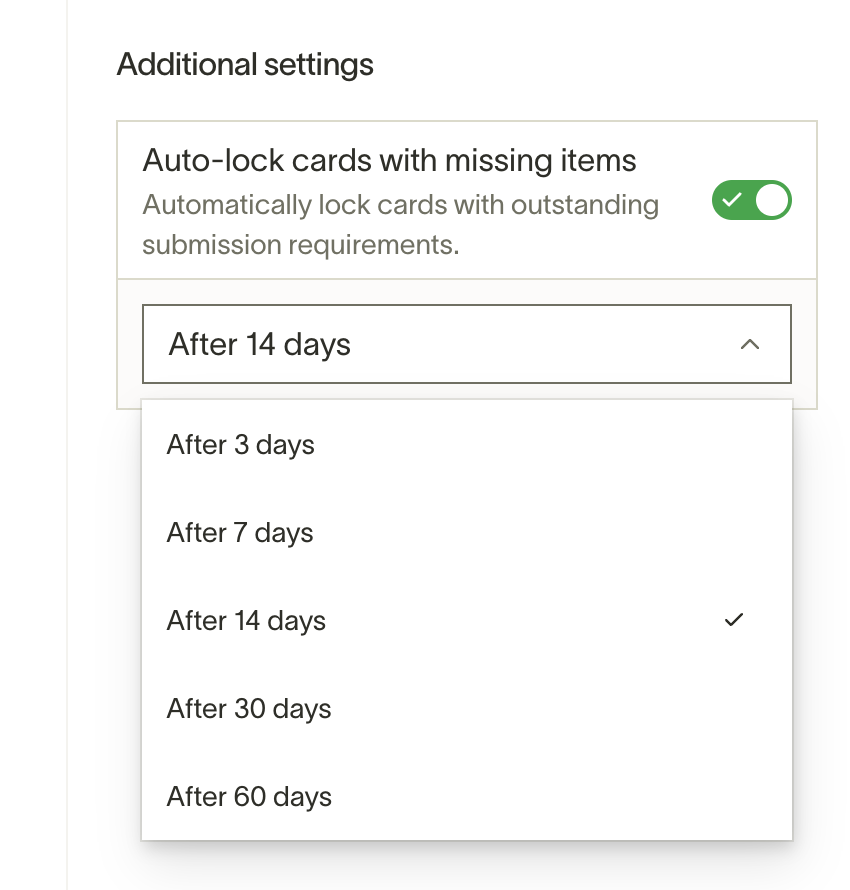
- Within the selected submission policy, turn on Auto-lock funds with missing items.
- Select the number of days that your cardholders have to submit missing items
- You can choose from 3, 7, 14, 30, or 60 days for cardholders to submit missing items. If the card with this submission policy is missing items after the allotted time period, the card and/or associated funds will automatically lock.
- Auto-lock is enabled.
How to enable auto-lock for expense reviews, repayment requests, and change requests
Note: this is a Plus-only feature.
To enable expense review auto-locking, contact Ramp Support.
To enable repayment request and change request auto-locking, opt in through What's new.
Admins can configure automatic physical card locking for employees who do not complete expense reviews, repayment requests, or change requests within a set deadline. Unlike missing items auto-lock, these settings apply at the business level rather than per-policy.
After enabling access, configure auto-lock settings:
- Go to Policy > Travel & expenses.
- Under Additional controls, select Expense reviews.
- Scroll to the Settings section at the bottom of the drawer.
- Under Expense reviews, Repayment requests, or Change requests, select a deadline from the dropdown:
- No time limit , 7 days , 14 days , 30 days , or 60 days
- Turn on the relevant setting:
- Lock physical card when an expense review is overdue
- Lock physical card when a repayment is not completed on time
- Lock physical card when a change request is not addressed on time
- Optionally, select users or groups to exclude from auto-locking under Who will be excluded?
Note: When you change a deadline, existing tasks keep their previously set deadline. A confirmation dialog lets you choose whether to exempt existing tasks from card locks.
How to configure user and group exclusions
The exclusion controls below apply to physical card locking for overdue expense reviews, repayment requests, and change requests. User and group exclusions are not available for legacy missing-item auto-locks configured within individual submission policies. For the Alpha experience, see Missing-items auto-locks for cards and funds.
Admins can exclude specific users or groups from each auto-lock type independently. Excluded employees will not have their physical card locked for overdue tasks of that type.
- Go to Policy > Travel & expenses.
- Under Additional controls, select Expense reviews.
- Scroll to the Settings section.
- Under Expense reviews, Repayment requests, or Change requests, use the Who will be excluded? dropdown to select users or groups.
When a user or group is added to the exclusion list, any active card locks for those users from that task type are automatically removed. This process may not be immediate.
How to snooze card locking
Admins can temporarily pause card locking for a specific employee. While snoozed, the employee's card will not be locked for overdue tasks, and any existing locks from overdue tasks are automatically lifted.
- From the homepage or card detail page: On an auto-lock notice banner, click Pause card lock for 7 days .
- From a fund's lock banner: Click Pause card lock and choose a duration: 7 days , 14 days , or 30 days .
After the snooze period expires, the employee's card may lock again if overdue tasks remain.
How this works
Example with multiple missing items
- Scenario : A cardholder made two purchases on May 10 and May 15 with missing receipts. Their funds are on a policy that auto-locks after 7 days for missing items.
- On May 17, the funds lock because 7 days have passed since the May 10 transaction.
- If the cardholder submits the May 10 receipt, the funds unlock immediately.
- If they do not submit a receipt for the May 15 transaction, the funds will lock again on May 22.
- If no receipts are submitted :
- Submitting the May 15 receipt on May 20 keeps the funds locked because the May 10 receipt is still missing.
Expense reviews, repayment requests, and change requests
- When an expense review, repayment request, or change request is assigned, the configured deadline starts from when the task is created.
- If the employee does not complete the task within the deadline, their primary physical card is locked.
- Once the employee resolves all overdue expense reviews, repayment requests, and change requests, the card is automatically unlocked.
- If an employee also has overdue missing items, their primary physical card and funds may be locked independently. The physical card unlocks when all overdue expense reviews, repayment requests, and change requests are resolved. The funds unlock when all missing items are submitted.
- Failed repayments due to insufficient funds count toward auto-lock because the employee can retry with sufficient funds. Failed repayments for other reasons do not count toward auto-lock.
Lock timing
- For missing items, funds become eligible to lock after the configured number of days from the oldest transaction's clearing time.
- Ramp checks eligible funds on a rolling schedule, so the lock may happen after the deadline during that fund's daily check.
- Auto-lock policies initiate a timer upon enablement, meaning older transactions with missing items will not lock immediately.
- Missing-item timing generally starts when the transaction clears. For eligible postpaid lodging, timing starts no earlier than checkout.
- For expense reviews, repayment requests, and change requests, enforcement runs on a daily schedule. There may be a delay of up to 24 hours between a task becoming overdue and the physical card being locked. Unlocking happens in near-real-time once the employee resolves all overdue tasks.
Disputed transactions
- Missing items are dismissed if a transaction is disputed, and no lock occurs when the deadline passes.
- If the dispute is canceled after the deadline, the funds will lock that day or the next.
- Note: cards can be temporarily locked due to routine sanctions screening, independent of missing receipts, fraud, or company policy.
Grace periods
- If the funds are moved to an enforcement policy, cardholders have a grace period equal to the new policy's timeframe to submit missing items on old transactions.
- Example: If a purchase was made 7 days ago and the new policy has a 3-day limit, the cardholder will have 3 days to submit missing items before the funds lock.
Checking individual fund lock status
- Go to Manage Spend > Funds
- Select the fund and click Actions > Edit .
- Update the auto-lock date in the spending controls and restrictions section.
- Check the Activity tab to see if/when an auto-lock was applied to the fund.
Cardholder experience
Missing items notifications
Cardholders are notified at multiple points during the missing items auto-lock process:
- When a policy is set. When the policy changes, users will see it in an email stating that their funds will lock after X days.
- Before locking. By default, the user receives an email warning 1 day before the funds lock. Some businesses receive an earlier 3-day warning instead. From the Ramp dashboard, users see a warning icon on cards that will be locked, along with the date the lock will occur.
- At lock. At the time the funds are locked, the cardholder will receive an email stating the funds are locked and showing their missing items.
- At declined swipe. If a cardholder tries to make a transaction with locked funds, they will get an SMS informing them that they need to submit missing items.
- At unlock. When the funds are unlocked, the cardholder receives an email notifying them.
Expense review, repayment request, and change request notifications
Cardholders are notified through email, SMS, connected chat apps, and in-app banners during the expense review, repayment request, and change request auto-lock process:
- When tasks are due soon or overdue. Ramp sends an urgent warning when sanctionable tasks are overdue or due in fewer than 3 days. If Ramp Digest is due, the warning may be included there instead. On the physical card detail page, a yellow warning banner displays: "Your Ramp Card may lock in X days if tasks aren't completed on time," with links to resolve each task.
- At lock. When the card is locked, a red banner appears on the homepage and card detail page with the message "Complete to unlock your card:" followed by a list of overdue tasks with resolution links.
- At unlock. When all overdue tasks are resolved and the card is unlocked, the cardholder receives an email confirming the card has been unlocked.
Exempting specific merchants
- Funds only lock when required items are missing.
- You can exclude certain merchants from needing item submissions (e.g., receipts for Facebook transactions).
- Navigate to "Spend Guidelines" in Settings, then go to the "Auto-approved merchants" section to add merchants to this list.
- Transactions from exempted merchants won't lead to locked funds, regardless of submission policies.
More information here: Excluding merchants from receipt & memo requirements
Understanding physical vs. virtual card locks
- Cardholders may have both physical and virtual cards, and these appear separately under the Manage Spend tab. The Manage Spend > Fund section shows all virtual cards, and the Manage Spend > Cards section shows all physical cards.
- Unlocking a virtual card does not unlock the corresponding physical card (and vice versa). Each card must be managed individually.
- When troubleshooting a decline, double-check that you are viewing and unlocking the correct card by confirming the card type and last four digits.
- Auto-lock for expense reviews, repayment requests, and change requests locks only the employee's primary physical card. Virtual cards and non-primary physical cards are not affected.
Frequently asked questions
What happens if my card or funds are locked for multiple types of overdue tasks?
Funds and physical cards are locked independently based on the type of overdue task:
- Funds are locked for overdue missing items. Your funds stay locked until all missing items are submitted.
- Your primary physical card is locked for overdue expense reviews, repayment requests, and change requests. Your physical card stays locked until all overdue tasks are resolved.
For example, if you have both an overdue repayment request and overdue missing items, completing the repayment unlocks your physical card, but your funds remain locked until you submit the missing items. Similarly, submitting the missing items unlocks your funds, but your physical card stays locked until the repayment is completed.
Can admins exclude specific people from expense review, repayment request, or change request auto-lock?
Yes, if your business has access to physical card locking. Admins can exclude individual users or groups from each auto-lock type independently. Go to Policy > Travel & expenses, select Expense reviews under Additional controls, and use the Who will be excluded? dropdown under the relevant task type.
Does changing the deadline affect existing expense reviews, repayment requests, or change requests?
No. Existing tasks keep their previously set deadline. When you change the deadline, a confirmation dialog lets you choose whether to exempt existing tasks from card locks.
Which card gets locked for overdue expense reviews, repayment requests, or change requests?
Only the employee's primary physical card is locked. Virtual cards and other physical cards are not affected.