Construction project manager approvals
Overview
Available on Ramp Plus. See Ramp Plus overview for plan details.
Add Project manager as a step in an approval policy to route an expense based on the project it is coded to. Ramp uses the manager assigned to that project for expense review, Bill Pay, and purchase order request approval workflows. The assignment does not route approvals until the applicable workflow includes this step.
Use the Projects hub to manage project manager assignments and defaults and see which approval workflows use the Project manager step. Businesses using automatic project manager sync can also review draft imported project managers there.
Accounting providers that support automatic project manager sync
Ramp can automatically import project manager assignments from Sage Intacct, NetSuite, and Acumatica.
If your accounting provider does not support automatic sync, open the Projects hub and assign a project manager to each project manually. You can use these assignments with the Project manager step in an approval policy.
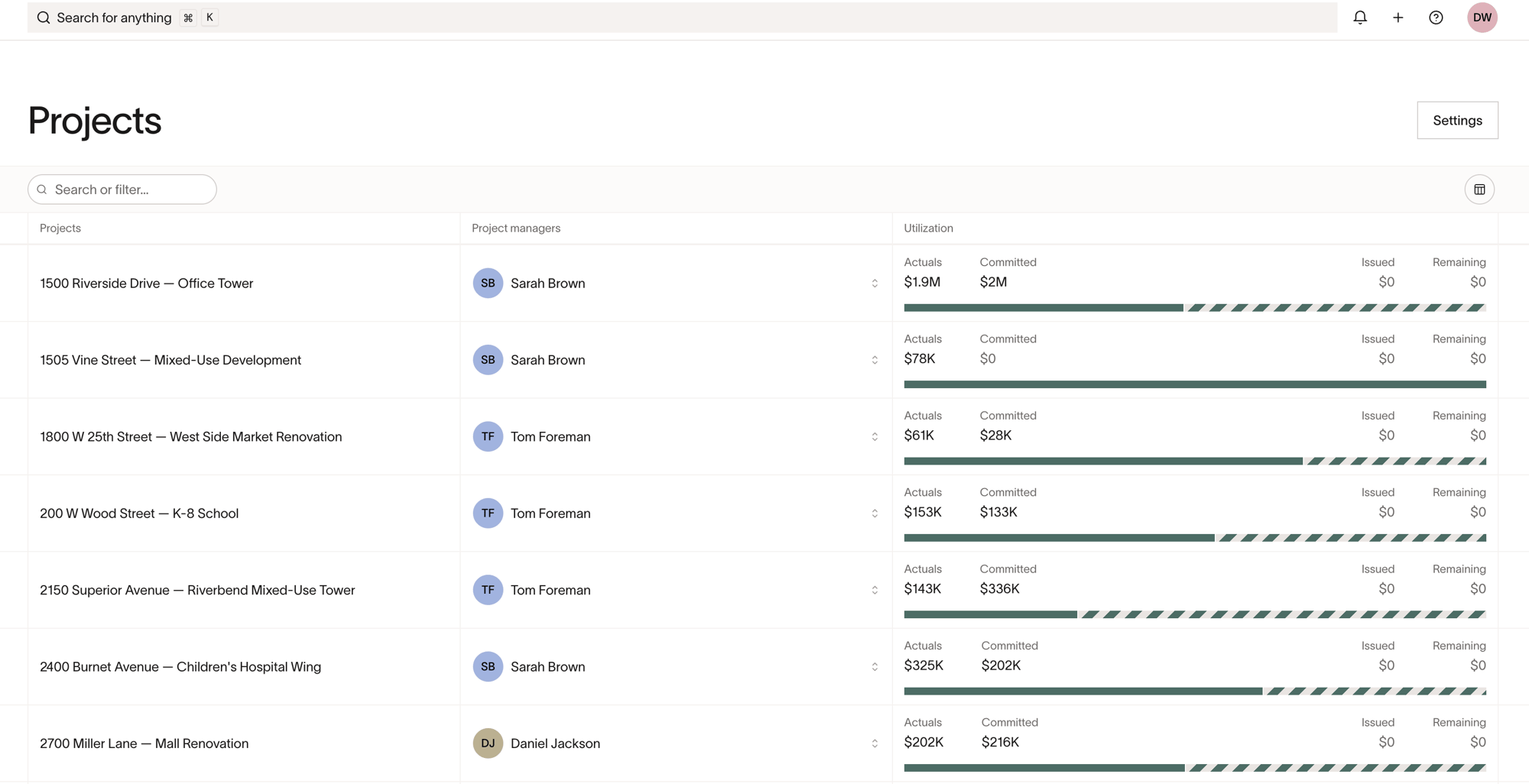
You need access to Projects and permission to manage project assignments. If the assignments are read-only, ask someone with those permissions to update them.
Set default project managers
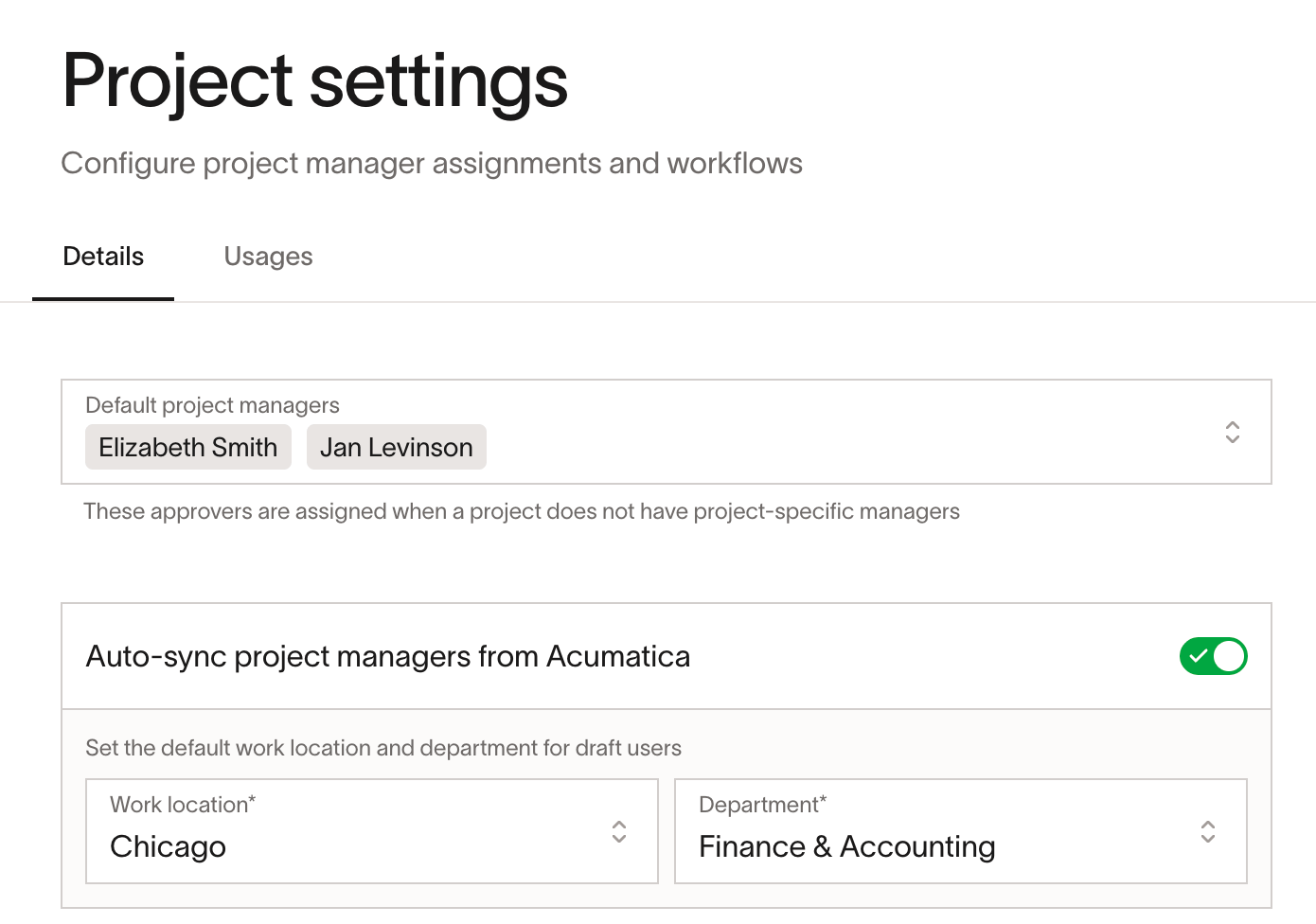
Open Project settings and add Default project managers who should receive approvals when a project does not have an assigned manager.
You need access to Projects and project settings permissions to change these settings. If the settings are unavailable or read-only, ask someone with project settings permissions to configure them.
Project manager assignments synced from your accounting provider cannot be edited in Ramp. Update the assignment in your accounting provider, then sync the change to Ramp.
Match imported project managers to Ramp users
Note: This section applies only to businesses using automatic project manager sync with Sage Intacct, NetSuite, or Acumatica.
Ramp matches an imported project manager to a Ramp user by the manager's work email in the accounting provider. A project remains unmatched when no manager is assigned in the accounting provider, the manager has no primary work email, or no Ramp user has the imported email.
Correct the manager or email in the accounting provider. Ramp refreshes the assignment during the next accounting sync; return to the Projects hub afterward to confirm the change.
Review draft project managers
Note: This section applies only to businesses using automatic project manager sync with Sage Intacct, NetSuite, or Acumatica.
When you enable automatic sync in Project settings, choose the default Ramp work location and department for imported managers who do not match an existing Ramp user.
When an imported email does not match an active Ramp user, Ramp can create or update a draft project manager using the default work location and department from Projects settings. Draft users cannot sign in, approve, or receive an invitation until an authorized user publishes them.
Use Review draft project managers when Ramp shows the banner in Projects settings. Review the imported information, then publish the users needed in approval workflows. See Setting up draft users for draft-user behavior and invitation steps.
Add project managers to approval workflows
Open Usages in the Projects hub to see which workflows already use project manager assignments. Then add the Project manager step to each additional workflow where it should apply:
- Add it to the applicable expense review policy for card transactions and reimbursements.
- Add it to the applicable Bill Pay approval workflow for bills.
- For purchase order requests created through a Procurement Spend Program, add it to the relevant Procurement workflow.
- For other purchase order requests, add it to the spend request approval policy.
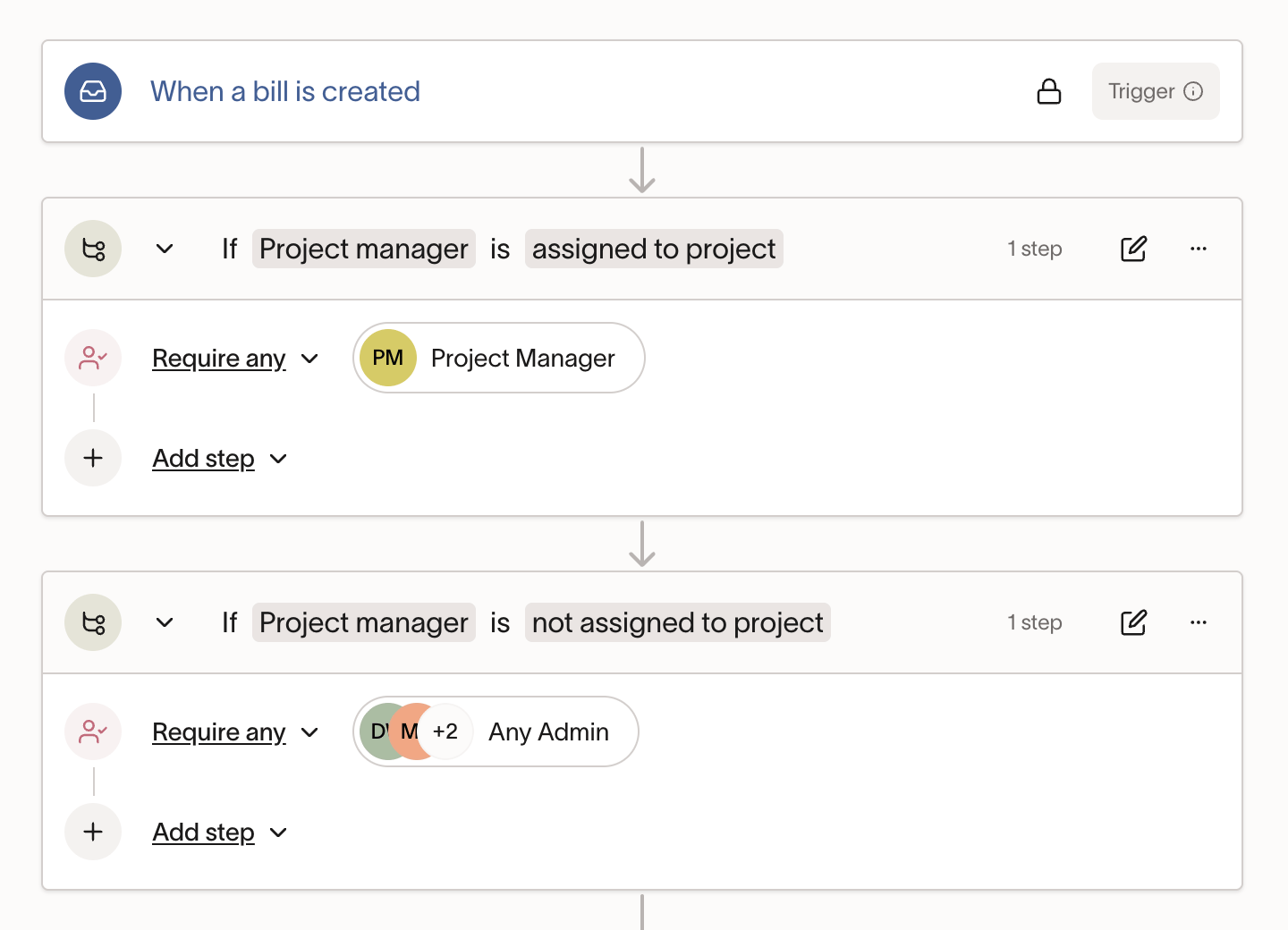
Assigning a manager to a project in the Projects hub does not route approvals by itself. Add the Project manager step to every policy where it should apply.
If an assigned manager is not receiving approvals, confirm that the matching user is active and that the applicable workflow appears under Usages. Ramp uses the default project managers when the project has no project-specific managers.