Communicating with other users on Ramp
Overview
Ramp provides several ways for admins, managers, and employees to communicate within the platform. These are tied to specific workflows — such as commenting on transactions, sending reminders for missing receipts, or nudging approvers about pending items. Ramp does not have a general-purpose bulk email or announcement feature for sending custom messages to all employees at once.
Commenting on spend activity
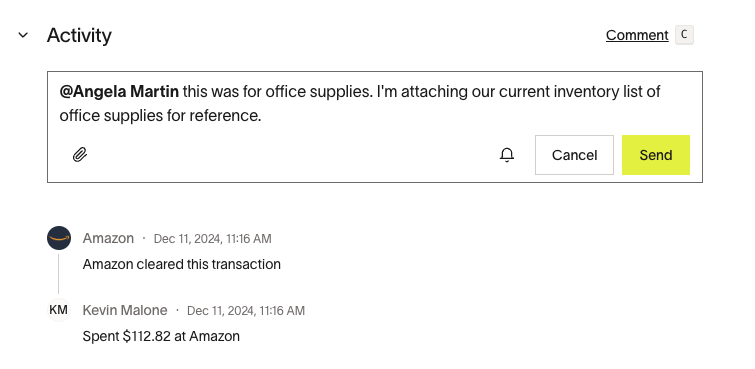
You can have conversations about specific spend items using the Activity tab. Navigate to the item you want to discuss and select the Activity tab. Commenting is available for bills, bill vendors, purchase orders, reimbursements, transactions, Spend Programs, requests, and fund merchants.
The owner of the spend object (for example, the transaction or request) and approvers can all leave comments in the Activity tab. Approvers receive comment notifications when they are subscribed or tagged. Tagged users also receive an email notification.
Commenting actions
- Comments may be edited or deleted
- Use Subscribe or Unsubscribe to turn notifications on or off. Spend object owners are automatically subscribed. Other users can subscribe themselves or be subscribed when they are tagged.
- You may tag other Ramp users, who will also be subscribed to the activity
- You can upload attachments to your comments. Supported file types are csv, doc(x), heic, jpeg, pdf, png, txt, webp, and xls(x). There is a limit of 5 files per comment.
Sending reminders for missing items
Admins and managers can send reminders to employees who have not submitted required receipts or memos for their transactions. These reminders use a standard Ramp notification template and cannot be customized with a personal message.
- On Expenses > Card transactions, open Missing items (under Reminders if that menu appears). In the drawer, select Remind all for the current filtered list or the reminder button beside one cardholder. If Missing items is unavailable, ask your Ramp Admin to check your access and whether there are missing items to remind about.
- If a transaction in Inbox card transactions has missing items, select it and use the selected-row Remind action when available to request those items from its cardholder, not an approver.
- Managers can remind employees to submit missing receipts and memos.
- Admins can remind both managers and employees.
Employees receive an email listing the specific transactions that need attention. For more details, see Reviewing transactions from Ramp cards.
Sending reminders to approvers
Admins with access to approver reminders can send reminders to approvers listed in the pending-approvals drawer. These reminders use a standard Ramp notification template.
- On Expenses > Card transactions, select Reminders > Pending approvals to open the approver reminder drawer when the option is enabled. Select Remind next to a listed approver to send a reminder; opening the drawer does not send one. If the option is unavailable, ask your Ramp Admin to check your access and whether there are pending reviews.
- Admins can also remind managers to review reimbursements from the Expenses > Reimbursements > Needs review tab.
Managing notification preferences
Each user can manage their own notification preferences to control which emails, SMS, and push notifications they receive from Ramp. Go to Profile > My settings > Notifications to configure preferences.
Notification preferences are managed by each individual user — admins cannot configure notification preferences on behalf of other users. For more details, see Manage your communication preferences.
Other ways Ramp notifies employees
Ramp automatically sends notifications to employees in several workflow-specific scenarios. Admins do not compose these messages — they are triggered by actions within the platform:
- Employee policy signature requests: Ramp emails employees when they need to sign an expense policy. See Getting Started with Ramp's Expense Policy Setup for upload and replacement options.
- Submission policy reminders: Ramp automatically notifies cardholders via SMS and email when they need to submit receipts or memos after a transaction. See Submission policies .
- Card lock notifications: Cardholders are notified via SMS, email, and push notification when their card or funds are locked or unlocked. See Automatically lock cards and funds .
- Transaction flagging: When a transaction is flagged as out of policy, admins can request changes, which starts an email thread between the reviewer and the cardholder. See Reviewing transactions from Ramp cards .
- Slack and Microsoft Teams: If your organization has connected Slack or Microsoft Teams, Ramp sends direct messages to employees for transaction approvals, reimbursements, and missing items. See Set up Ramp's Slack integration for Admins or Set up Ramp's Microsoft Teams integration for Admins .
Frequently asked questions
Can I send a custom email or announcement to all employees on Ramp?
No. Ramp does not have a feature for composing and sending custom bulk emails or announcements to employees. Admin-to-employee communications on Ramp are tied to specific workflows, such as reminders for missing receipts or pending approvals. To send a company-wide message, use your organization's existing email or messaging tools outside of Ramp.
Can I send a reminder to all employees at once for missing receipts?
Not every employee. Remind all notifies cardholders in the current missing-items drawer view; see Sending reminders for missing items.
Do employees get notified when I leave a comment on their transaction?
Yes. The spend object owner and any tagged users receive an email notification when a comment is posted in the Activity tab.