Booking travel on Ramp: Employee guide
Want to book a trip using Ramp Travel? You're in the right place. Want to book travel using Ramp funds and another travel platform? Read morehere.
Overview
We're excited to introduce Ramp Travel, your streamlined solution for business travel. With Ramp Travel, booking flights and hotels is easy. You can search for flights and hotels directly within Ramp and know exactly which options are within your company's policy. After booking with Ramp Travel, there's no need to hassle with receipt submissions. Everything is seamlessly managed on the same spend management platform. You can also easily track and manage all your bookings and trips within the My travel tab.
How it works
Booking Travel on Ramp is easy. Open My travel to search for flights, hotels, and cars, or access previous and upcoming trips.
Video walkthrough: Book flights, hotels, and cars on Ramp as an Employee. Best before your first trip so you can search, book, and apply your travel policy without leaving Ramp. Watch the video.
Note that you will not be able to see this tab unless your admin has enabled this function for their employees. See here for more details on booking travel off-ramp.
Booking flights
Follow the steps below to book your desired flights:
- Enter your travel details: On the My travel page, enter your departure city or airport, destination city or airport, departure date, and return date (if it's a round trip), and click on the search button.
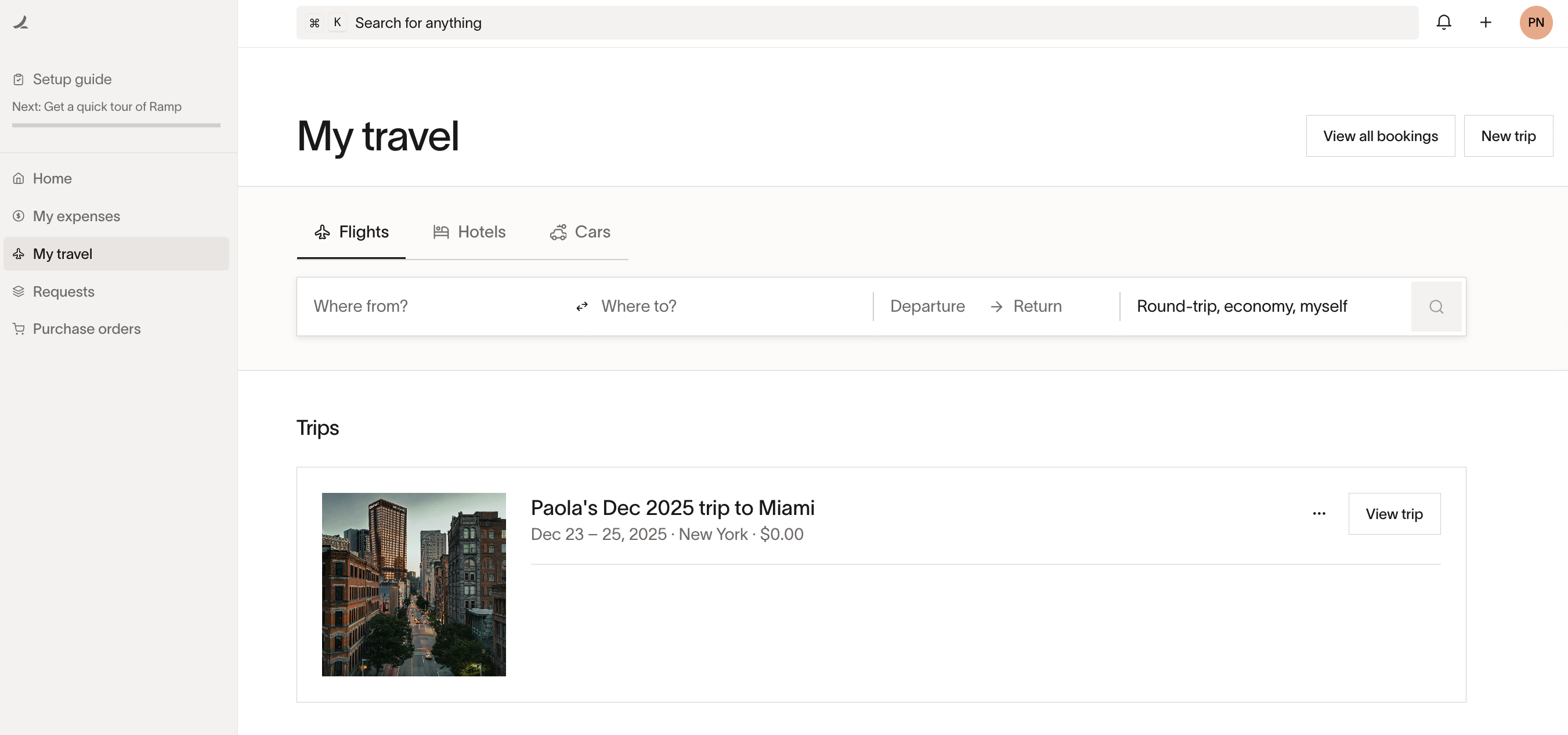
- Review search results: Ramp will display a list of available flights based on your criteria and you can filter by price, airline, departure time, policy etc. Evaluate options and select a flight that meets your company's travel policy. The icon next to the price indicates whether a flight is within your travel policy. If a flight is flagged as out of policy, toggle on the price to learn why. If you believe a flight outside the policy is justified, ensure you have the necessary approvals before booking.
- Review fare options: Some flights may offer different fare options, such as basic economy, economy, or business class with different cancellation policies and perks. Review these options carefully to see what's included. The icon next to the price indicates policy compliance on the top right. Once you're ready, click Continue to checkout .
- Enter traveler information: After selecting your flight, enter your passenger information. You'll only need to enter your information once since Ramp saves the data for easier checkout in the future.
- Select funds: Select the correct funds, or submit a new funds request.
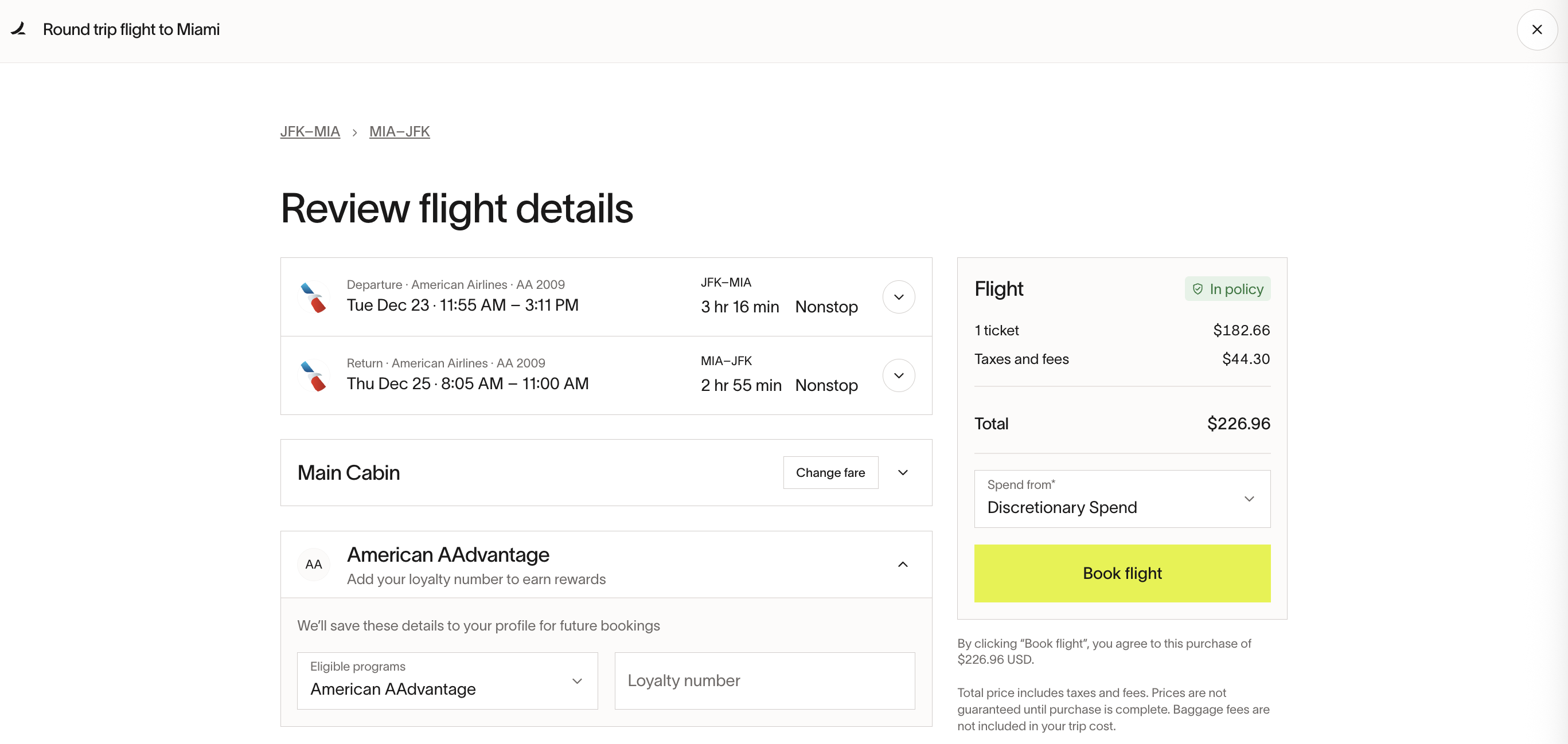
- Review and confirm: Before completing your booking, review all the details, including the flight itinerary, passenger information, fare options, and cancellation policy. Ensure everything is correct, as most flights are non-refundable. Flights may be voidable for the first 24 hours after booking.
- Complete booking: Once you're ready, click on the Book flight button to finalize your reservation. If the booking is successful, you will receive a confirmation email shortly afterward with all the details of your booking.
- View your booking (optional): After booking your flight, open My travel to view your booking itinerary, cancel your flight (if it is within the cancellation period), or resend your confirmation email.
To add extras such as travel insurance, paid pieces of baggage, as well as online check-in, please sign in to the airline app or website and manage your booking from there.
Booking hotels
Follow the steps below to book your desired hotel:
- Enter your travel details: On the My travel page, toggle to Hotels and enter your destination city or area, check-in date, and check-out date. Click on the search button.
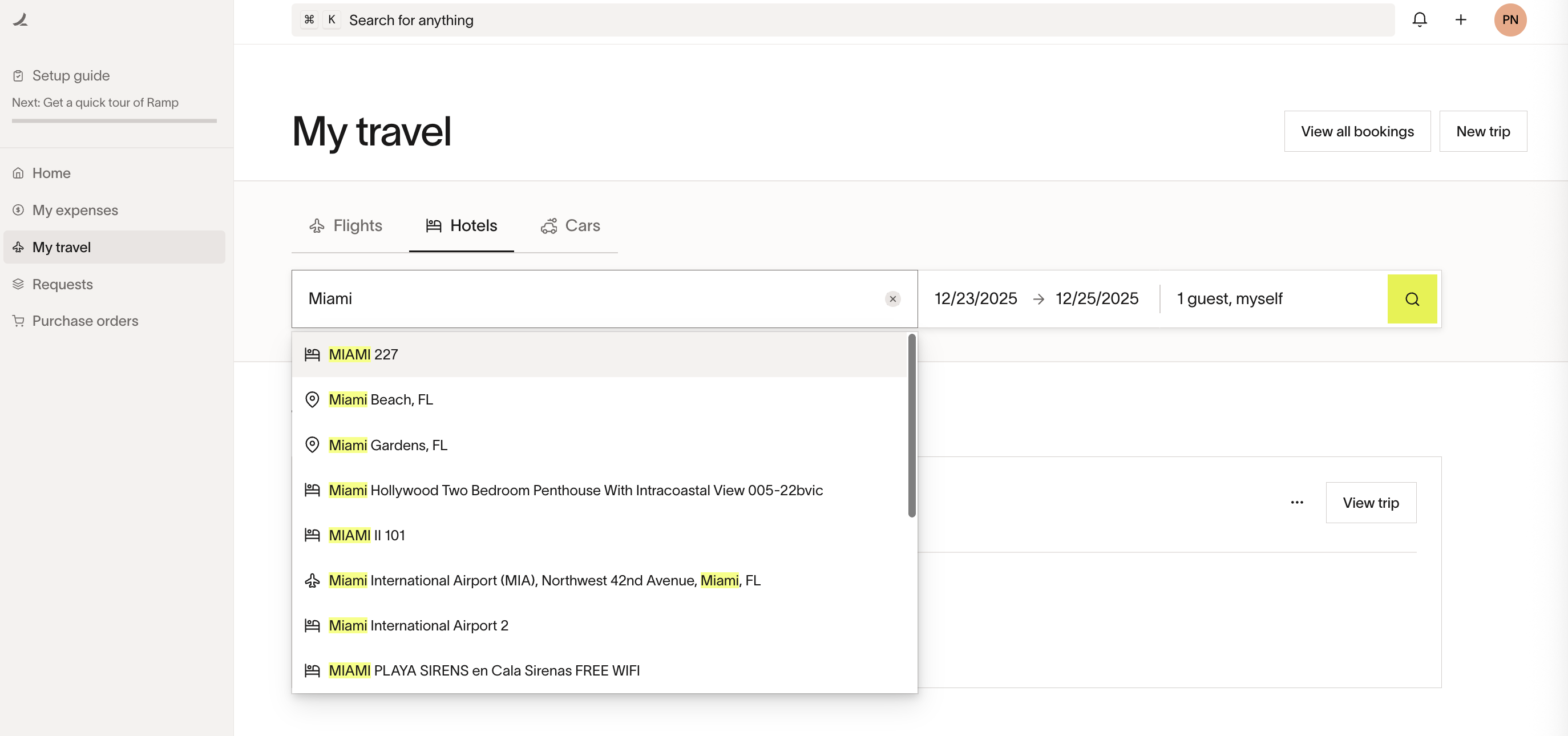
- Review search results: Ramp will display a list of available hotels based on your criteria and you can filter by hotel class, price, policy, etc. Evaluate options and select a hotel that meets your company's travel policy. The red icon next to the price/night indicates whether a hotel is out of policy, you can toggle on the icon to learn why. If you believe a hotel outside the policy is justified, ensure you have the necessary approvals before booking.
- Review hotel and different room options: Click Select on the hotel you're interested in to access more information and choose between the different room options. Different room types may offer different cancellation policies and perks. Review these options carefully to see what's included. The icon next to the price indicates policy compliance. Once you've decided, click Select .
- Enter traveler information: Enter your personal information and existing loyalty programs. You'll only need to enter your information once since Ramp saves the data for easier checkout in the future.
- Select funds: Select the correct funds, or submit a new funds request.
- Review and confirm: Before completing your booking, review all the details, including the hotel details, personal information, refunds, and cancellation policy. Make sure everything is correct, as some bookings may be non-refundable.
- Complete booking: Once you're ready, click on the Book hotel button to finalize your reservation. If the booking is successful, you will receive a confirmation email shortly afterward with all the details of your booking.
Booking cars
Follow these steps to book your desired car rental on Ramp:
- Enter Your Travel Details:
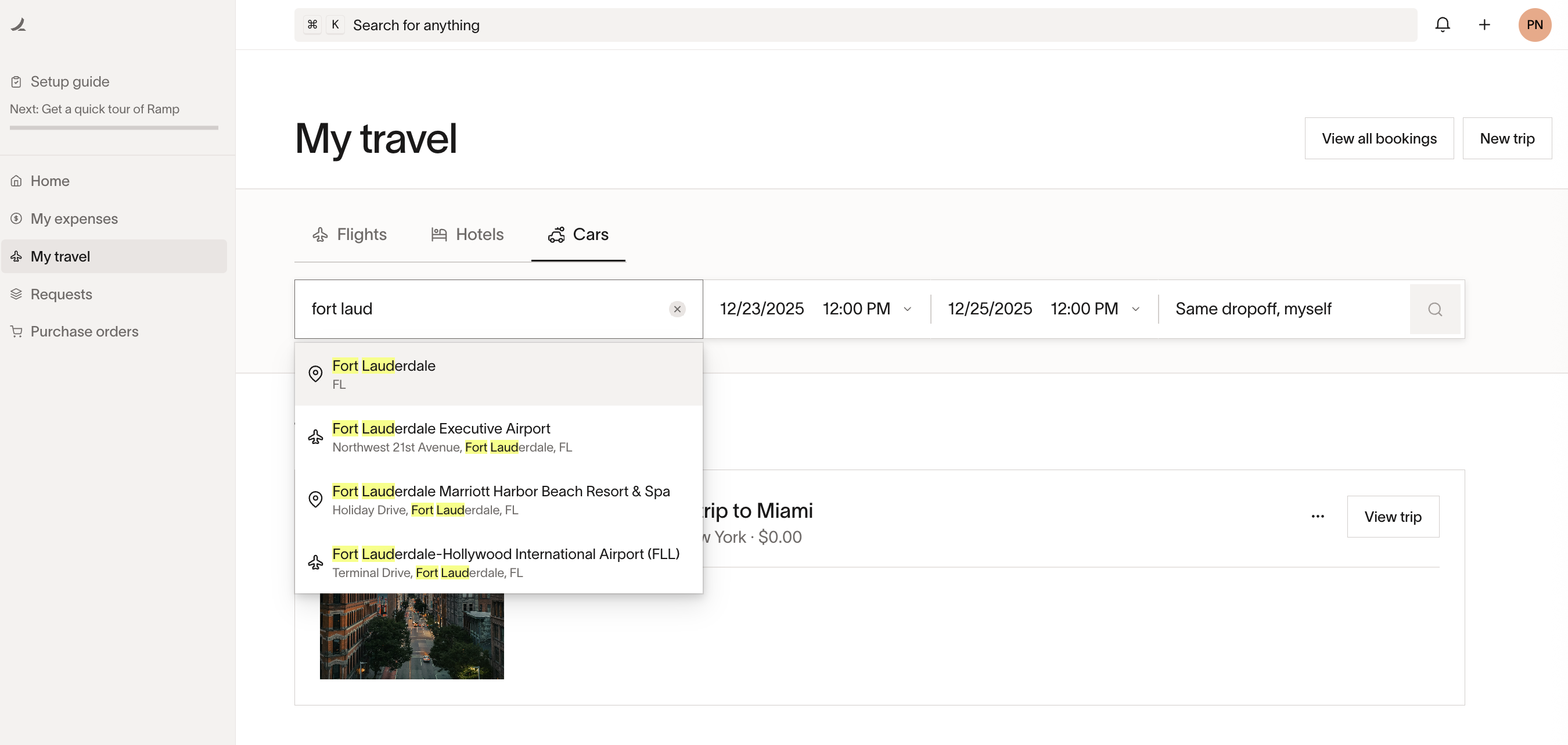
On the My travel page, toggle to Cars and input your pick-up location, drop-off location, pick-up date, and drop-off date. Click on the search button.
- Review Search Results:
Ramp will display a list of available car rentals based on your criteria. You can filter by car type, price, policy compliance, and more. Evaluate your options and select a car that meets your company's travel policy. A red icon next to the rate will indicate if a car rental is out of policy—click the icon to see the details. If you need to book a car outside of policy, ensure you have the necessary approvals before proceeding. - Review Car Details and Options:
Confirm that the rental aligns with your requirements and policy compliance. Once satisfied, click Select to proceed. - Enter Traveler Information:
Fill in your personal details. Ramp saves your information for future bookings, so you'll only need to enter it once. - Select funds: Select the correct funds. Ramp currently doesn't allow submitting fund requests for car rental bookings.
- Review and Confirm:
Before finalizing your booking, review all the details, including the car rental information, personal details, refund policies, and cancellation terms. Ensure that everything is correct, especially since some bookings may be non-refundable. - Complete Booking:
Once you're ready, click on the Book car button to finalize your reservation. If the booking is successful, you'll receive a confirmation email shortly afterward with all the details of your rental.
This step-by-step process ensures that you get the best corporate rates and maintain compliance with your company's travel policies—all while enjoying the ease of managing your travel in one place with Ramp.
Submitting travel requests for approval
Depending on your company's travel policy, some travel bookings may require manager or admin approval before you can complete your booking on Ramp.
- Book your travel: Select your flight, hotel, or car rental as usual.
- Submit for approval: At the end of the checkout flow, click the Submit Request button.
- Notification: Your manager or admin will be notified of your request.
- Approval: Upon approval, the booking will be processed, and you will receive a confirmation email.
Please note that the price of the booking may change, and the request will reflect the latest price. To track its status, open My travel, then select View all bookings and Requests.
How do I retrieve my booking details?
Open My travel, select the trip and booking, then click Resend email to resend the flight or hotel confirmation email.
How do I modify/cancel my booking?
To confirm available support options, open My travel and select the trip and booking. On the booking details page, you'll see options such as Change flights, Cancellation options, and Chat with support.
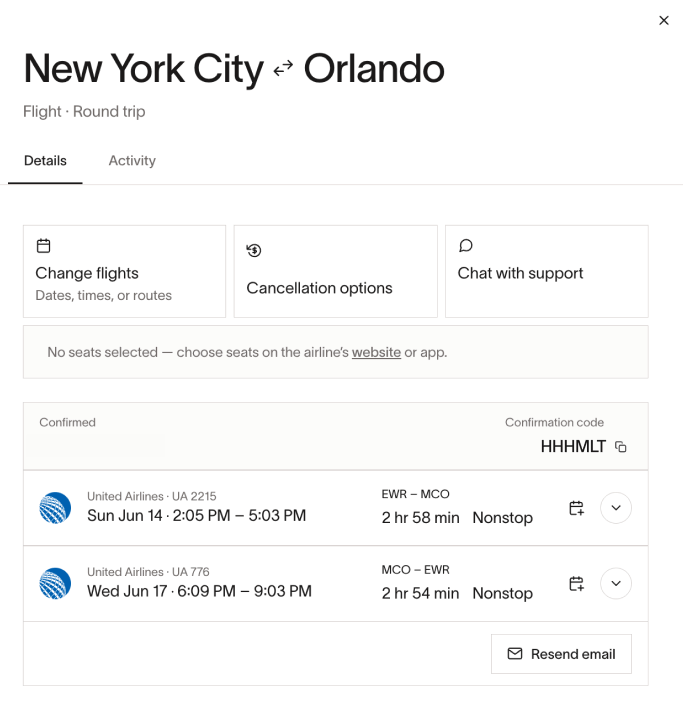
For cancellations
- If your booking is within the cancellation period, you can cancel on Ramp website by clicking Cancel reservation .
- If your booking is no longer eligible for cancellation, please contact a travel specialist to discuss your options. Depending on the booking type, you will either see a 24/7 chat option — where you can contact the travel support team — or a phone number to reach Priceline for any intended modifications. Only car rental bookings require contacting Priceline directly — all other booking types are handled by the travel support team.
For modifications
If you need to modify travel dates, flight fare class, or hotel room type, please check your booking's modification and cancellation policy on the booking page.
Flights:
- You may be able to modify your flight on the Ramp website. Find more details in the Flight modifications article. If you don't see this self-serve option, please contact a travel specialist via 24/7 chat on the booking page.
Hotels:
- If you are extending your hotel stay, make a new booking via the Ramp Travel portal and call the hotel to combine the reservations.
- Otherwise, please contact a travel specialist to help you with any modifications. Depending on your booking type, you will either see a 24/7 chat option or a phone option, allowing you to contact the travel support team.
Cars:
- For a pay-at-pick-up car booking, the best approach is to book a new car rental and cancel your original for a full refund.
- Otherwise, please call Priceline for assistance with any modifications.
Mid-trip disruptions and emergency situations
For mid-trip disruptions, contact the travel specialist for help. Open My travel, select the trip and booking, then use Chat with support or another available support option on the booking details page. Only car rental bookings require contacting Priceline directly — all other booking types are handled by our travel support team.
Your booking page is the quickest way to get in contact with a travel specialist. However, if you are on your way to the airport or already there, please contact the airline directly, as they will be best positioned to help close to departure time.
Delegate booking
Assistants can book business travel on behalf of other employees. After someone is assigned as an assistant, they can book and manage travel directly for the traveler, with personal details and travel policies auto-filled and applied, making the booking process much faster and more efficient.
To learn more about setting up an assistant and how to use this feature, visit Travel Delegate Booking via Assistant Role.
Please note: this feature is currently only available to businesses that have enabled Ramp Travel for all employees.
Using loyalty programs for flights and hotels
Flights
You can add your loyalty number during the booking process or directly in your traveler profile. If you're unable to do this on Ramp, you can also add your loyalty number directly on the airline's website after booking.
Hotels
For hotels, you can also add your loyalty number during the booking process or in your traveler profile. Please note that not all hotels or rates are eligible for loyalty benefits.
Adding loyalty programs directly to the traveler profile
-
Go to Profile > My traveler profile.
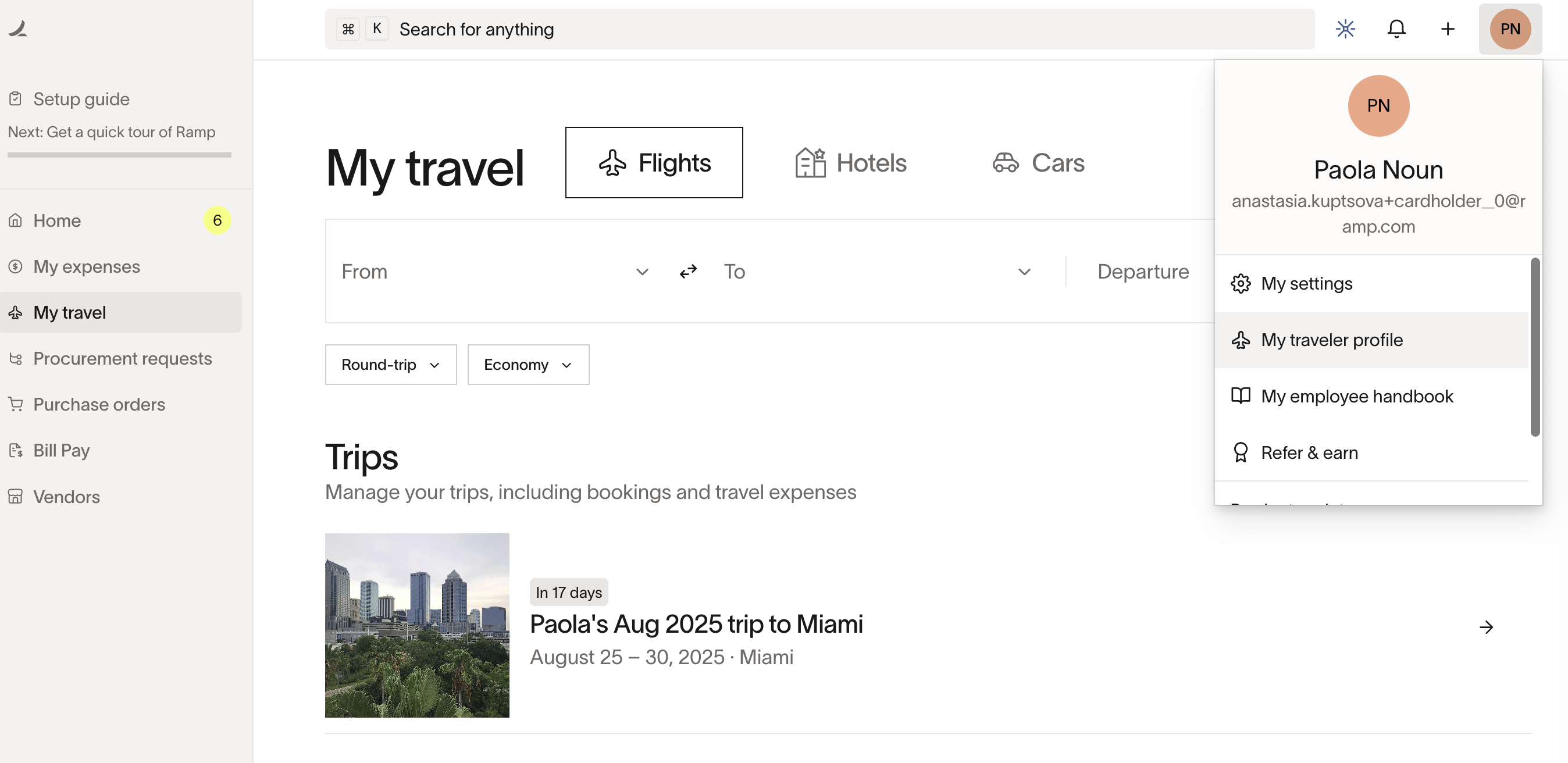
-
Go to the Loyalty section, add your loyalty numbers, and click Save
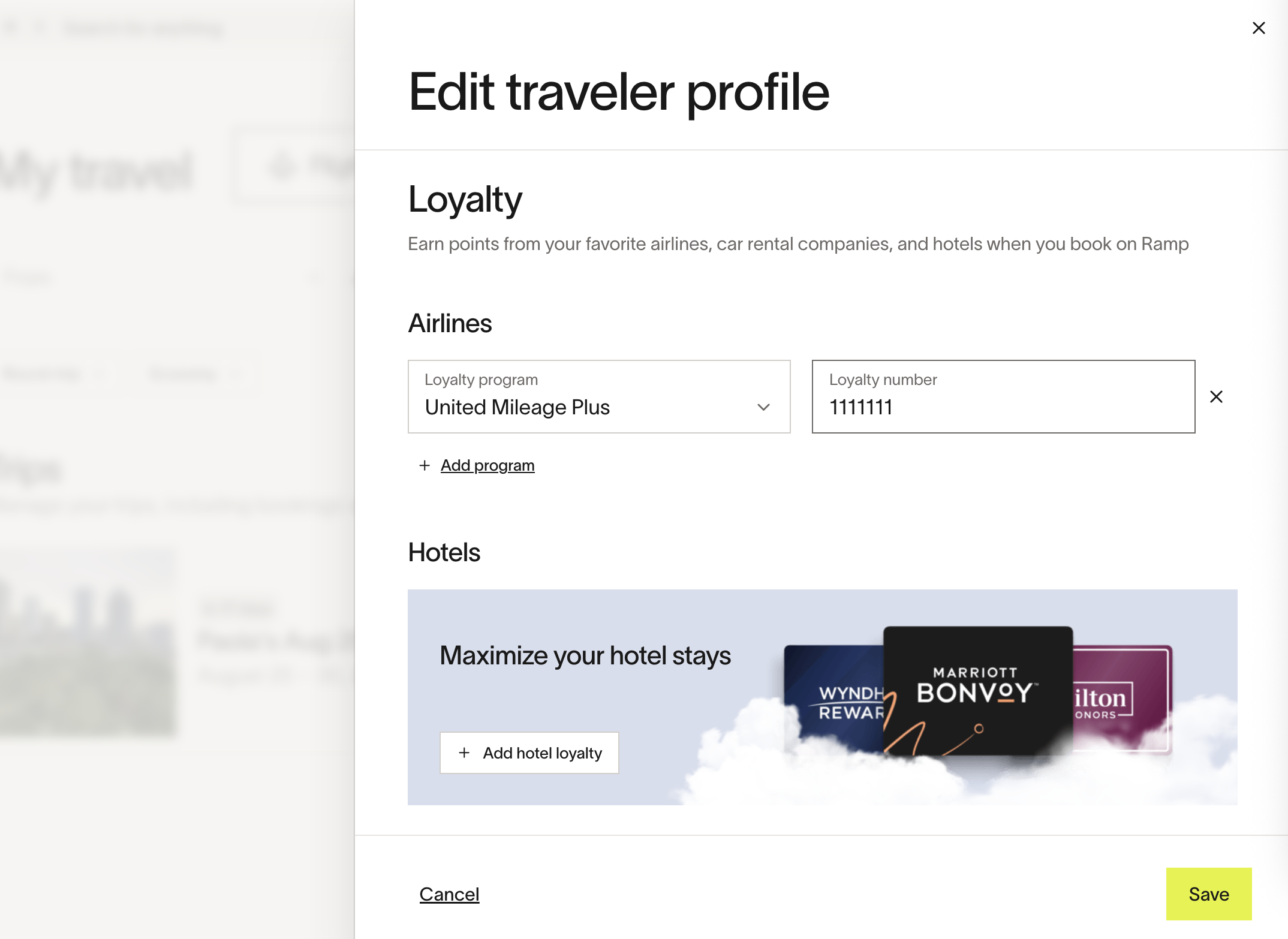
Frequently asked questions
-
What happens to the approval if the flight/hotel room is no longer available before the manager approves?
The booking fails, users receive an email asking them to rebook. -
I'm not sure if my booking went through. What should I do?
Sometimes confirming a booking can take a little longer than expected. Once it's confirmed or failed, we'll send an update to your work email. If you see a charge on your card for the booking amount, that usually means it was successful, and you should receive a confirmation email within 10 minutes. -
I can't find my booking. What should I do?
Open My travel and select View all bookings to double-check whether your booking appears. If it does not, please contact Ramp support. -
I didn't receive my confirmation email. How can I get my booking details?
Open My travel, select the trip and booking, then click Resend email to resend the flight or hotel confirmation email. Feel free to reach out to Ramp support at any time as well. -
Can I make a booking on behalf of a team member?
Yes, after the traveler assigns you as their Assistant, you can book and manage travel on their behalf. See more details in Travel Delegate Booking via Assistant Role . -
Can I coordinate group trips and make a group booking?
As of today, you will not be able to coordinate group trips or book multiple flights or rooms in one go, but we expect to support this functionality in 2026. -
Can I redeem flights or hotels with points?
While users can add frequent flyer information to accrue points for flights only, they cannot use points to purchase flight or hotel bookings. -
What is the process for booking multi-city trips?
Currently, we do not support multi-city trips. The best way is to book multiple one-way flights. -
Do negotiated rates with specific hotels appear on Ramp?
Yes, if Hotel corporate rates is available in your company's Ramp Travel settings. Ask your Ramp admin to check; if it is available, they can follow Loading company's negotiated hotel rates to submit a request. -
Can I apply a promo code or discount code when booking a hotel?
Ramp Travel does not support manually entering promo codes or discount codes for hotel bookings. Available negotiated rates appear automatically in hotel search and under Corporate rate in room selection. Ask your Ramp admin whether Hotel corporate rates is available in Ramp Travel settings; if it is, they can follow Loading company's negotiated hotel rates to submit a request. -
How can I set up or edit my Traveler Profile?
On the Home page, go to Profile > Traveler profile to add or edit your information. -
Can I book train travel (such as Amtrak) on Ramp?
No. Ramp Travel currently supports booking flights, hotels, and car rentals only. Train and rail bookings are not available through the Ramp Travel portal. If you need to book train travel, book directly with the rail provider and use your Ramp Card to pay. You can then forward the confirmation from the cardholder's email address to [email protected] so Ramp can try to match it to the expense. If the receipt does not match, follow the steps in Troubleshoot receipt matching. -
How do I apply a flight credit?
If you received an airline credit after canceling a non-refundable flight, you can't currently apply that credit during Ramp's self-service booking flow. Instead, use one of these options:- Book with help from Ramp Travel support. Go to View all bookings, open the canceled booking, then click Chat with support. The travel support team can help you review your rebooking options for that canceled booking and any associated airline credit.
- Book directly with the airline. Go to the airline's website, sign in to your account, and check whether your credit is available to apply during checkout.
-
Can I add personal days to a business trip or pay the difference for a personal upgrade?
Ramp Travel is designed for business travel. All bookings are funded through your company's Ramp cards, and there is no option to split costs between your company and a personal payment method. If you want to extend a business trip for personal reasons or upgrade beyond what your company's travel policy allows, book the business portion of your trip through Ramp Travel and arrange the personal portion separately, such as booking personal flights or extra hotel nights directly with the airline or hotel using a personal card. -
Where can I find information about Visa travel benefits and rental car coverage?
Information about Visa Travel and Emergency Assistance Services and Auto Rental Collision Damage Waiver is available in Ramp's Guide to Benefits . -
Can I add my travel booking to my personal calendar?
Yes. Open My travel, select the trip and booking, then select Add to calendar and choose Google Calendar or Outlook. This option is available for flight, hotel, and car rental bookings.
Our team is working hard to build and unlock further features to better support you and your team. If you have any feedback, please complete this survey.