AP Agents available in Ramp Bill Pay
Overview
Ramp Bill Pay includes AI-powered capabilities that auto-code bills, check for duplicates and fraud, review bills according to your policy, and optimize payment workflows.
Most available capabilities require no additional setup and automatically start working as you process invoices in Bill Pay. AP inbox automation requires you to connect an inbox or use AP email forwarding.
AP inbox automation
Available on Ramp Plus. See Ramp Plus overview for plan details.
Beta. This feature is currently in Beta.
Connect one Gmail inbox from Bill Pay importing and forwarding settings to let Ramp process incoming AP emails automatically. Ramp reviews emails against your AP Intake Policy, filters duplicates and emails that do not meet the policy, creates draft bills from eligible invoices, and attaches relevant supporting documents. Processing notifications explain which attachments created drafts and why other attachments were skipped.
If your business does not connect Gmail, use Bill Pay AP email forwarding. Forwarded emails are also reviewed against your AP policy, but Ramp does not prepare vendor reply drafts for forwarded messages. If Gmail is connected, Ramp does not also process emails sent through AP forwarding.
Smart OCR and auto-coding
Available on Ramp Plus. See Ramp Plus overview for plan details.
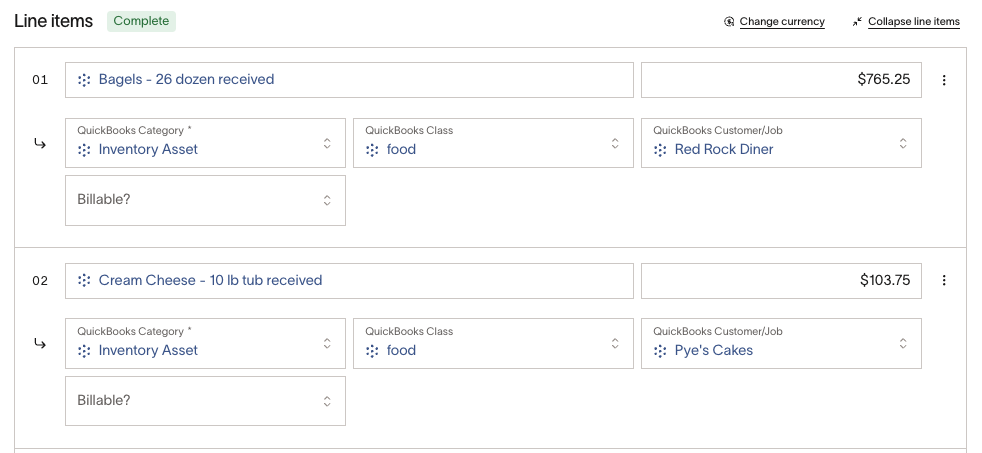
Smart OCR identifies the vendor on your invoice, learns patterns from historical bills from that vendor, and applies your instructions to extract and auto-fill bill details, amounts, and line items. The auto-coding agent helps fill accounting fields, such as GL category, location, and department, on the bill and line items.
For more details on how this works and how to add instructions, see Smart OCR and auto-coding.
AP policy review
Available on Ramp Plus. See Ramp Plus overview for plan details.
Beta. This feature is currently in Beta.
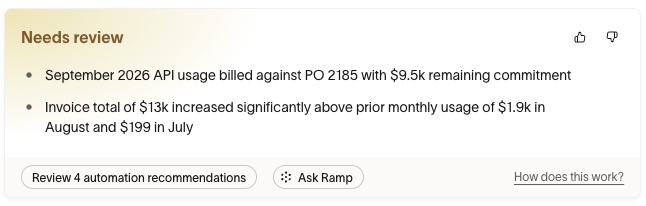
Ramp reviews your bills according to your AP Review Policy document, and surfaces findings that need your attention. Ramp uses available context, such as contracts, linked purchase orders, budgets, and supporting documents, to flag inconsistencies that may indicate unwanted spend.
Ramp provides a default AP Review Policy as a starting point. You can edit your policy by providing feedback in the Ask Ramp chat (recommended), or by editing the document directly. Here's how to customize your policy:
- Make sure you have permission to modify all drafts or bills, which is required to view and edit the AP Review Policy
- On desktop, open a draft or bill you can edit that is not Paid or Archived. The policy review appears at the top of the bill.
- If Ask Ramp is available, click it to open the chat panel on the right.
- Tell Ramp what you'd like to add, remove, or modify in your policy. Ramp will save your preferences and apply them to future bills.
If bill chat isn't available: Open your AP Review Policy from Bill Pay policy settings. If you can edit the document, update its text and click Save. If it's read-only, ask a policy editor to make the change.
Policies can apply to all bills or to a specific vendor. If you provide instructions that are only relevant to a vendor, Ramp will save it to a vendor-specific policy document.
Automatic bill creation
To save time with processing, Ramp can optionally auto-create bills from drafts when all applicable policy checks pass and recent bills from the vendor have high auto-coding accuracy.
Ramp will not auto-create a bill in cases such as:
- The setting is turned off
- Any policy checks fail
- Vendor has limited history
- Bills from this vendor have low historical auto-coding accuracy
- The bill does not have any approvers configured
- The bill is a potential duplicate
- The bill has an elevated fraud risk that has not been dismissed
If a bill is auto-created, it will continue through your configured Bill Pay approval workflow. Automatic creation does not approve a bill or bypass any approvers.
To turn automatic bill creation on or off:
- Open Bill Pay policy settings.
- Select AP Review Policy.
- At the top of the document, in the Automatic bill creation section, choose Allow or Don't allow.
Regardless of whether automatic bill creation is turned on or off, Ramp will still review drafts according to your AP Review Policy.
Automatic card payments
Ramp Bill Pay provides multiple pathways to pay vendors via credit card, allowing you to capitalize on valuable cashback rewards while maintaining full visibility into your payment process.
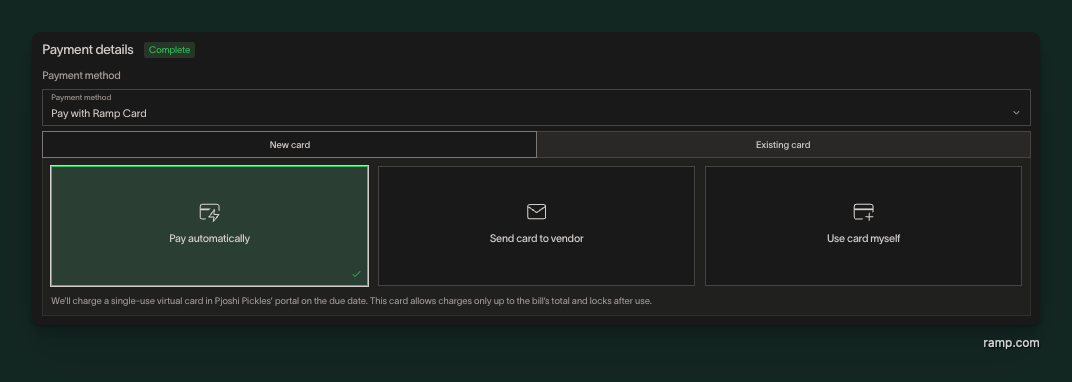
Now, AI-powered automatic card payments take this a step further by eliminating the manual work associated with card payments. For eligible invoices, the system automatically creates a virtual card with the exact invoice amount, enters the payment details in the vendor's portal on the due date, and matches the transaction to your bill once it clears—no manual intervention required. You'll receive confirmation when payment is complete, and your accounting records update automatically, allowing you to earn rewards while eliminating manual payment work.
Learn more about all available card payment options and how automatic payments work in our detailed guide: Pay Bill Pay invoices via Ramp card.
Fraud detection
Ramp's AI-powered fraud detection works around the clock to safeguard your business from payment fraud. Our intelligent systems analyze eligible bills and automatically flag suspicious activity before payments are processed. From verifying vendor legitimacy and detecting anomalies in payment amounts to monitoring for duplicate invoices, Ramp's AI acts as your first line of defense against common fraud schemes.
Learn more about the specific fraud patterns Ramp detects and how to protect your business in our comprehensive Bill Pay Fraud Help Center article.
Getting started
AI features in Bill Pay are automatically enabled for customers. Note that some advanced features, such as Smart OCR and auto-coding, are exclusively available to Ramp Plus customers. AP inbox automation and AP policy review are currently only available in Beta.