Ramp Bill Pay OCR
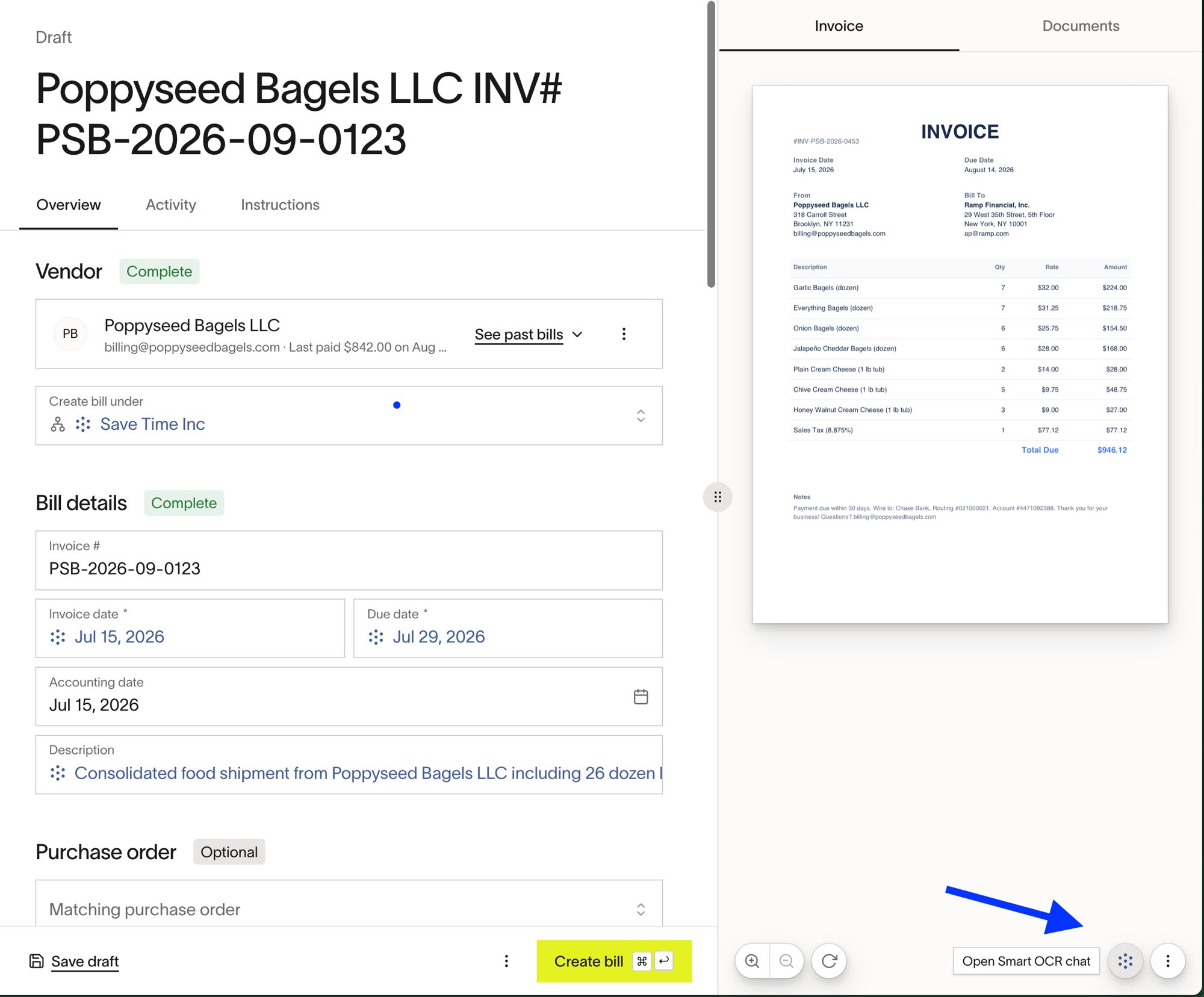
Ramp uses Optical Character Recognition (OCR) to scan and parse invoices, extracting key details and automatically populating draft bills. For Ramp Plus customers, Smart OCR uses AI and historical billing patterns to extract invoice details with greater accuracy, and the auto-coding agent helps fill accounting fields on the bill and its line items.
Bill Pay OCR overview
Once a PDF document is added to drafts - either via AP forwarding or via drag & drop, Ramp will begin scanning the document to pull relevant fields found on the invoice. OCR can typically take 30-60 seconds and will extract invoice, vendor, and payment details like vendor name, invoice number, due date, payment account numbers/routing numbers, and much more.
Note that Ramp will only OCR the document that's set as the “Invoice” document for the bill. Ramp won't run the OCR on the additional attachments — i.e. the email or the additional files. Also, Ramp won't re-run the OCR if a file is changed and set as the invoice as OCR is only run once per bill.
Smart OCR and auto-coding agent
Available on Ramp Plus. See Ramp Plus overview for plan details.
Smart OCR is Ramp's AI-powered invoice processing. It identifies the vendor on your invoice, references historical invoices from that vendor, and applies any saved custom instructions to extract data more accurately. The system learns from your corrections and improves over time as you process more invoices from each vendor.
Smart OCR extracts and auto-fills bill details (invoice number, date, due date, description), amounts (bill total, invoice currency), and line items (description, amount, quantity, unit price, type, tax rate).
Using AI and historical data, Ramp's Bill Pay auto-coding agent helps fill accounting fields like GL category, location, department, etc. on the bill and its line items, further streamlining and simplifying drafting a bill. The auto-coding agent will assess the line item memo and amount and associate patterns from previous bills to predict coding for the bill at present with high accuracy.
Review the accounting fields before creating the bill.
Custom instructions
You can teach Smart OCR how to process invoices by saving custom instructions in plain language. For example, you can instruct the system to group shipping and handling into a single line item, or to extract a project code from the invoice description.
Add an instruction: Click the Ask Ramp icon (the circular icon with dots) at the bottom-right corner of the invoice. Type and send your instruction in the chat.
Review saved instructions: If your bill shows an Instructions tab, click it at the top of the bill.
For businesses with AP policy review enabled: To review the policy, open Bill Pay policy settings and select AP Review Policy. You need permission to view Bill Pay policies. If you don't have access to the document, ask a policy editor to share it with you.