Workday Financial integration overview
Overview
Available on Ramp Enterprise. See Ramp Enterprise overview for plan details.
Introduction
Our direct integration with Workday Financial allows you to easily transfer information from Ramp to Workday, ensuring your spend data is current and accurate.When Ramp is connected to Workday, it gathers all necessary data for classifying your transactions and this article covers all the basics.
- Automatic Data Syncing: Sync transactions directly from Ramp to Workday’s actuals ledger, improving accuracy and reducing manual work.
- Multi-Entity Mapping: Each Ramp entity can be associated with a specific Workday company, supporting complex multi-entity accounting structures.
- Workday Work Tags: The integration supports core work tags such as spend category, cost center, supplier, location, project, and custom tags, allowing full alignment with your Workday setup.
- Real-Time Field Updates: Any changes to accounting fields in Workday are reflected in Ramp within approximately 10 minutes.
- Custom Journal Source Configuration: Set a custom journal source in Ramp (e.g., “Ramp Journal”) to track Ramp transactions in Workday.
- Direct Receipt Syncing: Receipts from transactions are synced to Workday as attachments, making them directly accessible in Workday’s records.
- Intercompany Transaction Support: Separate the liability and expense sides of transactions across Workday companies as needed.
- Multi-Currency and Exchange Rate Support: Ramp supports multi-currency transactions, with functional currency settings in Workday providing accurate conversion for each transaction.
- Vendor two-way sync: Ramp can sync supported vendor profile fields between Ramp and your Workday suppliers. See Two Way Vendor Information Sync for supported fields, sync directions, and setup guidance.
What does Ramp look like
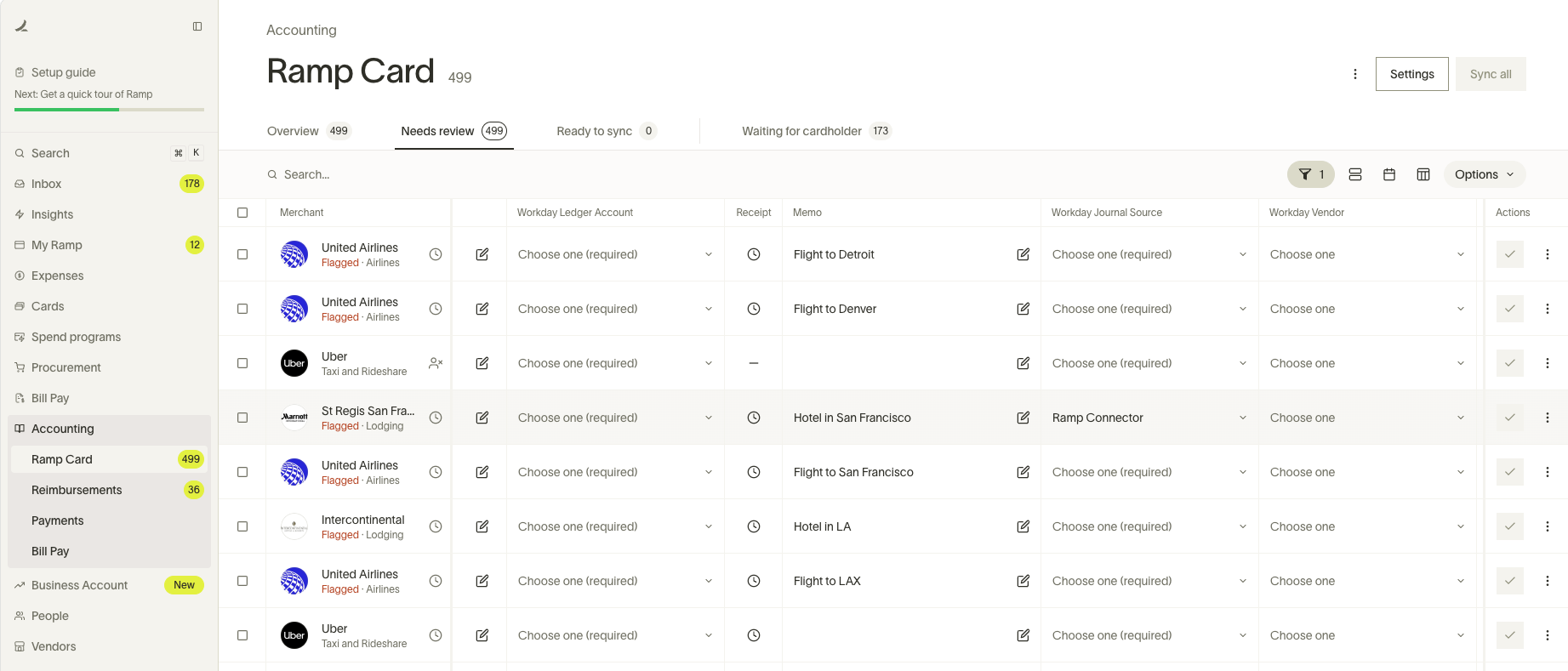
Here's how the Workday Accounting page appears on Ramp. For detailed information about settings, rules, and additional automations provided by Ramp, please refer to the linkedarticle.
Setup
To set up an integration between Ramp and Workday for accounting needs please reach out to your Ramp account manager.
How will transactions appear in Workday
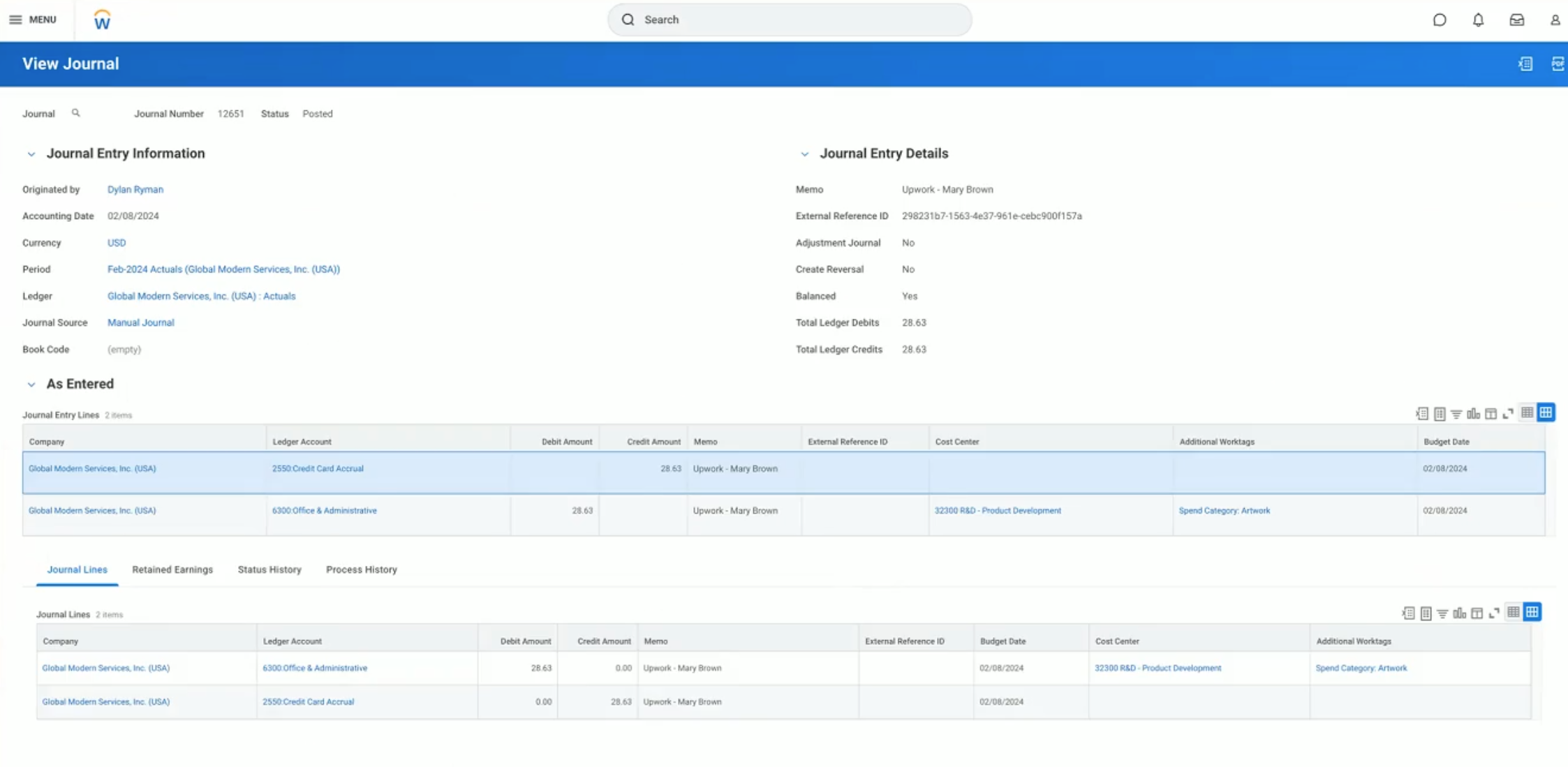
Ramp card transactions will show up as journal entries in Workday. Each expense will include the information from the fields you entered in Ramp and two journal lines:
- Credit Ramp Card Liability Account
- Debit Expense Account
Customizing expense report behavior (create new vs. append)
Ramp offers a customization option that controls how card transactions are grouped into expense reports in Workday.
Default behavior
By default, Ramp creates a new expense report for each transaction.
Optional customization: append
Expense reports will be batched by the accounting date.
Optional customization: append by sync date
Expense reports will be batched by the sync date.
Note: Override accounting date with Sync Date
When this setting is on:
- The accounting date is ignored
- Ramp matches by Entity and Employee
- All transactions synced on the same day append to one report (if those fields match)
This customization helps reduce the number of expense reports created, making reconciliation easier.
| Setting | Matching Fields Required for Appending |
|---|---|
| Default | Accounting Date, Entity, Employee |
| With override enabled | Sync Date, Entity, Employee |
Note: 💡 Tip: Ask your Ramp account manager to enable this setting if you want to consolidate expense reports based on daily sync activity.
How will reimbursements appear in Workday
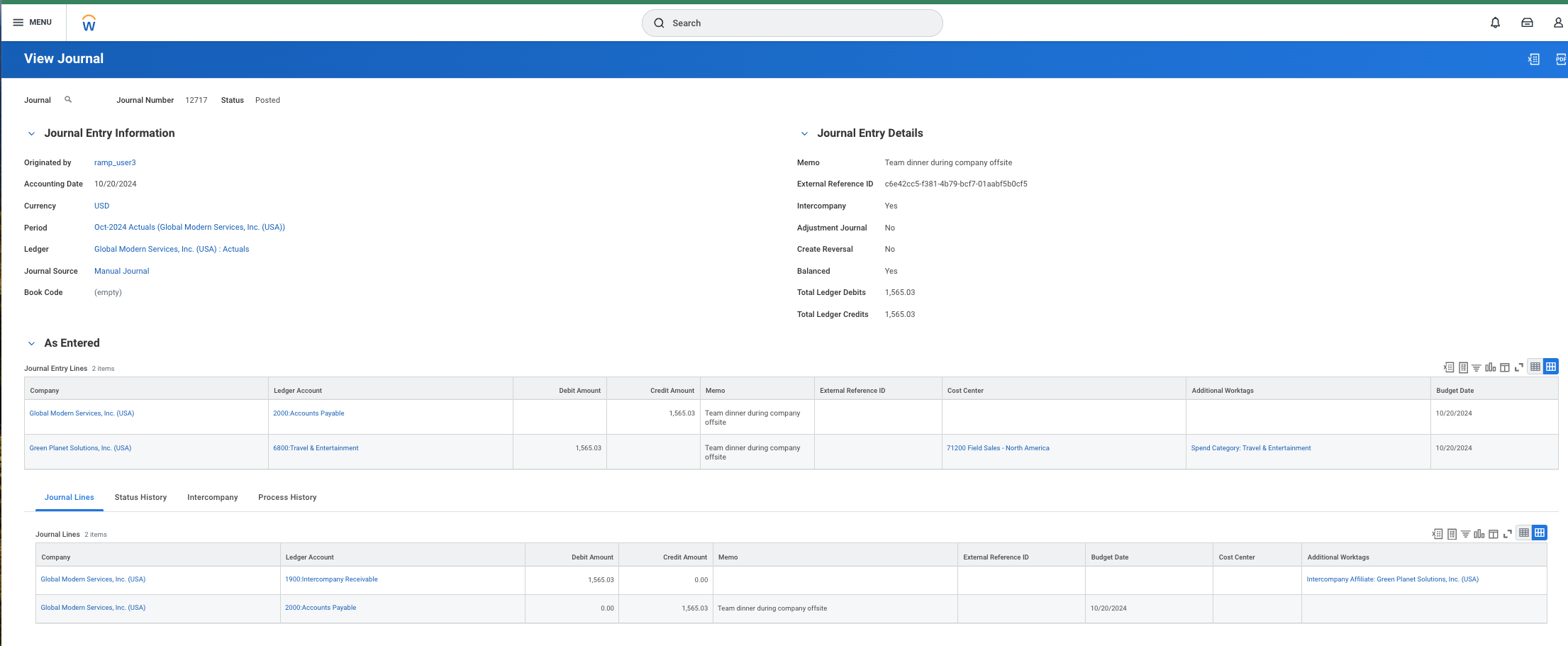
Ramp reimbursements will show up as journal entries in Workday. Each expense will include the information from the fields you entered in Ramp and two journal lines:
- Credit Cash Suspense Account
- Debit Expense Account
Frequently asked questions
Does Ramp support vendor syncing with Workday?
Yes. Ramp can sync supported vendor profile fields between Ramp and your Workday suppliers. See Two Way Vendor Information Sync for supported fields, sync directions, and configuration guidance.
What happens if Workday is down during sync?
Transactions will show a “sync failed” status in Ramp, allowing you to retry once Workday is back online.
Can we set up rules by entity?
Ramp supports restricting work tag visibility by entity, though rule creation by entity for coding requirements is not yet available.
What accounting date options are available?
The default accounting date options are transaction date or clearing date.
How are intercompany transactions handled?
You can separate the liability and expense sides across different Workday companies, with the liability anchored in the entity’s designated Workday company.
Is multi-currency supported?
Yes, Ramp’s multi-currency capabilities ensure transactions are recorded accurately, with currency conversions matching Workday’s functional currency. For setups where the functional currency in Workday differs from both the original transaction and issuing currency, there may be a foreign exchange (FX) impact. Currently, customers must manually account for this FX impact. Ramp is exploring options for automating this process in the future through journal syncing for statement payments.