Syncing item receipts to NetSuite
Overview
Item receipts created in Ramp against purchase orders can be synced directly to NetSuite. This eliminates the need to manually re-enter receiving data in NetSuite after recording it in Ramp, keeping both systems in sync.
When you sync an item receipt, Ramp creates a corresponding item receipt record in NetSuite and links back to it so you can navigate between the two systems.
Prerequisites
Before you can sync item receipts to NetSuite, confirm the following:
- Your company has a NetSuite integration connected to Ramp.
- Advanced Receiving is enabled in your NetSuite account. If Advanced Receiving is not enabled, Ramp cannot create item receipt records in NetSuite.
- Sync purchase orders and receipts to NetSuite is on. If it is off, enable purchase order and receipt sync before continuing.
- The purchase order associated with the item receipt has been synced to NetSuite first. Item receipts cannot be synced until their parent PO exists in NetSuite.
Sync an item receipt to NetSuite
Item receipts sync to NetSuite only when Sync purchase orders and receipts to NetSuite is on. If it is off, enable purchase order and receipt sync before continuing.
When a purchase order is synced to NetSuite, Ramp automatically attempts to sync any associated item receipts. If an item receipt is not synced automatically (for example, if it was created after the PO was already synced), you can manually trigger the sync.
Manually sync an item receipt
The manual sync actions below are available only when Sync purchase orders and receipts to NetSuite is on. If it is off, enable purchase order and receipt sync before continuing.
- Navigate to Procurement > Purchase Orders and open the purchase order that contains the item receipt.
- Scroll to the Item Receipts table. Each item receipt row includes an Accounting column showing the current sync status.
- If the purchase order has not been synced yet, sync the purchase order to NetSuite first. Add any required accounting fields (entity, location, department) before syncing.
- Click Sync to NetSuite on the item receipt row to begin the sync.
- The status changes to Syncing while the sync is in progress. After a few moments, the status updates to either Synced or Failed .
- When the sync succeeds, a link appears that opens the item receipt directly in NetSuite.
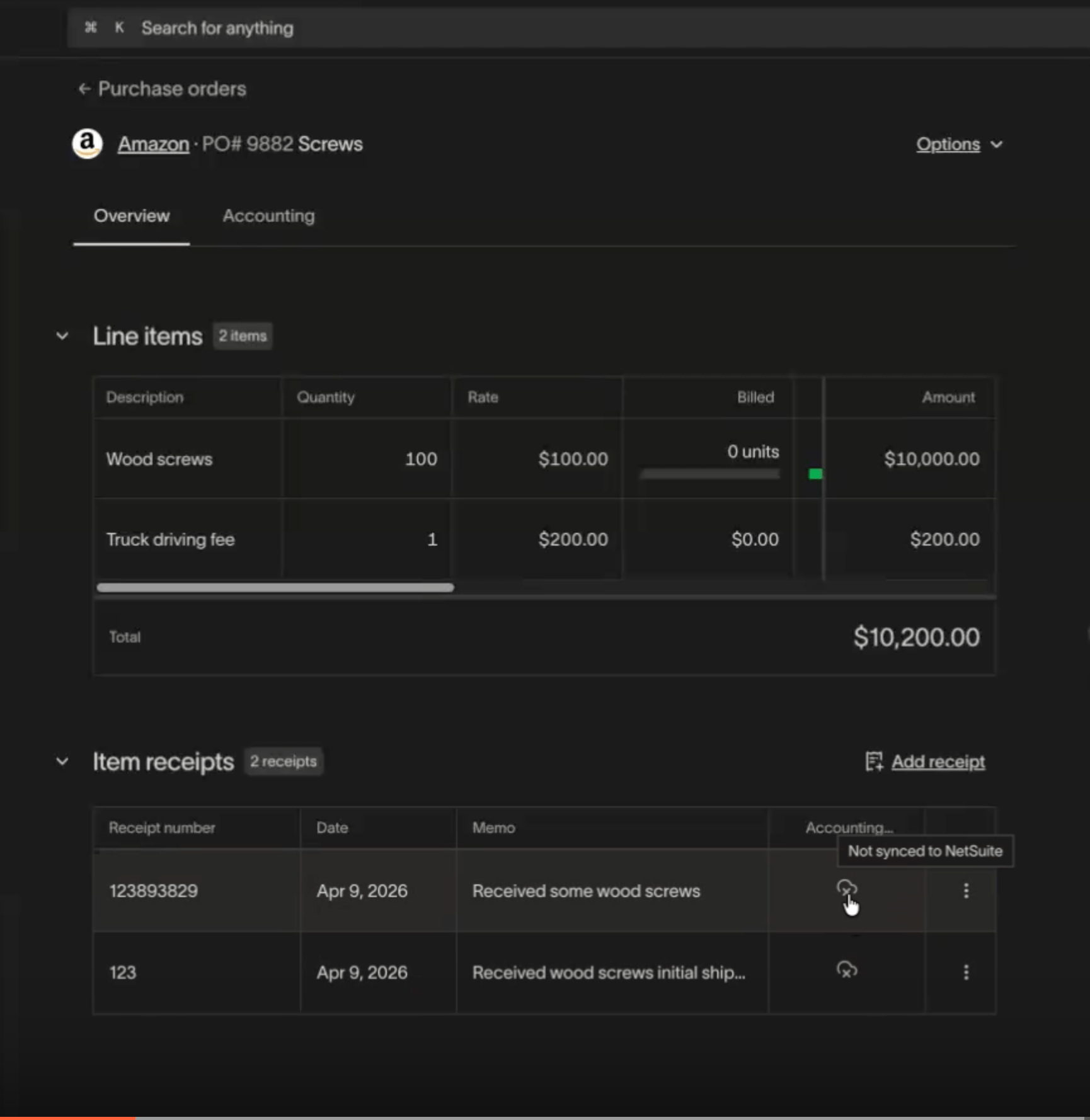
Item Receipts table on the PO detail page with the Accounting sync status column
To sync from the three-dot menu on an item receipt row, click the menu icon and select Sync to NetSuite.
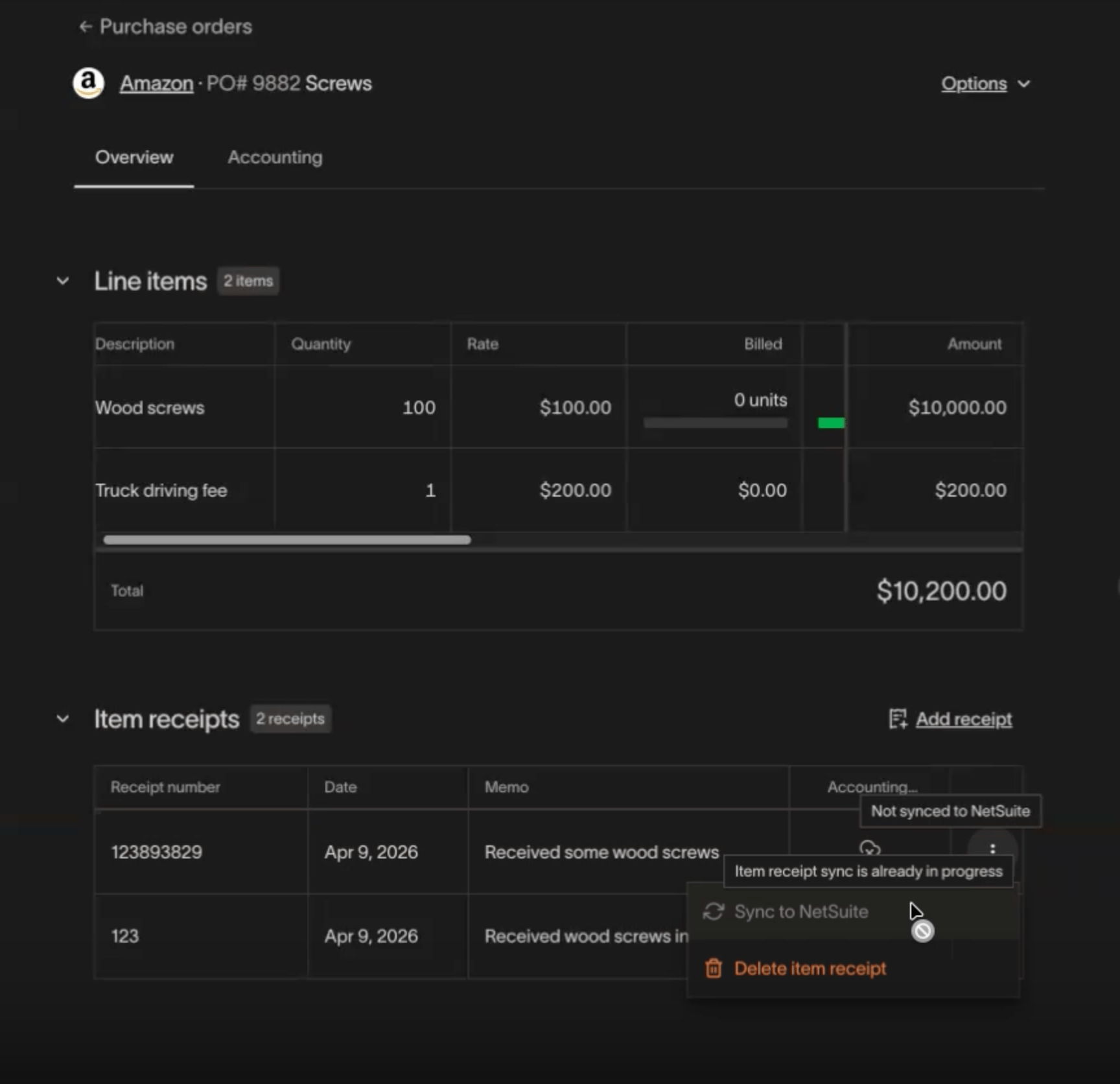
Sync to NetSuite option in the item receipt context menu
You can also sync from the item receipt detail drawer:
- Click on an item receipt row to open the detail drawer.
- Click Sync to NetSuite in the drawer header.
Sync statuses
Each item receipt displays one of the following sync statuses in the Accounting column:
| Status | Description |
|---|---|
| Not synced | The item receipt has not been synced to NetSuite. A Sync to NetSuite button is available. |
| Syncing | The sync is currently in progress. |
| Synced | The item receipt has been successfully created in NetSuite. A link to the NetSuite record is displayed. |
| Failed | The sync failed. An error message is displayed with details. Fix the issue and retry. |
Resync an item receipt
The automatic and manual resync behavior below applies only when Sync purchase orders and receipts to NetSuite is on. If it is off, enable purchase order and receipt sync before continuing.
If you edit an item receipt in Ramp after it has already been synced, Ramp automatically attempts to resync it to NetSuite. If the automatic resync does not trigger, you can manually resync:
- Open the purchase order and find the item receipt in the Item Receipts table.
- Click the three-dot menu on the item receipt row and select Resync to NetSuite . You can also click Resync to NetSuite in the item receipt detail drawer.
- Ramp pushes the updated data to NetSuite and updates the sync status.
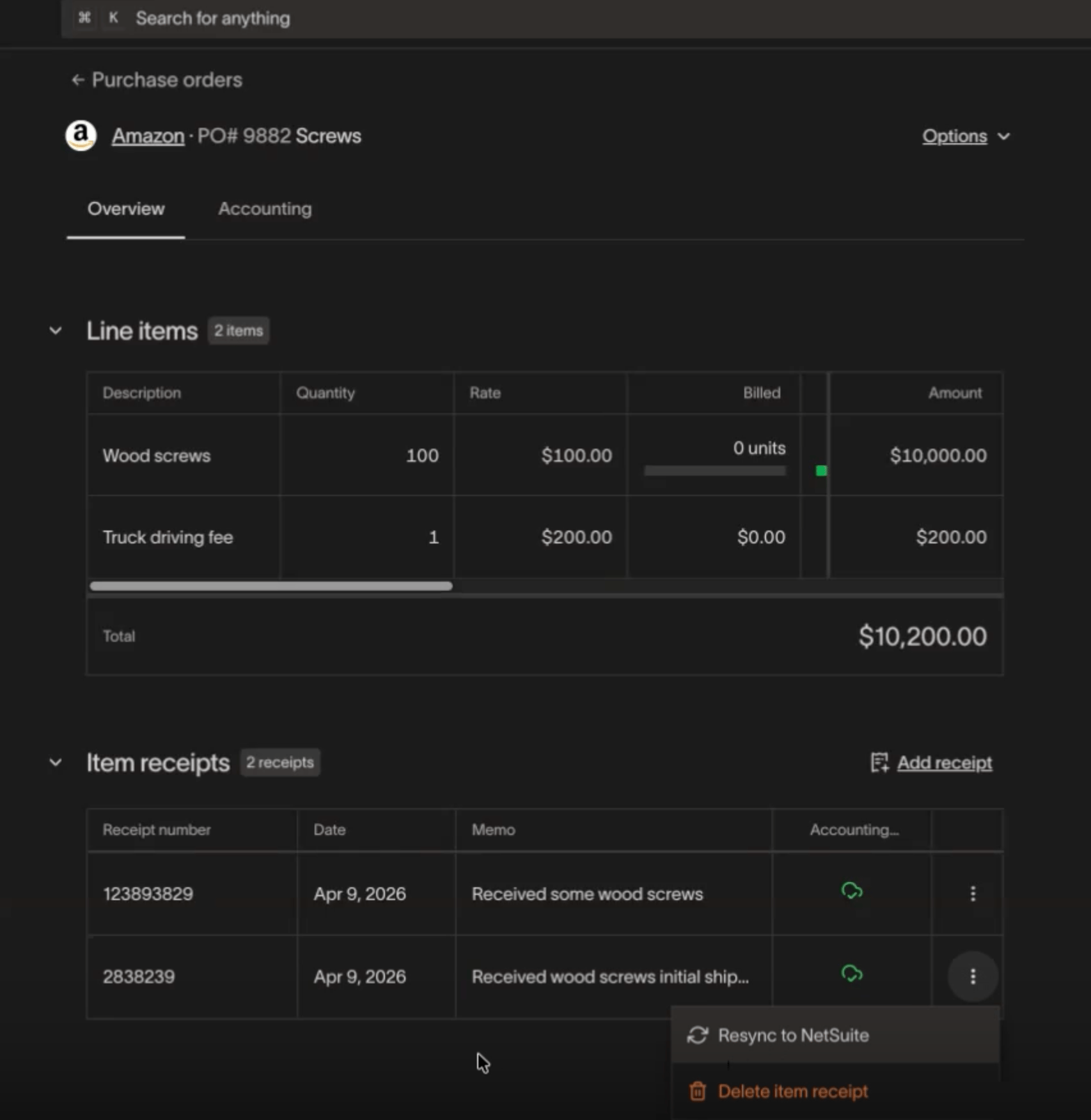
Resync to NetSuite option in the three-dot menu for synced item receipts
Limitations
- ERP support — Item receipt sync is available for NetSuite (covered in this article) and Sage Intacct (see Sage Intacct integration: Purchase orders and item receipts). QuickBooks and other ERPs are not supported at this time.
- Inventory detail items — Line items that require inventory details in NetSuite (such as bins, lots, or serial numbers) cannot be synced. These items appear in the item receipt creation flow but are disabled with a tooltip explaining the limitation. You can still create and sync an item receipt for the remaining eligible lines on the same PO.
- Location field — The location field is not supported on item receipt sync.
- No automatic retries — If a sync fails, you must manually resolve the issue and retry.
Troubleshooting
When an item receipt sync fails, the error message appears in the Accounting column and in the item receipt detail drawer. Below are common errors and how to resolve them.
Closed accounting period
The item receipt date falls within a closed accounting period in NetSuite. To fix this, edit the item receipt in Ramp and change the receipt date to one that falls in an open period, then retry the sync.
Advanced Receiving not enabled
Your NetSuite account does not have Advanced Receiving enabled. An administrator must enable Advanced Receiving in NetSuite before item receipts can be synced. In NetSuite, go to Setup > Company > Enable Features > Transactions tab and check Advanced Receiving.
Missing required fields
NetSuite rejected the sync because the instance requires fields that Ramp does not populate (such as department, class, or custom fields). The error message specifies which field is missing. Update the required field in NetSuite or adjust your NetSuite configuration to make the field optional for item receipts, then retry.
Duplicate receipt number
An item receipt with the same receipt number already exists in NetSuite. Edit the item receipt in Ramp to change the receipt number to a unique value, then retry the sync.
Sync already in progress
A sync for this item receipt is already running. Wait for the current sync to complete before attempting another. The status will update to Synced or Failed once the in-progress sync finishes.
Frequently asked questions
Who can sync item receipts to NetSuite?
Users with accounting visibility, procurement administration permissions, or PO owners can sync item receipts.
Do item receipts sync automatically after the PO is synced?
Yes. When a purchase order is synced to NetSuite, Ramp automatically attempts to sync any existing item receipts on that PO. If an item receipt is created after the PO has already been synced, you will need to manually click Sync to NetSuite on the item receipt row.
Can I sync item receipts to Sage Intacct or QuickBooks?
Sage Intacct is supported — see Sage Intacct integration: Purchase orders and item receipts. QuickBooks and other ERPs don't support item receipt sync at this time.
What happens if some line items on the item receipt have inventory detail requirements?
Line items requiring inventory details (bins, lots, serial numbers) are excluded from the sync. You can still sync the item receipt for the remaining eligible lines on the same purchase order.
How do I view the synced item receipt in NetSuite?
After a successful sync, a link appears in the Accounting column of the item receipt row. Click the link to open the item receipt directly in NetSuite.