Sage Intacct integration: Purchase orders and item receipts
Overview
Ramp's Sage Intacct integration supports a full Procure-to-Pay workflow: import purchase orders (POs) and item receipts from Sage Intacct, match them to bills in Ramp, three-way match against received quantities, and sync Ramp-created POs and item receipts back to Sage Intacct.
This guide covers the Sage Intacct setup required for each capability and how Ramp handles document matching. For the end-to-end three-way match workflow across accounting providers, see 3-Way Match with Ramp Procurement.
Item receipt import and sync, PO sync from Ramp to Sage Intacct, and three-way match are newer capabilities that are still rolling out. If you don't see them, contact your Ramp account team to enable them for your business.
Step 1: Required permissions in Sage Intacct
Ramp needs Purchasing module access in Sage Intacct to import POs. Most users will need to update the permissions for the Ramp user role.
To check or update permissions:
-
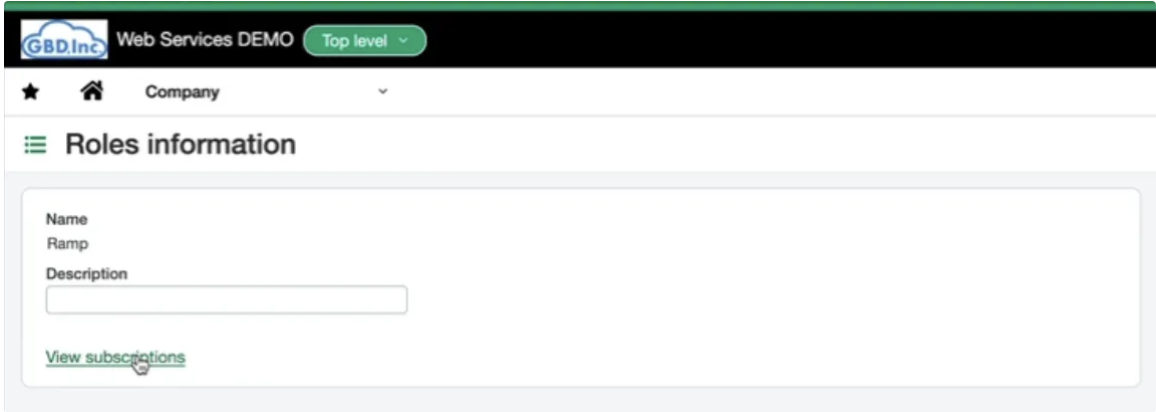
In Sage Intacct, go to Company > Admin > Roles .
-
Find and edit the Ramp role.
-
Click View Subscriptions.
-
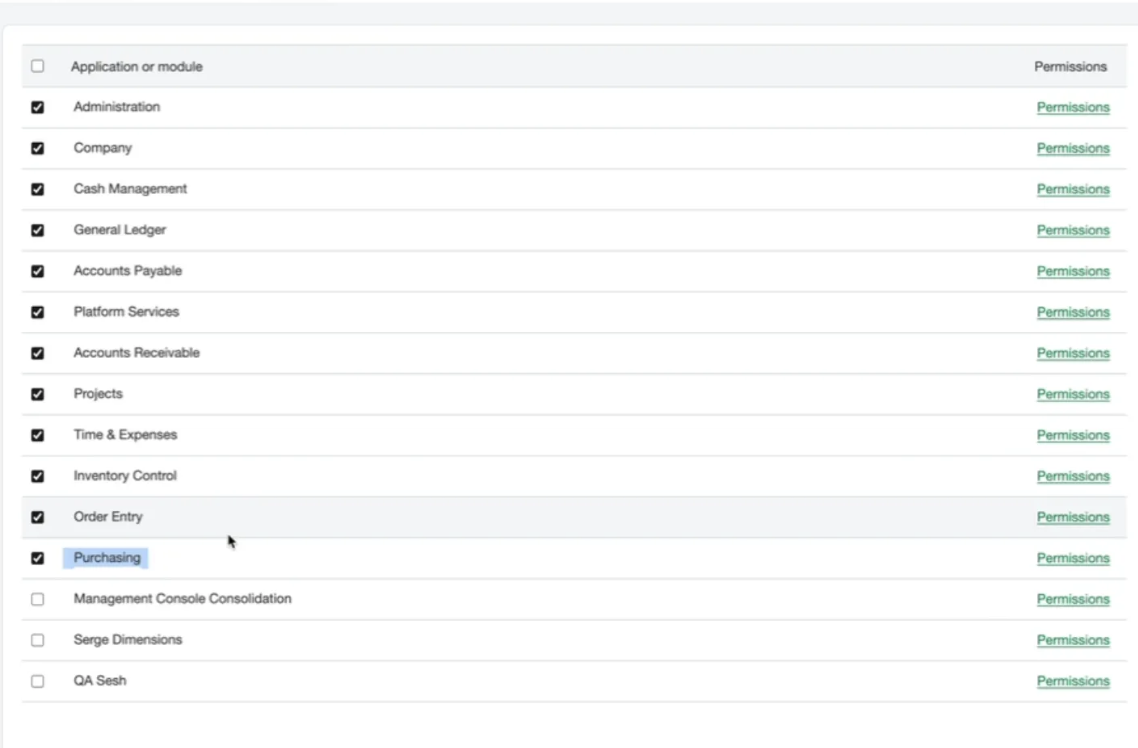
Make sure the Purchasing checkbox is selected the click Permissions.
-
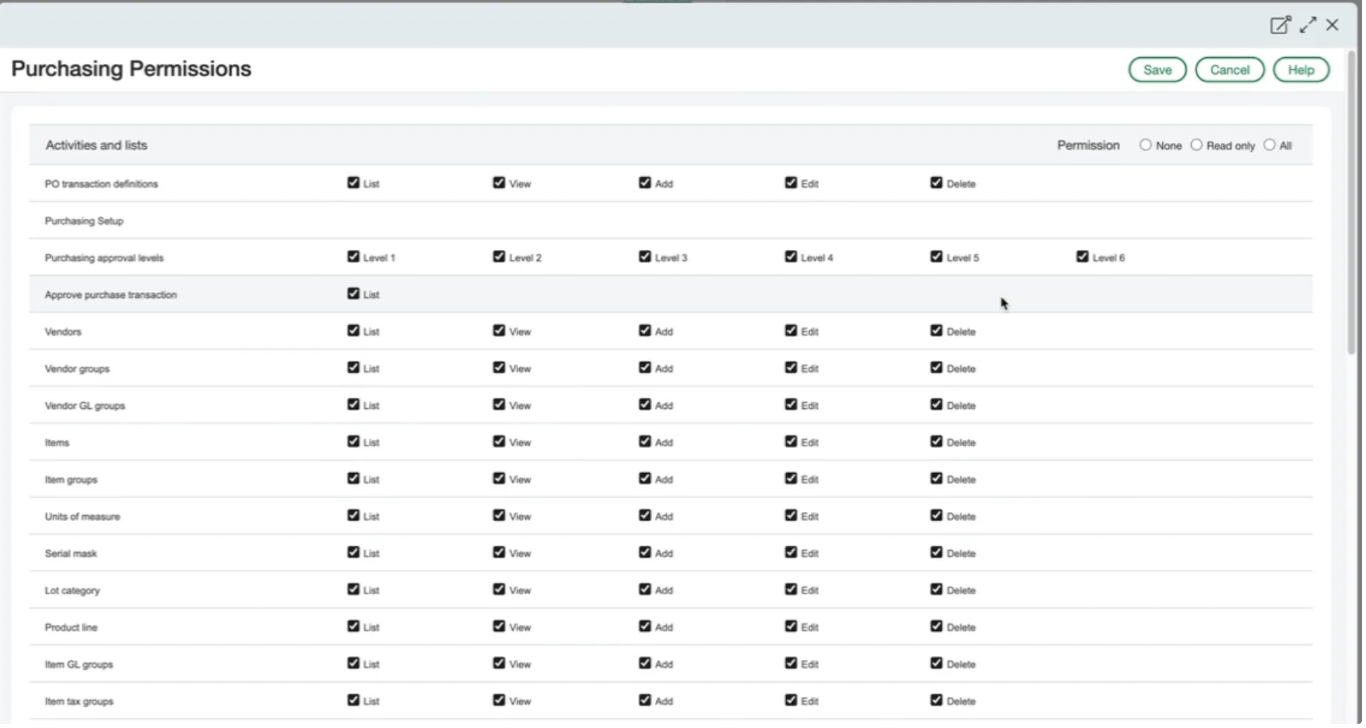
Grant full Purchasing module permissions to avoid sync issues.
If PO imports fail or you see a permissions error in Ramp, double-check these settings.
Step 2: Understand Sage Intacct document setup
Unlike other ERPs, Sage Intacct uses a customizable workflow for purchasing. For a purchase order to be imported into Ramp, it must meet three criteria:
** To use quote types instead of order type for criteria 1, please contact your account manager to enable.
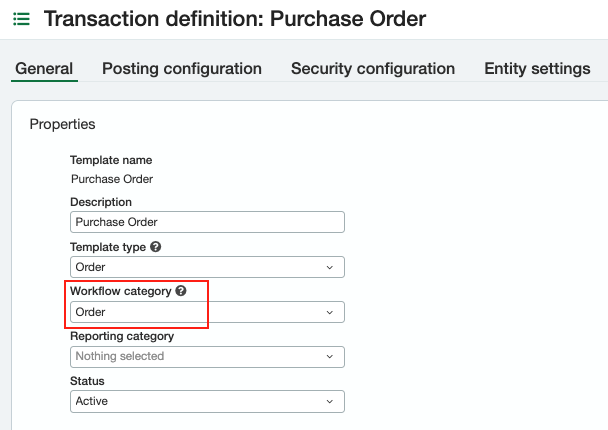
1. Purchase order type
Ramp only imports workflow types with the “Order” type. These are considered POs.
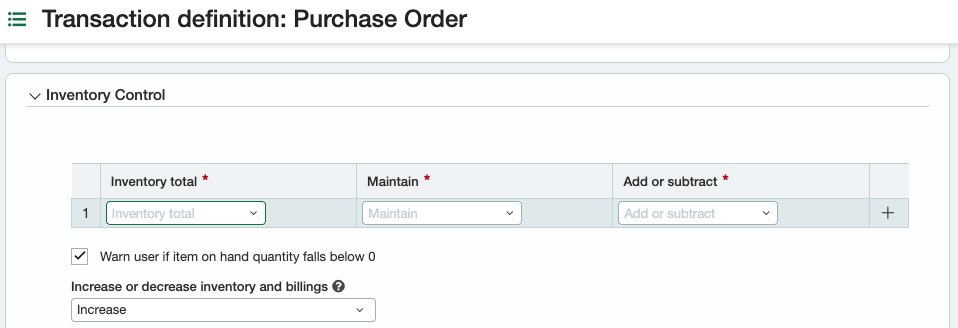
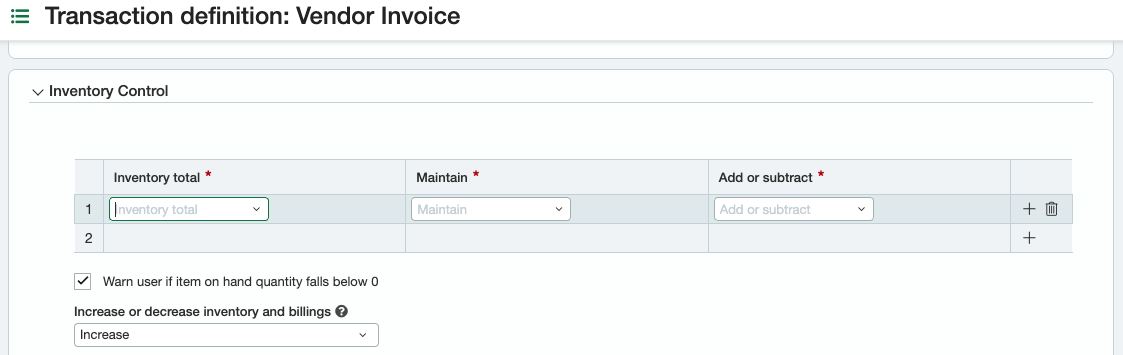
If you need to manage your inventory, you will need to set up the inventory control section.
2. Linked vendor invoice
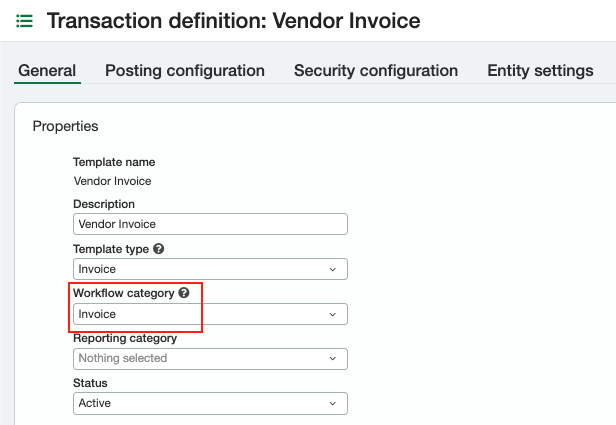
There must be at least one vendor invoice document type in Sage Intacct that:
-
Has the “Invoice” workflow category
-
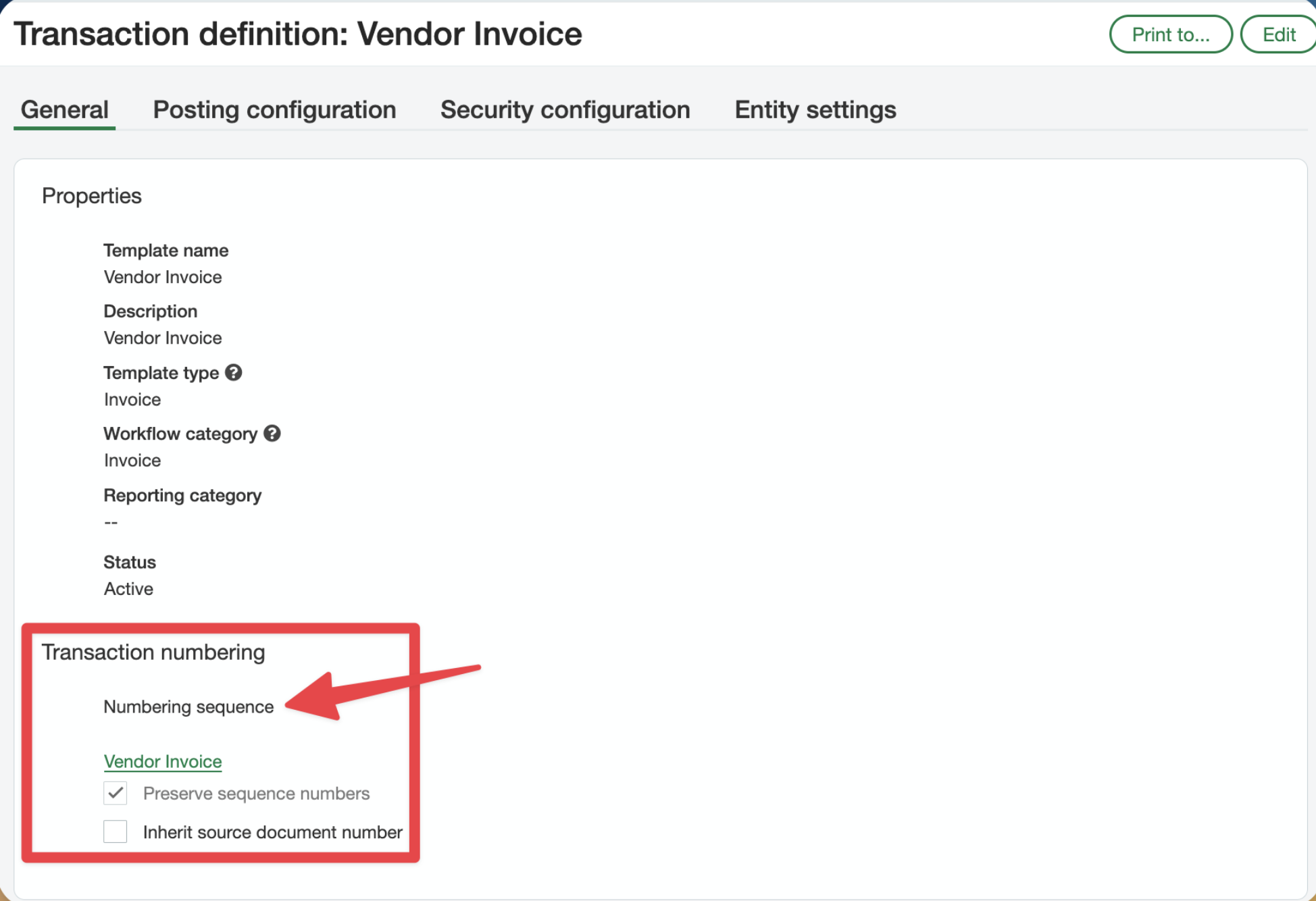
Has selected and populated a number sequence. Note: if a number sequencer is not selected, the vendor invoice and AP bill will use the same number.
-
Can be created from the PO document you want to import. You can check this by:
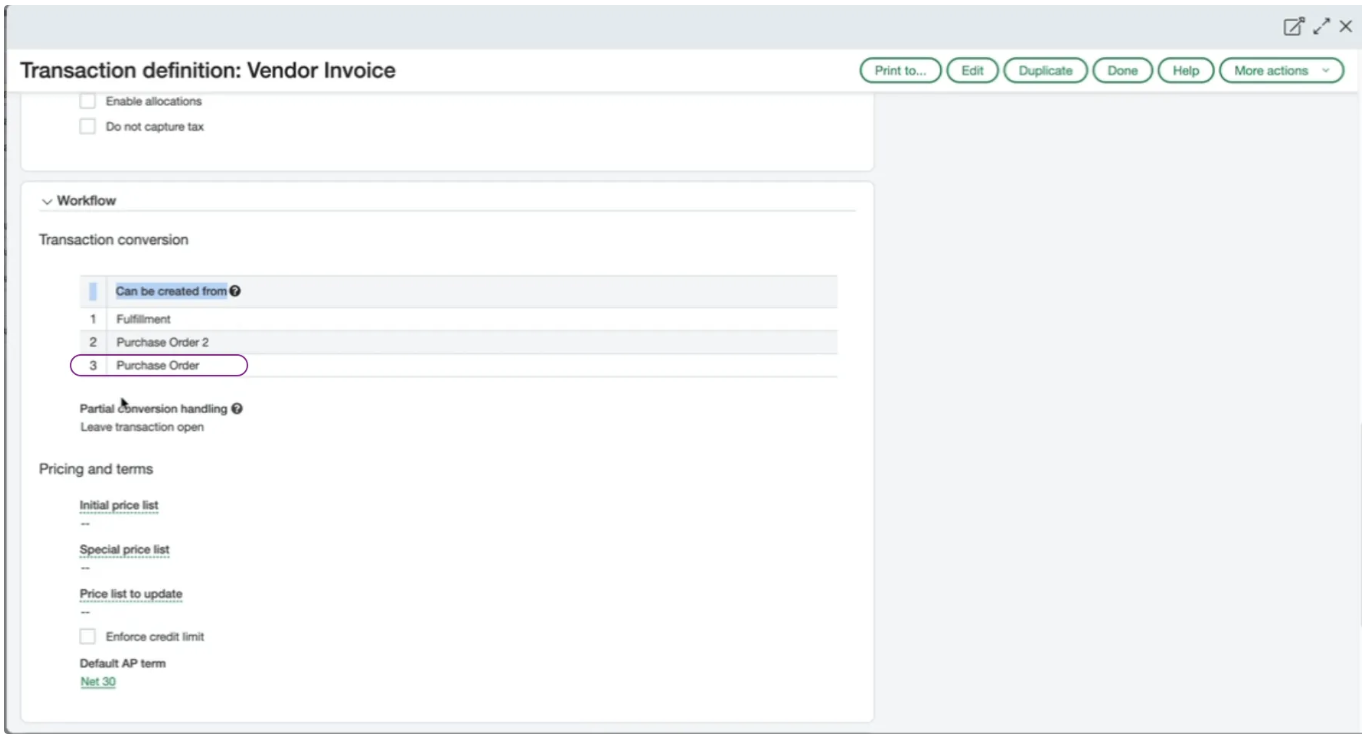
- Going to Purchasing > Configuration > Document Types
- Verifying that the vendor invoice document lists the PO under “Can be created from”
-
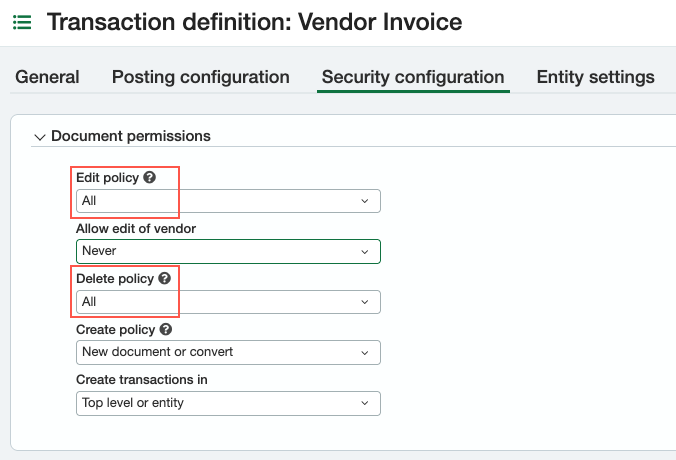
Has the edit and delete policy set to " All "
If you need to manage your inventory, you will need to set up the inventory control section.
3. Invoice posts to AP
The vendor invoice type must be configured to post to Accounts Payable (AP).
To check:
-
Go to the vendor invoice document type.
-
Click Edit .
-
Make sure Transaction Posting is set to Accounts Payable (not “Do Not Post”).
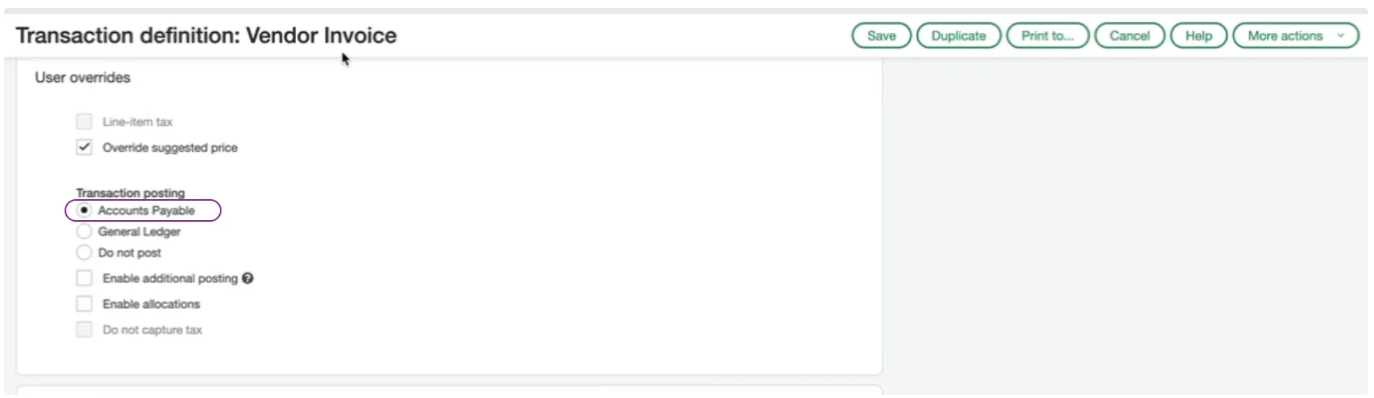
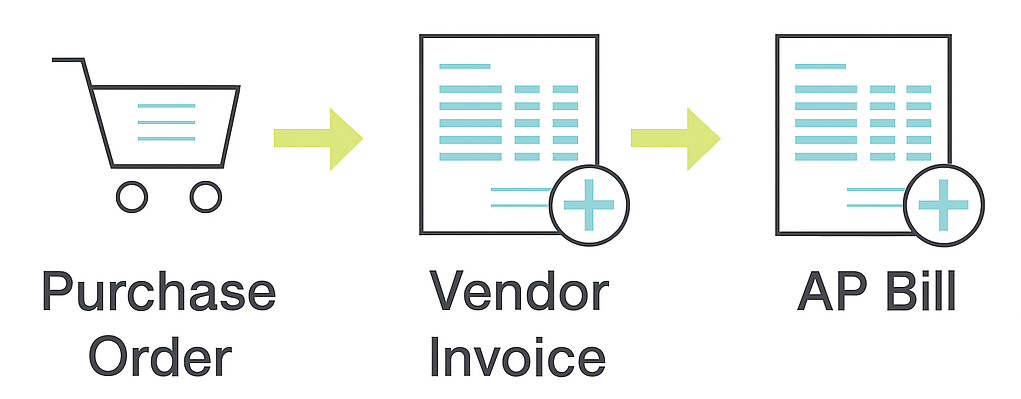
The workflow will look like this within the purchasing module once set up is complete.

Step 3: PO template selection logic
When Ramp matches a PO to a bill, it must pick which vendor invoice template to use. If multiple options are available, Ramp follows this order:
- If there's only one invoice template, Ramp uses it.
- If multiple templates exist, Ramp selects the one with “Ramp” in the name.
- If several templates include “Ramp,” Ramp uses the alphabetically first one.
- If none include “Ramp,” Ramp uses the alphabetically first available template.
Tip: To ensure Ramp uses the correct template, add “Ramp” to the name of your preferred invoice template.
Step 4: PO data imported into Ramp
Ramp imports POs with full detail from Sage Intacct, including:
- Line items
- Inventory items (instead of GL accounts)
- Custom fields
- User-defined dimensions (e.g. business unit)
Note: GL accounts are not used directly. Sage Intacct maps inventory items to GL accounts directly on the vendor invoice transaction definition and that will be used when the invoice posts to AP.
Step 5: Enabling PO matching in Ramp
-
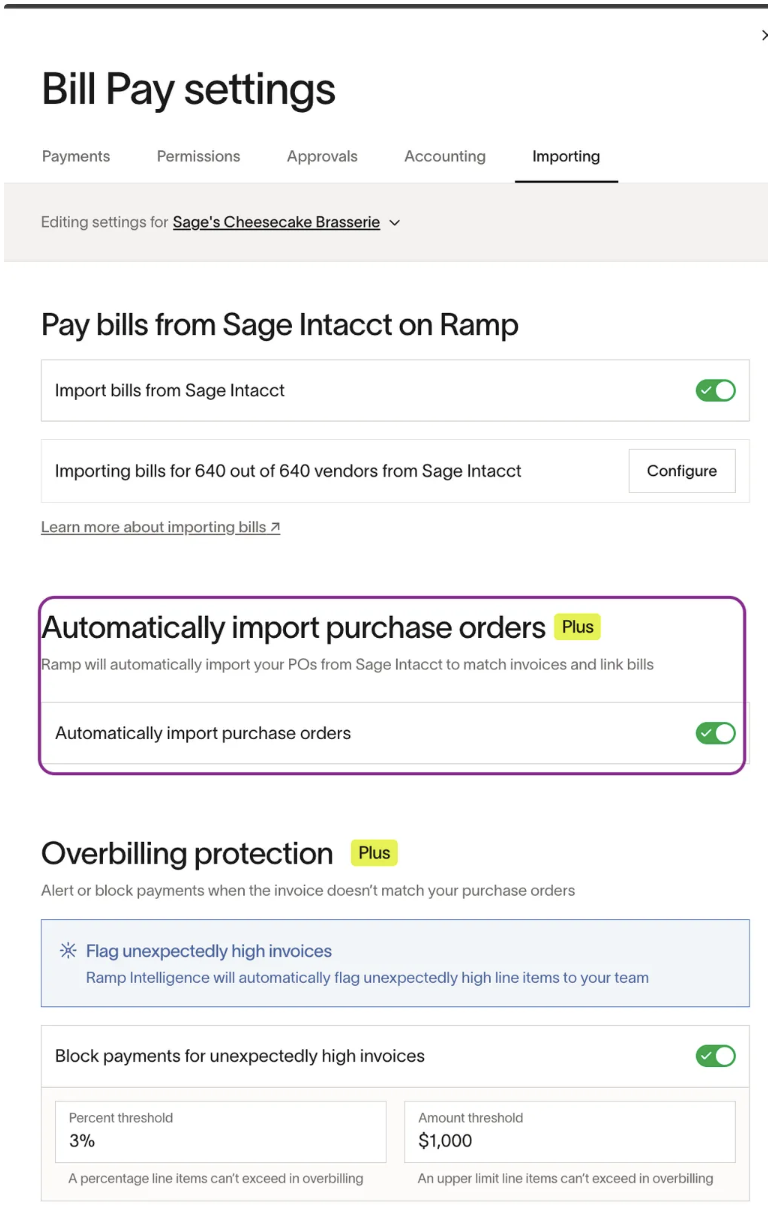
Sign-in to Ramp and navigate to Bill Pay -> Settings -> Importing
-
Toggle on Automatically import purchase orders.
Step 6: Matching a PO to a bill in Ramp
When creating a bill in Ramp:
-
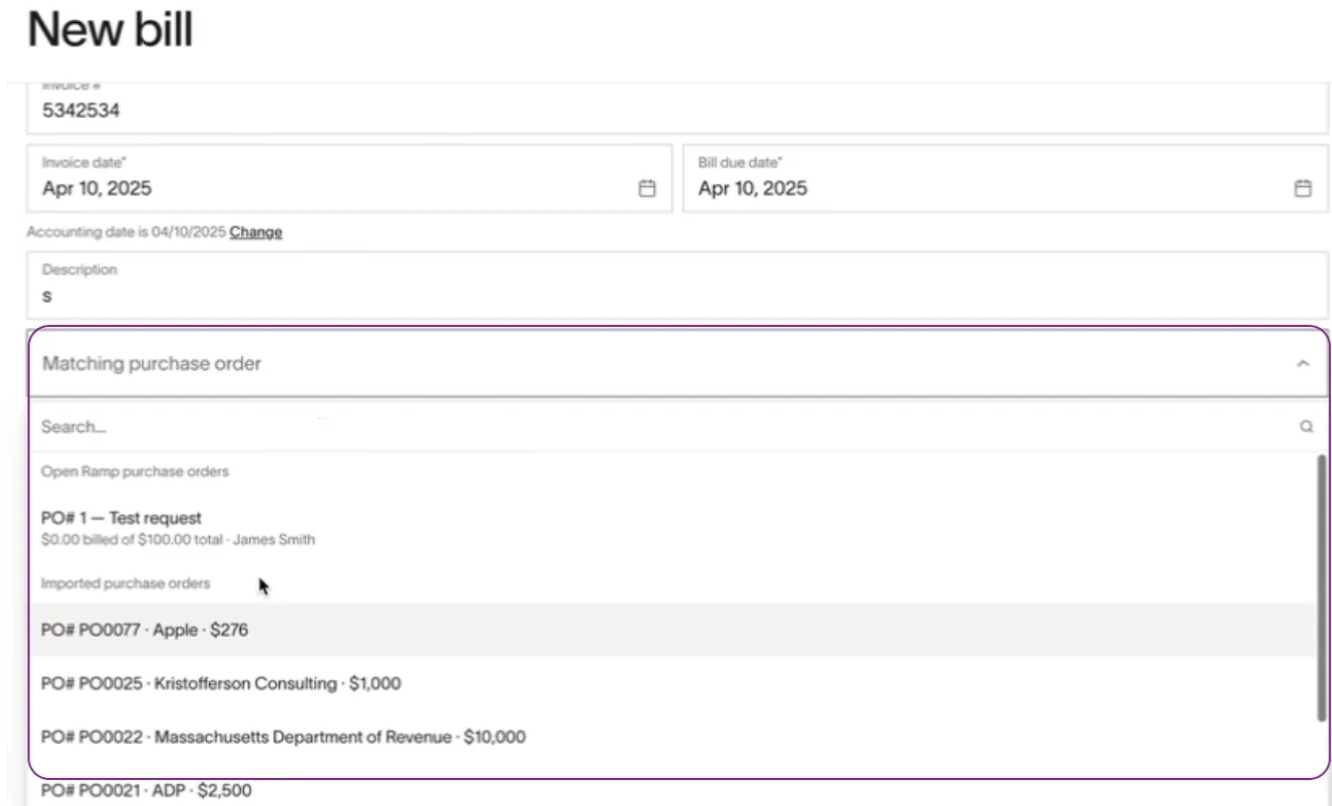
Open Matching purchase order
-
Select the PO imported from Sage Intacct.
-
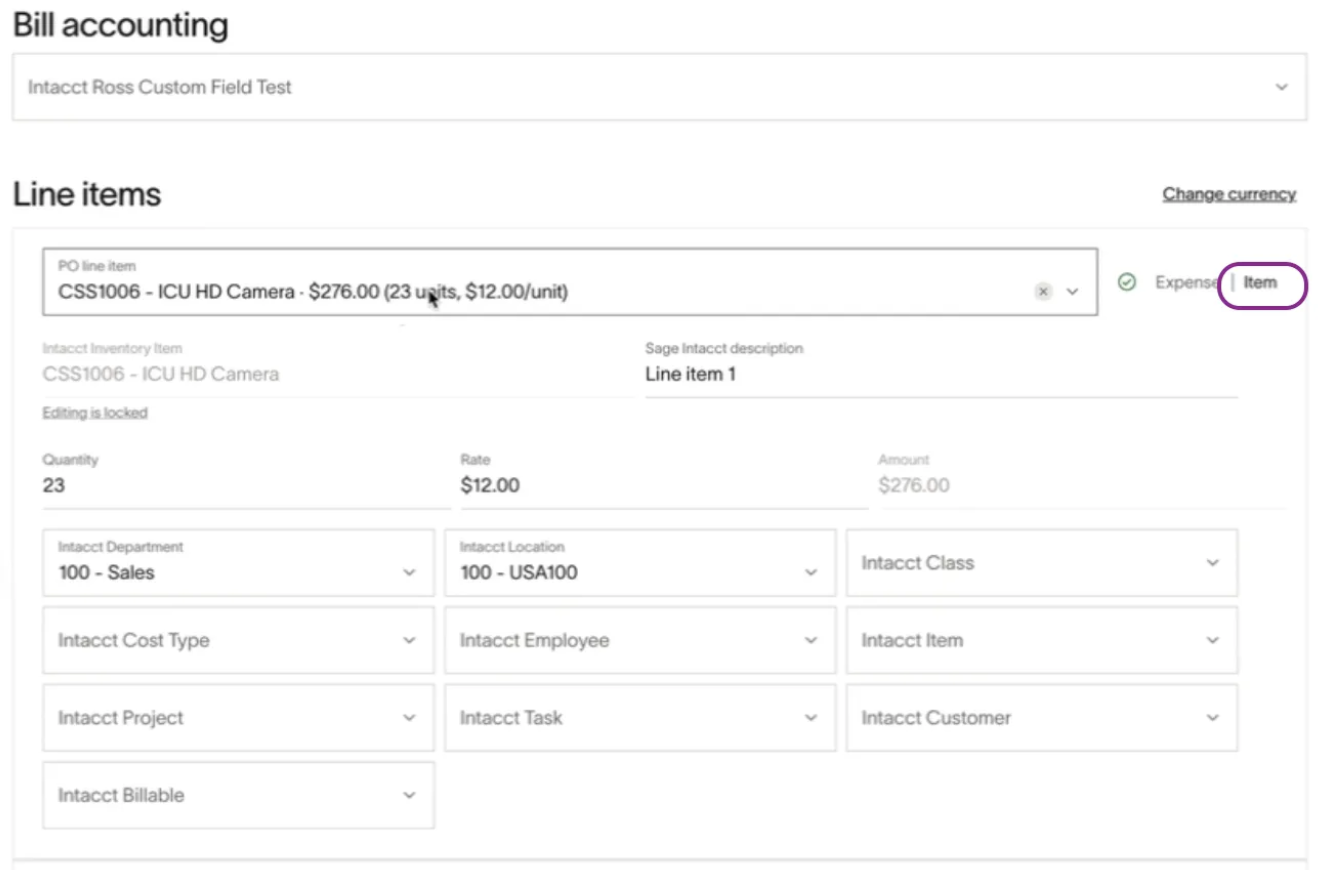
Ramp pre-fills all data from the PO: line items, custom fields, and dimensions
Important: If the PO is matched, only inventory items are allowed. You cannot switch to expense items.
Step 7: Syncing to Sage Intacct
When a bill matched to a PO is synced to Sage Intacct:
-
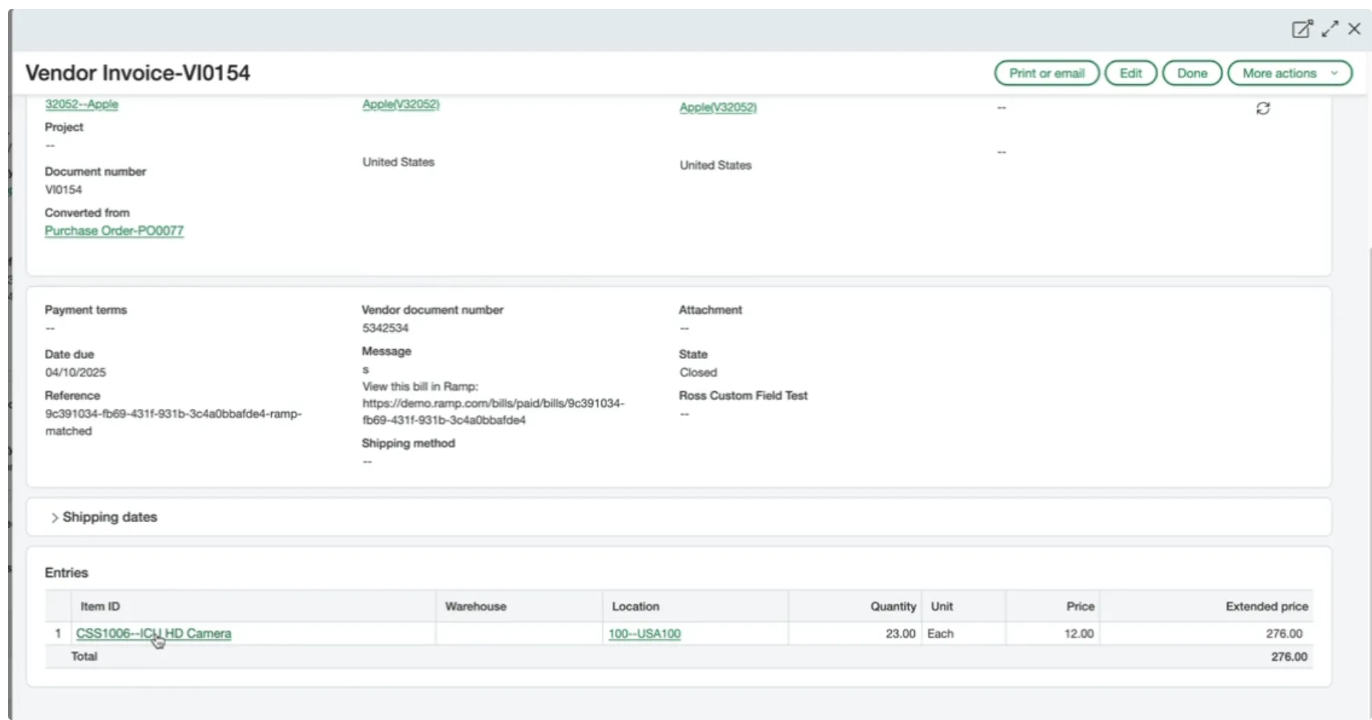
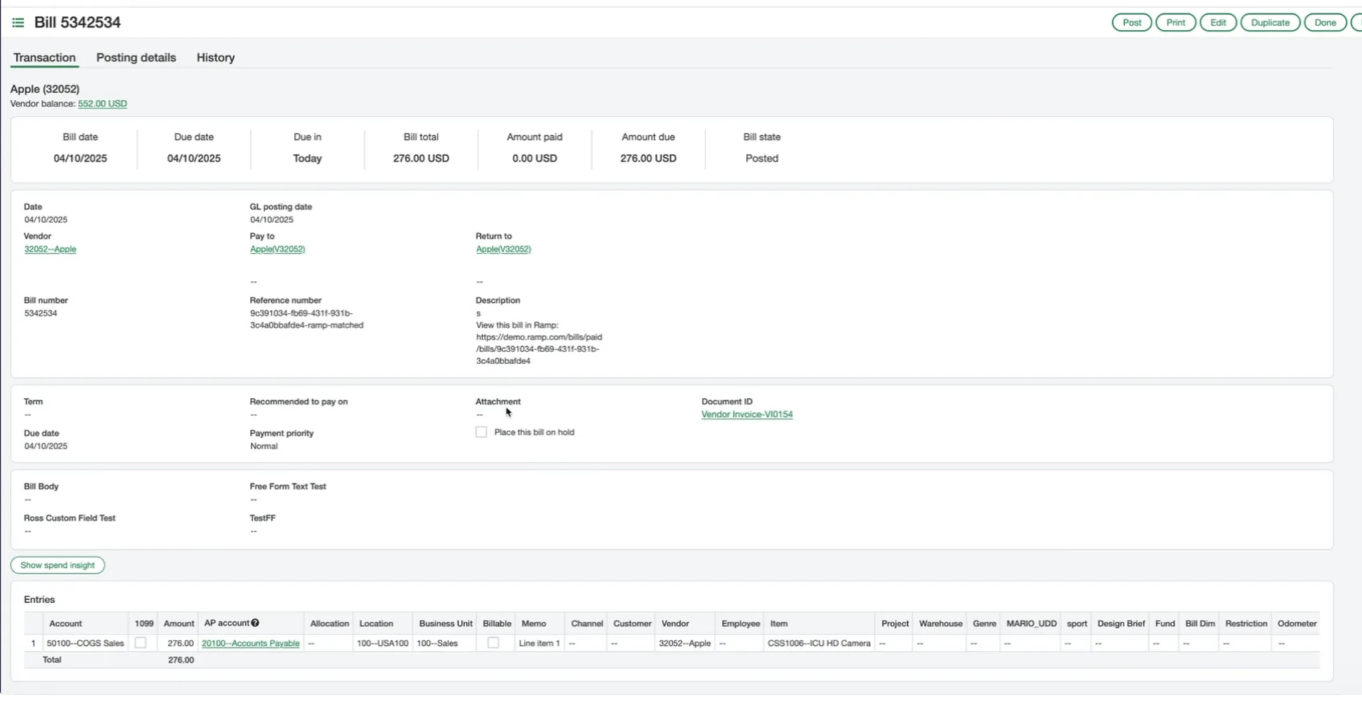
Ramp creates a vendor invoice.
-
Since the vendor invoice is set up to post to AP, an AP bill gets generated.
-
Payments are synced back to the AP bill, just like a normal Ramp bill
Even though the invoice is the primary synced object, Ramp links the payment to the resulting AP bill.
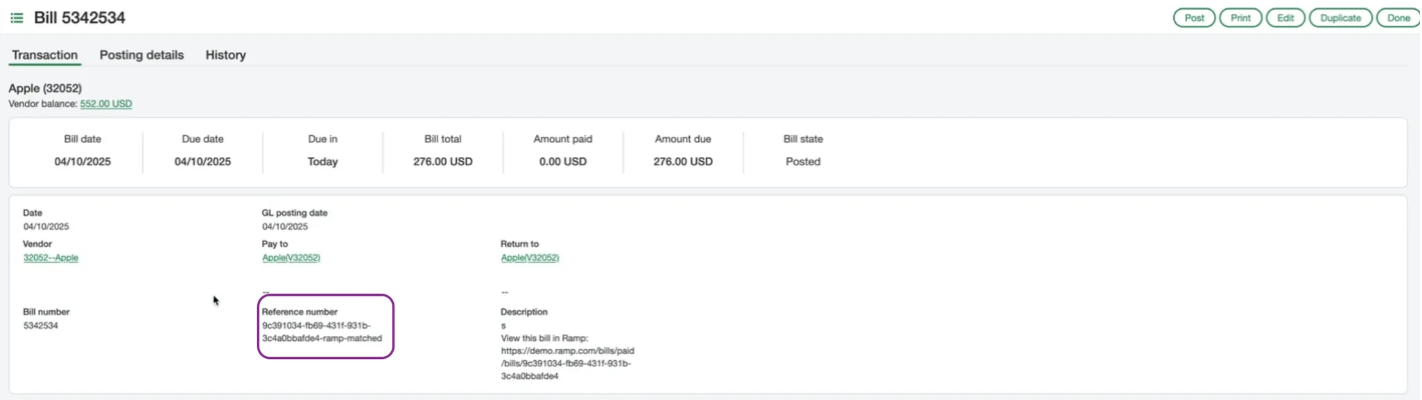
Ramp prevents duplicates by adding a “-ramp-matched” suffix to the reference number. This ensures these bills are not picked up again in bill import.
Step 8: What happens if the PO is changed?
If you change the PO on a matched bill after syncing:
- Ramp deletes the original vendor invoice in Sage Intacct. Sage Intacct will automatically delete the AP bill.
- A new vendor invoice is created, linked to the updated PO
Import item receipts from Sage Intacct
If you receive goods in Sage Intacct, Ramp can import those item receipts and link them to the imported PO, so you can three-way match bills in Ramp against received quantities.
Sage Intacct setup:
- Set up a purchasing workflow of Purchase Order → Purchase Receipt → Vendor Invoice, where the purchase receipt document can be created (recalled) from the PO and the vendor invoice posts to AP (see Step 2).
- Only active transaction definitions are imported.
- The Ramp user role needs Purchasing module permission (see Step 1).
Ramp setup:
- Three-way match must be enabled for your business. See 3-Way Match with Ramp Procurement for how receiving status and matching work.
Ramp imports each item receipt's line items mapped to their PO lines, including the inventory item, location, received quantity, unit price, and receipt number. Item receipts with no source PO, or with no importable lines, are skipped.
Three-way match bills against Sage Intacct receipts
Once item receipts are imported (or created directly in Ramp), Ramp shows received quantities on matched bill lines so you only pay for goods received. Partial-quantity receiving is supported for inventory line items. For the full workflow and receiving statuses, see 3-Way Match with Ramp Procurement.
Sage Intacct applies two additional rules when a three-way matched bill syncs:
- Every bill line matched to a three-way match PO line must have an item receipt line selected.
- All matched bill lines must reference the same item receipt, and that item receipt (and its lines) must already be synced to Sage Intacct before the bill can sync.
Sync purchase orders and item receipts from Ramp to Sage Intacct
For POs created in Ramp, Ramp can sync the PO and its item receipts back to Sage Intacct (see Syncing Ramp Purchase Orders into accounting):
- Purchase orders: Ramp creates a purchase order transaction in Sage Intacct. A vendor must be set on the PO before it can sync.
- Item receipts: Ramp creates a purchase receipt in Sage Intacct, recalled from the synced PO. The PO must be synced to Sage Intacct first, and each receipt line must map to a PO line that exists in Sage Intacct.
Important: Only inventory (item) line items sync to Sage Intacct. Expense- or account-only lines are not supported for purchase order or item receipt sync — select an inventory item on each line you want to sync.
Partial receiving is supported: item receipts sync the received quantity per line, so you can receive and sync in stages.
Choose Sage Intacct transaction definitions per Spend Program
You can control which Sage Intacct transaction definitions Ramp uses when it syncs POs and item receipts. These are configured per Spend Program:
- Purchase Order Transaction Definition (required) — the PO definition Ramp uses when syncing a Ramp-created PO.
- Receipt Transaction Definition (optional) — the purchase receipt definition Ramp uses when syncing item receipts. If not set, Ramp uses a default definition.
Only active definitions appear, and the receipt definition must be compatible with (recallable from) the chosen PO definition. Set these when editing the Spend Program.
Add a warehouse to Sage Intacct bill and purchase order lines
If your Sage Intacct configuration uses warehouses, Ramp can add an optional Warehouse tracking category (alongside Location) on bill and purchase order lines. Warehouse can be set per line and carries over when Ramp syncs POs and item receipts to Sage Intacct.
Common issues and troubleshooting
PO not showing in Ramp?
- Check that your PO document type is set as “Order”
- Make sure at least one vendor invoice type can be created from the PO
- Confirm that the vendor invoice is set to post to AP
Permissions error?
- Verify the Ramp user role in Sage Intacct has Purchasing module access
Item receipts not importing?
- Confirm three-way match is enabled for your business
- Make sure your Sage Intacct purchase receipt definition can be created from the PO, and the PO chain leads to a vendor invoice that posts to AP
- Verify the Ramp user role has Purchasing module access
PO or item receipt sync failing?
- Make sure every line you're syncing has an inventory item selected — expense- or account-only lines can't sync
- For item receipts, confirm the PO is already synced to Sage Intacct
- For three-way matched bills, confirm all matched lines use a single item receipt that's already synced to Sage Intacct
Summary
Ramp's Sage Intacct integration streamlines your Procure-to-Pay process across purchase orders and item receipts. To ensure success:
- Set up correct permissions
- Use the right document types, with a Purchase Order → Purchase Receipt → Vendor Invoice chain for item receipts
- Add "Ramp" to preferred invoice templates
- Select an inventory item on lines you match or sync — Sage Intacct PO and item receipt sync support inventory lines only
If you run into issues, review your document configuration in Sage Intacct or reach out to Ramp support.
Frequently asked questions
Does Ramp support Sage Intacct’s partial purchase order (PO) billing and conversion logic, including the use of converted POs like PO123-B?
A: Yes, Ramp supports Sage Intacct’s native partial PO handling and conversion process. Here’s how it works:
Partial PO handling in Sage Intacct:
- POs are created in Sage Intacct with a quantity of 1 and a total dollar amount.
- When a partial invoice is received, the original PO line is split in Intacct to reflect the partial amount (e.g., $2,500 of a $5,000 PO).
- Intacct converts the original PO into a new one with a “-B” suffix (e.g., PO123 becomes PO123-B) and marks the original PO as “converted” (i.e., closed).
- Invoices should no longer be processed against the original PO once it is marked as converted. This prevents duplicate billing.
How Ramp handles this:
- Ramp does not import POs marked as "converted" (closed) in Intacct.
- Ramp will import the original PO (e.g., PO123) until it is converted.
- Once the original PO is converted, Ramp picks up the new PO (e.g., PO123-B) as long as it remains in an "open" status (i.e., partially converted, not fully closed).
- Ramp does support bills being matched to partially converted POs (e.g., PO123-B), enabling proper handling of partial shipments and billing.