Set up Ramp's license intelligence
Overview
Beta. This feature is currently in Beta.
Ramp's License Intelligence provides instant visibility into your software usage so you can identify inactive users to reduce costs. License Intelligence is available to Owner, Admin, IT Admin, Finance Admin, and Accounting roles. It supports Okta, Microsoft Entra, Google Workspace, and Ramp Chrome extension data.
Connect Ramp to Okta
Go to License Intelligence to connect your Okta account. You must be assigned the Owner, Admin, IT Admin, Finance Admin, or Accounting role to access this feature.
- In the Okta Admin Console, go to Applications > Applications .
- Click Create App Integration and select API Services as the sign-in method.
- In the service app that you created, select Admin Roles > Edit assignments .
- Select Read-only Administrator from the Role dropdown and save changes.
- Under the Okta API Scopes tab, grant the following scopes:
okta.apps.read- lets Ramp read your app inventory for License Intelligenceokta.users.read- lets Ramp fetch user assignment data tied to those appsokta.logs.read- lets Ramp read activity data needed for License Intelligence insights
- Return to Ramp, enter your Okta credentials, and click Connect to Okta to complete the connection.
If you're having trouble with setup, watch the Okta setup video.
After you connect, our system will fetch information to visualize usage data in the Ramp dashboard. This may take up to 6 hours, please circle back later to see your information.
Connect Ramp to Microsoft Entra
Go to License Intelligence to connect your Microsoft Entra account. You must be assigned the Owner, Admin, IT Admin, Finance Admin, or Accounting role to access this feature.
Microsoft Entra ID P1 or P2 is required. Ramp uses Entra audit logs to calculate License Intelligence insights, and Entra tenants without P1 or P2 do not provide the audit log data Ramp needs. If your tenant does not have P1 or P2, work with your Microsoft Entra admin to upgrade before you connect.
- In the Microsoft Entra admin center, go to App registrations > New registration to create a Microsoft Entra enterprise application.
- Name your app and click Register . Save the Tenant ID and Client ID for the next page.
- In the app you created, go to Certificates & secrets and create a client secret. You can choose any expiry, but we recommend 365 days so you do not need to rotate it as often. Save the client secret value for the next page.
- Under the API permissions tab, click Add a permission > Microsoft Graph > Application permissions , add the following permissions, and grant admin consent:
Application.Read.All- lets Ramp read all applicationsAuditLog.Read.All- lets Ramp read all audit log dataGroupMember.Read.All- lets Ramp read all group membershipsUser.Read.All- lets Ramp read all users' full profiles
- Double-check that the Status column shows Granted for each permission before you continue.
- Return to Ramp, enter the Tenant ID, Client ID, and Client Secret, and click Connect to Microsoft Entra ID to complete the connection.
If you're having trouble with setup, watch the Microsoft Entra setup video.
After you connect, our system will fetch information to visualize usage data in the Ramp dashboard. This may take up to 6 hours, please circle back later to see your information.
Connect Ramp to Google Workspace
Go to License Intelligence to connect your Google Workspace account. You must be assigned the Owner, Admin, IT Admin, Finance Admin, or Accounting role to access this feature.
Google Workspace super admin access is required for the steps below (creating admin roles and configuring Domain Wide Delegation). If you are not a Google Workspace super admin, ask your Google Workspace super admin to complete steps 1–7 before you continue.
- In the Google Admin console, go to Directory > Users > Add new user. Create a dedicated License Intelligence admin user and save the email address.
- Go to Account > Admin roles, then click Create new role. Add a role name and description, then select the following privileges:
- Reports — detects which apps are actively used versus dormant
- Users > Read — pulls your employee roster, including names, emails, and departments
- Click Create role, then click Assign members and add the dedicated admin user's email address.
- Go to Security > Access and data control > API controls. Under Domain Wide Delegation, click Manage Domain Wide Delegation.
- Click Add new, then paste Ramp's client ID:
116896186460888396036 - Paste the following comma-separated OAuth scopes into OAuth scopes:
https://www.googleapis.com/auth/admin.directory.user.readonly,https://www.googleapis.com/auth/admin.reports.audit.readonly - Click Authorize.
- Return to Ramp, enter the dedicated admin user email, and click Connect to Google Workspace to complete the connection.
If you're having trouble with setup, watch the Google Workspace setup video.
After you connect, Ramp will sync your Google Workspace user information and OAuth token audit events from the past 90 days. This may take up to 6 hours, please check back later to see your data on the License Intelligence dashboard.
Note: The Google Workspace integration detects app access from OAuth token audit events, not app sign-ins or overall app activity. Unlike Okta and Microsoft Entra, it does not show assigned users.
Enable Chrome extension tracking
The Ramp Chrome extension can help License Intelligence identify browser-based activity for supported vendors. The default setting depends on how the extension is installed.
If your company force-installs Ramp for Chrome, License Intelligence tracking is enabled by default for employees unless they opt out. If employees install Ramp for Chrome themselves, tracking is off by default until they enable the Vendor domain detection toggle.
To change the setting, right-click the Ramp extension icon in Chrome, select Settings, and update the Vendor domain detection toggle.
When this setting is enabled, Ramp records a domain-level visit when an employee opens a supported vendor site in Chrome. Ramp stores only the supported base domain for that visit and associates it with the employee's Ramp account so License Intelligence can measure vendor activity and utilization.
Detection is limited to supported vendor domains that Ramp recognizes for License Intelligence, such as Notion, Figma, and Salesforce. The extension looks only at top-level Chrome page loads and does not collect page content, full URLs, page titles, keystrokes, form input, screenshots, activity in embedded frames, browsing on unsupported sites, or activity in desktop apps.
View app usage data
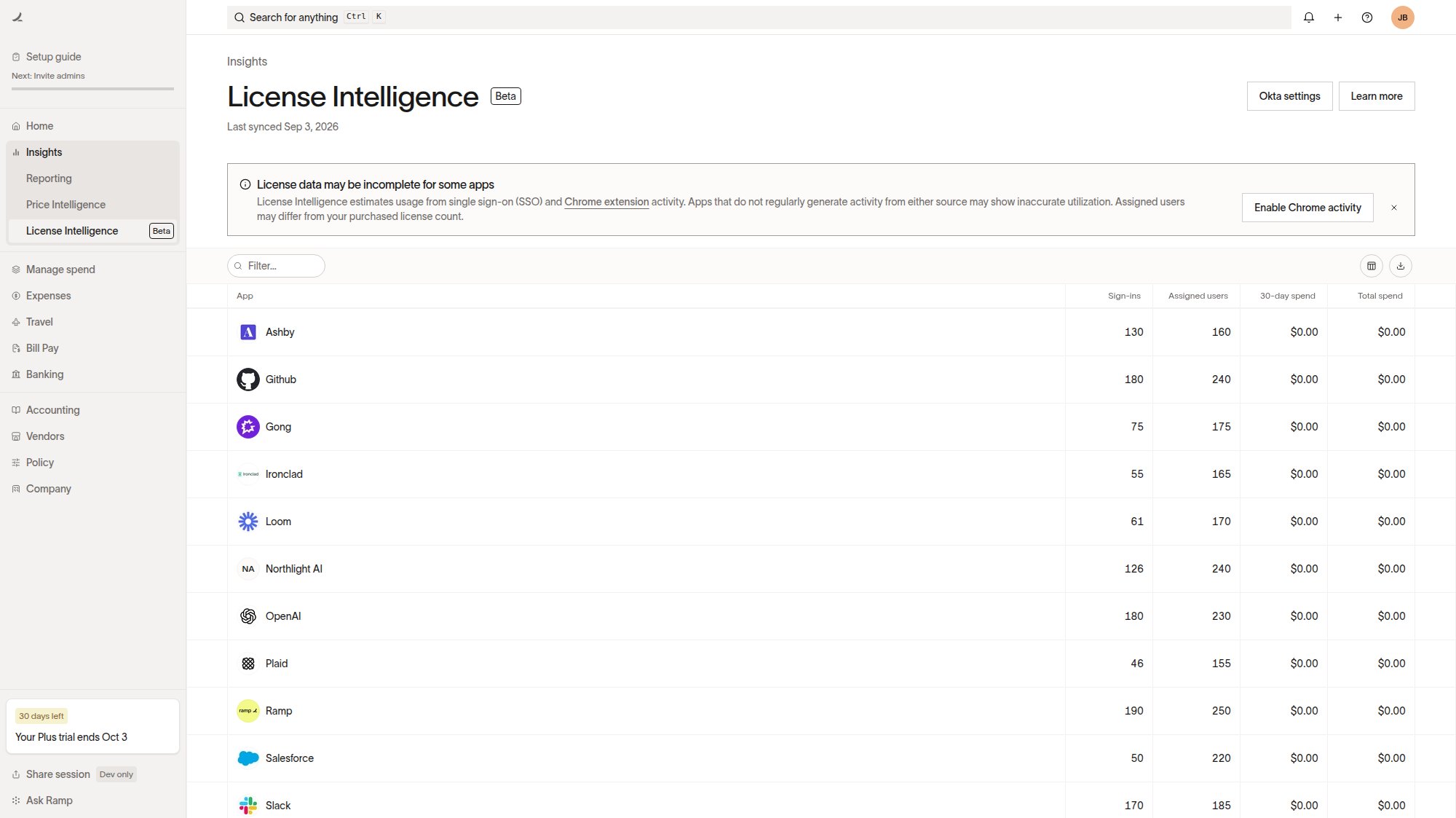
- Ramp counts a user as active when their most recent activity from a connected identity provider or the Ramp Chrome extension was within the past 31 days. For Google Workspace, active usage is based on OAuth token audit events.
- Use the License Intelligence table to review Sign-ins or Access users, Assigned users when available, 30-day spend, and Total spend.
- Select an app to review users and their latest sign-in or access date. Click Download CSV to export the data.
- During the import, we'll match apps from your connected identity provider with the vendors that you have on Ramp. We'll pull in spend information so you can identify potential cost savings. Select an app to update its Mapped vendor.
Please send any feedback using this form. We're continuing to make improvements to this feature to make it more useful for your team to identify unused software spend.