Chrome extension integration: Install via Google Admin
This article applies to Ramp Administrators and IT admins who manage Chrome in the Google Admin console. If your company does not manage Chrome through Google Admin, employees can install Ramp for Chrome individually.
Overview
You can install Ramp for Chrome for employees from the Google Admin console instead of asking each employee to install it manually. This setup is useful when your company manages Chrome extensions centrally and wants employees to have the Ramp extension available automatically.
Companies often deploy the extension centrally for two reasons. First, employees can use Ramp for Chrome to autofill card details at checkout and submit or auto-capture receipts from supported merchants such as Amazon and Uber. Second, the extension can help License Intelligence identify browser-based activity for supported vendors such as Notion, Figma, and Salesforce.
Google applies this policy to users who sign in with a managed Google account under the selected group or organizational unit. For employee usage steps, see Ramp Chrome extension.
Why companies deploy Ramp for Chrome
- Reduce receipt follow-up - Ramp for Chrome can submit receipts at checkout and may auto-capture receipts from supported merchants such as Amazon and Uber, which helps finance teams spend less time chasing receipts later.
- Make Ramp funds easier to use - employees can open the extension while checking out online, access their Ramp funds, and complete purchases without switching between tabs or asking for card details.
- Support software usage visibility - for companies using License Intelligence , the extension can help identify browser-based activity for supported vendors such as Notion, Figma, and Salesforce.
Note: License Intelligence tracking is enabled by default for employees when your company force-installs Ramp for Chrome. Employees can opt out in their extension settings.
Before you begin
- You need access to the Google Admin console as an administrator.
- If you want to install the extension only for part of your company, make sure the correct organizational unit or group is selected before you change the policy.
- Google notes that for Chrome users on Windows, Mac, or Linux, Chrome browser management must be turned on for the organizational unit before app and extension policies apply. See Turn on Chrome browser management .
- If you choose Force install or Force install + pin to browser toolbar , Google does not let employees remove the extension themselves. See Google’s Automatically install apps and extensions article for more detail.
Install Ramp for Chrome in Google Admin
-
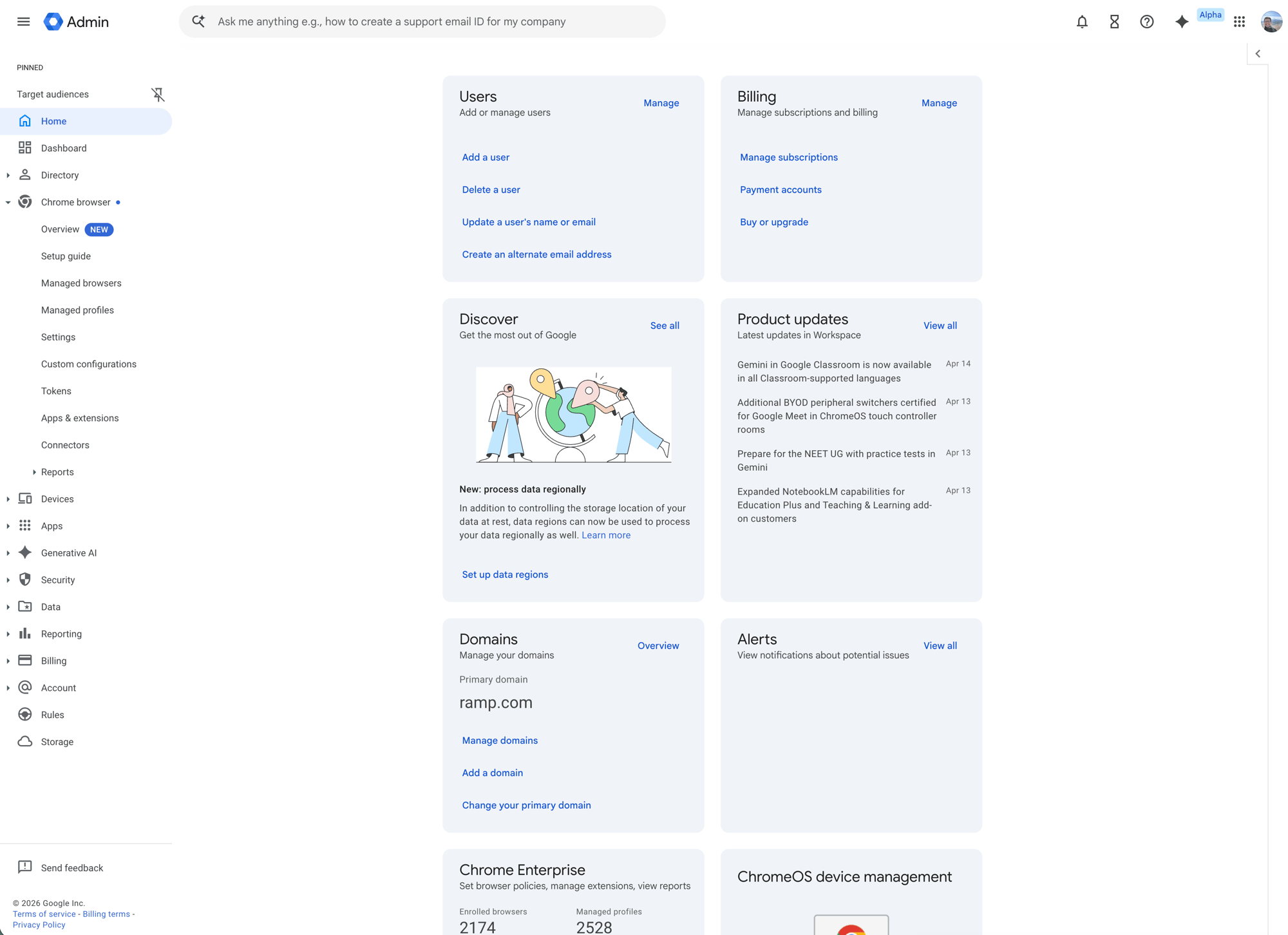
Sign in to the Google Admin console .
-
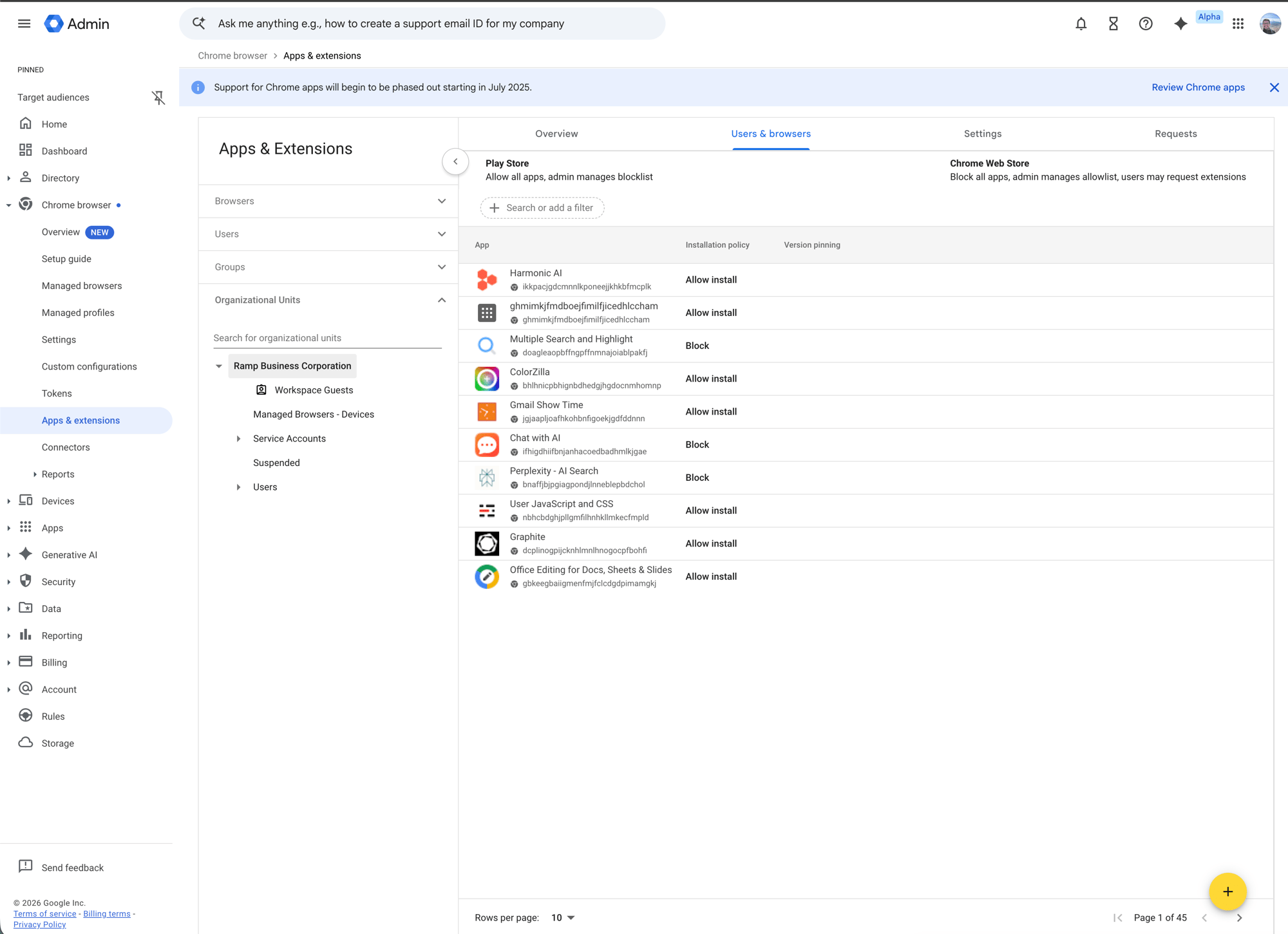
Go to Chrome browser > Apps & extensions , then open the Users & browsers tab.
-
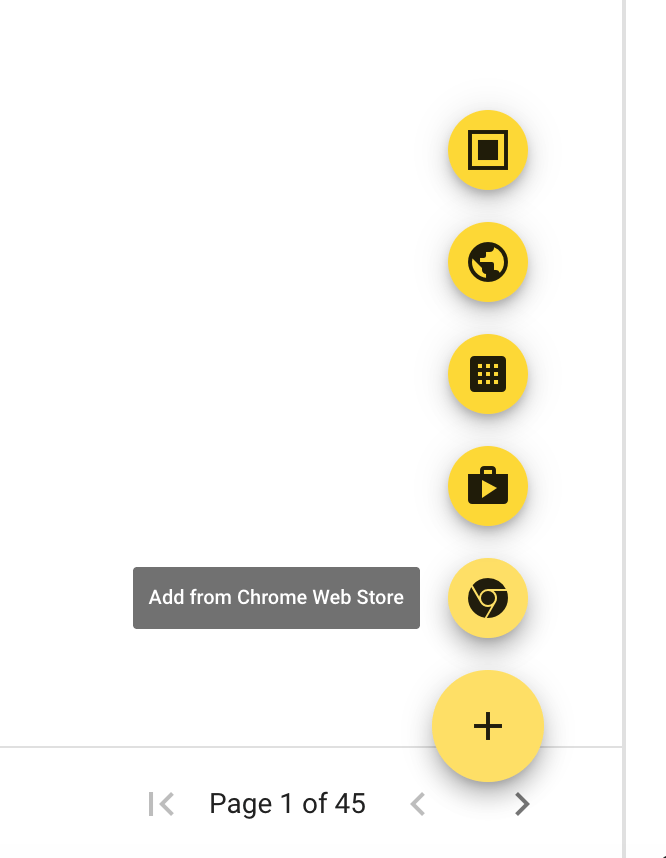
Select the organizational unit or group you want to update. Then click the add button and choose Add from Chrome Web Store .
-
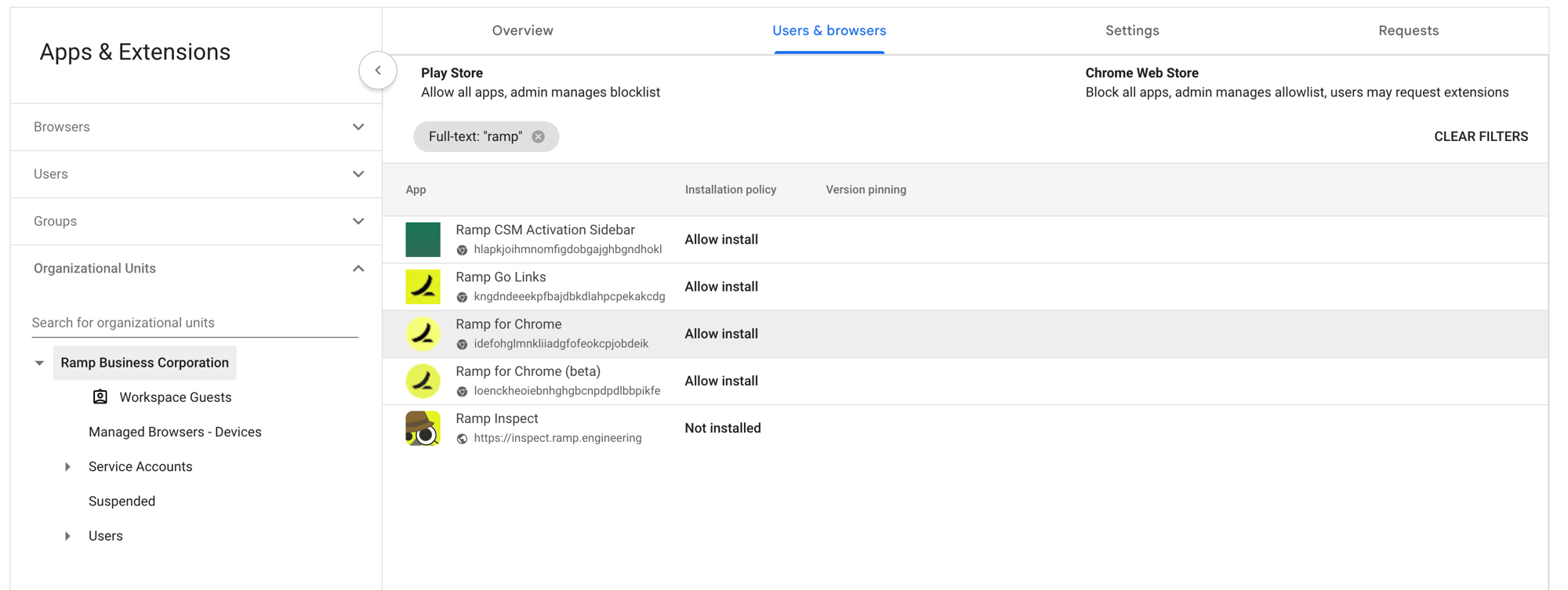
Search for Ramp for Chrome , then select the listing from ramp.com . If you need to confirm the correct listing, the extension ID is
idefohglmnkliiadgfofeokcpjobdeik.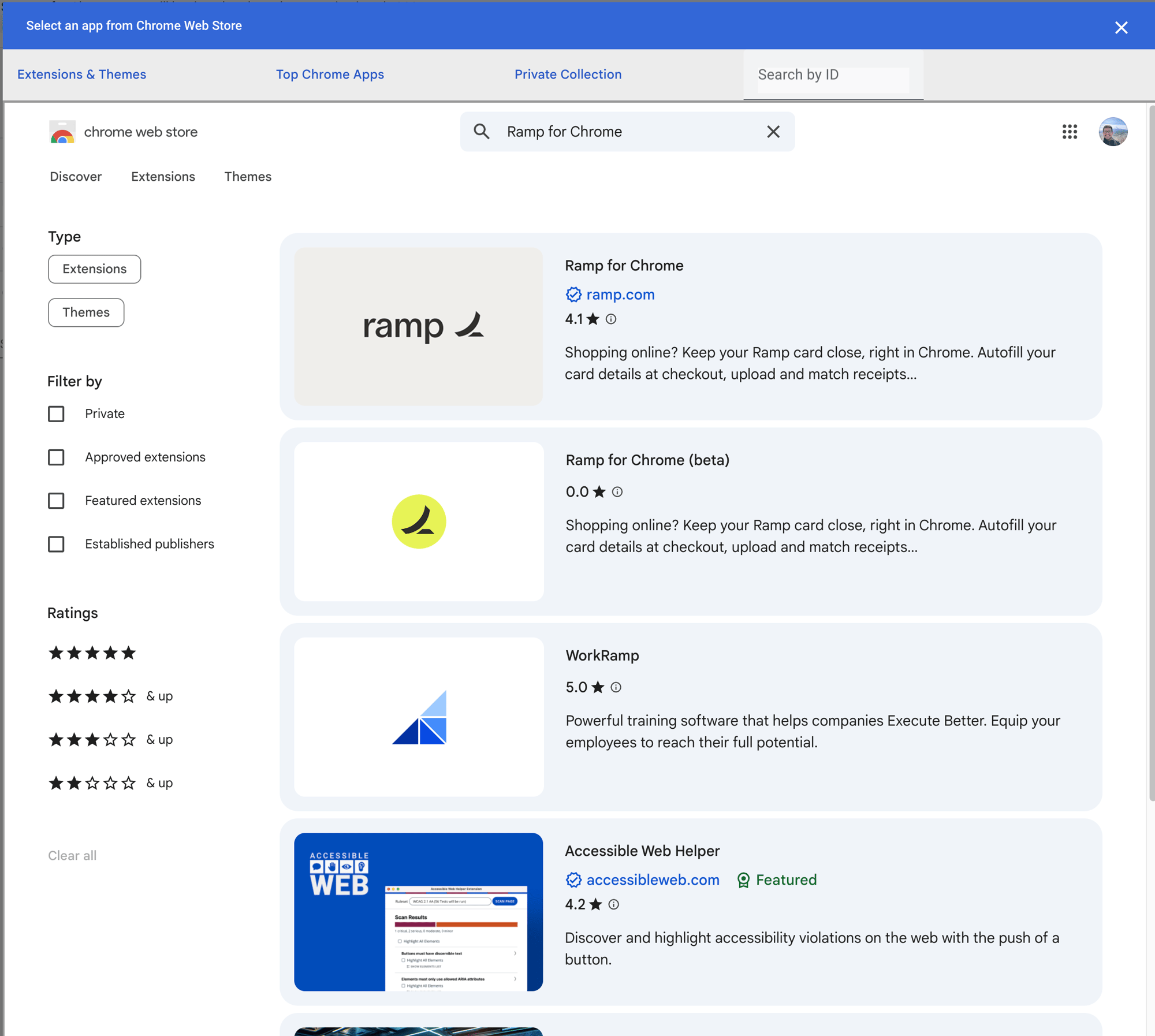
-
After Google adds the extension, confirm that Ramp for Chrome appears in your app list for the selected organizational unit or group.
-
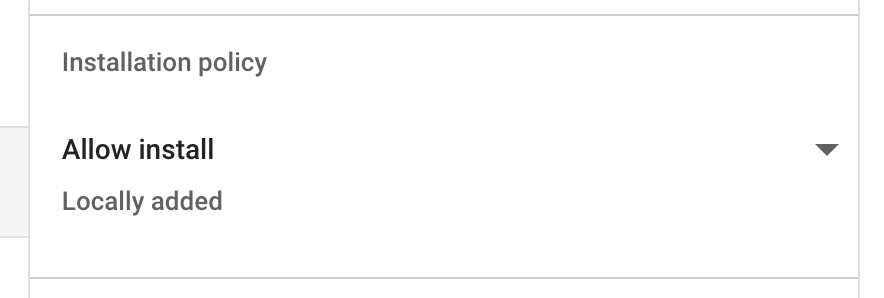
Open the extension's Installation policy setting.
-
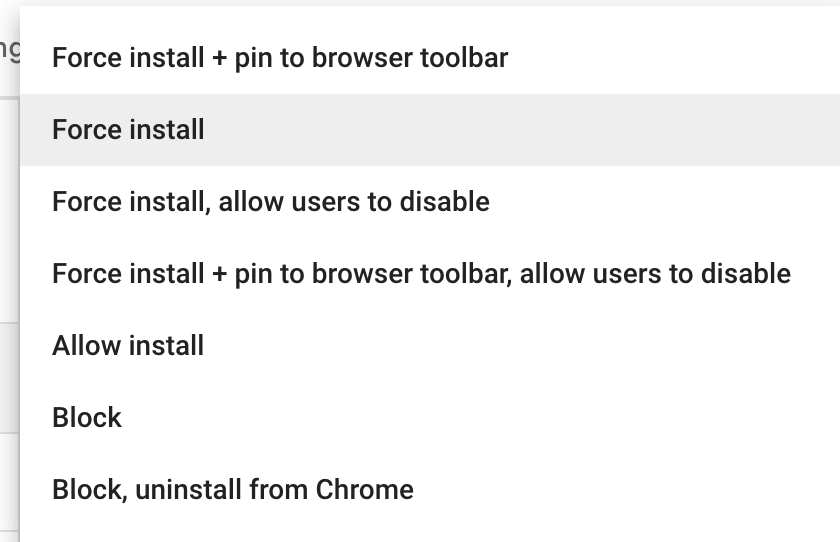
Choose Force install or Force install + pin to browser toolbar , then click Save .
-
Inform employees that Ramp for Chrome is installed and ask them to sign in to the extension to start using it.
Note: Force install + pin to browser toolbar installs the extension and pins it in Chrome. Force install installs it without pinning it to the toolbar.
What employees see
After Google applies the policy, employees in the selected group or organizational unit should see Ramp for Chrome installed automatically the next time they use Chrome with their managed Google account or on their managed browser.
Employees can then follow the steps in Ramp Chrome extension to pin the extension, use Ramp funds at checkout, and upload receipts.
Frequently asked questions
Can I roll this out to only one team first?
Yes. Google lets you apply the policy to a specific organizational unit or group. Select that organizational unit or group before you add the extension or change its installation policy.
Which installation policy should I choose?
Use Force install if you want the extension installed automatically. Use Force install + pin to browser toolbar if you also want the extension pinned in Chrome by default.
Can employees uninstall the extension themselves?
No. Google states that users can’t remove extensions that are force-installed by an admin.