Request lien waivers from vendors
Overview
Available on Ramp Plus. See Ramp Plus overview for plan details.
Request conditional or unconditional lien waivers from vendors for individual bills or drafts in Ramp for Construction on the web. Vendors receive an email with a secure link to the Vendor Portal, where they complete the request and submit their waiver. If your business has configured a PDF template for the requested waiver type, Ramp attaches it to the email.
Check lien waiver request permissions
Your business must have construction document types enabled before the request and template controls appear. If the controls are missing, ask your Ramp Admin to check the Ramp for Construction setup and access requirements and the permissions below. If setup is complete and permissions are correct but the controls are still missing, contact Ramp Support to confirm document-type availability for your business.
You need permission to edit the bill or draft and access to its vendor to send a lien waiver request. Viewing a bill alone is not enough. Select an active vendor with a default contact email before sending the request.
Managing templates requires permission to Edit Bill Pay settings, plus access to Project settings in the Projects hub. Sending reminders or canceling requests also requires access to the vendor and permission to request vendor payment details and onboarding forms. If you lack the necessary access, ask your Ramp Admin to update your permissions or perform the action.
Manage lien waiver templates
Templates are optional. Your business can configure a separate default PDF for conditional and unconditional lien waivers.
- Open the Projects hub. In the page header, select Settings (the button or gear icon). If it is not shown directly, open the page menu and select Settings.
- In Project settings, select Lien waiver templates.
- Under Conditional lien waiver or Unconditional lien waiver, select Upload document and choose your PDF.
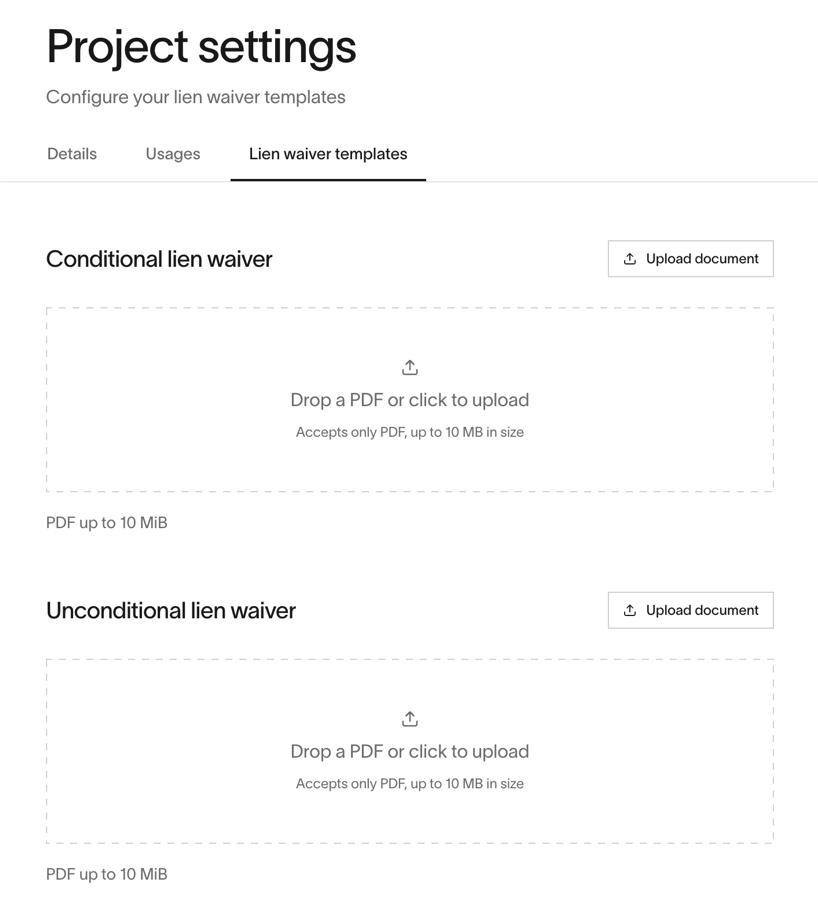
- Preview a template: Select the uploaded file.
- Replace a template: Select Upload document under the same waiver type and upload a new PDF.
- Remove a template: Select Remove template on the file and confirm the removal.
Send a lien waiver request
Start from either entry point:
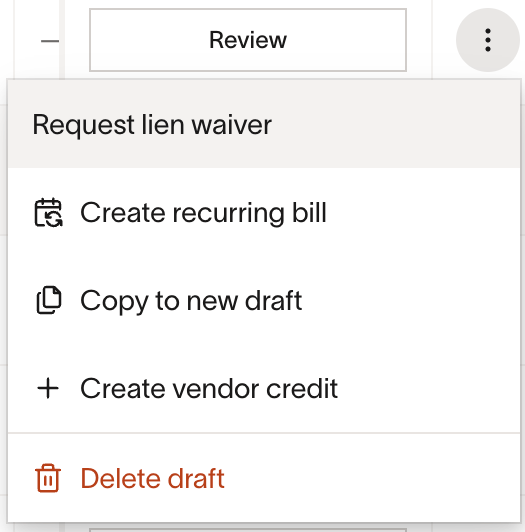
- Bills table: Open Bill Pay bills, open the bill or draft row's menu (⋮), and select Request lien waiver.
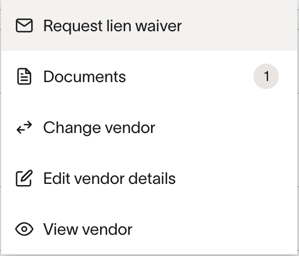
- Bill creation or editing: Open the menu (⋮) in the bill's Vendor section and select Request lien waiver. For a new draft, Ramp saves the draft before sending the request.
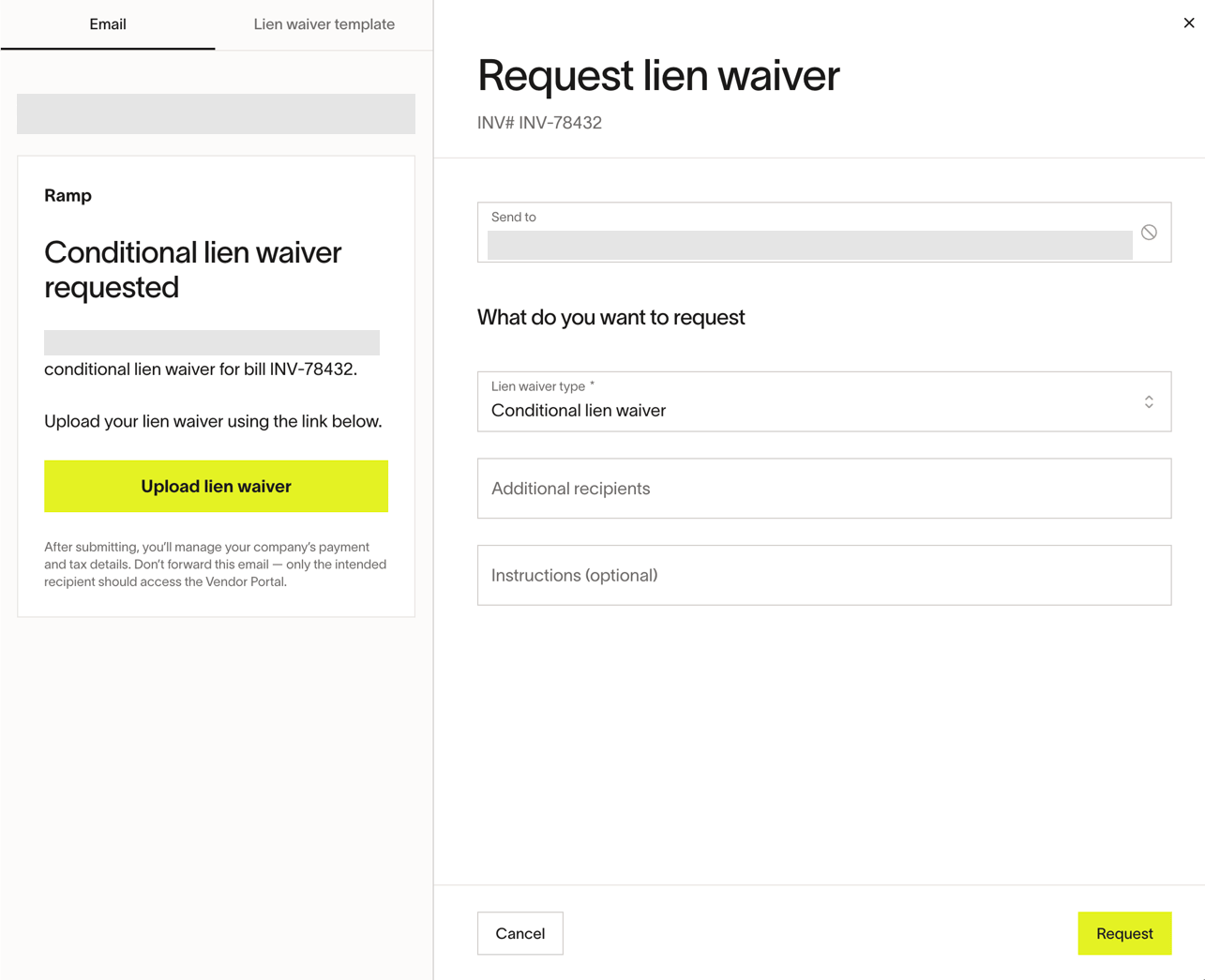
In the request drawer:
- Review Send to, which uses the vendor's default contact.
- Choose Conditional lien waiver or Unconditional lien waiver under Lien waiver type.
- Add Additional recipients from the same vendor, if needed, and optional instructions. Additional recipients must use the same email domain as the vendor's default contact and cannot be associated with another vendor's Vendor Portal. If an address is rejected, remove it or replace it with an address that meets both requirements; you can send the request to the default contact without additional recipients.
- Review the Email preview. If you have permission to edit Bill Pay settings, use Lien waiver template to preview the configured PDF. Otherwise, ask someone with that permission to preview it; a configured template is still attached when the email is sent.
- Select Request.
You can have one pending request per waiver type on a bill or draft. If one already exists, view or cancel the pending request before sending another for the same type.
Understand how vendors return lien waivers
The vendor opens Upload lien waiver in the request email to access the Vendor Portal through a secure link. If a PDF template is attached, the vendor completes it and uploads the completed waiver as part of the portal's request steps. The vendor must finish submitting the request in the portal. Vendors should not forward the email; only the intended recipient should use the link.
After submission and processing, Ramp attaches the returned file to the bill or draft with the requested waiver type.
Track or cancel a lien waiver request
Open the bill or draft and find the pending request beneath the Vendor section. If multiple requests are collapsed, expand them, then select View beside the request. The Lien waiver request drawer shows the waiver type, recipients, sent date, requester, and current status, such as Waiting for vendor.

- Send a reminder: Select Send reminder when it is available in the drawer.
- Cancel a request: Select Cancel request in the drawer while the request is pending.
These actions require the vendor request permissions described above. If they are unavailable because you lack access, ask your Ramp Admin or someone with those permissions to manage the request.