Create General Contractor "GC" pay applications for construction projects
Overview
Available on Ramp Plus. See Ramp Plus overview for plan details.
A pay application packages a project's invoices and unpaid subcontractor bills into one PDF that a general contractor (GC) can send to the project owner to request payment. Each pay application includes a summary of the selected bills and, optionally, each bill's invoice and conditional lien waiver, so the owner has the backup they need to approve the draw.
Understand what a pay application includes
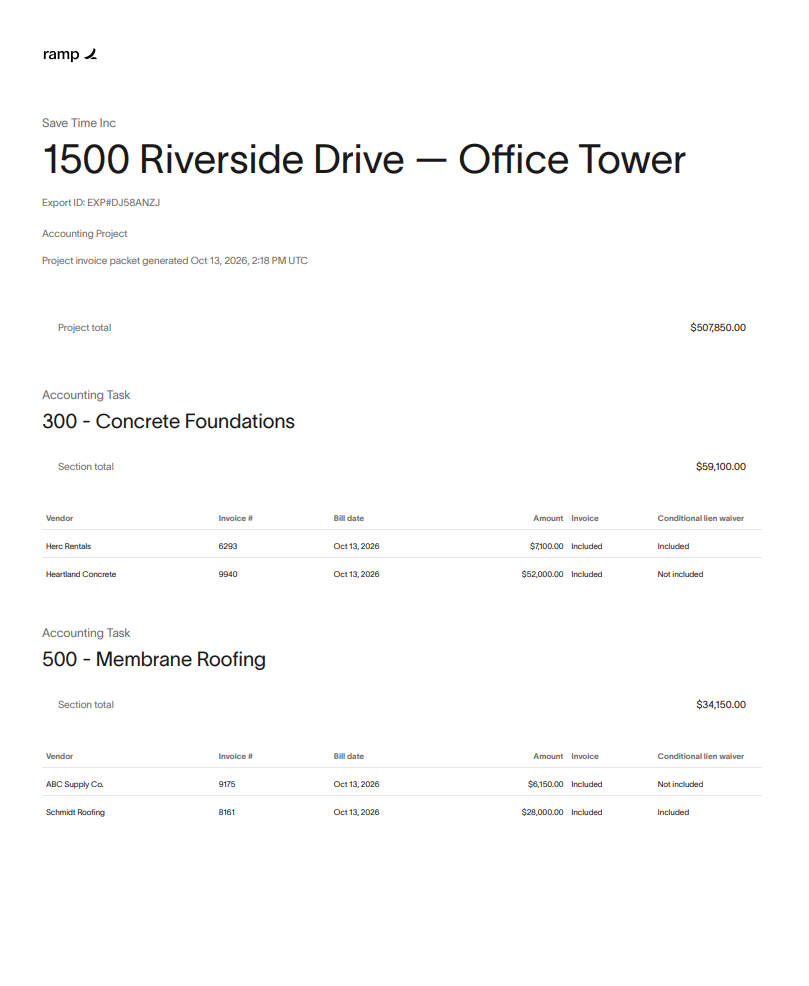
Each pay application is a single PDF for one project. It contains:
- A summary page with the project name, an export ID such as
EXP#DJ58ANZJ, the date it was generated, and the total requested. The summary lists each bill's Vendor, Invoice #, Bill date, and Amount, and shows whether the bill's Invoice and Conditional lien waiver are included. - A divider page for each group, if you group invoices by a field such as cost code. Each divider shows the group name, the number of invoices, and the group total.
- Each bill's documents, in summary order. When Attach conditional lien waivers is on, the bill's conditional lien waiver follows its invoice. When Attach invoices is on and a bill has no invoice file or conditional lien waiver to include, Ramp adds a page with the bill's details in its place. When Attach invoices is off, Ramp adds no details page.
Each bill appears at its full amount, even if only some of its line items are coded to this project. Ramp does not split a bill between projects, and a bill in one project's pay application can't be included in another project's. If a bill covers more than one project, deselect it under Adjust included bills or record each project's costs on a separate bill.
Pay applications are built from Bill Pay bills only. They do not include card transactions or reimbursements, and Ramp does not generate AIA G702 or G703 forms or a schedule of values. Attach the PDF to your own pay application forms if your owner requires them.
Check which bills are eligible for a pay application
A bill can be included in a pay application when it:
- Is coded to the project, either on the bill or on any of its line items.
- Is unpaid. Paid bills, drafts, and vendor credits are excluded.
- Belongs to your current accounting connection.
- Is not already part of another pay application that is in progress or complete, for any project.
Once a bill is in a completed pay application, it no longer appears as eligible, so the same invoice is not billed to an owner twice. If an export fails or is deleted, its bills become eligible again.
Create a pay application
Before you start, check the access requirements. To include conditional lien waivers, mark them on the bills first. Completed pay applications can't be deleted, so you can't easily redo one to add waivers later.
- Open Projects and select the project.
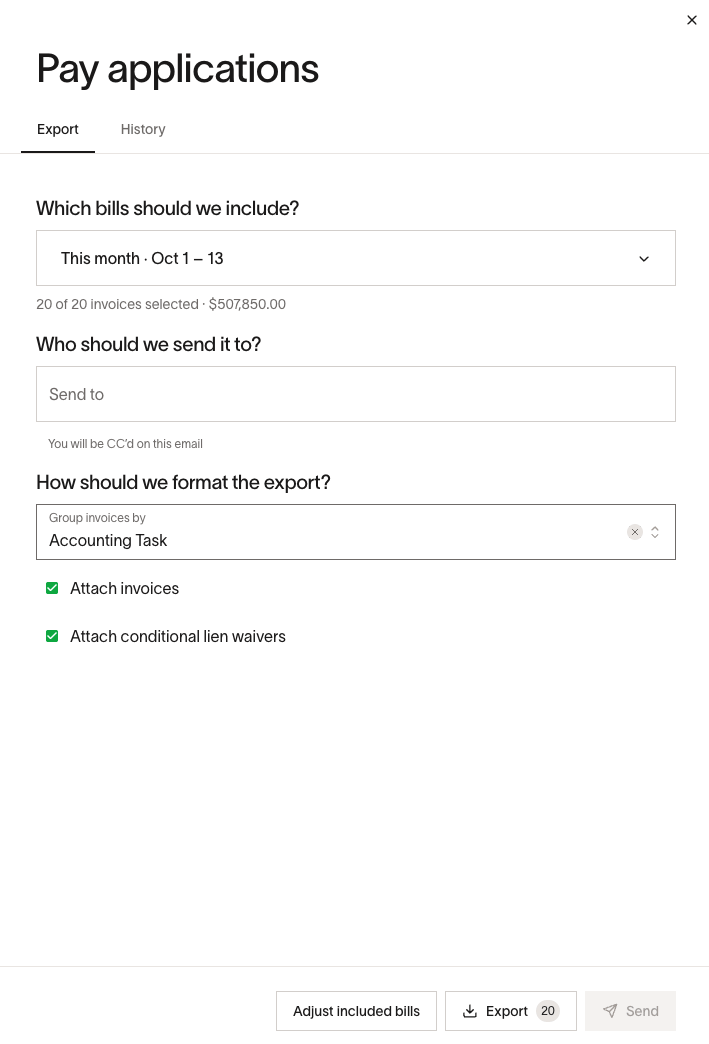
- Select Pay applications. The drawer opens on the Export tab.
- Under Which bills should we include?, select a date range. Choose a preset such as This month or Last two weeks, or set a custom range. The range uses each bill's creation date. Ramp selects every eligible bill created in the range and shows the count and total, for example 3 of 5 invoices selected · $12,000.00.
- Under How should we format the export?, optionally choose a field in Group invoices by, such as cost code or phase. Bills without a value for that field are grouped together at the end.
- Choose whether to Attach invoices and Attach conditional lien waivers. Both are on by default.
- Select Export.
Ramp generates the PDF in the background. When it is ready, a notification appears with View export. A pay application can include up to 500 bills. If more bills match, narrow the date range.
Adjust the bills included in a pay application
To add or remove individual bills before exporting, select a date range, then select Adjust included bills. The Review included bills page lists:
- Selected date range: eligible bills created in the range you chose. These are selected by default.
- Other eligible bills: eligible unpaid bills for the project created outside the range. These are not selected by default.
Select or clear individual bills, or use Select to select or deselect all bills. The table shows each bill's vendor, invoice number, bill status, creation date, accounting date, amount, and whether a conditional lien waiver is attached. Select Export to create the pay application, or close the page to return to the drawer with your selection kept.
Send a pay application by email
To email the pay application to the owner, enter one or more addresses under Who should we send it to? in the Send to field, then select Send instead of Export.
Ramp sends the email to the first address in the list and copies (CC) every other address. You are also copied, unless you already entered your own address. To send the email directly to the owner, enter the owner's address first.
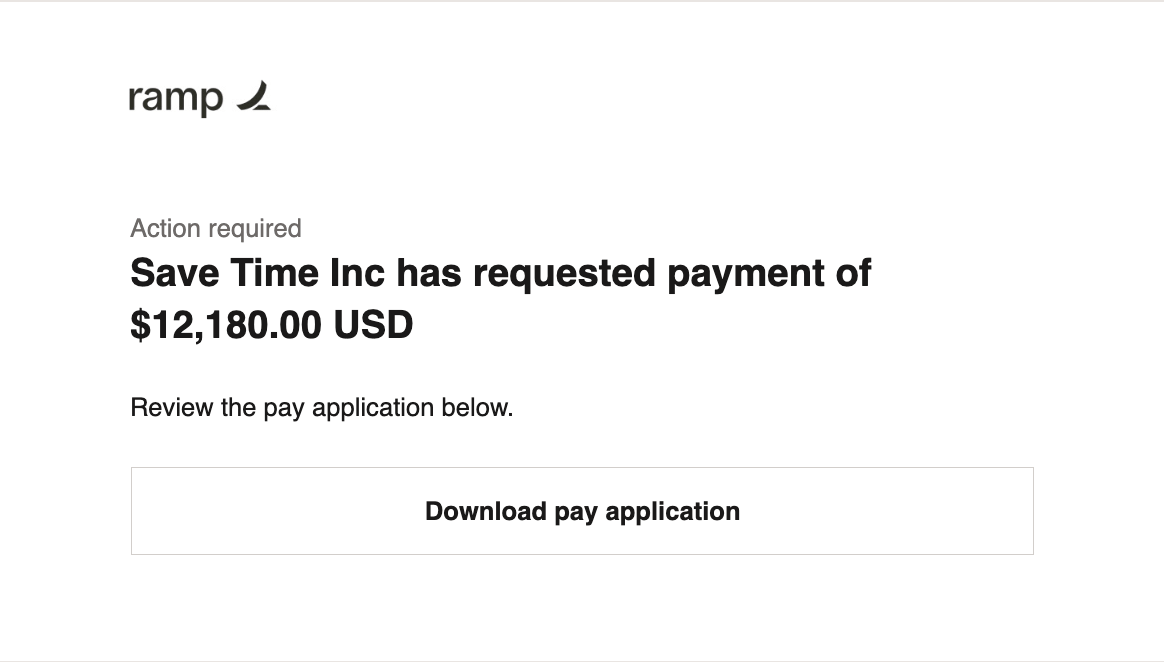
The email shows that your business has requested payment, the total requested, and a Download pay application button. Recipients don't need a Ramp account to download the PDF.
Sending by email requires permission to manage projects, in addition to the access requirements for creating pay applications.
Important: The download link in the email expires after 3 days. If the owner needs the file later, download it from History and share it directly.
View, download, or delete past pay applications
The History tab in the Pay applications drawer lists every pay application for the project, newest first. Each entry shows its export ID, the date range it covered, and its grouping. While a pay application is being created, it shows Creating export….
- To preview a completed pay application, select its thumbnail.
- To download it, select the download icon.
- If an export failed, its reason appears under the file name. Select the delete icon to remove it; its bills become eligible again. Deleting a failed export requires permission to manage projects. Without it, the delete icon still appears, but deleting fails. Ask someone with permission to manage projects, such as a project manager or admin, to delete it.
Completed pay applications cannot be deleted from the History tab.
Understand pay application access requirements
To create pay applications, you need:
- Ramp for Construction set up for your business, with the Projects hub available.
- A connected accounting provider.
- Permission to view projects and to view all bills.
To send a pay application by email or delete a failed export, you also need permission to manage projects. Exporting, previewing, and downloading pay applications do not require it.
If Ramp for Construction isn't turned on for your business, opening Projects shows a Ramp for Construction page instead of your projects. A user with permission to manage projects can select Get started on that page to turn on Ramp for Construction and open its setup guide. If your business isn't on Ramp Plus, Get started opens Ramp Plus plans instead. If you don't see Get started, ask an admin to turn on Ramp for Construction.
If you can open a project but do not see Pay applications, ask an admin to confirm that your role can view all bills and that your accounting provider is connected.
Mark conditional lien waivers on bills
Beta. Document types on bills are currently in Beta and may not be available for your business. If Document type isn't available, you can't mark waivers in Ramp, and pay applications show each bill's conditional lien waiver as Not included.
A pay application includes a bill's conditional lien waiver only when the waiver is attached to the bill as an additional document and marked as a conditional lien waiver. To mark it:
- Open the bill. If the waiver isn't attached yet, upload it to the bill as an additional document.
- In the document viewer, select the Documents tab and select the waiver.
- Open the menu (⋮) and, under Document type, select Conditional lien waiver.
You can change a document's type only if both of these are true:
- You can edit the bill's documents. If you can't, ask someone who can edit the bill to mark the waiver.
- Every payment on the bill can still be changed. Document type is hidden while any payment on the bill can't be changed, for example because it's processing or is part of a batch payment. This applies to everyone, including people who can edit the bill. If the payment can be changed again later, you can mark the waiver then.
Waivers that are already marked are included in your pay applications whether or not you can edit the bill.
To have Ramp's automated bill review check lien waivers and certificates of insurance, see Set up construction lien waiver and COI checks.
Frequently asked questions
Why can't I find a bill I expected to include?
Check that it meets every requirement in Check which bills are eligible for a pay application. If it was created outside your date range, find it under Other eligible bills when you adjust the included bills.
Can I include paid bills?
No. Pay applications include unpaid bills only. See Check which bills are eligible for a pay application.
Why did my export fail?
The History tab shows the reason. Common causes are that no bills match the date range, more than 500 bills match, a selected bill is no longer available, or the project or grouping field is no longer active. A failed export's bills are eligible again right away, so adjust your selection and export again. Deleting the failed export is optional cleanup and requires permission to manage projects.