Set up construction lien waiver and COI checks
Overview
Available on Ramp Plus. See Ramp Plus overview for plan details.
Use Ramp's automated bill review to check lien waivers and certificates of insurance (COIs) while your team reviews subcontractor bills. Add the checks to your accounts payable (AP) policy to tell approvers what compliance information to review. A failed check does not automatically block the bill or payment.
Add lien waiver and COI checks to your AP policy
Open Lien waiver and COIs in the Ramp for Construction setup guide and add the checks to your AP policy. You need permission to modify Bill Pay settings and access to Policy > Bill Pay. If you cannot open it, ask someone with permission to manage Bill Pay settings to add the requirements.
Require lien waivers and Require COIs are selected by default.
Customize automated bill review instructions
Open Bill Pay policies and edit AP Review Policy to change the automated review instructions for bills. Ramp uses this policy document rather than a separate prompt.
Write each instruction as a complete rule. Specify when the check applies, the exact document or threshold to verify, any exceptions, and what an approver should do when the check fails. For example, identify which bills require a signed lien waiver or the minimum remaining validity and coverage limits required for a COI. Avoid vague terms such as “normally” or “when appropriate” that do not tell Ramp when to apply the rule.
If a draft bill was reviewed before you updated the policy, run the review again so the findings reflect the new instructions.
Understand construction lien waiver checks
The default lien waiver policy asks Ramp to check whether a waiver is attached, signed, matches the bill amount, and covers the relevant work through date. Ramp reports the evidence and reasoning available for each check so the approver can decide whether the bill is ready.
The checks do not collect a waiver from the vendor, approve the document on your behalf, or impose a payment hold by themselves. Use your AP policy and approval process to determine what reviewers should do when a waiver is missing or does not match.
Understand construction COI checks
The default COI policy asks Ramp to check whether the certificate has more than 30 days of validity remaining, matches the vendor name, includes required policy details, and has coverage exceeding the invoice payment. Each result reflects the document and bill information available during review.
A COI finding does not create a vendor-wide hold or block payment by itself. If the document needs to be replaced, update it through Vendor documents, then assess the bill again under your business's AP process.
Interpret document check results
Ramp can show a check as passed, needing input, not applicable, or pending. A result that needs input means an approver should review the supporting evidence or missing information; it is not an automatic rejection. A pending result means Ramp has not completed the check yet.
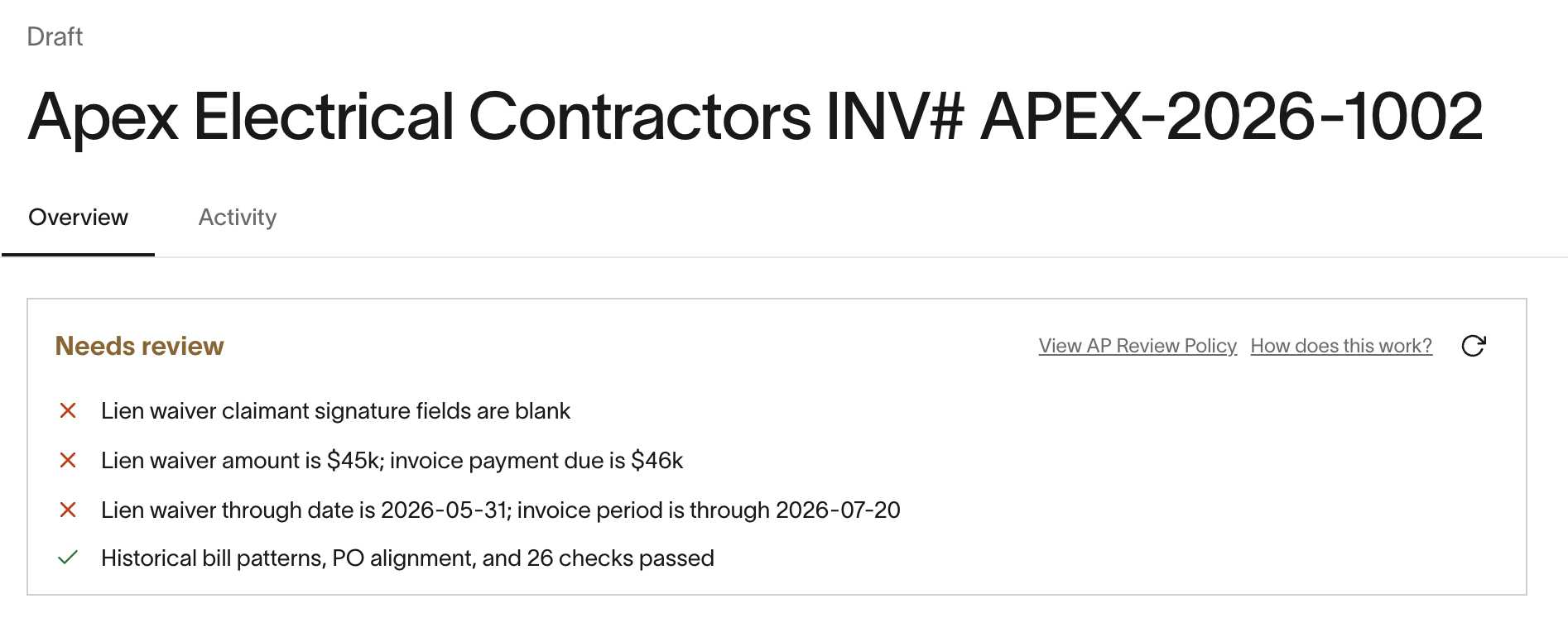
The AP policy review can summarize multiple checks as passed, failed, or not applicable. Approvers remain responsible for the final bill decision, including whether company policy requires the issue to be resolved before approval.
Troubleshoot missing document reviews
If checks are missing from a draft bill, make sure the bill has a vendor and wait for Ramp to finish reading the invoice. Ramp does not automatically add these checks to bills created through bulk import; review the bill and its documents directly instead.
Ramp can ask follow-up questions only while a bill remains in draft. Submit the requested information before the bill leaves draft, or have an authorized reviewer inspect the bill and documents directly during approval.