Oracle Fusion integration overview
Overview
Available on Ramp Enterprise. See Ramp Enterprise overview for plan details.
This article explains how Ramp syncs card transactions, reimbursements, and statement payments to Oracle Fusion. It also covers setup, customization options, and common questions.
Setup
To set up an integration between Ramp and Oracle Fusion for accounting needs please reach out to your Ramp account manager.
How will Ramp support the account field in Oracle Fusion?
Ramp supports short-hand account aliases, a feature in Oracle Fusion that simplifies transaction coding. With short-hand account aliases, all necessary accounting fields are combined into a single field, making it easier to code transactions accurately.
When coding a transaction in Ramp, you can select a short-hand account alias instead of manually entering multiple accounting fields. This ensures that each transaction is coded correctly every time.
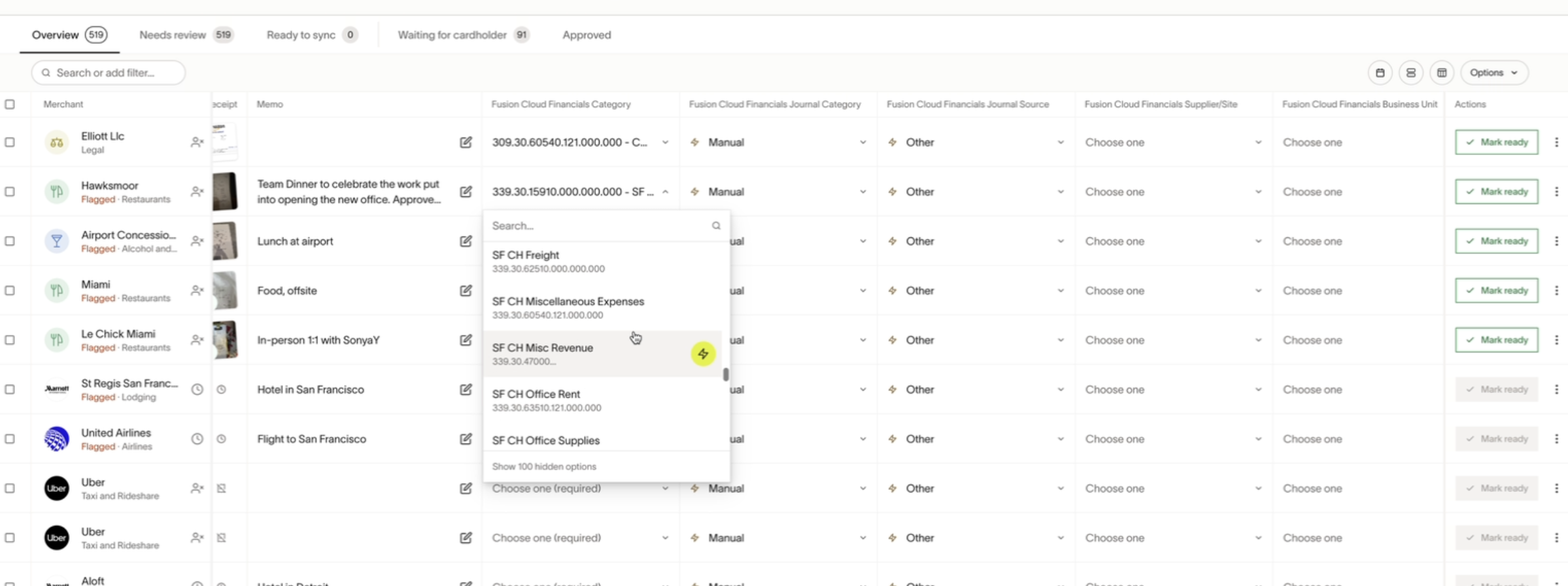
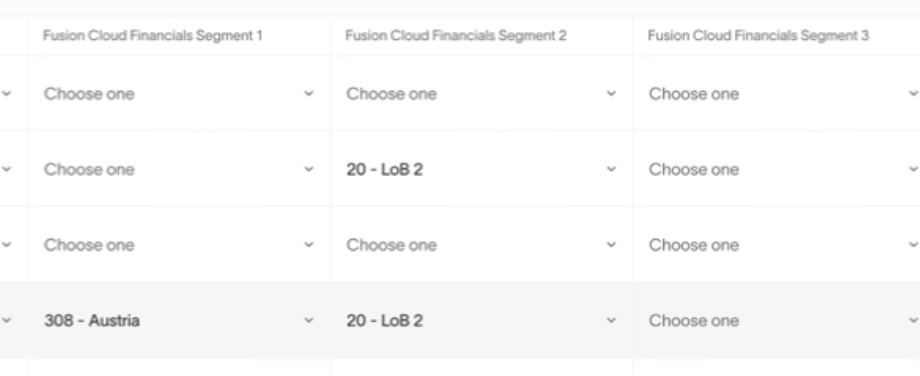
If you do not use short-hand account aliases, Ramp provides a default state for coding transactions. This default state acts as a blank template, allowing you to manually enter the necessary accounting details. Note: short-hand account aliases can be used as a default state. When using a short-hand alias you can still select an individual segment which will override the short-hand account alias.
-
Default State Creation – Ramp assigns a default state with blank accounting fields.

-
Segment Entry – Ramp pulls in your accounting segments, allowing you to enter values for each one.
-
Override the Default – The values you enter replace the default blank fields.
-
Sync to Ramp – When the transaction syncs, Ramp applies the segment codings you provided.
Automating the process
To reduce manual entry, you can set up accounting rules in Ramp. These rules automatically apply the correct segment values based on predefined conditions, streamlining transaction coding.
How will credit card transactions appear in Oracle Fusion?
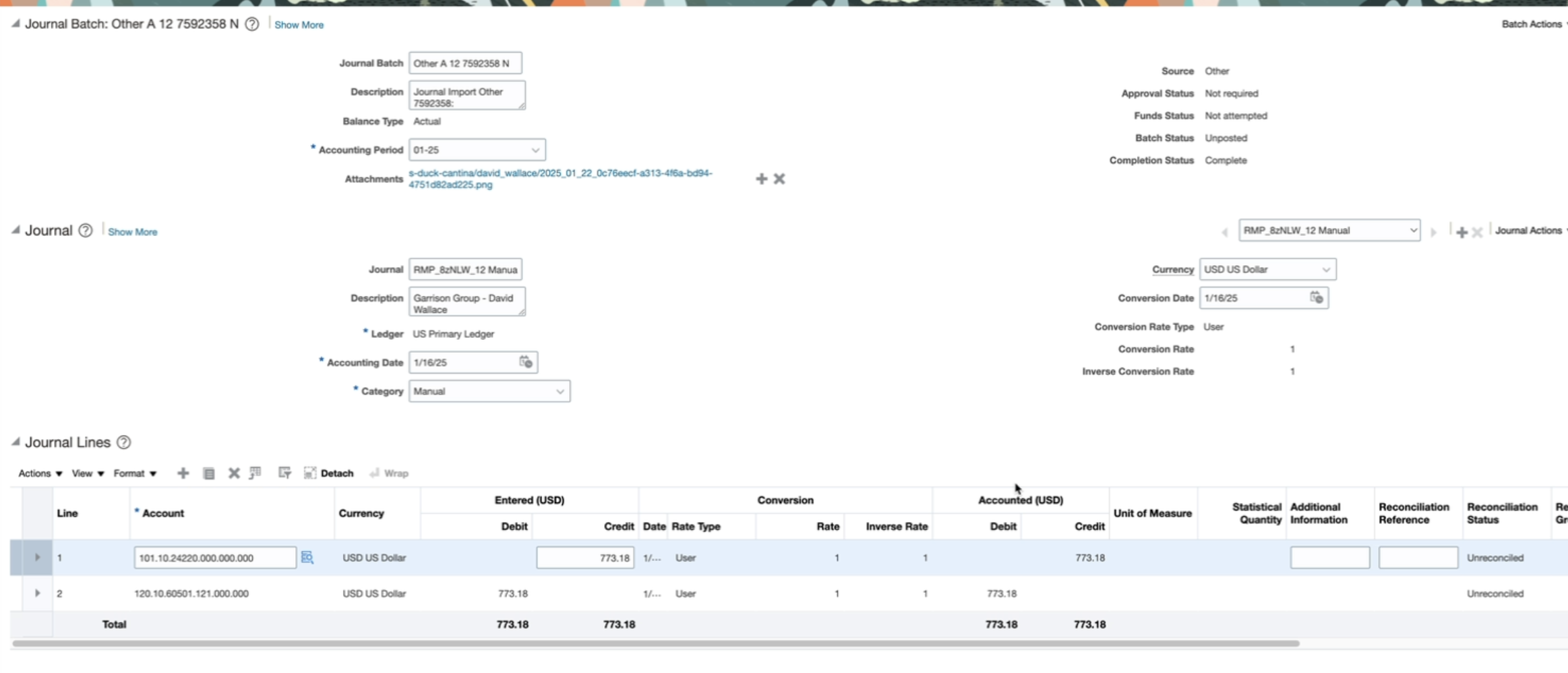
Ramp card transactions will show up as journal batches in Oracle Fusion. Ramp will automatically start journal import tasks in Fusion, and delete residual data from any failed imports. Each expense will include the information from the fields you entered in Ramp and two journal lines:
- Debit Expense Accounts
- Credit Ramp Card Liability Account
- Receipt synced as an attachment
How will reimbursements appear in Oracle Fusion?
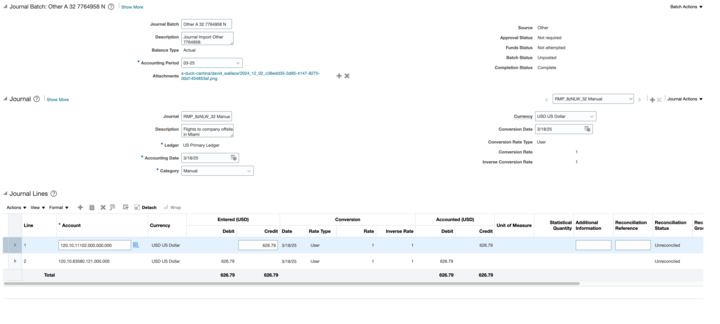
Ramp reimbursements will show up as journal batches in Oracle Fusion. Ramp will automatically start journal import tasks in Fusion, and delete residual data from any failed imports. Each expense will include the information from the fields you entered in Ramp and two journal lines:
- Debit Expense Accounts
- Credit Cash Account
- Receipt synced as an attachment
How will statement payments appear in Oracle Fusion?
Ramp statement payments show up as journal batches in Oracle Fusion. Each synced statement payment creates its own 2-line journal batch, and the Oracle Fusion external reference stores the Ramp transfer UUID so you can trace the synced payment.
- Debit the Ramp Card Liability Account
- Credit the mapped bank account
Accounting period handling
Ramp supports editable accounting dates and respects Oracle Fusion period rules. If a transaction or reimbursement date falls within a closed accounting period, Ramp allows you to adjust the accounting date before syncing.
How will Ramp support multi-entity in Oracle Fusion?
Ramp does support multi entity Oracle Fusion instances. Each Ramp Entity will connect to a Oracle Fusion "Legal Entity." All Ramp transactions and reimbursements will by default go into the PRIMARY ledger of the Oracle Fusion legal entity associated with the Ramp entity. This will allow you code transaction types to specific legal entities within your instance. Different chart of accounts structures for each legal entity are supported. Account segment options will be restricted to the chart of accounts structure of the ledger that the transaction will sync to.
All Ramp transactions and reimbursements will by default go into the appropriate Oracle Fusion subsidiary. This will allow you code transaction types to specific companies within your instance.
For more information on Multi-Entity support please review this Help Center document.
How will Ramp support multi-currency in Oracle Fusion?
Transaction
- Debit Line Currency: sync currency here is configurable by the user (from Accounting > Settings > Sync settings > Sync currency). Customers can choose either the original currency or the issuing currency.
- Credit Line Currency: in the issuing currency
Reimbursement
- Debit Line Currency: original currency of reimbursement
- Credit Line Currency: currency of the payment
Customization options for Oracle Fusion syncing in Ramp
Ramp provides several customization options for syncing transactions with Oracle Fusion. Below, we outline each use case and its impact, helping you choose the right settings for your accounting needs. Please reach out to your account manager and solutions engineer to assist you with these customizations.
1. Grouping transactions into a single journal batch
Use Case
- Affects syncing multiple expense and reimbursement transactions at once.
- Groups transactions into a single journal batch per sync, assuming the same batch-level details ( Accounting Period and Journal Source ).
- Each transaction remains a separate journal entry within the batch.
- The customer wants fewer journal batches in their GL and does not need deep-linking or receipt uploads into Oracle.
Impact
- Fewer journal batches created in Oracle, simplifying GL reconciliation.
- Removes deep-linking and receipt uploads into Oracle.
- Requires the customer to resolve journal creation errors directly in Oracle (instead of reviewing sync errors in Ramp and re-syncing).
2. Grouping transactions into a single journal entry
Use Case
- Affects syncing multiple expense and reimbursement transactions at once.
- Groups transactions into a single journal entry , assuming the same journal-header-level details ( Accounting Date and Journal Category ).
- Each transaction still includes two lines , regardless of expense and liability COA values.
- The customer wants fewer journal entries in their GL and does not need deep-linking or receipt uploads into Oracle.
Impact
- Reduces the number of journal entries in Oracle.
- Removes deep-linking and receipt uploads into Oracle.
3. Overriding the accounting date with the system date at sync
Use Case
- The customer’s process defaults to using the creation date as the accounting date and does not want to modify it manually.
Impact
- The system date at the time of sync overrides the accounting date in the journal entries.
- The override does not update the "Accounting Date" in Ramp.
- Ensures consistency and predictability for accounting dates, reducing confusion during month-end close .
4. Setting a specific Oracle journal source for all entries
Use case
- The customer wants all journal entries created by Ramp to have the same Journal Source in Oracle.
- This setting is applied at the Ramp entity level .
Impact
- Standardizes the Journal Source across all Ramp transactions.
- Should be used alongside hiding the Journal Source field in Ramp to enforce consistency.
5. Setting a specific Oracle journal category for all entries
Use Case
- The customer wants all journal entries created by Ramp to have the same Journal Category in Oracle.
- This setting is applied at the Ramp entity level .
Impact
- Standardizes the Journal Category across all Ramp transactions.
- Should be used alongside hiding the Journal Category field in Ramp to enforce consistency.
6. Manually setting a COA combination for Ramp CC liability account
Use Case
- The customer is not using Short-Hand Aliases or does not want to configure a Short-Hand Alias for their preferred Ramp Credit Card (CC) Liability Account .
Impact
- Allows manual selection of a COA combination for the Ramp CC Liability Account in sync settings .
7. Manually setting a COA combination for Ramp reimbursement liability account
Use Case
- The customer is not using Short-Hand Aliases or does not want to configure a Short-Hand Alias for their preferred Ramp Reimbursement Liability Account .
Impact
- Allows manual selection of a COA combination for the Ramp Reimbursement Liability Account in sync settings .
8. Skipping the short-hand alias request when syncing accounting data
Use case
- The customer does not use Short-Hand Aliases in their Oracle environment.
Impact
- Speeds up the sync process by bypassing Short-Hand Alias requests .
- Eliminates the need for the Short-Hand Alias read access role in Oracle.
Frequently asked questions
Where does Vendor information pertaining to a transaction populate?
Oracle Fusion does not offer the concept of a vendor field, so Ramp will sync the vendor information to the memo field.
Are DeepLinks available in this integration?
DeepLinks are available for default configurations and allow direct journal linking, enhancing tracking efficiency.
Why are you syncing transactions this way?
We built the integration to best fit our existing Oracle customers and alpha/early access testers in our initial release. The team is constantly building new features and improving the integration. We will take your feedback back to our Oracle integration team.
Why did you build around Shorthand Aliases when my organization does not use that functionality in Oracle?
We identified this functionality as one that saves customers time in Oracle. We wanted to support this time-saving feature on the Ramp side as well. Customers are not forced to leverage this feature, but we recommend it.