NetSuite integration: Set up with Ramp (no subsidiaries)
Overview
Available on Ramp Plus. See Ramp Plus overview for plan details.
Before proceeding, make sure you are signed in as an Administrator on NetSuite and have permission to set up accounting integrations in Ramp.
If you do not have this permission, ask a Ramp Admin to grant Connect and disconnect your accounting integration in Customizing Roles and Permissions.
This reference describes the standard NetSuite steps that Ramp shows when subsidiaries are not enabled. Start with NetSuite integration: Set up with Ramp, select No when Ramp asks whether you see Subsidiary Settings Manager, and follow the steps shown in Ramp. Use this article only as supplementary context for those in-product steps.
If you are validating NetSuite's current API and authentication requirements before setup, see NetSuite integration: API and authentication requirements.
Step 1
-
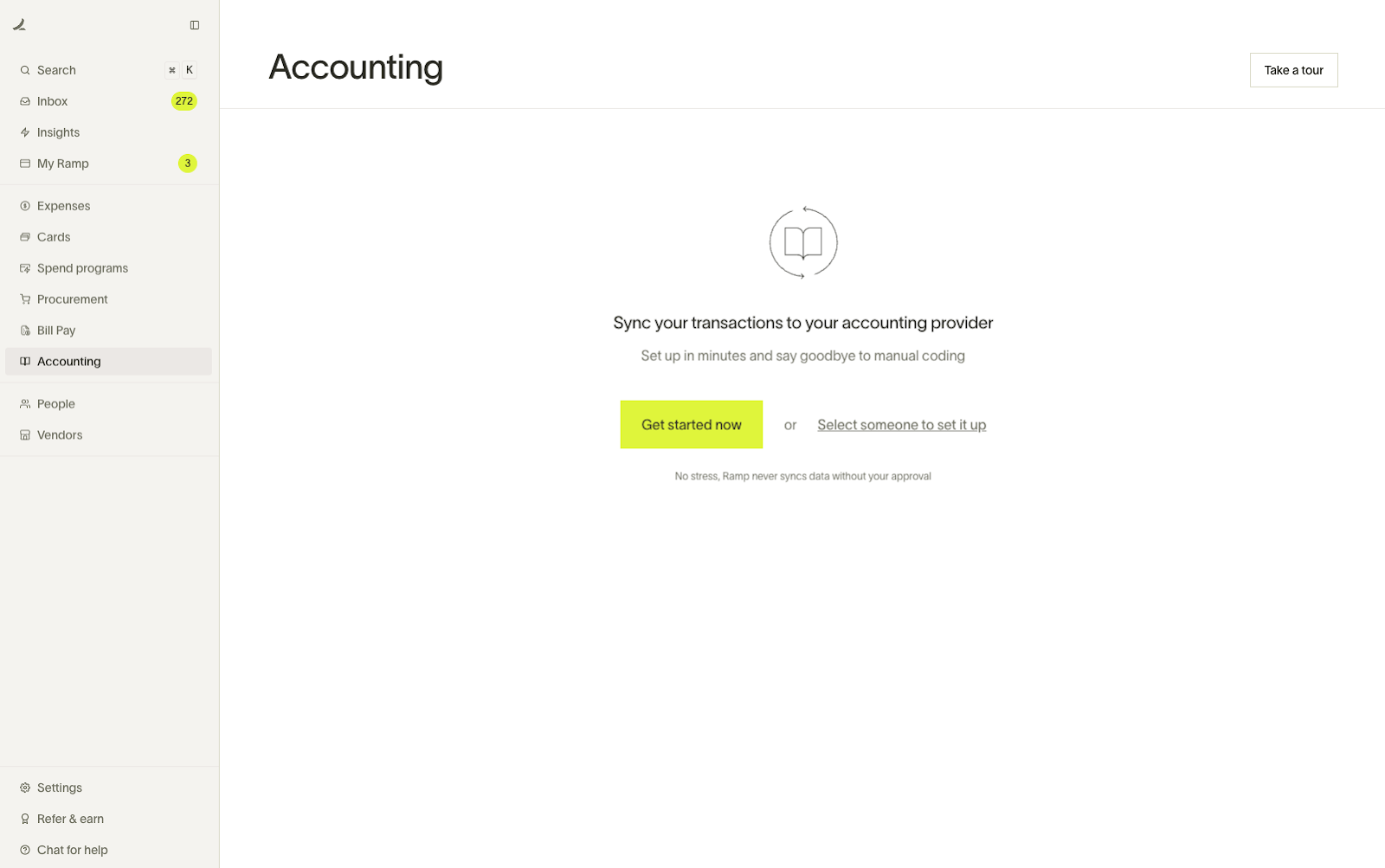
Begin in Ramp and open the Accounting tab - click “Get Started Now”.
-
Click on “NetSuite” on the next page
Step 2
- Open up your NetSuite account in another tab or choose the hyperlink in the setup guide
- Copy your Account ID from the URL on your NetSuite account and enter it into the NetSuite ID field in Ramp
- Navigate to Setup->Company and check whether the Subsidiary Settings Manager option is available.
- If it is not available, select No in Ramp. Ramp keeps you in the same connection flow and shows the standard setup steps covered by this reference.
- If it is available, select Yes and follow the NetSuite OneWorld steps in NetSuite integration: Set up with Ramp.
- Click Continue when complete
Step 3
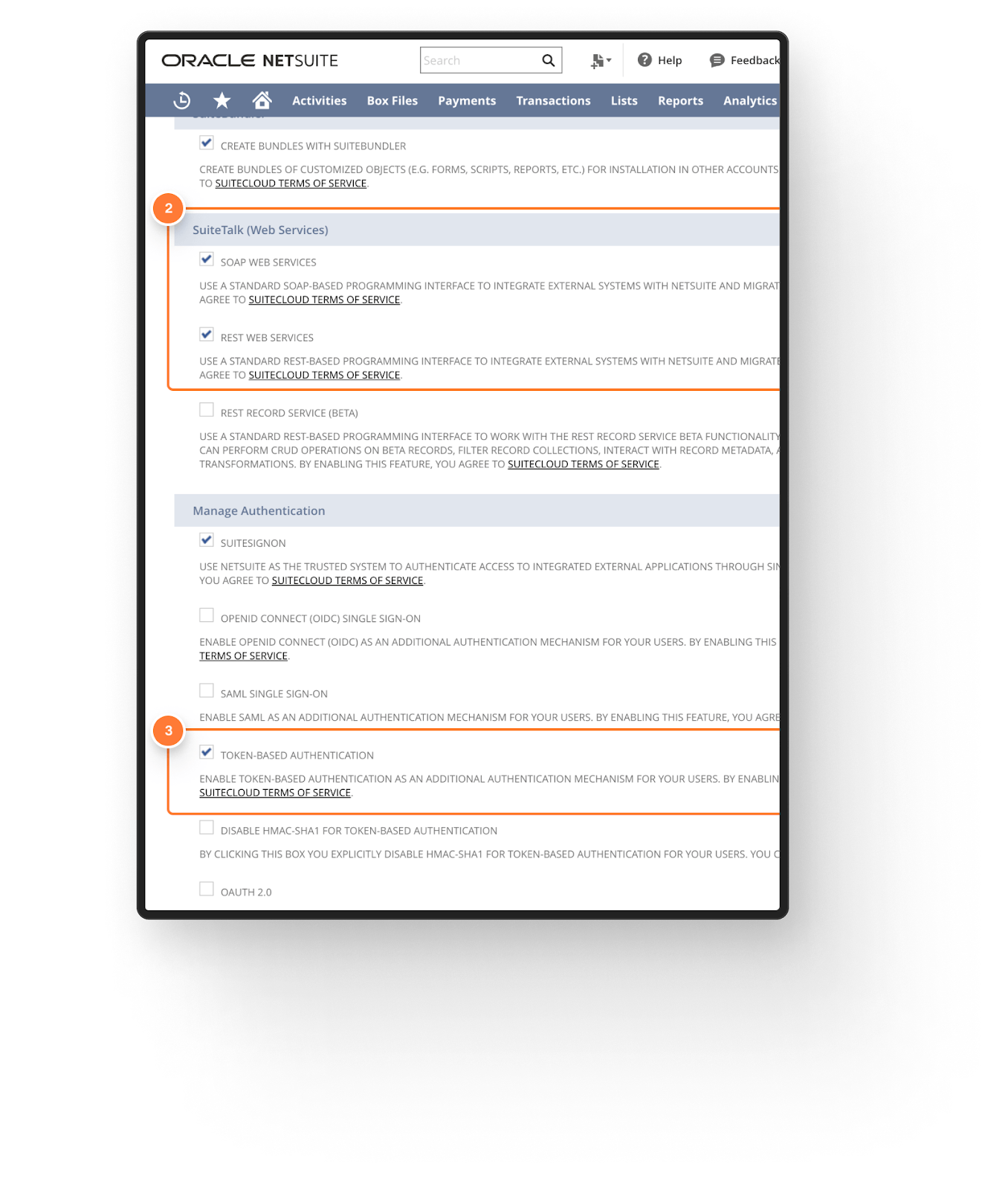
- On the next page, click the hyperlink or navigate in your NetSuite account to Setup -> Company and click Enable Features. Then click the SuiteCloud tab.

-
Ensure that the checkboxes for SOAP WEB SERVICES, REST WEB SERVICES, and TOKEN BASED AUTHENTICATION are checked (note that the latter checkbox is under 'Manage Authentication, rather than SuiteTalk).
-
Click Save in NetSuite and click Continue on the Ramp setup page.
Step 4
- Use the hyperlink in Ramp or navigate to Setup -> Integration -> Manage Integrations -> New
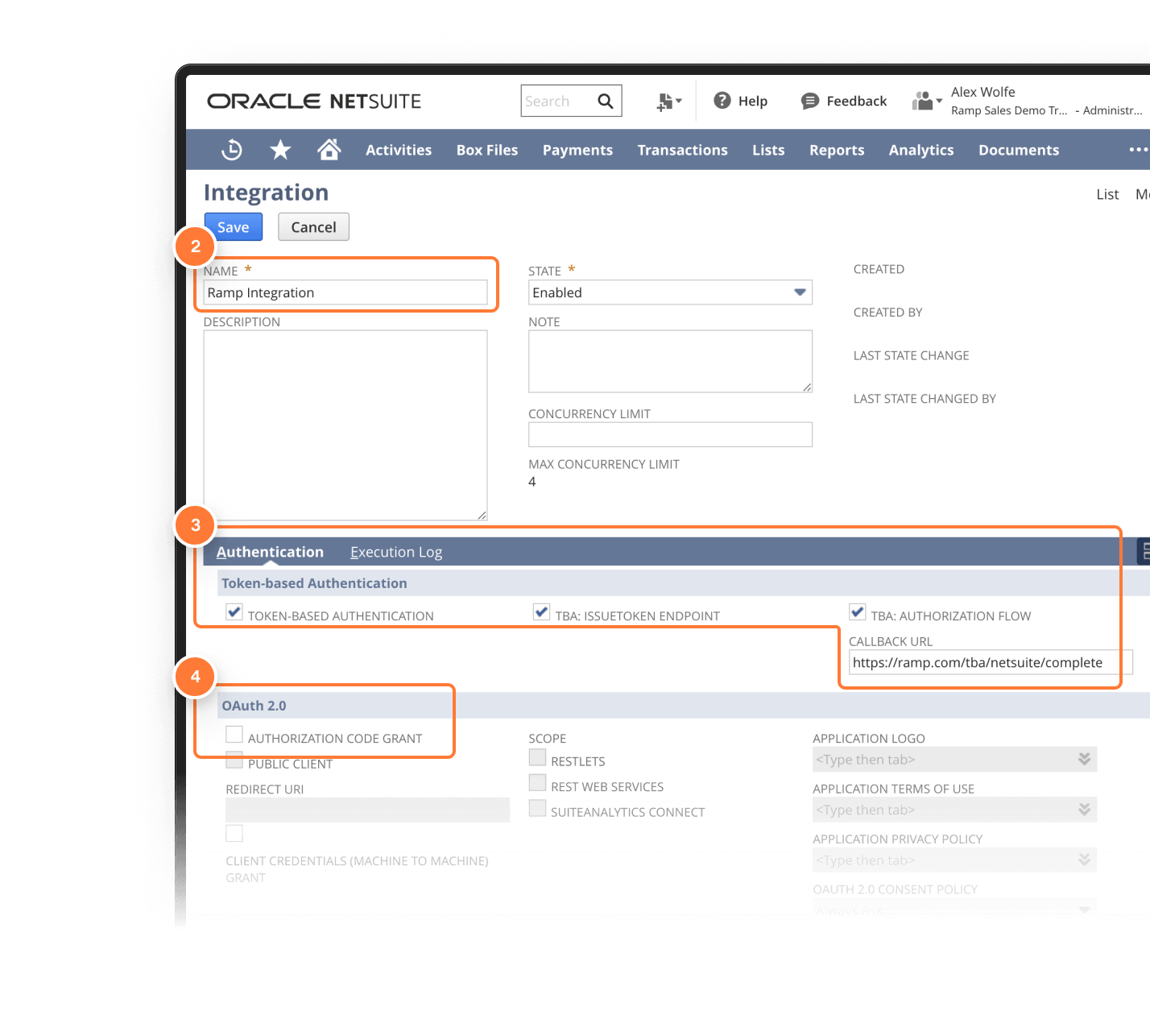
- Enter this information on the Integration Record:
- Name: Ramp Integration
- Check the boxes for Token-Based Authentication, TBA: Issuetoken Endpoint, and TBA: Authorization Flow
- Callback URL: https://ramp.com/tba/netsuite/complete
- Make sure the box is unchecked for the Authorization Code Grant
- Click Save - then copy the Client ID and Client Secret codes to input into Ramp
-
Do Not click off of this page until you have moved on - if you do, you will not be able to access the secret codes again.
-
- Click Continue in Ramp once this is complete
Step 5
- Use the Hyperlink or navigate to Setup > Users/Roles > Manage Roles
- Find the role called "Accountant" and click "Customize." (if you don't see this role, check "Show Inactives.")
- Call the role "Ramp Accountant"
On the Permissions subtab of the Ramp Accountant role, add every permission listed below at the specified level. If a permission is already on the role, update it to the specified level. The first column is NetSuite's internal permission ID for reference; you do not need to enter it.
NetSuite Ramp Accountant role: Transaction permissions
| Internal permission ID | Permission | Level |
|---|---|---|
| TRAN_PURCHORDBILL | Bill Purchase Orders | EDIT |
| TRAN_PURCHORDRECEIVE | Receive Order | EDIT |
| TRAN_VENDBILL | Bills | FULL |
| TRAN_CARDCHRG | Credit Card | FULL |
| TRAN_CARDRFND | Credit Card Refund | FULL |
| TRAN_CUSTCRED | Credit Memo | FULL |
| TRAN_VENDAUTHCREDIT | Credit Returns | FULL |
| TRAN_VENDCRED | Enter Vendor Credits | EDIT |
NetSuite Ramp Accountant role: List permissions
| Internal permission ID | Permission | Level |
|---|---|---|
| LIST_TAXDETAILSTAB | Tax Details Tab | FULL |
| LIST_ACCOUNT | Accounts | FULL |
| LIST_CLASS | Classes | FULL |
| LIST_CUSTJOB | Customers | FULL |
| LIST_DEPARTMENT | Departments | FULL |
| LIST_CATEGORY | Expense Categories | FULL |
| LIST_LOCATION | Locations | FULL |
| LIST_FIND | Perform Search | FULL |
| LIST_TAXITEM | Tax Records | EDIT |
| LIST_VENDOR | Vendors | FULL |
| LIST_CURRENCY | Currency | FULL |
NetSuite Ramp Accountant role: Setup permissions
| Internal permission ID | Permission | Level |
|---|---|---|
| ADMI_ACCTSETUP | Set Up Accounting | FULL |
| ADMI_MANAGE_OAUTH_TOKENS | Access Token Management | FULL |
| ADMI_ACCOUNTINGLIST | Accounting Lists | EDIT |
| ADMI_DELETEDRECORD | Deleted Records | FULL |
| ADMI_LOGIN_OAUTH | Sign in using Access Tokens | FULL |
| ADMI_ACCTPERIODS | Manage Accounting Periods | VIEW |
| ADMI_EMPLOYEELIST | Other Lists | EDIT |
| ADMI_RESTWEBSERVICES | REST Web Services | FULL |
| ADMI_WEBSERVICES | SOAP Web Services | FULL |
| ADMI_CUSTBODYFIELD | Custom Body Fields | FULL |
| ADMI_CUSTFIELD | Custom Fields | FULL |
| ADMI_CUSTLIST | Custom Lists | FULL |
| ADMI_CUSTRECORD | Custom Record Types | FULL |
| ADMI_MANAGECUSTOMSEGMENTS | Custom Segments | FULL |
After adding or updating every permission, save the Ramp Accountant role in NetSuite, then click Save and Continue in Ramp.
Step 6
- Use the Hyperlink or navigate in NetSuite to Transactions > Bank >Use Credit Card & click Customize Form
- Go to Screen Fields > New Field
- In the Label field, enter "ramp_receipt_url"
- In the ID field, enter "ramp_receipt_url"
- In the Type field, select Hyperlink
- In the Applies To tab, check PURCHASE and VENDOR PAYMENT
- In the Display tab, ensure that "Main" is selected in the Subtab dropdown
- In the Access tab, ensure that the Default Access Level is Edit
- Go to Screen Fields > New Field
- Click Save and Continue in Ramp
Step 7
- Use the hyperlink or navigate to Setup → Users/Roles → Manage Users
- Find and Edit your Admin user
- Scroll down and click on the Access tab
- Add the Ramp Accountant role, click Save in NetSuite, and Continue in Ramp
Step 8
- First, go to https://assets.ramp.com/accounting/ramp_restlet.js . This should download a file onto your computer. If it doesn't, right-click anywhere on the page, click "Save As," and then save the file as ramp_restlet.js.
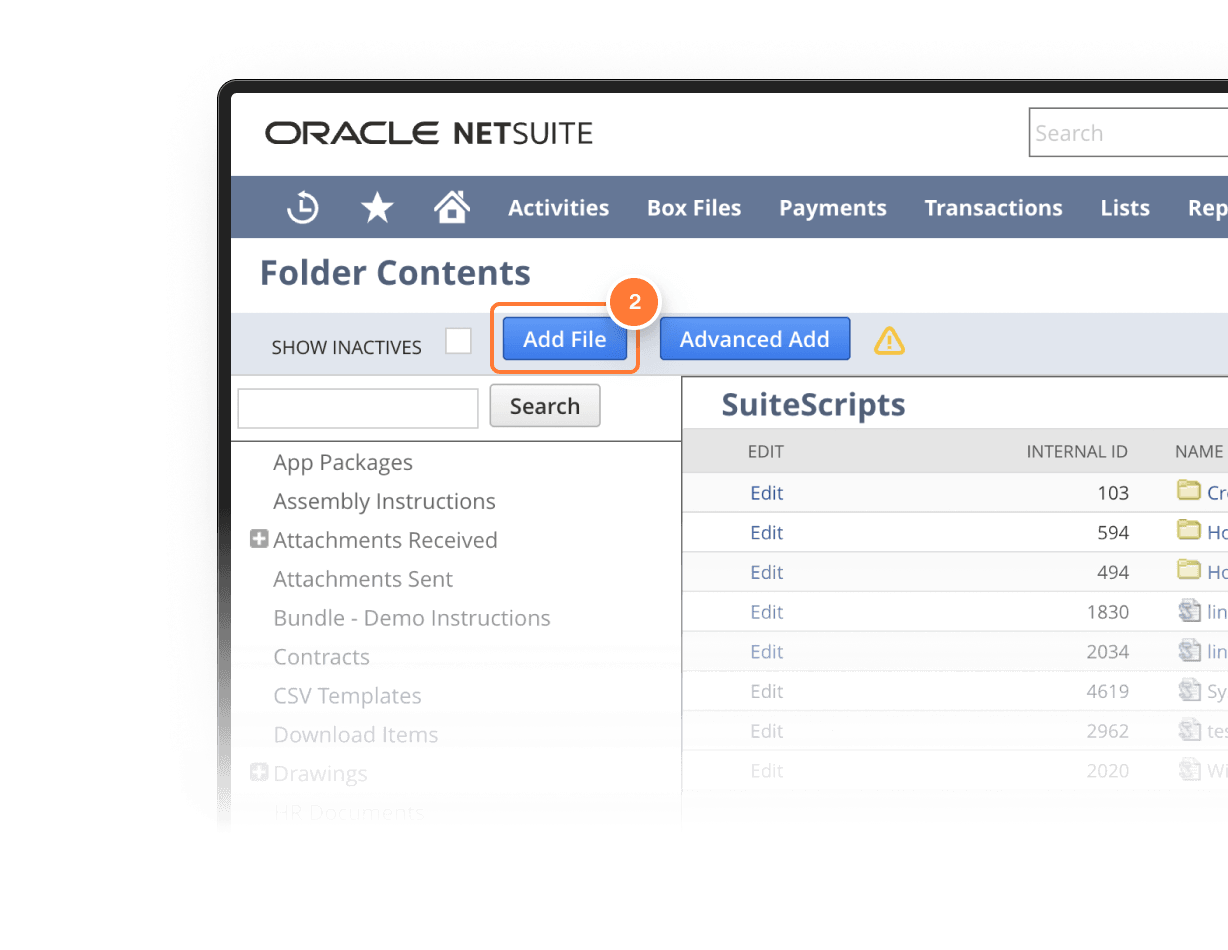
- In NetSuite, click on Documents -> files and click the SuiteScripts folder
-
Click Add File in the top left, and select the ramp_restlet.js file you downloaded.
-
Click Continue in Ramp for the next step
-
Step 9
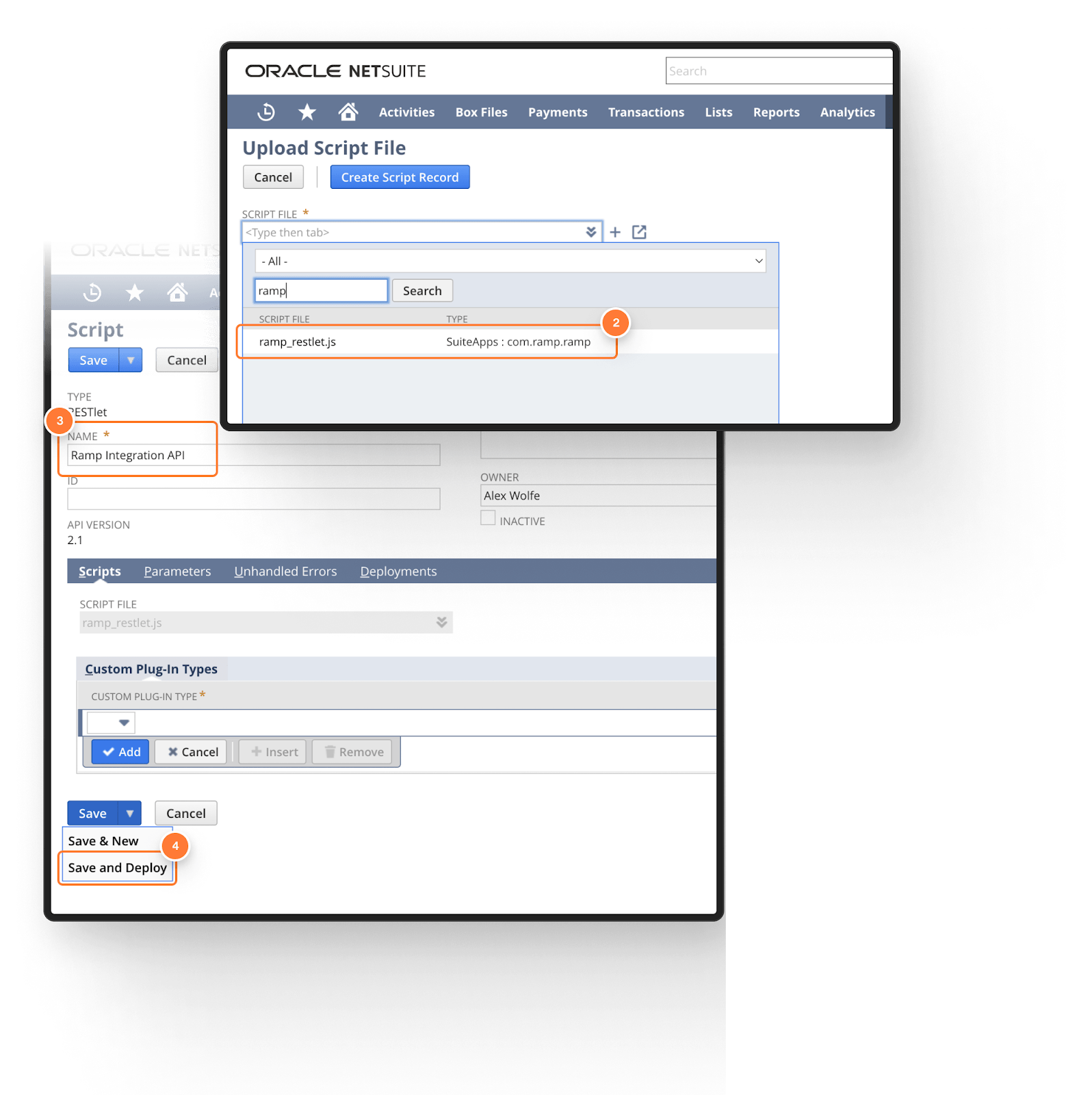
- Use the Hyperlink or navigate to Customization → Scripting → Scripts → New
- Select the file (ramp_reslet) that you added earlier, and click Create Script Record
- Name the script "Ramp Integration API", then click the arrow on the Save button and click Save & Deploy
- Click continue in Ramp to move to the next step
Step 10
-
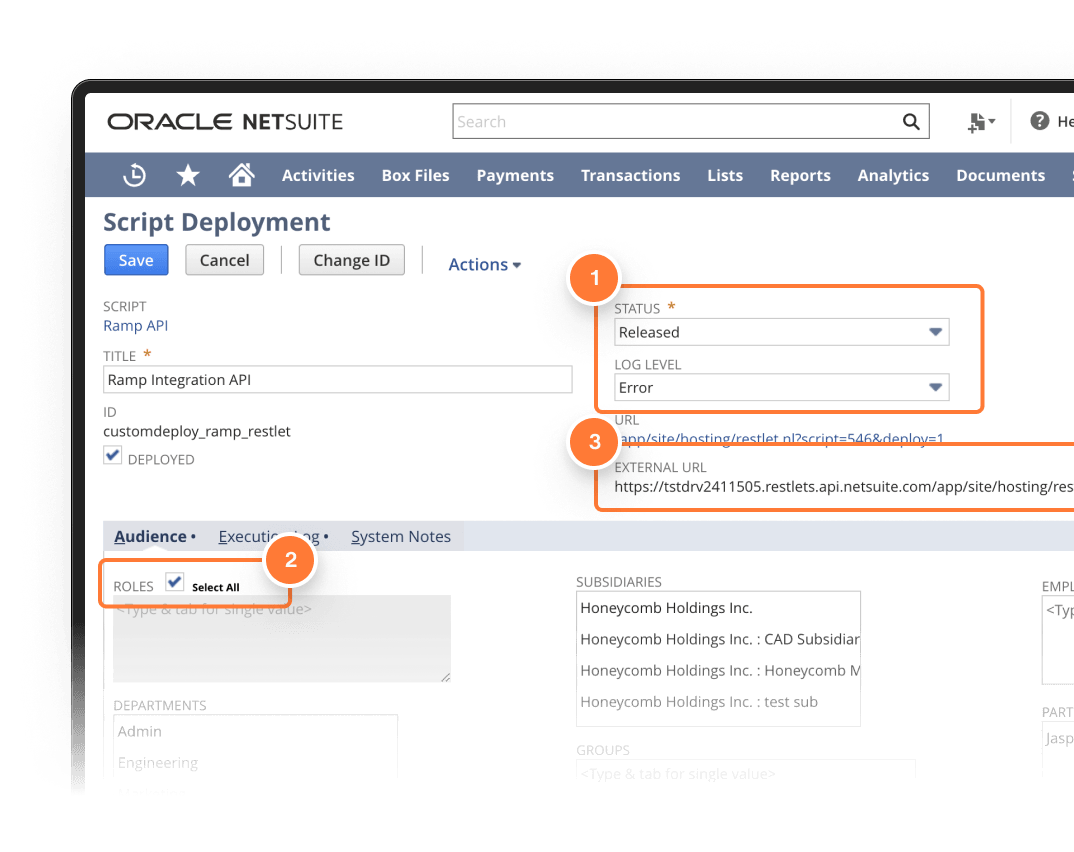
On the deployment screen, input this information:
- Status: Released
- Log Level: Error
-
Under the Audience tab, check the “Select All” checkbox for Roles
-
Click Save, then copy the full External URL and paste it into Ramp.
-
Click Continue in Ramp to move on.
Step 11
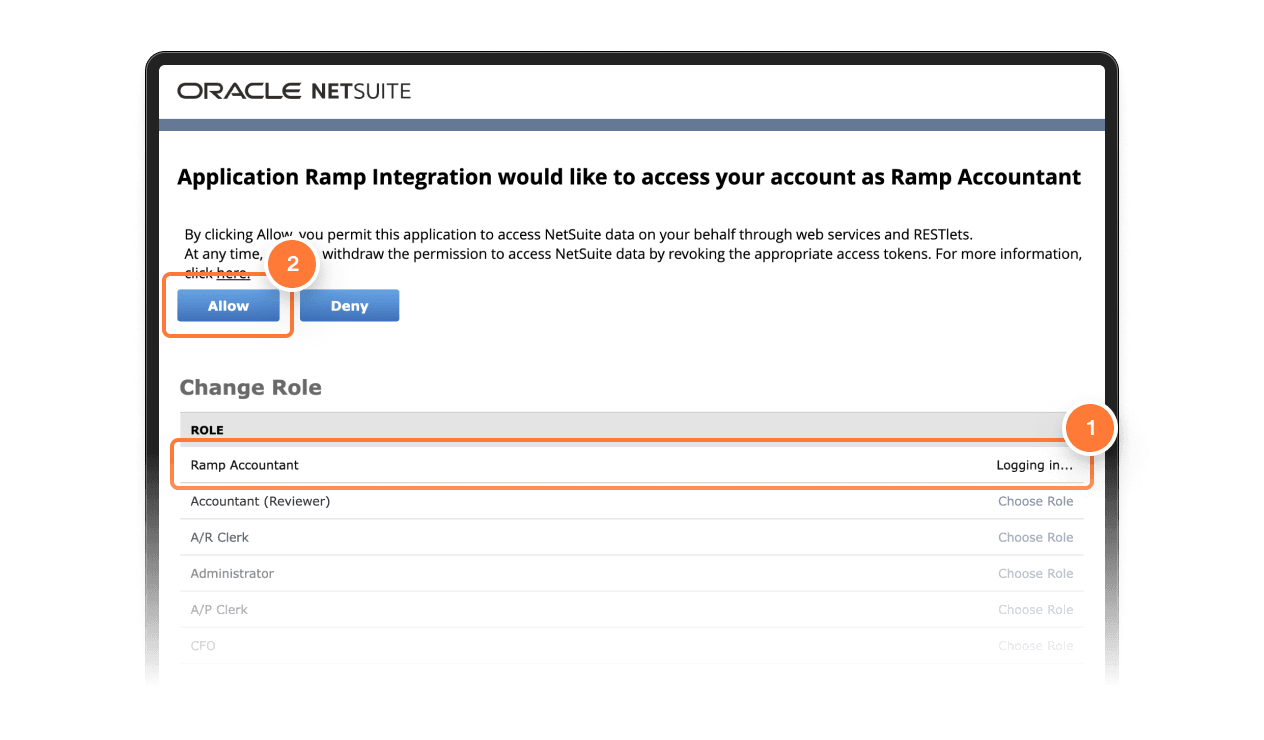
- Confirm Ramp access to NetSuite by clicking on the Approve access in NetSuite button. This opens up a screen to select the Ramp Accountant role using “Choose Role”, then click “Allow” at the top of the screen.
Step 12
- NetSuite redirects you back to Ramp after authorization. If you receive a white screen, please contact your Account Manager or Customer Success Manager for assistance.
Additional setup for Receivables
NetSuite Receivables access is granted from a waitlist. Check NetSuite Receivables waitlist and access before enabling it. For Standard instances, a NetSuite Administrator must complete the following manual updates even if NetSuite is already connected to Ramp. These are additional prerequisites, not a replacement for the connection steps above.
Update the existing Ramp RESTlet
Receivables requires RESTlet version 1.2.3 or later. Download the current Ramp RESTlet script. For an existing connection, replace the script file used by your existing Ramp Integration API script record in NetSuite's SuiteScripts folder. Verify the version in that file and that the existing deployment still references it. Do not create a second integration or duplicate deployment just to upgrade. For a new connection, use Step 8 through Step 10 with the current file.
Create the item and customer custom fields
Create two separate fields; the transaction-body field from Step 6 does not replace them.
- In NetSuite, open Customization > Lists, Records, & Fields > Item Fields > New. Set Label and ID to
ramp_receipt_urland Type to Hyperlink. - Check Store Value. Leave Show in List, Global Search, and Mandatory unchecked.
- Under Applies To, check Non-Inventory Item and Service Item, and select Both for Subtype.
- Under Display, set Display Type to Normal and Subtab to Main. Under Access, set Default Access Level to Edit and Default Search/Reporting Level to Edit or View. Save.
- Open Customization > Lists, Records, & Fields > Entity Fields > New. Use the same label, ID, type, storage, display, and access settings, but under Applies To, check Customer. Do not use the item-type selections for this field. Save.
- Verify
custitemramp_receipt_urlin Setup > Records Catalog > Item andcustentityramp_receipt_urlin Setup > Records Catalog > Customer.
Update the Ramp Accountant permissions
Edit the existing Ramp Accountant role from Setup > Users/Roles > Manage Roles. Keep the permissions in Step 5 and add or update these Receivables permissions:
- Transactions: Customer Invoices at Full, Customer Refunds at Edit, and Deposits at Full.
- Lists: Tax Schedules at View.
Save the role after making the changes. Before syncing invoices or credit notes, also review NetSuite invoice and credit-note number overrides. Updating the script, fields, and permissions does not grant rollout access.
Extra set up: custom segments
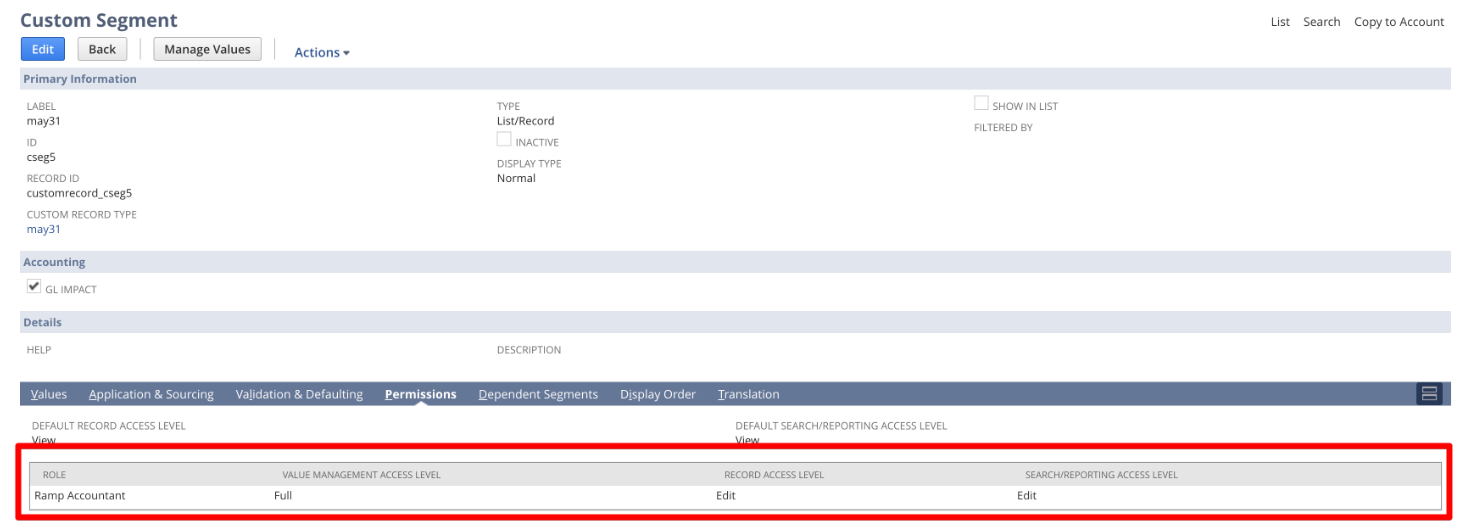
For each custom segment you want to view and code in Ramp, the segment must be viewable on the Credit Card, Bill, Bill Payment, or Purchase Order forms, and the following permissions set for the Ramp Accountant Role:
- Value Management Access: Full
- Record Access: Edit
- Search/Reporting Access: Edit.
To view custom segments, on NetSuite, go to Customization -> Lists, Records, & Fields -> Custom Segments. Then click edit next to the segment you'd like to view on Ramp and add the permissions in the Permissions tab laid out above (picture below).