Automatically lock cards and funds
Overview
Available on Ramp Plus. See Ramp Plus overview for plan details.
Ramp allows admins to automatically lock an employee's cards or funds when they have overdue tasks past a configured deadline. Auto-lock applies to three types of overdue tasks:
- Missing items — the employee has not submitted a required receipt or expense item within the deadline set on their submission policy. Missing items auto-lock applies to the card and/or associated funds.
- Repayment requests (Plus only) — a manager requested repayment on a transaction, and the employee has not completed the repayment within the configured deadline. Repayment auto-lock applies to the employee's primary physical card only.
- Change requests (Plus only) — a manager requested a change on a transaction, and the employee has not addressed it within the configured deadline. Change request auto-lock applies to the employee's primary physical card only.
With auto-lock enabled, employees are more timely with their submissions and repayments, and finance teams spend less time following up. Turning on auto-lock for missing items applies retroactively to existing transactions, and cardholders with missing items based on the enforcement policy will receive a notice the following day. If your card was locked due to fraud, see Ramp's fraud protection procedures.
How to unlock cards for your employees
- Go to Manage Spend > Funds in your dashboard
- Search the cardholder
- Select the locked card and open its profile
- Click Unlock on the card profile screen
- Note: only the user can unlock certain virtual cards. Support cannot unlock these for you
How to enable auto-lock for missing items
Note: this is a Plus-only feature.
- From your Ramp Dashboard, go to: Policy > Expense Requirements.
- To update an existing policy, click on the 'Expense Requirements ' button and the ' Edit' box next to the policy you would like to apply auto-locking to. Please note: auto-locking must be applied individually to each policy. You will see the auto-locking toggle on the right-hand corner of your screen.
- To create a new policy, click on the "New Submission Policy" button.
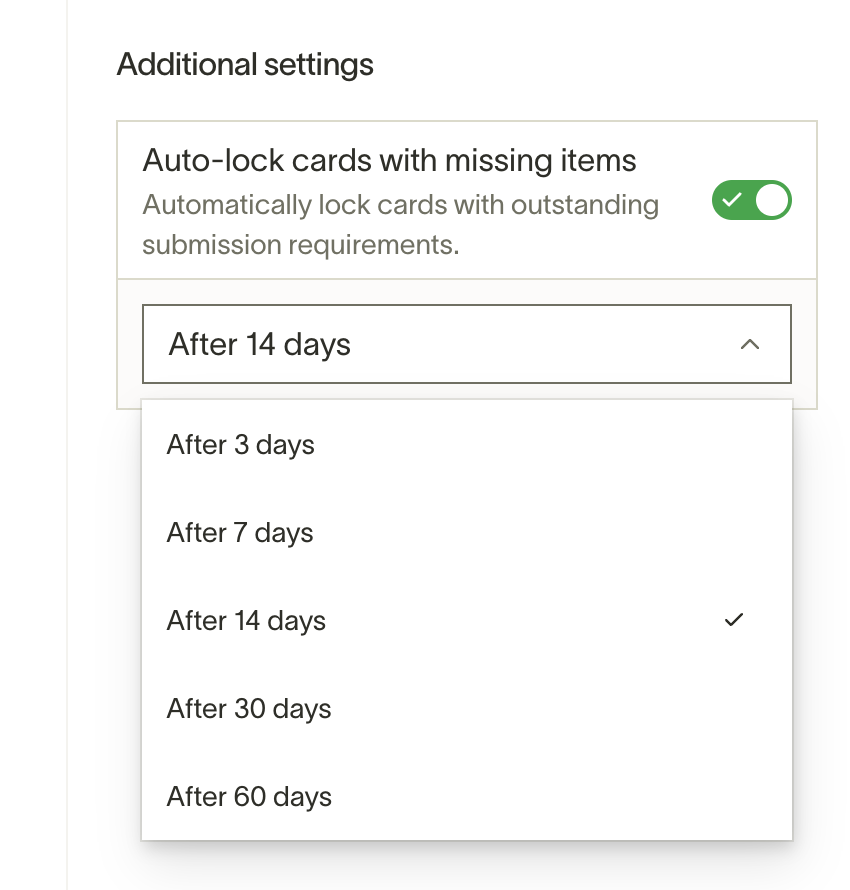
- Within the selected submission policy, toggle the 'Auto-lock cards with missing items' on.
- Select the number of days that your cardholders have to submit missing items
- You can choose from 3, 7, 14, 30, or 60 days for cardholders to submit missing items. If the card with this submission policy is missing items after the allotted time period, the card and/or associated funds will automatically lock.
- Auto-lock is enabled!
How to enable auto-lock for repayment and change requests
Note: this is a Plus-only feature.
Admins can configure automatic physical card locking for employees who do not complete repayment requests or address change requests within a set deadline. Unlike missing items auto-lock, these settings apply at the business level rather than per-policy.
- From your Ramp Dashboard, go to Policy .
- Under Spend management controls , click Expense reviews to open the settings drawer.
- Scroll to the Settings section at the bottom of the drawer.
- Under Repayment requests or Change requests , select a deadline from the dropdown:
- 7 days , 14 days , 30 days , or 60 days
- Toggle on Lock physical card when a repayment is not completed on time (or Lock physical card when a revision is not addressed on time for change requests).
- Optionally, select users or groups to exclude from auto-locking under Who will be excluded?
Note: When you change a deadline, existing requests keep their previously set deadline. A confirmation dialog lets you choose whether to exempt existing requests from card locks.
How to configure user and group exclusions
Admins can exclude specific users or groups from auto-locking for each task type independently. Excluded employees will not have their card locked even if their tasks are overdue.
- From your Ramp Dashboard, go to Policy .
- Under Spend management controls , click Expense reviews to open the settings drawer.
- Scroll to the Settings section.
- Under the task type you want to configure (repayment requests or change requests), use the Who will be excluded? dropdown to select users or groups.
When a user or group is added to the exclusion list, any active card locks for those users from that task type are automatically removed.
How to snooze card locking
Admins can temporarily pause card locking for a specific employee. While snoozed, the employee's card will not be locked for overdue tasks, and any existing locks from overdue tasks are immediately lifted.
- From the homepage or card detail page: On an auto-lock notice banner, click Pause card lock for 7 days .
- From a fund's lock banner: Click Snooze requirements and choose a duration: 7 days , 14 days , or 30 days .
After the snooze period expires, the employee's card may lock again if overdue tasks remain.
How this works
Example with multiple missing items
- Scenario : A cardholder made two purchases on May 10 and May 15 with missing receipts. Their funds are on a policy that auto-locks after 7 days for missing items.
- On May 17, the funds lock because 7 days have passed since the May 10 transaction.
- If the cardholder submits the May 10 receipt, the funds unlock immediately.
- If they do not submit a receipt for the May 15 transaction, the funds will lock again on May 22.
- If no receipts are submitted :
- Submitting the May 15 receipt on May 20 keeps the funds locked because the May 10 receipt is still missing.
Repayment and change requests
- When a manager requests repayment or a change on a transaction, the configured deadline starts from when the task is created.
- If the employee does not complete the repayment or address the change request within the deadline, their primary physical card is locked.
- Once the employee completes the repayment or submits the requested changes, the card is automatically unlocked.
- If an employee has both an overdue repayment or change request and overdue missing items, both their primary physical card and their funds may be locked independently. The physical card unlocks when all overdue repayments and change requests are resolved. The funds unlock when all missing items are submitted.
- Failed repayments due to insufficient funds count toward auto-lock because the employee can resolve them by retrying with sufficient funds. Failed repayments for other reasons (not the employee's fault) do not count toward auto-lock.
Lock timing
- For missing items, funds lock a set number of days after the transaction clears, at the nearest Noon ET.
- Example: If a 3-day policy is set and the transaction clears at 10 a.m. on 2/1, the funds lock at 12 p.m. on 2/4.
- For transactions cleared at 2 p.m., the funds locks at 12 p.m. on 2/5.
- Auto-lock policies initiate a timer upon enablement, meaning older transactions with missing items will not lock immediately.
- Special categories: For "Lodging" or "Fuel and Gas," the time to submit starts from when the transaction clears, as these charges often involve temporary holds.
- For repayment and change requests, enforcement runs on a daily schedule. There may be a delay of up to 24 hours between a task becoming overdue and the physical card being locked. Unlocking happens in near-real-time once the employee resolves all overdue repayments and change requests.
Disputed transactions
- Missing items are dismissed if a transaction is disputed, and no lock occurs when the deadline passes.
- If the dispute is canceled after the deadline, the funds will lock that day or the next.
- Note: cards can be temporarily locked due to routine sanctions screening, independent of missing receipts, fraud, or company policy.
Grace periods
- If the funds are moved to an enforcement policy, cardholders have a grace period equal to the new policy's timeframe to submit missing items on old transactions.
- Example: If a purchase was made 7 days ago and the new policy has a 3-day limit, the cardholder will have 3 days to submit missing items before the funds locks.
Checking individual fund lock status
- Go to Manage Spend > Funds
- Select the fund and click Actions > Edit .
- Update the auto-lock date in the spending controls and restrictions section.
- Check the Activity tab to see if/when an auto-lock was applied to the fund.
Cardholder experience
Missing items notifications
Cardholders are notified at multiple points during the missing items auto-lock process:
- When a policy is set. When the policy changes, users will see it in an email stating that their funds will lock after X days.
- Before locking. 24 hours before the funds are locked, the user will receive an email warning them and showing their missing items. From the Ramp dashboard, users will see a warning icon on cards that will be locked, along with the date the lock will occur.
- At lock. At the time the funds are locked, the cardholder will receive an email stating the funds are locked and showing their missing items.
- At declined swipe. If a cardholder tries to make a transaction with locked funds, they will get an SMS informing them that they need to submit missing items.
- At unlock. When the funds are unlocked, the cardholder receives an email notifying them.
Repayment and change request notifications
Cardholders are notified through email and in-app banners during the repayment and change request auto-lock process:
- Before locking. A warning email is sent before the deadline expires, listing the overdue tasks. On the Ramp homepage and card detail page, a yellow warning banner displays: "Your Ramp Card may lock in X days if tasks aren't completed on time," with links to resolve each task.
- At lock. When the card is locked, a red banner appears on the homepage and card detail page with the message "Complete to unlock your card:" followed by a list of overdue tasks with resolution links.
- At unlock. When all overdue tasks are resolved and the card is unlocked, the cardholder receives an email confirming the card has been unlocked.
Unlocking auto-locked cards or funds
- Submit required information:
- For missing items: submit the required receipt or expense item. The auto-unlock may take up to an hour to trigger after all missing items have been submitted.
- If the receipt is lost, request an exception, which also unlocks the funds.
- For repayment requests: complete the repayment. The physical card unlocks automatically once all overdue repayments are resolved.
- For change requests: address and submit the requested changes. The physical card unlocks automatically once all overdue change requests are resolved.
- Multiple lock reasons:
- Overdue missing items lock funds . Overdue repayments and change requests lock the primary physical card . These are independent — resolving one type does not unlock the other.
- If the physical card is locked for both overdue repayments and overdue change requests, it stays locked until both are resolved.
- Policy exceptions:
- If a cardholder requests an exception before the auto-lock date but it isn't granted in time, the funds will still lock.
- Edit policy settings:
- Adjusting the policy (e.g., auto-lock settings or required items) can unlock the funds.
- Admin snooze:
- An admin can snooze card locking for an employee, which immediately unlocks the card and pauses enforcement. See How to snooze card locking .
Exempting specific merchants
- Funds only lock when required items are missing.
- You can exclude certain merchants from needing item submissions (e.g., receipts for Facebook transactions).
- Navigate to "Spend Guidelines" in Settings, then go to the "Auto-approved merchants" section to add merchants to this list.
- Transactions from exempted merchants won't lead to locked funds, regardless of submission policies.
More information here: Excluding merchants from receipt & memo requirements
Understanding physical vs. virtual card locks
- Cardholders may have both physical and virtual cards, and these appear separately under the Manage Spend tab. The Manage Spend > Fund section shows all virtual cards, and the Manage Spend > Cards section shows all physical cards.
- Unlocking a virtual card does not unlock the corresponding physical card (and vice versa). Each card must be managed individually.
- When troubleshooting a decline, double-check that you are viewing and unlocking the correct card by confirming the card type and last four digits.
- Auto-lock for repayment and change requests locks only the employee's primary physical card . Virtual cards and non-primary physical cards are not affected by repayment or change request auto-lock.
Frequently asked questions
What happens if my card or funds are locked for multiple types of overdue tasks?
Funds and physical cards are locked independently based on the type of overdue task:
- Funds are locked for overdue missing items. Your funds stay locked until all missing items are submitted.
- Your primary physical card is locked for overdue repayments and/or change requests. Your physical card stays locked until all overdue repayments and change requests are resolved.
For example, if you have both an overdue repayment and overdue missing items, completing the repayment unlocks your physical card — but your funds remain locked until you submit the missing items. Similarly, submitting the missing items unlocks your funds, but your physical card stays locked until the repayment is completed.
Can admins exclude specific people from repayment or change request auto-lock?
Yes. Admins can exclude individual users or groups from auto-locking for each task type independently. Go to Policy > Expense reviews, and use the Who will be excluded? dropdown under the relevant task type.
Does changing the SLA deadline affect existing repayment or change requests?
No. Existing requests keep their previously set deadline. When you change the deadline, a confirmation dialog lets you choose whether to exempt existing requests from card locks.
Which card gets locked for overdue repayment or change requests?
Only the employee's primary physical card is locked. Virtual cards and other physical cards are not affected.
How quickly is my card unlocked after I resolve overdue tasks?
For repayment and change requests, your physical card unlocks in near-real-time once you resolve all overdue repayments and change requests. For missing items, your funds unlock within up to an hour after all items are submitted.