Two Way Vendor Information Sync
To import vendors directly from your accounting provider into Ramp, learn about Importing Vendors.
Overview
Two-Way Vendor Sync keeps the supported vendor fields in Ramp and your ERP aligned. Changes made in Ramp sync to your ERP, and changes made in your ERP sync back to Ramp for the fields your accounting provider supports.
- Updates Between Systems: Supported vendor fields sync automatically between Ramp and your ERP.
- Vendor Update Controls: Users can accept or reject any changes made to the ERP vendor directly in Ramp.
This feature is supported for QuickBooks Online, NetSuite, Sage Intacct, Xero, and Acumatica.
For Acumatica, vendor 2-way sync requires Ramp's Acumatica customization project version 24.200.009 or later. See How to connect Acumatica to Ramp and How to update the Ramp Acumatica customization project.
How to turn this on
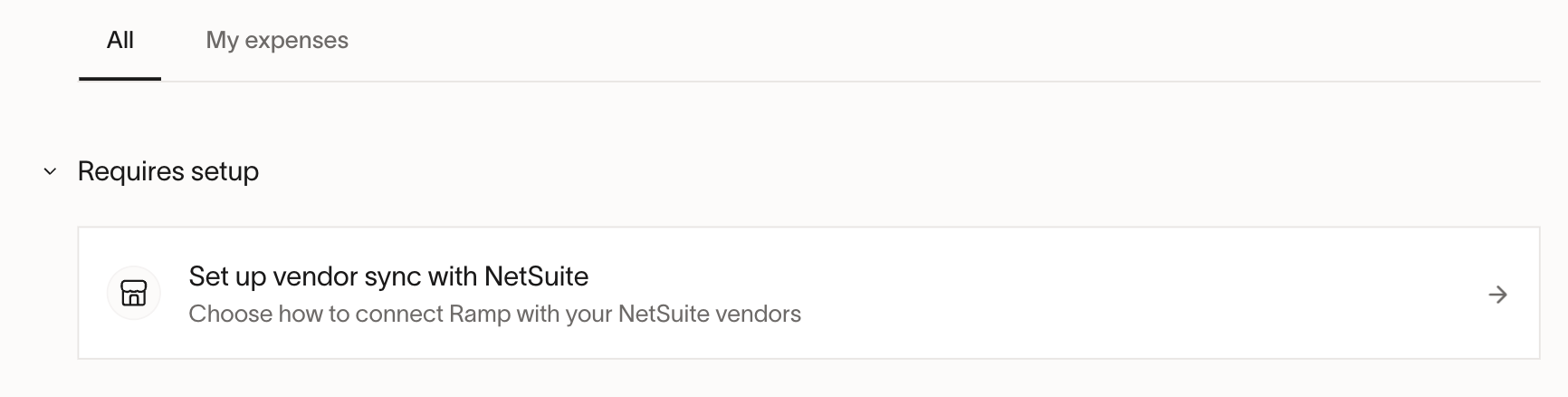
Customers on Bill Pay will automatically have this enabled. For existing Bill Pay customers, a notification will appear on the Home section of Ramp to inform them of the necessary steps to enable this feature. For those with no conflicts, you will see a notification that it was turned on.
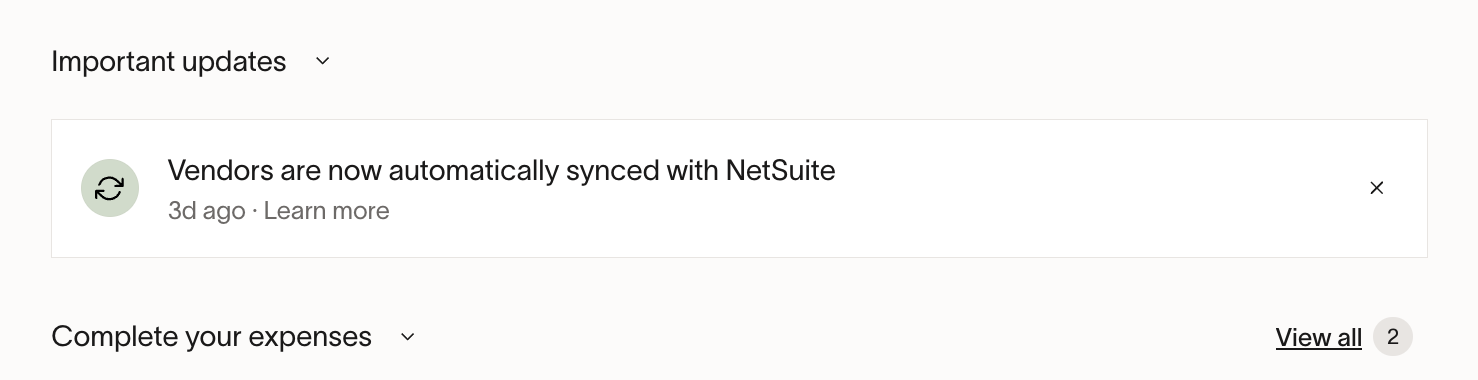
For those with many conflicts between the two systems, you will see a dedicated onboarding process for you.
How do I edit my vendor information in Ramp?
Go to Vendors → Select a vendor → Edit vendor. You will be able to see the edit history in the Activity tab.
How are vendor edits synced from Ramp to my ERP?
This step is dependent on whether you have a vendor approval process or not. The two possible scenarios are:
1. Vendor approvals are turned off (default)
Edits made to a vendor in Ramp will flow to your accounting system automatically and vice versa.
2. Vendor approvals are turned on
You can read more about vendor approvals.
Any edits made to a vendor on Ramp will require approval, just as with any other edit. Once approved, vendor edits will flow to your accounting system.
How to set up approvals for edits coming from my accounting system?
By default, changes for vendors will automatically sync between both systems.
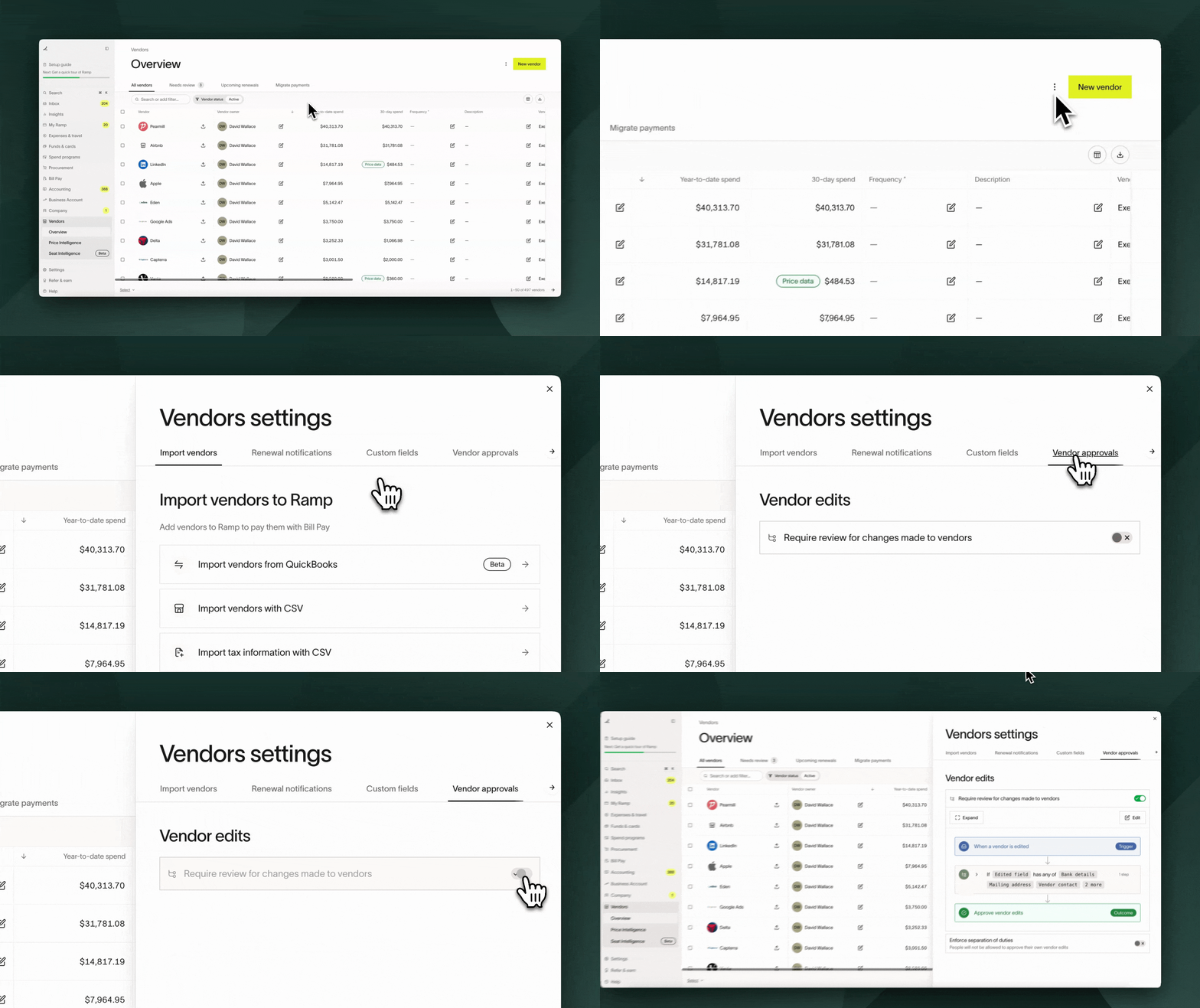
If you’d like to add approvals for edits coming from your accounting system, go to Vendors → Settings → Vendor approvals → turn on Require review for changes made to vendors.
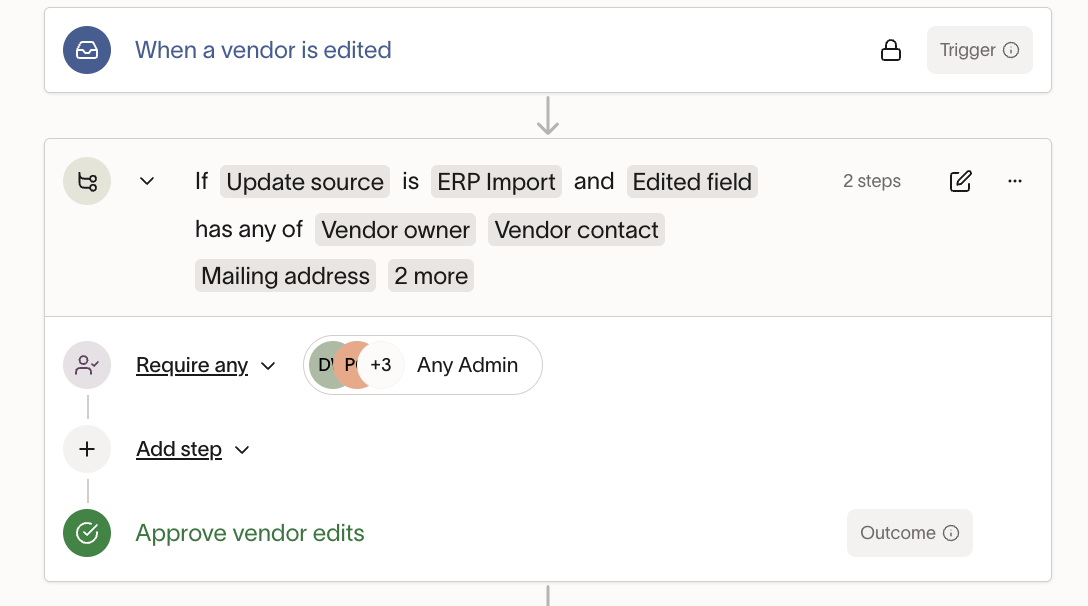
Then, add Update source is "ERP Import" and the fields that you'd like to trigger vendor approvals.
Here is how you can find vendor approvals on Ramp:
Go to Vendors → Needs Review and select from the list of vendor edits that have been made. From there, you can either Approve or Reject the edit.
You will also receive an email when a vendor edit has been approved or rejected.
Which vendor fields will sync between Ramp and my ERP?
| Ramp Field | QuickBooks Online | NetSuite | Sage Intacct | Xero | Acumatica |
|---|---|---|---|---|---|
| Vendor Name | Display name | Company name | Name | Contact name | Not synced |
| Print on Check Name | Print on check name | Print on check as | Not available | Not available | Not available |
| Vendor Type | Not available | Person type | Individual / Person | Not available | Not available |
| Country & State | From address on import | From address on import | From address on import | From address on import | Acumatica -> Ramp only |
| Vendor Owner | Set to importer | Vendor Owner | Set to importer | Set to importer | Set to importer |
| Contact Email | Email field | Primary contact | Primary person email | Primary contact email | |
| Contact Name | Name field | Not synced | Primary contact name | Primary person name | Primary contact name |
| Contact Phone | Phone | Phone | Primary phone | Phone (Business Info) | Primary phone |
| Payment Terms | Terms | Terms | Terms | Terms | Terms (matching credit term required) |
| Mailing Address | Address | Default address | Address | PO Box address | Main address |
| GL Accounting Rule | Not via API | Expense account | Account | Default expense account | AP account |
| 1099 Eligibility (W9) | Track payments (one-way) | Updated on Ramp | One-way from Sage | One-way from Xero | 1099 status |
| TIN (Tax ID) | Updated on Ramp | Updated on Ramp | TIN | TIN | TIN |
| ACH Details | Not via API | Not via API | Sage Intacct -> Ramp (initial only) | Xero → Ramp (initial only) | Acumatica -> Ramp only |
How to turn off the two-way syncing of vendors
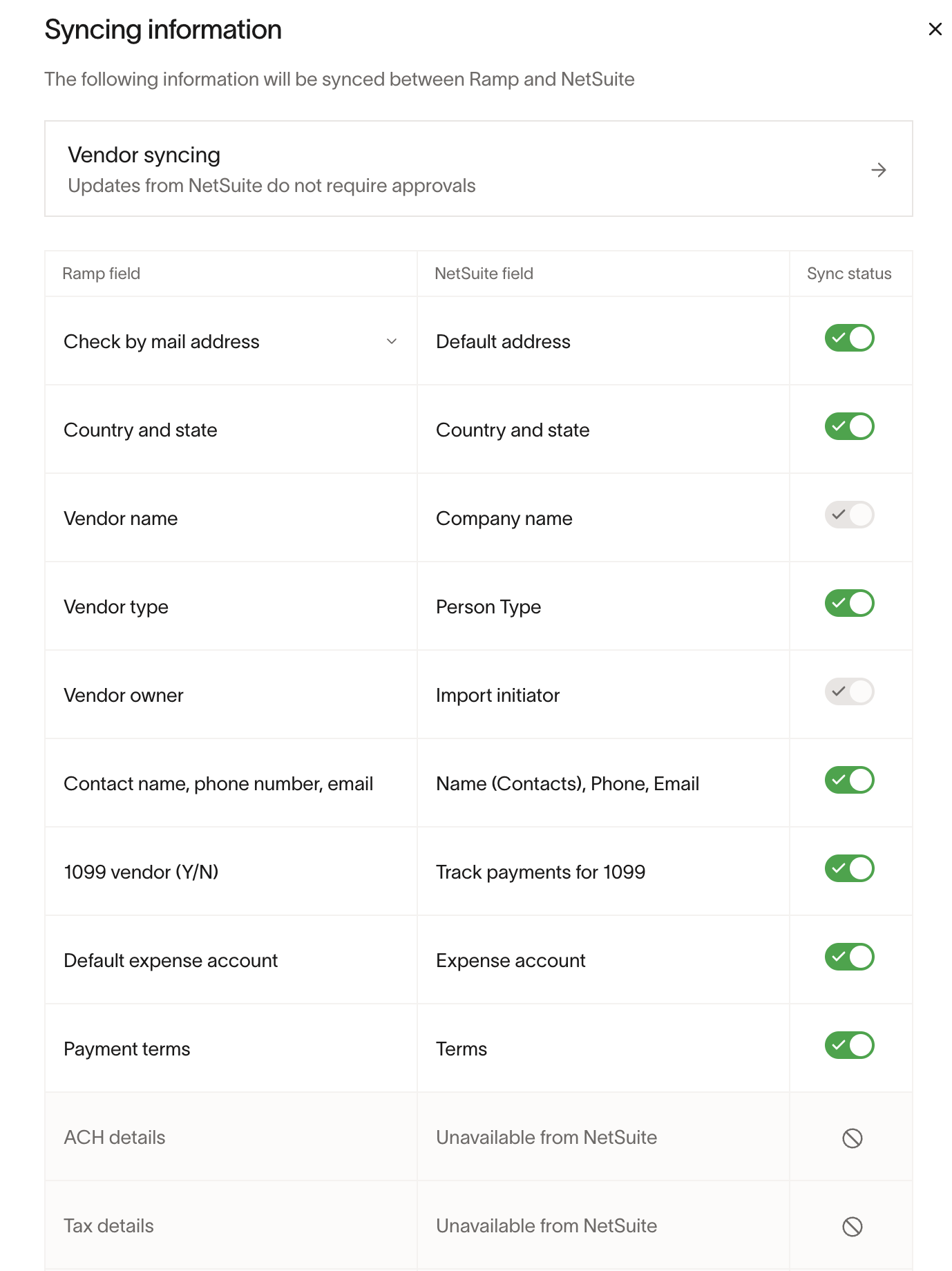
Navigating to Vendors → Settings → General → Sync vendors from accounting system, you’ll see the menu below to turn off individual fields that are syncing from Ramp to your accounting system and vice versa. If you are having issues that this doesn’t solve, please contact Ramp Support.
For the address field, you can specify what Ramp address should map to the default one in your accounting system in this table as well.
How can I see my vendor edit history?
Go to Vendors, search for the vendor you want to see the edit history for, and click on it. Then, go to Activity. From there, you will be able to see all edits made on the vendor.
Can I bulk update my vendors via CSV?
Since Ramp cannot sync over 100% of vendor information, some fields need to be updated via CSV. You can do this by going to Vendors → Settings → Import vendors → Add missing vendor information with CSV and uploading a CSV with your complete vendor information.
Frequently asked questions
Which system's information will override the other?
The most recent edit will take precedence over the other. If you’d like Ramp to be the source of truth, add an approval step for vendor controls so that edits coming from the ERP have to go through someone before they update said vendor in Ramp.
If you’d like the ERP to be the source of truth, you can ensure vendor controls / approvals are only present for edits originating in Ramp.
How will I know where an edit came from?
In the Activity tab of a vendor, the edit will be denoted whether if came from a Ramp edit via an ERP edit. You can see the example below in green writing specifies the edit came "via import from QuickBooks"
If I rename a vendor in my accounting system, why doesn’t the vendor name automatically update in Ramp?
When using two-way sync with a supported accounting provider, Ramp links each vendor in Ramp to a specific vendor record in your accounting system. While the link between the two records remains intact—and certain synced fields may update automatically—the vendor name in Ramp may not be editable after the record is created.
Because of this, if you rename a vendor in your accounting system, the updated name may not automatically appear in Ramp. The systems stay linked, but the display name in Ramp may remain unchanged.
What should I do if I need the updated vendor name to appear in Ramp?
If you want the new vendor name to display in Ramp (for example, to reflect a legal name change or rebrand), the standard approach is:
Step 1: Create a new vendor in Ramp using the updated name.
Step 2: Confirm the new vendor syncs correctly with your accounting system.
Step 3: Use the new vendor for all future transactions.
You may also want to inactivate or stop using the old vendor record in Ramp to prevent confusion.
What is the timing for data to refresh?
Vendor two-way sync is a combination of event-based and scheduled mechanisms, depending on the direction:
- For changes made in Ramp, updates should be reflected immediately (or within a few moments)
- For changes made in your accounting provider, updates will be reflected upon completion of your next field refresh (this timing varies, but a refresh can be initiated manually by going to Accounting > Settings > Accounting fields and clicking the refresh icon).
Can I customize which vendors I import?
Yes, you can choose to import all vendors or only those associated with bills. View the Importing Vendors into Ramp article for more details.
What should I do if I encounter issues with vendor imports?
If you face issues such as missing payment details due to ERP restrictions, consider using the regular CSV import for the initial upload. For bulk deletions, filter by Vendor creation source = ERP Import and disable the import feature before deleting.
What does Acumatica vendor sync support?
Acumatica vendor import plus limited 2-way sync supports mailing address, primary contact name, primary contact phone, primary contact email, payment terms, default expense account, 1099 status, and TIN. Country and state, plus bank account details, can sync from Acumatica into Ramp, but Ramp does not sync vendor names or push bank account details back to Acumatica.
Why didn't a payment term sync to Acumatica?
Ramp matches vendor payment terms to an existing credit term in Acumatica with the same number of days. If Acumatica does not have a matching credit term, the vendor update will not sync until you add one in Acumatica.
Which field in NetSuite is considered the "Company Name"?
By default our integration uses altname if it is available for the NetSuite vendor, but will fall back to companyname if not. If neither field is present, we will use entitytitle.
Which field in Intacct is considered the "Address"?
By default our integration uses the DISPLAYCONTACT > MAILADDRESS field on the vendor record. In the Intacct UI, this corresponds to the primary contact's mailing address - the address shown at the top of the vendor record.
Why don’t past transactions reflect a vendor category change?
If you’ve updated a vendor’s category in Ramp but don’t see past or current transactions under the new category, this is expected behavior.