Acumatica overview
Overview
Available on Ramp Plus. See Ramp Plus overview for plan details.
This article provides a comprehensive overview of how Ramp integrates with Acumatica, detailing the syncing of transactions, bills, and reimbursements. It explains how Ramp handles different types of transactions and reimbursements in Acumatica, such as syncing cashback redemptions and statement payments. Additionally, it covers multi-entity support, setup instructions, and FAQs, offering insights into transaction statuses and integration for effective financial management.
Prerequisites
- Customers must have an active Ramp Plus account.
- We recommend the user who connects Ramp is an Acumatica admin.
- Version support:
- Acumatica 2024R1 and later: fully supported
- Acumatica 2023R2 and earlier: partially supported
- In Acumatica 2023R1 and 2023R2, creating refunds as Cash Purchases is not supported. As a result, when a refund is synced to Ramp using either of these versions, it will appear as a Cash Transaction instead of a Cash Purchase. After updating to Acumatica 2024R1, refunds will sync as Cash Purchases with the Cash Return document type.
- Acumatica 2023R1: partially supported
- In Acumatica 2023R1, Ramp cannot grant indefinite access to the Acumatica environment. Because of this, the user who connects Acumatica to Ramp will need to re-enter their Acumatica credentials every 30 days in the Accounting tab. After updating to Acumatica 2023R2, Ramp is granted indefinite access to the Acumatica environment, and this step is no longer required.
- In Acumatica 2023R1 and 2023R2, creating refunds as Cash Purchases is not supported. As a result, when a refund is synced to Ramp using either of these versions, it will appear as a Cash Transaction instead of a Cash Purchase. After updating to Acumatica 2024R1, refunds will sync as Cash Purchases with the Cash Return document type.
- Acumatica 2022R2 and earlier: not supported at all
Note: If you have an on-premises deployment please contact your Account Manager and have them work with our Solutions team to verify that we can support your instance. Please ensure that the Acumatica URL has acumatica.com in it. If acumatica.com is not in the URL, then Ramp will not support a direct integration because you have an on-premise deployment.
Introduction
Our integration with Acumatica ensures your spend data is current and accurate.
Transaction syncing
- Transactions and reimbursements are synced as cash purchases.
- Bills are synced as bills.
- Statement payments are synced as fund transfers.
- Cashback redemptions are synced as cash transactions.
Vendor management
- Default vendors are synced.
- New vendors from Bill Pay are created in Acumatica.
- Vendor 2-way sync is supported for mailing address, primary contact details, payment terms, default expense account, 1099 status, and TIN. For full details, see Two Way Vendor Information Sync .
Additional support
- Multi-entity configurations are supported.
- Your chart of accounts is integrated for easy financial coding.
What Ramp looks like
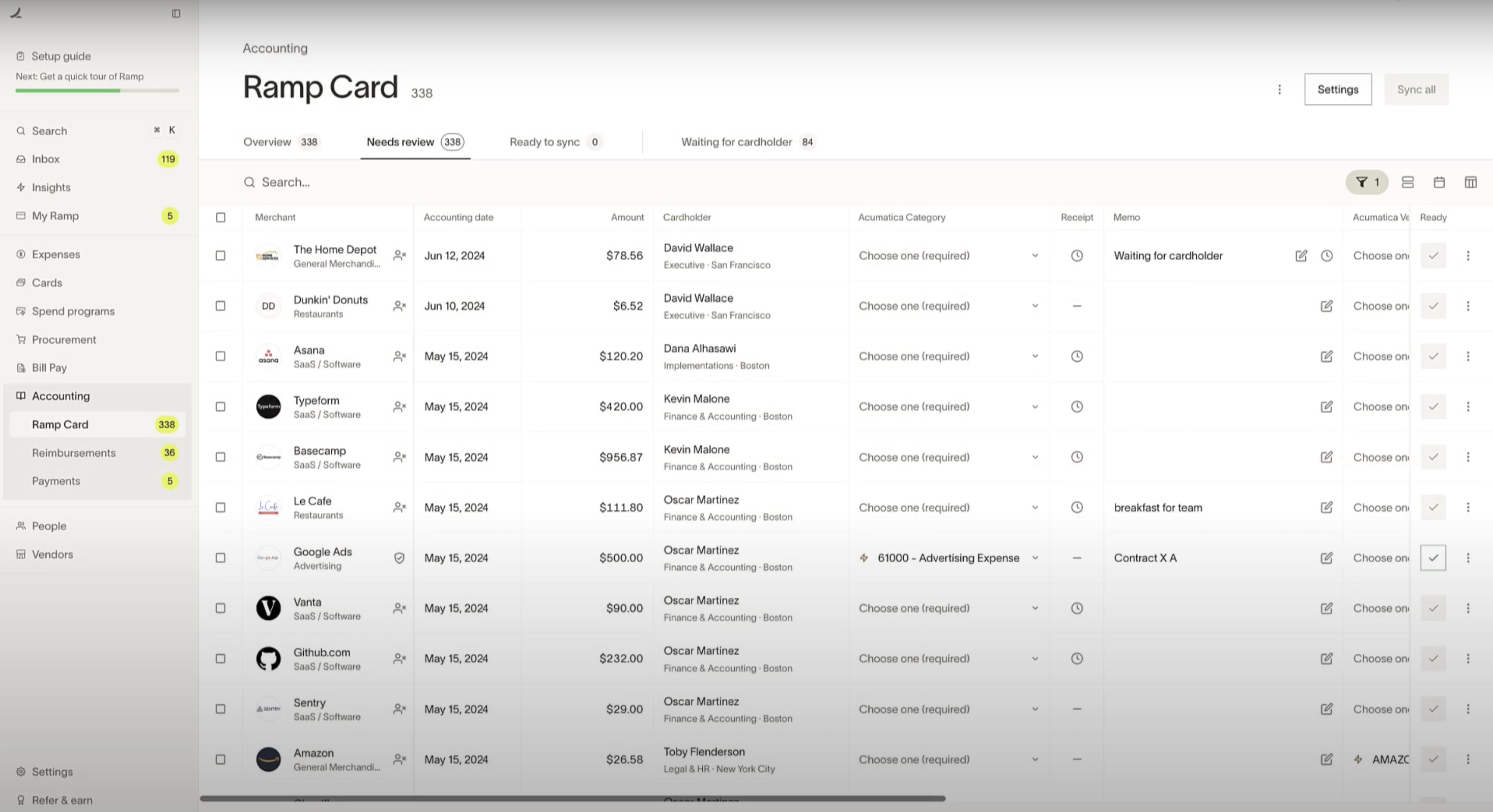
Here's how the Acumatica Accounting page appears on Ramp. For detailed information about settings, rules, and additional automations provided by Ramp, please refer to the linkedarticle.
Setup
Please follow these instructions to linkAcumatica to Ramp.
How will transactions appear in Acumatica?
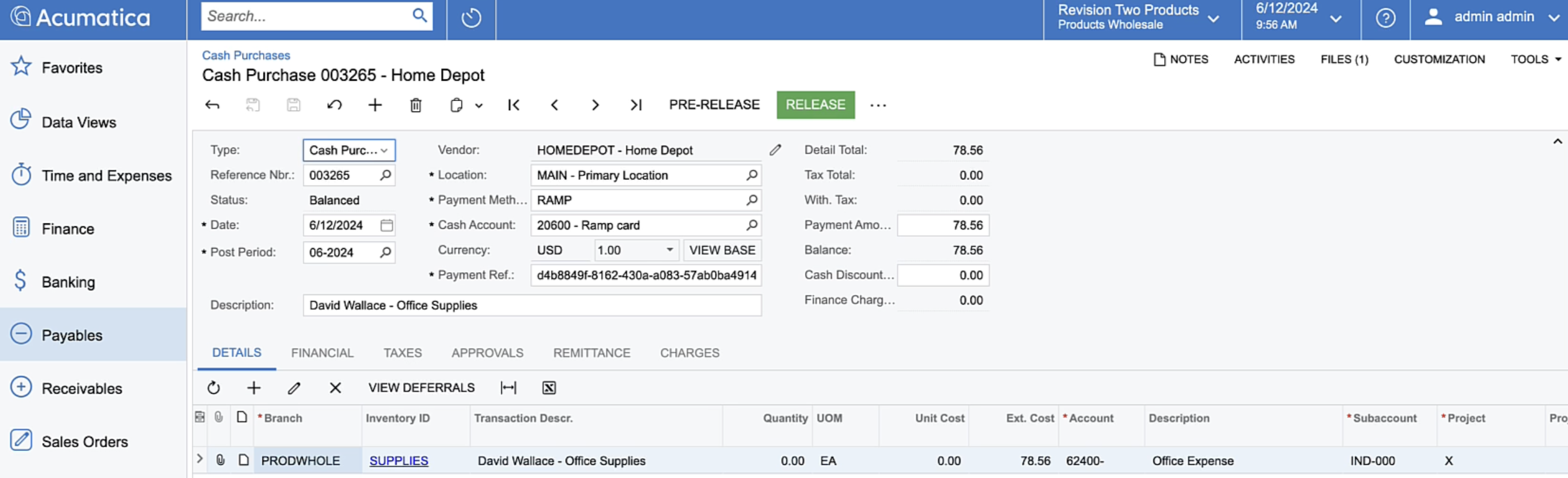
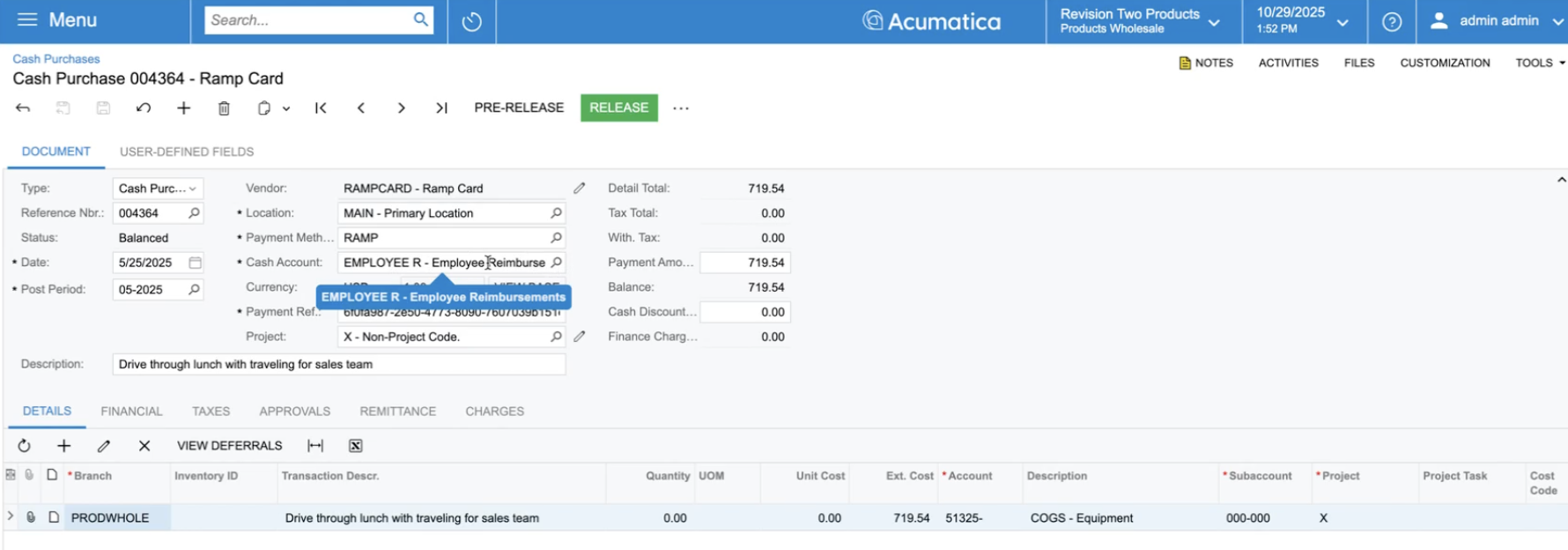
Ramp card transactions show up as cash purchases. We will automatically fill all fields on the cash purchase form linked to the credit card transaction coded within Ramp.
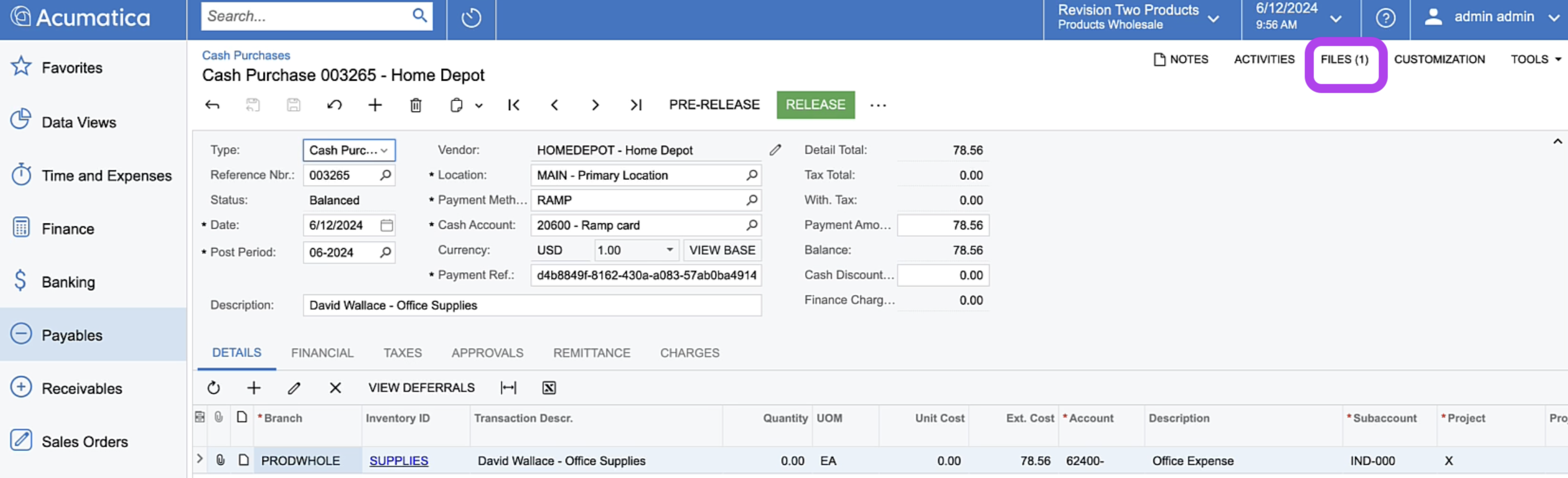
Additionally, if a receipt is attached to a transaction, then Ramp will sync this over in files.
How will reimbursements appear in Acumatica?
Ramp syncs reimbursement transactions to Acumatica in two stages: first as a liability using a payable account, and then as a payment. Here’s how it works:
Configure your sync settings
Before syncing reimbursements, you must configure your Acumatica sync settings in Ramp.
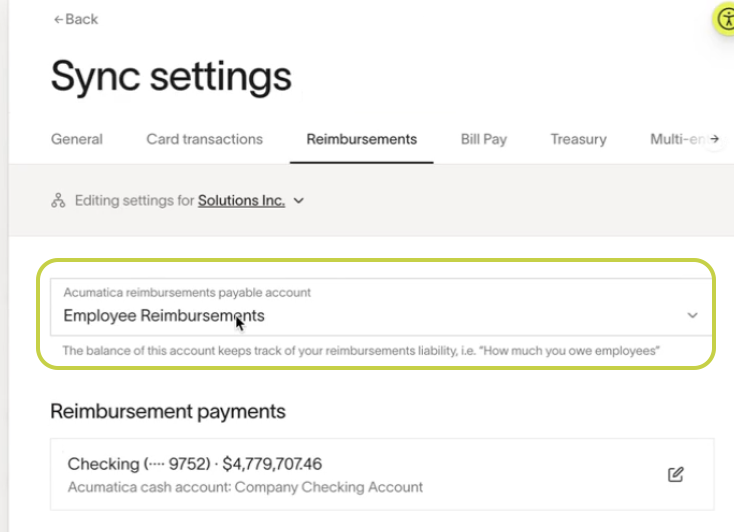
- In Ramp, go to Accounting Settings > Sync Settings
- Under Reimbursements, select a Payable Account
- This account will act as the intermediary for syncing both the reimbursement liability and payment
- For example, you might select an account called “Employee Reimbursements”
Sync reimbursement transactions
Reimbursement sync options
Ramp lets you sync reimbursements either individually or in batches.
By default, reimbursements sync individually.
To sync reimbursements in batches, update your settings:
Step 1: Go to Accounting
Step 2: Select Settings
Step 3: Open Sync Settings
Step 4: Choose Reimbursements
Step 5: Turn on Batch reimbursements based on payments
Sync reimbursements individually
Reimbursements that sync individually are recorded as a single cash purchase. The payment syncs separately as a funds transfer.
Sync reimbursements in batches
-
Each reimbursement is sent to Acumatica as a cash purchase.
-
The cash purchase is linked to the payable account you selected in sync settings
-
This step creates the liability in Acumatica, but does not yet include the payment
You can choose to sync reimbursements in batches or individually. If you sync only part of a batch, Ramp will wait to sync the payment until all related reimbursements are synced.
Sync the payment
Once all reimbursements in a batch are synced, Ramp will sync the payment to Acumatica.
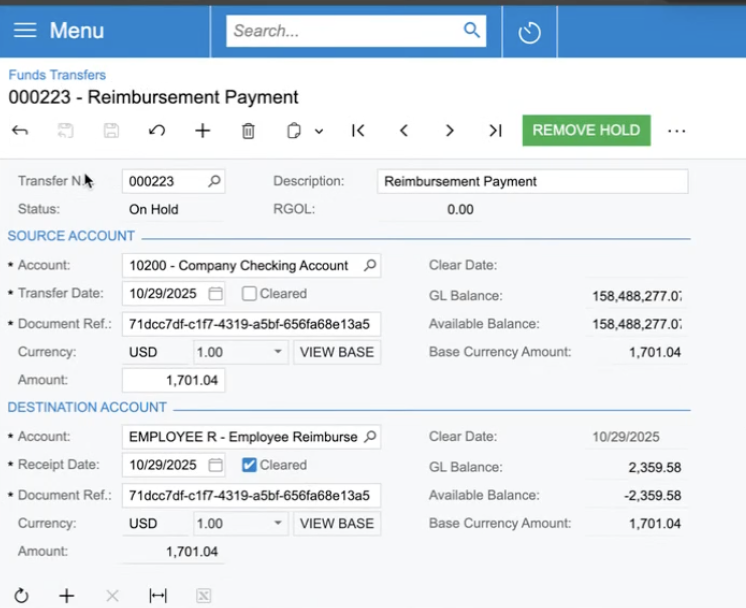
- In Acumatica, the payment appears as a funds transfer
- The source account is the checking account defined in your Ramp sync settings
- The destination account is the payable account you selected (e.g., “Employee Reimbursements”)
- The amount matches the total of all synced reimbursements in that batch
Example
If you reimburse three employees for a total of $1,701.04:
- Ramp creates three separate cash purchases in Acumatica
- A funds transfer is created in Acumatica for $1,701.04
- This transfer moves funds from your checking account to the “Employee Reimbursements” account
How will bills appear in Acumatica?
Ramp bills show up as bills. We will automatically fill all fields on the bill form linked to the bill coded within Ramp.
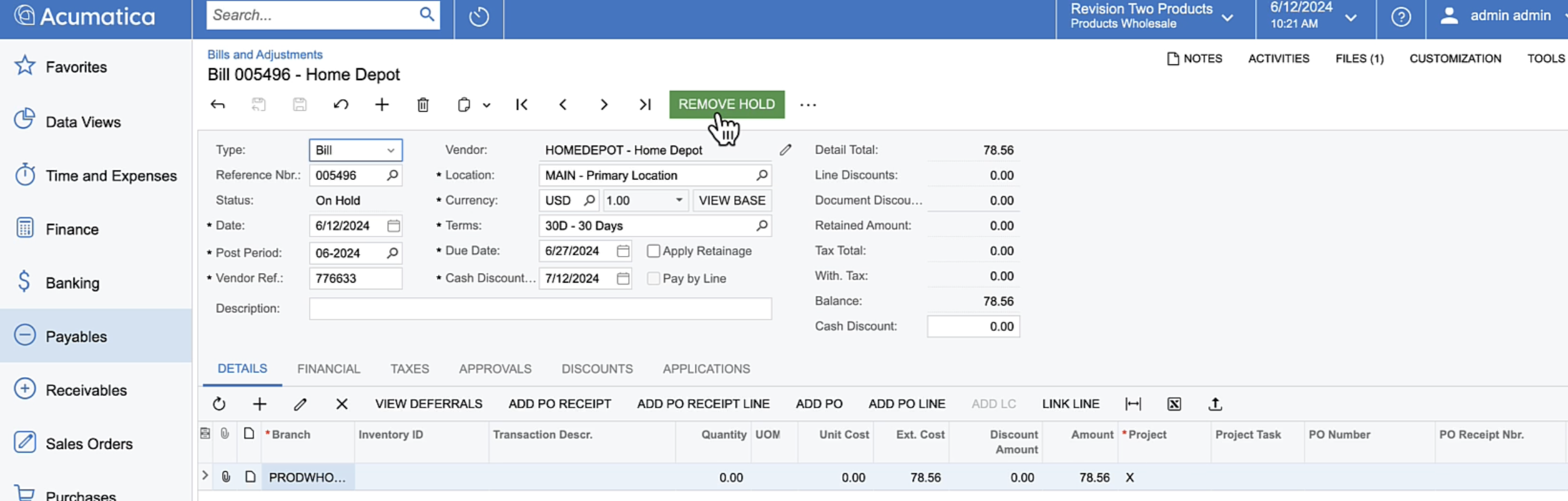
Note: Ramp cannot sync the bill payment to a bill until the bill is released.
Bill Lifecycle in Acumatica with Ramp:
- Ramp creates the bill
- Depending on your AP Preferences:
- If Hold Documents on Entry is enabled → bills come in On Hold.
- If disabled → bills come in the Balanced status.
- Neither state allows payment application yet!
- Releasing bills
- You (or an automated workflow) must Release the bill to proceed
- This changes the status to Open, meaning the liability is posted to the GL and ready for payment.
- Ramp syncs the payment record
- When Ramp drafts the funds, it sends a Bill Payment object to Acumatica.
- The payment document will also be created in a Balanced state.
- Releasing payments
- Just like bills, payments must also be Released before they close the corresponding bill.
Once released, the bill’s status moves from Open → Closed.
Pro tip:
Use Release AP Documents to bulk-release bills and Release Payments to mass-release payments.
How will statement payments appear in Acumatica?
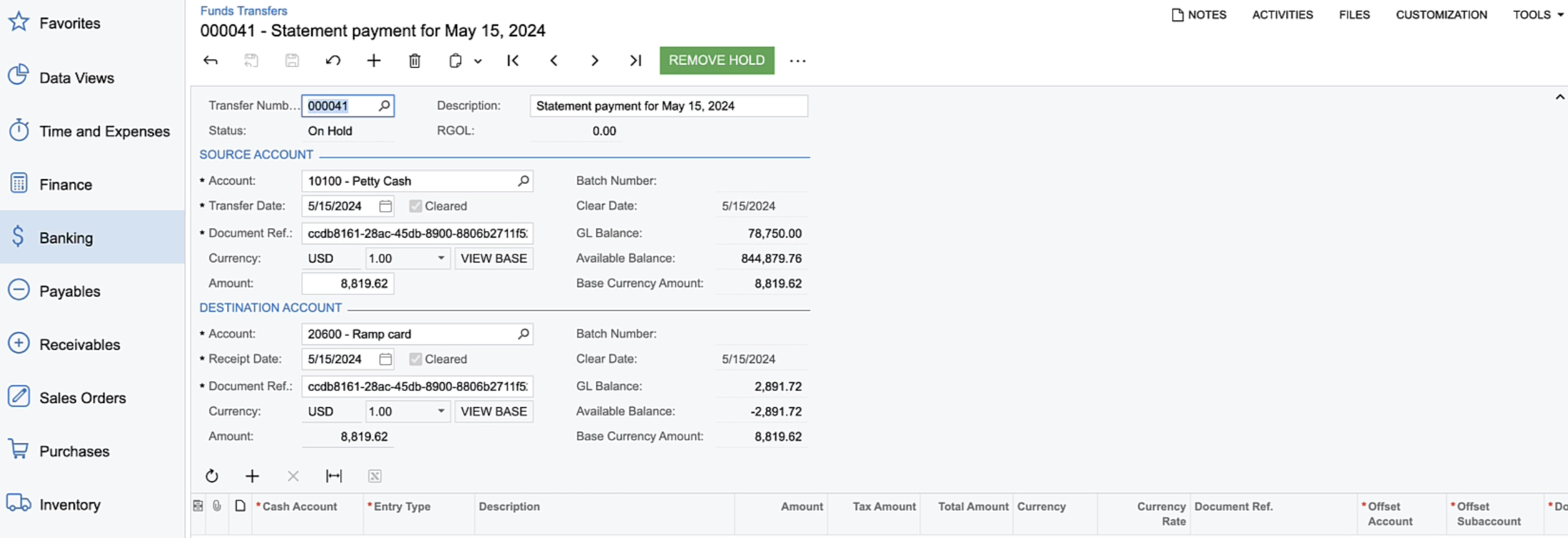
Ramp statement payments will show up as a fund transfer.
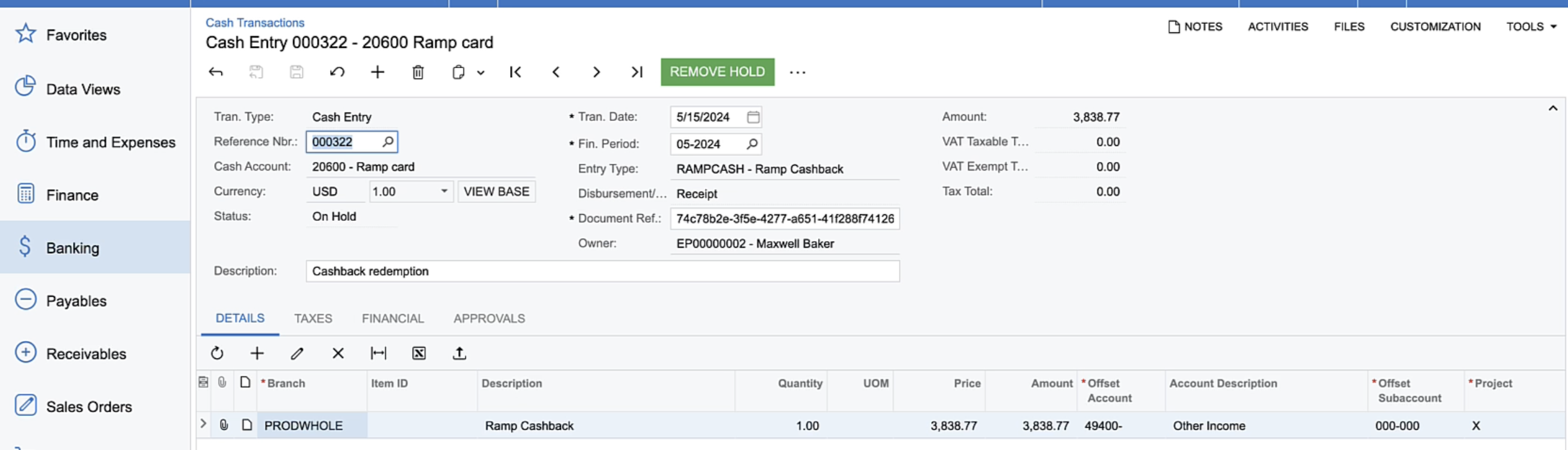
How will cashback redemption appear in Acumatica?
Ramp cashback redemption will show up as a cash transaction.
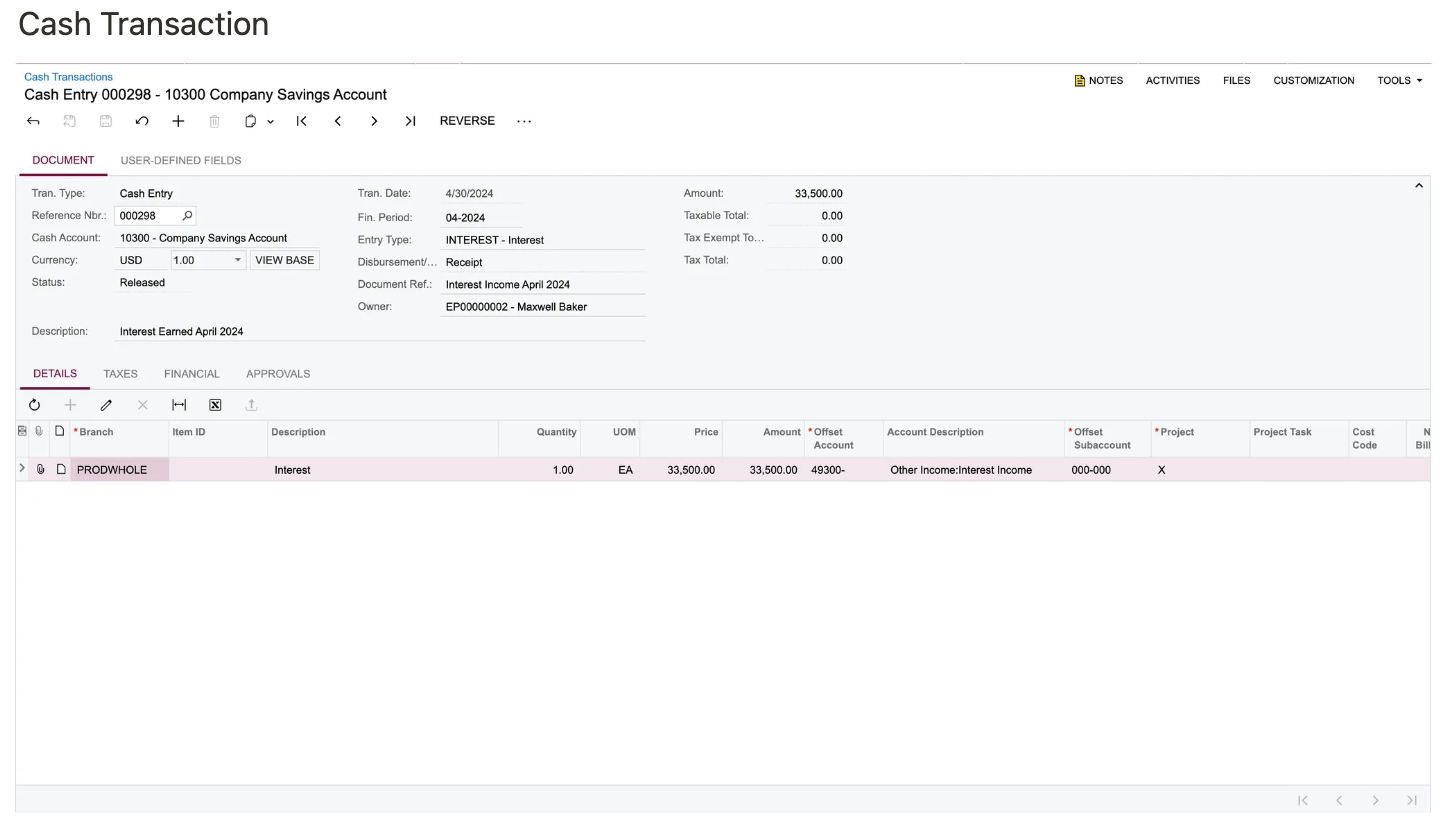
Ramp Checking Account transfers
We sync Ramp Checking Account brokerage orders and accrued yield as a Cash Transaction. We sync Ramp Checking Account all other wallet transfers as fund transfers.
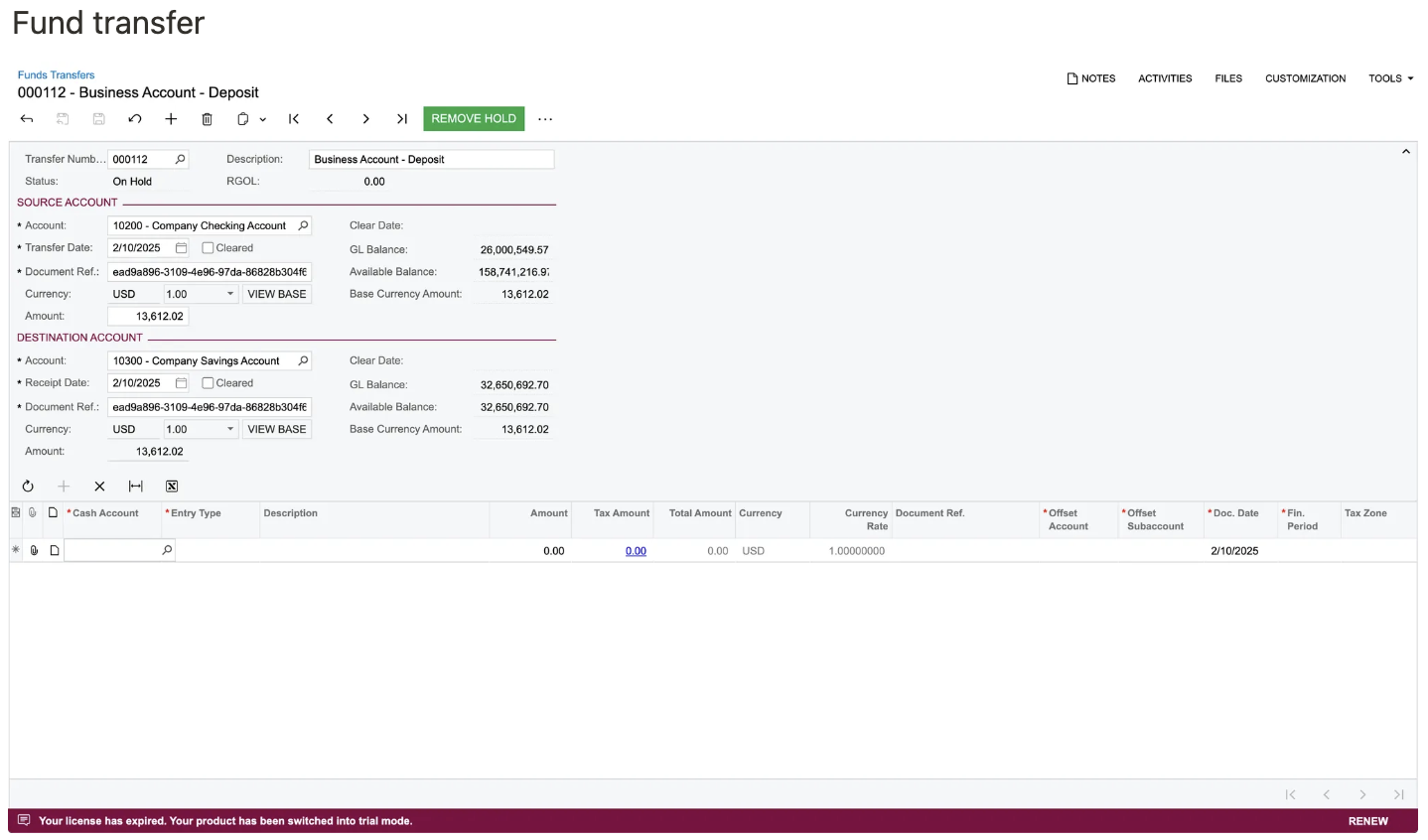
Accounting logic
- Deposits:
- Debit Ramp Checking Account
- Credit opposing account
- Withdraws:
- Debit opposing account
- Credit Ramp Checking Account
Ramp Checking Account bank feeds
Please follow the instructions in thisHelp Center articlefor setup.
How is multi-entity supported?
Ramp supports multi-entity setups in Acumatica, but the process varies depending on how your legal entities are represented in Acumatica. Follow the guidelines below based on your setup:
Note: Acumatica "Tenants" is not a supported way to represent entities and will required unified sign-in.
- Legal Entities Represented by Branches:
- If your legal entities are represented by branches in Acumatica, you can link each Ramp entity to the corresponding Acumatica branch.
- This setup allows you to manage multiple business entities within a single Ramp instance.
- Legal Entities Represented by Companies with Branches Enabled:
- If your legal entities are represented by companies in Acumatica, but branches are enabled, you will link each Ramp entity to the Acumatica branch where you want liability to accrue.
- For expense management, the branch associated with the expense side of the transaction can be customized on a per-transaction line item or per-bill line item basis.
- Legal Entities Represented by Companies with Branches Disabled:
- If branches are disabled in Acumatica, and your legal entities are represented by companies , you will see the Acumatica companies as subsidiary options in Ramp.
- In this case, you can directly select the company that corresponds to each legal entity when setting up Ramp.
Please reference Ramp support for multi-entity for more details.
User-defined fields
Ramp can sync user-defined fields from Acumatica, allowing your team to code transactions, reimbursements, and bills with custom attributes that sync back to your ERP. To appear in Ramp, a user-defined field must meet the following requirements.
Entity attachment
The user-defined field must be added to the correct document type in Acumatica under Customization > Manage User-Defined Fields:
- To use the field on card transactions and reimbursements, add the user-defined field to Cash Purchase (AP303000) .
- To use the field on bills, add the user-defined field to Bill (AP301000) .
- To use the field on all three, add the user-defined field to both entity types.
Supported control types
| Control type | Behavior in Ramp |
|---|---|
| Combo Box | Appears as a single-select dropdown with predefined values |
| Text | Appears as a free-form text field |
| Checkbox | Appears as a true/false toggle |
Other control types (such as Datetime or Multi Select Combo) are not currently supported.
Document-level only
Ramp supports user-defined fields at the document header level only. Line-item (detail) level user-defined fields are not currently supported.
Publishing and enabling
After adding or modifying a user-defined field in Acumatica, publish your customization project for the field to appear in the Acumatica API. Once published, trigger an accounting field refresh in Ramp to discover the new field. Newly discovered user-defined fields are hidden by default. After the refresh completes, go to Accounting > Settings > Accounting fields and click Enable in Ramp next to the field to make it available for coding.
Custom fields created outside of Manage User-Defined Fields are not supported.
Frequently asked questions
What status will a transaction from Ramp have when it is synced to Acumatica?
Transactions synced from Ramp start in the 'Balanced' state, which is one state advanced from the 'Hold' state. At this point, they can be moved to the pre-release state or they can be directly released manually or via a batch process from within Acumatica on the Release Payments screen: go to payables -> release payments -> select the Ramp payment method & Ramp card account in cash account, select transactions, and then click process all in the menu.
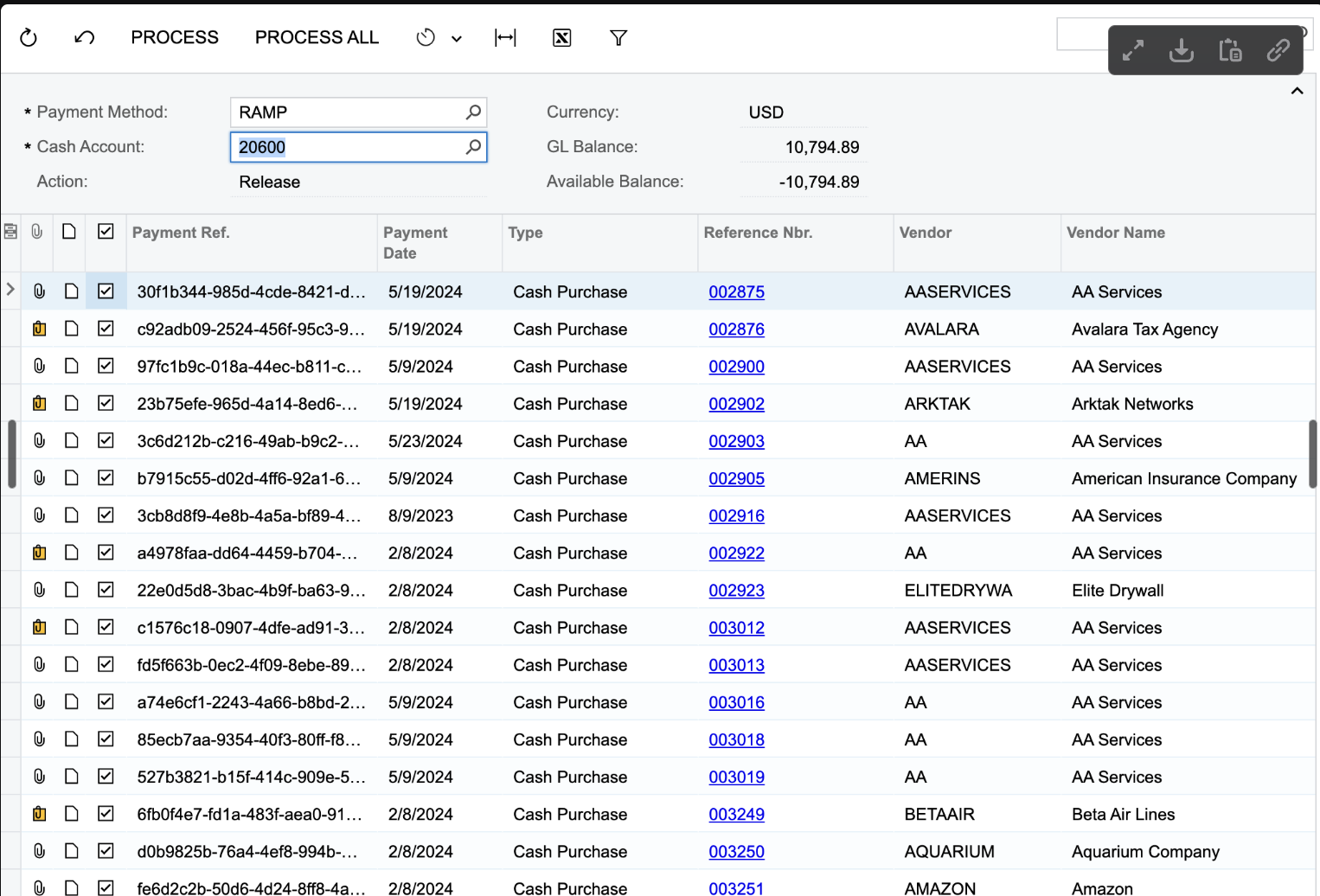
For credit card, reimbursement, and bill transactions, Ramp will sync these in the 'Balanced' state. For statement payments and cashback, Ramp will sync these in the 'hold' state.
Why does Ramp sync using cash purchases for transactions?
Ramp syncs transactions as cash purchases for several reasons:
Acumatica Demo Data: The Acumatica demo data recorded credit card transactions as cash purchases.
Acumatica Documentation: According to Acumatica's documentation, cash purchases are the correct way to record vendor purchases that do not create a liability to the vendor. This is why they are termed "cash" purchases.
Consultant Recommendations: Our Acumatica consultants have advised that recording Ramp transactions as cash purchases is the most technically accurate method.
Does the Ramp & Acumatica integration support Procurement?
There's no immediate plan to support procurement. Please reach out to your Account Manager to provide feedback.
How does Ramp treat hidden Acumatica projects?
If a project is hidden in Acumatica, then it will not populate in Ramp. In other words, Ramp only displays Acumatica projects with the "active" status.
Why am I prompted to re-enter my Acumatica credentials every 30 days?
In Acumatica 2023R1, Ramp cannot grant indefinite access to the Acumatica environment. Because of this, the user who connects Acumatica to Ramp will need to re-enter their Acumatica credentials every 30 days in the Accounting tab.
After updating to Acumatica 2023R2, Ramp is granted indefinite access to the Acumatica environment, and this step is no longer required.
Why do refunds sync as Cash Transactions instead of Cash Purchases in Acumatica?
In Acumatica 2023R1 and 2023R2, creating refunds as Cash Purchases is not supported. As a result, when a refund is synced to Ramp using either of these versions, it will appear as a Cash Transaction instead of a Cash Purchase.
After updating to Acumatica 2024R1, refunds will sync as Cash Purchases with the Cash Return document type.
Why does the Project Task dropdown sometimes only show the project without an associated task?
If a project in Acumatica doesn't have any specific tasks (meaning it only has a default task), it will appear in the Project Task dropdown as just the project name without an associated task. This is due to technical and product design reasons, which is why the project and task are not split into two separate fields.
How do projects with tasks appear in the Project Task dropdown?
For projects that do have tasks, the Project Task dropdown will display them in the format "Project Name - Task Name." For example:
- "Project 1 - Task 1"
- "Project 1 - Task 2"
- "Project 2 - Task 1"
- "Project 2 - Task 2"
What is the "Payment Ref" number, and why is it so long?
The "Payment Ref" number is an internal Ramp ID for the transaction. This unique identifier is used internally by the integration to ensure accurate data is recorded in the ERP system. Due to its importance in maintaining data integrity, the number cannot be shortened.
Does Ramp support bill payment syncs when Pay-by-Line is enabled?
No. At this time, Ramp does not support automated bill payment syncs for Acumatica accounts that have Pay-by-Line enabled. Supporting this workflow would require a significant custom build that is not currently available.
Will upgrading Acumatica to a new version require re-integration with Ramp?