Vendor documents
Ramp allows you to easily upload and store key documents relevant to your vendor within a vendor profile. Documents can range from contracts to W9s, security questionnaires, and more.
Ramp also offers the ability to parse uploaded vendor contracts and pull important contract details like contract amount and contract start/end dates.
Vendor documents
Open a vendor profile, select Documents, then select Upload. Document types include Vendor contract, W-9, Questionnaire, SOC 2, Privacy policy, Certificate of insurance, and more.
After uploading a document, you can change its type from the document type menu. You can also request documents directly from vendors.
Vendors who are prompted to create a Vendor Portal account must complete setup before submitting details. See Vendor Portal access.
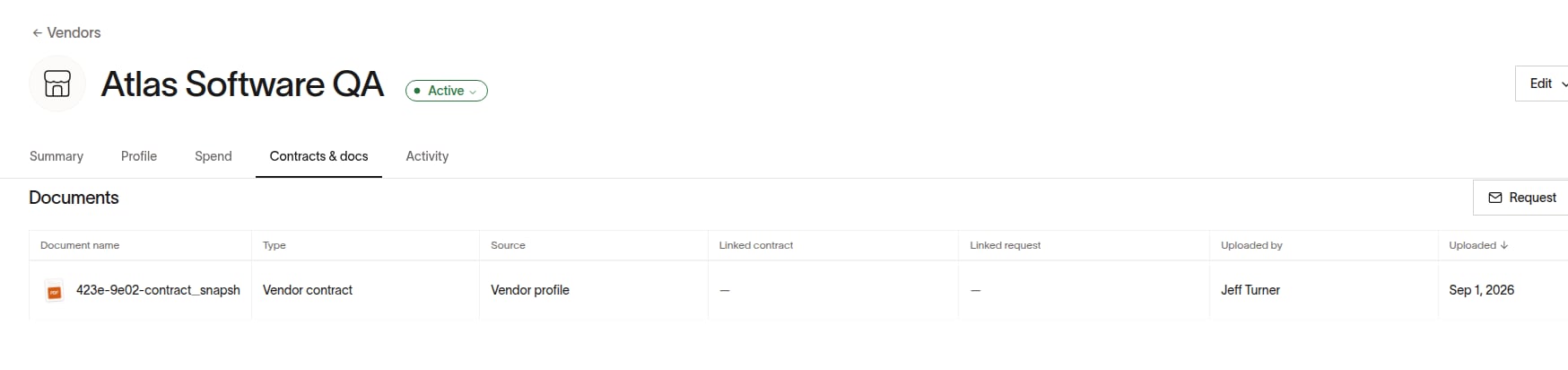
*Note -*At this time, documents like W9's can only be uploaded for your vendors, not your business. If relevant, you can manage your business's EIN in Company > Entities > Edit, and add your company's tax address in the 1099 filing flow.
Bulk upload documents
Note: Owners, Admins, Finance Admins, and Accounts Payable users can bulk upload documents for multiple vendors.
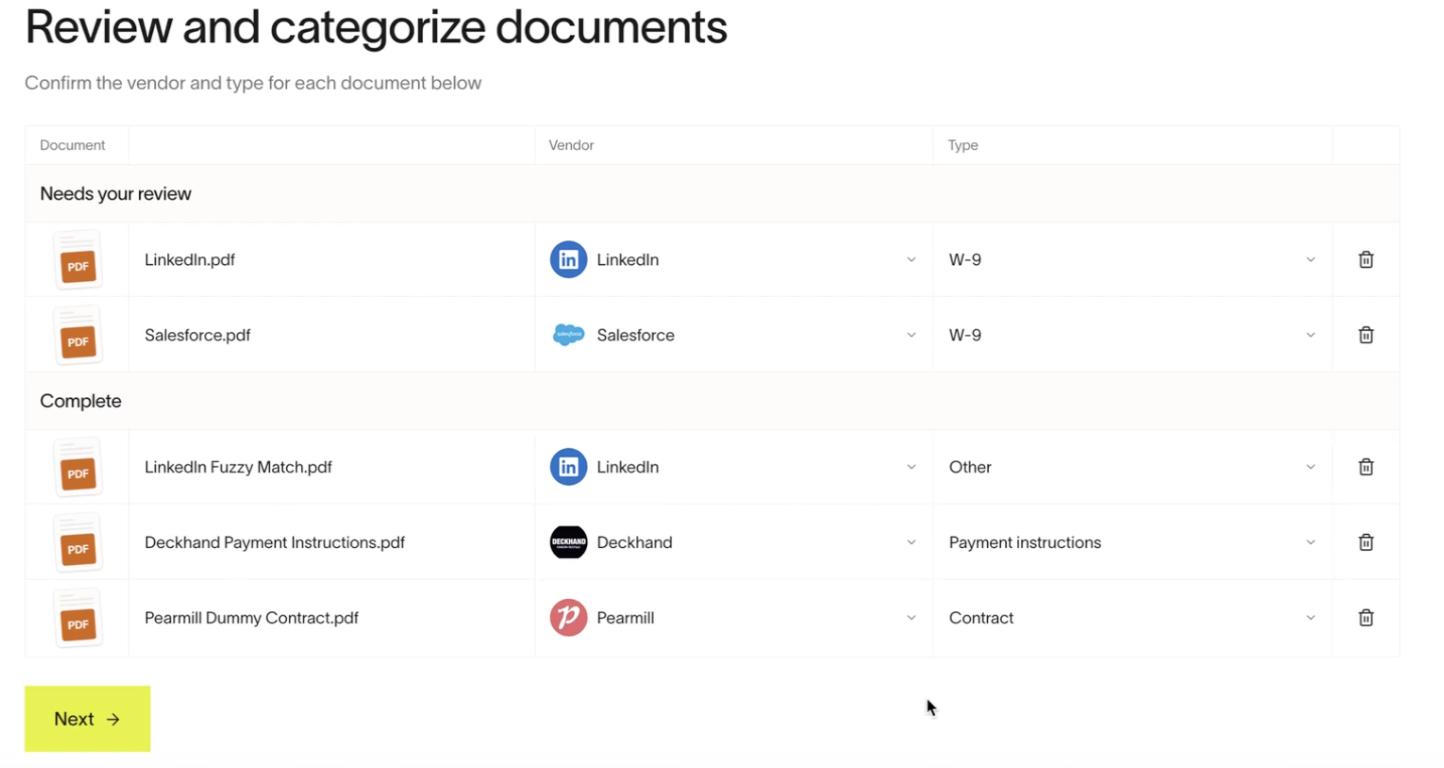
From Vendors, open the vendor menu and select Upload documents. You can upload up to 1,000 documents at a time. Ramp uses each document's contents and file name to categorize its type and match it to a vendor when possible.
After processing finishes, select Review documents from Vendors. Select each document to confirm or edit its Vendor and Type, then select Save or Delete.
Bulk upload tax documents
When you upload W-9 or W-8 documents, Ramp extracts details such as federal tax classification, TIN, legal name, country, and address. Review and edit these fields in the Tax details section of Review documents.
- Select Save to apply the tax details to the vendor profile. If vendor approvals are required, saving submits the details for approval instead.
- Select Delete to discard the uploaded document without applying its extracted tax details.
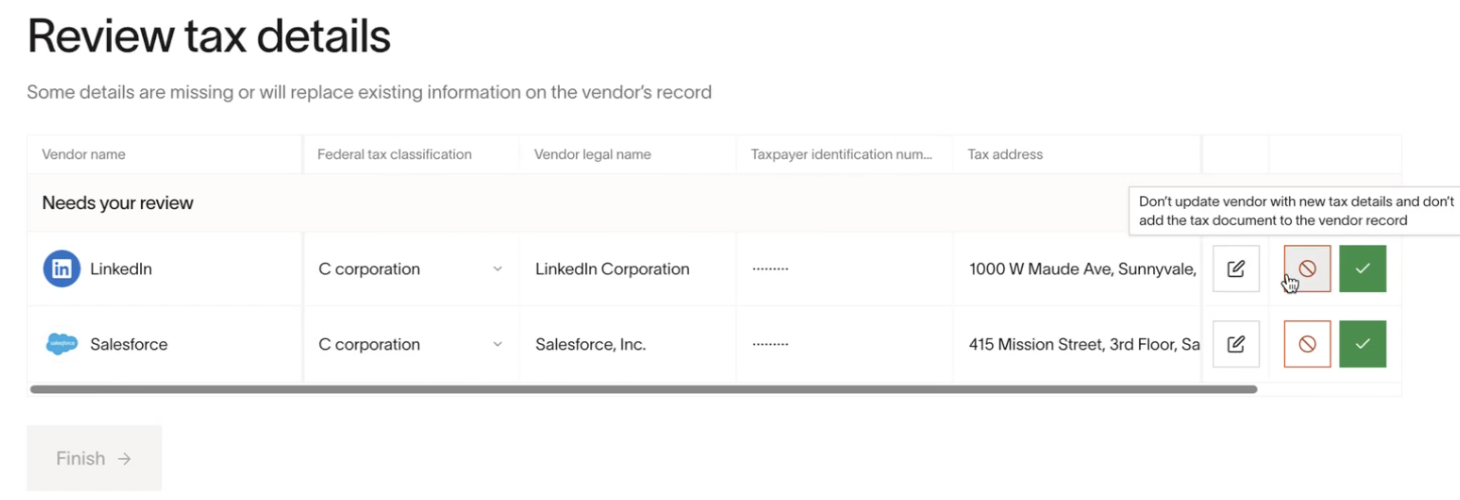
You can leave after upload and return to Vendors > Review documents. Uploaded items remain in the review queue, and field changes are saved as you make them.
After saving a document, select View to open the vendor profile.
Bulk download documents
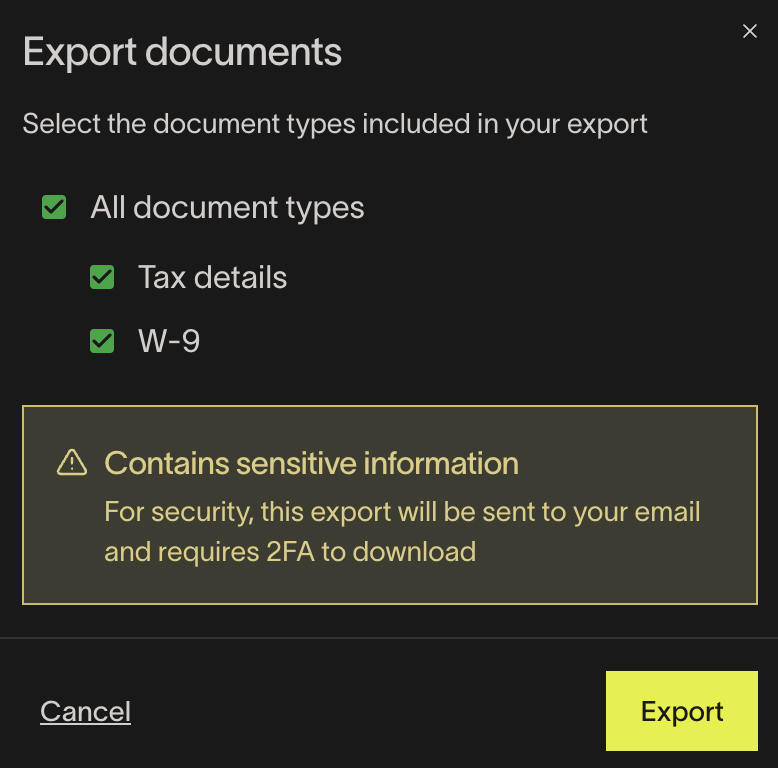
From Vendors, select vendors from the table, then select Export > Export documents.
- You can select which document types to include in the export.
- If you export sensitive documents like tax information, you will be required to enter an MFA code you receive in your email.
- You will receive a secure link via email to download your exported documents.
Contract parsing
Available on Ramp Plus. See Ramp Plus overview for plan details.
To add one contract, open Upload contract. Ramp can extract the Contract amount, Contract start date, Contract end date, and whether the contract includes a clause to auto-renew for you to review. To add multiple contracts, see Bulk upload contract documents.
Contract reminders
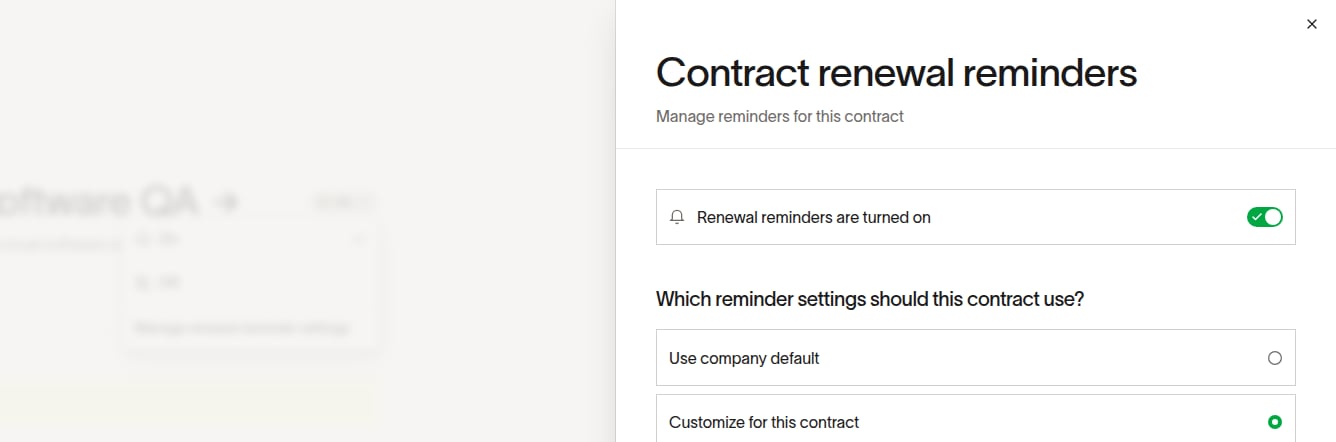
By default, company settings include reminders 30 and 60 days before each configured contract event. Contract owners always receive renewal reminders, and you can add other recipients. Each reminder uses its selected event: Contract ends or renews or Last date to action.
Ramp sends a reminder only when the date for its selected event is present. See Contracts & renewals to manage company and contract reminder settings.
After reviewing all the entered contract data, you can save the information and view a summary of the key contract details and a visual timeline of contract dates.
Saved vendor documents are accessible from the vendor profile when your role can view them. Uploaded contracts with both a start date and an end date display a visual timeline.