Connect with your Accounting firm
Overview
If you're a Ramp customer and you want to get your Accounting firm connected to your account, you'll just need to send them a connection request. You'll need an Owner, Admin, or IT Admin role to do this.
There are two ways to send a connection request:
Invite from the External firms tab
- Go to Company > People and open the External firms tab.
- If you haven't connected a firm yet, you'll see two options:
- Invite accounting firm — click this to send a connection request to your firm.
- Find a Ramp advisor — click this if you don't have a firm yet and want to browse Ramp's accountant directory.
Invite from the People invite menu
- Go to Company > People.
- Click Invite in the upper-right corner. (If your business has the newer invite experience, this button is labeled Add people.)
- Select Add accounting firm.
Both ways land you in the same drawer, "Invite an accounting firm". From there:
- Enter your accountant's email address (note that this will need to be associated with a work domain. Domains like "Gmail" or "Yahoo" won't be accepted)
- Select the Allowed Roles you want your firm to have. Available roles depend on your enabled Ramp products. See Advisor Console roles and permissions for role details. Then click Send invite.
- The Accounting Firm Admin will then assign external users to work on your account based on the roles you select.
- For example, if you select only Accounts Payable, the Firm Admin can assign staff only to Accounts Payable. If you select multiple roles, the Firm Admin can assign staff to any selected role, depending on the work needed.
- Given this, make sure that you're comfortable granting access for the roles selected and that you trust your Accounting Firm to assign users the level of access that fits your needs.
Note that we forward all invites to Admins within the Accounting Firm in charge of their firm's Ramp accounts. It's possible that the individual specified in the email address field will not be the person actioning on the request.This is done on purpose in order to enable Accounting Firm Admins to have full control over their staff's access to their clients on Ramp.
Once the Firm accepts your invitation, they'll have access to your Ramp account and can assign the relevant external users to your account.
Checking and changing your accounting firm's access to your account
If you need your accountant to have a different access level than they currently have (e.g., you want them to have AP Access), follow these steps:
-
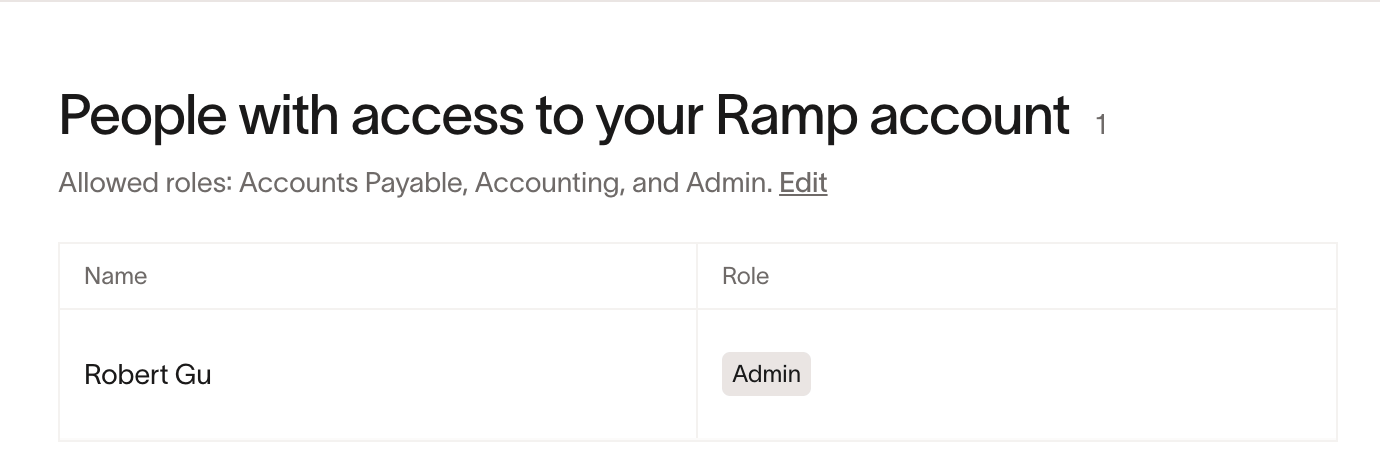
Go to your External firms tab to ensure that you've enabled that role in the Accounting Firm connection.
-
When you click into your firm, you'll see the roles they have access to listed in the pull-out drawer.
-
If you don't see the access you need listed here, you'll need to edit your Authorization with the Accounting Firm by clicking the grey Edit text.
-
Select the role(s) you need
-
Click Save changes
-
Once you've confirmed the role is enabled within the permission set, then you should tell that accountant to request the role change from the Accounting Firm Admin(s). Only Accounting Firm admins can edit the roles of staff within their clients' Ramp instances.
Revoking access
To revoke access to an Accounting Firm, go to your External firms tab, click into the firm, and then click the red Remove firm from Advisor Console button
Viewing your accounting firm's access to your account
To see the staff assigned by the Accounting Firm to your business, click Company > Peoplein the sidebar. Any users with access via the Advisor Console will be flagged with an "external" label.
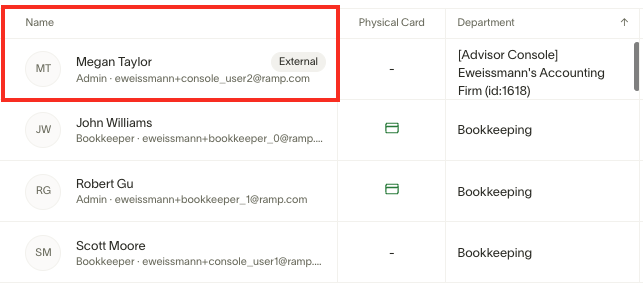
To see a list of all of the Accounting Firms that you have given access to your account, sign in to Ramp and then go to your External firms tab.
What are the key differences for accounting firm users?
External users who have access to your Ramp account via the Accounting Firm connection behave a bit differently than internal employees on Ramp.
Unlike internal employees:
- You cannot assign managers to external users, nor can you make them managers of internal employees.
- As covered above, you cannot directly edit an external user's role. Only their Admins within the Accounting Firm can edit their role/access to your account.
- You cannot currently edit their associated department or location.
However, as with internal employees, you can:
- Issue them virtual cards
- Set them as Assistants
- Lock their accounts
- Revoke their access to your account
Frequently asked questions
I don't see the External firms tab. Where is it?
The External firms tab is on the People page. Access is controlled by the permission to manage external firms, which Owners and Admins have by default and which can also be granted to Custom Roles. If you don't see the tab, ask an Owner or Admin to check your role or grant your role that permission.
I'm trying to invite my Accounting Firm or accountant and getting an error message: why?
You'll get an error message for one of three reasons:
- Your Accounting Firm is already connected to your Ramp account.
- You can view which Accounting Firms are connected in the External firms tab.
- Your Accounting Firm is already connected to your Ramp account, and you're trying to invite in a specific accountant from that firm
- If you already have your Accounting Firm connected, then a Console Admin from that firm will need to assign their accountants access to your Ramp account. If you need help granting your accountant access, you should let your accountant know they need to reach out to their Firm Admins.
- You're trying to invite the Accounting Firm under a domain that matches your own.
- If you try to invite an accountant using an email address that ends in the same domain that yours does, you'll get an error.
- The Advisor Console does not currently support adding new external users with the Accounting role who share the same domain as your business. To work with your accountant via the Accounting Firms functionality, please request an email address of an individual at the Accounting Firm with their domain and then invite that email address. If your Accounting Firm does not have another email domain, you can invite them as an internal Accounting role.
I invited my accountant, but they still don't have access to my account. How do I fix this?
We resolve customer invites directly to the Accounting Firm's Advisor Console based on a domain match with the email invited in. If the accountant isn't on their Console, but their Accounting Firm is, then we send out a few emails:
- We email the Advisor Console Admins about the connection request from you (the client)
- We email the Advisor Console Admins that they should invite the accountant into their Advisor Console
- We email the accountant that they should ask their firm Admins to get added to their Advisor Console
Ultimately, the Console Admins will need to invite their staff into the Advisor Console and grant them access to your account.
Please note: If you want your Accounting Firm to help set up Bill Pay or manage payment accounts, they will need Admin access.